Your WooCommerce store is growing, customers are buying, and things look good.
But there’s a hidden worry: WordPress security. Did you know 29% of visits to your site could be harmful? That’s a huge risk.
Hackers often strike small sites first. Many stores fall victim because they skip simple steps. Without active security, your site could suffer data theft or loss.
But you can resolve this easily.
Install a WordPress security plugin to secure your store, your customers, and your business.
Enjoy peace of mind knowing your store is protected.
Security plugins, built for WooCommerce like MalCare, protect your store 24/7. They prevent attacks, scan for malware every day, and make sure your customers’ data is safe from malicious eyes. Just as you would get a security system for a physical store; a security plugin is as necessary for your online store.
Start with a WooCommerce security plugin
Installing a WooCommerce-enabled security plugin will scan your website at regular intervals and alert you of any security threats. This is probably the most critical step you can take in order to secure your store.
A security plugin compatible with WooCommerce will allow you to frequently scan your store, clean it up within minutes, and proactively block brute force attacks and other threats.
But not all plugins have the same capabilities. We recommend MalCare because it combines the most important security features in a user-friendly interface. As soon as you install MalCare, it kicks into gear, protecting your site.
Essential WooCommerce security tools
Install a WooCommerce firewall
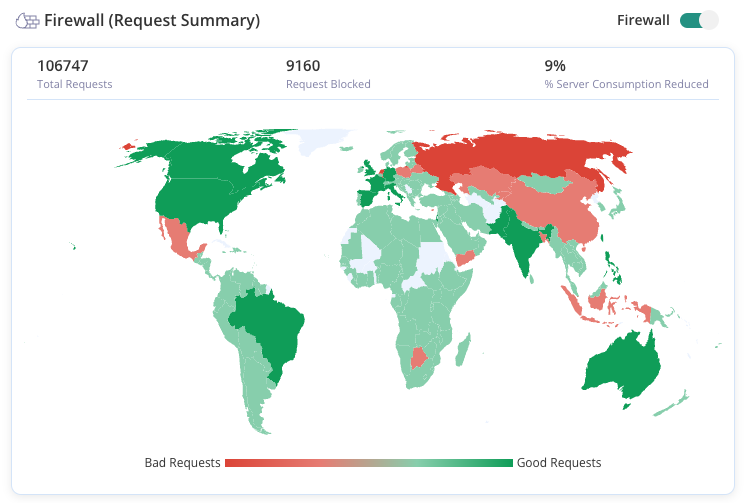
A WordPress firewall is critical for a WooCommerces store. It stops attacks before they hit your store. It’s a key step in your security plan.
Firewalls check incoming traffic. They compare each request to rules and only let safe ones through. Unsafe requests get blocked.
It is also important to have a firewall that learns on their own. If an IP was used in an attack before, it gets marked and blocked.
Getting the right firewall for your store
Choosing the right firewall for your store is important. Look for a firewall made specifically for WordPress. These protect sites by fortifying sensitive areas.
Additionally, a good firewall doesn’t need a lot of updates but should protect your store even if it has vulnerabilities already. MalCare’s Atomic Security is a custom-made WordPress firewall, protecting stores from the first moment of installation.
🔥 Note: Firewalls are critical for PCI-DSS compliance as well.
Run regular malware scans
Even with strong defences, malware can sneak in through leaked passwords or bad plugins. We’ll talk more about those later.
In these cases, you need a close watch on your store. This is where a malware scanner helps.

A good malware scanner can quickly spot hacks, like skimming attack malware common on WooCommerce sites. It looks through files, databases, and tasks on the site. Quick detection is very important.
A good malware scanner does more than spot vulnerabilities or track changes. It combines these tasks and pinpoints malware with great accuracy.
Remove malware promptly
If your scanner finds malware on your WooCommerce store, what do you do next?
Remove the malware, and remove it quickly and carefully!
Quick action is critical, as delays can harm your site and endanger visitors. Also, you want the malware gone without hurting your store. This can be tough and often expensive.
What you need is a malware removal plugin.
MalCare provides fast solutions. It offers unlimited expert support and a simple one-click removal tool. This way, you can remove threats without waiting, keeping your site clean and safe.
What to do after removing the malware
Once your store is hacked, assume your credentials are at risk. Refresh security keys and salts, which encrypt your login info. Also, reset all user passwords and clear caches.
Storefront and software protection
Use CAPTCHA
We often see card testing attacks on WooCommerce stores. This is when stolen credit cards are tested on store checkout pages for validity. The WooCommerce store in question is bombarded with fake orders and payment failures, through absolutely no fault of their own.
A WordPress firewall will stop this fraudulent activity, but initial transactions may get through. Install a CAPTCHA plugin to add friction to a payment page to trip bots up.
While we know that adding friction to a checkout page isn’t the best conversion strategy, it is however necessary from a security perspective.
The firewall and CAPTCHA combination will also short circuit CNP fraud attacks.
Install a fraud prevention plugin
WooCommerce fraud prevention means protecting your store from scammers and fake customers.
A firewall will block IPs that seem suspicious, but you can have an extra layer to block suspicious email addresses as well. It stops bad actors before they can place an order.
Check for vulnerabilities
On sites, vulnerabilities are gaps in code that hackers exploit. These include vulnerabilities like SQL injection and cross-site scripting. These gaps make your site open to attacks.
We’re not talking about weak passwords or not renaming the login page. Those are different issues or not vulnerabilities at all.
A good vulnerability scanner finds known issues in the site’s core, plugins, and themes. It checks against a list of plugins and themes known to have security problems.
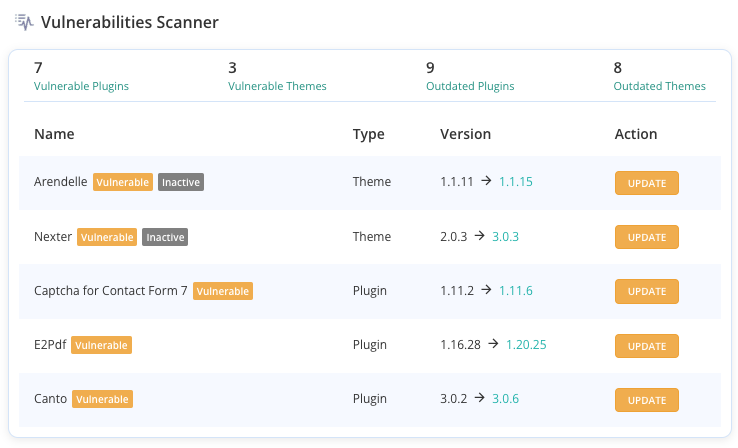
Remember, a scanner can’t find new vulnerabilities. That’s a separate job called penetration testing. So, using a vulnerability scanner is just one step in keeping your site secure, and it alone won’t fully protect you.
Install legitimate plugins and themes
Always pick trusted plugins and themes for your WooCommerce store.
Stay away from nulled plugins or themes. These are pirated versions of licensed software, and often have malware. Using them to save money is being penny-wise and pound-foolish.
A good rule of thumb is to choose plugins and themes that get regular updates. This shows the developers are keeping their software safe and reliable. Frequent updates are signs of good security practices.
Buying plugins often means you get regular updates and support. This can save your store from many issues. At MalCare, we use lessons from hacked sites to keep improving our WooCommerce security tools.
Update your store regularly
Make sure to update your WooCommerce core, themes, and plugins like clockwork. New vulnerabilities pop up often, and developers release patches to fix them.
If you aren’t using certain plugins or themes, remove them. You can always reinstall if needed. We’ve seen many stores hacked because people forgot to update inactive plugins.
📝 Leverage auto-updates to take the load off. Let smaller or security updates happen automatically, and focus on handling the larger updates yourself. This boosts your WooCommerce security effortlessly.
Account and login security
Set strong passwords
Never use simple passwords. Mix letters, numbers, and symbols to create tough passwords.
Password security is often disregarded because setting strong ones all the time is tiresome.
Yes, we know it is overwhelming with so many services used daily. But it’s still important.
To make it easier, try a password manager. A good one will help you create strong, automatic passwords with a built-in generator.
Brute force attacks can guess weak passwords, so a password manager becomes a key part of your WooCommerce security.
If many users manage your store, each should have a strong, regularly updated password. For small teams, this is easy to manage. With larger teams, software to automate this task is a smart choice. WordPress will raise an alarm if a user tries to set a weak password. Just as well.
Use unique passwords
You’ve set strong passwords, but now you need them across all your services. It seems like a lot to manage.
There’s a good reason to avoid reusing passwords, even strong ones. If one system, like a social media account, gets hacked, the problem stays contained.
But if your email-password combo is used elsewhere, that other system is compromised.
Using unique passwords helps contain the damage. You can’t always prevent a problem, but you can stop it from spreading further.
Set up 2FA on your store
Login security adds a boost to password protection for WooCommerce. While passwords help against mistakes, securing the login page protects against brute force attacks.
Two-factor authentication (2FA) requires users to enter their login details and then a real-time code as well. This adds an extra layer of security, making it tougher for hackers to break in.
Improve your login safety by using 2FA for all users. It’s simple to set up with many plugins, including MalCare.
Limit failed logins
Brute force attacks try many username and password combinations to break in. How can you stop this?
Normally, WooCommerce allows unlimited login tries. Limiting attempts enhances security, stopping hackers from trying thousands of combinations.
That’s why sites, especially banks, often allow only a few login attempts. After that, you must use ‘Forgot password’ or get locked out.
With MalCare, failed login attempts are limited automatically. It uses captcha security to halt bad bots. If a real user gets locked out, solving the captcha lets them try again.
Limit user privileges
Don’t give everyone all the privileges.
WooCommerce, like WordPress, has six user roles: Super Admin, Administrator, Editor, Author, Contributor, and Subscriber. Each role comes with its own permissions, called capabilities.
Assign roles carefully to limit access to what’s needed. This reduces damage if an account is hacked. Also, check for any unauthorized changes to user roles, as it might indicate malware.
Keep the number of administrators low. This reduces the risk of hackers getting admin access.
Sign out inactive users automatically
Use auto logout for inactive users. This reduces the risk of unauthorized access if someone forgets to log out, especially on shared computers.
Also, regularly remove dormant users. Inactive accounts have the same passwords for a long time, which is a liability.
Install an activity log
An activity log is a vital part of your WooCommerce security. It records all actions on your site, so you always know what users are doing. This helps you monitor activity and hold users accountable.
Hacks and malware installations often happen quietly. Usually, the only sign of them might be in your site’s activity log.
Regularly check the activity log for inconsistencies or suspicious activities. It can help trace key details if a hack occurs, like involved IP addresses and how it happened.
Data protection and server hardening
Install an SSL certificate
An SSL certificate is a certificate that verifies the identity and safety of a particular website. Securing your website with SSL allows you to make sure that any data you transmit is encrypted while in transit. Having an SSL certificate is vital for most websites, and is especially important for any website that requires users to input sensitive information like bank account details or passwords.

It is very easy to set up SSL on your website. Your hosting provider will often bundle it with your website, if you are using a reputable one. Alternatively, use Really Simple SSL to set it up in minutes.
Secure checkout transactions
For a WooCommerce site, once you get an SSL certificate, go to WooCommerce > Settings > Advanced. Here, you can enable ‘Force Secure Checkout’.
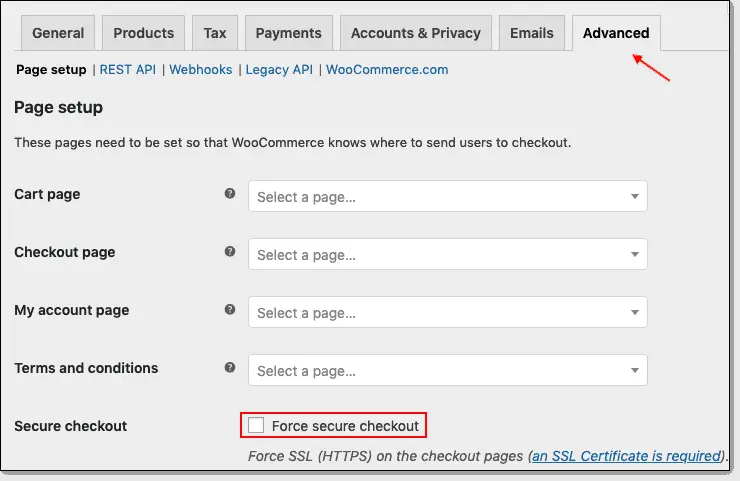
This will further protect your e-commerce site and make your transactions more secure.
Quite apart from the security aspect, Google has steadily pushed for websites to move towards HTTPS, so much so that it will now penalise websites that are secured with SSL. You will see a “Site not secure” warning in the SERPs if your website doesn’t have SSL installed. Needless to say, this will have an impact on your store.
Use SFTP instead of FTP
If you still use FTP to transfer files, switch to SFTP. SFTP uses SSH, which encrypts your data, keeping it safe during transfer. It also verifies both the user and server.
SFTP is now the standard, replacing FTP. The setup is similar, so there’s no reason to stick with the old method.
Use security headers
Security headers can really boost WooCommerce security. They protect your site by blocking threats, preventing data theft, and stopping break-ins.
Setting up security headers depends on your store’s needs. It’s best to customize them for your specific site.
Disable file editing
If a hacker accesses an admin account, it is curtains for your site.
Through the dashboard, they can change theme and plugin code using the “Editor.” They might upload scripts to alter content, damage your site, or send spam.
Disable file editing in key files with MalCare’s hardening features or manually via cPanel, FTP, or a file manager plugin.
If you use a file manager plugin, uninstall it after use. It’s unnecessary for regular tasks and is a security risk.
Block plugin installations
Someone may install a plugin on your WooCommerce site without thoroughly checking its compatibility or credibility. This can cause problems on your site, so it’s best to remove this ability.
(This is also why the right user role is important.)
The easiest way to control this is by using a plugin. MalCare lets you enable or disable this feature with just a click.
While it’s a strict measure, it’s necessary when multiple users manage your site or to stop clients from installing unwanted plugins.
Disable directory browsing
If your server can’t find an index file, it displays the directory’s contents. If hackers access this information, they can identify vulnerable files on your WooCommerce site, creating major security risks.
To prevent this, disable directory browsing.
Maintenance and final security checks
Back up WooCommerce
Most of these WooCommerce security tips are only preventative, and not precautionary.
Therefore, using a backup plugin may not be what you expect when looking to strengthen your website security. Although, think about it. If your website is down, you stand to lose not just time and new orders, but customer data, previously placed orders, and a significant amount of revenue.
This is why WooCommerce backups are important. In case of hacks or downtime, you still maintain a repository of sensitive customer information and minimize your losses.
Even if your website is secure from external threats, certain theme or plugin updates can cause your site to act erratically and result in downtime. When your site is broken, fixing it can take hours. But if you have proper backups, you can easily restore the last safe backup and get your site up and running in no time.
As WooCommerce websites get frequent orders and requests, a real-time WooCommerce backup solution is best suited for them. Additionally, these backups must be stored in an encrypted format so that if any data were to fall into the hands of hackers, it would still be unreadable to them.
Clean up unused site data
Removing old and unused themes and plugins on your WooCommerce store helps in two ways.
- First, it speeds it up , since too many files can cause bloat and slow down the server.
- Second, it ensures your site isn’t vulnerable to attacks through outdated themes and plugins.
Unused themes and plugins often get overlooked and not updated, leaving security gaps. So, make it a habit to check all themes and plugins monthly and remove those no longer needed.
Also, watch out for fake plugins. Malware can hide as plugin folders with only one or two files, not found in the WordPress repository, and with odd names like ‘azzz’ or ‘tiff.’
Change the default username “Admin”
One of the easiest and quickest ways to increase WooCommerce security is to change your username and password away from the default. You can do this by adding a new user, logging in as that user, and deleting your old account.
To change your WordPress admin name, go to User > Add New.
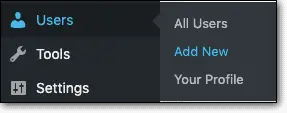
Enter all the necessary details and make sure to use a unique username.
Now, create a new account and select ‘Administrator’ from the available WordPress user roles.
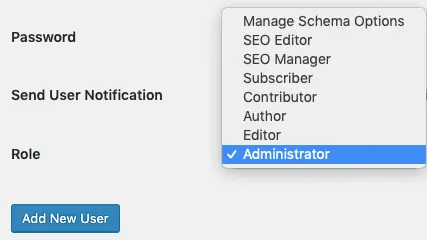
Once done, you need to log out of your wp-admin and sign back in with the new account. Now you can delete the previous ‘admin’ user account. Doing this will transfer all your previously created posts to the new account.
Alternatively, you can use plug-ins like Admin Renamer or Username Changer to replace your username.
What will not secure WooCommerce
There is plenty of very bad advice floating around the Internet for WooCommerce security. Here are a bunch of things that you definitely shouldn’t do, because they aren’t worth the effort:
- Change your database prefix
- Hide your login URL
- Password protect core files
- Remove WordPress version number
In terms of security enhancements, these measures barely move the needle. However, they can cause havoc with the user experience.
Is WooCommerce secure?
WooCommerce is built to offer a convenient and secure platform for e-commerce websites. While its core is secure, it doesn’t safeguard your site from broader security issues like outdated plugins, weak passwords, brute force attacks, or malware injections. In order to secure your WooCommerce website from these threats, you must thoroughly secure your website with additional measures.
Here are 15 security tips to keep your WooCommerce store safe. We have divided our security tips into categories to help you tick them off your to-dos easily, but the first one applies across categories.
Final thoughts
Now that stores are open 247, they need to be looked after 247 too. So any downtime can be disastrous, and the need for security is amplified by that much.
What more, an e-commerce business deals with sensitive and confidential company information. You cannot afford to let this information fall into the wrong hands.
But more importantly, your e-commerce website also deals with personally identifiable information (PII) which is customer-specific data. Fraud prevention becomes a critical part of this process, as safeguarding sensitive payment and identity details is essential to avoiding costly security breaches.If leaked, it is not just bad for the brand reputation but you could also face legal penalties, lawsuits, and high costs in recovering from the data breach.
The stakes are too high to have any lapses in protection. That’s why security for WooCommerce should be a top priority. Proactive and preventative measures are crucial for WooCommerce websites.
To deploy a complete security ecosystem on your WooCommerce site, install the MalCare security plugin, and rest assured that your website security is well taken care of.
FAQs
WooCommerce is a platform built for e-commerce sites. The platform provides a secure infrastructure for online businesses. However, there are various external factors to be considered when contemplating complete security. If you invest in a holistic security solution, WooCommerce can be a safe and secure experience for you.
Certain vulnerabilities within Woocommerce can be taken advantage of by hackers and attackers. WooCommerce comes out with frequent updates to stay on top of its vulnerabilities and with a robust firewall, you can keep out most of the pesky attackers and malware.
An SSL certificate will help you encrypt your site and secure your data to ensure that your website and store remain safe. It is highly recommended to get an SSL certificate for your WooCommerce website to strengthen its security.
There are several ways to secure your Woocommerce site that include choosing a strong password, updating your website, backing up your website, using a security plugin, and getting an SSL certificate.
While you can maintain the WooCommerce security without a security plugin, a plugin would make it a lot easier to do so. WordPress security plugins are developed by experts which can comb through tons of data in seconds and find malware and vulnerabilities that are time-sensitive. Additionally, plugins clean up your website safely and securely, while adding an extra layer of security through a firewall.