
Broken styling after an HTTPS switch is unnerving because visitors can reach the page, but the design has dropped away.
Menus lose spacing, fonts fall back, buttons look unfinished, and the browser may say a secure page requested an insecure stylesheet. With a WordPress not loading CSS over HTTPS issue, the CSS often exists.
WordPress is just sending the browser to an address it won’t accept.
Open DevTools, copy the failed CSS URL, and fix the source of that exact request. Most cases come down to old HTTP URLs, cache/minified CSS, theme or plugin references, CDN/firewall blocks, or anSSL certificate problem.
I wouldn’t begin with another SSL plugin or a copied config snippet. Those fixes have their place, but they can also leave you with more moving parts to unwind. The fastest fix is to find the failed request first. Once the browser shows you the blocked URL, the repair path gets much clearer.
Diagnose the HTTPS CSS failure
Open the broken page in Chrome, Edge, or Firefox. Right-click the page and choose Inspect. Then check:
- Console: Look for a message that says the HTTPS page requested an insecure stylesheet.
- Network: Reload the page, filter by CSS, and look for red, blocked, 404, 403, or certificate errors.
Copy the failed URL and open it in a new tab.
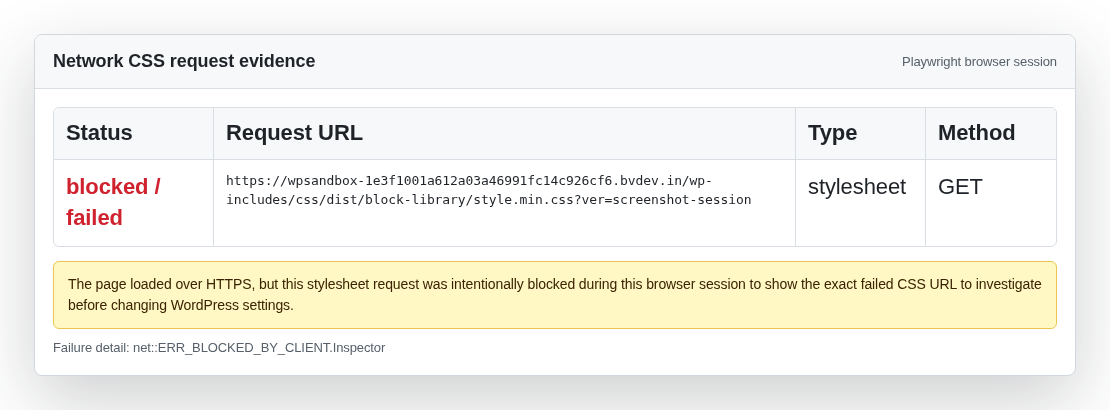
That one URL tells you where to spend your time:
| What you see | What it means | What to fix |
|---|---|---|
| Insecure stylesheet warning | WordPress is calling CSS over HTTP | Site URLs, stored URLs, theme/plugin code, or CDN URL |
| 404 | The CSS file path is wrong or the generated file is gone | Cache, minification, page-builder CSS, theme/plugin files |
| 403 or 1020 | The file exists, but access is blocked | Host rules, file permissions, CDN, firewall |
| Certificate warning | HTTPS itself is not trusted | SSL certificate, hostname, chain, CDN SSL mode |
| CSS loads but styles are crossed out | CSS is loading, but another rule wins | Theme/plugin conflict, not an HTTPS issue |
🔎 Note: Test the exact page that looks broken. Homepages, product pages, landing pages, and wp-admin can load different CSS files.
Fix WordPress URLs first
If DevTools shows an HTTP stylesheet from your own domain, check the basic WordPress settings before touching the database. Open Settings > General in wp-admin. Confirm both fields start with HTTPS:
- WordPress Address (URL)
- Site Address (URL)

Save only if you’re sure the domain is correct. A typo here can block dashboard access or send the site into redirects.
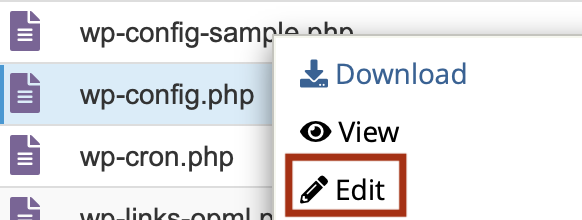
Some sites set these values in the WordPress config file instead of the dashboard. If the dashboard fields are greyed out or keep changing back, have someone check the config file for WP_HOME or WP_SITEURL.
🧭 Note: Check the same version of the domain you’re actually using in the browser. https://www.example.com and https://example.com can behave differently if only one version has the right WordPress URL, certificate, or CDN rule.
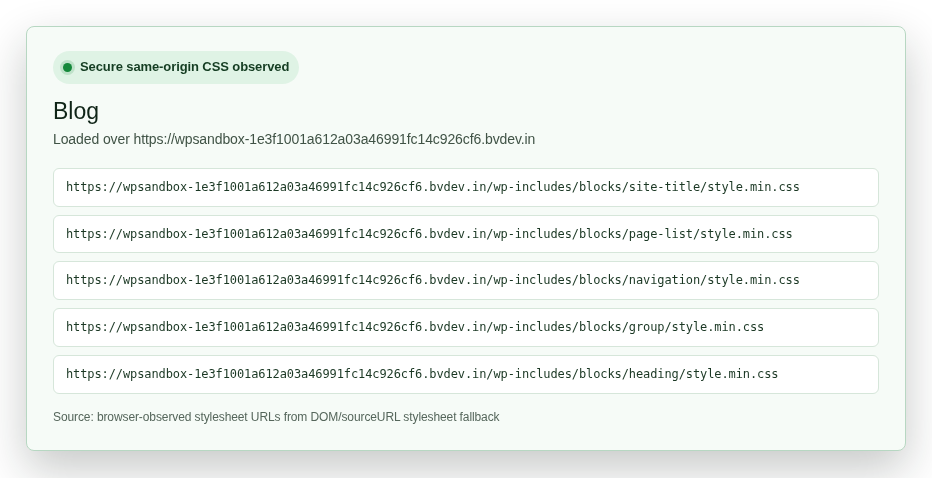
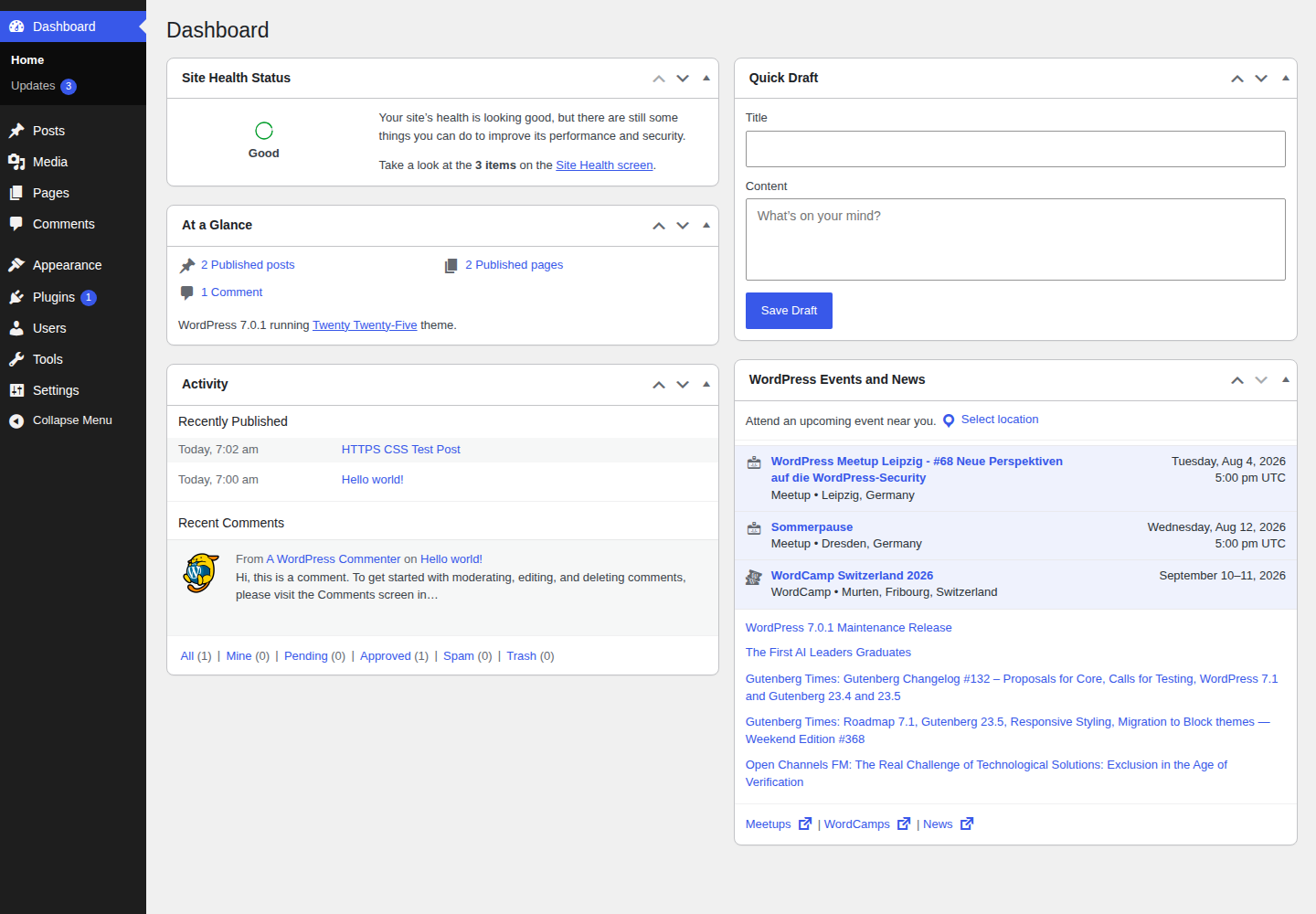
A healthy HTTPS WordPress site should generate frontend CSS URLs from the HTTPS version of the domain. In our clean HTTPS WordPress test, the public page loaded its CSS from the secure origin. If your migrated site still prints HTTP asset URLs, the settings or stored data haven’t caught up.
Clean up stored HTTP URLs
If the main site URLs are already correct, the old HTTP path may be stored inside the database.
This is common after HTTPS migration. Page builders and theme options are the usual hiding places, but old content can carry the same problem. One bad reference can break a stylesheet, font, icon set, or CSS background image.
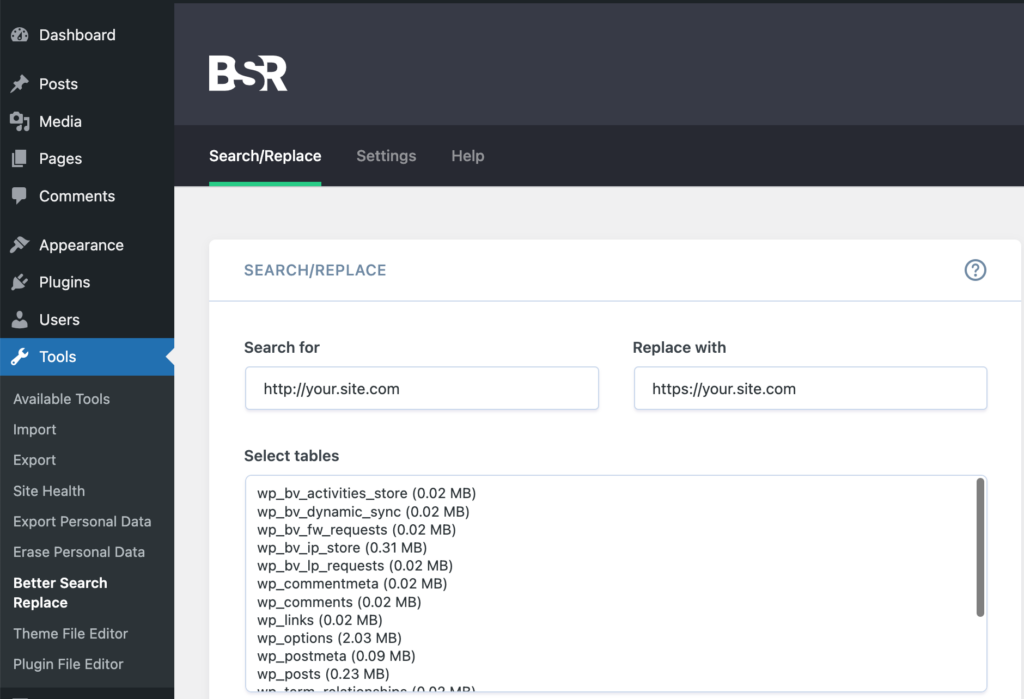
Create a backup before search-replace. If you have staging, do the first pass there.

Use a proper WordPress search-replace tool and replace your old domain form with the HTTPS version. Better Search Replace is fine for many site owners because it supports a dry run. WP-CLI is a good option for developers.
What I wouldn’t do: open the database and manually change rows that “look right.” Some WordPress values are stored in ways that don’t survive casual edits.
🧪 Note: Run a dry run first if your search-replace tool offers one. If it reports thousands of replacements across options, builder data, and custom fields, that’s normal after a migration. If it reports a domain you don’t recognize, stop and check what you’re replacing before you touch production.
After the replacement:
- Clear all caches.
- Regenerate page-builder CSS if your builder has that option.
- Reload with DevTools open.
- Confirm the original HTTP request is gone.
Don’t judge the fix by one normal refresh. Browsers and CDNs are very good at showing you yesterday’s problem.
Check theme, plugin, and font references
If the failed URL points into a theme or plugin folder, the issue may be hardcoded there. Look for:
- A theme or child theme loading a stylesheet from a full HTTP URL.
- A header template with a direct stylesheet link.
- CSS files that reference images or fonts over HTTP.
- Font rules that load icon fonts from old URLs.
- Plugin settings that store a full asset or CDN path.
Good WordPress themes usually let WordPress generate the correct asset URL. Custom code sometimes skips that and prints the full old address.
Update the theme or plugin first. If it’s a child theme you control, fix the child theme. If a commercial plugin still prints HTTP asset URLs after an update, ask the developer for a fix or replace it.
🛠️ Note: Don’t edit plugin core files unless you’re doing a temporary emergency test. The next plugin update can erase the change, and you’ll be back where you started.
Fonts deserve a separate look. A page can load its main stylesheet over HTTPS and still look wrong if the stylesheet calls fonts over HTTP. Missing icon fonts can make menus, buttons, and admin screens look broken even when the rest of the CSS is present.
Repair CSS delivery over HTTPS
Once the source URLs are correct, repair the cache, generated files, access rules, and HTTPS delivery path.
Clear cache and regenerate CSS
Fixing URLs is only half the job. WordPress may still serve old HTML or old generated CSS. Clear caches in this order:
- Browser cache, or a fresh private window test.
- WordPress cache plugin.
- Host-level cache.
- Server memory cache, if your hosting plan uses one.
- CDN layer.
If you use CSS minification or CSS combination, turn it off briefly and test again. Optimization plugins often create generated files with changing names. After an HTTPS migration, the page can keep pointing to a generated file that no longer exists.
🧹 Note: Clear cache from the inside out when you can: WordPress or builder cache first, then host cache, then CDN. If you purge the CDN first while WordPress is still generating old HTML, the CDN may simply cache the bad version again.
Page builders have a similar failure mode. Most include a control with wording like regenerate CSS, clear builder cache, or sync files.
If DevTools shows a 404 for a generated CSS file, rebuild that file before changing SSL settings. A missing generated file needs a different repair from a blocked HTTP stylesheet.
Fix 404 CSS files
A 404 means the browser reached your site, but no file exists at that path. Open the failed CSS URL directly. Then check the path:
- Cache or minify folder: clear or regenerate optimization files.
- Page-builder uploads folder: regenerate builder CSS.
- Theme folder: confirm the theme or child theme file exists.
- Plugin folder: update or reinstall the plugin if files are missing.
- Uploads folder: check whether generated CSS files were moved, deleted, or blocked during migration.
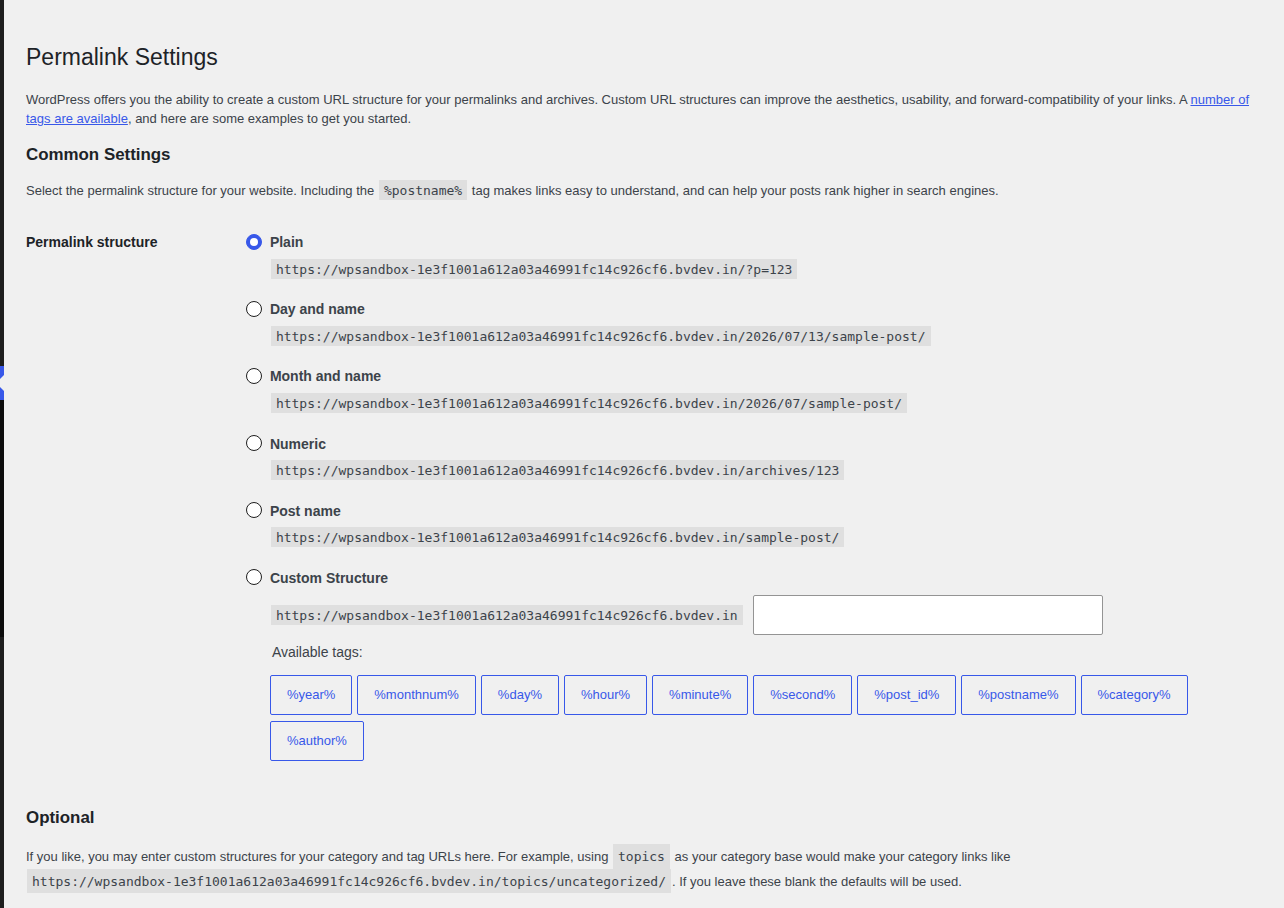
Re-saving permalinks under Settings > Permalinks can help when generated routes are stale. It won’t recreate a physical file that was deleted, but it’s a quick check after a move.
I wouldn’t renew certificates or add redirect rules for a clean 404 until I’ve checked the path. The request is already reaching the site. The site just doesn’t have the file at that address.
Fix 403, 1020, or blocked CSS
A 403 means the request reached the site and got rejected. A Cloudflare 1020 means a firewall rule blocked it. Check the access layer next:
- File permissions. Common WordPress defaults are 644 for files and 755 for directories.
- Hotlink protection. Some hosts block assets after the domain or protocol changes.
- CDN firewall logs. Look for blocked CSS, JavaScript, fonts, or wp-content requests.
- Security plugin rules. If you know the hardening setting involved, test that setting directly.
- Country, bot, or user-agent rules. Broad rules can catch normal browsers.
If the CDN is blocking the request, cache purge won’t help. Change the rule that refused the file.
⚠️ Note: If the failed CSS URL points to a domain you don’t recognize, pause the HTTPS cleanup and scan the site. Strange links and redirects can be a security problem wearing the mask of a styling issue.
Check the SSL certificate
An expired or mismatched certificate can also stop CSS from loading, but it usually looks different from mixed content. Click the padlock or site information icon in the browser. Confirm the certificate is valid for the exact domain you’re using.
WordPress Site Health can also give you a quick signal before you chase unrelated CSS fixes.
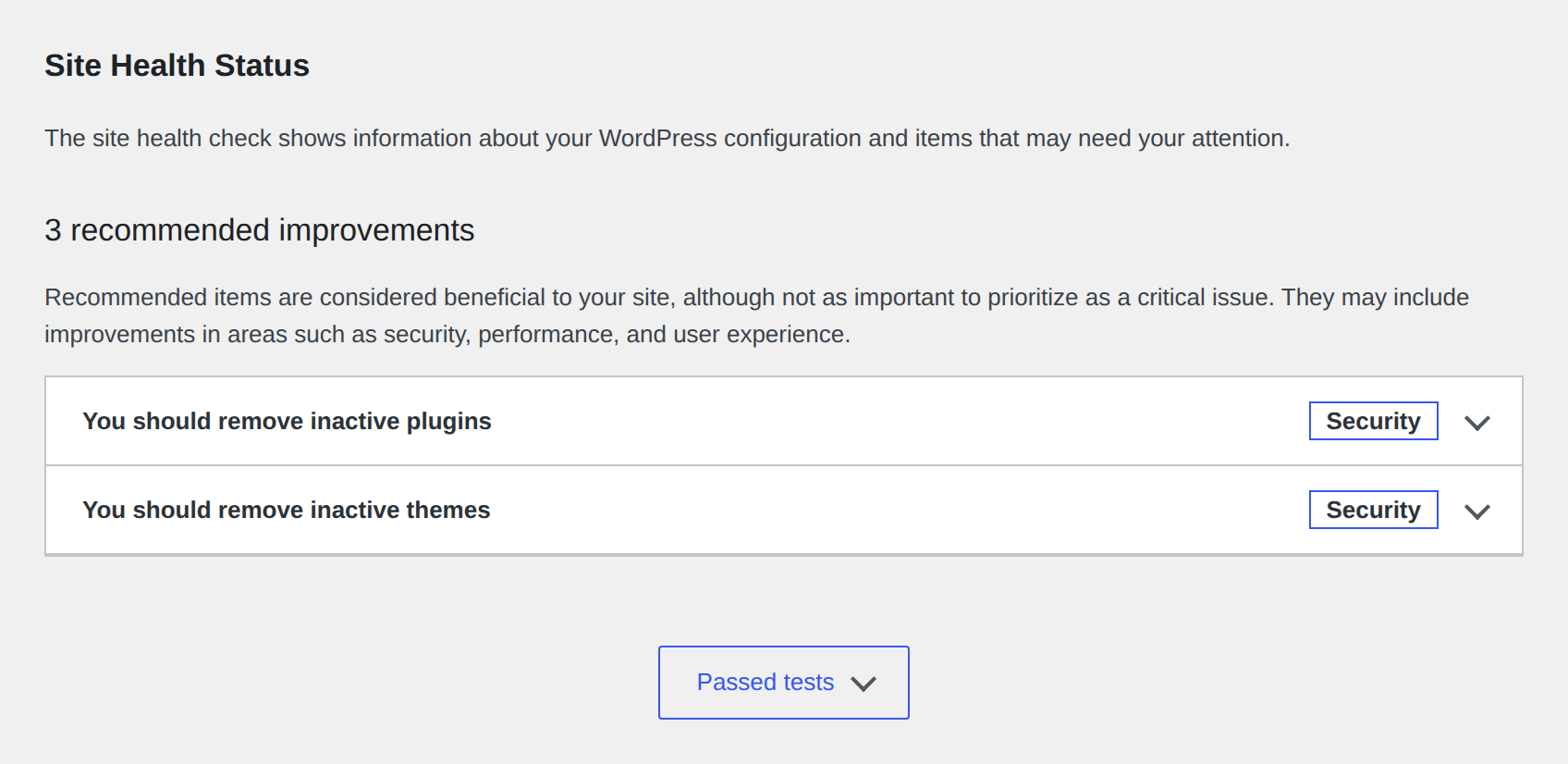
Watch for:
- Expired certificate dates.
- Certificate issued for the wrong hostname.
- HTTPS working on www but failing on non-www, or the reverse.
- Missing certificate chain.
- CDN SSL mode that doesn’t match the origin server.
Fix certificate problems with your host, SSL provider, or CDN before changing WordPress data. If the browser doesn’t trust HTTPS, every asset request becomes harder to read.
One catch: renewing SSL won’t rewrite old HTTP URLs. If the certificate is valid and DevTools still shows insecure stylesheet requests, go back to URL settings, stored URLs, cache, and theme/plugin references.
Handle proxy or CDN HTTPS detection
Some sites sit behind Cloudflare, a load balancer, a reverse proxy, or managed hosting. In that setup, the visitor may use HTTPS, but WordPress may receive the request in a way that looks like HTTP. When WordPress can’t detect the secure request, it can generate HTTP asset URLs.
Ask your host whether HTTPS is terminated before WordPress. That means the secure connection ends at the CDN or proxy, and WordPress needs a header to know the original visitor used HTTPS.
This is where the forwarded-protocol setting can matter. It tells WordPress that the original request was HTTPS when the proxy sends that signal.
Use it only when your host or CDN setup calls for it. It won’t fix every mixed-content case. If the failed URL is hardcoded in theme code or stored in page-builder data, proxy detection won’t clean it up.
🌐 Note: Don’t add forwarded-protocol code just because you found it in a forum. It belongs on sites behind a proxy or load balancer. On a normal shared-hosting setup, the wrong snippet can make redirects and admin URLs harder to debug.
Also check your CDN SSL mode. The cleanest setup keeps HTTPS active from the browser to the CDN and onward to your origin server.
Resolve remaining CSS issues
Finish with context-specific repairs, redirects, and safeguards that keep styling stable.
Fix an unstyled wp-admin
If the front end looks fine but wp-admin is unstyled, troubleshoot admin assets on their own. Open DevTools inside wp-admin and check the failed admin CSS files.
An unstyled page is a symptom; the failed request still tells you whether the problem is missing, blocked, or insecure CSS.
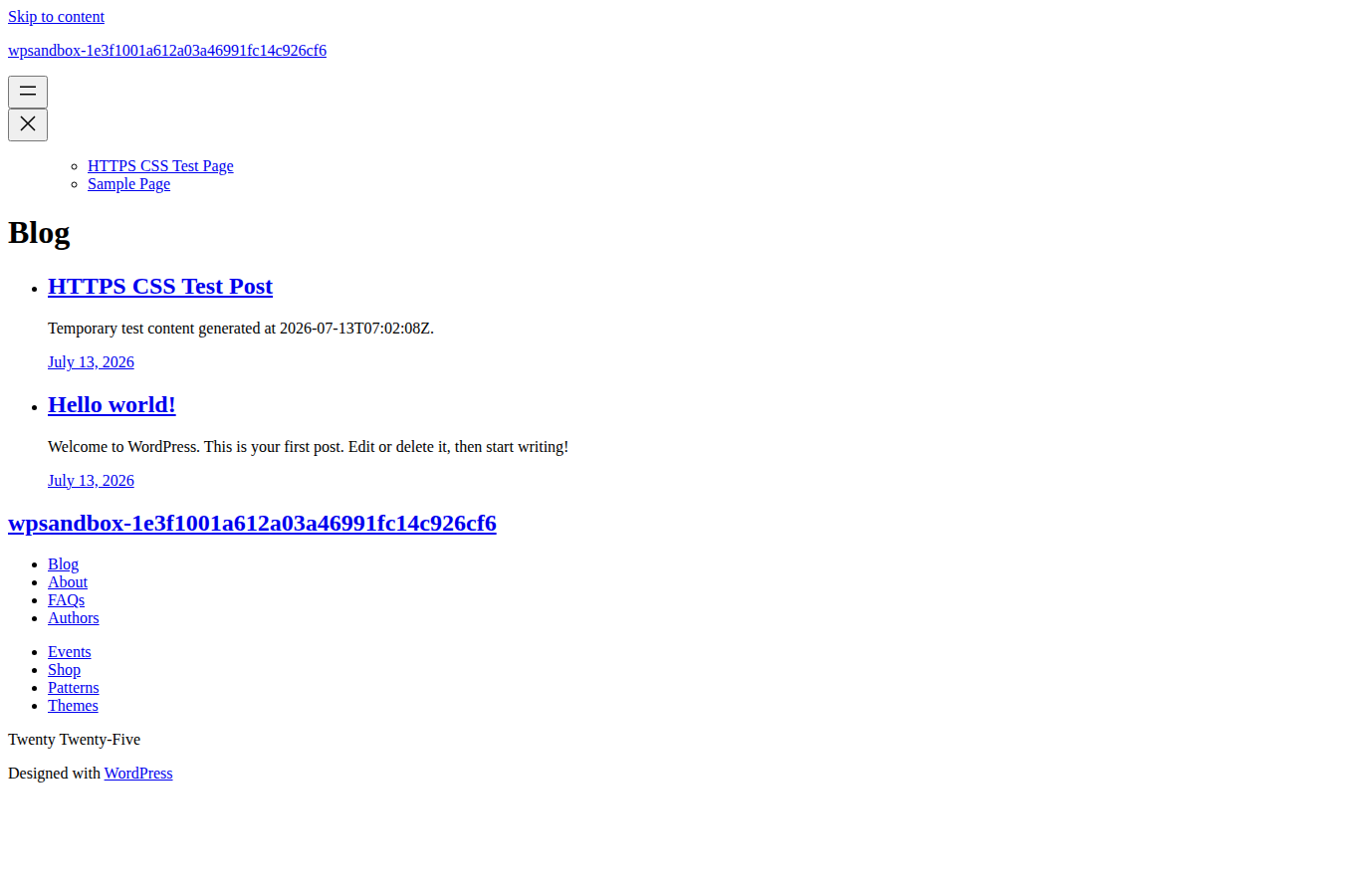
Then follow the status:
- 404 under wp-admin or wp-includes: WordPress core files may be missing or partially overwritten. Reinstall WordPress core after a backup.
- 403 or blocked: check host security rules, CDN behavior, file permissions, and security plugin settings.
- One combined admin asset fails: test disabling script and style concatenation through the WordPress config file.
- Admin opens over HTTP: force admin SSL only after confirming the certificate and site URLs are correct.
If you can’t access wp-admin, rename one suspect plugin directory through your host’s file manager or SFTP. Be careful with stores, paid communities, and lead-generation sites. The wrong disabled plugin can break forms, checkout, or logins.
🔐 Note: If wp-admin is the only broken area, don’t assume the whole HTTPS migration failed. Admin pages load their own CSS and can be affected by different security rules, concatenated admin assets, or a partially missing WordPress core file.
Set redirects after the source is fixed
You should send HTTP visits to HTTPS. It keeps visitors, search engines, and old links on the secure version. But redirects shouldn’t be your first repair for insecure CSS.
Make WordPress print HTTPS asset URLs at the source. A redirect may help some file requests, but browsers can block insecure subresources before the redirect helps.
Once the source URLs are clean, test the HTTP and www/non-www versions of the site. They should land on one preferred HTTPS version without redirect loops.
Keep HTTPS styling stable
After the site looks right again, do a short cleanup pass.
- Confirm the migration basics: site URLs, stored URLs, cache, builder CSS, and CDN SSL mode.
- Avoid hardcoded HTTP URLs: local theme assets should use WordPress-generated or relative paths. External files should use HTTPS.
- Track certificate renewal: many hosts renew certificates automatically, but you still want to know where SSL is managed.
- Keep a restore point before risky changes: database replacement, config edits, plugin disabling, and theme changes can break more than CSS.
- Run a security check if the symptoms felt odd: unknown domains, injected links, unexpected redirects, or sudden admin issues need more than cache clearing.
MalCare fits after the immediate repair. It won’t rewrite mixed-content URLs for you. Use it to scan for malware, add firewall protection, watch for vulnerable plugins, and harden the site once HTTPS is working again. That matters most when a messy migration exposes old plugins, stale themes, or suspicious files you didn’t expect to find.
Conclusion
When WordPress stops loading CSS over HTTPS, don’t treat it as one giant SSL problem. Treat it as one failed request. Open DevTools, copy the broken CSS URL, and let the error guide you. An insecure stylesheet, a missing generated file, a blocked CDN path, and a certificate warning can all strip the design from the page. Each one points to a different repair.
Start with the evidence and make the least risky matching change: correct WordPress URLs, replace old HTTP references, regenerate CSS, clear caches, fix CDN or firewall rules, or repair SSL. Once the page is styled again, finish the job with redirects, updates, backups, and a security scan if anything looked suspicious.
FAQs
The page reaches the browser over HTTPS, but one or more CSS files, fonts, or CSS-linked assets still come from HTTP. The browser blocks that insecure request, so the site appears unstyled or partly styled.
Open DevTools and check the Console for an insecure stylesheet message. Next, reload the page in the Network tab with the CSS filter on. Copy the failed URL. That URL is your repair map.
Yes. If the browser doesn’t trust the certificate, secure asset loading can fail. Fix the certificate first. If the certificate is valid and CSS still loads from HTTP, the problem is old URLs, cache, CDN settings, or theme/plugin code.
Cache layers can keep serving old HTML or old generated CSS after you’ve fixed the URLs. Clearing cache and regenerating builder or minified CSS forces WordPress, the host, and the CDN to serve the new HTTPS paths.
If the CSS request returns 200 and the browser isn’t blocking it, HTTPS may not be the issue anymore. Inspect the affected element. Another theme rule, plugin style, custom CSS rule, or page-builder setting may be overriding the style you expected.