
Comment spam has a way of making a site feel worse than it is.
You open WordPress to publish something or check a plugin update, and there it is: fake praise, pharmacy links, casino links, nonsense names, maybe a comment that almost sounds real until the link gives it away. If some of it is already public, the problem feels bigger than moderation.
Now visitors can see the suspicious links too, and those can look uncomfortably close to WordPress phishing when they point readers to fake offers or credential traps. To stop WordPress comments spam, start with the visible damage. Remove the spam that is already live, then decide whether comments deserve to stay open at all.
If comments don’t help your site, disable them on new and existing posts, turn off pingbacks, clean up published spam, and back up the site before any bulk deletion. If comments do matter, tighten WordPress Discussion settings, add a dedicated anti-spam plugin, and use firewall or bot protection when the spam is heavy, repeated, or hitting more than comments.
Only one fix stops comment spam completely: turning comments off. Every other fix reduces spam, holds it for review, or blocks some automated traffic before it reaches WordPress. That’s not a bad trade if real comments matter to your site. The trick is knowing which kind of site you have.
Clean Up The Spam That’s Already Public
Don’t start by changing settings while spam links are still visible under your posts. Public spam makes the page look abandoned, and it can send readers to phishing pages, fake stores, malware downloads, or sites you would never recommend. From the WordPress dashboard:
- Open the comment list: Go to Comments.
- Select obvious junk carefully: Check the spam comments you recognize.
- Move spam out of public view: Use Bulk actions to choose Mark as spam or Move to Trash.
- Check before permanent deletion: Empty spam or trash only after you scan your site for real comments caught by mistake.
If you have a small pile, clean it by hand. It’s dull, but accurate.
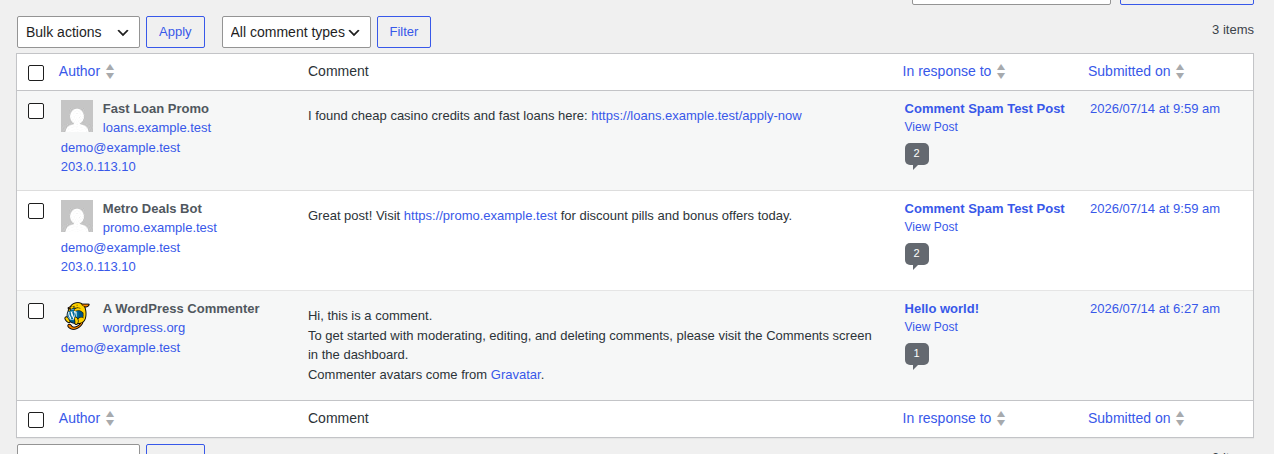
If you have hundreds or thousands of comments, don’t try to be heroic in the Comments screen for three hours. Use an anti-spam plugin that can review older comments in batches. Before you let it delete everything it flags, sample the results. Real comments can be short, messy, and badly spelled too, especially on older posts where someone just wanted to say “this worked.”
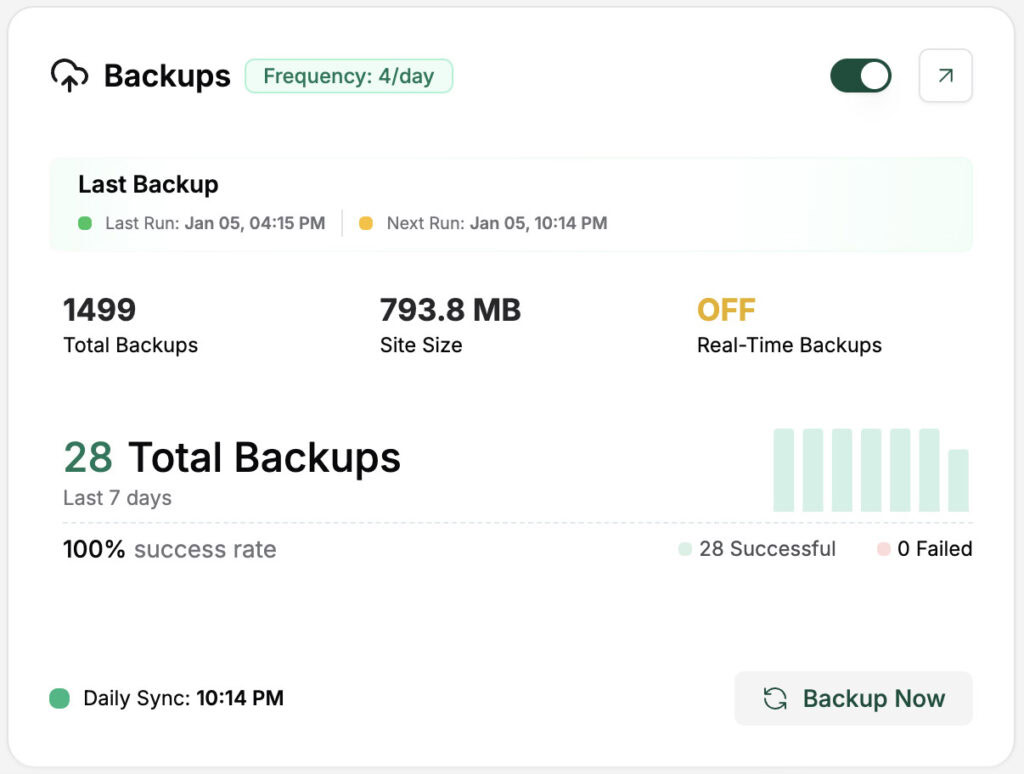
Before a large cleanup, make a fresh backup or restore point with your host or a tool like BlogVault.
Decide If Comments Are Worth Protecting
This is the part most spam guides skip. They list a dozen defenses as if every site needs all of them. I don’t think that’s true. A comment section should earn the work it creates.
For a service business site, a portfolio, a landing page, or a company blog where nobody has left a useful comment in years, disabling comments is the cleanest fix. You’re not giving up on engagement. You’re removing a feature that mostly exists as a chore.
For a tutorial blog, a course site, a community, or a site where readers ask useful follow-up questions, comments may be worth keeping. In that case, don’t make the form impossible for normal people. Tighten the native WordPress settings first, add a spam filter next, and only add heavier friction when the spam proves you need it.
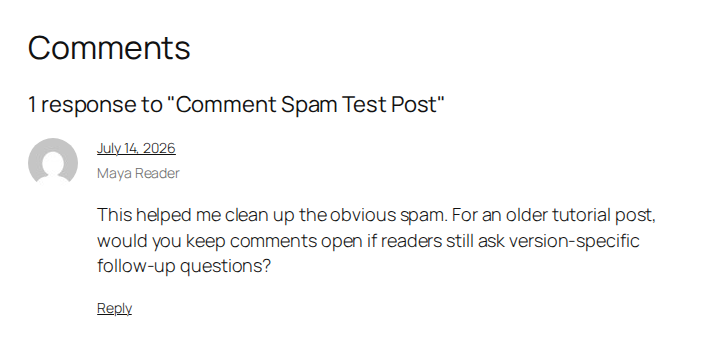
The basic split is simple: close comments where they don’t help; layer protection where they do.
Disable Comments Where You Don’t Need Them
If comments don’t serve a real purpose, closing them is the plainest fix. For future posts:
- Open the Discussion settings: Go to Settings > Discussion.
- Stop comments on new posts: Uncheck Allow people to submit comments on new posts.
- Stop link notifications too: Uncheck Allow link notifications from other blogs (pingbacks and trackbacks) on new posts.
- Save the change: Click Save Changes.
That handles new posts. It doesn’t remove old comments, and it may not close comments on content you already published.

For existing posts:
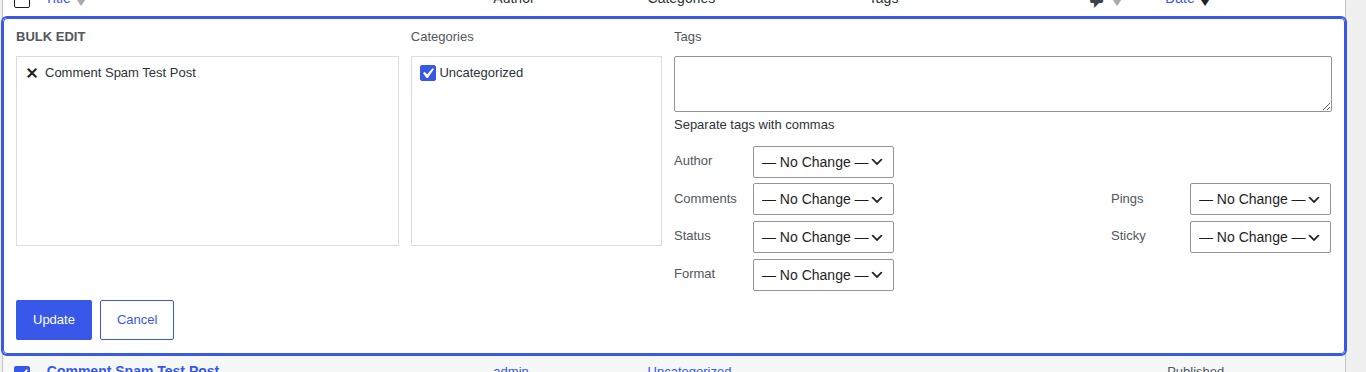
- Open your published posts list: Go to the WordPress screen that lists posts.
- Select the posts to close: Use the checkboxes for the posts you want to update.
- Use bulk editing: Choose Edit from the bulk actions menu.
- Close normal comments: Set Comments to Do not allow.
- Close pings separately: Set Pings to Do not allow.
- Apply the update: Click Update.
Comments and pings are separate in WordPress. In WordPress 7.0 testing, a published post kept comment_status: open and ping_status: open as two different controls. That’s why a site can still show spam near comments after you thought you closed the form. You may have closed one door and left the other one open.
After this, check a few public posts. Some themes keep showing old approved comments even after the form is closed, so cleanup and closure are separate jobs.
Tighten WordPress Discussion Settings
If you’re keeping comments, start with what WordPress already gives you under Settings > Discussion. These settings won’t catch everything, but they remove the easy spam before you add another plugin.
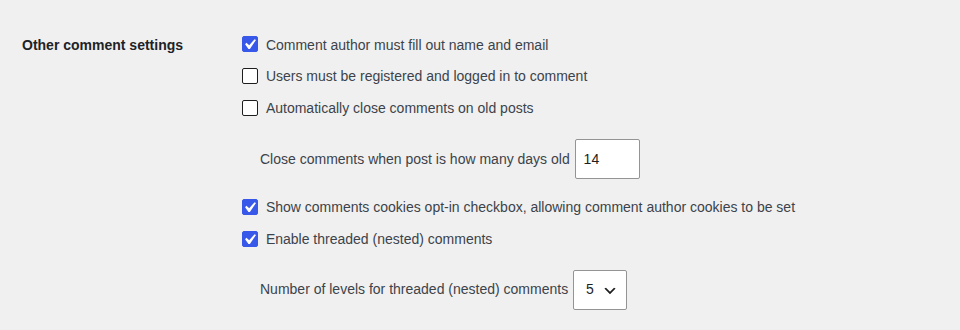
Require a name and email
Turn on Comment author must fill out name and email.
This doesn’t prove the commenter is real. Bots can invent both fields. What it does do is remove the easiest anonymous submissions and give you a little more context when you review the queue. Treat it as a speed bump, not an identity check.
Hold first-time commenters
If spam is going public, turn on Comment must be manually approved.
That setting is strict, and busy sites can feel the workload quickly. A lighter option is Comment author must have a previously approved comment. First-time commenters wait, while people you’ve already approved can move faster.
I’d start with first-time approval on most blogs. It catches the riskiest moment, which is a stranger posting a public link before anyone has looked at it.

Limit links
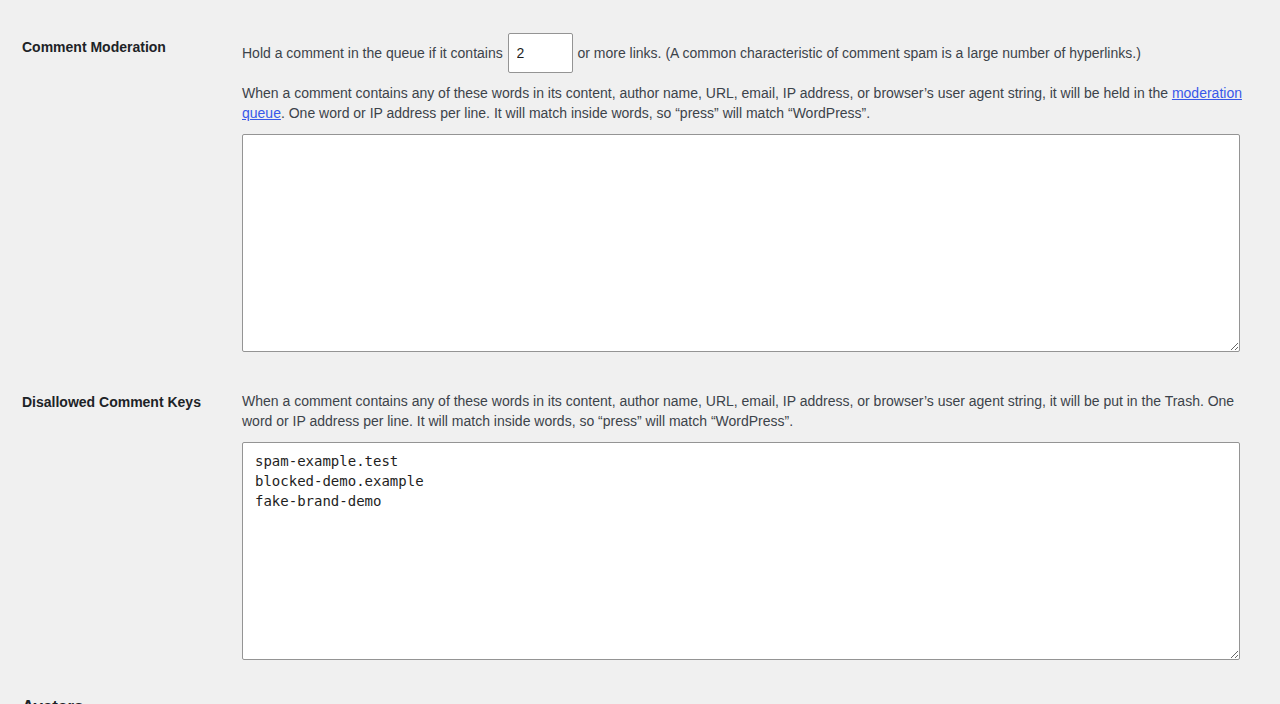
Most comment spam exists to place a link. In Comment Moderation, WordPress can hold a comment when it contains a set number of links.
Set the limit low while spam is active. If the junk is mostly link placement, even one link may be enough reason to hold the comment.

Don’t leave this harsher than it needs to be forever. Real readers sometimes share documentation, screenshots, or an example from their own site. A useful comment with one link shouldn’t be treated the same as a drive-by casino promotion.
Use Disallowed Comment Keys carefully
WordPress has two similar-looking tools:
- Comment Moderation holds matching comments for review.
- Disallowed Comment Keys can send matching comments to trash.
Use moderation when you’re unsure. Use disallowed keys only for things you would trash every time, like repeated spam domains or fake brand names.
Avoid broad words like free, buy, or deal unless you’re sure. WordPress can match terms inside the comment, name, email, website, IP address, and other comment details, so a broad word can catch real readers.
Close Old Comment Targets
Old posts are easy spam targets. They rank, stay public, and often get less attention than newer content.
In Settings > Discussion, turn on Automatically close comments on old posts and choose the number of days.
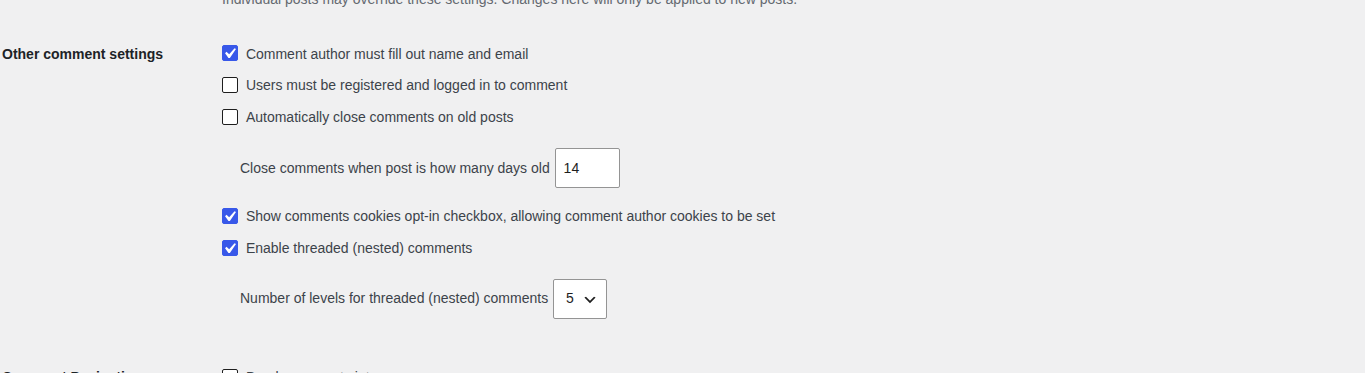
For news, promotions, and announcements, 14 or 30 days may be enough. For tutorials, I’d start with 60 or 90 days if late comments are still useful. A reader may find an old guide, try it, and leave a correction that helps everyone after them.
Also close or delete forgotten starter content like Hello world. Site owners forget it exists. Spam tools don’t.
Turn Off Pingbacks And Trackbacks
Pingbacks and trackbacks are old WordPress link notifications. When another site links to you, WordPress can show that notice near your comments.
They are now more useful to spammers than to most site owners.
For new posts, turn them off in Settings > Discussion by unchecking Allow link notifications from other blogs (pingbacks and trackbacks) on new posts.
For old posts, use bulk edit and set Pings to Do not allow.
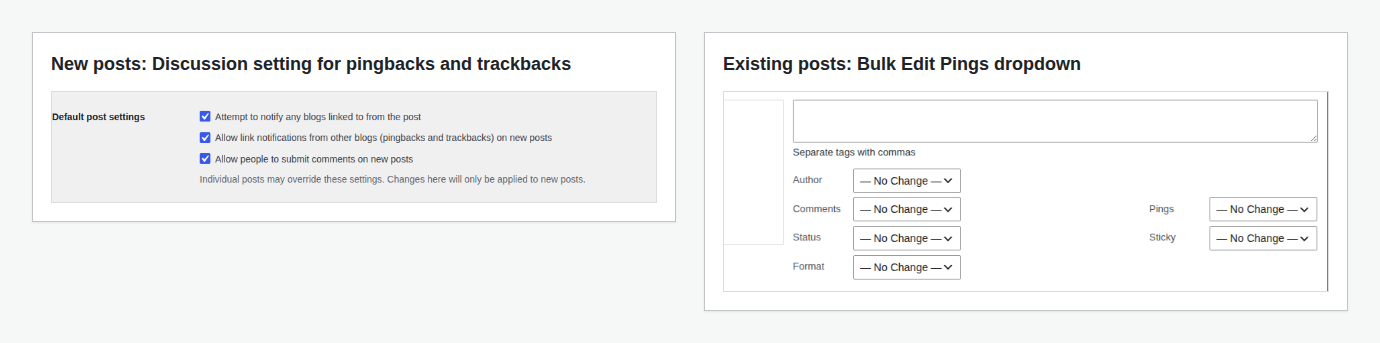
This matters when spam seems to ignore your comment rules. If you require name and email but spam still appears, it may be coming through pings instead of the normal comment form.
Add A Comment Spam Filter
WordPress settings catch obvious patterns. A dedicated anti-spam plugin is better when there is too much to judge by hand.
Akismet is often installed on new WordPress sites, but it may be inactive until you set it up. In the WordPress 7.0 environment checked for this article, Akismet was already there and still inactive. That’s a small detail, but it matches what I see a lot: people assume they have spam protection because they recognize the plugin name, when WordPress is really just waiting for them to configure it.

CleanTalk is another strong option when you want automated filtering and older-comment cleanup across comments, forms, and registration spam. The exact plugin matters less than whether it can do the job you need.
Look for these basics:
- Filtering before comments appear publicly
- A review area that shows what was blocked
- Bulk checking for older comments
- A way to recover good comments caught by mistake
During the first week, check the spam folder and moderation queue daily. A filter that blocks everything can look impressive while quietly blocking the real comments you wanted to keep.
Use CAPTCHA Only When The Queue Still Leaks
CAPTCHA asks visitors to prove they’re human through a visible challenge, an invisible browser check, or a similar test. It can help with basic bots.
It can also irritate real readers, especially on mobile, and it can make commenting harder for people using assistive tools. So I wouldn’t make it your first move on a normal blog.
Use CAPTCHA when spam still gets through after your Discussion settings and spam filter are set up. If your plugin supports a honeypot, try that first. A honeypot is a hidden field that people don’t see, but many bots fill in automatically. When that hidden field has content, the plugin treats the submission as spam.
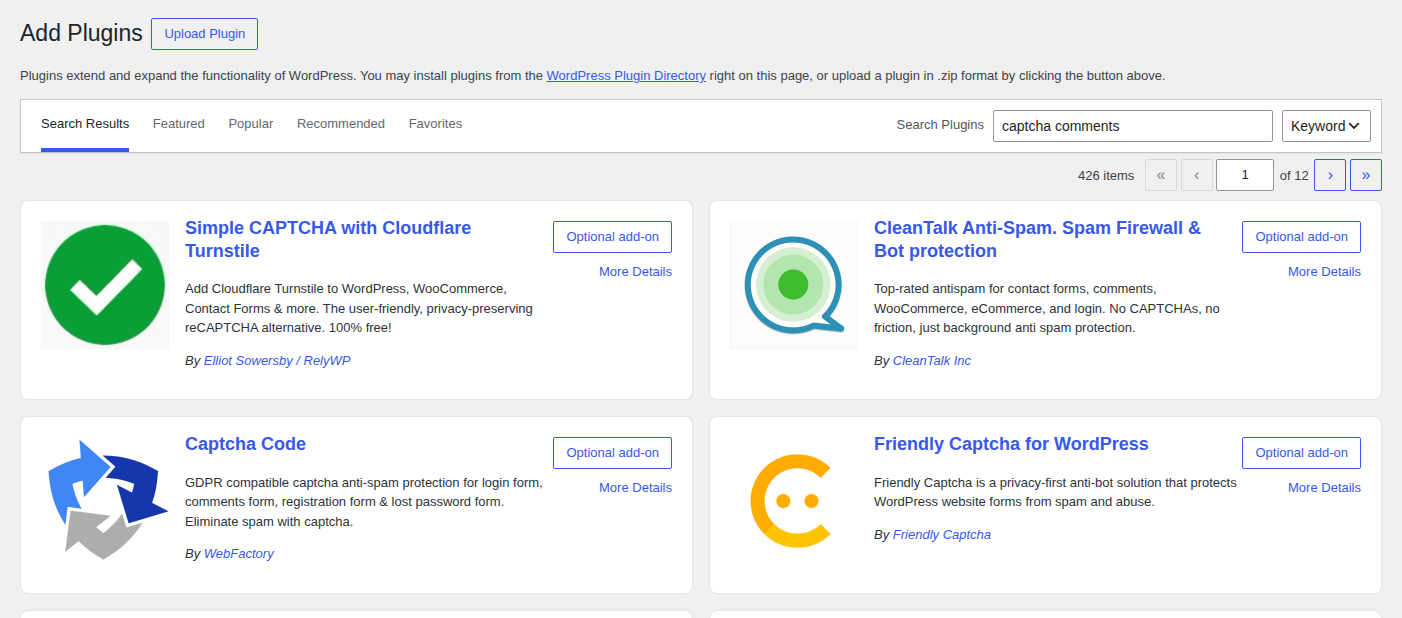
Worth knowing: Honeypots are quiet, but not perfect. Smarter bots can skip hidden fields, so treat them as a low-friction layer rather than a full fix.
Require Login Only For Account-Based Sites
WordPress can require users to register and log in before commenting. The setting is under Settings > Discussion as Users must be registered and logged in to comment.
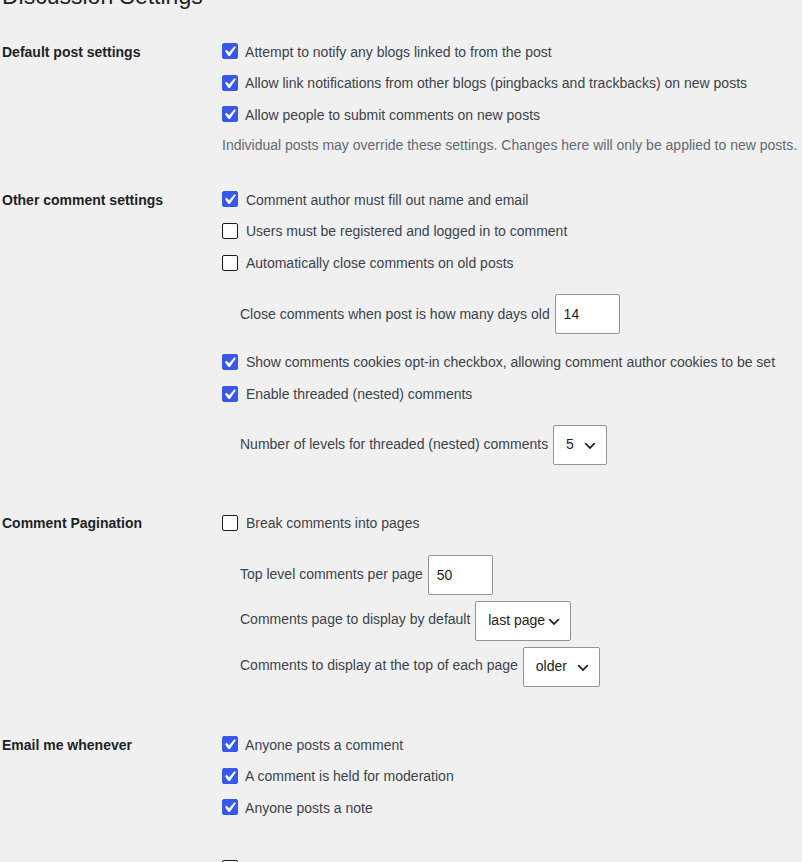
This works for membership sites, course sites, customer portals, and private communities where users already have accounts.
For a public blog, it’s usually too much friction. Someone who wants to leave a quick correction won’t create an account for it. Use login-required comments only when identity matters more than comment volume, and make sure your WordPress login security can handle the extra attention.
Add Firewall Protection For Bot Waves
Comment spam is usually automated. If the volume is high, WordPress still has to process those requests even when a spam plugin catches the final comment.
A firewall helps earlier. A comment spam plugin judges submissions. A firewall filters suspicious traffic before WordPress spends resources on it; WP Remote’s firewall reporting notes show the kind of bot activity a site-wide layer can surface.
That’s where MalCare fits. MalCare is a WordPress security plugin with a firewall and bot protection, so it belongs in the site-wide security layer, not in the comment-moderation bucket. It makes sense when comment spam comes with repeated bot visits, login attempts, contact form spam, or waves of junk that return after you’ve tightened comment settings.

I wouldn’t use MalCare instead of a comment-specific anti-spam plugin. I’d use both on a site getting hit hard: one tool to judge comments, and one security layer to reduce malicious automated traffic before it reaches WordPress.
Also, comment spam alone doesn’t mean your site is hacked. Unknown admin users, strange posts, changed pages, or spam links outside the comment section are different signs. If you see those, treat it as a possible hacked WordPress site situation: run a security scan and review recent changes.
Skip The Risky Fixes Unless You Need Them
You’ll find advice that says to edit theme files, remove the website URL field with code, strip HTML from comments, block comment endpoints through server rules, or delete spam directly from the database. Some of it can work. It can also break comments, disappear after a theme update, block real users, or delete legitimate comments.
Most site owners don’t need that path. Start with the visible mess and the built-in Discussion settings. Then close pings and add a spam filter if the queue is still noisy. Bring in bot protection only when automated traffic is hammering the site.
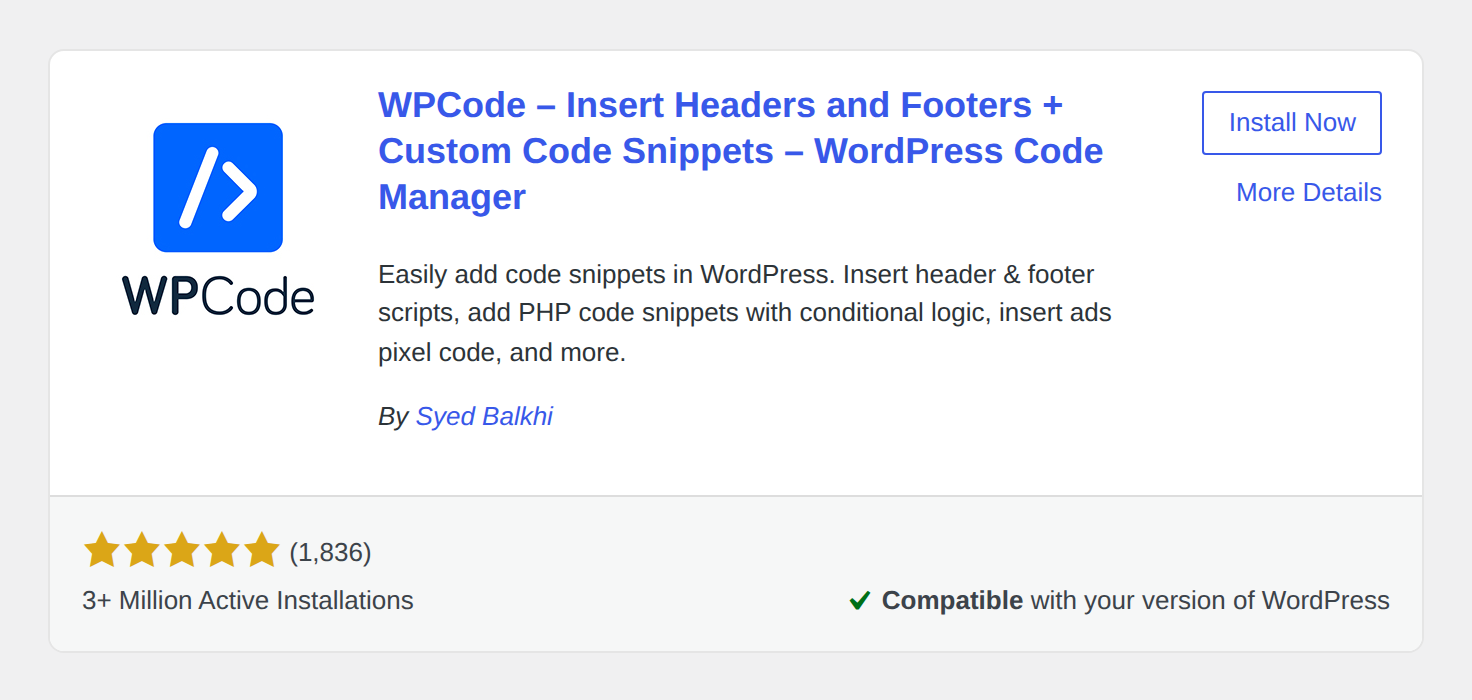
If you do use code, add it through a child theme, a snippets plugin, or a tiny site-specific plugin so theme updates don’t erase it. Run it on a staging copy first; the live comment form shouldn’t be where you find out the snippet was wrong.
Check What Changed After A Few Days
Give the new setup a little time, then look at the evidence.
- Spam still appears publicly: Manual approval or plugin filtering isn’t strict enough.
- Real comments are stuck: Loosen the filter or approval rules.
- Old posts keep getting hit: Close comments and pings on them.
- The same domains or phrases keep appearing: Add narrow moderation or disallowed keys.
- Something broke right after a change: Undo the newest comment-related setting first.
The goal isn’t to make commenting painful. It’s to make spam harder while keeping real comments easy enough.
The Setup I’d Use
For a typical business site, I’d disable comments everywhere, close comments and pings on existing posts, delete visible spam, and check that I can roll back before removing a large backlog. That’s not drastic. It’s practical.
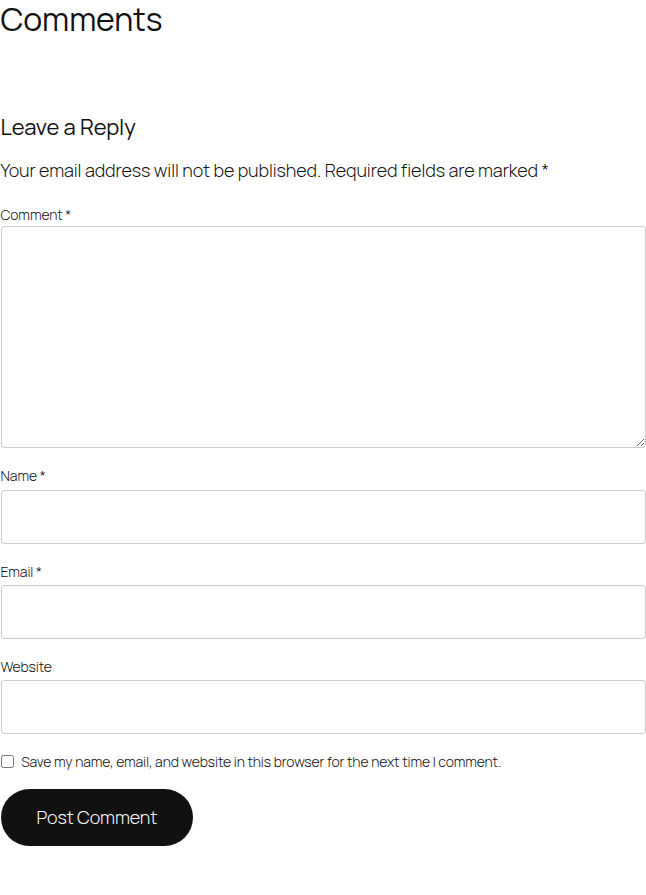
For a blog with useful comments, I’d keep comments open on newer posts, close older posts after a sensible window, require name and email, hold first-time commenters, limit links, disable pingbacks, and add a spam filter.
For a site getting hammered by bots, I’d add firewall and bot protection. At that point, you’re dealing with more than ugly comment threads. WordPress is being asked to handle a lot of junk traffic before moderation even starts.
Conclusion
The fastest way to stop WordPress comment spam is to remove what’s already public, close comments where they don’t help, and tighten the settings where comments still matter. Start with WordPress’s own controls because they’re already there and they solve more than people expect.
If spam keeps coming, add the next layer instead of adding every fix at once. Use an anti-spam plugin for comment filtering, CAPTCHA or a honeypot only when needed, and firewall protection when automated traffic is the larger problem. That gives you a comment section that stays useful without making readers work too hard.
FAQs
What is WordPress comment spam?
WordPress comment spam is unwanted comment activity that promotes scams, suspicious links, fake products, or unrelated websites. It can appear as normal comments, pingbacks, trackbacks, or items waiting in moderation.
How do I stop WordPress comment spam quickly?
Remove public spam first. Then disable comments if you don’t need them, or tighten Settings > Discussion if you do. For active comment sections, turn off pingbacks, add a spam filter, and watch the moderation queue for the first week.
How do I remove spam comments already on my site?
Go to Comments, select the spam comments, and use Bulk actions to mark them as spam or move them to trash. For a large backlog, take a backup first, use a spam plugin that can review older comments, and sample its results before permanent deletion.
Do spam comments hurt SEO?
Visible spam can hurt page quality and reader trust, especially when it adds suspicious outbound links. A few spam comments won’t automatically ruin a site, but leaving junk links public makes the page worse and can send readers somewhere unsafe.
Should I use Akismet, CleanTalk, CAPTCHA, or a firewall?
Use Akismet, CleanTalk, or another anti-spam plugin to filter comments. Use CAPTCHA only if spam still gets through and the extra step won’t block good readers. Use a firewall when bot traffic is heavy or spam is also hitting logins, contact forms, and old posts.