If you want to disable PHP execution directory browsing in WordPress, treat the two settings as separate WordPress hardening tasks. Directory browsing lists files when a folder has no index page. PHP execution lets the server run PHP files, which are files written in the PHP language that powers WordPress. The first exposes site structure. The second is risky in writable folders such as wp-content/uploads/.
Back up the site, find its web server, and test the live response before changing settings. On Apache, Options -Indexes stops file lists. PHP execution needs a separate rule that fits the server and only covers folders that store files.
TL;DR: Open a harmless folder without an index page. A visible Index of … page means directory listing is active; a denial or non-listing response is the desired result.
Back up first, use Apache or cPanel controls for directory listings, and verify PHP blocking separately in staging.
What these settings control
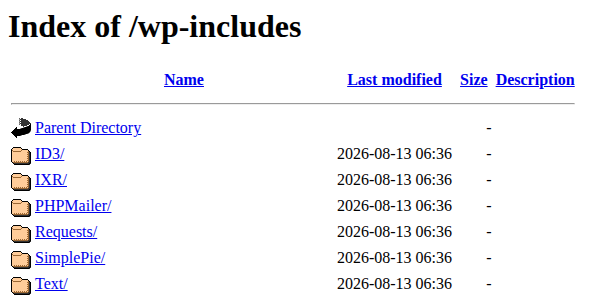
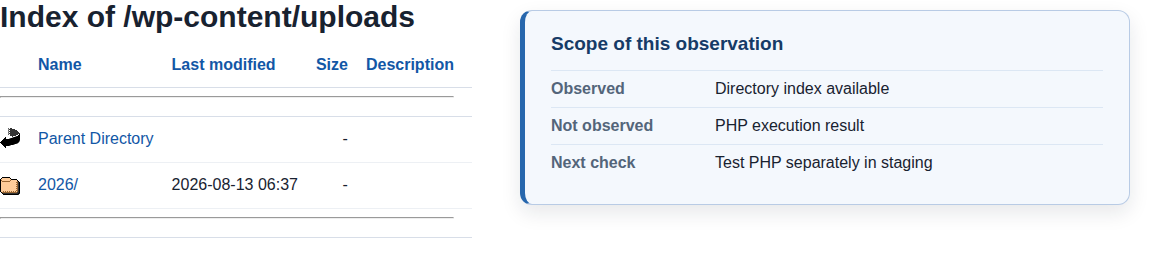
Directory browsing is a feature of the web server, the software that sends site files to visitors. When someone opens a folder URL and the folder has no index page, the server may show the files and subfolders inside it. The page often starts with Index of.
This can help during development, but it gives attackers useful data about your site. A listing is a leak, not proof that the site is hacked. It also does not give access to every file. It makes paths and filenames easier to study.
It is one of the WordPress security issues that basic hardening can reduce.
PHP execution is a different risk. WordPress needs PHP in its core, plugin, and theme folders. The uploads folder normally needs to store images and documents, not run uploaded PHP files. Blocking PHP requests there limits the damage if a script reaches that writable folder.
It does not detect existing malware; a WordPress malware scanner plugin is a separate check.
Note 🛡️: Neither setting protects a file that someone can request by its exact URL. Keep backups, settings files, and other secrets outside the public website folder whenever your host allows it.
Check directory browsing
Many hosts turn off directory listings by default, so test the site before changing anything. A folder that contains an index page is a poor test because that page can hide the listing setting.
- Choose a harmless folder without an index page: Use staging, a private test copy of the site, when possible. If you create a temporary folder, do not place private files or backups inside it.
- Open the folder URL in a browser: Use a path such as https://example.com/test-folder/ and keep the trailing slash.
- Read the returned page: A page titled Index of /test-folder/ with files underneath shows that listing is active. A 403 Forbidden, custom denial page, 404, or other response without a file list means the folder is not being indexed there.
- Remove temporary material after testing: Disabling listings does not make a test folder or a known file safe to leave online.
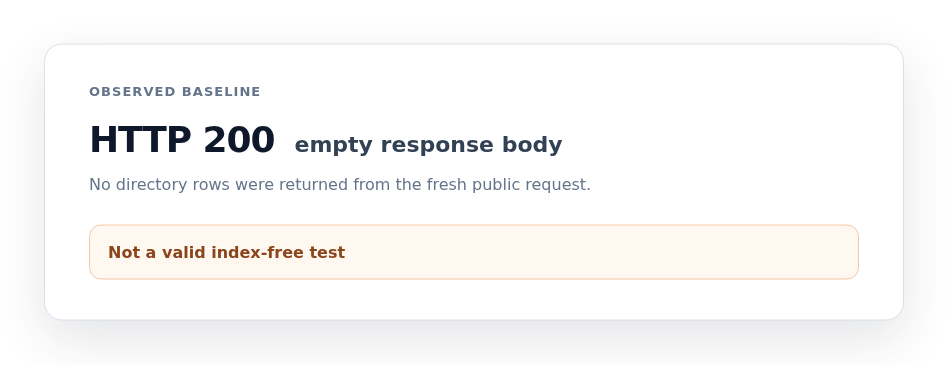
In a read-only check of a WordPress 6.9.4 site running PHP 8.3 and MySQL 8.0, wp-content/uploads/ and wp-includes/ returned HTTP 200 pages with folder lists. wp-content/plugins/ and wp-content/themes/ returned empty bodies instead. A blank or default index file can mask the listing behavior, so an empty response is not proof that the server is configured the same way for every folder. The mixed result shows why an index-free folder is a better test than guessing from a standard WordPress path.
Disable listings on Apache
Apache is one of the common web servers used for WordPress. Its .htaccess file is a small settings file for a website or folder. It works only when the site uses Apache and the host allows these settings.
Add this rule in the Apache settings for the site or folder:
Options -IndexesThis tells Apache not to create an automatic file list. It does not hide known URLs, delete files, or disable PHP.
Edit .htaccess safely
- Confirm the server and host rules first: Ask the host whether the site uses Apache and whether .htaccess may set directory options.
- Open the active website folder: Use the hosting file manager or an FTP client, a program for moving files between your computer and the server. The folder is often named public_html, but the correct location varies by host.
- Show hidden files before searching: .htaccess is commonly hidden, and a site can contain more than one. The file closest to the affected folder may control the request.
- Download the current file before editing .htaccess: Keep the original so you can restore it if the site breaks.
- Add only the listing directive: Preserve the existing WordPress URL rules and other settings.
- Save, upload, and test the same folder: Confirm that the file list is gone and that the home page, existing URLs, login page, admin area, and media still work.
Note ⚠️: A small settings error can cause a 500 error or break WordPress URLs. If that happens, restore the saved file first. Do not pile more snippets onto a failing setup.
Use cPanel when available
cPanel is a hosting control panel. Its names vary by host, but it may let you turn off listings without editing .htaccess.
- Open the target folder in File Manager: Sign in to cPanel, open File Manager, and select the site’s main website folder or another folder you want to protect.
- Open the folder’s index controls: Choose Manage Indices, Directory Indexing, or a similar option.
- Select No Indexing and save: Some cPanel accounts expose the same setting through Indexes under an advanced or files section.
- Test the exact folder again: Do not assume a setting on one site affects another site in the same hosting account.
cPanel’s No Indexing setting controls directory listings. It does not disable PHP execution in wp-content/uploads/, so configure and test that restriction separately. If cPanel cannot change the setting or the live page still lists files, ask the host to apply it at the server or site level.
Restrict PHP execution in uploads
Turning off listings does not stop the server from running a PHP file at a known path. PHP blocking needs its own narrow rule. Applying it to the whole WordPress installation can break the site because WordPress, plugins, and themes need PHP to run.
First find the PHP handler, the server component that decides how PHP files are processed. Apache, Nginx, LiteSpeed, and IIS each use their own settings. A rule that works on one setup may be ignored or cause a 500 error on another.
For Apache 2.4, if the host confirms that folder-level access rules are allowed in wp-content/uploads/, the intended deny behavior can look like this in that folder’s .htaccess file:
<FilesMatch "\.php$">
    Require all denied
</FilesMatch>
This is a host-dependent example, not a universal fix. It denies direct requests for PHP files instead of returning their source as plain text. Source output can reveal private code or secrets.
- Confirm the active PHP setup: Ask the host which server, PHP handler, and rule format the site uses.
- Limit the rule to a non-executable folder: Start with wp-content/uploads/ unless a custom integration needs PHP there.
- Test in staging with a harmless file: The request should be denied. The file must not run and must not display its source.
- Check normal media at the same time: Images and documents in uploads should still load.
- Remove the test file after verification: Never leave a test script or private file on a public site.
Nginx does not read .htaccess. Its directory-listing control is autoindex off;, placed in the server setting for the website or folder. A typical Nginx location may look like this, but the host should confirm the correct location before you reload the configuration:
location / {
    autoindex off;
}
IIS manages directory browsing through IIS Manager: select the site or folder, open Directory Browsing, and choose Disable if listings are enabled. LiteSpeed and managed WordPress hosts may require their own panel or a support request. Do not place a rule for one server into another server’s settings file.
Avoid old instructions that switch off the PHP engine globally. They can be ignored or trigger a 500 error when the host uses another PHP setup. A direct denial is the safer result.
Verify and recover
Test one change at a time so you can find the cause of a failure.
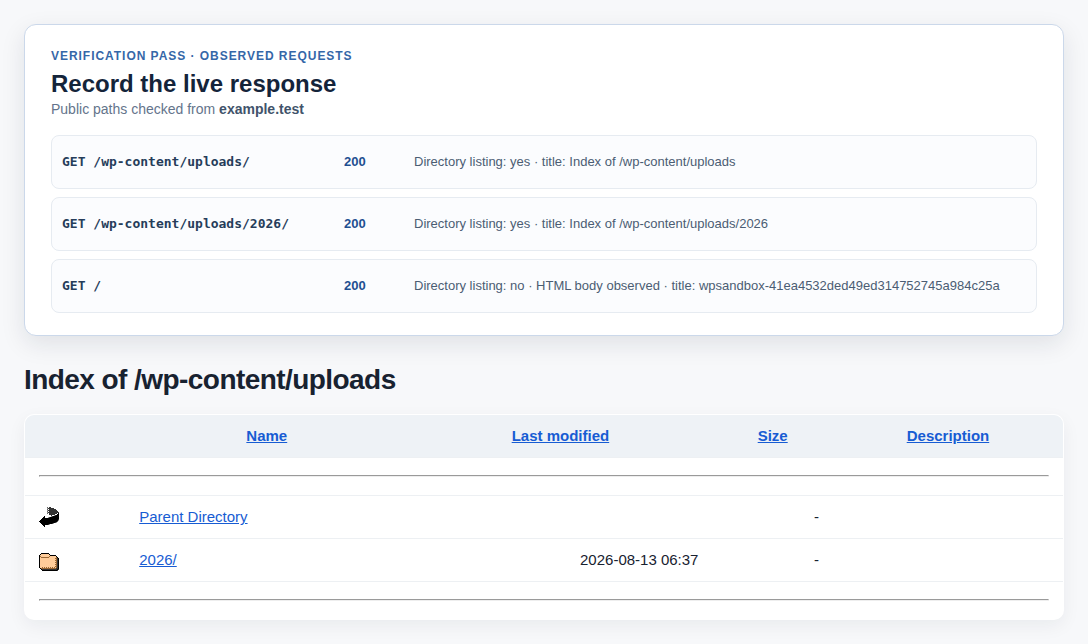
- Request the index-free folder again: The Index of … page should be gone.
- Request a normal media file: An image or document in wp-content/uploads/ should still load.
- Request the staging PHP test file: It should receive a denial response, never execute, and never show its source.
- Check the main site paths: Load the home page, several existing URLs, the login page, and the admin area.
- Review the server error log when needed: This record can show which rule or file caused a failure.
- Restore the last working configuration after a 500: Then ask the host to confirm the active server, main website folder, and allowed rules.
- Check the file scope when nothing changes: The edited file may not belong to the active site, or a cache may still be serving the old response.
Changing file permissions to a number such as 771 is not a substitute for either setting. Permissions control which server users can read or write files. They do not turn off directory listings or PHP handlers, and the right values depend on the host’s user and group setup.
Know the limits
Disabling listings reduces what attackers can see. Blocking PHP execution in uploads adds safety to a writable folder. Neither step removes malware, fixes a weak plugin, prevents every upload, or protects a known public file.
Keep WordPress, plugins, and themes updated. Use strong admin passwords and two-factor authentication, a second sign-in check, where available. Maintain tested backups, watch for file changes, and store sensitive files outside the public website folder when possible.
Conclusion
Directory browsing and PHP execution are separate WordPress security settings. Check a folder without an index page, disable listings in the correct server configuration, and restrict PHP only in writable folders that do not need to run it. Back up before editing and verify each change with a live request.
If the response is unclear or the site returns a 500 error, restore the working file and ask your host to confirm the server setup. For a broader security plan, follow a WordPress security checklist. If you also need help detecting malware and filtering bad traffic, a WordPress firewall can address risks that server settings do not. It does not replace the host’s settings or apply these rules automatically.