When a notice about WordPress security updates appears, it is easy to wonder whether clicking Update Now will fix a risk or create a new one. You do not have to choose between ignoring the patch and updating blindly. WordPress security updates fix WordPress security flaws in core, plugins, and themes. This guide shows you how to check what needs attention, choose a safe update path, and verify the site afterward so you can move forward with confidence.
TL;DR: Open Dashboard → Updates, read the matching security notice, and check plugins and themes too. Back up your files and database, use staging when the site warrants it, then update and verify the result; WordPress security guidance can help you understand known vulnerabilities, but alerts cannot replace patching.
What counts as a WordPress security update?
A security update is a release that fixes a known weakness. It may also include maintenance, compatibility, or performance changes. The WordPress security news listing identifies each release’s scope; use it instead of an old version number. After applying the fix, a security audit can help uncover broader weaknesses that the release itself does not address.
It can affect three parts of your site:
- WordPress core: the main software that runs the site.
- Plugins: add-ons that provide features such as forms, stores, backups, or search visibility tools.
- Themes: files that control the design and may also add site features.
Updating WordPress core does not update every plugin or theme. A site can have a current core release and still run an outdated plugin affected by a WordPress plugin vulnerability. Check all three areas, and remove software you no longer need.
Security updates reduce exposure to known weaknesses. They do not prove that a site is clean, protect a stolen account, or fix unsafe settings. A security notice tells you what the release addresses; it does not tell you whether another vulnerability or compromise exists on your site. Review WordPress salts and other security settings separately when hardening the site.
How to check for WordPress security updates
Use the WordPress admin area and official security notices together.
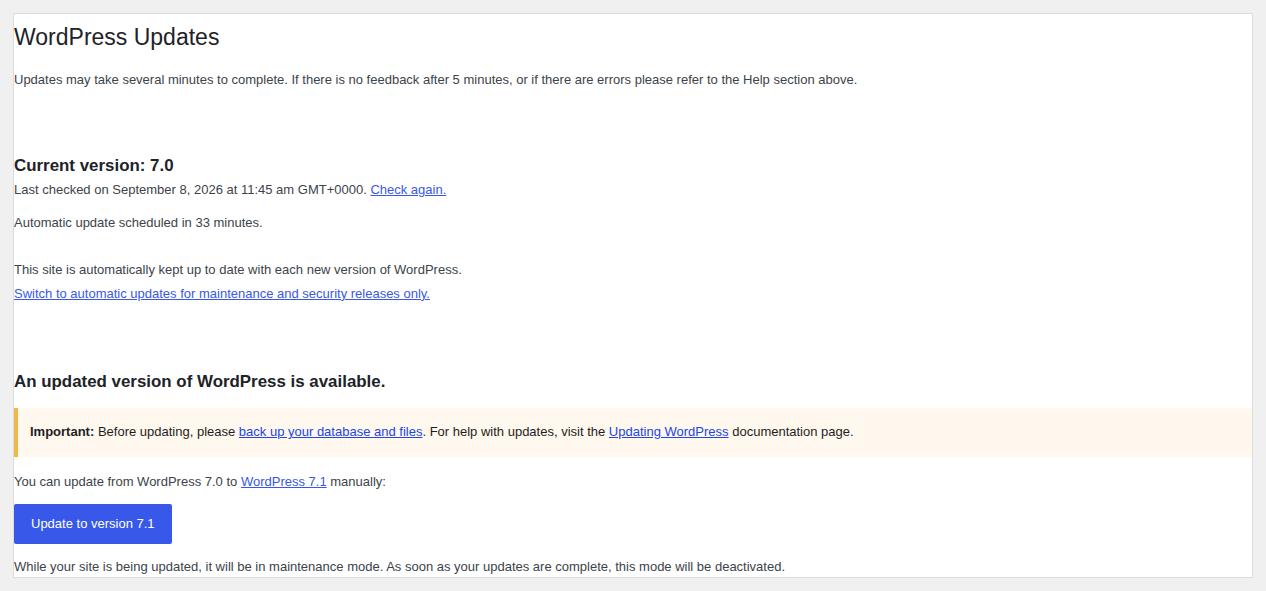
- Start with Dashboard → Updates: Review available WordPress, plugin, theme, and translation updates.
- Check the Plugins and Themes screens: Open Plugins and Appearance → Themes to confirm each installed plugin or theme and its update setting.

Themes have a separate update surface with their own available-version notices.
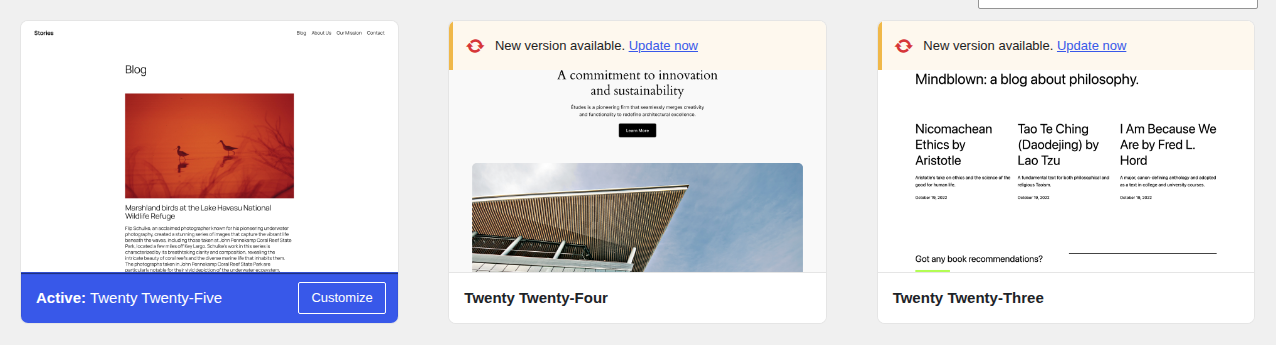
- Read the matching security notice: Use the WordPress security news page to see whether a release fixes a known security issue and which supported WordPress branches it covers.
- Read the relevant changelog: Check the plugin or theme developer’s changelog, which is its list of changes, before updating business-critical software.
Labels can differ by WordPress version, hosting setup, permissions, and configuration. The WordPress administration documentation describes the standard paths.
📝 Note: Do not chase one hardcoded “latest version” from an old article. WordPress can fix a security issue in more than one supported version, so follow the current official notice for your site.
Choose the right way to update
Choose based on the site’s importance, customization, and recovery time.
Test a high-risk change on staging
A staging environment is a private copy where you can test changes before they reach visitors. Use one first for a busy store, a customized site, or a site that depends on forms, memberships, payments, or outside services.
- Test the important journeys: Check the homepage, login, editor, forms, email delivery, search, checkout, payments, orders, and customer accounts where relevant.
- Deploy with live data in mind: A careless copy from staging to the live site can overwrite newer orders, comments, or form submissions.
Staging lowers compatibility risk, but it is not a backup. Keep the live-site backup restorable. A staging result is evidence about compatibility, not proof that live traffic, permissions, integrations, or new data will behave identically.
Update a routine site from the dashboard
For a supported routine update, the dashboard is usually the quickest path when the site has a current backup and a clear recovery plan. This path also has a manual fallback when dashboard updates are not available.
Review release notes first when the site uses custom code, an older theme, an online store, forms, memberships, or important integrations.
Do not delay a known security fix forever while waiting for perfect test conditions. The unpatched weakness remains a risk during that wait.
Use automatic updates with a recovery plan
WordPress can apply many minor and security releases automatically when the site supports the feature. Major feature releases usually remain a deliberate choice in the general guidance. Hosting settings, file access, site history, and other configuration can change what happens on a particular site, so confirm the setting on the site itself.

Plugin and theme automatic updates are separate settings. You can enable them for individual supported plugins and themes, and WordPress sends notices about successful or failed attempts. They run on a schedule, not necessarily when a developer publishes a release. The WordPress plugin and theme auto-update guide covers the controls.

On managed hosting, confirm who controls updates.
Before enabling them, confirm that your backup can be restored and decide who will respond to a failed update. A safer update workflow can make those checks repeatable. Automation reduces delay. It does not remove the need to monitor the site.
Prepare before changing a live site
Complete this short preflight before selecting Update Now.
- Confirm a restorable WordPress backup: Save both the site files and its database. Test the restore process if the site is important.
- Protect new customer data: Restoring an older backup can remove orders, comments, form entries, signups, or other data created afterward. Decide how you will preserve new data before restoring an older copy.
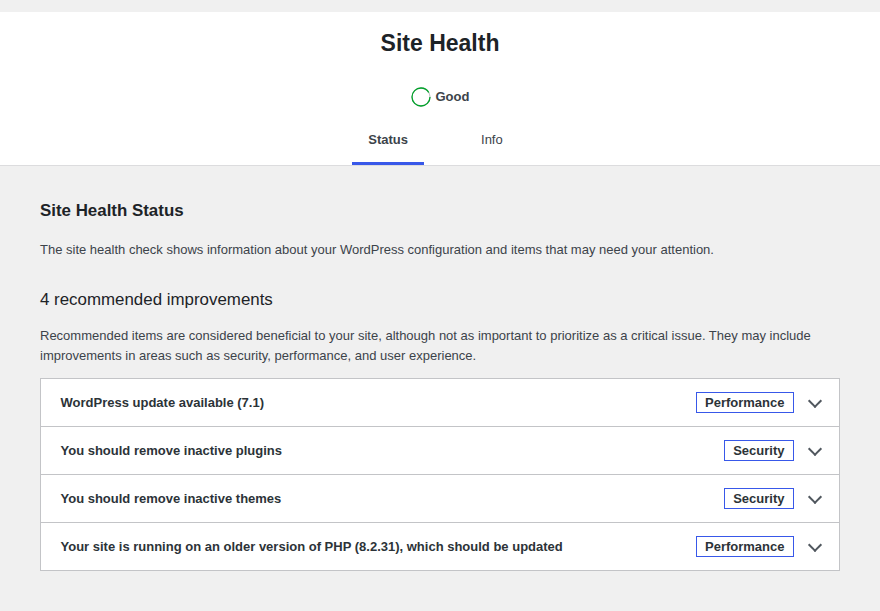
- Check the site requirements: Confirm the plugin or theme’s WordPress and PHP requirements. An unsupported PHP version can make an update fail, so use a supported version that fits your host and site instead of changing it blindly.
- Choose the update window: Avoid a busy sales period or schedule a maintenance window when the site cannot afford disruption.
- List the functions to test: Write down the paths that matter to your readers, customers, editors, and team before the update starts.
A backup gives you a recovery option. It does not make the security update unnecessary or prove that the update will work.
Apply and verify the update
For a direct update, open Dashboard → Updates, review the release, and select Update Now. Use the same screen for pending core, plugin, theme, and translation updates. You can also update plugins and themes from their own screens.
For a staging-first update, apply the change to the staging copy, test important functions, and use your host’s or team’s controlled process to release it. Check the live site again because staging cannot reproduce every difference in traffic, data, permissions, or server settings.
Use files from WordPress.org, the official plugin or theme source, or a trusted developer. An untrusted ZIP can contain modified files and create a new security problem.
After the update, check the result rather than trusting the success message alone.
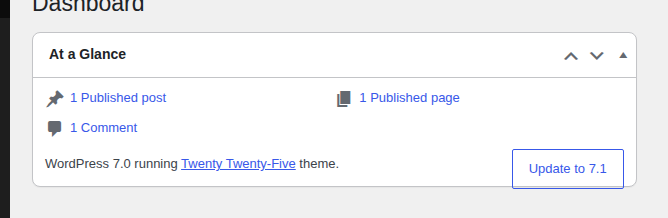
- Confirm the installed versions: Check the Updates screen or Dashboard → At a Glance.
- Clear saved copies: Clear relevant caches, including page, browser, server, or content delivery network copies that can hide the fix or show an old error.
- Open the main pages: Load the homepage and several important content pages.
- Test access and communication: Check admin access, login, password reset, forms, and email delivery where relevant.
- Test business-critical actions: Check checkout, payments, orders, memberships, customer accounts, scheduled tasks, and outside services when the site uses them.
- Review Site Health and logs: Site Health is WordPress’s built-in checkup screen. Logs can reveal a problem a homepage visit misses. For example, a successful update can still leave a form submission or payment callback failing, or a scheduled task overdue; logs help distinguish that from a page-cache problem.
The At a Glance panel provides a quick version check after the update.
⚠️ Note: An update-success message confirms that the update process finished. It does not confirm that every page, form, payment, or scheduled task still works.
Troubleshoot common update problems
The update will not download or install
Read the exact message first. Common causes include a connection problem, unsupported PHP, incorrect file access, insufficient permissions, low disk space, or a hosting restriction. If the same problem persists, use the WordPress update failed guide to narrow down the cause.
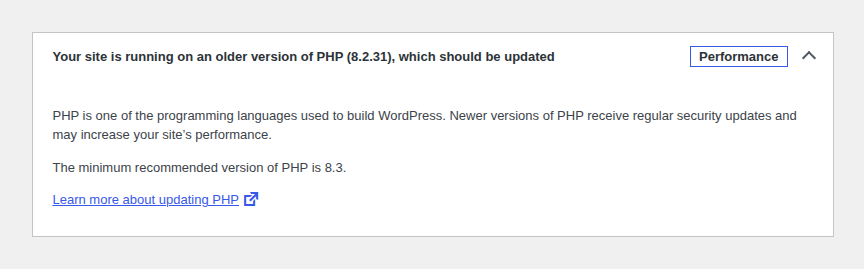
- Check the site’s requirements: Confirm the WordPress, PHP, plugin, and theme requirements.
- Check available space and access: Ask your host to verify disk space and whether WordPress can write its files.
- Check Site Health and error records: Look for failed scheduled tasks or server errors before trying again.
- Retry through the official path: Confirm the backup, correct the cause, and use Dashboard → Updates or the official download source.
A plugin or theme breaks a feature
Identify what changed and when. Do not disable every plugin immediately or leave a security fix postponed without a plan.

- Preserve the current state: Confirm a backup before making more changes.
- Isolate the recent change: Temporarily disable the suspected plugin or theme only if needed to confirm the cause.
- Check the developer’s fix: If a plugin update failed, read the changelog and compatibility notice for a corrective release.
- Restore the security path: Apply the developer’s fix, replace unsupported software with a recovery plan, or remove the plugin or theme if it is no longer needed.
The site stays in maintenance mode
An interrupted update can leave the site stuck in maintenance mode, show a failed-update notice, or prevent it from loading.
- Confirm the update has stopped: Do not remove anything while an update is still running.
- Remove the stale file carefully: If the process has stopped, ask your host or use its file manager to remove the hidden .maintenance file from the WordPress folder.
- Use manual replacement only as a fallback: Download WordPress from WordPress.org, preserve wp-content and wp-config.php, and follow the official manual update instructions. WordPress may also request a database update afterward.
Manual file replacement can damage a customized site. Use your host or a WordPress professional when you are unsure which files to change.
The site is still broken after recovery
Restoring a known-good backup may be appropriate when the site cannot be stabilized. Preserve new orders, submissions, comments, or signups first when possible. After recovery, identify the incompatible plugin or theme and return to the security update plan. Returning to an older backup is a recovery step, not a reason to stay on a known-vulnerable version forever.

Keep security checks on a regular schedule
Use update notices or automatic updates to reduce delay, then review Dashboard → Updates and Site Health regularly and after every security-related change. No single setting covers core, every plugin, every theme, and every hosting environment.
If you want another way to watch for known vulnerabilities, WordPress security plugins can help. MalCare’s Vulnerability Scanner says it checks installed WordPress core, plugin, and theme versions against a tracked vulnerability database daily and alerts you when a known issue affects your site. That visibility can help you find risk sooner, but an alert is not a patch and does not replace applying the fix, keeping backups, testing important changes, or verifying the site afterward.
File integrity monitoring can add another post-update check by flagging unexpected changes to site files.
Conclusion
Treat WordPress security updates as controlled maintenance. Check core, plugins, and themes, read the current security notice, keep a restorable backup, and choose direct updating or staging based on the site’s risk.
After every update, confirm the installed versions and test the actions that matter to your site. Automatic updates and a security plugin can reduce response time, but regular security checks and post-update verification still belong to the site owner.