
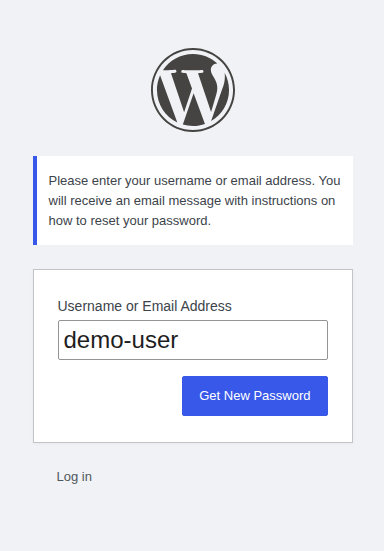
It often starts with something small: a password reset that never reaches the inbox. Then a form lead sits in junk, or a WooCommerce customer asks why the order email looks suspicious.
At that point, the search is obvious: WordPress emails going to spam.
Usually, WordPress is only where you notice the problem. The real issue is that Gmail, Outlook, Yahoo, or your customer’s mailbox doesn’t have enough reason to trust the sender.
Send WordPress email through an authenticated SMTP plugin or transactional email service, then set up SPF, DKIM, and DMARC for the sending domain. If emails still land in spam after that, check alignment and reputation next. Then look at content, complaints, blocklists, and possible site compromise.
I wouldn’t start by rewriting every subject line or removing words that sound “spammy.” That can help later, but most WordPress emails go to spam because the sender looks weak. Fix the trust signals first. The rest of the work gets much easier once you know your mail is sent from the right place, signed by the right domain, and not tied to a bad reputation.
Check what is actually failing
Two problems look the same from the reader’s side. The message may never leave the site. Or it may leave the site and get filtered after it reaches Gmail, Outlook, Yahoo, or a company mail gateway.
Those need different fixes. If nothing arrives anywhere, you may have a broken form setting, a plugin conflict, a host that blocks server mail, or an expired SMTP login. If the message appears in spam, you’re dealing with trust and delivery. Run a quick test before changing settings:
- Trigger the same email twice: Use a login reset, form notification, or store receipt.
- Send to more than one inbox: Test Gmail and Outlook at a minimum if you can.
- Check filtered folders: Look beyond the inbox, including spam and any quarantine folder your provider uses.
- Save the result: Note the sender address, recipient inbox, folder, and authentication result if you can see it.
⚠️ Note: WordPress can report that an email was sent even when the inbox never accepts it. The WordPress mail function only means WordPress handed the message to the mail system. It doesn’t prove Gmail trusted it or placed it in the inbox.
If nothing shows up anywhere, fix the email sending first. If it lands in spam, keep going.
Move WordPress off server mail
Start by taking email away from the web server. By default, many WordPress sites send mail through the server behind the site. That route often has weak proof that your domain really allowed the message. Inbox providers don’t want to guess. They want the sending service to show that your domain has approved the mail.
Use an SMTP pluginor a transactional email service. WordPress hands the message to that service, and the service handles the mail properly.
Good options include the email suite you already use for work, plus transactional senders built for site-generated mail. Postmark, SendGrid, Mailgun, Amazon SES, Brevo, and SMTP.com are common examples. You don’t need to rank every provider before you move. Pick one with clear WordPress support, good logs, and simple domain setup. Use this order:
- Choose a proper email sender: Pick a provider that gives you the records needed to authenticate your domain.
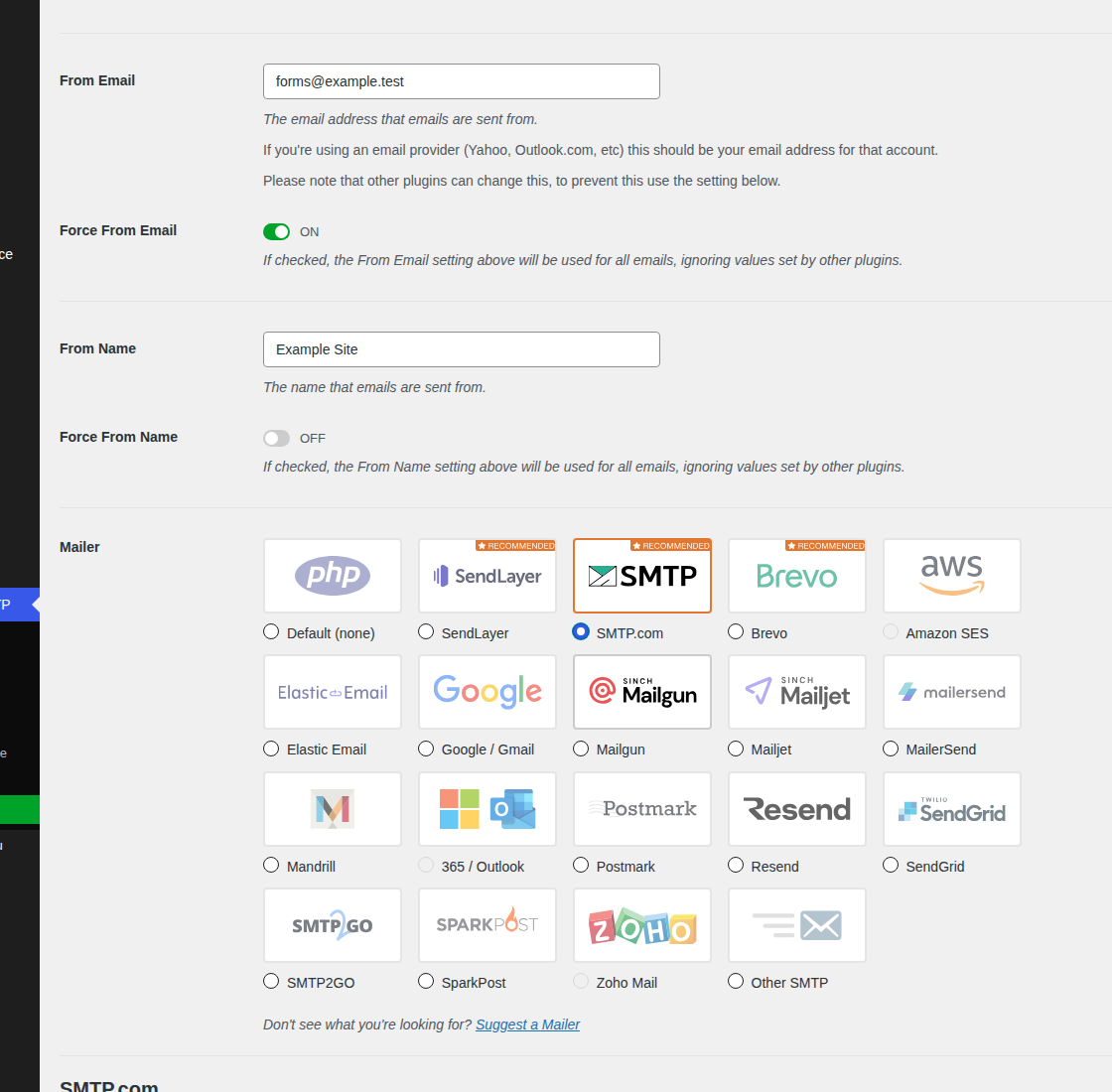
- Connect WordPress to that sender: Add an SMTP plugin and use the API key, OAuth login, or SMTP login from your provider.
- Set a domain-owned From address: Use a mailbox like support@yourdomain.com or forms@yourdomain.com. Don’t use a free Gmail or Yahoo address.
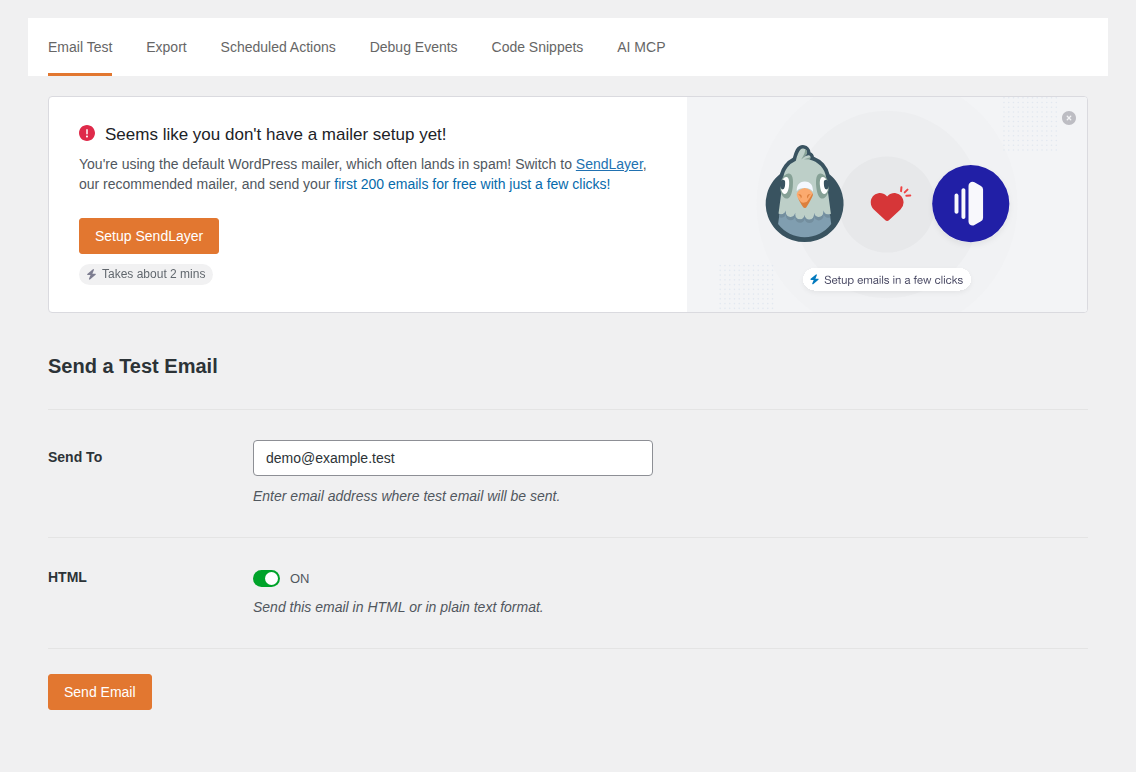
- Send the plugin’s test email: Treat the green success message as a handoff result, not final proof.
- Check the received email: Open the message in Gmail or Outlook and look at the authentication results.
Don’t stop at the plugin screen. A test can pass because WordPress handed the message to the provider. The inbox result is the part that counts.
Authenticate your domain
SMTP gives WordPress a better route. DNS authentication proves the route belongs to you.
Your email provider should give you the SPF, DKIM, and DMARC values to add in the account that controls your domain records. For most sites, that means your registrar, host, or Cloudflare. In simple terms:
- SPF tells inboxes which services can send mail for your domain.
- DKIM adds a signature that proves the email wasn’t faked on the way.
- DMARC tells inboxes what to do when the visible sender doesn’t match the trusted sender.
Don’t copy random DNS records from a tutorial. Use the exact values your email provider gives you. One wrong character can turn a good setup into a confusing one.
Two mistakes are worth slowing down for. The first is a mismatched From address. If your WordPress site sends from yourname@gmail.com but your provider authenticates yourdomain.com, the visible sender and trusted sender don’t line up. Use a sender from your own domain instead.
The second is duplicate SPF records. Many DNS panels let you add more than one TXT record that starts with v=spf1. Inboxes expect one combined SPF record. If your normal business email and transactional provider both send from the same domain, include both in one SPF policy.
🧭 Note: DNS changes can take time to spread. Make one clean change, wait, then retest. If you edit SPF, DKIM, DMARC, the SMTP plugin, and the From address in one rush, you won’t know which part helped.
Fix the From and Reply-To setup
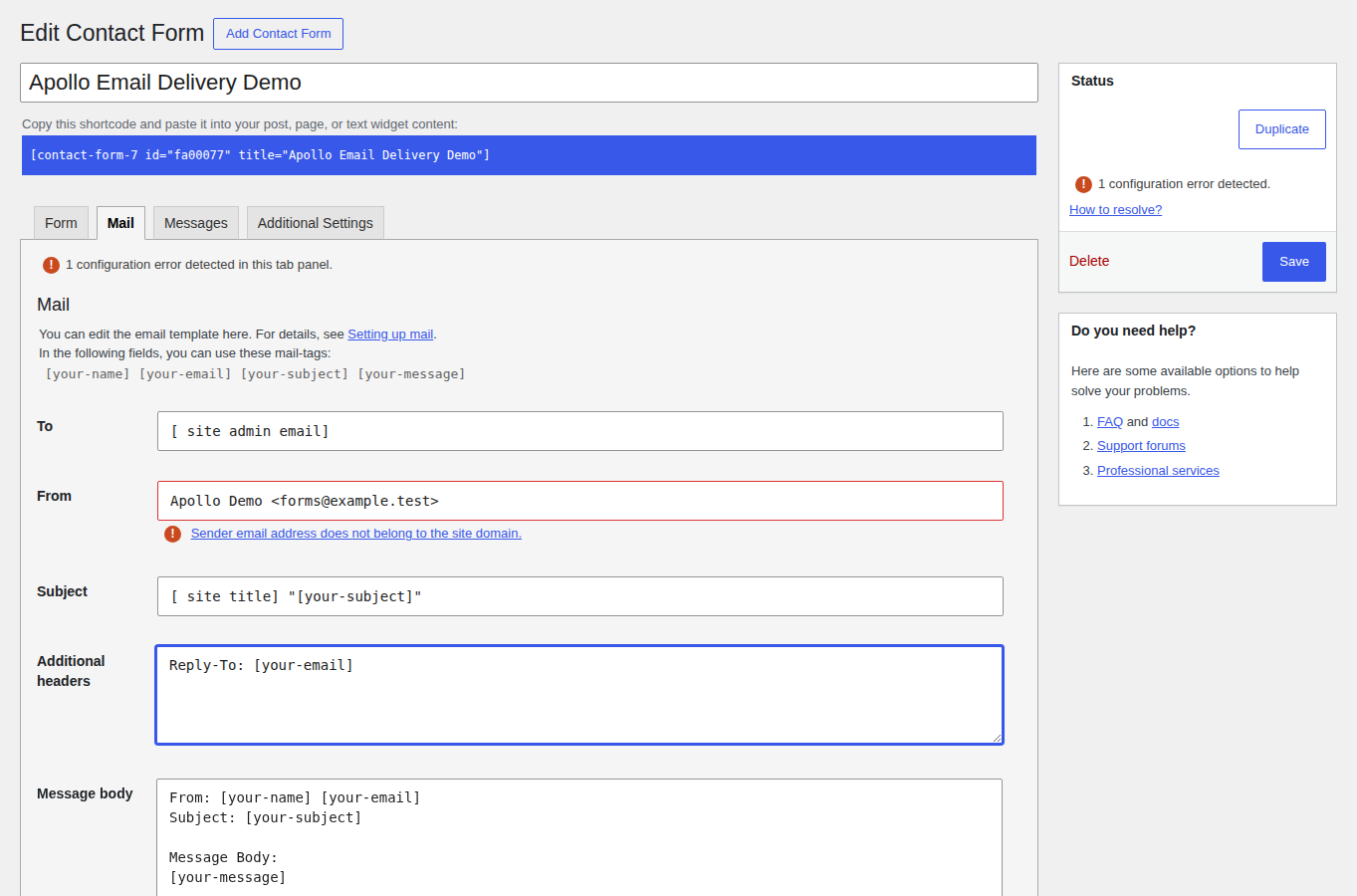
The From address is not just a label. It is part of the identity inboxes judge. For WordPress emails, keep the From address under your own domain:
- Password resets: security@yourdomain.com
- Contact form notifications: forms@yourdomain.com
- WooCommerce orders: orders@yourdomain.com
Contact forms are the easy place to make a bad sender choice. It feels natural to make a form notification come from the visitor’s email address. If Jane fills out your form with her Gmail address, you want to see Jane in your inbox.
But your site isn’t Gmail. It shouldn’t send mail as Jane. Set the form email like this instead:
- Use your domain in From: forms@yourdomain.com
- Use the visitor in Reply-To: Jane’s submitted email address
- Keep the sender name clear: Your site or business name
Now the message uses your own domain as the sender, and you can still hit reply to answer the visitor.
Check the main WordPress email types
Once the sender and DNS are clean, test the emails that matter on your site. Don’t assume one test email proves everything.
Password resets and admin emails
Password resets are usually plain, low-risk emails. If they go to spam, start with the sender setup.
Send a reset to two inboxes. If both put it in spam, check SMTP first, then the domain records and From address. If only one inbox filters it, the recipient’s mailbox may have a rule, old complaint, or strict security filter.
Contact form notifications
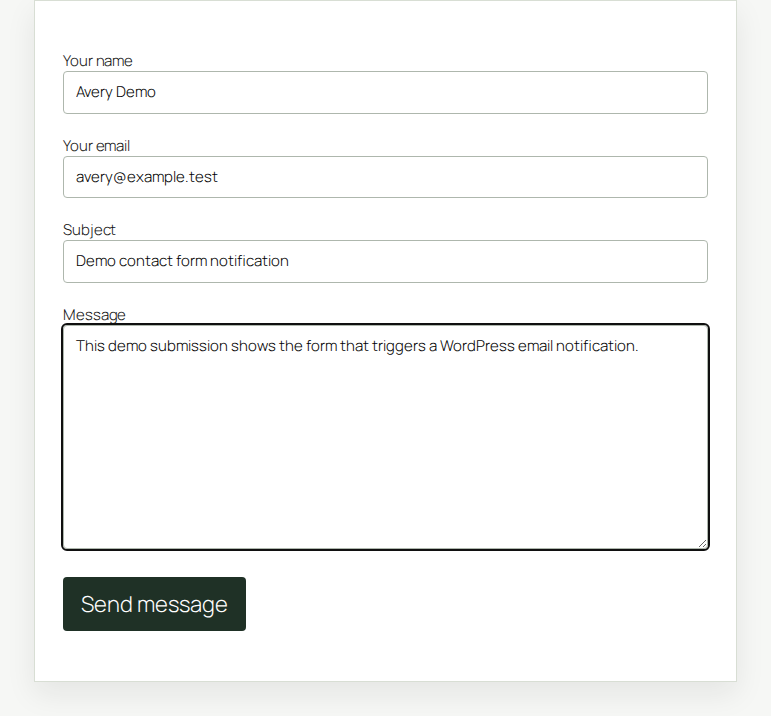
For form plugins like Contact Form 7, WPForms, and Gravity Forms, check the notification settings before blaming the plugin. Use your domain in the From field. Put the visitor’s address in Reply-To, then test a short form submission with no links. If that works, add the normal fields back and test again.
📝 Note: CAPTCHA, Akismet, and honeypot fields reduce junk submissions. They don’t make your outbound email more trusted by Gmail. Use them for form spam, not sender trust.
WooCommerce emails
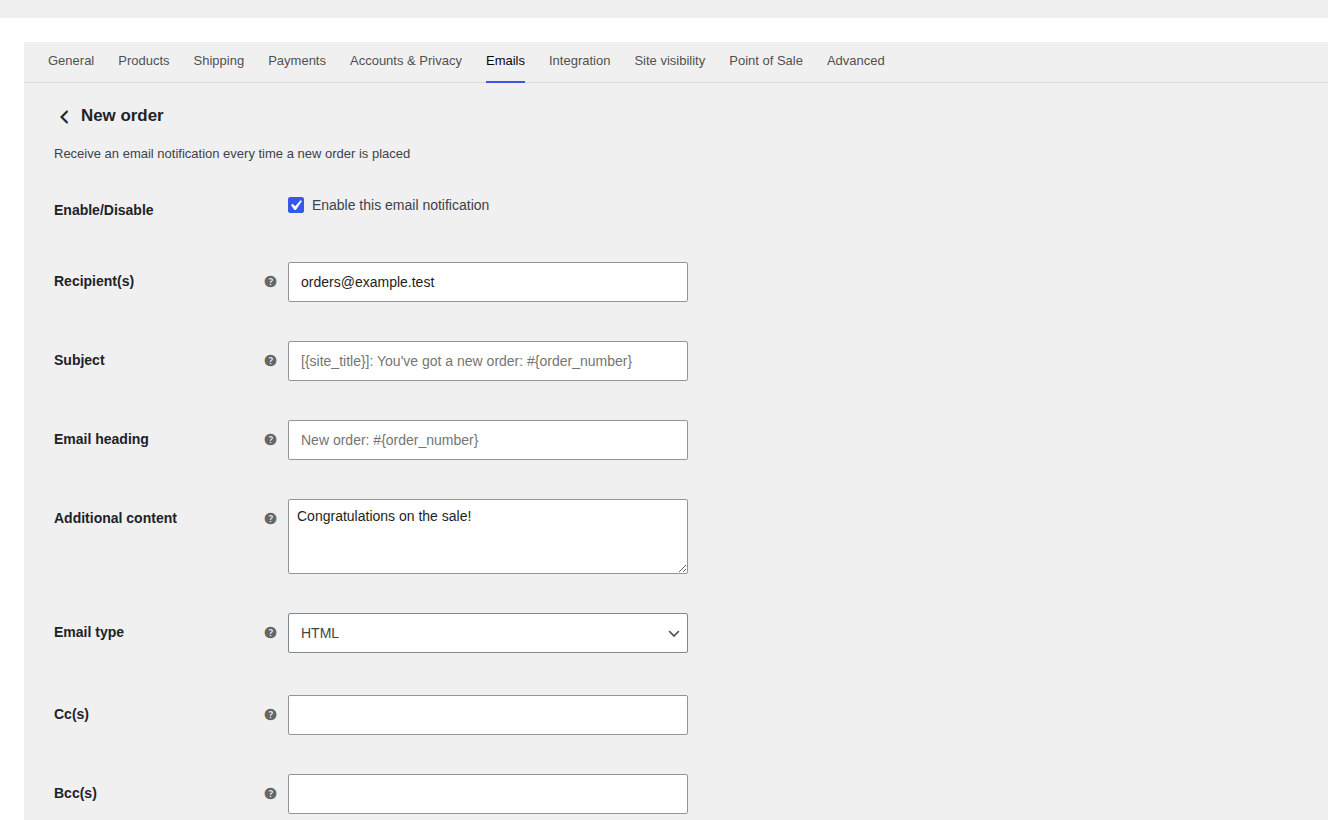
WooCommerce emails affect money and support, so test more than one template.
- Send a new order email: Check the admin notification and customer receipt.
- Send a customer invoice: Make sure the sender and template match your domain.
- Send a completed order email: Watch for heavy promotions or too many links.
- Send a password reset: Compare it with the order email result.
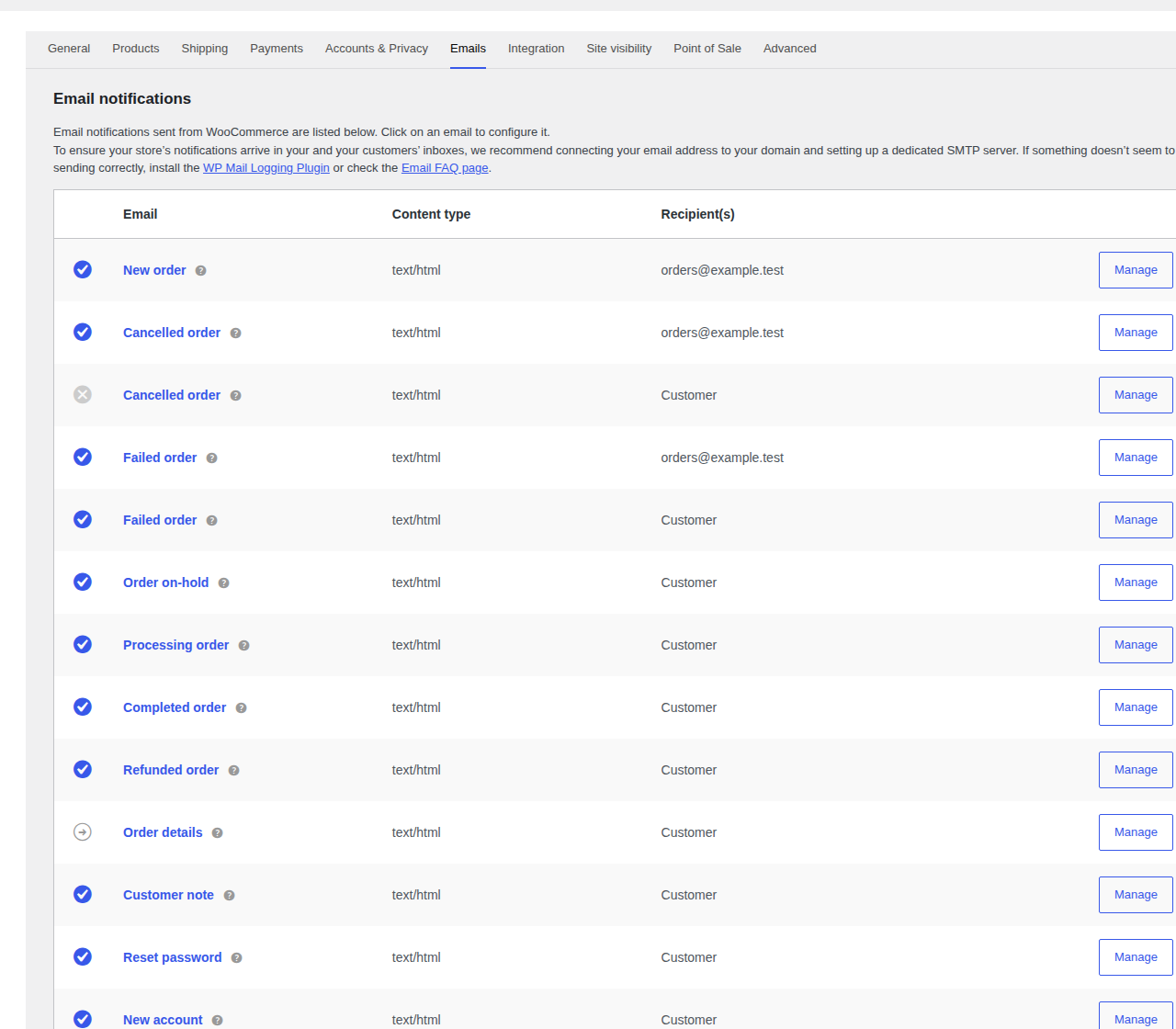
If admin emails arrive but customer emails go to spam, compare the template and recipient path. If customer emails arrive but admin notifications go to spam, check the admin mailbox rules too. Not every issue starts in WordPress.
For order emails, keep the message boring in the best way. The receipt should be clear. The customer shouldn’t have to push past banners, coupon blocks, and unrelated product links to find the order details.
If SMTP is set up but emails still go to spam
This is the part that frustrates people. They installed the SMTP plugin, saw the success message, and still found the email in junk. SMTP is a route. It is not a promise of inbox placement. Look at the received email in Gmail or Outlook and check the authentication results. You want SPF or DKIM to pass, and you want the trusted domain to match the visible From domain. If DKIM passes for one domain while the From address shows another, the email can still look suspicious.
Then check reputation. Reputation is the history tied to your sending domain, sending IP address, and mail behavior. If past mail caused bounces, spam complaints, or suspicious activity, inboxes may treat new mail carefully even after authentication passes.
Use a blocklist checker such as MXToolbox, and check specific mail blocklists like SpamCop, when:
- The issue started suddenly.
- More than one email type is affected.
- Gmail and Outlook both filter the message.
- Your host or SMTP provider changed recently.
Shared hosting can make this messy. If your site sends from an IP address shared with many other sites, another sender’s bad behavior can hurt that IP’s reputation. A shared SMTP pool can have the same problem.
That doesn’t mean a dedicated IP is always better. A dedicated IP has to build its own history, and low-volume sites often do better on a well-managed shared pool. Ask your provider for the sending IP, mail logs, and any reputation warnings before paying for a change.
Clean up the email itself
Fix content after the trust layer is working.
For normal WordPress transactional emails, plain usually wins. A password reset doesn’t need a banner, a coupon, or five extra links. An order confirmation should make the purchase clear. A form notification should show the submitted details without looking like a newsletter. Trim anything that makes the message look risky:
- Remove extra links: Keep only the links the email needs.
- Avoid link shorteners: They hide the destination and can look suspicious.
- Skip image-only layouts: Inboxes and readers need real text.
- Drop oversized attachments: Link to account pages or receipts instead when possible.
- Calm the subject line: Avoid all caps and fake urgency.
- Separate marketing from receipts: Don’t turn order emails into campaigns.
Newsletters and campaigns need stricter care. Send only to people who asked for the email. Include an unsubscribe link, remove bad addresses, and watch complaints. Yahoo’s public sender guidance points to complaint rates below 0.3% as a good ceiling, which is a useful reminder: a small number of annoyed readers can hurt a sender fast.
For a growing store or membership site, I prefer separating transactional and marketing mail. Password resets and order receipts shouldn’t carry the reputation damage from a messy promo list.
Investigate sudden spam problems
If email worked for months and then suddenly started landing in spam, think in changes. Check what happened recently:
- Review hosting changes: A migration can change the sending IP or mail path.
- Review DNS edits: SPF, DKIM, or DMARC may have been removed or overwritten.
- Review SMTP access: API keys, passwords, and OAuth connections can expire.
- Review plugin updates: Form, SMTP, WooCommerce, membership, and security plugins can affect email.
- Review sending spikes: A large campaign or spam form attack can hurt reputation.
This is also where security belongs.
A compromised WordPress site can damage email reputation by sending spam, hosting phishing pages, creating suspicious redirects, or triggering domain warnings. The symptom may look like an email problem, but the cause may be the site itself.
If you see unknown outgoing emails, blacklist warnings, strange redirects, or new admin users you don’t recognize, use a scanner like MalCare to inspect the site for malware. MalCare won’t fix email authentication or SMTP. It belongs here only when suspicious site changes may be hurting domain trust.
🔎 Note: Don’t ignore security just because password resets are the first symptom you noticed. If reputation changed overnight, look beyond email settings.
Retest without muddying the result
Make one meaningful change, then test it. Use a short testing routine:
- Save a before result: Send a password reset and note where it lands.
- Apply one fix: For example, connect SMTP or correct DKIM.
- Wait when DNS is involved: Give records time to update.
- Send the same email again: Same sender, same recipient, same email type.
- Check the headers: Confirm authentication passed in the received email.
- Repeat for forms and WooCommerce: Test the workflows your users rely on.
Keep a tiny log. Record what you tested, who received it, where it landed, and whether authentication passed. It keeps you from guessing later.
If email affects revenue or support, retest after big changes. Send a quick test after a host move, DNS edit, SMTP credential change, or WooCommerce template update. Email is one of those systems people only notice after it fails.
Who should fix which part
This problem crosses too many systems for one support team to own every answer.
- Ask your SMTP or email provider for sending logs, authentication results, bounce details, and any reputation warnings.
- Ask your DNS host or registrar when SPF, DKIM, or DMARC records don’t publish correctly.
- Ask your web host when WordPress is still using server mail, PHP mail is blocked, or the sending IP looks suspicious.
- Ask your WordPress developer when the wrong plugin is changing the From address, WooCommerce templates are heavily customized, or mail breaks after a theme or plugin update.
- Ask your security team when the timing points to compromise, blacklisting, phishing warnings, or outgoing mail you didn’t send yourself.
You’ll get better help when you ask each team about the layer it controls.
FAQs
Most WordPress emails go to spam because inboxes don’t trust the sender yet. Start with server mail, missing authentication records, and a mismatched From address. If those are clean, check reputation, content, and site security.
In most cases, yes. SMTP or a transactional email service gives WordPress a cleaner sending route. You still need domain authentication, but this is usually the first serious fix.
SPF is the approved sender list for your domain. DKIM signs the email so inboxes can verify it. DMARC tells inboxes how to handle mail when the visible sender and trusted sender don’t match.
The SMTP route may work while domain authentication, sender alignment, reputation, or content still has problems. Check the received email’s authentication results first. Then look at blocklists, complaints, shared IP reputation, and recent site changes.
Yes. Malware can send spam, host phishing pages, or trigger warnings that damage domain trust. If the spam problem started suddenly and the site looks suspicious in other ways, include a malware scan in the investigation.
Conclusion
This problem is usually about trust, not some hidden WordPress switch. Start by proving the symptom, then move WordPress to SMTP or a transactional email provider, authenticate your domain, and use a From address your domain can stand behind. That fixes the weak foundation for most sites.
If spam placement continues, don’t keep changing random settings. Check the received email first, then reputation and blocklists. After that, look at content, recipient filtering, and signs of compromise. That order keeps the work focused and gives you real evidence instead of another afternoon of guessing.