A strong password is the answer to that nagging feeling that your site isn’t truly secure, and it’s one of the most critical steps you can take.
The good news is that with the right tools, it’s simple. We’ll walk you through three distinct methods. Starting with the default WordPress password generator and building up to the professional standard for security.
For quick and secure passwords, use the built-in WordPress generator. For a complete security solution that protects all your accounts, you need a password manager.
A) Built-in WordPress password generator
Let’s start with the tool you already have. It’s built right into your WordPress dashboard. Honestly, it’s excellent for most day-to-day tasks.
⛴️ Note: Hardening WordPress goes beyond just passwords, covering many security layers. Still, this is absolutely the best place to start.
You can find it on the Add New User or profile edit screen. When you click the button, WordPress creates a strong, random 24-character password by default. This is a fantastic length. It’s long enough to be very secure.

🌳 Note: Brute force attacks are why password length is so critical for protection. The longer the password, the more impossible it becomes for automated software to guess.
It uses a cryptographically secure generator. This means the password it creates is truly unpredictable.
It also automatically includes everything a strong password needs. You get symbols, numbers, and mixed-case letters without any extra effort.
Here’s what you need to do when you use it:

- First, click the Show button to see the password it generated. You’ll want to copy this somewhere safe right away.
- Then, you must click Update User to save the new password. This is a step people often forget. If you don’t save the password won’t change.
💭 Our opinion on this method: For creating secure passwords one at a time, this is the best integrated tool available. It’s reliable and powerful. The only thing it doesn’t do is help you store or remember that password.
B) Online password generators
Sometimes you need to create a password when you aren’t inside your WordPress dashboard. This is where online generators can be useful, but honestly, you have to be very careful. You’re trusting a website with a key to one of your accounts.
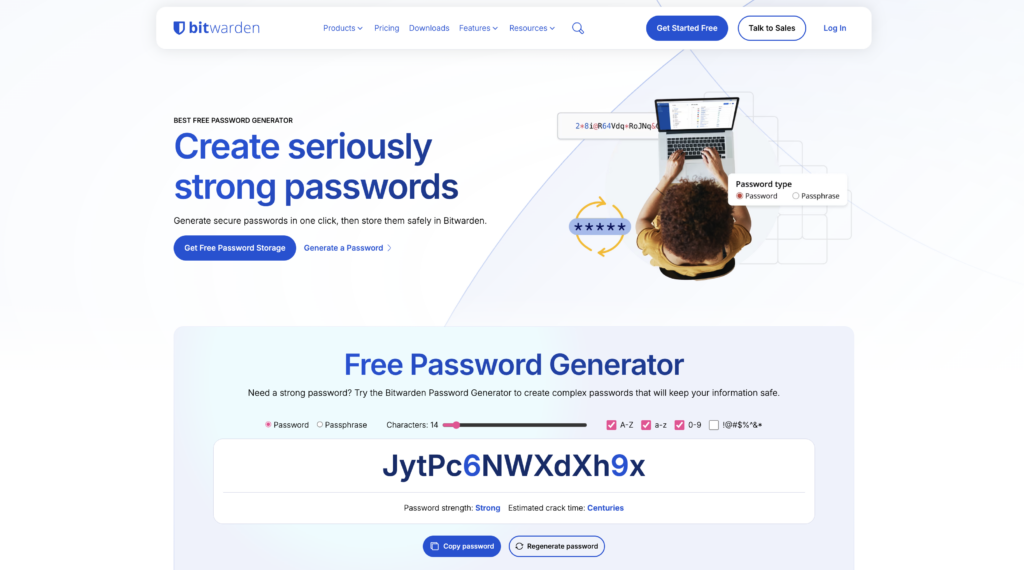
Only use generators from established security companies. We only recommend tools from password manager companies like Bitwarden or NordPass.
Their entire business is built on trust, so their free tools are made for real security. A random website you find on Google is a huge red flag. If it’s loaded with ads or feels unprofessional, just close the tab.
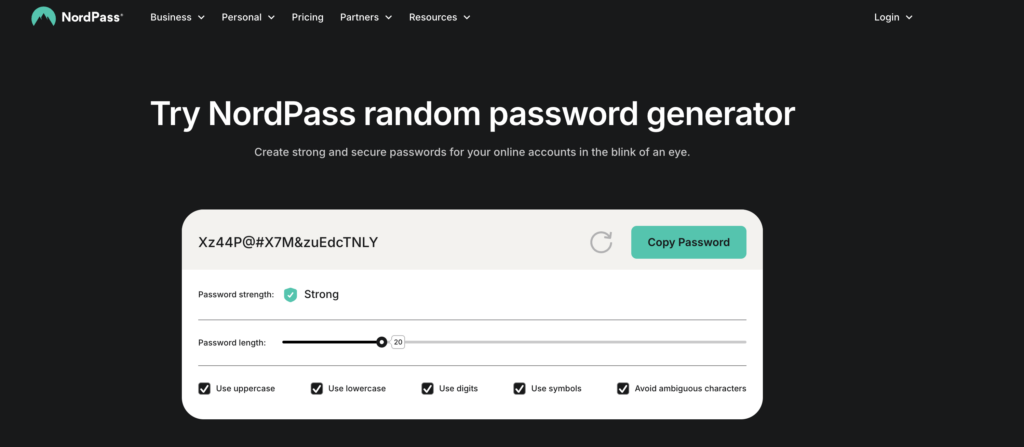
🎣 Note: Phishing scams frequently use unprofessional-looking sites just like this.
When you use one of these trusted tools:
- Always set the password length to a minimum of 16 characters. This is the modern minimum for strong protection.
- Double-check that the tool includes symbols, numbers, and both upper and lower-case letters. This variety is what makes the password strong.
- Be certain the password is created locally. It should happen instantly on the page. If there’s a delay, it might be sending the password to a server, which is not safe.
🦠 Note: A hacked WordPress site can start with a single credential leak from an unsafe tool. This is why verifying a tool’s safety is so important.
These tools are great for creating passwords outside of WordPress. But the most important step is what you do next. A common mistake is pasting it into a text file or an online note. Instead, always copy the password directly into your password manager for safekeeping.
💭 Our opinion on this method: These are trustworthy supplements, not a primary method. They are helpful in a pinch, but they only solve half the problem. They create the password, but they don’t solve the bigger issue of storing it safely.
C) Password manager
This is the professional standard. It’s how you solve the password problem for good.
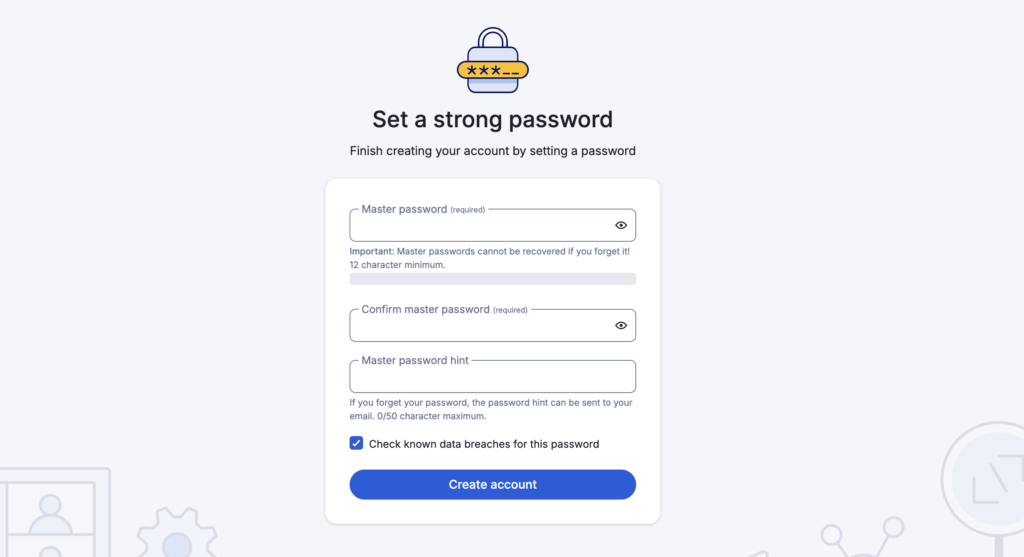
A password manager is an app built to create and store unique, unbreakable passwords for every single site you use. You only need to remember one master password. That’s it.
🔑 Note: Login protection is about more than just a strong password. It also involves monitoring for suspicious login attempts on your site.
But a quick warning: that master password needs to be incredibly strong and memorable, because it protects everything else.
A common worry is whether password managers are truly safe. After all, is it a good idea to put all your passwords in one place?
Here’s why it is. Reputable services use something called zero-knowledge encryption. This means your data is encrypted on your device before it’s sent to their servers.
Even the company that makes the software cannot see your passwords. You hold the only key. This is far more secure than any other method.
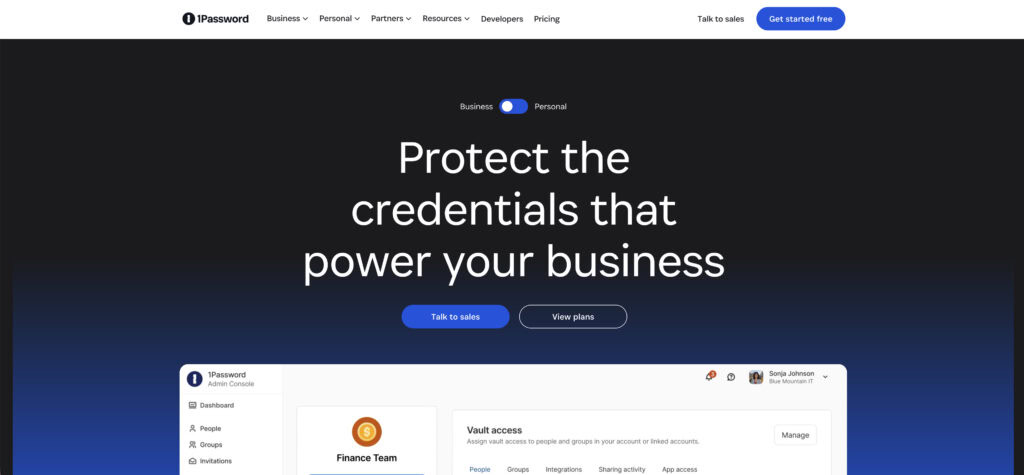
Tools like 1Password have secure generators built right in. When picking one, stick to the major, audited names in the industry. A huge benefit is their auto-fill feature. It automatically enters your login details.
This is more than just convenient; it prevents keyloggers (software that records your keystrokes) from stealing your password.
🕑 Note: Two-factor authentication provides an essential backup layer. It protects your site even if a password is stolen.
This method completely solves the dangerous habit of reusing passwords, which is a major security risk. You can also use it to securely share passwords with team members. This avoids risky habits like sending credentials in plain text over email or Slack.
💭 Our opinion on this method: We consider a password manager non-negotiable for anyone serious about security. It’s the single most effective tool for protecting your website and, honestly, your entire digital life.
Best practices
No matter which generator you use, some rules always apply. Think of these as the fundamental habits for keeping your site safe.
- Your strong password must be at least 16 characters long. Shorter passwords are much easier to crack.
- Never use dictionary words, dates, or common phrases. These are the first things hackers try.
- Update passwords immediately if a service reports a breach. Don’t wait.
🐏 Note: Malware scanning can help detect if a breach has affected your own site. It’s how you check if attackers are already inside.
- Always use a unique password for every website login. If one site gets breached, the hackers can’t get into your other accounts.
- Store every password in a dedicated password manager. Your web browser’s password saver is convenient but not as secure. It’s a prime target for attacks.
- Use two-factor authentication (2FA) on top of strong passwords. This is an essential layer of security.
🔌 Note: A two-factor authentication plugin makes it easy to add this to your site. Many security plugins include this feature as part of their suite.
- Enforce strong password policies for all users on your website. Your site is only as secure as its weakest password.
Parting thoughts
Getting your password security right is a huge step toward protecting your website.
Start with WordPress’s built-in generator for immediate needs. It’s strong and convenient. But the most critical upgrade you can make is adopting a password manager. It’s a permanent solution. This simple practice dramatically reduces your risk of getting hacked.
FAQs
Frequently asked questions
You can generate a strong password using the built-in WordPress generator or a reputable password manager like Bitwarden. Ensure it’s at least 16 characters long and includes a mix of symbols, numbers, and upper/lower-case letters.
You can reset your password by clicking the “Lost your password?” link on the login page and following the email instructions. If email access is lost, you can reset it directly in the database using a tool like phpMyAdmin.
It is only safe if you use a generator from an established cybersecurity company like 1Password or NordPass. Never use a random, unknown generator, as it could be logging the passwords it creates for malicious use.
A WordPress password hash is your password after it has been encrypted for secure storage in the database. WordPress automatically creates this hash for you whenever you set or update a password.
You should update your admin password immediately if you suspect a breach, or every 6 to 12 months as a precaution. If you use a very strong, unique password, this routine is less critical than overall password hygiene.