Maybe a visitor wrote to you in a panic: “Your site told me to install a Chrome update.” Maybe Google Search Console sent a security warning. Or maybe you saw a fake Chrome update screen yourself once, refreshed the page, and then couldn’t get it to show again.
If this appeared on your WordPress site, handle it like a hacked WordPress site.
The pop-up is probably not coming from Chrome, and the fix isn’t to explain browser updates to your visitors. You need to find the altered code or setting, remove it cleanly, and shut the door the attacker used.
Scan the full WordPress site, including files and database content. Clean the malware, reset access, patch WordPress, and purge caches before asking Google to review the site.
Visitors should not click the update button. Real Chrome updates happen inside Chrome, through Help > About Google Chrome, or automatically in the background.
Understand the fake Chrome update hack
A fake Chrome update hack makes your real website show a fake browser update prompt. The page might say Chrome is out of date, a critical security update is required, or the browser can’t continue until the visitor downloads a file.
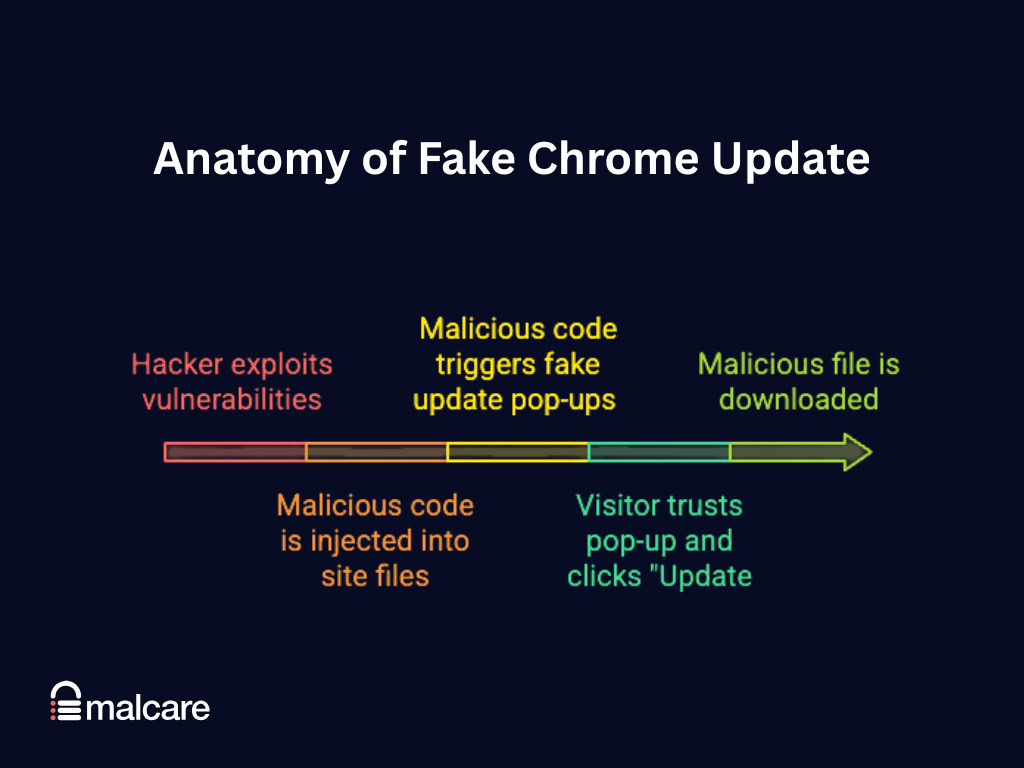
That file is the trap. Fake update pages have been used to push info-stealers, remote access tools, cryptominers, and other malware. The visitor thinks they’re fixing Chrome. The attacker is using your site’s trust to get a file onto their device.
For you, the site owner, the fake update screen is usually just the piece visitors can see. It may be loaded by injected JavaScript or a compromised plugin setting. It may also be sitting in cached output, which is why the bad page can survive after you’ve removed the file that looked suspicious.
Don’t spend the first hour trying to reproduce the popup on your own laptop. A credible visitor screenshot or a Google security warning is enough reason to scan. These hacks often hide from admins, repeat visitors, and environments that look like security tools.
Why it hides from you
This is the part that makes people doubt the report. They open the homepage, click through a few pages, see nothing, and assume the visitor clicked something elsewhere.
Sometimes that’s true. But with fake update malware, “I can’t see it” doesn’t prove much.
The malware may check the visitor’s device, browser, location, referrer, cookies, or behavior before showing the fake update. Some campaigns show the prompt only once, set a cookie, and then disappear for that person. Some show it only to traffic from search, because those visitors are less likely to know your site well enough to question the prompt.
I would still test the site later from a clean browser profile while logged out. But first, assume the report is real. Start with site scan results and user accounts, then check plugin settings and cache.
Remove fake Chrome update malware
Treat preparation, cleanup, and access hardening as one recovery process.
Before you touch files
You need a restore point in case cleanup breaks a theme, removes a legitimate script, or takes down a checkout page. If visitors are actively seeing the popup, consider taking the public site offline while you work. That’s annoying, but serving a fake browser update is worse.
Start from the WordPress admin area, but don’t stop there.
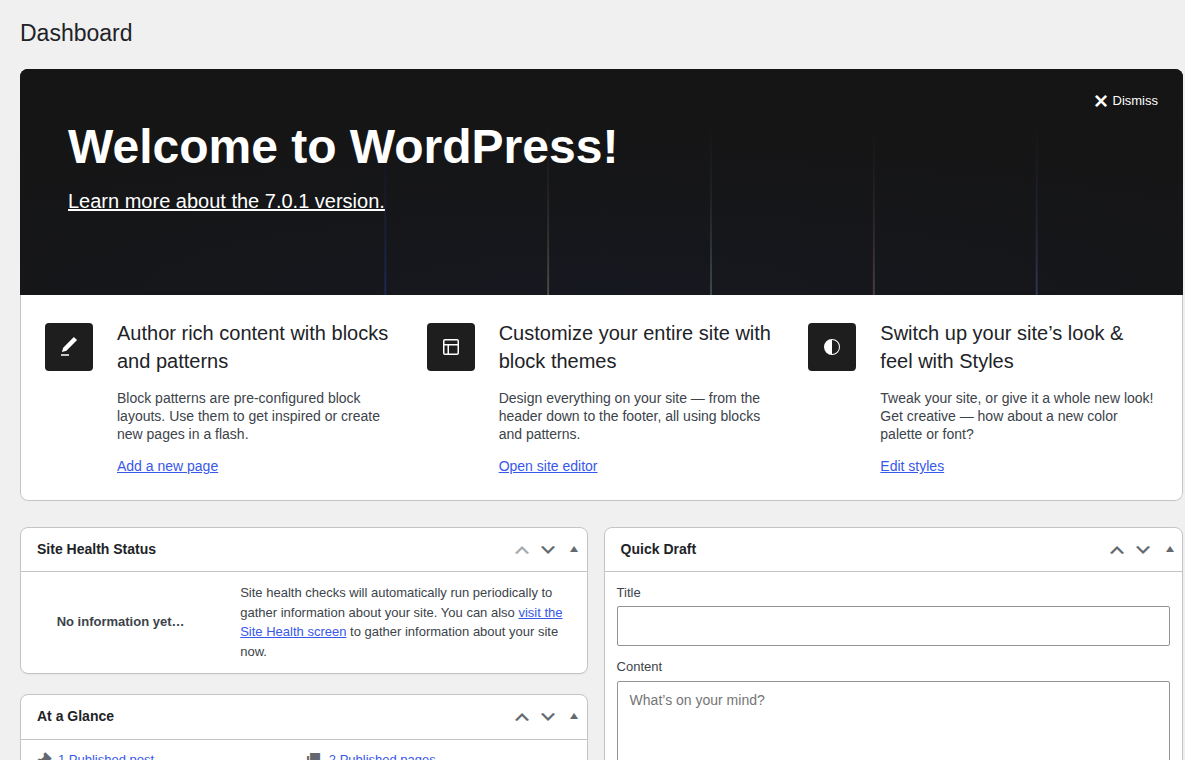
Then scan the whole WordPress installation. Not just the theme folder. Not just the last file you remember editing. Check:
- WordPress core files, themes, plugins, uploads, and server files such as .htaccess
- Database content, including options, page builder data, widgets, popup plugin storage, and plugin settings
- Admin users, old contractor accounts, shared logins, and accounts with more access than they need
- Cache layers, including WordPress cache, hosting cache, CDN cache, and page builder output
Plugin review is part of the same cleanup path, because malicious behavior can be loaded through stored settings or a compromised extension.
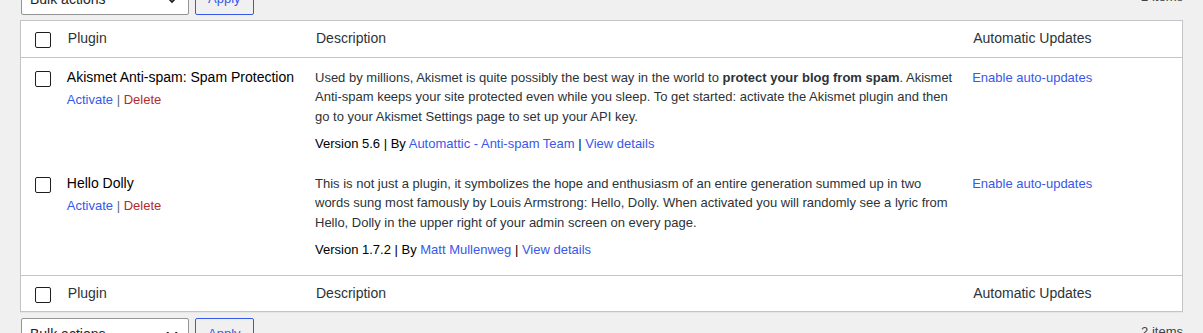
The database deserves real attention here. In one documented WordPress fake update campaign, attackers abused popup plugin storage and uploaded JSON content rather than leaving one obvious malicious PHP file. A file-only scan can look clean while visitors still get the fake screen.
Clean the malware
You have three reasonable paths: use a WordPress security tool, hire a security expert, or clean it manually. I wouldn’t give all three equal weight.
For a typical site owner, a WordPress security tool is where I’d begin. A good scanner reviews files and database records, flags suspicious behavior, and shows what needs cleaning without asking you to guess whether a strange script is legitimate.
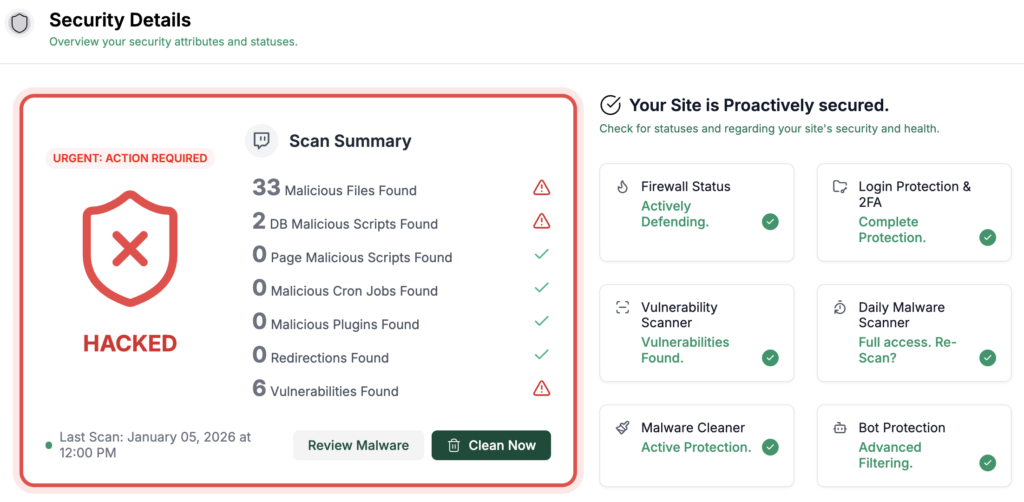
MalCare belongs in that part of the work because it is built for WordPress malware scanning and cleanup. It can help locate hacked files, database injections, suspicious changes, and malware patterns that a hosting file manager won’t make obvious. More importantly, it gives you a guided cleanup workflow instead of sending you into random theme files to delete anything that looks unfamiliar.
If the site is large, custom, revenue-critical, or already reinfected once, bring in a WordPress security expert. Ask them to identify the original entry point. The cause might be a stolen admin password, a vulnerable plugin, a nulled theme, or an old account nobody removed.
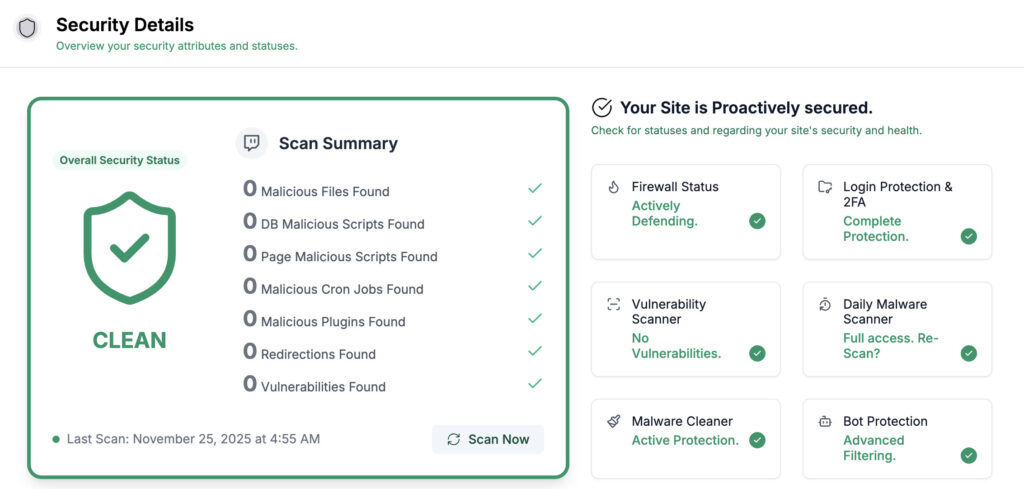
Manual cleanup is the last option, and it belongs to people who can read WordPress code and inspect database tables without guessing. If that’s you, work on staging when possible. Compare recent file changes, inspect headers and footers, and review plugin tables before removing anything. Also remove unknown admin access early, before the attacker can put the code back.
Don’t delete every encoded string you find. WordPress plugins sometimes use minified or encoded-looking code for legitimate reasons. The safer test is context: where the code lives, when it changed, what domain it calls, and whether it matches the extension that supposedly owns it.
Lock the site after cleanup
Once the fake Chrome update screen is gone, don’t stop. That only means the visible symptom is gone. The attacker may still have a password or an old admin account. They may also have a vulnerable plugin path waiting for the next request. Do this before you relax:
- Change every password that can reach the site: WordPress admin, hosting, file access, and database.
- Remove unknown users, stale contractor accounts, and shared admin logins.
- Regenerate WordPress security keys so old sessions are forced out.
- Patch WordPress itself first, then update plugins and themes once the backup is ready.
- Uninstall old extensions and themes instead of letting them sit there disabled. Code on the server can still become an entry point.
- Purge WordPress, host, CDN, and page builder caches.
- Retest while logged out, ideally from a clean browser profile.
The Users screen is where you confirm that old admins, shared logins, and unknown accounts are not still able to get back in.

If Google Search Console or Safe Browsing flagged the site, wait until cleanup and hardening are done before requesting review. Google should find the repaired version when it checks again.
Use safe settings pages as checkpoints during verification, but don’t change settings casually while you’re still confirming cleanup.
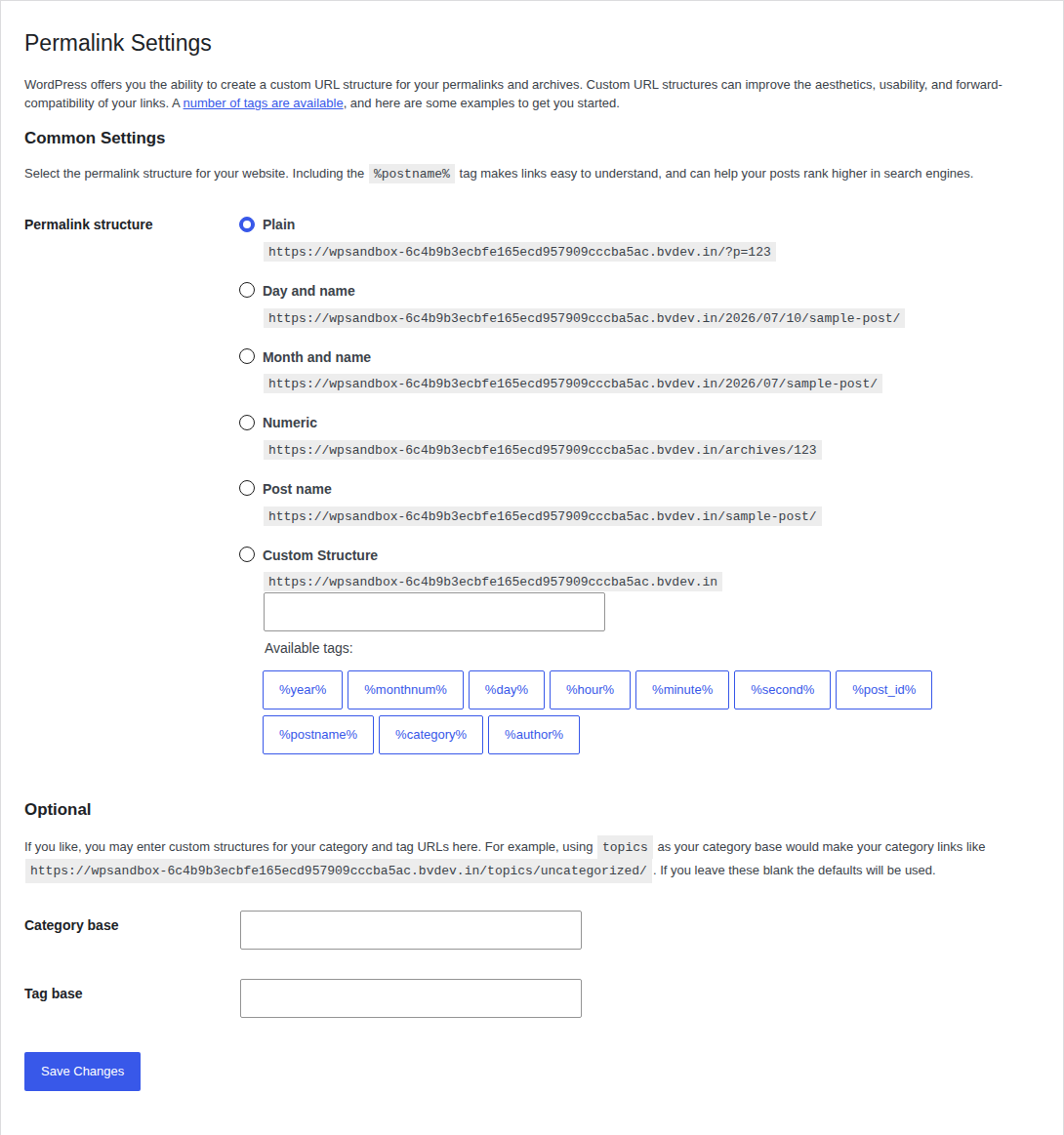
After cache purges and settings checks, retest the public site from a logged-out browser so you see what visitors see.
Protect visitors and prevent reinfection
Give affected visitors clear guidance, then strengthen the site against another infection.
What to tell visitors
Skip the dramatic announcement. Send plain, useful guidance. You can say:
We found and removed a fake browser update prompt that appeared on some visits to our website. Seeing the prompt alone doesn’t mean your device was infected. Delete any file you downloaded from it without opening it. If you ran the file, scan your device with trusted security software and reset important passwords from a clean device.
If it happened on a work device, tell them to report it to IT. If Chrome still behaves strangely, they should review extensions, remove anything they don’t recognize, and reset Chrome settings.
Be careful with promises. You can say what you found and what you fixed on your site. You can’t know whether a visitor’s device is clean unless their device has been checked.
Prevent reinfection
Prevention doesn’t have to be exotic. It has to be consistent.
Keep malware scanning on after the cleanup week is over. Put a web application firewall in front of WordPress so malicious requests are filtered before WordPress has to deal with them. Use two-factor authentication for admins. Limit failed logins. Disable file editing inside the WordPress dashboard. Remove plugins you don’t use. Install themes and plugins only from sources you trust so you can secure your website from hackers in layers.
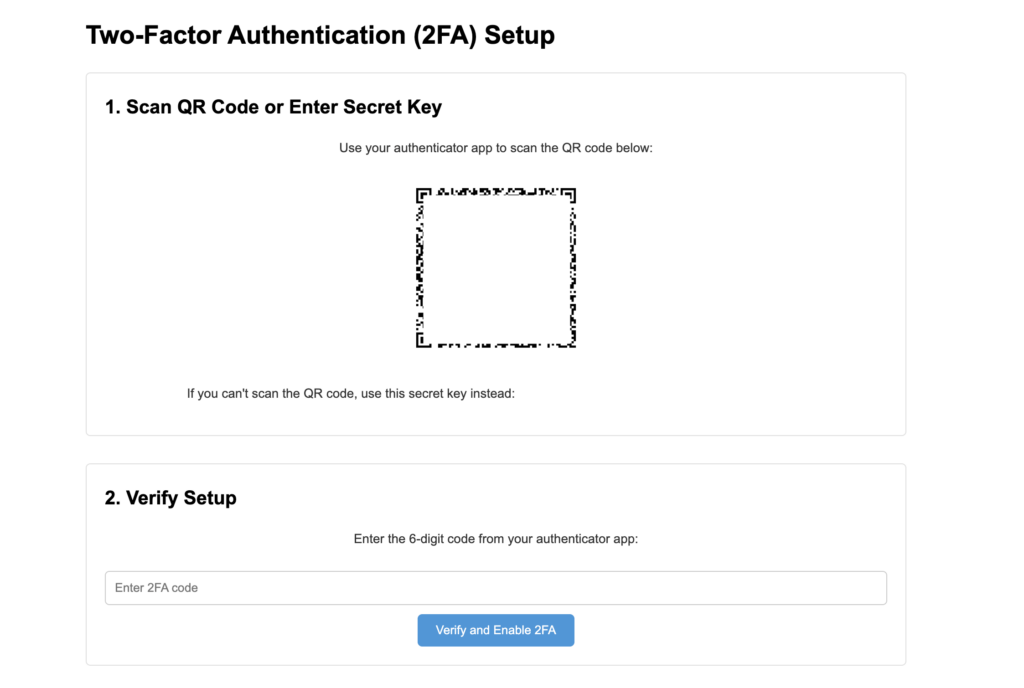
MalCare is useful after cleanup for the same reason it’s useful during cleanup: the problem usually isn’t one bad file. You want scheduled scans and firewall protection, but you also want alerts when something changes in a way that deserves attention.
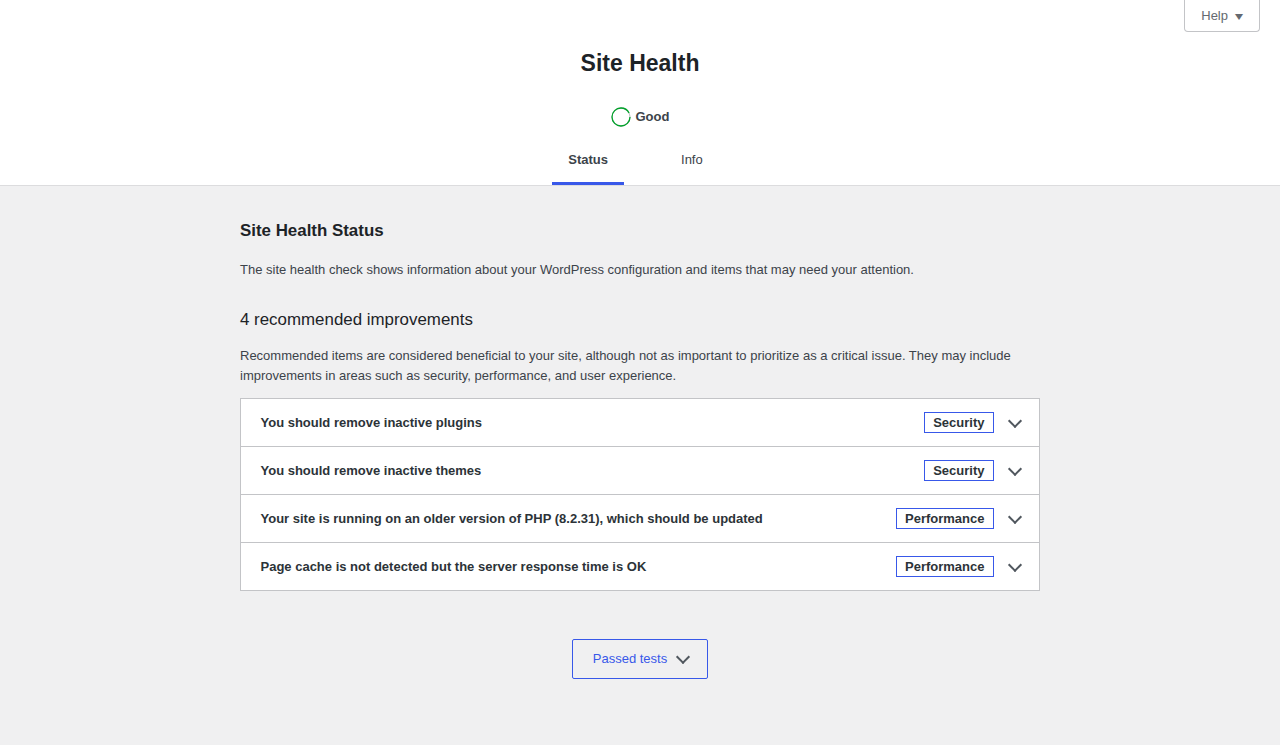
WordPress Site Health is not a malware scanner, but it is a useful native place to review obvious post-cleanup configuration issues.
Backups matter too, but only if they live outside the web server. If the clean copy sits beside the infected site, it can disappear exactly when you need it.
Every abandoned plugin is another thing you have to patch, audit, or explain during an emergency. If a plugin isn’t earning its place, remove it.
Real update or fake?
Use the source of the update as the test.
| What you see | What to do |
|---|---|
| Chrome updates itself in the background | Let it finish |
| Chrome’s Help > About Google Chrome page checks for updates | Trust that path |
| A website says Chrome is out of date and shows a download button | Close the tab |
| A popup offers a ZIP, EXE, JavaScript, or MSIX file | Treat it as unsafe |
| A page uses urgent language and copies Google branding | Don’t trust the branding |
A fake page can look polished. Logos, colors, and urgent security language don’t prove anything. A browser update should come through the browser, not through a website popup.
Conclusion
A fake Chrome update popup on your WordPress site is urgent because it turns your site into the delivery mechanism for someone else’s malware. That’s a rough thing to discover, especially if a visitor had to tell you. But the recovery path is clear once you treat it as a site compromise instead of a weird Chrome message.
Scan the full site, including the database. Clean what the scan finds. Reset access, patch WordPress, purge caches, and retest as a logged-out visitor. Then keep scanning and firewall protection running so you’re not waiting for the next angry email to learn something changed.
The best result isn’t just that the popup disappears today. It’s that your next visitor never has to become your malware alert system.