

WordPress errors slowing you down? We’ve all been there.
You wake up one morning to your WordPress acting differently. Are your blogs not getting published? Maybe the website has disappeared and now all you see is an error code. Maybe your site is very slow and you can’t figure out why.
Start with a full backup, then use this guide to troubleshoot WordPress errors like a pro.
The majority of WordPress issues can be fixed by modifying configurations on your site like increasing memory limits or resolving plugin conflicts. These require changes to your website files that can crash your site if done incorrectly. So, before making any changes, install a backup plugin.
We’re about to walk through the most common WordPress errors you’ll encounter—30 of them, to be exact. Each comes with clear explanations and step-by-step solutions. However, before we start troubleshooting, there are three things we recommend you do:
- Always create a full backup of your website before making any changes.
- Set up a staging environment, a clone of your live site where you can test fixes safely.
- Turn on WordPress debug mode by adding the following code to the wp-config.php
define('WP_DEBUG', true);define('WP_DEBUG_LOG', true);define('WP_DEBUG_DISPLAY', false);Once you’ve enabled it, retrigger the error. The log will reveal specific file names, line numbers, and error types that pinpoint the problem.
1. White Screen of Death (Fatal Error)
Quick Fix: Check for plugin conflicts
White Screen of Death (WSOD) refers to a completely blank white page that appears instead of your website content. This error is particularly alarming because it shows absolutely nothing – no error message, no content, just a blank white screen. It affects both your website’s frontend and often the admin area, making it impossible to access your dashboard to fix the problem through normal means.
What Causes This Error?
- A PHP crash (often from plugin/theme conflicts)
- Insufficient server memory
- Corrupt WordPress core files
Signs of This Error
- Blank white screen (no error messages)
- Admin area completely inaccessible
- Browser tab title may still show your site name
Advanced Solutions
- Switch to default theme: Via FTP, rename your current theme folder in /wp-content/themes/ folder. WordPress will auto-switch to Twenty Twenty-Fou
- Increase PHP memory limit: Edit wp-config.php and add: define(‘WP_MEMORY_LIMIT’, ‘512M’);
- Check server error logs: Reach out to your webhost to find out what the server logs say. That could also pinpoint the problem that you’re facing.
2. 500 Internal Server Error
Quick Fix: Disable plugins via FTP by renaming the /wp-content/plugins folder to plugins_deactivated. This will rule out plugin conflicts and then you can find the problematic plugin.
500 Internal Server Error is a generic server-side error that occurs when something goes wrong on your web server, but the server can’t specify what the exact problem is. This frustrating error typically appears as a blank page or a simple “Internal Server Error” message, giving you no clues about what’s actually broken.
What Causes This Error?
- Plugin or theme compatibility issues
- Corrupt .htaccess file
- Server resource limits (PHP memory, execution time)
- Database connection problems
Signs of This Error
- Browser displays “500 Internal Server Error” message
- Blank white screen (in some cases)
- Partial page loading with missing elements
Advanced Solutions
- Reset your .htaccess file: Using an FTP client, rename your current .htaccess to .htaccess_old. WordPress will generate a fresh one automatically
- Increase PHP limits: Add these to wp-config.php:
define(‘WP_MEMORY_LIMIT’, ‘512M’);
3. Error Establishing a Database Connection
Quick Fix: Check your database credentials in the wp-config.php file. Make sure the database name, database user, password and local host are correct.
Error Establishing a Database Connection means WordPress cannot communicate with your database, often due to incorrect database credentials, corrupted database files, or server issues. This error completely prevents your website from functioning because WordPress relies on the database to store and retrieve all your content, user information, and settings.
What Causes This Error?
- Incorrect database credentials in wp-config.php
- Database server is down or overloaded
- Corrupt database tables
- Reached database connection limit
Signs of This Error
- Full-page error message: “Error establishing a database connection”
- Admin area completely inaccessible
- May occur intermittently during traffic spikes
Advanced Solutions
- Repair your database: This fixes corrupted WordPress tables that cause connection errors or site crashes. When tables become damaged (often from server crashes or plugin conflicts), WordPress can’t access your content properly. To repair your database, add define(‘WP_ALLOW_REPAIR’, true); to your wp-config.php file, then visit yoursite.com/wp-admin/maint/repair.php and click “Repair Database.”
- Contact the web hosting provider: If nothing else works, reach out to them to check what’s causing the problem. Tell them everything you’ve done so far.
4. Critical Error on This Website
Quick Fix: Check your admin email for a “Recovery Mode” link sent by WordPress, then click it to access your site safely and identify the problematic plugin/theme.
Critical Error on This Website is WordPress’s user-friendly message that appears when a fatal error occurs. It is typically triggered by plugin or theme conflicts, with WordPress usually sending a recovery mode email to administrators. This error was introduced in WordPress 5.2 as a more helpful alternative to the dreaded White Screen of Death.
What Causes This Error?
- Plugin or theme causing a fatal PHP error
- Incompatible code after WordPress/PHP updates
- Memory limit exceeded during plugin execution
- Corrupt plugin/theme files
]Signs of This Error
- Full-page message: “There has been a critical error on this website”
- Admin area may still be accessible via recovery mode
- Error typically appears after activating/updating plugins or themes
Advanced Solutions
- Check for plugin conflicts: Manual plugin deactivation via FTP: Rename /wp-content/plugins to plugins_off. Site loads? Reactivate plugins one by one to find the culprit
- Check error logs: Look in /wp-content/debug.log or contact your host for server error logs to identify the exact file causing the issue
- Increase PHP memory limit: Add to wp-config.php: define(‘WP_MEMORY_LIMIT’, ‘512M’);
- Switch to default theme: Via FTP, rename your active theme folder in /wp-content/themes/ to force WordPress to use a default theme
5. This Site Can’t Be Reached” / WordPress Not Loading
Quick Fix: Check your domain DNS: Log into your domain registrar and verify your nameservers are pointing to your hosting provider’s DNS servers.
Critical Error on This Website is WordPress’s user-friendly message that appears when a fatal error occurs, typically triggered by plugin or theme conflicts, with WordPress usually sending a recovery mode email to administrators. This error was introduced in WordPress 5.2 as a more helpful alternative to the dreaded White Screen of Death, providing users with a clearer explanation of what’s happening and potential solutions.
This Site Can’t Be Reached / WordPress Not Loading indicates your website is completely inaccessible. This is usually due to DNS issues, server downtime, or hosting problems. This error appears in the browser itself rather than being generated by WordPress, indicating that the connection to your server cannot be established at all.
What Causes This Error?
- DNS propagation delays after domain/hosting changes
- Expired domain registration
- Hosting server downtime or suspension
- Incorrect nameserver configuration
Signs of This Error
- Browser shows “This site can’t be reached” or “Server not found”
- Site completely inaccessible (no loading at all)
- May work from some locations but not others
Advanced Solutions
- Verify hosting account status: Check if your hosting account is active/not suspended. Confirm billing is up to date
- Test DNS propagation: Use tools like whatsmydns.net to check if DNS has propagated globally. Try accessing via different networks (mobile data vs WiFi)
- Check domain expiration: Log into your domain registrar to confirm domain hasn’t expired. Renew if necessary
- Contact hosting support: Verify server status and any ongoing maintenance. Check if your IP address has been blocked.
6. WordPress Loading Slow
Quick Fix: Install a performance plugin like Airlift.
WordPress Loading Slow describes performance issues where pages take excessive time to load. This is often caused by unoptimized images, poor hosting, or resource-heavy plugins. While not technically an error, slow loading times create a poor user experience that can drive visitors away and hurt your search engine rankings.
What Causes This Error?
- Poorly coded plugins consuming server resources
- Large unoptimized images
- Cheap hosting with limited resources
- Too many HTTP requests from plugins/themes
Signs of This Error
- Pages take 10+ seconds to load
- Admin dashboard is sluggish
- High bounce rates from visitors
Advanced Solutions
- Optimize images: Use plugins like Smush or ShortPixel to compress images
- Convert to WebP format for better compression
- Limit active plugins: Deactivate unnecessary plugins
- Use tools like Query Monitor to identify resource-heavy plugins
- Upgrade hosting: Consider switching to SSD hosting or managed WordPress hosting
- Increase PHP memory limit and execution time
7. 404 Error – Page Not Found
Quick Fix: Reset permalinks: Go to WordPress Admin → Settings → Permalinks → click “Save Changes” (don’t change anything, just save to refresh the permalink structure).
404 Error – Page Not Found occurs when visitors try to access pages that don’t exist or have been moved. This is typically due to broken links, deleted content, or permalink issues.
What Causes This Error?
- Corrupt .htaccess file
- Incorrect permalink structure
- Missing or deleted pages/posts
- Plugin conflicts affecting URL rewriting
Signs of This Error
- Browser shows “404 Not Found” or “Page doesn’t exist”
- Happens on specific pages or site-wide
- May affect admin area or only frontend
Advanced Solutions
- Replace .htaccess file: Via FTP, rename current .htaccess to .htaccess_old. WordPress will generate a fresh one automatically
- Check for missing pages: Verify the page/post exists in WordPress admin. Check if it was accidentally moved to trash
- Plugin conflict test: Deactivate all plugins temporarily. If 404s disappear, reactivate one by one to find the culprit
8. Plugin and Theme Conflicts
Quick Fix: Restore your site to the last functional version.
Theme and plugin conflicts happen when different pieces of software interfere with each other. It causes functionality failures or site crashes. They’re particularly common after updates when new code changes interact unexpectedly with existing software.
What Causes This Error?
- Two plugins trying to use the same functions
- Plugin incompatible with current WordPress version
- Theme and plugin using conflicting code
- Outdated plugins interfering with newer WordPress features
Signs of This Error
- Site breaks immediately after plugin activation
- Admin area becomes inaccessible
- Specific features stop working (contact forms, checkout, etc.)
- White screen or critical errors appear
Advanced Solutions
- Plugin elimination method: Reactivate plugins one by one until the error returns. The last activated plugin is likely the culprit. Verify plugins are updated for your WordPress version. Look for known conflicts in plugin documentation
- Switch to default theme: Via FTP, rename your active theme folder in /wp-content/themes/. Test if the conflict is theme-related
9. Locked Out of WordPress Admin
Quick Fix: Reset your password via database: Use phpMyAdmin to access your wp_users table and change your password to a known MD5 hash (e.g., MD5 of “password123”).
Locked Out of WordPress Admin means you cannot access your dashboard due to forgotten passwords, security plugin restrictions, or corrupted user data. This situation can be particularly stressful because it prevents you from managing your website or implementing fixes for other problems.
What Causes This Error?
- Forgotten password and email not working
- Security plugin blocking your IP address
- Corrupted user account data
- Changed website URL without updating admin settings
Signs of This Error
- Login page won’t accept correct credentials
- Password reset emails not arriving
- “Access denied” messages from security plugins
- Redirect loops on login attempts
Advanced Solutions
- Create emergency admin user: Add to functions.php of your active theme:
function add_admin_user()
  $user = 'admin';
  $pass = 'password123';
  $email = 'youremail@domain.com';
  if ( !username_exists( $user ) && !email_exists( $email ) ) {
      $user_id = wp_create_user( $user, $pass, $email );
      $user = new WP_User( $user_id );
      $user->set_role( 'administrator' );
  }
}
add_action('init','add_admin_user');- Deactivate security plugins: Via FTP, rename security plugin folders to disable IP blocking. Check .htaccess for IP restriction rules
10. Login Page Redirecting Issue
Quick Fix: Clear browser cache and cookies: Delete all cookies and cached data for your website, then try logging in again with a fresh browser session.
Login Page Redirecting Issue occurs when the login process doesn’t work properly, often causing redirect loops or sending users to wrong pages. This error prevents proper access to your WordPress dashboard even when you enter correct credentials.
What Causes This Error?
- Incorrect WordPress URL settings
- Plugin conflicts affecting login process
- Corrupted session cookies
- SSL certificate issues (HTTP vs HTTPS mismatches)
Signs of This Error
- Login page redirects to homepage instead of admin
- Endless redirect loops when trying to access admin
- Successfully login but get kicked back to login page
- “Too many redirects” browser error
Advanced Solutions
- Fix WordPress URLs: Add to wp-config.php:
define('WP_HOME','https://yoursite.com');
define('WP_SITEURL','https://yoursite.com');- Check SSL settings: Ensure consistent use of HTTP or HTTPS throughout. Update WordPress Address and Site Address in database.
- Plugin conflicts test: Disable all plugins, especially security and caching plugins Test login functionality after each deactivation.
- Clear all caches: clear cache at the server level. From your browser and your CDN.
11. 503 Service Unavailable
Quick Fix: Check maintenance mode: Look for a .maintenance file in your WordPress root directory and delete it if found (leftover from failed updates).
503 Service Unavailable indicates your server is temporarily unable to handle requests. This should be fixed automatically, but sometimes the error sticks around for a really long time.
What Causes This Error?
- Automated maintenance mode stuck after updates
- Server overload from traffic spikes
- Plugin consuming too many resources
- Hosting provider server issues
Signs of This Error
- “503 Service Unavailable” message site-wide
- May appear intermittently during high traffic
- Sometimes shows “Briefly unavailable for scheduled maintenance”
- Both frontend and admin inaccessible
Advanced Solutions
- Disable resource-heavy plugins: Via FTP, rename plugins folder to identify resource hogs. Focus on backup, caching, and security plugins first.
- Increase server resources: Add to wp-config.php:
define('WP_MEMORY_LIMIT', '512M');
ini_set('max_execution_time', 300);- Check server status:
- Contact hosting provider about server overload
- Verify your account isn’t suspended for resource usage
- Enable maintenance mode manually:
- Create custom maintenance page
- Check if automatic backups are running and conflicting
12. PHP Memory Limit Exhausted
Quick Fix: Increase memory limit: Add this line to your wp-config.php file (above the “stop editing” comment): define(‘WP_MEMORY_LIMIT’, ‘512M’);
PHP Memory Limit Exhausted happens when your site tries to use more memory than allocated. The error often manifests during specific activities like uploading large files, running complex plugins, or processing large amounts of data.
What Causes This Error?
- Plugins using more memory than allocated
- Large image uploads or processing
- Poorly coded themes with memory leaks
- Too many plugins running simultaneously
Signs of This Error
- “Fatal error: Allowed memory size exhausted” message
- White screen when uploading large files
- Admin area becomes sluggish or crashes
- Error appears when activating resource-heavy plugins
13. Connection Timed Out
Quick Fix: Increase execution time by adding the following code to your wp-config.php file: set_time_limit(300);
Connection Timed Out occurs when server responses take too long. The server gives up waiting for a response because the operation is taking longer than the allowed time limit.
What Causes This Error?
- Server taking too long to respond to requests
- Large file uploads or complex database queries
- Insufficient server resources during traffic spikes
- Plugin or theme consuming excessive processing time
Signs of This Error
- “Connection timed out” message in browser
- Page loading indefinitely then failing
- Admin dashboard becomes unresponsive
- Error appears during plugin updates or large uploads
Advanced Solutions
- Contact hosting provider: Request server resource limits to be increased. Check if your account is hitting CPU/memory limits.
14. Max Execution Time Exceeded
Quick Fix: Increase PHP execution time by adding the following code to the .htaccess file: php_value max_execution_time 300
Max Execution Time Exceeded means a script ran longer than the server’s time limit allows,. This usually happens during imports, updates, or complex operations.
What Causes This Error?
- Scripts running longer than server’s time limit
- Large data imports or exports
- Plugin installation or update processes
- Complex theme functions or poorly optimized code
Signs of This Error
- “Maximum execution time exceeded” fatal error
- Plugin installation fails midway
- Import/export processes stop unexpectedly
- Admin area freezes during intensive operations
Advanced Solutions
- Split large operations: Import data in smaller chunks or use plugins that process data in batches.
- Optimize heavy processes: Reduce image sizes before batch uploads. Clean database before running intensive plugins
- Contact hosting support: Request permanent PHP limit increases. Consider upgrading to higher-tier hosting plan.
15. HTTP Error During Image Upload
Quick Fix: Resize your image by reducing the image file size to under 2MB and try uploading again.
HTTP Error During Image Upload prevents files from being uploaded to your media library. This generic error message appears when the image upload process fails, but it doesn’t provide specific information about what went wrong.
What Causes This Error?
- Image file too large for server limits
- Insufficient PHP memory during image processing
- Server timeout during upload process
- Corrupted image files or unsupported formats
Signs of This Error
- Generic “HTTP error” message in media uploader
- Upload progress bar stops or resets
- Multiple images fail to upload simultaneously
- Works for small images but fails for large ones
Advanced Solutions
- Increase upload limits: Add the following code to wp-config.php:
@ini_set('upload_max_size', '64M');@ini_set('post_max_size', '64M');@ini_set('max_execution_time', 300);- Optimize images first: Use tools like Airlift to compress before uploading. Convert to web-friendly formats (JPEG, PNG, WebP).
- FTP upload method: Upload images via FTP to /wp-content/uploads?. Create directories and bulk upload your media.
16. WordPress Not Sending Emails
Quick Fix: Install an SMTP plugin like WP Mail SMTP and configure it to your email service.
WordPress wasn’t designed to send emails correctly, out of the box. This is why WordPress doesn’t send emails. You need to use an SMTP plugin to fix that.
What Causes This Error?
- Hosting provider blocking outgoing mail
- Server not configured for email delivery
- Emails marked as spam by recipients
- PHP mail function disabled or misconfigured
Signs of This Error
- Contact forms not sending notifications
- Password reset emails never arrive
- Comment notifications missing
- New user registration emails failing
Advanced Solutions
Test email functionality: Install Check Email plugin to test mail delivery. Send test emails to multiple providers (Gmail, Yahoo, etc.)
Check spam folders: Verify emails aren’t being filtered as spam. Set up SPF and DKIM records for your domain. Write emails that won’t be flagged by spam filters.
Contact hosting support: Confirm outgoing mail is enabled. Request mail server configuration details.
17. WordPress Stuck in Maintenance Mode
Quick Fix: Delete the maintenance file via FTP. Locate and delete the .maintenance file in your WordPress root directory (same folder as wp-config.php).
WordPress Stuck in Maintenance Mode happens when automatic updates are interrupted. It leaves a .maintenance file that prevents normal site access. The maintenance mode is designed to prevent visitors from accessing your site during updates. But when it gets stuck, it effectively takes your website offline until the issue is resolved.
What Causes This Error?
- Interrupted WordPres s core or plugin updates
- Server timeout during automatic updates
- Manual maintenance mode activation that wasn’t properly disabled
- Failed update process leaving maintenance file behind
Signs of This Error
- “Briefly unavailable for scheduled maintenance” message
- Message appears site-wide for all visitors
- Admin area also shows maintenance message
- Persists long after updates should have completed
Advanced Solutions
- Manual file removal: Access site via FTP or hosting file manager. Look for .maintenance file in the root directory. Delete the file completely.
- Check for stuck updates: Complete any pending WordPress/plugin updates. Clear all caches after removing the maintenance file.
18. WordPress Permalinks Not Working
Quick Fix: Refresh permalink structure. Go to WordPress Admin → Settings → Permalinks → click Save Changes without changing anything to regenerate the permalink rules.
.
WordPress Permalinks Not Working occurs when custom URL structures fail, usually due to .htaccess problems or server configuration issues. This error prevents your custom permalink structure from functioning properly, often resulting in 404 errors for all pages except your homepage.
What Causes This Error?
- Corrupted .htaccess file
- Server doesn’t support URL rewriting
- Plugin conflicts affecting URL structure
- Incorrect file permissions on .htaccess
Signs of This Error
- Custom permalinks show 404 errors
- Only homepage works, all other pages return 404
- Admin area accessible but frontend pages broken
- Posts accessible via ?p=123 but not pretty URLs
Advanced Solutions
- Check file permissions: Set .htaccess permissions to 644 to ensure WordPress can write to the file.
- Contact host to enable mod_rewrite: Verify Apache/Nginx supports URL rewriting.
19. The Editor Has Encountered an Unexpected Error
Quick Fix: Switch to Classic Editor: Install the Classic Editor plugin to bypass Gutenberg block editor issues and use the traditional WordPress editor.
The Editor Has Encountered an Unexpected Error prevents the Gutenberg block editor from functioning properly. It’s often due to JavaScript conflicts, plugin incompatibilities, or browser cache issues. This error makes it impossible to edit posts and pages using the modern WordPress editor.
What Causes This Error?
- JavaScript conflicts with Gutenberg block editor
- Plugin incompatibility with block editor
- Corrupted browser cache or cookies
- Server-side PHP errors affecting editor functionality
Signs of This Error
- Gutenberg editor displays error message instead of content
- Unable to edit posts or pages
- Editor loads but becomes unresponsive
- Blocks fail to save or display incorrectly
Advanced Solutions
- Clear browser cache: Clear all site data and cookies. Try a different browser or incognito mode.
- Plugin conflict test: Deactivate all plugins temporarily. Test if editor works without plugins. Reactivate one by one to identify conflicts.
20. Loaded Over HTTPS, But Requested an Insecure Script
Quick Fix: Install SSL plugins like Really Simple SSL to automatically convert all HTTP links to HTTPS across your site.
Loaded Over HTTPS, But Requested an Insecure Script creates mixed content warnings when secure pages load insecure resources. This potentially blocks functionality and showing security warnings. This error occurs when your website is accessed via HTTPS but attempts to load resources (images, scripts, stylesheets) over HTTP.
What Causes This Error?
- Mixed content warnings from browsers
- Hard-coded HTTP links in themes or plugins
- External resources (fonts, scripts) loading over HTTP
- Incomplete SSL certificate installation
Signs of This Error
- Browser shows “not secure” warning despite having SSL
- Broken padlock icon in address bar
- Console errors about mixed content
- Some page elements fail to load properly
Advanced Solutions
- Find and replace HTTP links: Use Search Replace DB tool to update database. Replace all instances of http://yoursite.com with https://yoursite.com
- Fix theme/plugin hard-coded links: Search theme files for http:// references. Update to use https:// or relative URLs. Contact plugin developers for SSL-compatible versions
- Configure CDN/External resources: Ensure all external scripts load over HTTPS. Update Google Fonts, analytics, and other external services.
21. Secure Connection Error
Quick Fix: Temporarily disable SSL verification by adding this to wp-config.php: define(‘FORCE_SSL_ADMIN’, false);
Secure Connection Error indicates SSL certificate problems that prevent secure connections, often due to configuration issues or expired certificates. This error appears when browsers cannot establish a secure connection to your website.
What Causes This Error?
- Incomplete SSL certificate installation
- Mixed HTTP/HTTPS content on pages
- Expired or invalid SSL certificate
- Server configuration issues with SSL
Signs of This Error
- “Your connection is not secure” browser warning
- SSL certificate errors when accessing admin
- Mixed content warnings in browser console
- Site loads but without secure padlock icon
Advanced Solutions
- Verify SSL certificate: Use SSL checker tools to validate certificate. Contact hosting provider to reinstall the certificate.
- Update site URLs: Change WordPress Address and Site Address to HTTPS. Use Search Replace DB to update all internal links.
- Fix mixed content: Install Really Simple SSL plugin. Manually update HTTP resources to HTTPS.
22. “Error Occurred in the Upload. Please Try Again Later.”
Quick Fix: Check file permissions: Set the /wp-content/uploads/ folder permissions to 755 via FTP, and individual files to 644.
Error Occurred in the Upload. Please Try Again Later is a generic upload failure message. This is usually caused by file permission problems, server limitations, or corrupted upload directories. This vague error message appears when file uploads fail but doesn’t provide specific information about the underlying cause.
What Causes This Error?
- Incorrect file permissions on uploads directory
- Insufficient disk space on server
- PHP upload limits exceeded
- Corrupted uploads folder structure
Signs of This Error
- Generic upload error message in media library
- All file uploads fail regardless of size
- Error appears immediately when trying to upload
- Both images and documents affected
Advanced Solutions
- Check permissions for uploads folder: Set permissions to 755 for folders, 644 for files
- Increase upload limits: Add to wp-config.php:
@ini_set('upload_max_filesize', '64M');
@ini_set('post_max_size', '64M');
@ini_set('memory_limit', '256M');- Check disk space: Contact hosting provider about available storage. Delete unnecessary files and old backups.
23. WordPress Update Failed
Quick Fix: Download the latest WordPress version, extract it, and upload via FTP, replacing all files except wp-config.php and /wp-content/ folder.
WordPress Update Failed means automatic updates couldn’t complete, often due to file permission issues, server timeouts, or insufficient resources. This error prevents your WordPress installation from staying current with security patches and feature improvements.
What Causes This Error?
- Insufficient file permissions for automatic updates
- Server timeout during update process
- Corrupted WordPress core files
- Plugin conflicts preventing updates
Signs of This Error
- “Update failed” message in admin dashboard
- WordPress stuck on older version
- Update process starts but never completes
- Site breaks after partial update
Advanced Solutions
- Enable automatic updates: Add the following code to the wp-config.php:
define(‘FS_METHOD’, ‘direct’);
define(‘WP_AUTO_UPDATE_CORE’, true);
- Fix file permissions: Set folders to 755, files to 644. Ensure WordPress can write to its own directory.
- Clear maintenance mode: Delete .maintenance file if update was interrupted. Complete update manually via FTP.
24. “This File Type is Not Permitted for Security Reasons”
Quick Fix: Add file type to allowed uploads by adding this to your theme’s functions.php:
function custom_upload_mimes($mimes) {
$mimes['svg'] = 'image/svg+xml';
  $mimes['pdf'] = 'application/pdf';
  return $mimes;
}
add_filter('upload_mimes', 'custom_upload_mimes');add_filter('upload_mimes', 'custom_upload_mimes');
This File Type is Not Permitted for Security Reasons prevents certain file uploads due to WordPress security restrictions or server policies. This error appears when you try to upload files that WordPress considers potentially dangerous or that don’t match your site’s allowed file types. While this restriction is designed to protect your site from malicious uploads, it can also prevent legitimate files from being uploaded, creating frustration when you need to share specific document types with your visitors.
What Causes This Error?
- WordPress security restrictions on file types
- Server-level file upload restrictions
- Plugin blocking certain file extensions
- Hosting provider security policies
Signs of This Error
- Specific file types rejected during upload
- Error message mentions security reasons
- Some files upload fine, others are blocked
- Common with SVG, PDF, or custom file types
Advanced Solutions
- Use file upload plugins: Install WP Extra File Types plugin. Configure Safe SVG for SVG uploads.
- Server configuration: Contact host about file type restrictions. Check cPanel file manager upload settings.
- Verify security plugin settings: Review security plugin file upload rules. Whitelist specific file extensions.
25. High CPU Usage in WordPress
Quick Fix: Deactivate resource-heavy plugins: Disable plugins like backup, caching, and security plugins temporarily to identify which one is consuming excessive CPU.
High CPU Usage in WordPress occurs when your site consumes excessive server resources. This is typically due to poorly coded plugins, malware, or traffic spikes. This issue can cause your website to become slow or completely unresponsive.
What Causes This Error?
- Poorly coded plugins with infinite loops
- Excessive database queries from plugins
- High traffic overwhelming server resources
- Malware or brute force attacks
Signs of This Error
- Hosting provider sends CPU usage warnings
- Website becomes extremely slow
- Server crashes or becomes unresponsive
- Database queries taking too long
Advanced Solutions
- Install performance monitoring: Use Query Monitor plugin to identify slow queries and P3 Profiler to measure plugin performance.
- Optimize database: Clean up spam comments, revisions, and transients. Use WP-Optimize plugin for database cleanup.
- Server-level optimization: Consider upgrading the hosting plan and enable server-side caching
26. Admin CSS Not Loading
Quick Fix: Clear browser cache, any caching plugins, and CDN cache to force reload of admin stylesheets.
Admin CSS Not Loading causes the WordPress dashboard to appear unstyled and broken. This is usually due to caching issues, plugin conflicts, or corrupted admin files. This error makes your admin area difficult or impossible to use because buttons, menus, and other interface elements may not display properly or function correctly.
What Causes This Error?
- Corrupted CSS files in WordPress admin
- Plugin conflicts affecting admin styles
- CDN or caching issues preventing CSS delivery
- Incorrect file permissions on admin files
Signs of This Error
- WordPress admin appears unstyled (plain HTML)
- Missing icons, buttons, and formatting
- Admin area looks broken but functions work
- Frontend displays normally
Advanced Solutions
- Plugin deactivation test: Disable all plugins to test admin appearance. Reactivate one by one to find conflicts.
- Re-upload WordPress core: Download fresh WordPress files. Upload /wp-admin/ and /wp-includes/ folders via FTP.
- Check file permissions: Ensure admin CSS files are readable (644). Verify server can access /wp-admin/css/ folder.
27. Redirection Issues
Quick Fix: Clear redirect rules: Check your .htaccess file for redirect rules and temporarily rename it to .htaccess_backup to test if redirects stop.
Redirection Issues create loops or incorrect redirects that prevent proper page access, often caused by conflicting redirect rules or plugin problems. These issues can trap visitors in endless redirect loops. Sometimes, if there’s a redirection hack, it will send them to the wrong pages.
What Causes This Error?
- Conflicting redirect rules in .htaccess
- Plugin-generated redirects causing loops
- Incorrect WordPress URL settings
- Server-level redirects conflicting with WordPress
Signs of This Error
- “Too many redirects” error message
- Pages redirect to wrong URLs
- Infinite redirect loops
- Cannot access admin area due to redirects
Advanced Solutions
Deactivate redirect plugins: Disable Redirection, Yoast, or similar plugins. Test if redirect issues resolve.
Check SSL redirects: Ensure consistent HTTP/HTTPS usage. Remove conflicting SSL redirect rules
Clear all caches: Browser cache, plugin cache, CDN cache. Server-level cache (contact hosting provider).
28. 401 Unauthorized Error
Quick Fix: Check password protection: Look for .htpasswd files in your directory or remove password protection from cPanel/hosting control panel.
401 Unauthorized Error blocks access to protected areas, typically due to authentication problems. This error appears when visitors or administrators cannot access content that requires authentication, even with correct credentials.
What Causes This Error?
- Password-protected directory blocking access
- Incorrect file permissions on WordPress files
- Server authentication issues
- Security plugin blocking legitimate users
Signs of This Error
- Browser prompts for username/password
- “401 Unauthorized” error message
- Cannot access admin area or entire site
- May affect specific pages or directories
Advanced Solutions
- Fix file permissions: Set folders to 755, files to 644. Ensure WordPress files are readable.
- Security plugin settings: Check security plugin login protection. Whitelist your IP address.
- Server authentication: Contact hosting provider about authentication issues. Verify server configuration for WordPress.
29. ModSecurity Blocking WordPress
Quick Fix: Disable ModSecurity temporarily by contacting your hosting provider.
ModSecurity Blocking WordPress happens when server security rules mistakenly flag legitimate WordPress actions as threats. It prevents normal site functionality and administrative tasks.
What Causes This Error?
- ModSecurity rules flagging WordPress actions as threats
- Form submissions triggering false positives
- Plugin updates blocked by security rules
- Admin actions mistaken for malicious activity
Signs of This Error
- “403 Forbidden” errors on form submissions
- Plugin updates fail with security errors
- Admin actions randomly blocked
- Error logs show ModSecurity rule violations
Advanced Solutions
- Whitelist WordPress actions: Add exceptions for WordPress admin functions. Create custom ModSecurity rules for your site.
- Plugin-specific exceptions: Identify which plugins trigger ModSecurity. Create rules to allow legitimate plugin actions.
- Form submission fixes: Add exceptions for contact forms. Allow WordPress comment and login forms.
- Work with hosting provider: Request custom ModSecurity rule configuration. Ask for WordPress-optimized security settings.
30. Broken Links
Quick Fix: Use Broken Link Checker plugin to automatically scan your site and identify all broken internal and external links.
Broken Links refer to links that lead to non-existent pages or resources, hurting user experience and SEO rankings. These links can point to deleted pages, moved content, or external websites that no longer exist.
What Causes This Error?
- Pages or posts deleted without updating links
- External websites changing or removing content
- Incorrect internal link URLs
- Media files moved or deleted
Signs of This Error
- Links lead to 404 error pages
- Images display as broken/missing
- External links no longer work
- Poor user experience and SEO impact
Advanced Solutions
- Manual link audit: Review and update internal links regularly. Check external links quarterly
- Use redirect plugins: Install Redirection plugin for URL management. Set up 301 redirects for moved content.
- Fix media links: Re-upload missing images. Update media file URLs if moved
- SEO optimization: Fix broken links for better search rankings. Update sitemap after fixing links. Monitor Google Search Console for crawl errors.
How to Prevent WordPress Errors Before They Happen?
Now that you know how to fix the most common WordPress errors, let’s focus on prevention. Most of the errors we’ve covered can be avoided entirely with proper site management and proactive measures. Here are some things we recommend you do to protect your site:
Regular Backups
Set up automated daily backups using plugins like MalCare to ensure you never lose your website data. Backups are your safety net when things go wrong, whether it’s a server crash, malware attack, or accidental deletion. Store backups offsite using cloud storage rather than keeping them on your server, as server failures could wipe out both your site and local backups.

Test your restore process monthly to ensure backups actually work when you need them. Many site owners discover their backups are corrupted or incomplete only during an emergency. Keep multiple backup versions including daily, weekly, and monthly archives, as this gives you options if you need to restore from a point further back in time.
Use a Staging Site
Clone your live site to a staging environment where you can safely test changes without affecting your visitors. A staging site is essentially a private copy of your website where you can experiment, break things, and fix them without consequences. This testing ground prevents errors from ever reaching your live site.

Test all updates on staging first, including WordPress core updates, plugin updates, and theme modifications. Try new plugins and themes in staging before installing them on your live site, as compatibility issues won’t affect your visitors. Use staging for design changes and major configuration updates, ensuring everything works perfectly before pushing changes to production.
Keep WordPress Core, Plugins, and Themes Updated
Enable automatic updates for WordPress core minor versions to ensure security patches are applied immediately. Updates patch security vulnerabilities, fix bugs, and improve compatibility between different components of your site. Outdated software is the leading cause of WordPress security breaches and technical errors.
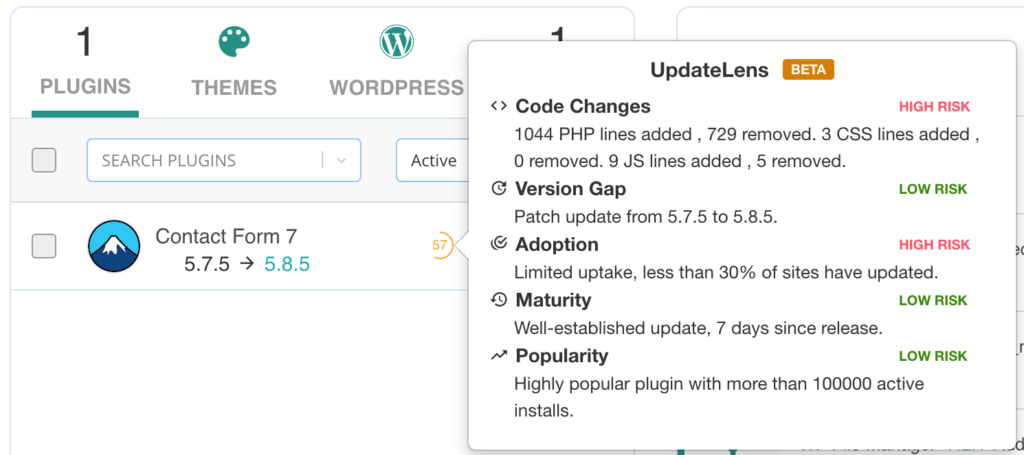
Update plugins and themes weekly, but always test updates on your staging site first to catch any compatibility issues. Use tools like UpdateLens to review the risks of the update before you push it through.
Limit Plugin & Theme Use
Audit your plugins quarterly and deactivate any that you’re not actively using. Every plugin adds complexity and potential failure points to your site, increasing the likelihood of conflicts and errors. Too many plugins can also slow down your site and create security vulnerabilities.
Choose quality over quantity when selecting plugins, researching developers and reading reviews before installation. Use multipurpose plugins instead of installing multiple single-purpose ones, as fewer plugins mean fewer potential conflicts. Avoid nulled or pirated themes and plugins entirely, as they often contain malware and lack security updates.
Monitor Site Health and Performance
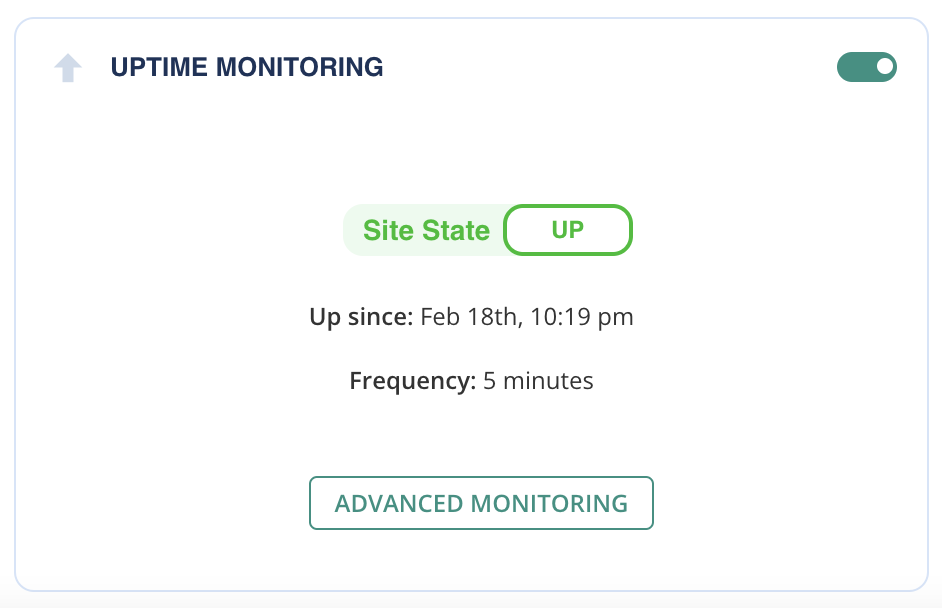
Set upuptime monitoring services MalCareto alert you immediately when your site goes down. Monitor performance regularly using tools like GTmetrix and Google PageSpeed Insights to catch speed issues before they impact user experience. Review error logs consistently to catch issues before your users notice them.
Implement Security Measures
Use strong passwords and enable two-factor authentication for all user accounts, especially administrator accounts. Weak passwords are one of the most common ways hackers gain access to WordPress sites, leading to malware infections and site corruption.
Install reputable security plugins like MalCare to monitor for threats and block malicious activity. Run regular malware scans and cleanup to catch infections early before they spread or corrupt your site. Limit login attempts and consider hiding admin areas from unauthorized users to reduce brute force attacks.

Use Proper Hosting
Choose WordPress-optimized hosting with proper server configuration designed specifically for WordPress sites. Your hosting provider is the foundation of your site’s performance and reliability, so poor hosting will cause frequent errors regardless of how well you maintain your site.
Ensure your hosting plan provides adequate resources including CPU, RAM, and storage for your current traffic levels and growth projections. Verify that your host performs regular server updates and maintenance to prevent server-level issues. Select hosts with good WordPress-specific support who understand common WordPress issues and can help troubleshoot problems quickly.
Optimize for Speed & Resources
Resource overuse leads to memory issues, crashes, and 503/504 errors, making optimization crucial for error prevention. Compress and resize images before uploading them to reduce server load and improve page loading times. Large, unoptimized images are one of the most common causes of performance issues.
Implement caching at multiple levels including page caching, object caching, and database caching to reduce server resource usage. Clean up your database regularly by removing spam comments, post revisions, and unused data that accumulates over time. Use CDN services to distribute content globally, reducing load on your primary server while improving loading times for visitors worldwide.
Error Logging & Debug Mode
Enable WordPress logging in your wp-config.php file using the code: define(‘WP_DEBUG’, true); define(‘WP_DEBUG_LOG’, true); define(‘WP_DEBUG_DISPLAY’, false); This creates detailed logs of any errors or warnings that occur on your site. Debug mode reveals specific problems instead of generic error messages, making troubleshooting much easier.
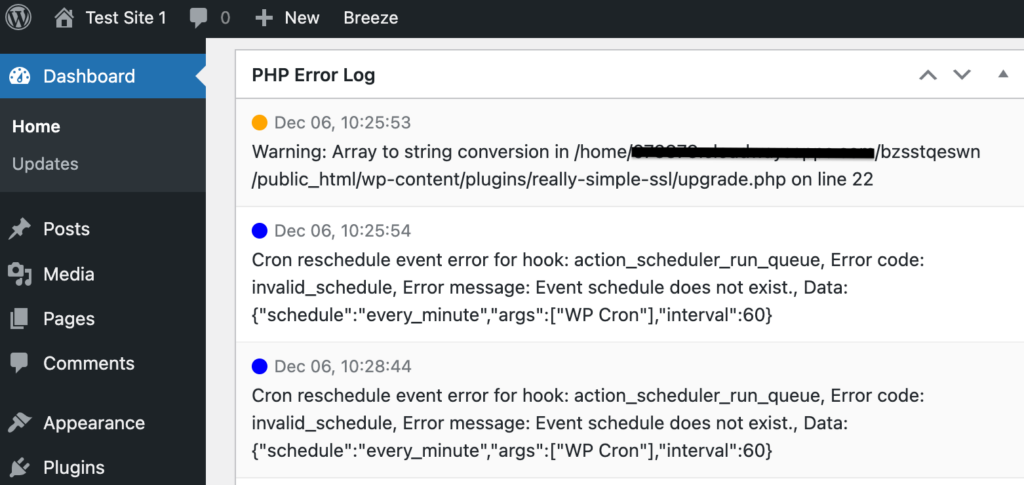
Review error logs weekly to spot recurring issues that might indicate underlying problems. Monitor server error logs through your hosting control panel as well, since some issues appear at the server level rather than in WordPress logs. Use debugging plugins like Query Monitor to get performance insights and identify slow database queries or resource-heavy plugins.
Final Thoughts
WordPress errors can have devastating consequences for your website and business. Beyond the immediate frustration of a broken site, these issues can damage your search engine rankings. The good news is that the vast majority of WordPress errors are entirely preventable with proper maintenance and monitoring.
This is where WordPress maintenance solutions like MalCare become game-changers. MalCare offers maintenance features that help with WordPress error prevention. Automated daily backups, advanced malware scanning, one-click staging sites, and intelligent updates—they’ve got it all. Just install the plugin and you’re all set.
FAQs
Prevent WordPress errors through regular maintenance including automated backups, keeping WordPress core, plugins, and themes updated, using a staging site for testing changes, limiting plugin usage, implementing security measures, and monitoring site performance. Choose quality hosting and optimize your site for speed and resources to avoid server-related errors.
Fix WordPress errors by first identifying the specific error type, then applying targeted solutions. Common quick fixes include deactivating plugins via FTP, switching to a default theme, clearing cache, increasing PHP memory limits, or resetting permalinks. Always backup your site before making changes and use staging sites to test fixes safely.
Check for WordPress errors by enabling debug mode in your wp-config.php file using define(‘WP_DEBUG’, true) and define(‘WP_DEBUG_LOG’, true). Review the debug.log file in your wp-content folder for detailed error information. You can also check server error logs through your hosting control panel or use the built-in Site Health tool in your WordPress dashboard.
A 404 error in WordPress means “Page Not Found” and occurs when visitors try to access a page that doesn’t exist or has been moved. This can happen due to broken links, deleted pages, incorrect URLs, or corrupted permalink structure. Fix 404 errors by resetting permalinks, checking for missing pages, or setting up proper redirects.
WordPress errors occur due to plugin conflicts, theme incompatibilities, server resource limitations, corrupted files, outdated software, security threats, or improper configurations. Poor hosting, insufficient maintenance, and incompatible updates are common causes. Many errors result from the complex interaction between WordPress core, plugins, themes, and server environments.


