You find a 503 error WordPress problem when the site stops behaving like a site. The homepage may be gone. wp-admin may refuse to load. Checkout may fail right when someone is trying to pay.
The message sounds simple: Service Unavailable. The annoying part is that it does not tell you which service, which limit, or which recent change caused the failure.
It is one of those WordPress errors where the visible message is much simpler than the real diagnosis.
A WordPress 503 error is usually temporary, but if it lasts more than a few minutes, check hosting status, recent changes, website logs, plugins/themes, cache/CDN, and server resources in that order. Before editing files or deactivating plugins, confirm you have real WordPress backups and a backup plugin; if the error looks suspicious or keeps returning, scan the site for malware and check firewall/bot traffic.
A 503 does not automatically mean your site has been hacked. It means the server cannot handle the request right now. The cause could be host maintenance, exhausted PHP workers, a bad plugin update, a theme conflict, cache or CDN trouble, a firewall rule, bot traffic, malware-related load, or a database that is taking too long to respond.
The safest way through is simple: start with checks that do not change the site, then make one reversible change at a time.
What a 503 Error Means in WordPress
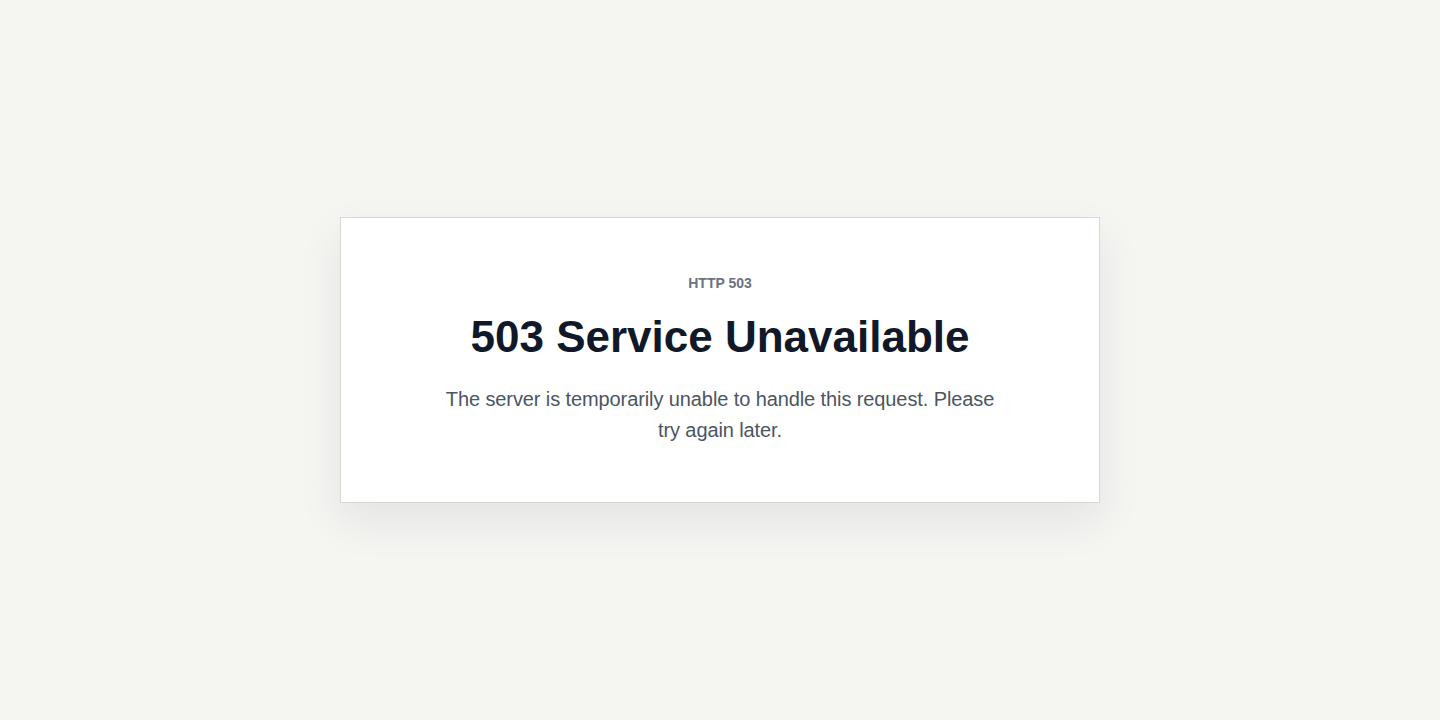
A 503 error means the server is temporarily unavailable or not ready to answer the request. In WordPress, that failure can happen before WordPress fully loads, so the cause may sit outside your theme or plugins. You may see:
- 503 Service Unavailable
- Service Temporarily Unavailable
- HTTP Error 503
- Error 503
- The server is temporarily unable to service your request
This is not the same as a 404 error, where a page is missing. It is also not always the same as a visible WordPress fatal error. A host outage, overloaded PHP workers, database trouble, or a CDN origin failure can make a healthy WordPress install look broken.
The visible problem is the 503 page. The hidden problem is whatever made the server refuse the request. If the 503 clears after a minute during known host maintenance, you may not need to do anything. If it lasts, spreads, or keeps coming back, treat it as a real troubleshooting job.
Start With the Checks That Do Not Change the Site
The worst first move is changing five things at once. If the site comes back, you still will not know what fixed it. Before you edit files, deactivate plugins, or change server settings:
- Open the site in another browser, an incognito window, and another network.
- Check whether the whole site is down, only wp-admin is down, or only actions like checkout, forms, REST API, or
admin-ajax.phpfail. - Check your host status page, hosting dashboard, and email for maintenance notices.
- Confirm you have a recent usable backup from your host, backup plugin, or backup service.
- Write down what changed before the error: updates, new plugins, PHP version changes, CDN rules, firewall changes, imports, backups, or traffic spikes.
- Do not delete plugin or theme folders. Rename them so the change can be reversed.
- Do not leave public debugging on after testing.
Do not assume a backup exists because someone once installed a backup plugin. Open the backup dashboard and check the latest successful restore point. A failed backup discovered during an outage is not a troubleshooting detail. It is a second emergency.
MalCare can help if this turns into a security investigation, but it is not a backup service. Keep a separate working backup system in place before you make risky fixes. After recovery, use a WordPress security maintenance checklist.
Choose Your First Move
Use the pattern of the failure to decide where to start.
| What you see | First check | Best next move |
|---|---|---|
| The whole site shows 503 | Host status and resource limits | Ask the host for timestamped server logs |
| Only wp-admin fails | Security rules, admin requests, plugins | Check logs, then isolate plugins or WAF rules |
| Error started after an update | The exact update or change | Roll back from backup or isolate that component |
| Error appears during traffic spikes | CPU, memory, PHP workers, connections | Check bots, jobs, and hosting limits |
| Error started after CDN/firewall changes | CDN, WAF, origin connection | Bypass CDN briefly, then review rules |
| The error keeps returning with odd activity | Malware and access logs | Scan for malware and block bad traffic |
The table is not a replacement for logs. It is a way to stop wandering.
Check Hosting and Server Resources First
Start outside WordPress. If the server is overloaded, suspended, restarting, or under maintenance, plugin troubleshooting wastes time. Open your hosting dashboard and check:
- scheduled maintenance
- CPU and memory usage
- bandwidth
- disk I/O
- entry processes
- concurrent connections
- PHP workers or PHP-FPM limits
- database availability
- account suspension or throttling notices
On shared hosting, a site can work in the morning and fail later because visitors, bots, backups, imports, and admin work all compete for the same small resource pool. If the hosting panel is also unavailable, contact the host first. WordPress troubleshooting needs a working server.
Ask support for evidence, not reassurance:
- Were CPU, memory, disk I/O, entry processes, PHP workers, or concurrent connections hit?
- Are there Apache, Nginx, PHP-FPM, or database errors at the exact time of the 503?
- Did maintenance, migration, a PHP update, or a server restart happen?
- Were
wp-login.php,wp-admin,admin-ajax.php, orwp-jsonblocked? - Was there a bot surge, repeated request pattern, or sudden traffic spike?
Good host answers include timestamps. Vague answers leave you guessing.
Review Recent Changes
If the error started after a change, follow that clue before making broad fixes. High-signal changes include:
- plugin updates
- theme updates
- WordPress core updates
- new plugins
- custom snippets
- PHP version changes
- CDN, firewall, or cache rule changes
- hosting migrations
- bulk imports or scheduled jobs
- WooCommerce extensions added before a sale
Reverse the most likely change first. If checkout started returning 503s ten minutes after a WooCommerce extension update, do not also change memory limits, themes, and firewall rules in the same session. Use staging when you have it. If production is already down and you have no staging site, make every change reversible and write down what you changed.
One change per test sounds slow. It is faster than creating a new mystery.
Read Logs Before Guessing
Logs are where the browser’s vague 503 becomes useful. They can point to a plugin, a memory limit, a blocked request, a server process, or a database timeout. Check:
- hosting error logs
- PHP error logs
- web server logs
- WordPress debug log, if enabled
- CDN or firewall events
- security plugin logs
Look for clues like:
- a plugin or theme path in a fatal error
Allowed memory size exhausted- PHP-FPM or socket errors
- max clients, entry process, or worker limit messages
- repeated failures around
admin-ajax.phporwp-json - database connection errors or timeouts
- WAF, ModSecurity, Imunify, or bot challenge blocks
If you enable WordPress debug logging, keep errors from showing publicly and turn debugging off when you are done. Public errors can reveal file paths and other details visitors should not see. The browser tells you the request failed. The logs tell you where to look.
Isolate Plugins and Themes Safely
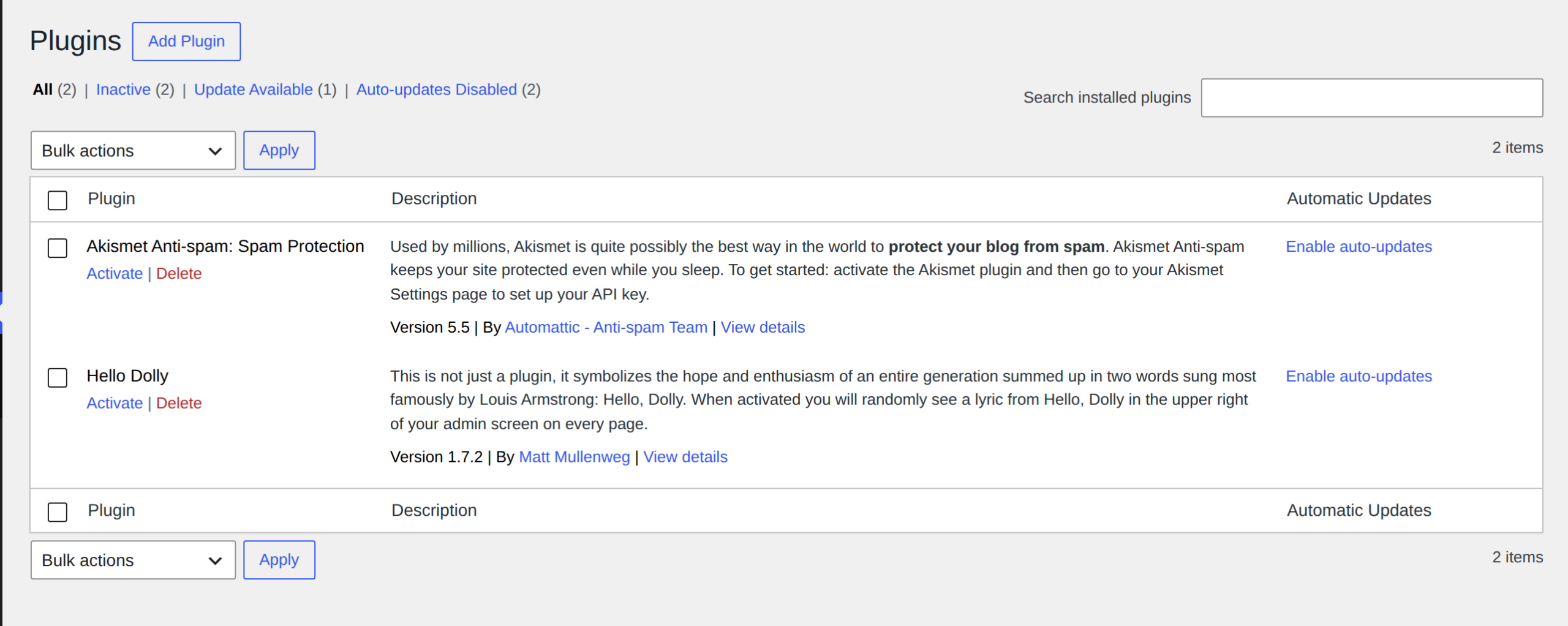
Plugins are a common cause of WordPress 503 errors, especially after updates or during heavy background jobs. Themes can do the same after template changes, custom code edits, or PHP version changes. If wp-admin still works:
- Go to Plugins > Installed Plugins.
- Deactivate the plugin that changed right before the 503.
- Test the failed page or workflow again, not only the homepage.
- If needed, deactivate all plugins.
- Reactivate plugins one at a time until the 503 returns.
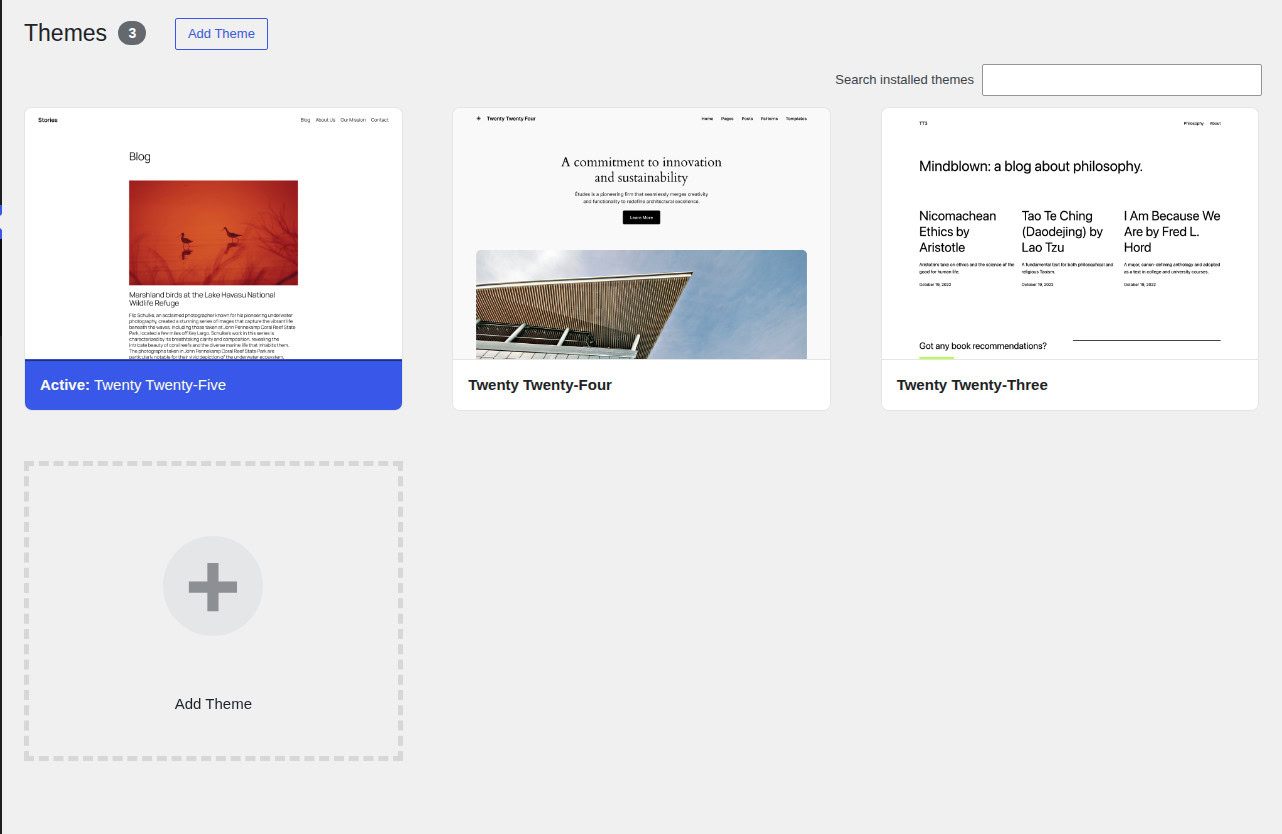
- If plugins are not the issue, switch briefly to a default WordPress theme from Appearance > Themes and test again.
- Connect through SFTP, FTP, SSH, or your host’s File Manager.
- Open
wp-content. - Rename
pluginstoplugins-disabled. - Test the site again.
- If it loads, rename the folder back to plugins.
- Rename individual plugin folders one at a time to isolate the culprit.
- If plugins are not the issue, open
wp-content/themesand rename the active theme folder so WordPress can fall back to another installed theme.
Do not delete plugin or theme folders as a first move. Renaming is reversible. Deleting turns diagnosis into recovery.
Pay close attention to plugins that run heavy work:
- backup plugins
- security scanners
- analytics plugins
- page builders
- WooCommerce add-ons
- search or indexing plugins
- broken-link checkers
- import and export tools
- image optimization plugins
These plugins are not automatically bad. They become a problem when they run expensive work on weak hosting, during traffic spikes, or after a bad update.
If a security plugin is causing load, do not leave the site unprotected. Replace it with lighter protection or move scanning and firewall work to a setup that does not overwhelm the same server you are trying to protect.
If plugins do not explain the error, check the active theme with the same reversible approach.
Check Cache, CDN, and Firewall Rules
Cache can keep showing a 503 after the real issue is fixed. A CDN or firewall can also create a 503-like failure when it cannot reach your origin server or when a rule blocks the request. Check:
- browser cache
- WordPress page cache
- server cache
- object cache
- CDN cache
- firewall or WAF rules
- bot protection challenges
Purge caches after each real fix. If you use a CDN, briefly bypass or pause the proxy to test whether the origin server works directly. If the origin works but the CDN path fails, review DNS, SSL, WAF rules, origin health checks, and cached error responses.
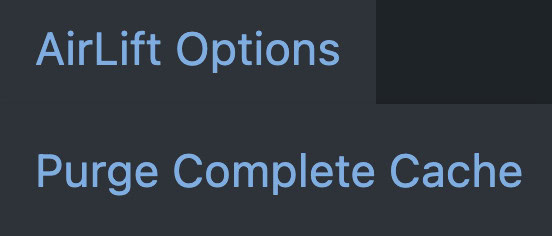
Do not treat cache clearing as the fix unless the error was only a stale cached page. Cache often hides the problem. It usually does not solve the problem. Use a clear your WordPress cache guide only after a real fix. If the 503 affects login, admin screens, the editor, forms, checkout, or plugin dashboards, check rules for wp-login.php, wp-admin, admin-ajax.php, and wp-json. A healthy homepage does not prove those requests are healthy.
Re-enable protection after testing. Turning off a firewall and forgetting about it is not a fix.
MalCare’s WordPress firewall and bot protection fit when logs show abusive traffic, login pressure, repeated suspicious requests, or DDoS-like patterns. The point is not to add another plugin for the sake of it. The point is to stop wasteful requests before they consume the resources real visitors need.
Reduce Server Load
Intermittent 503s often come from pressure, not one broken file. The site works until too many expensive things happen at once. Look for patterns:
- Does the error happen during backup jobs?
- Does it happen during WooCommerce traffic spikes?
- Does it happen when editors are active in wp-admin?
- Does it happen during imports, exports, or scheduled publishing?
- Does it happen after bots hit login, search, cart, or XML-RPC?
Common limits include CPU, memory, PHP workers, entry processes, disk I/O, database load, bandwidth, and concurrent connections. If the pattern looks like coordinated request pressure rather than normal traffic, compare it with the signs of WordPress DDoS attacks before you spend time tuning WordPress itself.
WordPress can create load from inside the site too:
- WP-Cron events firing too often
- Heartbeat requests from many open admin tabs
- backup jobs running at peak traffic times
- security scans running on the same server
- slow database queries
- database bloat
- page builders generating heavy pages
- WooCommerce cart and checkout requests that cannot be cached
Do not raise PHP memory just because you see a 503. Raise it only when logs show memory exhaustion or your host confirms the limit is too low for normal work. If malware, bots, or a runaway plugin are creating the pressure, more memory only delays the next outage.
For Heartbeat, reduce the frequency instead of disabling it blindly. The editor uses Heartbeat for autosaves and post locks. Breaking that can create a new problem for your content team.
Upgrade hosting when the data proves normal traffic has outgrown the plan. Do not upgrade before ruling out a bad plugin, attack traffic, malware, scheduled jobs, and any known WordPress plugin vulnerability that could be driving abnormal requests.
Scan for Malware and Bad Bot Traffic
A 503 does not prove malware. But repeated 503s with strange activity deserve a security check.
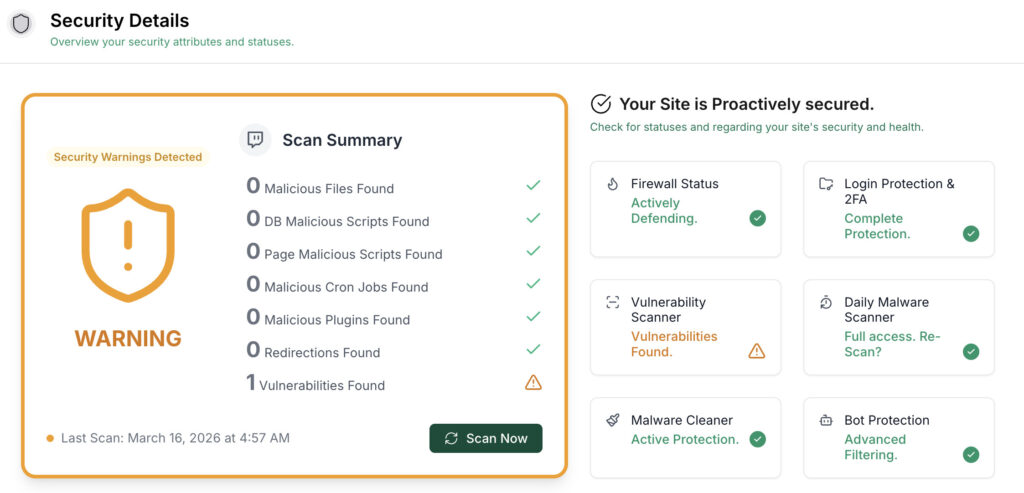
Scan the site if you see:
- unexplained file changes
- strange admin behavior
- spam pages
- redirects
- host malware warnings
- sudden resource spikes
- unknown cron jobs
- repeated login or admin traffic
Malware can create hidden load through spam scripts, injected files, redirects, database changes, and background requests. Bad bots can also exhaust resources without infecting the site.
Use MalCare to scan your WordPress site for malware when the error keeps returning or logs show suspicious activity. If malware is found, clean it before raising resource limits. If bad traffic is the issue, use firewall and bot protection to reduce pressure on the server.
Do not buy more server capacity for a compromised or abused site until you know what is consuming the current capacity. If the scan confirms a compromise, move from diagnosis to WordPress hacked website recovery before tuning performance.
Use Advanced Fixes Only When the Clues Point There
These fixes can help, but they should not be your opening move. Use them when logs, host support, or earlier tests point in this direction.
- For
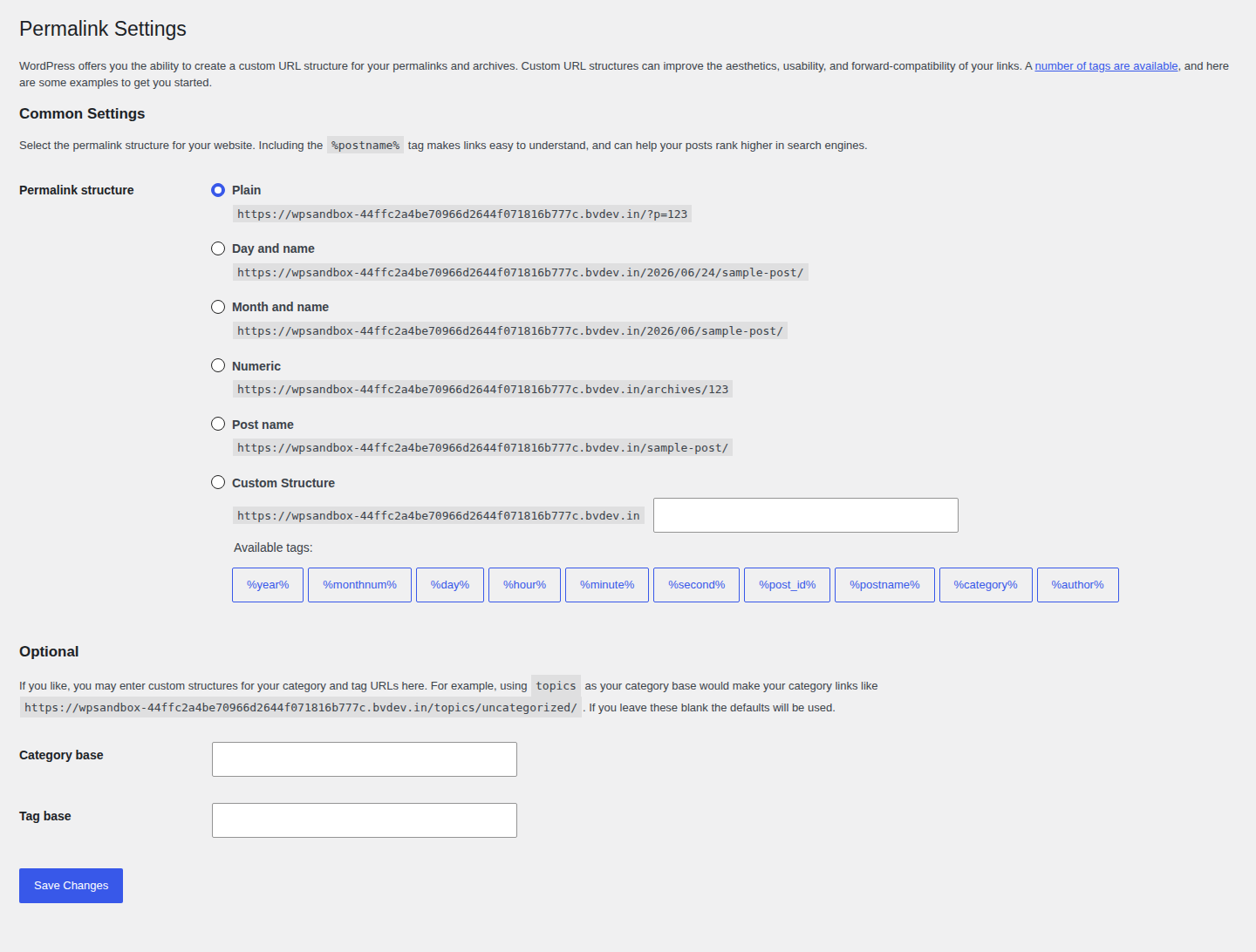
.htaccess, treat it like a possible corrupted .htaccess file in WordPress: back up the file first, rename it to something like.htaccess-old, and test the site. If wp-admin works, go to Settings > Permalinks and save to regenerate rules. Do not paste random server rules from forums into production. - Increase PHP memory only when logs show memory exhaustion or the host confirms it is the right limit to change. It can help when a normal process needs more memory. It is the wrong fix for malware, bot traffic, a broken plugin loop, or hosting that cannot handle normal traffic.
- Repair the database only when logs or admin symptoms point to database trouble. Back up first. A database repair should never be your first sign that yesterday’s backup failed.
- Reinstall WordPress core only after backups, logs, plugins, themes, server checks, cache/CDN checks, and malware scans. Core reinstall sounds decisive. In most 503 cases, it is just too early.
What to Ask Your Host
If the 503 persists, contact hosting support with a specific request. Copy this and adjust the domain and timestamps:
My WordPress site is returning 503 errors. Please check the exact timestamps around the failures and tell me whether CPU, memory, entry processes, PHP workers, concurrent connections, disk I/O, database limits, or account throttling were triggered. Please also check PHP-FPM, Apache/Nginx, database, WAF, and security logs for this domain. I need to know whether requests to wp-admin, wp-login.php, admin-ajax.php, or wp-json were blocked, timed out, or killed. If there was a traffic spike, please share the top requested paths, IP or user-agent patterns, and whether the traffic looked like bots. If there was maintenance, a migration, a PHP version change, or a server restart, please confirm the timing.
This gives support a real investigation path. It also helps you decide whether to fix WordPress, tune hosting, block traffic, or roll back a recent change.
Prevent the Same 503 From Coming Back
Once the site is back, prevention is mostly about removing surprise.
- Keep WordPress core, plugins, and themes updated through a safe process.
- Back up the site before updates, file edits, migrations, and major plugin changes.
- Test risky updates on staging when the site earns revenue or handles leads.
- Remove unused plugins and themes.
- Schedule backups, imports, scans, and heavy jobs outside peak traffic.
- Monitor CPU, memory, PHP workers, entry processes, and database load.
- Tune WP-Cron and Heartbeat when they create measurable load.
- Use caching and a CDN, but document exclusions for carts, checkout, login, and admin paths.
- Scan for malware regularly.
- Use a firewall to reduce bot, brute-force, and DDoS-like pressure.
- Upgrade hosting when normal traffic consistently exceeds plan limits.
MalCare fits best as the security layer after the technical fix: malware scanning, cleanup, firewall protection, bot blocking, and vulnerability monitoring. That matters because recurring 503s are often not one clean issue. They are usually a mix of load, risk, and recovery planning.
For backups, use a dedicated backup system from your host, backup plugin, or backup provider. Do not count malware scanning or firewall protection as your restore path before risky troubleshooting.
FAQs
What does 503 mean in WordPress?
A 503 error in WordPress means the server is temporarily unable to handle the request. The cause may be host maintenance, resource limits, plugin or theme conflicts, cache/CDN issues, bad traffic, or malware-related load.
Is a 503 error temporary?
Often, yes. A short 503 during maintenance or a traffic spike may clear on its own. If it lasts more than a few minutes or keeps returning, troubleshoot it instead of waiting.
Can a plugin cause a 503 error?
Yes. A plugin can trigger a 503 through a bad update, heavy background jobs, memory use, slow database queries, or conflicts with other plugins. Deactivate plugins safely through wp-admin or by renaming folders through your host’s file tools.
Can malware cause a 503 error?
Yes. Malware can create hidden processes, spam pages, redirects, database load, and background requests that exhaust server resources. A 503 is not proof of malware, but recurring 503s with odd activity should be scanned.
Should I contact my host for a 503 error WordPress?
Yes, if the whole site is down, the error keeps returning, your hosting panel shows resource limits, or logs are not available to you. Ask for timestamped logs and resource-limit events, not just a general status check.
Conclusion
A WordPress 503 error is easiest to fix when you follow the safest order: check hosting, confirm a real backup, review recent changes, read logs, isolate plugins and themes, then test cache, CDN, firewall, server load, malware, and advanced fixes.
That order matters. It keeps you from making risky changes before you know where the problem lives.
If the error keeps coming back, treat it as a signal. Look for resource pressure, bad traffic, malware, weak hosting, or a recurring background job. The goal is not just to make the page load once. The goal is to understand why it failed and stop the same 503 from returning.