WordPress errors can quickly become a problem, especially when they show up as 404s. Someone clicks a page on your site, expects useful content, and gets a “Not Found” message instead.
It’s frustrating for visitors, and it’s not great for search engines either. If too many useful pages return 404s, rankings can drop, crawl paths get messy, and trust can take a hit.
The good news is that most WordPress 404 errors are fixable. In most cases, the problem comes down to broken permalink rules, missing pages, bad links, or old URLs still floating around.
To fix a WordPress 404 error, start with Settings > Permalinks and click Save Changes. If that doesn’t work, check for broken links, confirm the page still exists, and redirect any old URLs that now point to the wrong page.
What is the 404 WordPress error?

A WordPress 404 error means the page someone tried to visit could not be found at that URL.
That does not always mean the content is gone. Sometimes the page still exists, but WordPress cannot connect the URL to the right content. This often happens when a slug changes, permalink rules break, or an old link still points to a page that has moved.
📝 Note: Strong WordPress security reduces the risk of unexpected changes that can lead to broken links or bad redirects.
That difference matters. If the content is missing, you need to restore it or redirect the URL. If the content still exists, the fix is usually in your site settings or link structure.
What triggers the error?
A few problems cause most 404 errors in WordPress:
- Deleted or moved pages: If a page was removed or moved to a new URL without a redirect, visitors will see a 404.
- Changes in permalink structure: If permalink settings change, older URLs may stop working.
- Incorrect URL entry: A mistyped URL can lead to a page that does not exist.
- Unpublished content: Draft, private, scheduled, or trashed content can return a 404 when someone tries to access it.
- Server or rewrite rule issues: If WordPress cannot read rewrite rules correctly, pages may show 404 errors even when the content is still there.
📝 Note: If several pages fail at once, especially after a settings change, it is worth checking the .htaccess file and rewrite rules.
- Old post URLs: This is common after changing a post slug while old links are still being used.
404
Diagnose common WordPress 404 issues and identify the most likely fix.
The likely cause is usually one of these: broken permalinks across the site, a single moved page, a migration or update, deleted content, an old slug, or an unexpected redirect. Start with the matching fix below. If 404 errors appeared suddenly, especially with strange redirects or missing pages, scan your site for malware and unauthorized changes using MalCare.
How to fix the WordPress 404 error?
The best fix for a WordPress 404 error depends on the cause. Sometimes the URL structure is broken. Sometimes the page is missing. Sometimes an old link points to the wrong URL. Start with the most common fixes first.
1. Check and update permalinks

Permalinks are the URL format WordPress uses for posts, pages, categories, and other content. When those rules stop working properly, WordPress may return a 404 even though the content still exists.
This is one of the most common causes of a WordPress 404 error, especially if your homepage loads but inner pages do not. If posts, pages, category archives, and tags all start failing at once, permalinks are the first place to look.
How to refresh permalinks in WordPress
- Open the permalink settings: Log in to your WordPress dashboard, go to Settings, and click Permalinks.
- Refresh the URL rules: Without changing anything, click Save Changes.
- Check the affected page: Test the page that was showing the 404.
This tells WordPress to rebuild its rewrite rules. In many cases, that is enough to fix the problem.
📝 Note: If saving permalinks does not fix the issue and URLs are still behaving oddly, run a malware scan to check whether malicious changes have affected redirects, rewrite rules, or theme files.
Saving permalinks refreshes the URL rules, but it does not create redirects for old URLs. So if you changed your permalink structure on a live site, some older links may still break even after this step works. In that case, you will need redirects as well.
If refreshing permalinks does not help, do not keep clicking save and hope for a different result. The next step is to look at the actual links that are failing.
📝 Note: If the error started after an update, check for plugin conflicts before changing more settings.
2. Check for broken links
Broken links are links that point to a URL that no longer works. That URL may be wrong because a page moved, a slug changed, or the content was deleted.
This often happens after:
- Changing a page slug
- Deleting or replacing content
- Moving pages into a new structure
- Updating category paths
- Migrating to a new domain
Broken links are not always on the page you expect. They often show up in menus, buttons, footers, sidebars, and old blog posts. That is why it helps to check your most visited pages first.
You can find broken links with Google Search Console, a link checker plugin, or an SEO tool with 404 monitoring. If you use Rank Math SEO or a similar plugin, make sure the 404 monitor is enabled and that you review the URLs carefully. Not every logged 404 needs a redirect. Some are just bad requests, spammy bot hits, or typos.
What to do when you find a broken link
- Update the link if the content still exists at a new URL
- Add a 301 redirect if the page moved and the old URL still gets traffic
- Remove the link if the content is gone and there is no relevant replacement
One warning here because it matters. Do not redirect every broken URL to the homepage. That seems tidy, but it usually creates a poor experience and sends mixed signals to search engines. Redirect only when the destination is a close and useful match.
📝 Note: If a link sends visitors somewhere unexpected, check for a hacked site and review the redirect itself.
If the broken URL should still lead to a live page, the next step is to make sure the content still exists and is public.
3. Restore deleted pages
Sometimes, the page causing the WordPress 404 error was deleted by mistake. In other cases, it was not deleted at all. It may be in Trash, saved as a draft, set to private, or scheduled for a future date.
That is why it is worth checking the content itself before changing anything more technical.
How to restore deleted pages or posts in WordPress
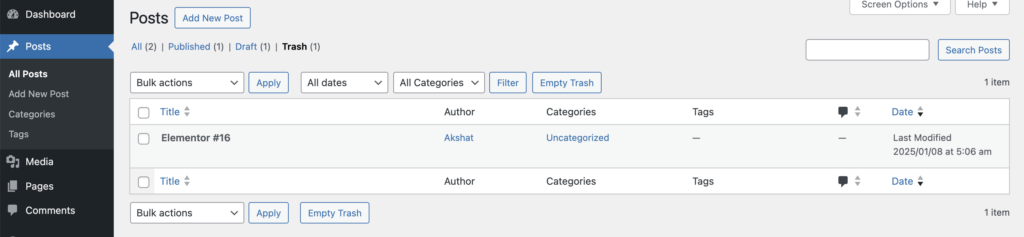
- Locate the missing content: Go to your WordPress dashboard, then open Pages or Posts, depending on what is missing.
- Restore the deleted item: Open Trash, find the page or post you want to restore, then click Restore.
If the page is not in Trash, check its status. A page can exist in WordPress and still return a 404 to visitors if it is not publicly available.
Look for these cases:
- Draft: the page exists, but it is not published
- Private: the page is hidden from public visitors
- Scheduled: the page is set to publish later
- Password-protected: the page may seem broken to some users, depending on how they access it
If the content is gone and not recoverable from Trash, restoring it from a recent backup may be the fastest fix. Still, be careful with full-site restores. On a live site, a full restore can overwrite newer posts, comments, orders, form submissions, or settings. If your backup tool allows partial restores, that is usually safer.
If the page is intentionally gone and you do not want to bring it back, the right fix is not restoration. It is helping the visitor find the next best page.
4. Improve navigation with a custom 404 page
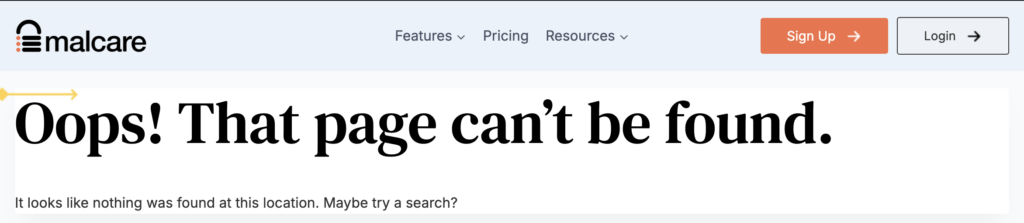
A custom 404 page will not fix the root cause of a WordPress 404 error, but it can still help in a practical way. Some 404s are unavoidable. Old links can stay in search results, bookmarks, email campaigns, and other websites long after a page has moved or been removed.
That is why a good 404 page matters. It gives visitors a clear path back into your site instead of leaving them at a dead end. It can also help you spot cases where the issue is not a normal missing page, but something more serious like malicious redirects.
What to include on a custom 404 page
- A clear message that the page could not be found
- A link back to the homepage
- A search bar
- Links to important pages
- Recent posts or popular content
Keep this page simple and useful. Visitors do not need a long explanation of what went wrong. They need a fast way to find the right page or continue browsing.
If you regularly publish campaign pages, seasonal offers, or temporary landing pages, review those URLs once the campaign ends. These pages often keep getting traffic after they are no longer live, so it helps to redirect them where it makes sense.
📝 Note: If old campaign or landing page URLs still get visits, redirecting them to the closest relevant page is usually better than leaving them as 404s.
How to prevent the 404 error?
Preventing a WordPress 404 error is easier than cleaning up dozens of broken URLs later. A few simple habits will prevent most of them.
- Update WordPress carefully: Keep WordPress core, themes, and plugins updated, but always test important pages after major changes.
- Use redirects when URLs change: If you rename, move, or replace a page, add a 301 redirect from the old URL.
- Monitor broken links regularly: Check Google Search Console and your 404 logs so you can catch problems before they spread.
- Backup your site often: A recent backup makes it much easier to recover deleted content or undo a bad change.
- Review updates before applying them: If an update could affect URLs, templates, or routing, test it first. A tool like UpdateLens can help you review what changed before it reaches your live site.
One more warning is worth adding here. If you manage a large site, do not change slugs in bulk without a redirect plan. A bulk edit can create hundreds of broken URLs in a few minutes. Fixing that after the fact takes much longer than planning for it upfront.
It also helps to keep an eye on crawl errors after migrations, redesigns, and major content updates. Those are the moments when 404s tend to multiply quietly.
Parting thoughts
A WordPress 404 error is common and usually fixable once you check the right things in the right order: refresh permalinks, fix broken links, restore missing content, and improve your 404 page.
If the problem started after a recent change, a recent backup may be the fastest fix, but check what will be overwritten before you restore it.
FAQs
Frequently asked questions
To fix a 404 error in WordPress, start by checking and updating your permalinks. Go to your Settings and then Permalinks, and click Save Changes. You can also use tools like the Broken Link Checker plugin to identify broken links. Additionally, ensure that any moved or renamed pages have 301 redirects set up.
Some of the best tools for monitoring broken links in WordPress include the Broken Link Checker plugin and online services like Google Search Console. These tools help identify issues so you can fix them quickly.
Broken links occur when a page is deleted, a URL is changed without a redirect, or if there’s a typo in the URL. They can also result from expired content or server issues that disrupt URL paths.
To fix a 404 error, check and update the permalinks settings. Restore any accidentally deleted pages from the Trash. Use redirects for moved content and update any broken links. Customizing your 404 page can also help guide users to functioning parts of your site.
Yes, 404 errors can affect SEO. If search engines frequently encounter missing pages, it can hurt your site’s rankings. Regular maintenance and monitoring of links is crucial to prevent this impact.