I was trying to publish a blog post when my WordPress site suddenly threw a mod_security WordPress error. After spending two hours crafting the perfect analysis, I hit “Update” and was greeted by a stark “403 Forbidden” message. I tried refreshing the page, clearing my browser cache, even restarting my computer—nothing fixed this WordPress problem.
I then did some research and realized I was dealing with a mod_security conflict. Over the next few hours, I systematically worked through every possible solution. I was able to restore the site successfully and publish the post. But, it was a hassle.
This article is everything I learnt and did. Your site will be back up and running in no time.
If mod_security is blocking your WordPress site with 403 errors, contact your hosting provider first to whitelist your IP or adjust overly strict rules—this fixes most issues within minutes. Before making any changes to your live site,create a staging environment through MalCare to reduce the risk of further damage.
Understanding the mod_security WordPress Error
When you encounter a mod_security WordPress error, you’re seeing your server’s security system actively blocking what it perceives as a malicious request. A403 Forbidden error is returned by the server when the user has been denied access to a resource, and this is often a result of a security policy.
The symptoms are usually unmistakable and frustrating. You might see a 403 forbidden error when you update or save your WordPress post and comments, or when you’re working on your site and then go to save something like a post, a setting, or a page.
The error typically appears as a “403 Forbidden” message or sometimes displays as “Access Denied”. What makes this particularly maddening is that the error often strikes without warning—your site was working perfectly moments before, and suddenly you’re locked out of basic WordPress functions.
Some common causes of mod_security WordPress errors:
- Overly Aggressive Security Rules: Mod_security can cause the 403 Forbidden Error due to a misconfiguration Mod Security | WordPress.org, where legitimate WordPress actions trigger false positives in the security ruleset
- Plugin Conflicts: Poorly configured security plugins can block an IP address or a whole range of IP addresses if they believe them to be malicious 403 Errors, mod_security | WordPress.org, creating conflicts with mod_security rules
- Suspicious Content Patterns: ModSecurity falsely sees your Custom Code htaccess code as malicious and blocks saving Custom Code Securing WordPress with ModSecurity: Step-by-Step Instructions, particularly when working with custom functions or HTML
- Form Submission Triggers: When a request is sent, ModSecurity will parse that request into the Request header, Request body components php – Not Acceptable! An appropriate representation of the requested resource could not be found on this server. This error was generated by Mod_Security – Stack Overflow, and legitimate form data can match attack patterns
- IP Address Blocking: Your current IP address may have been flagged as suspicious due to previous activity or shared hosting environments
- WordPress Core Actions: Routine WordPress operations like saving posts, updating plugins, or accessing admin areas can trigger rules designed to block SQL injection or cross-site scripting attempts
- Theme or Plugin Updates: New code introduced through updates might contain patterns that mod_security interprets as malicious, even when they’re completely legitimate
How to fix mod_security WordPress Errors?
When your WordPress site is throwing mod_security errors, every minute of downtime feels like an eternity—especially if you’re running a business or trying to publish time-sensitive content. The good news is that these errors are usually fixable configuration issues, not actual security threats. Below are multiple proven methods to get your site back online quickly.
Expert Advice:
Troubleshooting this error involves a lot of changes to your website files and security settings. We recommend you test them out on a staging site first.
Step 1: Identify the specific error message
Before you can fix your mod_security issue, you need to know exactly what’s happening. When mod_security blocks your WordPress site, it doesn’t stay silent—it leaves clear clues about what went wrong. Think of these error messages as your roadmap to a solution.
What you’ll typically see:
The most common error messages appear right in your browser and look like this:
- 403 Forbidden – This is the classic “you’re not allowed here” message
- ModSecurity Alert – A direct flag that mod_security is the culprit
- Access denied with code 403 (phase 2). Pattern match… – This longer message actually tells you which security rule was triggered
Expert Advice:
You can also check your WordPres error logs. These logs show the exact mod_security rule that fired and why. You can also contact your web host’s support team directly and ask them to help you find out what happened.
Step 2: Disable Mod_Security
Disabling mod_security means turning off your website’s main security filter—essentially removing the digital bouncer that’s been blocking your requests. This should only be done as a temporary diagnostic step to confirm that mod_security is indeed the source of your problems, not as a long-term fix. Think of it like temporarily disabling your car’s alarm to see if that’s what’s preventing it from starting.
If yourhosting provider allows it, you can add specific code to your site’s .htaccess file to turn off mod_security. Access your website files through your hosting control panel’s File Manager, locate the .htaccess file in your main WordPress directory, and add these lines at the top:
<IfModule mod_security.c>
<IfModule mod_security.c>
SecFilterEngine Off
SecFilterScanPOST Off
SecFilterScanPOST Off
</IfModule>
However, many hosting providers block this approach entirely, and you’ll likely see an Internal Server Error (500) instead. This is actually a good thing—it means your host prioritizes security over convenience.
Expert Warning: Turning off mod_security is like leaving your front door unlocked in a busy neighborhood. Your WordPress site becomes vulnerable to SQL injection attacks, cross-site scripting, brute force attempts, and dozens of other common threats that mod_security normally blocks automatically. Disabling mod_security on a staging site is significantly safer.
Step 3: Solve plugin conflicts
Plugin conflicts are a common cause of mod_security errors because many plugins—especially security tools, contact forms, or caching plugins—generate requests that trigger protective rules. A plugin that worked fine for months can suddenly conflict after a failed update, making this issue particularly frustrating to diagnose.
How to Test for Plugin Conflicts:
The fastest way to identify plugin conflicts is through systematic elimination. Deactivate all your plugins at once by going to Plugins > Installed Plugins, selecting all plugins, choosing “Deactivate” from the bulk actions dropdown, and clicking Apply. Test the action that was triggering the mod_security error—if it works now, you’ve confirmed a plugin conflict.
Next, reactivate plugins one by one, testing after each activation. When the error returns after activating a specific plugin, you’ve found your culprit.
What to Do With the Problem Plugin:
Once you’ve identified the conflicting plugin, you have three main options: replace it with an alternative if it’s non-essential, contact the plugin developer’s support team for configuration help or updates, or ask your hosting provider to create custom mod_security exceptions for that plugin’s requests. Most conflicts can be resolved through proper configuration rather than choosing between the plugin and security protection.
Step 4: Check for theme conflicts
Theme conflicts are less common but can occur when themes include complex functionality like built-in contact forms or custom code that triggers mod_security rules. Premium themes with advanced features are most likely to cause these issues. Just like plugins, a failed theme update can also cause such conbflicts.
How to Test for Theme Conflicts:
Temporarily switch to a default WordPress theme (like Twenty Twenty-Four) by going to Appearance > Themes and activating it. Test the action that was previously blocked—if the error disappears, your original theme is the problem.

What to Do With a Conflicting Theme:
Contact your theme developer’s support team for solutions or updates, ask your hosting provider to whitelist the specific triggered rules, or consider switching to a more modern theme that’s compatible with current security standards.
Step 5: Use a Web Application Firewall (WAF)
When mod_security keeps blocking legitimate traffic and your hosting provider won’t customize the rules, a third-party Web Application Firewall can be your solution. A WAF like MalCare’s security firewall sits between your visitors and your server, filtering malicious traffic before it even reaches your hosting environment. This reduces the workload on mod_security and can eliminate many false positive blocks.
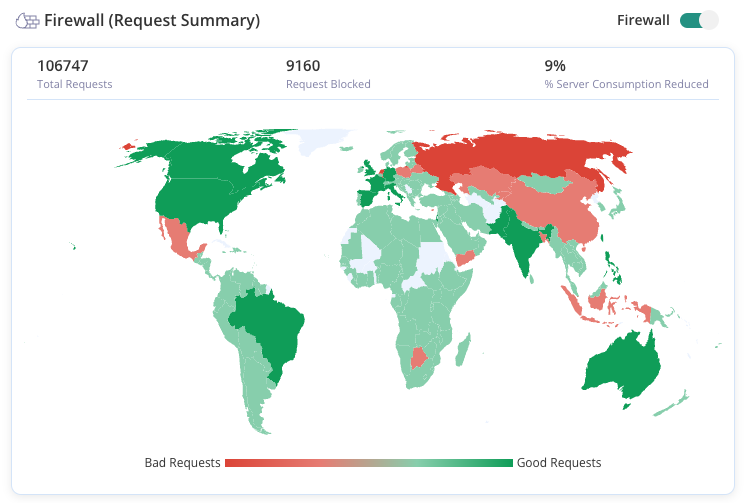
A dedicated WAF acts as an intelligent traffic filter that’s specifically tuned for WordPress, unlike mod_security’s generic rules. It can distinguish between legitimate WordPress actions and actual threats more accurately, reducing the conflicts that cause your current errors while maintaining strong security protection.
How to prevent mod_security WordPress errors?
Now that you’ve successfully resolved your mod_security error, the last thing you want is to face the same frustrating problem again. The good news is that most mod_security WordPress errors are predictable and preventable with the right proactive measures.
Watch Your Content Patterns
mod_security scans all content for patterns that resemble common attacks, so certain text can accidentally trigger security alerts. Avoid including code-like syntax in your content, comments, or forms—phrases like “DROP TABLE,” “SELECT *,” or HTML tags like <script> will raise red flags. Similarly, be cautious with special characters like <, >, –, or /* in contact forms, as these are often used in SQL injection and cross-site scripting attacks that mod_security is designed to block.
Choose Quality Plugins and Themes
Poorly developed plugins and themes often make unusual AJAX requests, include suspicious SQL keywords in their code, or generate JavaScript patterns that mimic malicious behavior. Stick to plugins and themes that are regularly updated, well-reviewed, and compatible with your WordPress version. Common offenders include tools like Gutenberg or Elementor, complex contact forms, backup tools, and some SEO plugins that generate dynamic content or make frequent database queries.
Always Test in Staging
Always test new plugins, themes, or major content updates on a staging site before implementing them live. This allows you to identify mod_security conflicts in a safe environment where errors won’t affect your visitors or business operations. If something triggers a security rule on staging, you can resolve it before it becomes a problem on your live site.
Deploy a Web Application Firewall
A dedicated WAF like MalCare filters traffic before it reaches your server, reducing the load on mod_security and preventing many false positives. A good security plugin will offer this feature automatically,
Create Custom Rule Exceptions
Work with your hosting provider to identify and whitelist mod_security rules that frequently cause false positives for your specific site setup. Rather than disabling mod_security entirely, this targeted approach maintains security while allowing your legitimate WordPress functions to work normally.
Monitor with Error Logging
Enable comprehensive error logging through your hosting control panel or a monitoring plugin so you can quickly identify which mod_security rules are being triggered. Early detection helps you address conflicts before they escalate into site-wide access issues.
Keep Forms Simple and Clean
When creating contact forms, comment fields, or any user input areas, avoid placeholder text or default values that contain code examples, SQL keywords, or HTML tags. Keep form labels and instructions simple and descriptive rather than technical, as mod_security scans all form data for malicious patterns.
Final Thoughts
mod_security WordPress errors can completely derail your productivity. Simple tasks like saving posts or updating plugins suddenly become technical nightmares. Business owners face lost revenue and missed deadlines. Even personal bloggers lose momentum when they can’t access basic WordPress functions.
The time spent troubleshooting these conflicts adds up quickly. MalCare eliminates most of these headaches by acting as an intelligent filter between your site and mod_security. It understands legitimate WordPress actions and dramatically reduces false positive blocks. This means you can focus on creating content and growing your business without constantly worrying about security interruptions.
FAQs
Start by identifying the specific error message and rule ID from your error logs or by contacting your hosting support. The fastest fix is usually asking your host to whitelist the problematic rule for your domain. You can also test for plugin or theme conflicts by deactivating them systematically, or implement a WordPress-specific WAF like MalCare to reduce false positives while maintaining security protection.
mod_security is a web application firewall that runs at the server level to protect websites from common attacks like SQL injection, cross-site scripting, and brute force attempts. It analyzes every request to your WordPress site in real-time, blocking anything that matches known attack patterns. Think of it as a security guard that filters malicious traffic before it can reach your website.
Add this code to the top of your .htaccess file: <IfModule mod_security.c> SecFilterEngine Off SecFilterScanPOST Off </IfModule>. However, many hosts block this method and you’ll get a 500 error instead. Remember, disabling mod_security should only be done temporarily for troubleshooting—never as a permanent solution since it removes critical security protection.
The mod_security configuration file is located on your web server, typically at /etc/httpd/conf.d/mod_security.conf or /etc/apache2/mods-enabled/security2.conf, but you cannot access it directly as a regular user. Server-level configuration files are managed by your hosting provider or system administrator. If you need mod_security rules adjusted, contact your hosting support team—they have the access and expertise to modify these files safely.