
You open a post to fix a line, add an update, or publish something that is already late. Instead of the editor, WordPress shows: “The editor has encountered an unexpected error.”
That message looks serious because it appears where your content should be. In most cases, your content is not gone. The block editor has failed while loading something it needs, such as a plugin panel, theme code, browser script, saved block, or WordPress data request.
Copy any unsaved text and the error details first, then test a private window, another browser, and cache clearing. If the error remains, check plugins, themes, copied error details, REST API requests, memory, and server rules in that order.
Start with safe checks. Do not jump into file edits or server changes unless the evidence points there.
What this error means
“The editor has encountered an unexpected error” means the WordPress block editor could not finish loading or showing the editing screen.
It can affect every post, one page, a new draft, a reusable block, or a custom post type. That matters because a site-wide error points to a broad conflict, while one broken post often points to a bad block, embed, pattern, or custom field.
The message is a symptom, not the cause. The editor error usually appears as a recovery panel with actions for copying content, copying technical details, or attempting recovery.
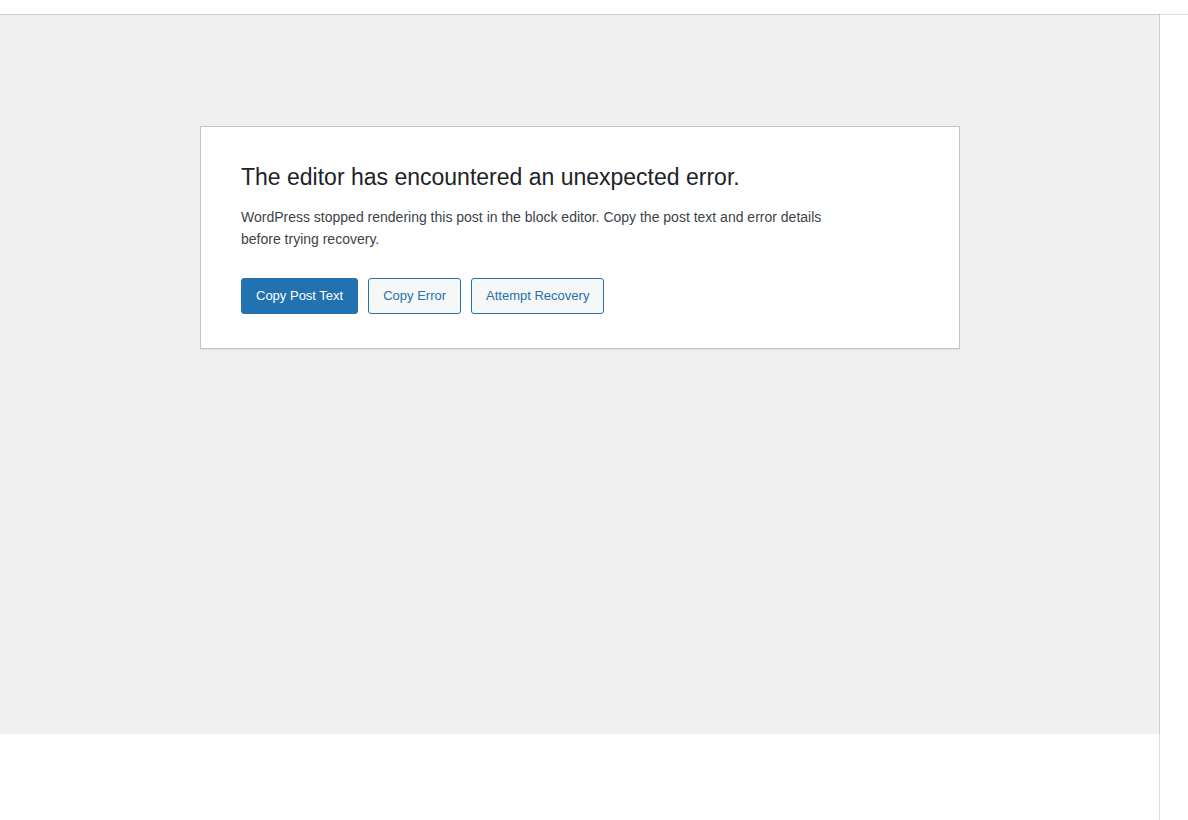
You may see these buttons:
| Button | What it does | What to do |
|---|---|---|
| Copy Post Text | Copies recoverable content from the editor | Use this first if you have unsaved work |
| Copy Error | Copies technical details about the crash | Save it before you troubleshoot |
| Attempt Recovery | Tries to reload the editor | Try it after copying your content and error details |
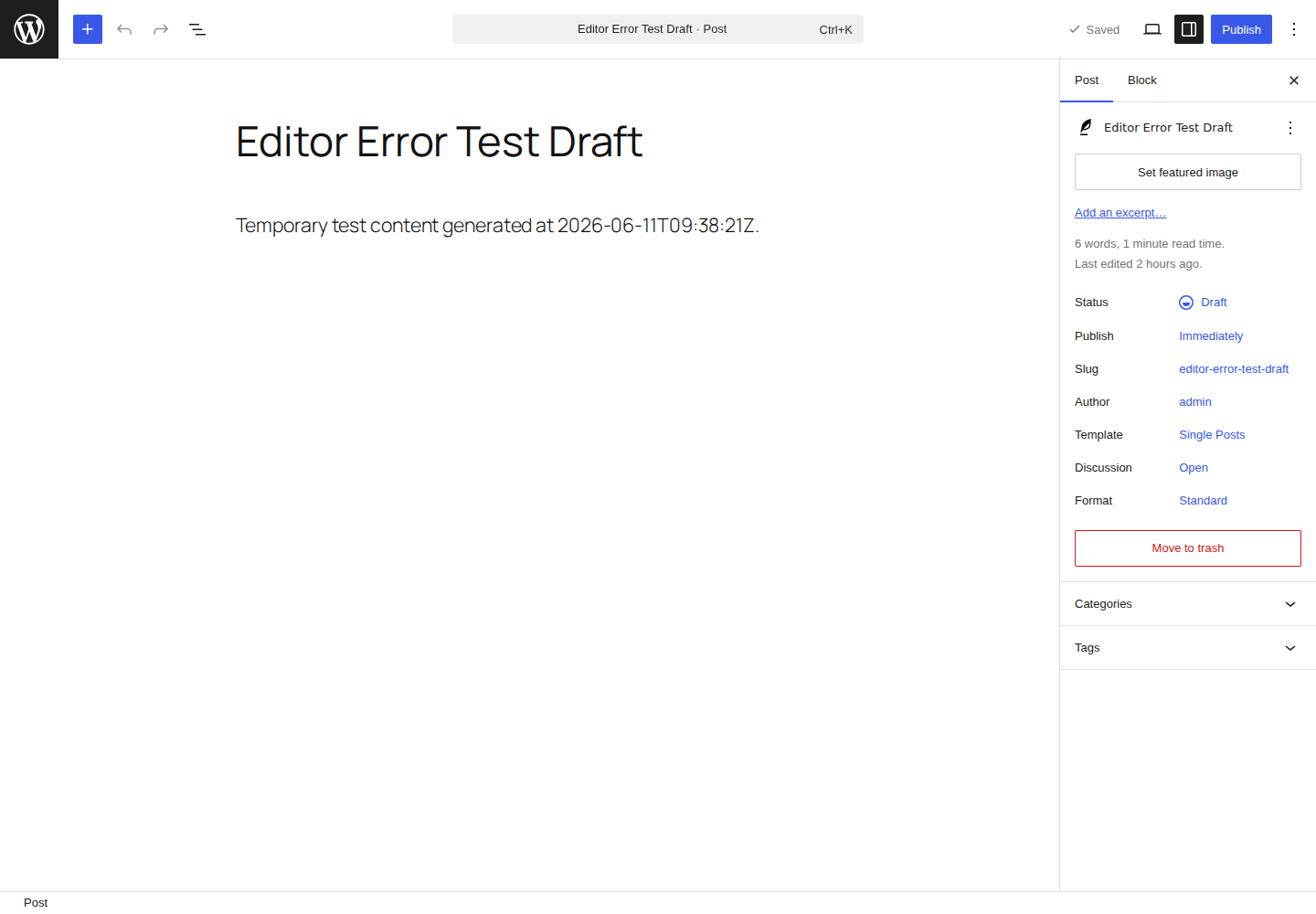
If Classic Editor works, the issue is probably in the block editor path. It does not mean the real problem is fixed. A healthy block editor should load the post canvas, side panels, and top toolbar without showing that recovery panel.
Start with safe fixes
Protect your content first
Before you change the site, save what you can. This step is quick, and it protects you from turning an editor error into lost work.
- Copy the unsaved post text before touching settings: Click Copy Post Text if WordPress shows the button, then paste it into a document.
- Save the technical error before refreshing: Click Copy Error and keep it in the same document. A plugin vendor, host, or developer may need it.
- Record the exact page that failed: Note the post URL, time, browser, and what you were doing when the error appeared.
- Check whether the problem is one post or the whole editor: Open another post and create a new draft. This tells you where to look next.
- Back up before any risky fix: Use a backup plugin before plugin changes, theme switches, file edits, updates, or server changes.
If the site is tied to revenue or client work, use staging for disruptive tests. Staging is a copy of the site where you can test fixes without changing the live site.
Try the fastest safe fixes
Browser and cache issues are easy to dismiss, but they often break the editor after updates. The editor loads many script files, and stale files can make WordPress look broken even when the site is fine. Try these first:
- Open the editor in a private window: This bypasses many stored cookies and cached files.
- Test the same post in another browser: If it works there, fix the browser before changing WordPress.
- Turn off browser extensions for this site: Start with ad blockers, privacy tools, script blockers, and password managers.
- Clear browser data for the site: Clear cache and cookies, then log in again.
- Clear WordPress and server caches: Purge cache plugin, server cache, object cache, and CDN cache if you use them. If the console shows missing or blocked assets, this can overlap with a failed to load resource problem.
If a private window fixes the issue, the likely cause is your browser state, not a broken WordPress install.
Diagnose the cause
Narrow the cause
Use the pattern you see to choose the next fix. This keeps the work short and prevents random changes.
| What you see | Likely cause | Best next move |
|---|---|---|
| Works in private browsing or another browser | Browser cache, cookies, extension, or profile issue | Clear site data, disable extensions, and update the browser |
| Fails only on one post | Bad block, embed, pattern, or custom field | Copy the content and rebuild that post carefully |
| Works when plugins are off | Plugin conflict | Turn plugins back on one at a time |
| Works on a default theme | Theme, child theme, or custom code | Test theme layers and snippets separately |
| Error names wp-content/plugins or wp-content/themes | Specific plugin or theme file involved | Update, disable, roll back, or contact the vendor |
| Failed wp-json request | REST API, firewall, permalink, or server issue | Check Site Health, server logs, and host security rules |
| Large posts fail, simple posts work | Memory limit or heavy editor load | Check PHP memory and server logs |
The point is simple: fix the layer that matches the symptom.
Check plugin conflicts carefully
A plugin conflict is a common cause because many plugins add fields, panels, blocks, scripts, or rules to the editor.
Start with recent changes. Look at new installs, plugin updates, WordPress updates, PHP changes, cache settings, security rules, and custom plugin deployments. Then check plugins that touch the editor:
- SEO plugins
- page builders
- custom fields and metabox plugins
- block libraries
- multilingual plugins
- schema plugins
- cache and optimization plugins
- security plugins
- custom business plugins
Use this clean test:
- Back up or move the test to staging: Do not experiment on a busy live site unless the risk is low.
- Deactivate all plugins once: Open the editor after the plugins are off.
- Reactivate one plugin at a time: Refresh the editor after each plugin.
- Stop when the error returns: The last plugin you turned on is the first suspect.
- Confirm before blaming it: Check for updates, known issues, and whether the copied error names that plugin.
Do not test five plugins at once unless the site has too many plugins to test one by one. Group testing is faster at first, but it often leaves you with a vague result. The Plugins screen is the safest starting point for a controlled conflict test because you can disable and re-enable plugins methodically.
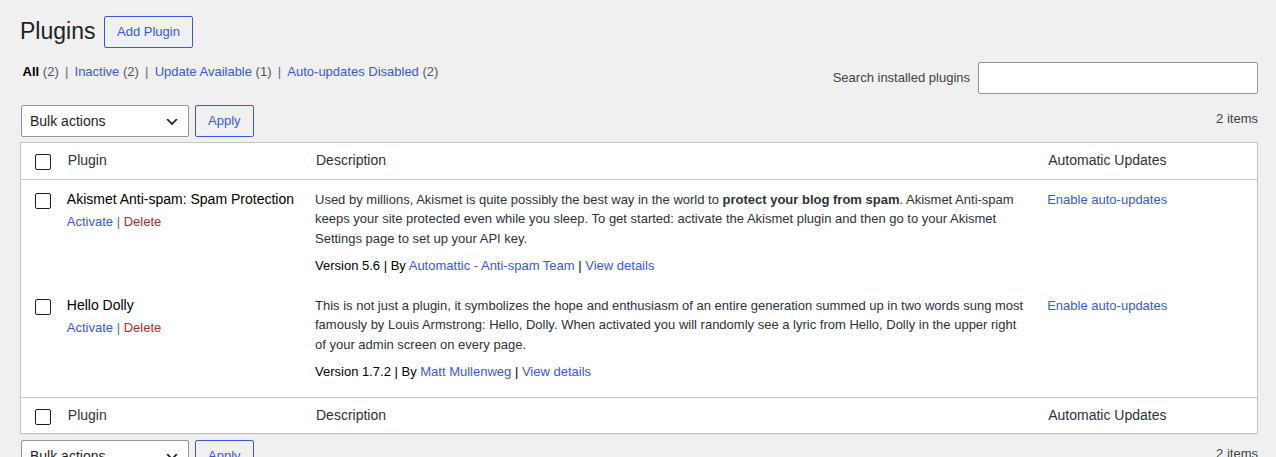
If the plugin is important for checkout, forms, bookings, SEO, or memberships, do not leave it disabled without a plan. Update it, roll it back only with a backup, or send the copied error to the vendor.
Check the Gutenberg plugin
WordPress already includes the block editor. The separate Gutenberg plugin is optional and adds newer editor features before they are included in WordPress core.
That can be useful on test sites. On production sites, it can also conflict with themes or plugins that expect the stable editor version. Go to Plugins and check whether Gutenberg is active. If it is, deactivate only that plugin and test the editor again.
This does not remove the normal block editor. It only removes the optional plugin layer. If the editor works after that, keep Gutenberg off unless you have a specific reason to use it.
Rule out the theme and custom code
Themes can affect more than design. They may load editor styles, blocks, scripts, template logic, admin tweaks, and custom functions.
Switch to a current default theme such as Twenty Twenty-Six, then open the same editor screen. A default theme test helps separate editor problems caused by theme code from problems caused by WordPress core or plugins.
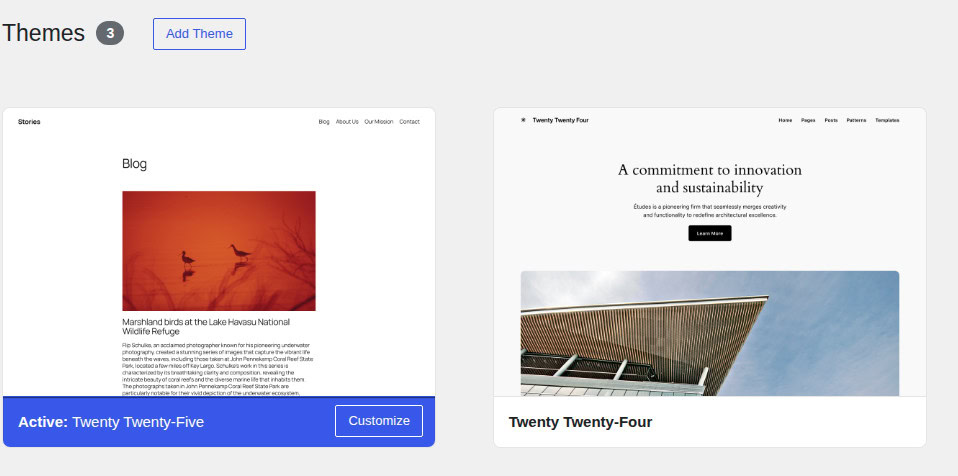
If the editor works, test these layers one at a time:
- active theme
- child theme
- theme companion plugin
- custom snippets
- must-use plugins
- custom code in functions.php
- page-builder or starter-template code
Watch for snippets that remove version numbers from WordPress scripts and styles. These are often added for speed scores, but they can make the browser reuse old editor files after an update. Do not edit live theme files casually. A small mistake in functions.php can break the site, not just the editor.
Check error details and Site Health
The generic message is not enough. The copied error, browser console, Network tab, and Site Health screen usually give better clues.
Open the failed editor screen again. Right-click the page, choose Inspect, and look at the Console tab. You are looking for names and paths, not trying to become a developer.
| Clue | What it usually means |
|---|---|
| wp-content/plugins/plugin-name | A plugin is involved |
| wp-content/themes/theme-name | A theme or child theme is involved |
| wp-includes/js/dist | Core editor script failed, often because another tool fed it bad data |
| wp-json with 403 | Firewall, permissions, security rule, or login issue |
| wp-json with 404 | Permalink or routing issue |
| wp-json with 500 | Server or PHP error during an editor request |
| Allowed memory size exhausted | PHP memory limit or a heavy editor load |
REST API means the way the editor talks to WordPress in the background. If those requests fail, the editor may not load or save properly.
Also check Tools > Site Health for REST API errors, loopback failures, and server warnings. Site Health is useful because it surfaces REST API, loopback, and server checks in one admin screen.
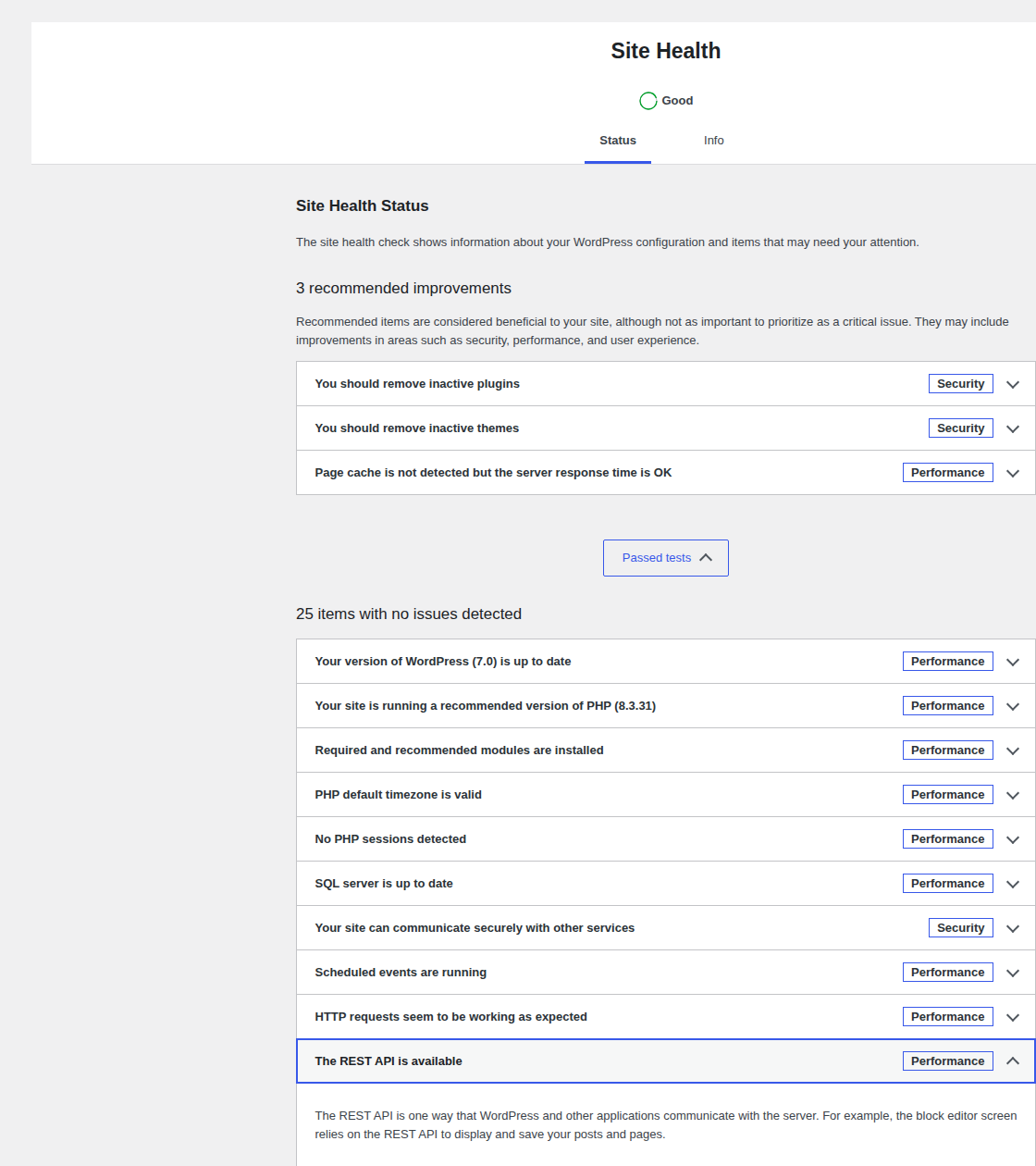
For deeper debugging, a developer can enable WordPress debug logging or script debugging. Debug logs can be noisy, so treat them as clues, not final proof.
Fix REST API, permalink, and server issues
The block editor needs background requests to load post data, save edits, fetch blocks, and check settings. If a firewall, permalink issue, or server error blocks those requests, the editor can fail. Common causes include:
- broken permalinks
- blocked wp-json requests
- security plugin rules
- host firewall rules
- Cloudflare or another web application firewall
- mod_security rules
- expired login checks
- PHP errors during editor requests
If your site runs on Apache, you can reset your WordPress permalinks by going to Settings > Permalinks and clicking Save Changes without changing anything. This can refresh rewrite rules. The permalink screen lets you refresh rewrite rules without changing the selected permalink structure.
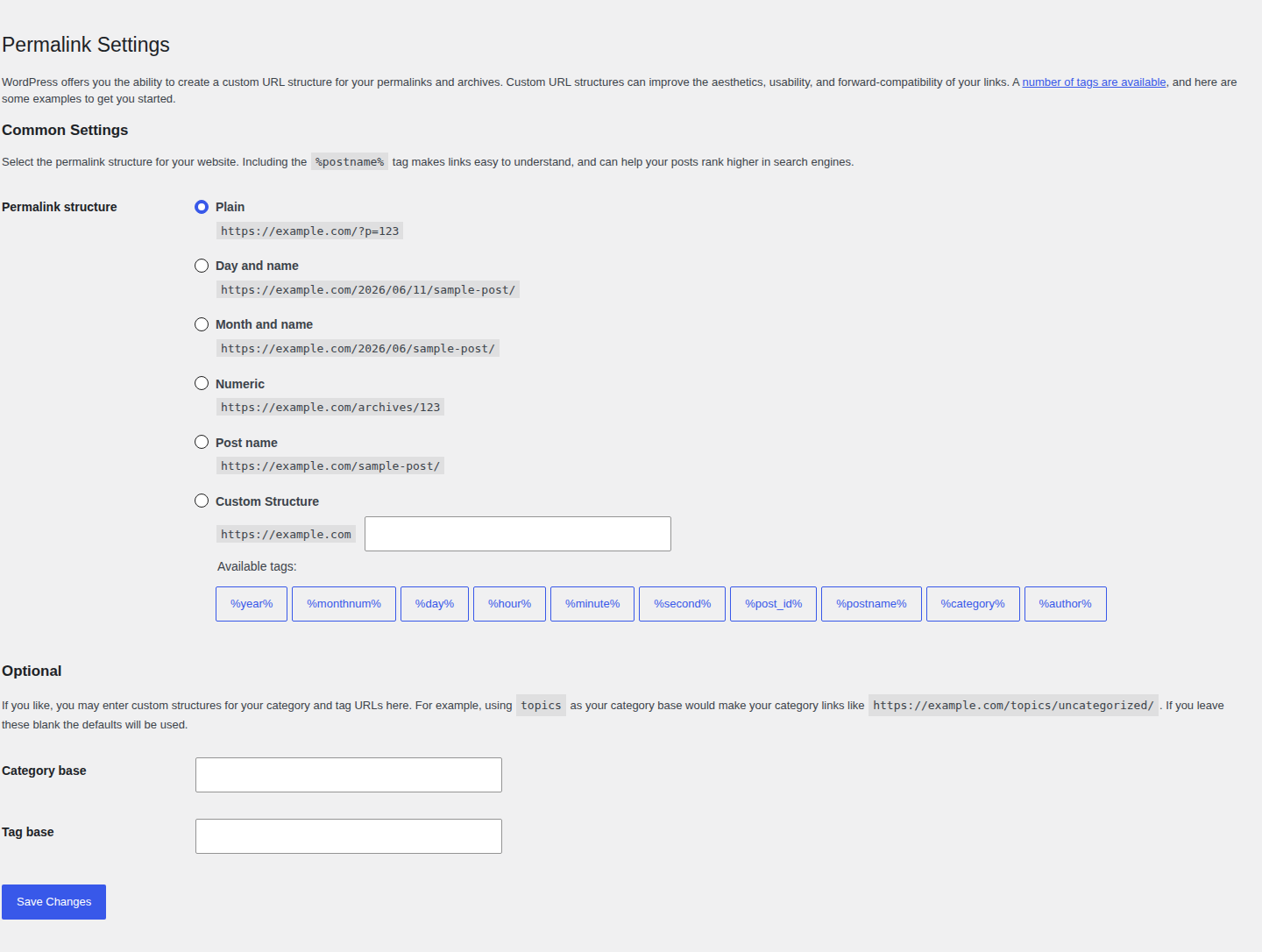
If your site runs on Nginx, do not paste random .htaccess fixes from forums. Nginx handles rules differently. Ask your host to inspect routing, REST API requests, and firewall logs.
If a security tool is blocking valid editor requests, do not turn security off forever. Allow the real editor requests and keep protection in place.
Advanced and fallback fixes
Some fixes are valid, but they should come late. File edits and server changes can create bigger problems if you guess. Use these only when the evidence points there:
- Increase PHP memory when heavy posts fail: If large posts, media-heavy layouts, or complex reusable blocks fail, ask your host or developer to increase the PHP memory limit.
- Test admin script loading when editor files look mismatched: A developer may disable admin script concatenation for troubleshooting. This means WordPress loads admin scripts separately so the failing file is easier to spot.
- Remove version-stripping snippets after updates: If your site removes script version numbers, disable that code and clear caches.
- Re-upload WordPress core files only as a last resort: Replace fresh copies of wp-admin and wp-includes only if core files may be damaged. Never overwrite wp-content, because that is where themes, plugins, uploads, and custom code live.
If this feels outside your comfort zone, stop and involve your host or developer. That is safer than guessing in production.
Use Classic Editor
Classic Editor can help if you must publish today and the block editor is still broken. It is a bridge, not a repair. It does not fix the plugin, theme, REST API request, cache issue, or server error that caused the block editor to fail.
Use it to keep work moving. Then come back and fix the block editor cause.
Check for security signs
Most editor crashes are caused by compatibility, cache, browser, plugin, theme, REST API, or server issues. Do not assume malware just because the editor failed.
Run a security scan if the editor error appears with signs of a hacked WordPress site, such as:
- unknown admin users
- unfamiliar plugins or themes
- redirects to strange pages
- SEO spam in posts or search results
- changed files you did not deploy
- security plugins disabled without explanation
- unusual login activity
- repeated admin errors after cleanup or updates
This is where MalCare fits. If the editor error appears with suspicious changes, scan your WordPress site with MalCare before making more changes. You need to know whether you are fixing a normal conflict or dealing with a compromised site.
After the immediate fix, MalCare can also help with malware scanning, firewalling, vulnerability monitoring, activity logs, and suspicious-change detection. The value is not panic. The value is knowing what changed before the editor broke.
Prevent recurrence and get help
Prevention is not about freezing WordPress. Old plugins and themes become their own risk.
Use a controlled update routine:
- Test important updates before the live site: Use staging for WordPress, theme, plugin, and PHP changes.
- Back up before risky changes: A backup gives you a way back if the fix creates a new problem.
- Avoid too many editor plugins: Do not stack several tools that all add blocks, panels, and editor scripts unless you need them.
- Remove abandoned plugins and unused themes: Unmaintained code is harder to trust after WordPress updates.
- Clear caches after major updates: Clear browser, WordPress, server, and CDN cache when editor files change.
- Track changes with an activity log: When the editor breaks, recent changes matter more than guesses.
- Monitor security and vulnerabilities: Watch for risky plugin versions, suspicious file changes, and malware signs.
The best prevention habit is simple: know what changed before the editor failed.
When to ask for help
- Ask your host for help when Site Health shows REST API errors, wp-json requests return 403, 404, or 500, server logs show memory or PHP errors, or firewall rules may be blocking the editor.
- Ask a plugin vendor for help when the copied error names the plugin, the editor works when that plugin is disabled, or the issue started right after a plugin update.
- Ask a developer for help when the error points to custom code, a child theme, a must-use plugin, server rules, or wp-config.php changes.
Send the copied error, console screenshot, failed Network request, Site Health message, recent change list, and plugin or theme test results. That turns “the editor is broken” into a real diagnosis.
FAQ
Conclusion
“The editor has encountered an unexpected error” is frustrating, but it is usually fixable. Protect your content first, then clear the quick browser and cache causes before you change WordPress.
If the error remains, let the clues guide you. Test plugins and themes carefully, use Copy Error and Site Health, check REST API failures, and save advanced file or server fixes for cases where the symptoms match.


