You are mid-upload — a new image, a plugin, a theme ZIP — and WordPress stops you with a flat, unhelpful line: “An error occurred in the upload. Please try again later.” No file name, no size, no cause. The message is generic on purpose, but the fixes are not.
The good news: this error almost always traces back to one of ten predictable causes, from a browser hiccup to PHP limits to how your host stores files. This guide walks each one in the order a professional would check them — cheapest and safest first.
Retry the same file in Media Library › Add New first. If one small JPG uploads but a large file fails, it is almost certainly PHP limits (upload_max_filesize / post_max_size). If every file fails, suspect a plugin, the uploads folder, or a host block. Scan your site free if unfamiliar files appeared — upload failures sometimes follow a hack.
Check the Media Library first
Before you touch server settings, confirm what actually failed. Open Media Library › Add New and upload the exact same file there instead of inside a post, page builder, or form.
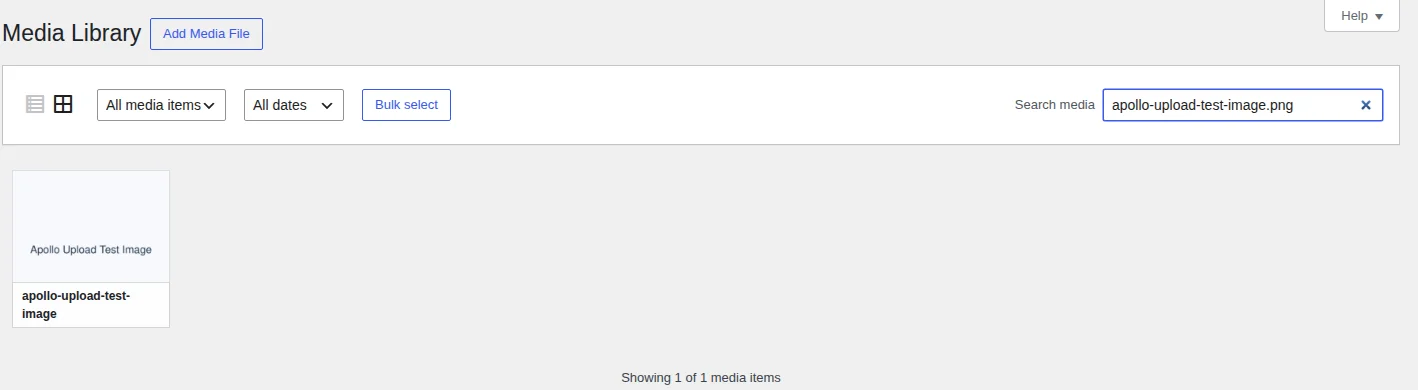
This one test splits the problem in two: a bad file is a completely different issue from a broken upload path. If the file lands in the Media Library after a refresh, the upload worked and the response failed — a browser or session problem, not a server one.
Do not start changing PHP or hosting settings until you know which half of the problem you have. Guessing here is how a two-minute fix becomes a two-hour one.
Diagnose and fix the upload error
Use this table to choose the next branch. It is intentionally short: the goal is direction, not a full server audit.
| What you see | Start here |
|---|---|
| File appears after refresh | Upload worked, response failed. Check browser/session behaviour. |
| Only one file fails | Rename, compress, convert, or re-export it. Test a plain JPG/PNG. |
| Every file fails | Check plugins, theme, the uploads folder, PHP limits, and security blocks. |
| Only large files fail | Compare upload_max_filesize, post_max_size, memory and timeouts. |
Network shows 403, 413 or 5xx | Collect the request details and involve your host if the cause is not obvious. |
Fix browser and file issues
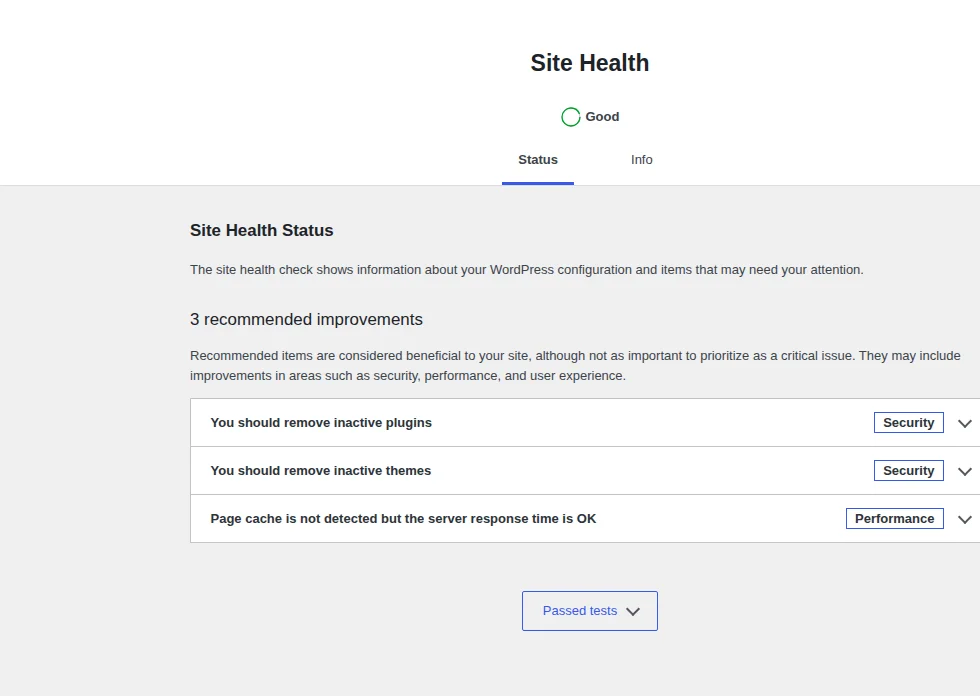
This is the safest branch and the one most people should finish before touching plugins or hosting settings.
- Hard-refresh, then retry in a private/incognito window to rule out cache and extensions.
- Compress or resize a large image before retrying.
- Convert unusual images to JPG or PNG for the test.
- Re-export if the file may be corrupted, then upload from
Add New.
If WordPress says the file type “is not permitted for security reasons,” treat that as a separate issue. Do not casually allow SVGs, executables or scripts just to push one upload through.
Check plugins and themes
If the same small test file fails, look for code that changed the upload path. Image-optimisation plugins, security plugins, media tools, page builders and WooCommerce extensions are common suspects — especially right after an update.
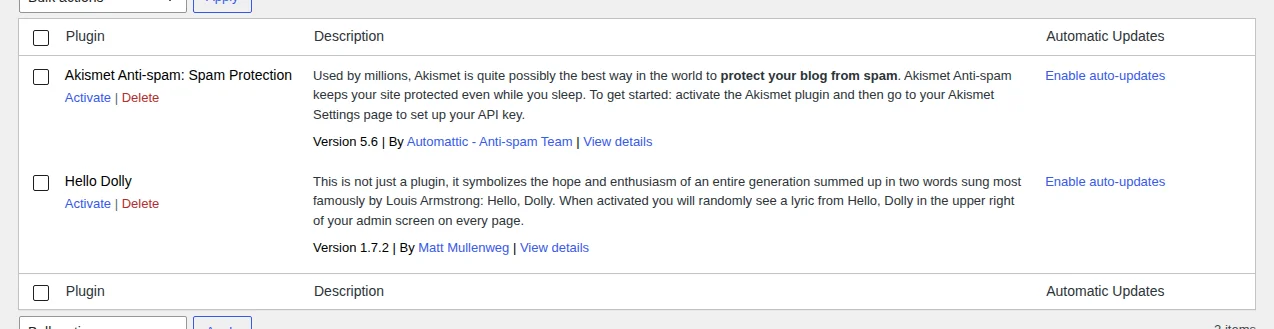
- Deactivate the newest or most relevant suspect plugin, then retry.
- If nothing changes, deactivate plugins briefly and reactivate one by one.
- Switch temporarily to a default theme to rule out theme-level upload handling.
Fix uploads, permissions, and storage
WordPress needs a writable place to put files, usually the wp-content/uploads folder. If that folder is missing, full, blocked, or owned by the wrong server user, uploads fail with the same generic message.
Fix ownership and permissions — do not make a suspicious site easier to write to. On most Linux hosts, directories should be 755 and files 644, owned by the web-server user:
# directories 755, files 644
find wp-content/uploads -type d -exec chmod 755 {} \;
find wp-content/uploads -type f -exec chmod 644 {} \;

# hand ownership back to the web server
chown -R www-data:www-data wp-content/uploads- Confirm the uploads folder exists and WordPress is using the expected path.
- Check whether the hosting account is out of disk space.
- Ask the host to verify ownership if the issue began after a migration or restore.
Check PHP limits
If small files upload but large files fail, look at PHP and hosting limits. The max upload size WordPress shows is a clue, not the whole truth — a control panel can show one value while the active runtime uses another after a PHP version change or a stray .user.ini.
| Setting | Why it matters |
|---|---|
| upload_max_filesize | Must be larger than the uploaded file. |
| post_max_size | Must be equal to or higher than upload_max_filesize. |
| memory_limit | Must leave enough room for image processing. |
| max_execution_time | Must allow enough time for slow or large uploads. |
| max_input_time | Can stop slow uploads before PHP finishes receiving input. |
Where this goes wrong: someone raises upload_max_filesize to 256 MB but leaves post_max_size at 64 MB, so a 100 MB upload still fails even though one setting looks generous. Raise them together:
upload_max_filesize = 256M
post_max_size       = 256M
memory_limit        = 512M
max_execution_time  = 300
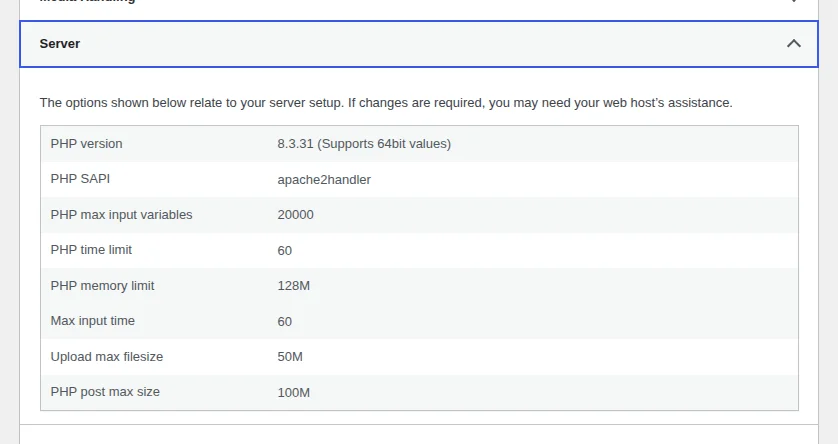
max_input_time = 300Check Tools › Site Health › Info › Server for the values PHP is actually using. If your host panel disagrees with WordPress, ask which PHP configuration is live — changes may belong in .user.ini, not php.ini.
Check image processing
WordPress accepting a file type and the server being able to process it are two different things. Even when the upload transfers cleanly, PHP still has to read the image, pull its metadata, and generate the thumbnail and intermediate sizes. If the image library is missing or under-resourced, that step fails and you get the same generic error.
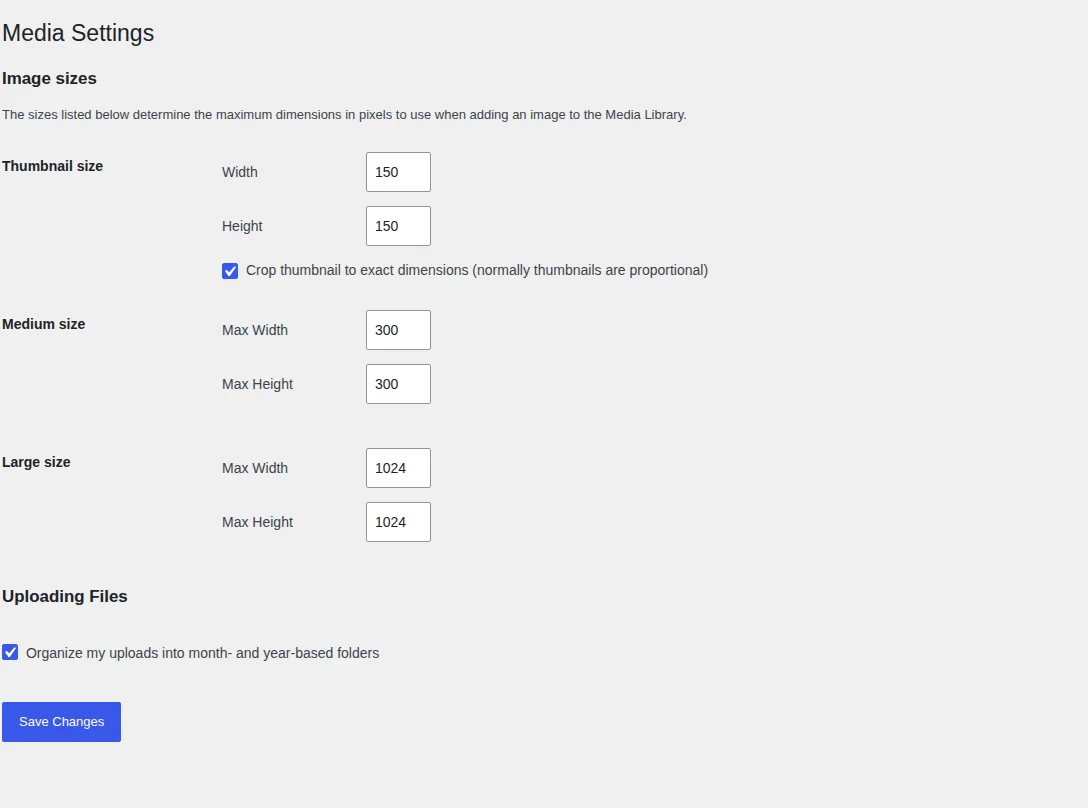
- Confirm an image library is active — Imagick or GD — under Site Health › Info › Media Handling.
- Very large pixel dimensions can exhaust
memory_limitduring resizing even when the file’s KB size is small. - Re-export unusual formats (HEIC, CMYK, progressive or 16-bit) to a standard sRGB JPG or PNG and retry.
Inspect the failed request
When the cause is not obvious, open your browser’s Network tab, reproduce the upload, and read the request to async-upload.php. The status code points you straight at the culprit — here is what a clean (200) request looks like, with everything sensitive stripped out:
Request
POST /wp-admin/async-upload.php
A failed upload shows a different code — and each one narrows the cause immediately:
413Payload Too Large — the server rejected the size before PHP saw it (often Nginxclient_max_body_size).403Forbidden — a firewall, ModSecurity rule, or security plugin is blocking the request.5xx— a server-side crash; check PHP error logs and memory before retrying.
Choose a recovery path
You can chase every branch above by hand, or let a plugin diagnose the common causes for you. Here is the honest trade-off:
Fix it manually
Free · your time
- Full control over every setting
- Requires server access & PHP know-how
- Easy to miss a security-driven block
- No safety net if the site is compromised
Fix it with MalCare
Free scan · one click
- Rules out malware behind the failure
- Flags firewall & security-plugin blocks
- Runs off-server — no slowdown
- Cleanup on hand if it was a hack
Contact your host with evidence
If you have ruled out the browser, the file, plugins, permissions, PHP limits, and image processing, the block is likely at the server or network edge — somewhere you cannot see from inside WordPress. Open a support ticket, but make it easy to act on. Send specifics, not “uploads are broken”:
- The exact file, its size and type, and the timestamp of a failed attempt.
- The HTTP status from the Network tab (
403,413,5xx) and any request ID. - Ask them to check server error logs, ModSecurity/WAF rules, and any CDN or reverse-proxy body-size limit for that timestamp.
Prevent repeat upload errors
Once uploads work again, a few habits keep the error from coming back:
- Keep
post_max_size≥upload_max_filesizewhenever you change either. - Compress images before upload so you are not fighting limits daily.
- Test plugin and PHP updates on staging before they touch the live upload path.
Frequently asked questions
post_max_size set lower than upload_max_filesize, or an Nginx client_max_body_size the control panel never mentions..user.ini, not php.ini. Confirm what PHP is actually using in Tools › Site Health › Info › Server before and after the change.wp-content/uploads or a security tool flagged activity you do not recognise, scan before loosening permissions.