Getting locked out of WordPress is stressful because it blocks real work. You may need to publish a post, fix a broken page, check an order, or undo a plugin change, and WordPress admin will not let you in.
Most lockouts are fixable. The safest path is to match the symptom first, then use the smallest fix that fits. Do not start with database edits or backup restores unless the problem points there.
If you are locked out of WordPress, start with the login URL, password reset, browser checks, and any security lockout message before editing files or the database. If admin access changed without a clear reason, unknown users appeared, or lockouts keep coming back, treat it as a possible security issue and scan the site after you recover access.
Match the lockout to the safest first fix
“Locked out” is a symptom, not a diagnosis. The right fix depends on what you see.
| What you see | Most likely cause | Safest first move |
|---|---|---|
| Wrong username or password | Bad credentials or changed password | Use Lost your password? |
| Reset email never arrives | Email delivery issue or old account email | Reset through hosting access |
| “You have been locked out of this site” | Security plugin, firewall, 2FA, CAPTCHA, or IP block | Use unlock options, backup codes, or wait |
| Admin URL redirects or loops | Browser session, SSL, cache, URL setting, or plugin conflict | Try browser checks, then inspect URLs |
| Login page is missing, disabled, or 404 | Custom login URL or security plugin | Disable the login plugin temporarily |
| Login works but admin tools are missing | Role or admin permissions changed | Restore admin privileges and investigate |
| Frontend is broken too | WordPress, server, plugin, theme, or database error | Fix the site error first |
This table is the recovery route. A failed password reset, a blocked IP, and a wrong site URL can all look like WordPress login issues, but they need different fixes.
One quick split matters. If your site is on WordPress.com, use WordPress.com account recovery and support. This guide is for self-hosted WordPress sites where you or your host control the files, database, plugins, and admin users.
Run the low-risk checks first
These checks may look basic, but they prevent unnecessary changes to production files or the database.
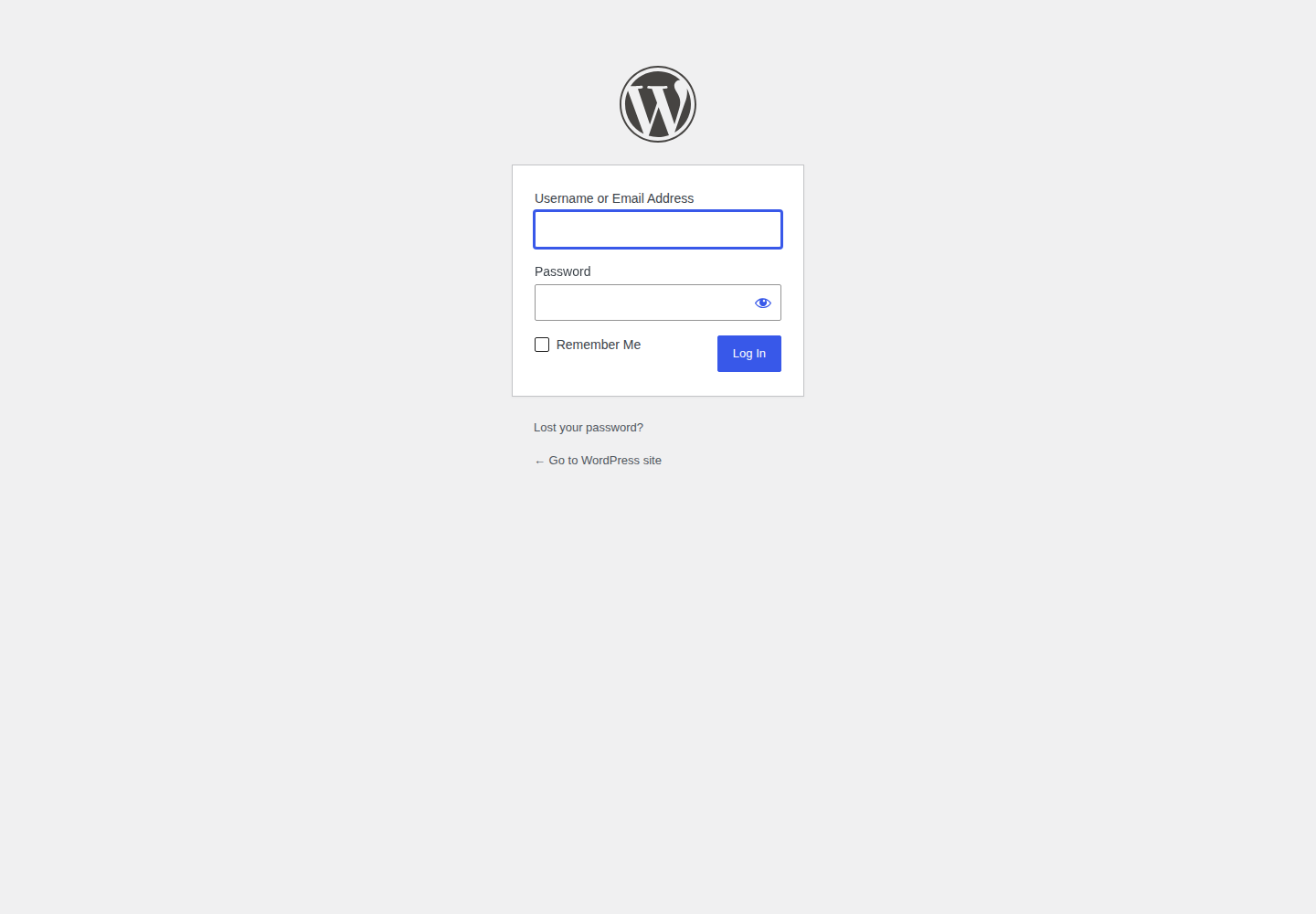
- Open the direct login page: Add /wp-login.php to your domain, or confirm the expected wp login path for the site.
- Check the admin redirect: Add /wp-admin/ to your domain. A normal logged-out visit should send you to the login page.
- Start a clean browser session: Use a private window, another browser, or another device.
- Clear only this site’s data: Remove cookies and cache for the site, then try again.
- Check blocked browser features: Make sure cookies are enabled and disable privacy, script, form, or security extensions for one test.
- Change the network if needed: Try a trusted different network if you may have triggered an IP block.
- Wait when the message gives a timer: A short failed-login lockout is often safer to wait out than bypass.
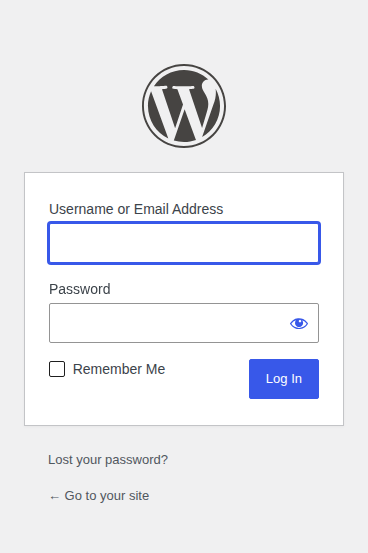
On a current WordPress 6.9.4 test site, the direct login page and lost-password page loaded normally. The admin URL redirected a logged-out visitor to the login page. If your site behaves very differently, that behavior is useful evidence.
Do not restore a backup, edit the database, or disable every plugin as your first move. Those fixes are valid in the right situation, but they change more than a browser or temporary lockout does.
Reset the password from WordPress
Use the built-in reset flow when the login screen loads and WordPress says the username or password is wrong.
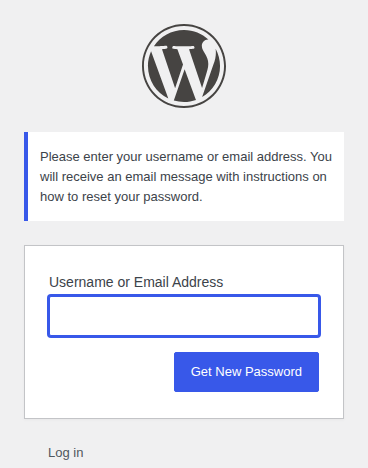
- Request the reset link: Click Lost your password? and enter your username or email address.
- Check every mailbox filter: Look in spam, junk, promotions, and any rules that move automated emails.
- Confirm the account owner: If you inherited the site, make sure the admin email still belongs to someone who can receive mail.
- Replace the temporary password: After login, set a strong unique password from your profile.
If the reset email arrives, this is the cleanest fix. If it never arrives, the problem may be email delivery, an inaccessible admin email, or a site that cannot send mail.
That is when hosting-level recovery makes more sense than trying the same form again.
Reset the password from hosting access
Use this path when the reset email fails and you still have cPanel, phpMyAdmin, SSH, or WP-CLI access. Backup the site first. You are about to edit the database, and a small typo in the wrong table or WordPress database credentials can create a bigger problem.
Reset with phpMyAdmin
- Open the database tool: Sign in to your hosting panel and open phpMyAdmin.
- Choose the correct database: If you manage more than one site, confirm the database name before editing.
- Find the users table: It is often wp_users, but the prefix may be different.
- Edit the admin user: Open the admin row and edit the password field.
- Use MD5 for the temporary reset: If phpMyAdmin offers a function dropdown, choose MD5, enter a strong temporary password, and save.
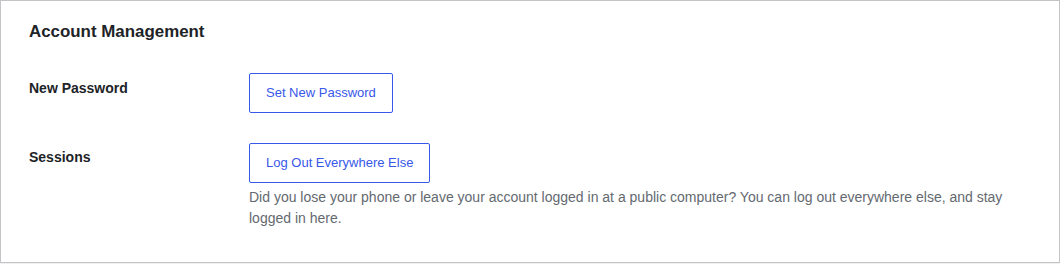
- Log in and replace it: Sign in to WordPress and set a new permanent password from the profile screen.
MD5 is not the password storage method you would choose today. In this recovery path, it is only a temporary reset mechanism. Once you save a new password inside WordPress, WordPress stores it with its normal password hashing.
The important rule is simple: use the database to get back in, then replace the password inside WordPress.
Reset with WP-CLI
If SSH and WP-CLI are available, a developer or host can reset the password with:
wp user update admin --user_pass='new-strong-temporary-password'Replace admin with the real username or user ID. WP-CLI is cleaner than phpMyAdmin when you know the environment. If you are unsure which site or database the command will touch, ask the host before running it.
Fix security plugin lockouts
The message “you have been locked out of this site” usually comes from a security plugin, firewall, failed-login limiter, IP block, two-factor authentication rule, CAPTCHA, breached-password rule, or custom login protection.
Do not assume the plugin is wrong. It may be doing its job. Your goal is to recover access without leaving the site exposed.
- Read the exact message: Look for a timer, unlock link, IP block notice, 2FA prompt, or CAPTCHA error.
- Use the built-in recovery path: Try the unlock email, backup codes, or recovery link if the plugin offers one.
- Wait when the lockout is short: If the site is not urgent, waiting is safer than disabling protection.
- Try a trusted different network: This helps when only your IP is blocked.
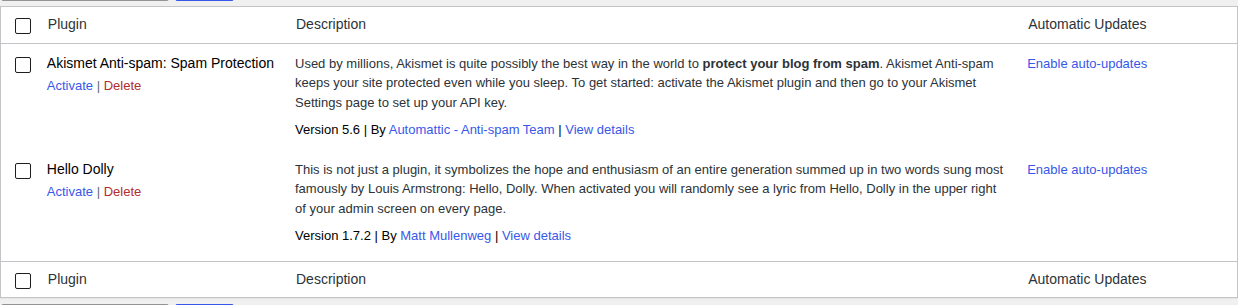
- Disable only the blocker when access is urgent: Use FTP, SFTP, SSH, or File Manager to rename the likely security, CAPTCHA, 2FA, or custom-login plugin folder inside wp-content/plugins.
If you do not know which plugin is blocking you, rename the whole plugins folder, create a new empty plugins folder, and log in. Then restore plugins one by one until you find the blocker.
After access returns, re-enable protection and fix the recovery gap. Remove your IP from block lists, allowlist trusted IPs when appropriate, save backup codes, check lockout thresholds, and make sure unlock emails go to an address you control. The fix is not to turn off security. The fix is to make security recoverable.
Restore a forgotten custom login URL
Some sites hide the normal login page. That can reduce noisy bot traffic, but it can also lock out the owner when the custom URL is forgotten. This usually looks like one of these symptoms:
- /wp-admin/ does not reach the login screen.
- /wp-login.php shows a disabled message or 404.
- The person who set up the custom URL is unavailable.
If you know which plugin changed the login URL, disable that plugin folder through FTP, SFTP, SSH, or File Manager. Then try the default login URL again. Once you are back in, re-enable the plugin and store the custom URL somewhere the site owner can find during an emergency. A hidden login URL is only useful if the recovery path is documented too.
Fix incorrect WordPress URLs
An incorrect WordPress URL can lock you out by sending the browser to the wrong domain, protocol, or folder. This often happens after a migration, staging push, domain change, or HTTPS switch. The two key values are siteurl and home. If they point to the wrong place, login can redirect away from the site you are trying to access.

Correct the URLs in the database
- Back up the database first: This is a small edit, but it still touches production data.
- Open phpMyAdmin: Select the database for the affected site.
- Find the options table: It is often wp_options, but the prefix may differ.
- Update both URL rows: Set siteurl and home to the correct site address.
- Clear browser data and test login: Cached redirects can make a fixed URL look broken.
Do not run a broad search-and-replace just to fix this login issue. WordPress stores some values in formats that can break when careless replacement changes string lengths.
Temporarily force the URLs in wp-config.php
If you can edit files but cannot reach the dashboard, add these lines above the “stop editing” line in wp-config.php:
define('WP_HOME', 'https://example.com');
define('WP_SITEURL', 'https://example.com');
Replace the example URL with your real domain. This can force WordPress to use the correct address long enough for you to regain access and fix the saved settings. If you are unsure how to edit the wp-config.php file, use a host file manager, SFTP, or developer help rather than guessing. After the site is stable, remove temporary constants if they are no longer needed.
If the issue started during an HTTPS move, also check SSL, Cloudflare or proxy settings, and browser cache. A stale redirect can outlive the original mistake.
Restore missing admin access
Sometimes you can log in, but WordPress acts like you are no longer an administrator. Plugins, Users, Settings, or theme tools may be missing. You may see “Sorry, you are not allowed to access this page.” That is not a password problem. It means your user role or admin permissions changed, or the admin user no longer exists.

- Ask another trusted admin first: If someone changed your role by mistake, have them restore it from Users.
- Use hosting access if no admin remains: A host or developer can create or repair an administrator through phpMyAdmin or WP-CLI.
- Check the real table prefix: Admin permissions live in the users and usermeta tables, and the keys must match the site’s table prefix.
- Use an owner-controlled email: Do not create a recovery admin tied to an agency, freelancer, or temporary mailbox.
- Remove temporary recovery access: Once the real owner account works, clean up any emergency admin account you no longer need.
Be careful here. Admin capability values are easy to mistype in the database. If you are not comfortable with users and usermeta, ask your host or a WordPress developer to do this part.
Treat unexplained admin loss as suspicious. If admin rights disappeared without a known change, unknown users appeared, passwords changed without consent, or the same lockout returns, assume access recovery is only step one.
After you get back in, remove unknown users, change administrator passwords, review recent plugin and theme changes, and scan your WordPress site for malware. MalCare fits this point because the question is no longer only “Can I log in?” It is “Did someone else get in first?” If the answer may be yes, follow a WordPress hacked website recovery path instead of treating it as a one-time login issue.
Fix site errors that block wp-admin
If the frontend is broken too, you may not have a login problem. WordPress may be failing before the login process can complete. Common signs include:
- white screen
- “There has been a critical error on this website”
- syntax or parse error
- error establishing a database connection
- 500, 502, 503, or 504 error
- stuck maintenance mode
- redirect loop
- file permission error
Start with what changed last. A plugin update, theme edit, pasted code snippet, migration, PHP version change, SSL change, or host firewall rule can all block admin access. Use the narrowest fix that matches the error:
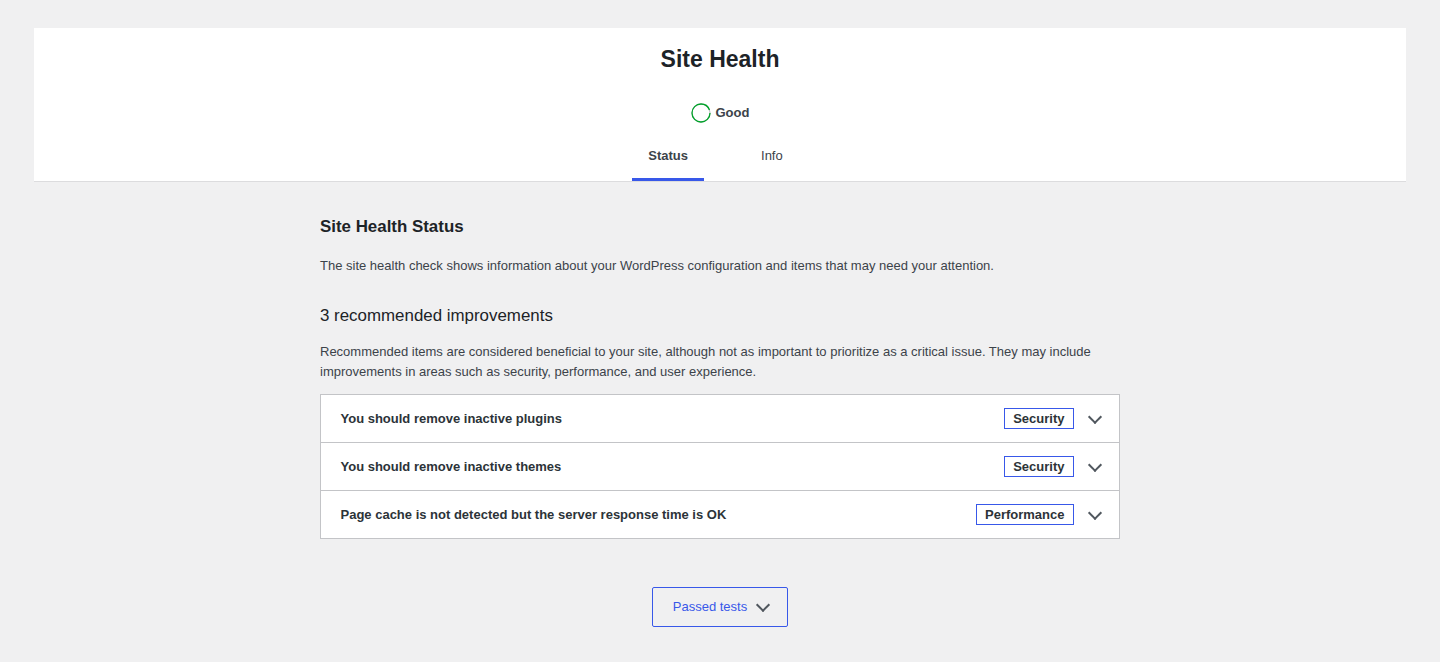
- Isolate a plugin failure: Rename the plugin folder that changed most recently.
- Recover from a bad theme: Switch to a default theme from the database or file system.
- Reset server rules carefully: Rename the rules file only if it is likely corrupt, then regenerate permalinks after login.
- Check database connection details: Verify database name, username, password, host, and database server status.
- Use Recovery Mode when available: If WordPress emailed a Recovery Mode link, use it to disable the failing plugin or theme.
- Ask the host for logs: Server logs can show the exact file, plugin, or permission error.
Be careful with backup restores. Restoring yesterday’s backup can be fine for a simple brochure site and painful for a WooCommerce store that received orders this morning. A restore can erase new content, orders, comments, users, and settings. Use a backup when it is the safest match for the problem, not because it feels like the fastest button.
Contact your host when the next fix is risky
Escalation is a smart safety choice when the next step touches production files, database tables, DNS, SSL, server rules, or malware cleanup. Contact your host if:
- you do not have FTP, SFTP, File Manager, phpMyAdmin, or SSH access
- you are unsure which database belongs to the site
- the database server appears down
- SSL, Cloudflare, or proxy settings are unclear
- the host firewall may have blocked your IP
- file permissions or ownership look wrong
- the site shows server errors instead of WordPress login errors
Send useful evidence:
- domain
- exact login URL you tried
- exact error message
- screenshots
- whether the frontend loads
- what changed recently
- whether password reset emails arrive
- what hosting or database access you have
- server or WordPress logs if your host can share them
Use malware cleanup if administrator access changed unexpectedly, unknown users appeared, passwords changed without consent, files changed unexpectedly, or lockouts keep returning. That pattern is bigger than a login issue.
Clean up after access returns
Do not stop the moment the dashboard opens. Recovery is not the same as cleanup.
- Replace recovery passwords: Set a strong unique password for every administrator account touched during recovery.
- Confirm owner-controlled email: Make sure the account email and site admin email are current.
- Remove unknown administrators: Keep only WordPress user roles that still need access.
- Review recent changes: Check plugins, themes, users, and settings changed around the lockout.
- Re-enable protection carefully: Restore any plugin you disabled and fix the setting that locked you out.
- Save 2FA backup codes: Store them somewhere secure before the next emergency.
- Check backup health: Confirm backups exist and can be restored.
- Scan after suspicious lockouts: Run a malware scan if access changed unexpectedly, files changed, or the issue returned.
MalCare is useful after suspicious lockouts because it connects scanning, cleanup, firewalling, login protection, vulnerability checks, and monitoring in one workflow. Use it when you need to know whether the lockout was only an access problem or part of a compromise.
Prevent the next lockout
Good WordPress security should block attackers without trapping the owner outside.
- Store admin passwords safely: Use a password manager and unique passwords.
- Keep recovery email current: Old inboxes cause slow, messy recoveries.
- Save backup codes before you need them: 2FA is only safe when recovery is planned.
- Document custom login URLs: Keep the URL where the site owner can access it.
- Keep hosting access with the owner: Do not leave DNS, database, or server access with only one freelancer.
- Use a protected emergency admin only when needed: A second admin can help, but it must have a strong password and 2FA.
- Test backups: A backup you have never restored is only a hope.
- Tune login protection: Set sensible lockout thresholds, unlock emails, 2FA recovery, and allowlists where appropriate.
- Monitor admin changes: Unexpected admin users or role changes should trigger review.
- Keep software updated: Abandoned plugins and themes often become the weak point.
- Scan for malware and vulnerabilities: Recurring lockouts can be a symptom of a wider security issue.
The best prevention plan is boring in the right way: current owner access, tested backups, recoverable security settings, and monitoring that catches suspicious changes early.
For a broader routine, keep a practical WordPress maintenance checklist for owner access, updates, backups, and security reviews.
FAQs
Use phpMyAdmin from your hosting panel to edit the administrator’s password, or ask a developer or host to use WP-CLI. After logging in, set a new permanent password inside WordPress.
It depends on the plugin or firewall. Some failed-login blocks last minutes, while others last hours or require an administrator to unlock the account.
Yes. Incorrect siteurl or home values can send the login flow to the wrong domain, protocol, or path. Fix those values in the options table or temporarily force the correct URLs in wp-config.php.
Not always. Passwords, browsers, plugins, and URL settings cause many lockouts. Treat it as suspicious if privileges changed, unknown users appeared, files changed, or lockouts keep recurring.
Only when the backup safely reverses the change that caused the lockout. On active sites, a targeted fix is often safer because restoring can erase newer orders, users, comments, and content.
Final take
If you are locked out of WordPress, do not guess. Match the symptom, try the reversible checks, then move to hosting-level fixes only when the evidence points there; broader WordPress troubleshooting can wait until you know this is not just an access issue.
Most lockouts are recoverable. The real skill is choosing the smallest safe fix first, then checking whether the lockout was only a login problem or a sign of something more serious.