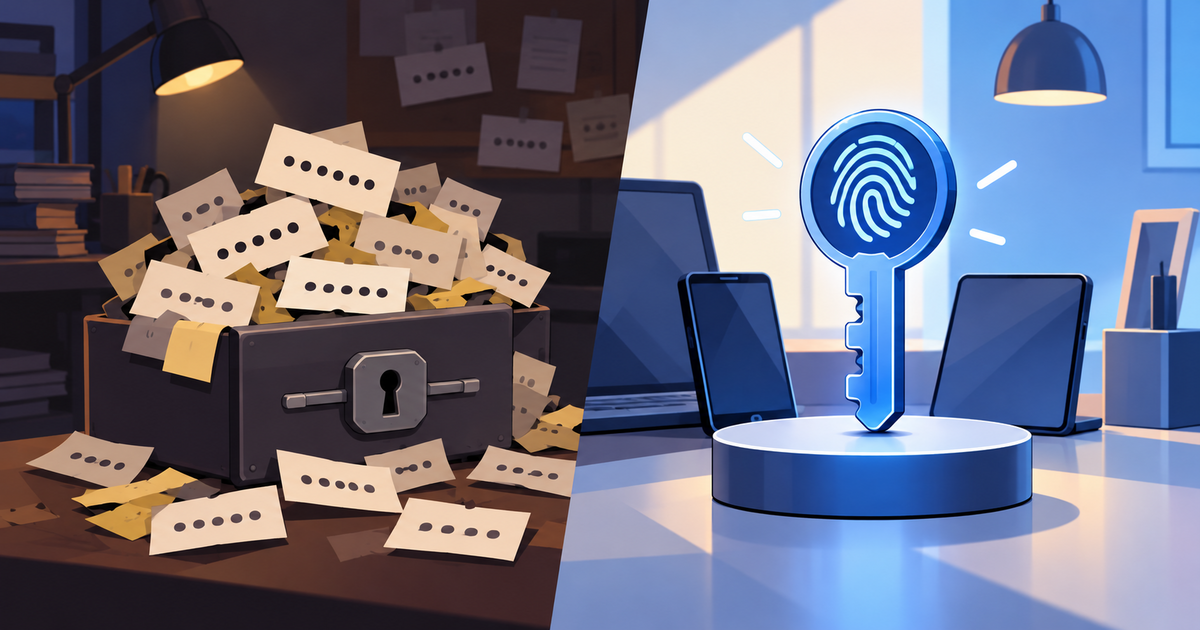
You are logging in to your WordPress dashboard when your browser offers to create a passkey. While you like the idea of stronger WordPress login security, you also picture a lost phone and an admin account you can no longer open.
This comparison puts passkeys and passwords side by side so you can see where each one wins and which one fits each of your accounts.
Passkeys are safer than passwords on any service that supports them, while passwords still work in far more places, so most people do best with a passkey wherever one is offered and a password manager for everything else.
TL;DR: Use a passkey when your login flow offers one and you have confirmed a recovery path, and use a long, unique password from a password manager everywhere else. Both options protect only the login step, which means your WordPress site still needs its own security protections.
How passkeys and passwords work
What a password is
A password is a secret you hand to the service each time you log in, so WordPress password security depends on using credentials that are strong, unique, and difficult to steal.
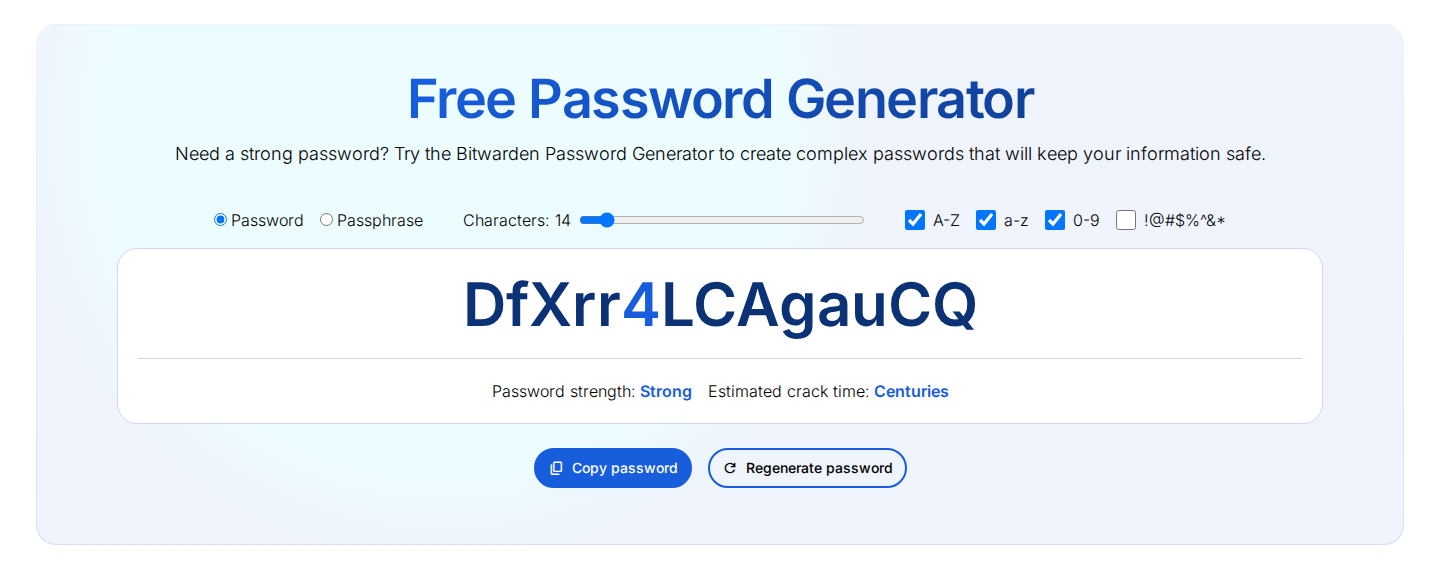
Stolen passwords can give attackers access to WordPress through a legitimate administrator account, even without guessing the credentials.
What a passkey is
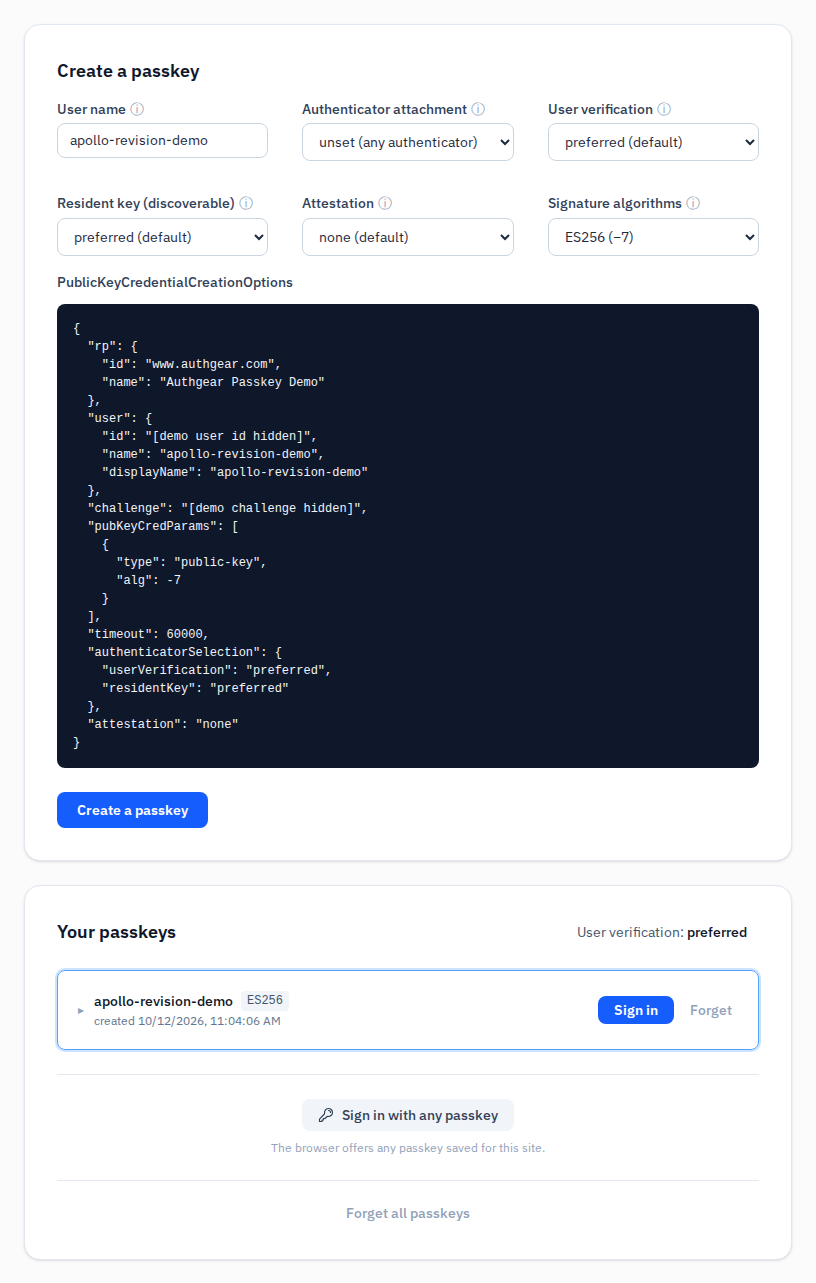
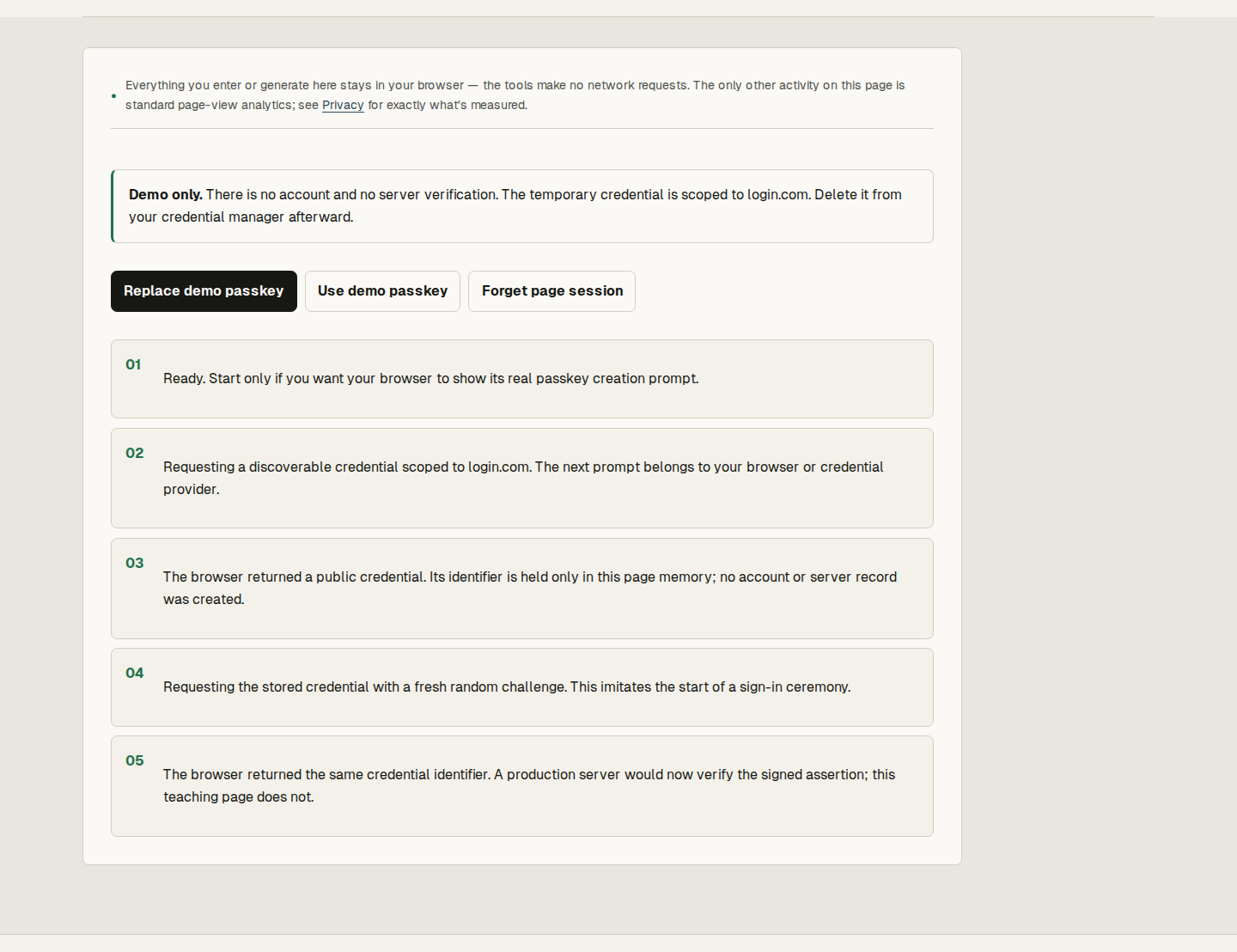
Passkeys vs passwords at a glance
| Category | Password | Passkey | Winner |
|---|---|---|---|
| Phishing resistance | A fake page can collect it if you type it in | Tied to the real site, so a lookalike page cannot use it | Passkey |
| Damage from reuse | One leak can hit many accounts | Unique to each service and account | Passkey |
| What the service stores | A secret that must be verified and protected | A public key that cannot log anyone in | Passkey |
| Compatibility | Accepted almost everywhere | Depends on the service, device, and login setup | Password |
| Everyday speed | Fast with a manager, slower without one | Often fewer steps, with less typing and fewer resets | Passkey |
| Recovery and device loss | Familiar, but the reset path can be attacked | Depends on sync and a second enrolled device | Depends on setup |
| Moving parts | The secret and the manager | Adds an authenticator and a sync account to the trust model | Password |
Security
Phishing resistance
A passkey only works on the real website it was created for, and that is its biggest security advantage. When you create a passkey, your device remembers the exact web address it belongs to, so if you land on a fake copy of the login page with a slightly different address, your browser has no passkey to offer, and the scam goes nowhere.
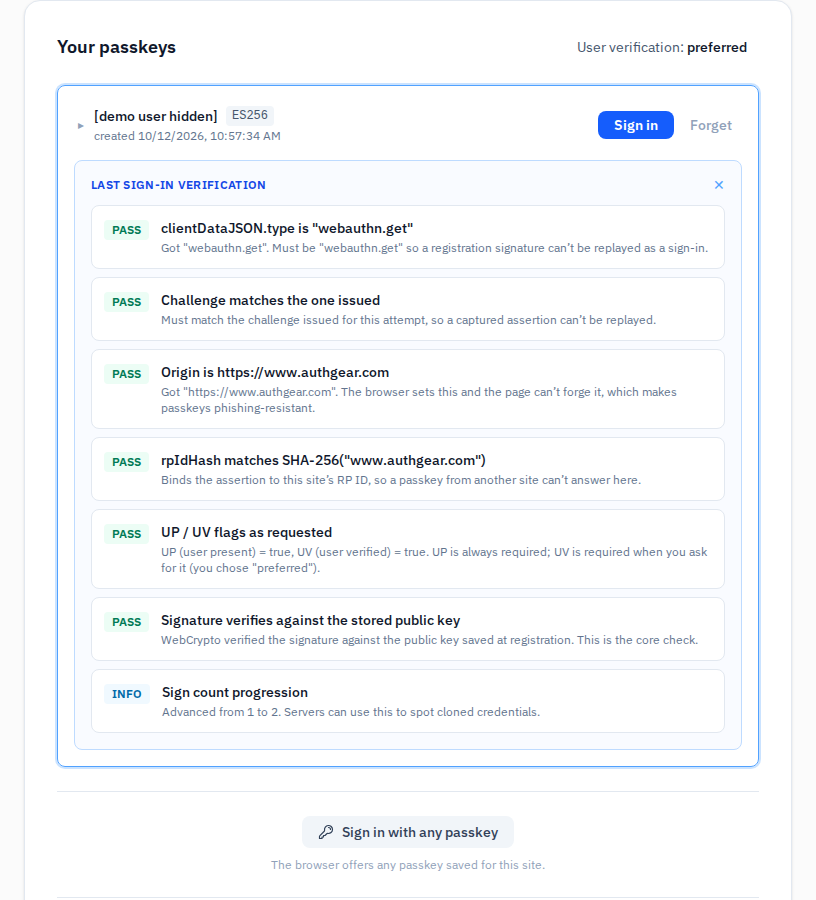
Passwords have no equivalent protection, because a fake page can ask for the same string the real site does, and people sometimes type it in. A password manager lowers that risk by generating unique passwords and filling them only where they belong, though it cannot catch every mistake on a fraudulent site.
📝 Note: A passkey blocks fake-site credential capture only when the login uses the credential registered for that service, and it does nothing to end a stolen session or repair a compromised device.
Reuse and breaches
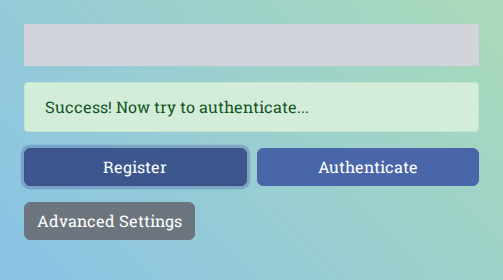
Each passkey belongs to one service and one account, so there is nothing to reuse and a breach at one site cannot hand attackers a working key for another. The service also keeps less that is worth stealing, since it holds only the public key and a stolen public key cannot sign anyone in. The account stays exposed through sessions, recovery channels, an active password fallback, and your sync account.
Practicality
Passwords work almost everywhere and passkeys do not yet, so you will still need a password in situations like these:
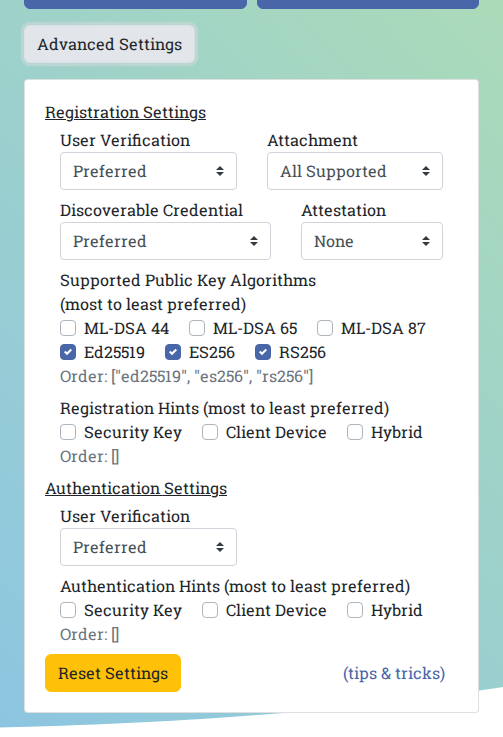
- A service, device, or older identity system does not support passkeys
- Company policy requires another method
- You are on a shared or public computer where you cannot safely enroll a personal authenticator
- A service falls back on a legacy method during account recovery
The safest fallback is a long, unique password that a reputable password manager generates and stores, and you should never reuse it on another site or build variations from memory, such as changing one digit at the end. A password manager also stays useful after passkeys arrive because it protects every account that hasn’t adopted them, supports recovery, and can store your passkeys.
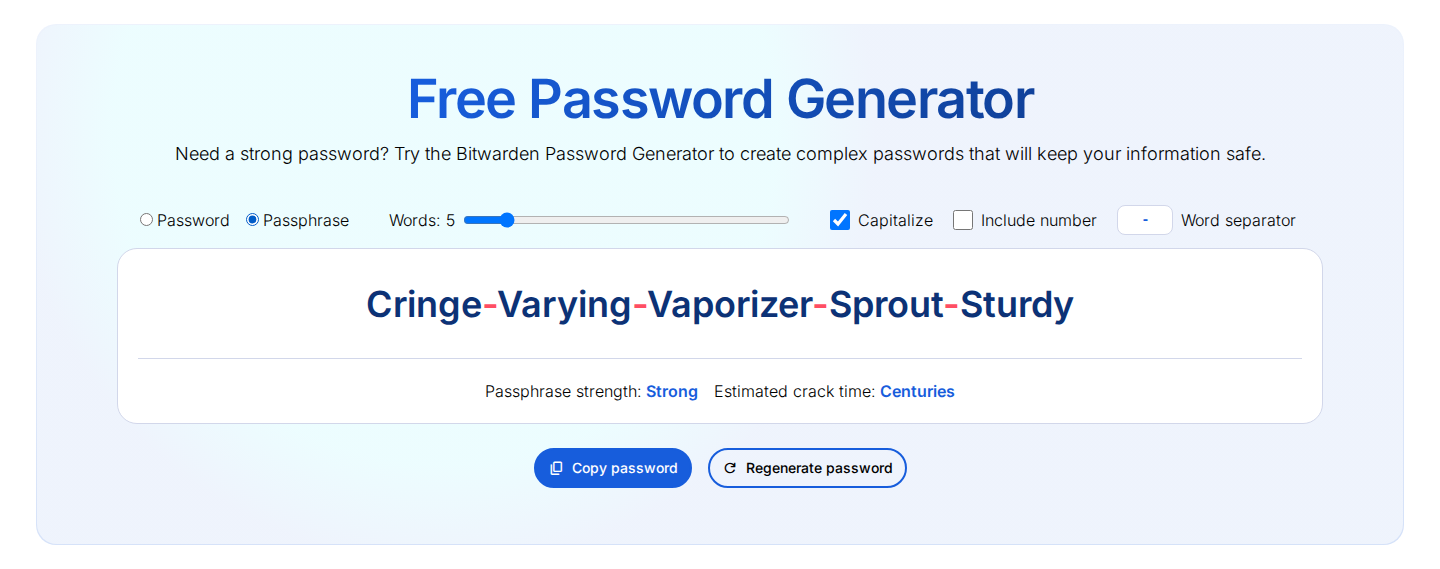
All this depends on protecting your password manager with a strong primary credential and multifactor authentication.
Recovery and device loss
Losing a device has no single outcome, which is why this category has no clear winner. A synced passkey may still be available on another trusted device, while a device-bound one may need a second authenticator or the service’s recovery process, and a password usually has a reset path whose weak point, often an email account, becomes the target.
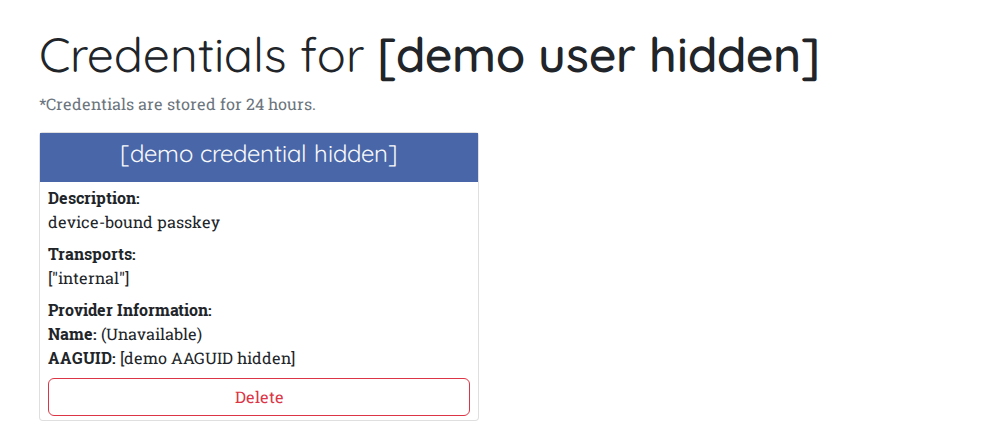
Before you rely on a passkey for an important account, set up these safeguards:
- Enroll a second device or authenticator if the service allows it
- Save the service’s recovery options exactly as it instructs
- Confirm you can reach recovery without the device you might lose
- Learn how to revoke a lost device or remove its passkey
- Review active sessions after any loss and end the ones you do not trust
For sites with multiple administrators, include these recovery arrangements in your WordPress account management process so each person has documented access and recovery responsibilities.
Sync makes passkeys portable and adds a link to the trust chain, because the private key does not always stay on one device and can be device-bound or synced through a platform or password manager. Your sync account, its recovery methods, and its device security all become part of the trust model, so a weak sync password or an unsafe recovery email can undo the benefit of the passkey stored inside it.
📝 Note: A passkey that is easy to restore on a new device is only as safe as the recovery path behind it.
Multifactor strength
A passkey does not automatically count as multifactor authentication. Whether it counts depends on the device, the unlock method, and the rules of the service or organization you are logging in to.
Many passkeys ask for a PIN, fingerprint, or face scan before they sign you in. That gives you two checks, the device you hold and the unlock only you can perform. Whether this meets your employer’s MFA policy depends on how the passkey and the service are set up, and NIST publishes guidance on syncable authenticators and authentication assurance levels for formal policy decisions.
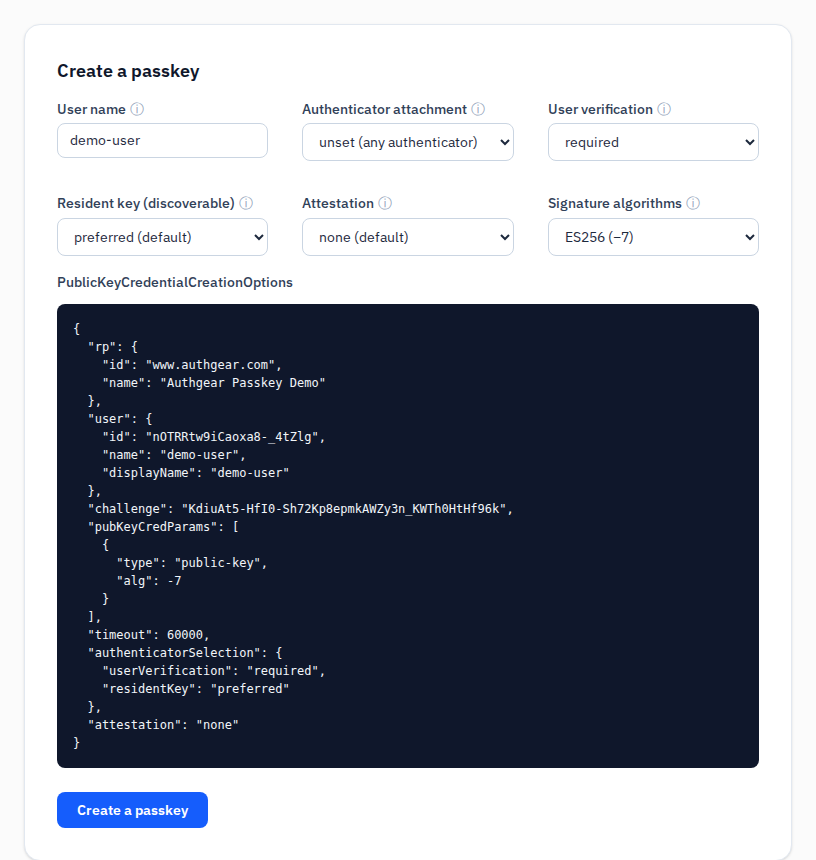
For a personal account, three questions are enough: does the passkey need a local unlock, is your device protected, and can you recover the account safely? A regulated or high-risk organization needs to evaluate its exact setup, because the word “passkey” alone does not settle the question.
What neither one protects on WordPress
Does your site support passkeys?
A browser or phone that supports passkeys does not prove your WordPress site does, because support depends on the actual login implementation, meaning your plugins, identity provider, administrator policy, and supported devices, and the standard login page, a single sign-on flow, and a custom admin portal can each behave differently.
Before changing your setup, review how WordPress passwordless login works and which enrollment, fallback, and recovery options your chosen implementation supports.
The quickest check is the login screen itself. If it offers a passkey, enroll one on a personal, well-protected device and keep your password fallback until you have tested recovery, and if it offers none, use a unique manager-generated password with WordPress two-factor authentication. Do not install an unspecified plugin or change an administrator login because someone claims WordPress supports passkeys.
📝 Note: A supported browser tells you your device can use passkeys and says nothing about whether your site’s administrators can enroll one.
Why login protection is not site protection
Passkeys and passwords both guard only the login step, and neither inspects your files, plugins, themes, uploads, database, or vulnerable code, so a site with a strong login can still carry malware, an exploitable plugin, abusive traffic, or an unsafe backup process. A separate security layer covers those risks. MalCare’s malware scanner can investigate infection, while its login protections complement the account safeguards above.
What to use in each situation
| Your situation | Use this | Why |
|---|---|---|
| Supported service on your own protected device | Passkey, plus a second device or recovery method | Strongest phishing resistance and no reuse risk |
| Service without passkey support | Unique manager-generated password plus the strongest second factor | Best option available on that service |
| Shared or public computer | Password from your manager, used with care | You cannot safely enroll a personal authenticator |
| WordPress admin login that offers passkeys | Passkey, with the password fallback kept until recovery is proven | Protects your highest-value login without risking a lockout |
| WordPress admin login without passkeys | Unique password plus two-factor authentication | Strongest supported setup |
| Regulated or high-risk environment | Whatever your organization’s evaluated policy requires | Assurance depends on the exact authenticator and policy |
How to switch safely
- Enable a passkey on a trusted personal device when the service clearly supports enrollment and local verification.
- Protect recovery first by adding another authenticator or a supported recovery method and confirming how revocation works.
- Keep your password-manager fallback for unsupported services, legacy logins, shared devices, and recovery until the passkey setup proves dependable.
- Keep site protection separate by applying WordPress security updates and reviewing vulnerable plugins and themes, backups, sessions, and malware risk.
Two mistakes sit at opposite ends of this process: if you move every account to passkeys before you understand recovery you can lock yourself out, and if you keep reusing passwords because one service lacks passkey support you leave risks that a password manager already reduces.
FAQs
Are passkeys safer than passwords?
Generally yes, when the service implements them correctly and you protect your authenticator, sync account, and recovery path, since passkeys resist phishing and remove the reuse problem, even though they cannot stop session cookie theft, unsafe recovery, endpoint malware, or a compromised sync account.
What is the main difference between a passkey and a password?
A password is a reusable secret you present to a service, whereas a passkey uses a private key held by your authenticator and a public key registered with the service, so your authenticator signs a challenge and the private key is never typed or sent.
Can passkeys replace a password manager?
No, because a manager still handles services without passkey support, legacy logins, recovery, and unique password generation, and it may also store your synced passkeys, while a password kept in a manager remains a password. If you still need a manager for unsupported accounts, compare these free password managers before choosing one.
What happens if I lose the phone or laptop with my passkey?
The outcome depends on whether the passkey is device-bound or synced and on how the service handles recovery, and a second enrolled device, a tested recovery method, and prompt revocation of the lost device all reduce the risk. Review your active sessions as well so the lost device does not stay logged in.
Are passkeys the same as two-factor authentication?
Not automatically, since a passkey may require a local unlock such as a PIN or fingerprint but whether it meets an MFA requirement depends on the authenticator, the service’s policy, and the assurance level in use.
Will a passkey work on my WordPress site?
Only if your site’s login supports one, so check your login flow, plugin or identity provider, administrator policy, and device compatibility before you enroll, and if passkeys are unavailable, use a unique manager-generated password with the strongest multifactor option while you protect the WordPress installation separately.
Conclusion
Your email account usually receives the reset links for every other service, so it deserves a passkey or a strong unique password before anything else, with your hosting account and WordPress admin login coming right after it. Work down that list as each service adds support, and test recovery on each account before you remove the old password path.
For your admin account, document the WordPress account recovery options alongside your passkey provider’s recovery instructions.