Weak passwords remain one of the biggest threats to WordPress password security.
I see this more often than I should: a site owner keeps plugins updated, pays for decent hosting, and takes backups seriously, but the admin password is still the business name with a year and an exclamation mark. It feels practical because it’s easy to remember. That’s exactly what makes it a problem.
Good WordPress security starts when you stop inventing passwords yourself. Let WordPress or a password manager create the password. Save it somewhere built for secrets.
Give every important account its own login. The password you’re proud you can remember is usually the one someone else can make a good guess at.
Use a different long, random password for WordPress and every service that can touch the site. Store those passwords in a manager, turn on 2FA for important users, and check for malware if a weak or reused password may already have been exposed.
The working rule is simple: don’t make passwords memorable. Make them recoverable by the right person and useless to everyone else.
What counts as a strong WordPress password
A strong WordPress password is long, random, unique, and unrelated to you.

That matters more than decorative complexity. YourBrand2026! looks stronger than yourbrand2026, but both are built from public information. Business names, domains, hometowns, birthdays, staff names, product names, and pet names are all the kind of things an attacker can collect before a login attempt ever starts.
Attackers don’t guess like a person sitting at a keyboard. They use automated tools that try leaked passwords, common words, keyboard patterns, predictable substitutions, and credentials exposed in breaches elsewhere. If your password is a familiar word with a number and symbol added at the end, the symbol isn’t doing much work. Avoid passwords based on:
- Names, birthdays, pets, hometowns, family names, or company names
- Your domain, product, tagline, or public site copy
- Common words like password, admin, welcome, or letmein
- Keyboard walks, number runs, and repeated characters
- Quotes, song lines, slogans, or phrases you’ve used online
- Any password you also use for email, hosting, SaaS tools, or another site
Reused passwords deserve their own warning. A reused password can be long and still be unsafe. If it leaks from an old shop account, forum, email service, or project-management tool, someone can try it against your WordPress login without cracking anything.
🔐 Note: Length is good, but uniqueness is what stops one leak from becoming five break-ins. If you reused your WordPress password anywhere else, replace it even if the strength meter liked it.
Generate a strong password in WordPress
The fastest fix is already in the dashboard.
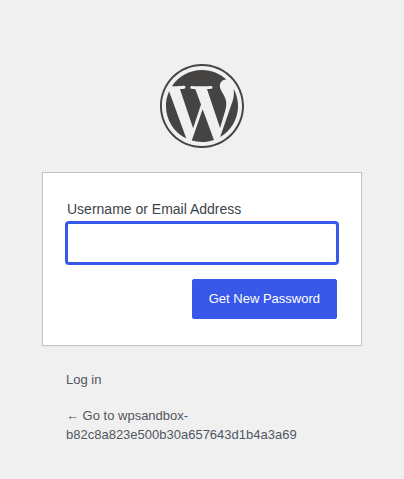
Open Users > Profile for your own account. If you’re changing someone else’s password as an admin, open the users list, choose the person, and edit their profile.
Scroll to Account Management. Depending on the WordPress screen and version, the button may say Set New Password or Generate Password. On the WordPress profile screen we checked, the button said Set New Password, with the strength meter shown in the same area.

Use the generated password unless a real system requirement blocks it. Don’t shorten it because it looks ugly. It’s supposed to look ugly. A password manager can store it, fill it, and share it safely when sharing is appropriate.
After you click the password button, WordPress shows the generated password field and strength meter in the same Account Management area.

Use this order:
- Generate the password.
- Save it in your password manager.
- Update the WordPress user.
- Sign back in once to confirm it works.
If you’re changing a password for someone else, don’t paste the new password into email, Slack, a ticket, or a shared document. Either share it through a password manager or ask the person to reset it themselves. Plain-text passwords tend to sit around forever in places nobody audits.

If WordPress offers to log out other sessions, use it after a suspected compromise, staff departure, or unsafe sharing. It forces old browser sessions to sign in again, so old access doesn’t quietly survive your cleanup.
🧭 Note: If you’re doing this for a client or a team member, I prefer sending them the reset flow instead of handling the password myself. It keeps the password out of your chat history and makes the account owner responsible for storing it properly from day one.
Use a password manager, not a clever system
The old advice was to think of a phrase, swap a few letters for symbols, and hope nobody else could guess your trick. I wouldn’t build a WordPress security policy on that anymore. A password manager gives you a cleaner workflow:
- It generates random passwords you don’t have to remember.
- It stores each login with the right site and username.
- It warns you about weak, reused, or exposed credentials.
- It lets teams share access without sending raw passwords through chat.
The password manager itself needs a strong master password with 2FA or MFA. That’s the one password you may still need to remember, so make it long, unique, and unrelated to you. A passphrase can work here if the words are unrelated and not a quote, slogan, birthday sentence, or something someone could connect back to you.
Browser password saving is better than reusing one password everywhere. If you run one small site alone, it may be a reasonable start. Once other people need access, a dedicated password manager gives you cleaner sharing and a better audit trail.
Secure every account that can affect the site
Your WordPress admin password is only one key.
Use the same standard for anything that can change the site or unlock a system connected to it. That means hosting and business email, but also quieter access points like SFTP, backups, DNS, security tools, and connected SaaS accounts.
This is where careful site owners get caught. They fix the WordPress admin password but leave an old hosting password that three people know. A developer account disappears from WordPress, but the SFTP login still works. If your control panel access is weak, you must change cpanel password credentials immediately before an attacker gains full server access.
Similarly, it’s easy to overlook background infrastructure. If your file transfer endpoints are vulnerable, you’ll need to change ftp password rules to secure your source files. The same exact rigor applies to your raw data management tools—be sure to change phpmyadmin password keys and regularly change mysql database password access strings so malicious actors can’t scrape customer tables or inject harmful scripts from the backend.
If an account can change files, users, content, DNS, backups, payments, or customer data, treat it as part of WordPress security.

🛠️ Note: Start with accounts that can edit files or create users. In a real cleanup, I care about WordPress admins, hosting, SFTP/SSH, business email, DNS, backups, and payment tools before I worry about low-risk newsletter or analytics logins.
Enforce strong passwords for other users
If you’re the only person with a WordPress login, fixing your own password is a good start. Once other people have accounts, especially people who publish content, manage orders, install plugins, or edit settings, you need rules for them too. Start with access:
- Keep administrator accounts rare.
- Match each role to the work the person really does.
- Replace shared logins with named accounts.
- Delete accounts that have outlived the job.
- Remove vendor and contractor access when the work ends.
Then, enforce stronger passwords for the accounts that can do real damage. WordPress doesn’t include a full password-policy system for site owners by default, so use a trusted security plugin, password-policy plugin, or central login tool if you need role-based rules.
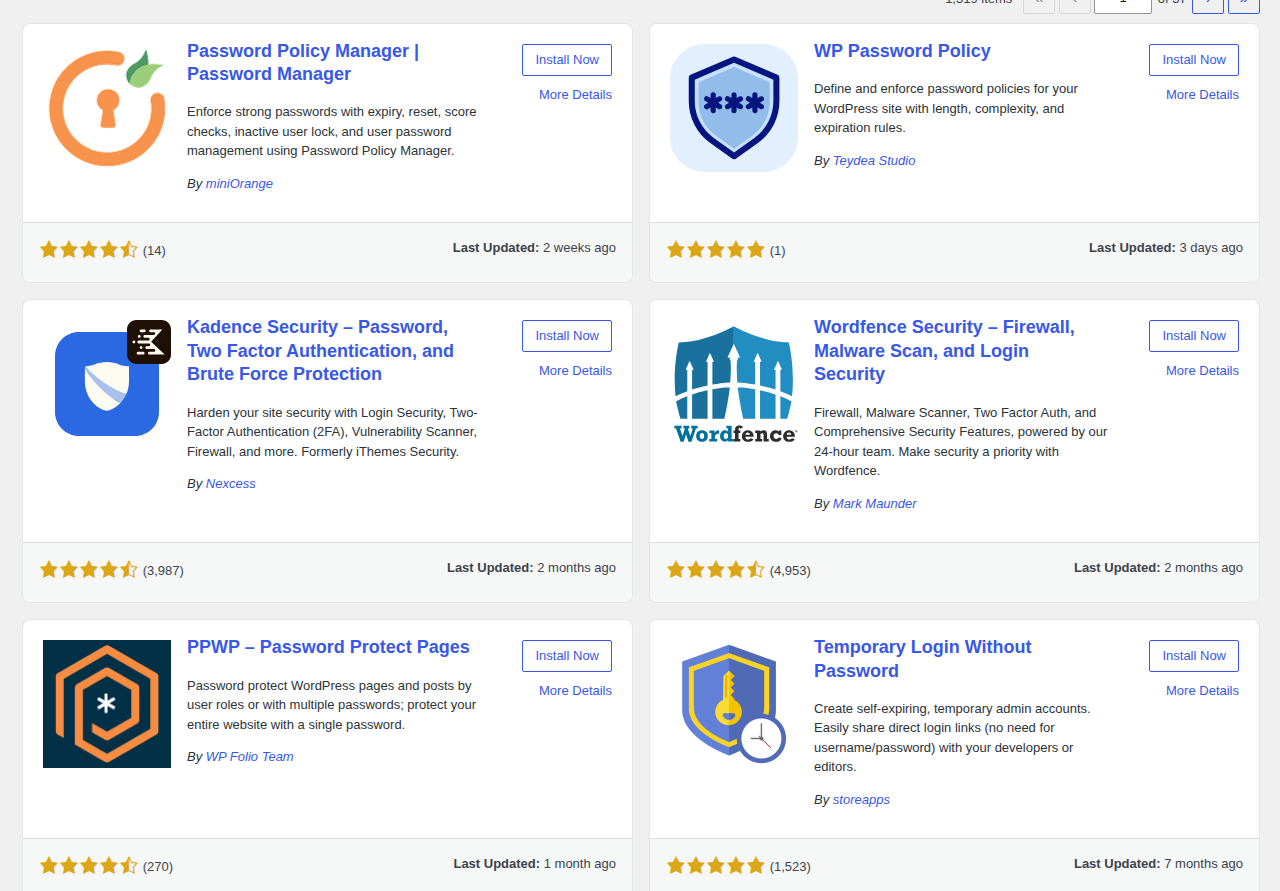
Prioritize administrators first. Then include shop managers, developers, editors on important sites, and anyone who can export data, install plugins, manage users, change settings, or publish to high-value pages. Good rules are plain:
- Require enough length.
- Block obvious, common, and known-compromised passwords if the policy tool can do that.
- Prevent reuse where possible.
- Force a reset after staff changes, unsafe sharing, exposed-password warnings, or suspected compromise.
I wouldn’t make timed password rotation your main policy. Forced changes every 30 or 60 days often lead people to create predictable versions of the same password. Change passwords when something has made the old one risky, and make the replacement genuinely new.
After you configure a rule, test it with a normal user account. Try to set a weak password and make sure WordPress blocks it. A setting that looks right but doesn’t change user behavior is just decoration.
✅ Note: Don’t start by making life harder for every subscriber or customer account. Start with privileged roles. That’s where one weak password can actually change the site.
Add 2FA to important accounts
Two-factor authentication adds a second check after the password. It may be an app-generated code, a hardware key, or another approved sign-in prompt.
Use 2FA for administrators at minimum. I would also require it for developers, shop managers, editors on high-traffic sites, and anyone who can install plugins, publish important content, export data, or manage users.
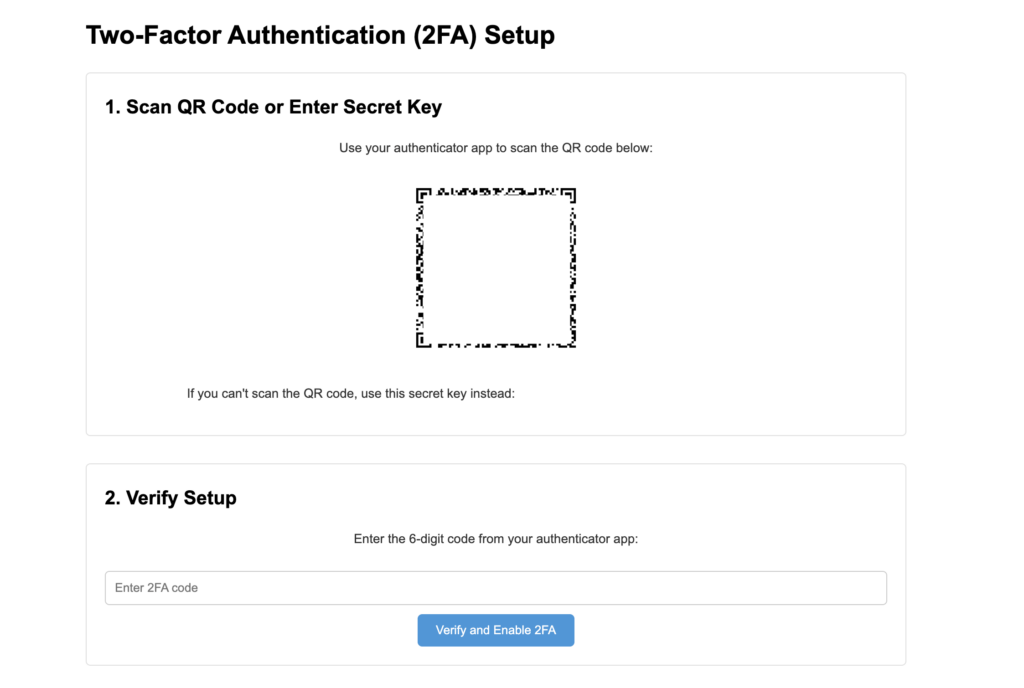
2FA helps when a password gets guessed, stolen, reused, or phished. It doesn’t make weak passwords acceptable. It gives you a second gate for the day a password is no longer secret.
Roll it out in a calm order: add it to your own account first, save backup codes in your password manager, write short instructions for your team, then require it for privileged roles. The backup-code step sounds small until someone breaks their phone on a launch day.
Check application passwords
WordPress application passwords are easy to miss because the name sounds like the normal login password. They’re different.
An application password is a separate credential tied to a WordPress user. Plugins, apps, external services, and custom integrations can use it to connect to WordPress through the API without using the dashboard login screen.
Go to Users > Profile and look for Application Passwords. Revoke anything old, unnamed, unfamiliar, or tied to a tool you no longer use.

Changing your normal login password doesn’t remove forgotten integration credentials. Name application passwords clearly when you create them, and remove them when the integration no longer needs access.
🔎 Note: If you see an application password with a vague name like “integration” or “test,” don’t assume it’s harmless. Find the owner and purpose. When no one can account for it, revoke it and watch what complains.
Protect the login page too
Strong passwords reduce the chance that an attacker guesses correctly. They don’t stop attackers from trying.
That’s why password security and login security belong together. Your site should limit repeated attempts, block obvious bot traffic, alert you to suspicious activity, and use a firewall to filter harmful requests before they hit the WordPress areas attackers keep testing.
MalCare fits at this point, after the password work is done. It can add brute-force protection, bot protection, firewall protection, security alerts, malware scanning, and cleanup if credentials have already been abused, which is why password hygiene should sit inside a broader plan to protect your website from hackers.
Don’t use a security plugin as permission to keep weak passwords. And don’t treat strong passwords as the whole defense. Passwords are one layer. Login protection helps when someone keeps testing that layer.
Change passwords when risk changes
You don’t need to reset every WordPress password on a random schedule just to feel responsible. You do need to act quickly when a password may have leaked, been shared, or outlived the person who should have access.
Change WordPress passwords when:
- You suspect the site was hacked.
- A password was reused on another site.
- A password was shared through email, chat, a document, or a ticket.
- A staff member, contractor, or vendor leaves.
- Your password manager flags the password as weak, reused, or exposed.
- You see unknown sessions, new users, or unfamiliar application passwords.
- A policy or compliance rule requires a reset.
Before major credential changes after a suspected hack, confirm that your backup plugin has a recent restore point. A backup won’t fix a stolen password, but it gives you room to recover if you find malware, redirects, spam injections, unwanted users, or broken files during cleanup.
After changing the password, log out other sessions and remove unknown users. Revoke unused application passwords. If you have activity logs, check them. Then run a malware scan. If that password was used anywhere else, replace it there too. Start with hosting and email, then work through backups, file access, and connected services.

If you think someone already got in, don’t stop at the password field. A weak password can be the entry point, but the damage may be somewhere else now.
🚨 Note: If a weak password may already have been abused, treat the password change as the first move, not the cleanup. Scan the site, review users, check recent admin activity, and revoke credentials you can’t account for.
Quick checklist
- Generate a random password for every WordPress account with meaningful access.
- Store passwords in a password manager.
- Never reuse WordPress passwords on other services.
- Replace shared logins with named accounts.
- Restrict administrator access.
- Remove old users.
- Enforce strong passwords for privileged roles.
- Require 2FA on accounts with real control.
- Review and revoke unused application passwords.
- Protect the login with brute-force protection, bot protection, alerts, and a firewall.
- Confirm your backup plugin has a recent restore point.
- Run a malware scan if a weak password may have been used.
FAQs
What’s the safest WordPress password security method?
Use WordPress’s built-in generator or a password manager. The password should be long, random, unique to that account, and saved in the password manager before you update the user.
Where is the WordPress password generator?
Go to Users > Profile for your own account, or Users > All Users and open a user profile if you’re an admin changing someone else’s password. Look under Account Management for Set New Password or Generate Password.
How do I enforce strong passwords in WordPress?
Clean up user roles first, then use a trusted security plugin, password-policy plugin, or central login tool to require strong passwords by role. Start with administrators and other users who can publish, export data, install plugins, or change settings.
Should I change WordPress passwords regularly?
Change them after a suspected hack or staff departure. Do the same after unsafe sharing, password reuse, an exposed-password warning, or a policy requirement. Routine forced changes can make people choose predictable updates, so they shouldn’t be your main plan.
Are application passwords the same as WordPress login passwords?
No. Application passwords are separate credentials used by apps, plugins, or integrations to connect to WordPress. Review them in your profile and revoke any that no longer have a clear owner and purpose.
Conclusion
Good WordPress password security isn’t a clever password you can remember. It’s a system: generated passwords, one credential per account, safe storage, named users, role discipline, 2FA, application-password audits, and login protection around the whole thing.
That may sound less satisfying than inventing the perfect password, but it works better. The password stops being a personal memory test and becomes one piece of the site’s protection. That’s where you want it.