
Setting up a WordPress multisite can feel like juggling many balls at once. Imagine managing several websites but from one central place. Sounds efficient, right? Whether you’re a blogger wanting separate sites for your travel and food stories, or a business owner keeping different branches in check, WordPress multisite can be a game-changer.
The WordPress multisite setup process can seem daunting. The first step is always the hardest. What if something goes wrong? That’s why having a backup is key—it’s your safety net.
Once you’ve got that covered, you can easily enable multisite to add new features, create, and manage new sites. In this article, we will cover everything about setting up a WordPress multisite and get it running.
WordPress Multisite allows you to manage several sites from one dashboard. This streamlines tasks and saves time. Be mindful of potential issues like plugin compatibility and domain mapping. Always take a full site backup before setting up a multisite to ensure data safety.
Before you begin: Back up your site
Before diving into the world of WordPress multisite setup, start with a crucial step: backing up your site. Think of it like saving your homework file. You wouldn’t want to lose all that work, right? A backup acts as your safety net if anything goes wrong during the setup.
We highly recommend using BlogVault’s backup for this task. It stores your backups off-site in secure servers. This means your data stays safe and doesn’t clog up your site’s resources. Plus, everything is kept encrypted, adding an extra layer of security.

BlogVault’s backups ensure you can restore everything swiftly and smoothly, even when your site crashes unexpectedly. This peace of mind lets you focus on building your multisite without worry. Always start with a backup, and you’ll thank yourself later!
1. Enable WordPress multisite
With your backup safely stored, you’re ready for WordPress multisite setup. A WordPress multisite lets you manage many sites from one hub. It transforms your WordPress setup into a powerful network manager.
Start by editing your wp-config.php file. This file is like the command center for your site settings.
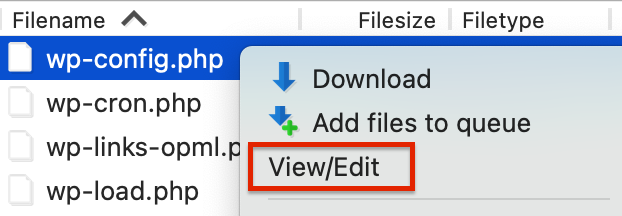
Add this line of code to the file:
define('WP_ALLOW_MULTISITE', true);Place it just before the line that says: /* That’s all, stop editing! Happy blogging. */
This step unlocks multisite capabilities. You’re setting the stage for a seamless management experience. With just a bit of coding, you’ll open doors to more efficient site administration.
2. Setup WordPress multisite network
With multisite enabled, it’s time to set up your WordPress Multisite network.
Start by deactivating all plugins by heading to Plugins → Installed Plugins in your dashboard. This step helps avoid any conflicts since not all plugins support multisites.

Next, go to Tools → Network Setup. Here, you’ll create your multisite network. Decide whether you want to use subdomains or subdirectories for your sites.
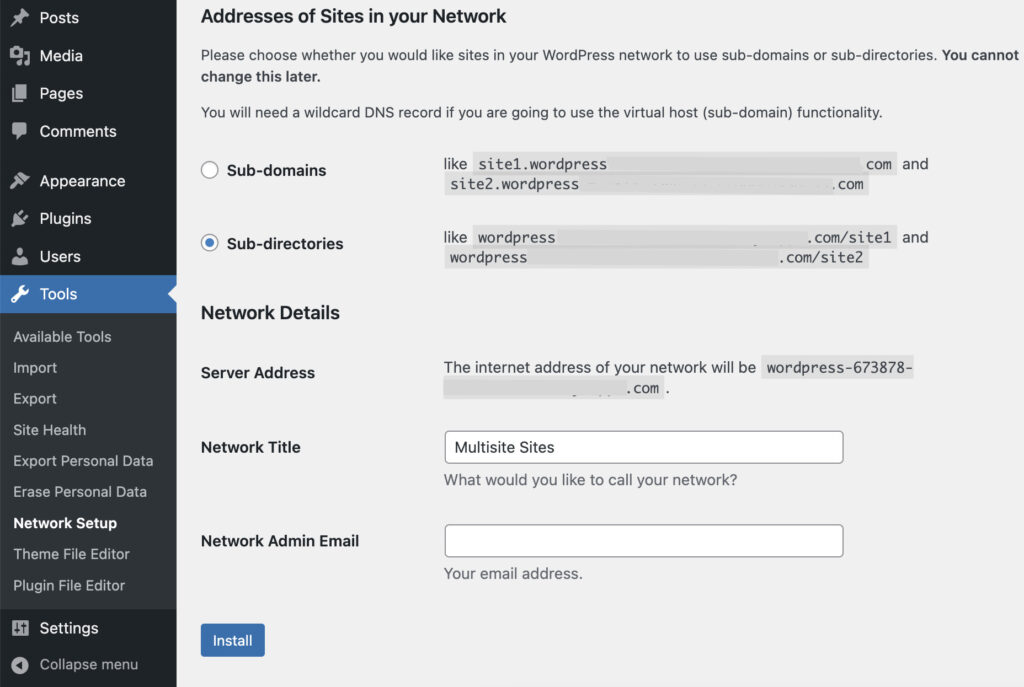
If you’re setting up a new WordPress installation, we suggest using subdomains. For older sites, WordPress defaults to subdirectories to prevent URL issues.
Fill in your network details. Enter a name in the Network Title field and the super admin’s email in the Network Admin Email field. Double-check everything, then click Install. Your multisite network is now ready to manage!
3. Update the wp-config.php and .htaccess files
To get your multisite routing correctly, update your wp-config.php and .htaccess files. Go back to Tools → Network Setup in your WordPress dashboard. You’ll find the code snippets you need there.
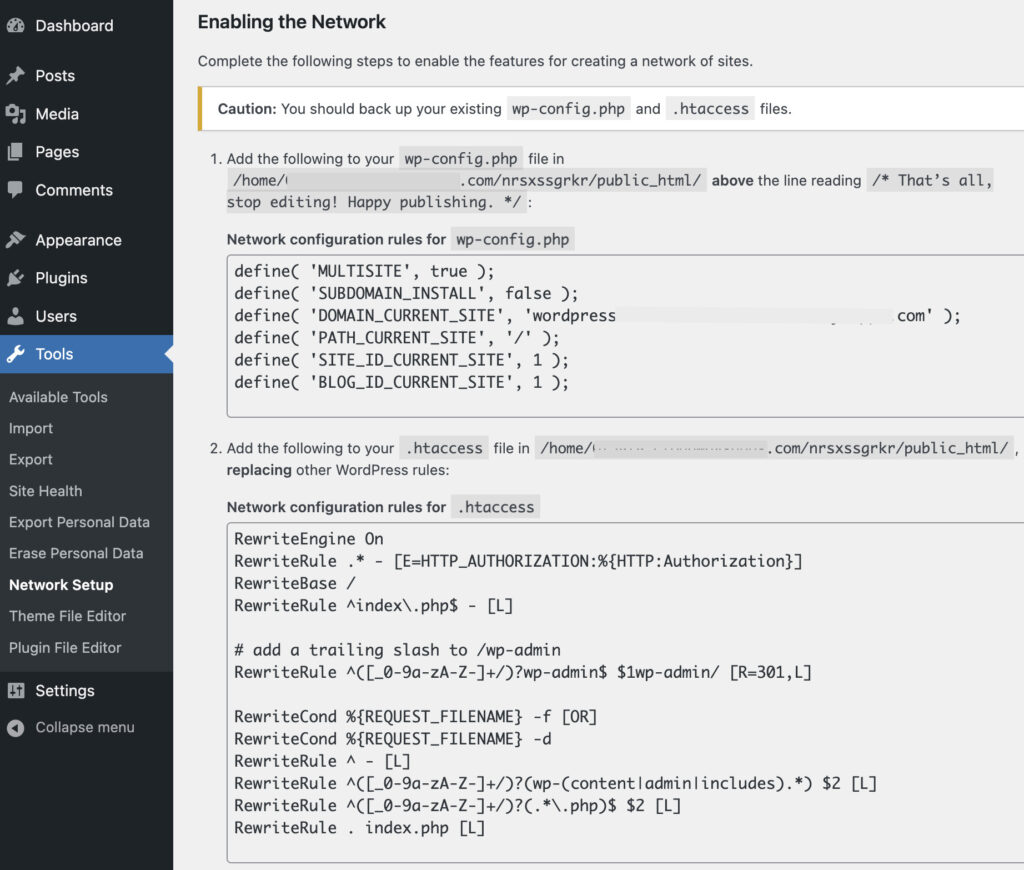
First, edit the wp-config.php file and add this code before the line that says: /* That’s all, stop editing! Happy publishing. */
define('MULTISITE', true);
define('SUBDOMAIN_INSTALL', true);
define('DOMAIN_CURRENT_SITE', 'yourdomain.tld');
define('PATH_CURRENT_SITE', '/');
define('SITE_ID_CURRENT_SITE', 1);
define('BLOG_ID_CURRENT_SITE', 1);
Make sure to replace yourdomain.tld with your actual domain name.
Next, edit the .htaccess file and insert the following code inside the IfModule tags:
RewriteEngine On
RewriteRule .* - [E=HTTP_AUTHORIZATION:%{HTTP:Authorization}]
RewriteBase /
RewriteRule ^index.php$ - [L]

# add a trailing slash to /wp-admin
RewriteRule ^([0-9a-zA-Z-]+/)?wp-admin$ $1wp-admin/ [R=301,L]

RewriteCond %{REQUEST_FILENAME} -f [OR]
RewriteCond %{REQUEST_FILENAME} -d
RewriteRule ^ - [L]
RewriteRule ^([0-9a-zA-Z-]+/)?(wp-(content|admin|includes).*) $1 [L]
RewriteRule ^([0-9a-zA-Z-]+/)?(.*.php)$ $1 [L]
RewriteRule . index.php [L]
Save the changes in both files. This step ensures your WordPress multisite setup works smoothly and correctly.
4. Configure network settings
After logging out and back in, you’ll notice a new My Sites menu on your admin bar. This confirms your multisite is active but not fully configured yet.
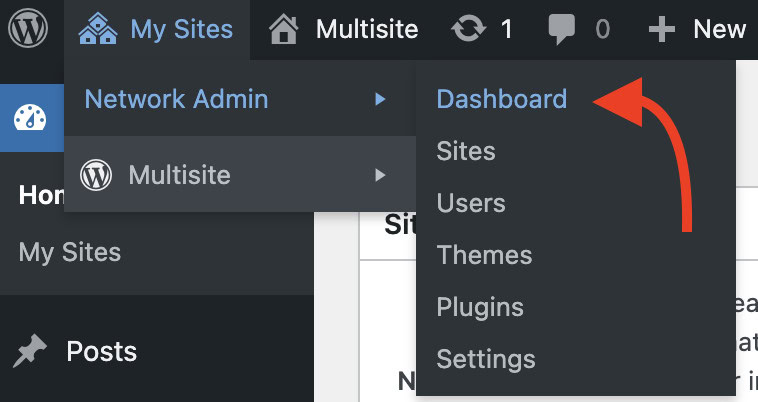
Now, head to My Sites → Network Admin → Dashboard. This is the control center for managing all the sites in your network.
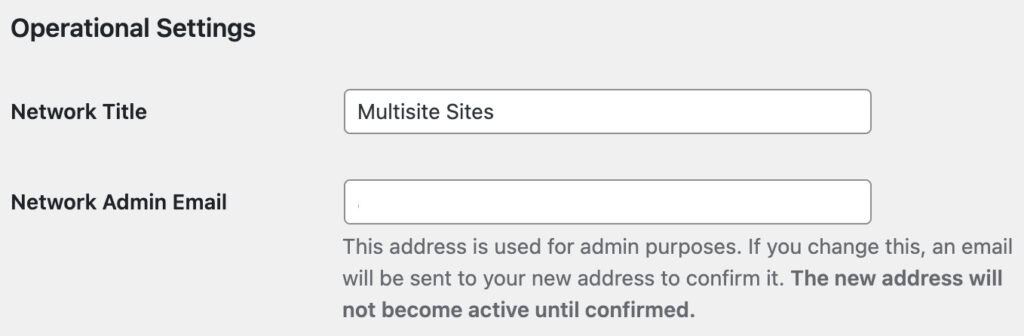
Navigate to Settings → Network Settings. Here, update the network’s name and the admin email under Operational Settings. This helps you receive important notifications.
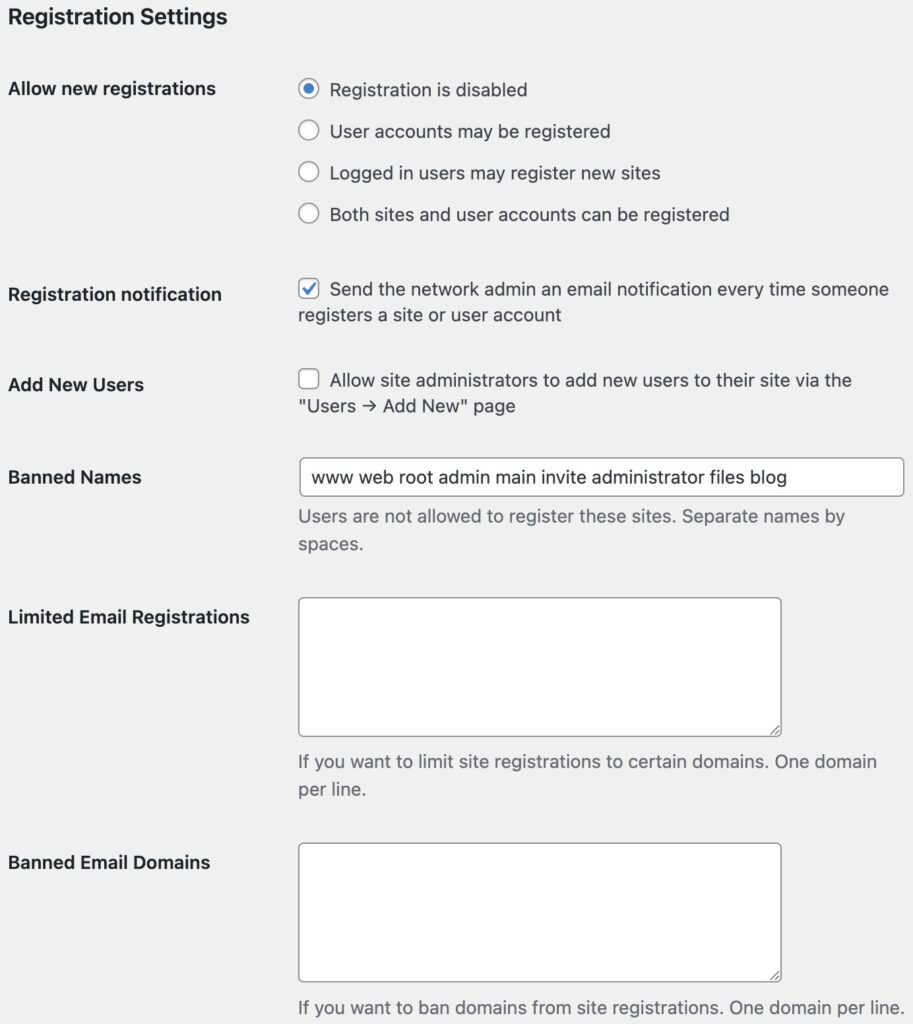
In the Registration Settings section, you can control user and site registration. Decide whether to allow new registrations, restrict access, or disable it. Set up registration notifications, add new users, and manage banned names and email domains.
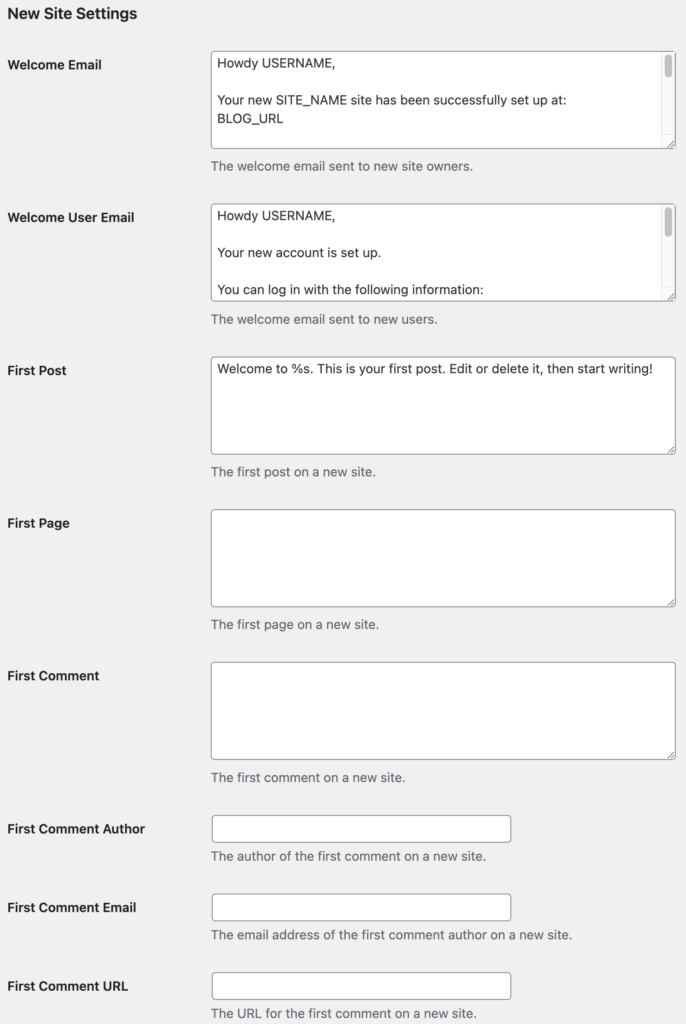
Next, personalize the New Site Settings. Customize welcome messages and initial content like posts and pages.
Check the Upload Settings to adjust file upload types and limits. Make sure these stay within your hosting plan’s limits.
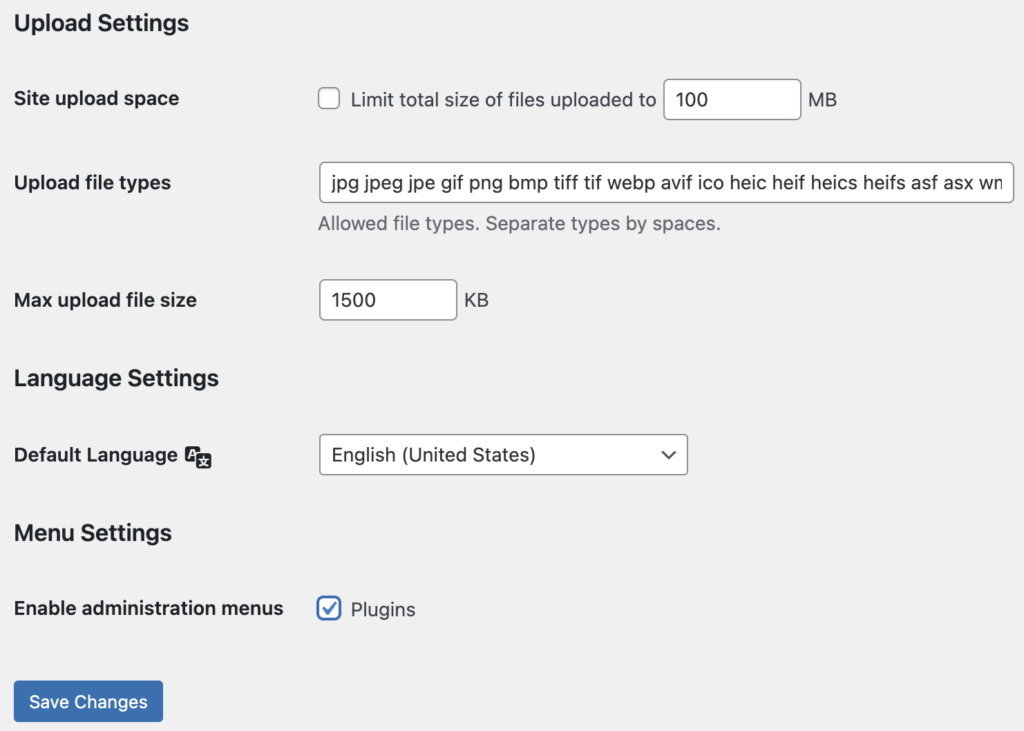
Lastly, enable plugin menus for site admins under Menu Settings. Once all is set, click Save Changes. With these steps, your WordPress multisite setup is ready to use!
5. Create new sites
Now that your WordPress multisite setup is complete, it’s time to add new sites. Creating a subsite is simple. Just head to Sites → Add New Site in your Network Admin dashboard.
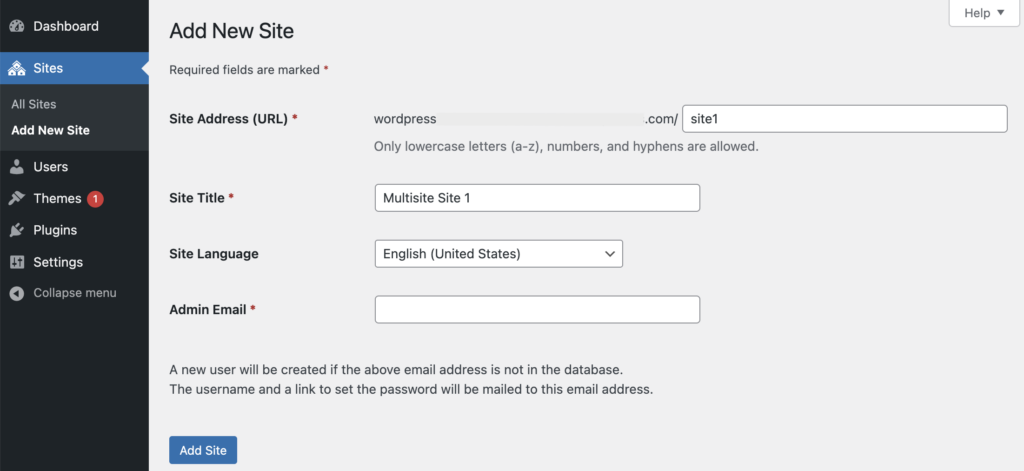
Fill in the details for your new site. Enter the site’s address, title, language, and admin email. Once you’ve got everything filled out, hit Add Site. Your new subsite will be up and running.
To manage your subsites, go to Sites → All Sites. Here, you’ll find options to edit, deactivate, or delete them as needed. This centralized management makes handling multiple sites a breeze.
6. Add new users
As a super admin, you have the power to add new users to your network.
To begin, go to Users → Add New User. Enter the new user’s username and email address. After that, click on Add User. This action sends them an email invitation to set their password.
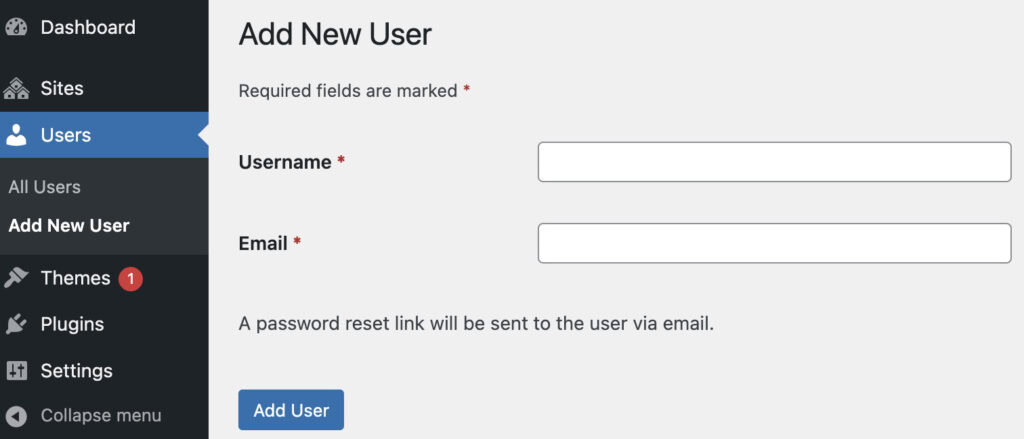
If you want to grant super admin privileges, edit the user you just added. Check the Super Admin option.
Be cautious with this, though, as super admins have full control over the entire network. Ideally, limit the super admin status to one person only.
To assign roles to specific subsites, navigate to Sites → All Sites. Click on the number under Users next to the subsite of your choice. In the User tab, you can add existing or new users by choosing the appropriate section and clicking Add New User.
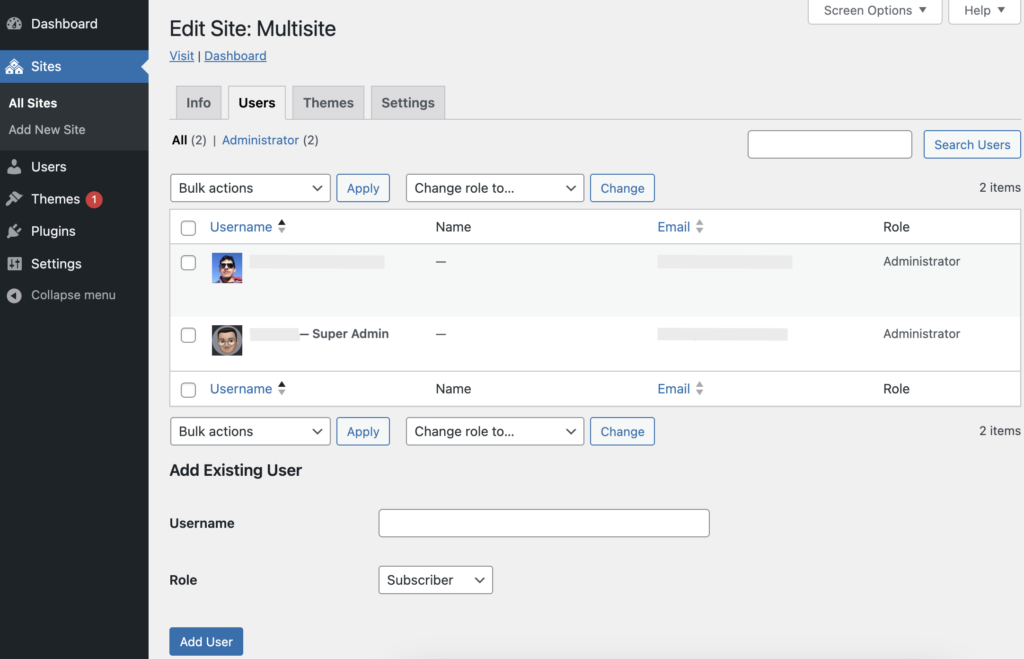
This way, you control who has access and what they can do.
7. Install plugins and themes
Installing plugins and themes on a multisite is similar to a standard WordPress site, with one key difference. When super admins install them, they’re available across the entire network.
To activate a plugin across all subsites, go to Network Admin → Plugins and click Network Activate. Site admins can also activate plugins on their individual sites if needed.
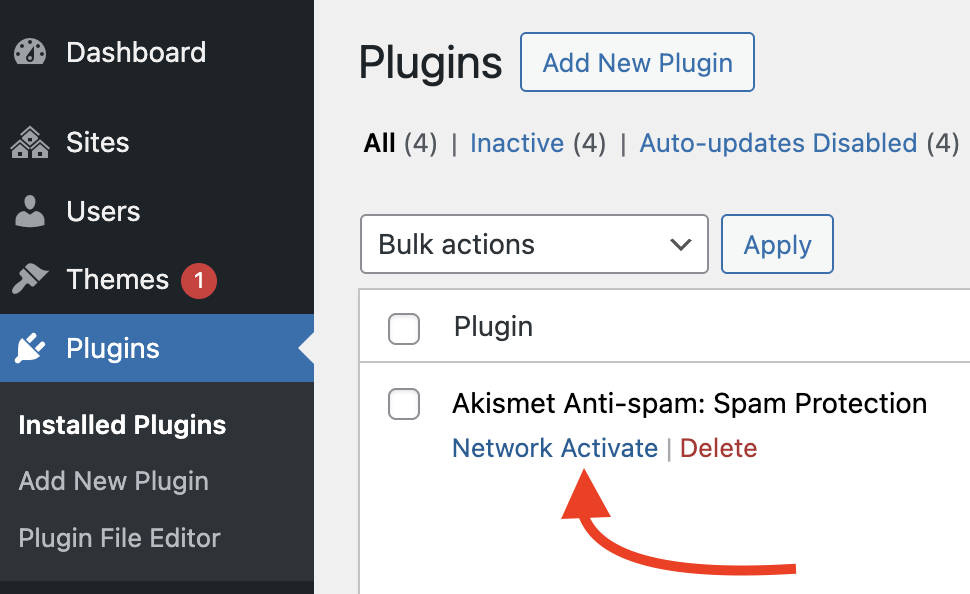
For themes, super admins should visit Network Admin → Themes. Set the desired themes to Network Enable to make them available to all subsites. Each site’s admin can then activate themes from their own dashboard.
Remember, super admins handle all updates and need to remove inactive plugins and themes. This keeps the entire network running smoothly and efficiently.
Common WordPress multisite setup problems and how to fix them
A WordPress multisite setup can come with various challenges. Here’s a deeper look at each issue and how to tackle them:
- Domain mapping issues: If domain mapping isn’t configured correctly, your sites might not resolve properly. Always ensure each domain is properly mapped and that DNS settings are accurately configured. This prevents any connectivity problems with your sites.
- Incorrect file or directory permissions: Wrong file permissions can prevent your server from reading or executing essential files. Always set permissions for files to 644 and directories to 755. This ensures your multisite can function without errors related to permissions.
- Login issues on subdirectory installation: Incorrect settings can block login to subsites. To fix this, locate the line
define('SUBDOMAIN_INSTALL', true);in your wp-config.php file and change it tofalse. This change helps WordPress recognize a subdirectory setup instead of subdomains. - Plugin compatibility: Not all plugins are designed for multisite networks. Some may need extra configuration or may not work as intended. Always check for multisite compatibility before installation, and look for alternatives if issues persist.
- Resource usage: Multisite networks often need more server resources, leading to potential performance issues, especially on shared hosting. Put in place caching solutions and database optimizations to enhance performance and handle increased resource demands.
- Subsite customization limitations: Subsites may face restrictions on customizing themes and plugins. Adjust network-wide permissions to grant more control to subsite administrators, allowing better individual customization.
- Security concerns: A security breach in one site can compromise the entire network. Use robust security plugins and practices like firewalls and regular vulnerability scans to protect all sites in the network.
- Admin bar visibility: Users might face issues with the WordPress admin bar not appearing or offering incorrect options. Ensure that user roles and capabilities are assigned correctly to avoid such issues.
- Complicated management: As your network grows, managing multiple sites can become time-consuming. Conduct regular audits and create standardized processes for site setups to simplify management and ensure consistency.
- Backup and restore difficulties: Backing up and restoring a whole network is more complex than a single site. Opt for plugins specifically designed for multisite backups. They simplify the process and ensure that you can efficiently restore your entire network when needed.
Final thoughts
A WordPress multisite setup can simplify managing several sites. It brings everything into one dashboard, saving you time and reducing hassles. But remember, like any other tool, it needs careful handling. Keep an eye on potential issues like domain mapping or plugin compatibility.
Backing up your site is crucial before you begin, and MalCare stands out for this task. It offers GDPR-compliant off-site storage, keeping your data safe and encrypted. Even if a site crashes, its emergency connector helps you recover quickly.
MalCare also strengthens your site’s defenses. It has a smart firewall, robust malware detection, and one-click malware cleaning. Its vulnerability scanning adds an extra layer of security. With MalCare, you protect your site without overloading your resources. It’s a solid choice for peace of mind.
FAQs
How to setup a multisite in WordPress?
To set up a multisite in WordPress, first back up your site. Then, enable multisite by editing the wp-config.php file and adding define(‘WP_ALLOW_MULTISITE’, true);. Log back into WordPress, deactivate all plugins, and go to Tools → Network Setup. Choose between subdomains or subdirectories for your sites and follow the instructions. Update your wp-config.php and .htaccess files with the provided code. Finally, configure your network settings, and you’re ready to add new sites!
Is WordPress multisite free?
Yes, WordPress multisite is free. It’s built into WordPress and lets you manage multiple sites from one installation. You can activate it without any extra cost. Keep in mind that while the feature is free, hosting multiple sites may require more resources.
What is a multisite in WordPress?
A multisite in WordPress lets you create and manage multiple websites from a single WordPress installation. It gives you a central dashboard to handle all your sites, making it easier to update and manage them. Each site can have its own settings and content while sharing the same themes and plugins.
Is WordPress multisite slower?
WordPress multisite can be slower because it manages multiple sites from one installation. This can increase resource usage, especially on shared hosting. To keep it running smoothly, optimize your database and use caching solutions.