Are you seeing reports of the SpamCop blacklist? Are yourWordPress emails going to spam? Unfortunately, this almost always signals malware exploitation. Spambots frequently target vulnerabilities in contact form plugins or user registration systems.
First run a malware scan. This will give you more information about what’s going on.
After that, we will walk you through how to remove your site from the blacklist and how to prevent it. This article will have everything you need to know about the SpamCop blacklist.
Check your server’s IP status at spamcop.net, run a malware scanner and remove any spam-sending scripts. SpamCop automatically delists your IP within 24 hours once the spam stops.
What is the SpamCop Blacklist?
The SpamCop Blacklist is designed to stop websites from sending spam. It’s a real-time spam-fighting tool that helps email providers block messages from servers sending spam. Unlike static blacklists, SpamCop focuses on identifying IP addresses that are actively distributing unsolicited emails right now. This makes it highly effective at catching fresh spam campaigns before they can reach inboxes.
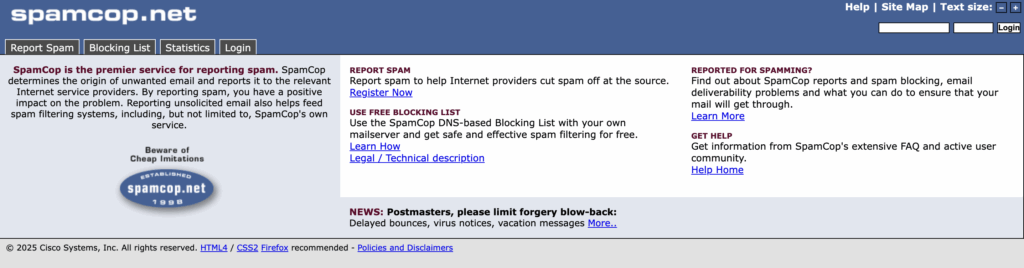
The SpamCop Blocking List works by collecting spam reports from users worldwide. When someone receives spam and reports it through SpamCop’s system, the service automatically analyzes the email to trace its origin. SpamCop then verifies the report for accuracy and adds the sending server’s IP address to its blacklist. This entire process happens quickly – your server can appear on the list within minutes of sending reported spam.
Your WordPress site can end up on SpamCop’s blacklist for several common reasons:
- Malware and compromised sites
- Vulnerable forms and plugins
- Poor email practices
- Server and hosting issues
How to Check if Your WordPress Site is on SpamCop’s Blacklist?
Now that you understand what SpamCop’s blacklist is, your next step is to determine if your server is blacklisted. Since SpamCop updates its database in real-time and listings can change within minutes, checking your status directly through their official tools is crucial. Here’s how to verify if your WordPress site’s mail server is causing email delivery problems.
-
On your browser, go to the official SpamCop blacklist website.
-
At the top, there’s a section to check if you’re on the list.
-
Add the IP address and press Enter.
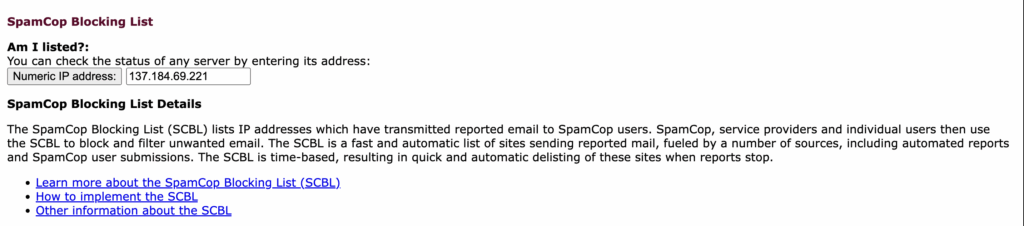
Within minutes, it will tell you if an IP address is blacklisted.
Expert advice: If you’re not sure what your IP address is, either contact your web host or use
Interpret Your Results
- If blacklisted: Red warnings display “BLOCKED” with timestamps and details
- If clean: Green text confirms “Not Listed” or “No matches found”
- If recently delisted: May show “Was listed but expired” with removal date
- Scroll down to see comprehensive listing information:
- Number of spam reports that triggered the blacklist entry
- Exact timestamps showing when spam was first detected
- Sample spam emails or subjects that caused the listing
- Duration the listing has been active
- Estimated automatic removal time (usually within 24 hours)
How to Remove Your WordPress Site from SpamCop Blacklist
If your check confirms that your mail server’s IP address is listed on SpamCop’s blacklist, don’t panic. SpamCop’s system is designed to delist servers quickly once they stop sending spam. So, for example, if you were flagged because of a WordPress hack, then fixing the hack will automatically remove your site from the blacklist. Here’s your step-by-step action plan to get your WordPress emails flowing normally again.
Step 1:
Step 1: Scan Your WordPress Site for Malware
Before attempting any blacklist removal, you must identify and eliminate the spam source on your WordPress site. Since 85% of SpamCop listings stem from malware infections, this step is critical . There are two primary approaches to malware detection, though one is significantly more effective than the other.
Method 1: Use a WordPress Security Plugin (Recommended)
The most effective way to identify malware causing your SpamCop blacklist is through a dedicated WordPress security plugin. These tools are specifically designed to detect the types of email-hijacking malware that manual searches often miss – including encrypted backdoors, database injections, and hidden spam scripts that only activate when sending emails.

How to Use MalCare for Malware Scanning
- Install the plugin from the repository.
- Sign up for a free account.
- Add your site to the dashboard.
MalCare will automatically run a deep scan of your entire site. Within minutes, it will analyse your code and identify the malicious parts.
Why Choose MalCare for Malware Detection
- Deep server-side scanning
- Easy to use and reliable
- Comprehensive protection
- No impact on your server resources
- Daily automatic scans
Method 2: Manual Malware Detection (Not Recommended)
Manual detection requires extensive technical knowledge to distinguish between legitimate WordPress code and malicious injections, especially when dealing with encrypted or obfuscated malware. Most WordPress administrators lack the expertise to identify sophisticated email-hijacking scripts that cause blacklist problems, and the process can take hours without guaranteeing you’ll find the actual spam source.
How to Check for Malware Manually
Manual detection involves examining your WordPress files through FTP or cPanel’s File Manager:
- Check recently modified files: Look for files changed around the time spam started
- Examine wp-config.php: Search for suspicious code additions or base64 encoded strings
- Review plugin directories: Look for unfamiliar files or folders in /wp-content/plugins/
- Scan contact form files: Check form-handling scripts for malicious code injections
- Analyze database entries: Use phpMyAdmin to search for spam-related database entries
Expert advice: We have to reiterate that this is not a good method. It’s time consuming and prone to errors. It requires a lot of technical knowledge about malware.
Step 2: Removing Malware from Your WordPress Site
Once you’ve identified malware on your WordPress site, swift removal is essential to prevent re-listing on SpamCop’s blacklist. The removal method you choose significantly impacts both the thoroughness of cleaning and your site’s recovery time. Here are three approaches to eliminate the spam-sending malware from your WordPress installation.
Method 1: Automatic Malware Removal with Security Plugins (Recommended)
There are a lot of malware removal plugins, but in our experience, MalCare is the best. MalCare offers one-click solutions for an automatic cleaning service. Here’s how to do so:
- Install the plugin from the repository
- Sign up and add your site to the dashboard
- Upgrade to a premium plan
- Navigate to the security section of the dashboard
- Click “Clean Site” and wait for the process to be done. You’ll se a report with further steps to be taken.
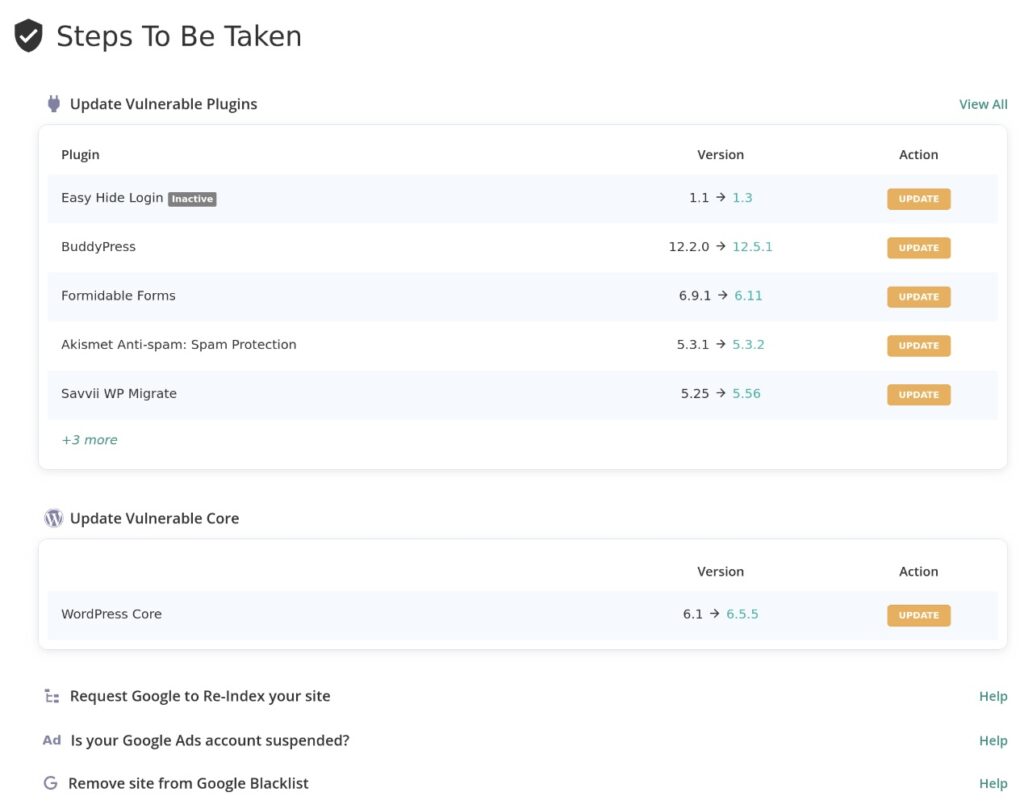
The cleaning process typically takes 5-10 minutes. I recommend that you run a follow-up scan to confirm all malware has been eliminated.
Why MalCare Excels at Malware Removal?
MalCare’s cleaning engine is specifically trained on WordPress malware patterns, including the email-hijacking scripts that cause SpamCop listings. The service removes malware while preserving your site’s functionality, customizations, and content. Their process also includes database cleaning – something most other tools skip entirely.
Method 2: Professional Malware Removal Services
Professional WordPress security services involve hiring experts to manually clean your infected site. These specialists use advanced tools and techniques to identify and remove malware that automated solutions might miss. The process typically includes file analysis, database cleaning, and security hardening.
Disadvantages of Professional Services:
- High cost: Professional cleaning services range from $150-$500 per incident
- Longer turnaround: Manual cleaning can take 24-48 hours, extending your blacklist duration
Method 3: Manual Malware Removal (Not Recommended)
Manual removal involves identifying infected files through FTP or cPanel and manually editing or deleting malicious code. This process requires examining suspicious files, comparing them to clean WordPress installations, and carefully removing only the malicious portions while preserving legitimate code.
Major Disadvantages of Manual Removal:
- High risk of site breakage: Accidentally deleting legitimate code can crash your website
- Incomplete cleaning: Hidden malware often remains, causing immediate re-infection
- Time-intensive: Manual cleaning can take 6-12 hours for complex infections
- Technical expertise required: Most WordPress users lack the skills to identify sophisticated malware
- Database infections missed: Manual methods rarely address database-level malware
- No backup protection: DIY cleaning without proper backups can cause permanent data loss
Step 3: Secure Contact Forms
Contact form spam is a popular reason for spamcop blacklisting. They are a primary entry point for spam-sending malware on WordPress sites. Unsecured forms allow bots to inject malicious code or use your server as a relay for spam emails, directly leading to SpamCop blacklisting. Properly securing these forms prevents both current spam issues and future infections.
An easy way to do this is to add CAPTCHA protection to your forms. CAPTCHA systems are essential for blocking automated spam submissions that can trigger blacklist entries. Here’s how to implement them on popular form plugins:
The method to do this can change depending on the form plugin. But, here is how to do so using WPForms:
- Access your form editor within WPForms
- Click “Settings” then “Spam Protection“
- Enable “Google reCAPTCHA” and enter your site keys
- Choose between v2 (checkbox) or v3 (invisible) reCAPTCHA
- Save your form to activate protection
- Implement email validation to block obviously fake addresses
- Set up form submission logging to monitor for suspicious activity
Step 4: Check User Registrations
Fake user accounts are frequently used to send spam emails through your WordPress site, particularly via comment systems or user-generated content features. Cleaning up these accounts and restricting future registrations helps eliminate ongoing spam sources.
- Review recent user registrations for suspicious patterns (random usernames, disposable emails)
- Check for users with spam-like email addresses (multiple numbers, random characters)
- Look for bulk registrations from the same IP address or time period
- Delete users who registered but never engaged with your site legitimately
- Monitor user activity logs for spam-related behavior
Step 5: Contact Your Hosting Provider
After cleaning your site, your next step depends on your hosting setup. This is especially relevant if you have shared hosting.
On shared hosting, dozens or hundreds of websites use the same mail server IP address. This means your SpamCop listing might not even originate from your site. Another customer’s compromised website could be the actual spam source.
So, get in touch with your web host and request an IP address reassignment. Request that they do it as soon as possible because you’ve been blacklisted.
Step 6: Remove the Listing
Unlike a Google blacklist, for example, you don’t have to ask for a review. SpamCop’s automatic delisting system is designed to remove IP addresses from the blacklist once spam reports stop coming in. This typically happens within 24 hours of your last spam email being sent.
How Automatic Delisting Works:
- SpamCop monitors incoming spam reports in real-time
- When reports from your IP address cease, a 24-hour countdown begins
- If no new spam reports arrive during this period, your IP is automatically removed
- The system updates every 15 minutes, so check your status periodically
- Most WordPress sites see delisting within 12-18 hours after stopping spam
Expert advice: If you absolutely cannot wait 24 hours for automatic removal, you can manually request a delisting. Return to SpamCop’s lookup tool and enter your IP address and run the blacklist. Then, click the “Delist” button in your lookup results. Explain your remediation steps in the comments field.
Prevent Future SpamCop Blacklist Issues
Successfully removing your site from SpamCop’s blacklist is only half the battle. Without proper preventative measures, you risk getting blacklisted again within weeks or months. These security steps will protect your WordPress site from the malware infections and spam attacks that cause future blacklist problems.
Install a Security Plugin with Firewall Protection
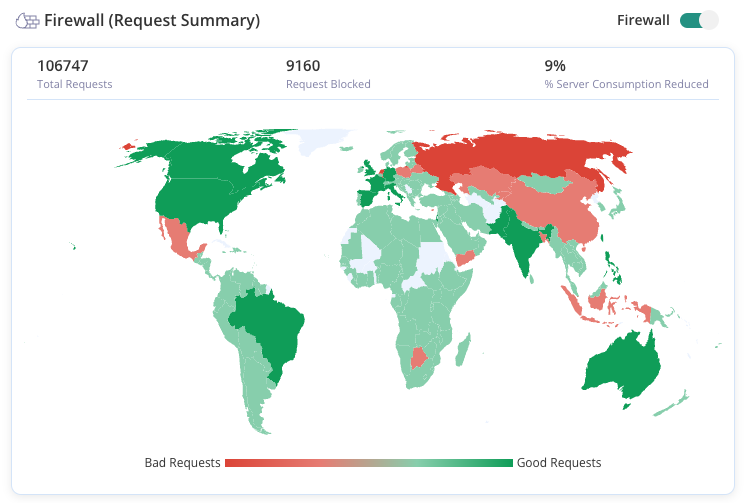
There are a lot of firewall plugins available for WordPress sites. But, we’ve found that MalCare is the most reliable. It will automatically enable firewall blocking to stop malicious traffic before it reaches your site. You can also configure bot protection and enable limit logins to stop brute force attacks.
Enable Email Authentication
Use an SMTP plugin like WP Mail SMTP to properly authenticate your outgoing emails and configure SPF/DKIM records. It generally solves a lot of problems like WooCommerce not sending emails. Install the plugin, configure your hosting provider’s SMTP settings, and enable authentication features within the plugin dashboard.
Keep everything updated
Update WordPress core as soon as new versions are released. Keep all plugins and themes updated to the latest versions. If you’re worried about crashing your site because of updates, use a staging site to reduce the impact of updates.

Strengthen User Account Security
Enable two-factor authentication for all admin accounts. Use strong passwords and change them regularly. Lastly, remove unused user accounts that could be compromised.
Final thoughts
Getting blacklisted by SpamCop can be a business crisis that can cost you customers, revenue, and reputation. When your WordPress emails stop reaching inboxes, password resets fail, order confirmations vanish, and customer support becomes impossible.
The frustrating reality is that most SpamCop blacklist issues are entirely preventable. A robust security plugin like MalCare would have detected and eliminated the malware before it could send spam emails. So, if you haven’t already, try MalCare today.
FAQs
Frequently asked questions
he SpamCop blacklist (SCBL) is a real-time database of IP addresses currently sending spam emails. It’s used by email providers to block incoming messages from servers that are actively distributing unsolicited bulk email. Unlike static blacklists, SpamCop focuses on identifying spam sources right now and automatically removes IP addresses within 24 hours once spam stops flowing from them.
Your WordPress site was likely blacklisted because malware infected your server and used it to send spam emails. Common causes include compromised contact forms, outdated plugins with security vulnerabilities, hijacked user accounts, or malicious scripts hidden in your WordPress files. SpamCop doesn’t blacklist websites directly – it blacklists the IP addresses of mail servers sending spam.
First, scan your WordPress site for malware and remove any infections completely. Clean up compromised contact forms, update plugins, and secure user accounts. Once spam stops flowing from your server, SpamCop automatically removes your IP address within 24 hours. You can also request manual delisting through SpamCop’s website, but automatic removal is usually faster and more reliable.
Yes, SpamCop is a legitimate and widely-trusted spam-fighting service that has operated since 1998. It’s used by major email providers including Gmail, Yahoo, and Outlook to filter incoming messages. SpamCop’s blacklist is based on actual spam reports from real users, making it one of the most accurate real-time blacklists available.
Yes, SpamCop continues to operate actively and updates its blacklist in real-time. The service processes thousands of spam reports daily and maintains current listings of IP addresses sending spam. You can check SpamCop’s current status and lookup tools at spamcop.net to verify whether your IP address is listed or to submit delisting requests.