Traffic is dropping? Customers are seeing warnings? A Google blacklist check is a good starting point to figure out what is happening.
I watched my traffic plummet and was left confused. Google was telling me that there was a security breach. Was there really a breach? What should I do next? Is this permanent? Can I recover my site?
I did some research and tested some things out. What I learnt is that the first thing to do is to scan your site for malware. This will confirm if your site was hacked and what needs to be fixed.
This article is everything you need to know to check if your site was blacklisted and how to fix it. All you need is the right tools.
Use a security plugin like MalCare to scan your site for malware and remove malicious content. Then, submit a review to Google once your site is clean. These are the three steps to check for Google blacklist warnings.
Why check your Google blacklist status
Google’s blacklist is a complex security system that flags websites posing risks to users. When Google detects malware, phishing attempts, or deceptive content on your site, it adds your domain to its Safe Browsing database. This database protects over 4 billion devices worldwide by blocking access to dangerous websites.
How does this work?
Google’s Safe Browsing is an automated system that scans billions of web pages daily, looking for:
- Malicious software downloads
- Phishing schemes stealing personal data
- Deceptive content (fake antivirus warnings, misleading ads)
- Hacked sites serving malware without the owner’s knowledge
When your site gets flagged, Google doesn’t just hide it—it actively warns users away. The system prioritizes user safety over website owners’ concerns, which means you’re guilty until proven clean.
How to check your Google blacklist status
We get it. The Google Blacklist check is a sign that things are bad. There’s a sense of urgency that surrounds it too. You need to quickly check for Google blacklist and then fix it. Thankfully, you can find out in less than 5 minutes. There are also three methods to do so.
Scan the site for malware
You need a definitive answer for your Google blacklist check and a good malware scanner can do that. Google’s tools only show you if their automatic checks have flagged your website. Sometimes, they may have falsely flagged your site too. A malware scanner plugin like MalCare will check for actual malicious code and behaviour.
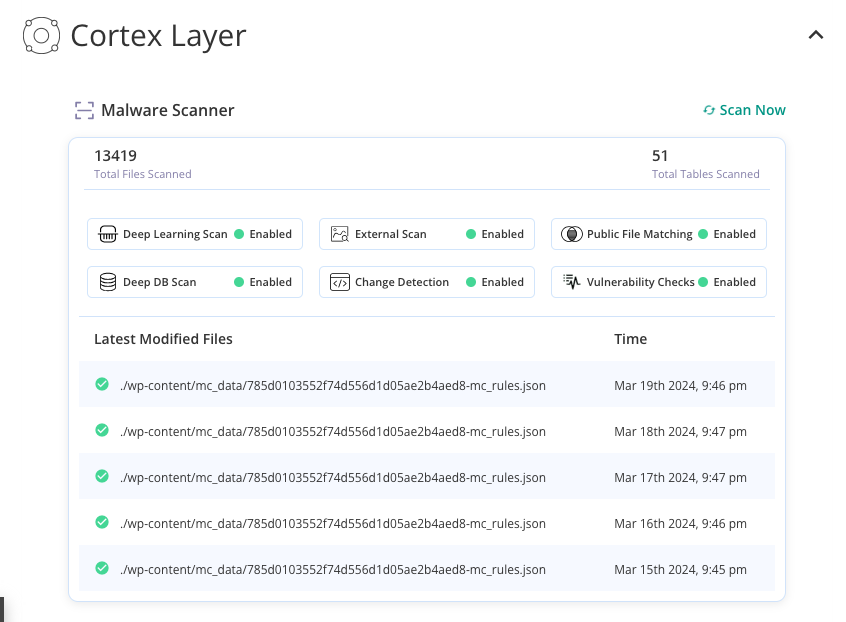
You’re looking for a plugin that scans your entire website—files and database tables. Based on our testing, MalCare is the best way to go. It was easy to set up, the report was generated in minutes, and the malware scanner has a free version.
- Install the plugin.
- Create an account.
- Enter your website URL.
While MalCare syncs with your site, it will automatically scan your website for malware. The whole thing will take only a few minutes and you will soon know if your site is hacked and if there’s a valid reason to run a Google blacklist check.
Check Google Safe Browsing
This is Google’s blacklist checker—the same database that powers Chrome’s security warnings. This would be a good first step to check.
- Visit Google’s Safe Browsing site status checker .
- Type your full website URL (e.g., yoursite.com or https://yoursite.com)
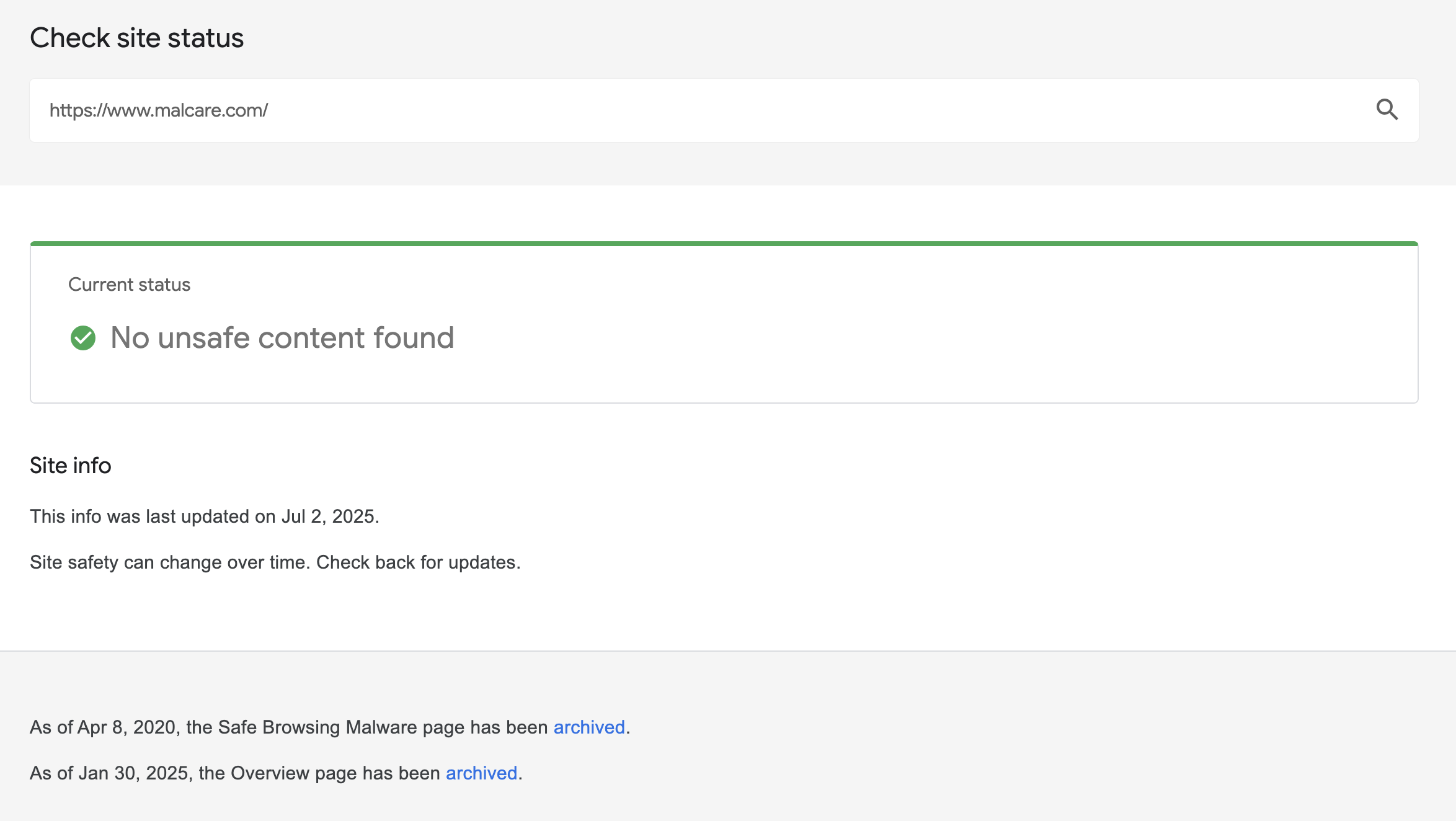
The results will show one of the following:
- “No unsafe content found” = You’re clean
- “Site contains harmful programs” = Malware detected
- “Deceptive site” = Phishing/scam content found
Only checks Google blacklist data. Other search engines and security vendors may have different findings. Other browsers will have their own equivalent. Check those tools as well.
Review Google Search Console security issues
While the Transparency Report simply tells you “clean” or “infected,” Google Search Console reveals the full story: which specific pages are compromised, when Google first detected the issue, and exactly what type of malicious content was found.
More importantly, this is your only path to request official removal after cleaning your site—the Safe Browsing tool is read-only, but Search Console lets you communicate directly with Google’s security team for faster blacklist removal.
How to Check:
- Log into Google Search Console
- Select your property (website)
- Navigate to Security & Manual Actions → Security Issues

Review any alerts:
- “Hacked content” = Your site was compromised
- “Malware” = Dangerous software detected
- “No security issues detected” = All clear
You’ll often see specific pages flagged by Google. There will be information on when the problem started. Google will also have specific recommendations on what needs to be fixed.
This is where you’ll request a security review after cleaning your site. Google Search Console is your direct line to Google’s manual review team..
How to remove your site from Google’s blacklist
Getting blacklisted feels like a crisis, but removal is straightforward. It requires two steps:
Step 1: Remove the malware
Step 2: Request an official review.
Step 1: Clean the malware (choose a method)
You have three main approaches to malware removal. Each has distinct advantages depending on your technical skills, budget, and urgency.
Clean with a security plugin
If you’re a small business owner or blogger who wants the fastest solution to the hacked WordPress site, plugins are your best bet. Zero technical knowledge required and very little effort required. Tools like MalCare handle the heavy lifting while you focus on your business.
The process is refreshingly simple. Just install the plugin and run a full scan. You’ll be prompted to upgrade to a paid subscription for the one-click malware cleaner. Then click Clean Malware. It will take a couple of minutes, depending on the size of the website. Once you’re done, run another malware scan to double-check.

The main advantage is speed and simplicity. You’re working within 10 minutes with no coding knowledge required. Then, there’s the added benefit of ongoing protection against future infections. The primary downside is cost. You will need to upgrade to one of their paid subscription plans to do this.
Hire a professional malware removal service
If the malware scanner plugin found complex infections they couldn’t fully remove,professional cleaning services are the next stop.
Services like MalCare’s malware removal team assign human security specialists to manually review your case. They will access server files and databases to find hidden malware that plugins might miss. You submit your site details, provide FTP access, and receive a detailed cleanup report within 12–24 hours.
The key benefits are guaranteed results. They’re able to find everything and remove it without you needing to lift a finger. You don’t have to worry about sites crashing or missing any malware.
However, expect higher costs ($200-500+ per cleanup) and slower turnaround times. They will need at least 24-48 hours for thorough analysis.
Clean the site manually
If you’re a developer or a technically skilled site owner, manual cleanup can be an option. You need to be comfortable with FTP access, read PHP code, and understand exactly how your site was compromised.
The manual approach involves downloading a complete site backup. Then you have to look through lines of code to find signs of malware or viruses. Then, you have to remove malicious content or replace it with clean versions.
We appreciate that there are zero monetary expenses involved. On the flipside, it is incredibly time consuming, tedious and prone to error. You run the risk of accidentally crashing your site by deleting important code.
Step 2: Request a Google security review
Once your site is completely clean, it’s time to ask Google to remove the blacklist warnings. This happens through Google Search Console and requires you to submit screenshots and descriptions of everything you did to clean your site.
- Navigate to Security & Manual Actions → Security Issues.
- Click Request a Review and add your detailed description.
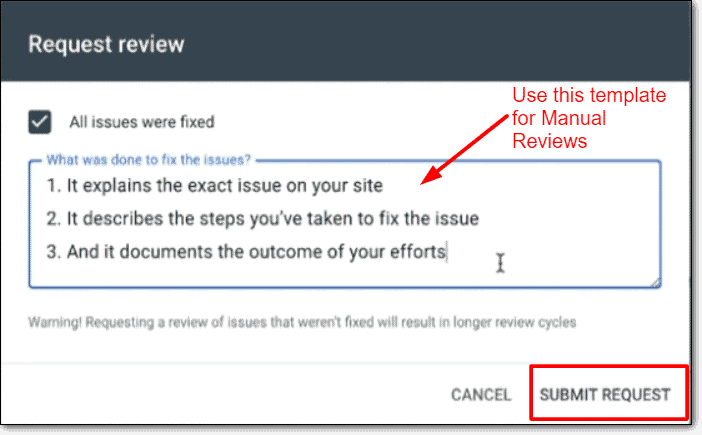
Your explanation should be specific and descriptive. For example, if you had a “deceptive site ahead” warning, you need to talk about how you identified it, cleaned it and how you monitored it.
Then, Google queues your request immediately, showing “Review requested” status in Search Console. Within 24–48 hours, Google’s automated systems rescan your site, and if everything remains clean, warnings often disappear automatically.
For complex cases, human reviewers manually check your site between 48-72 hours for final approval. If warnings persist beyond 72 hours, Google likely found remaining malware. Scan your site thoroughly and submit another review request.
Prevent future Google blacklisting
While a Google blacklist check is easy to fix, you should never be in a situation to need it again. Building strong defenses prevents most blacklisting scenarios before they start. These proactive measures protect your site’s reputation, traffic, and revenue from security threats that trigger Google’s warnings.
- Replace Default Administrator Credentials: Most hackers target the standard “admin” login first since it’s predictable across millions of websites. Change new WordPress administrative credentials using an unexpected username like your company name or a creative identifier, then permanently remove the original admin profile to eliminate this common attack vector.
- Activate Multi-Factor Authentication: Layer an additional security step beyond passwords by requiring users to verify their identity through their mobile device or authenticator app. This two-factor authentication system ensures that stolen passwords alone can’t compromise your website since attackers would need physical access to the secondary device.

- Configure Automated Lockout Protection: Set your system to automatically lockout unsuccessful login attempts . This is an excellent way to stop brute force attacks that try thousands of password combinations.
- Remove unused plugins and themes: Unused plugins and themes create security holes without providing any benefit to your site’s functionality. Eliminate all inactive extensions, including WordPress’s default themes that you’ve never customized, since these forgotten components often contain unpatched vulnerabilities.
- Maintain Current Software Versions: Regular WordPress updates to your core, plugins and themes will provide security fixes. This will close newly discovered vulnerabilities. While updates sometimes cause temporary issues, the security patches they contain are your primary defense against emerging threats.
- Install firewalls: Web application firewalls examine incoming requests and block suspicious activity before it can interact with your website’s files. Quality security solutions like MalCare automatically configure this protective barrier during installation, creating an invisible shield around your site.
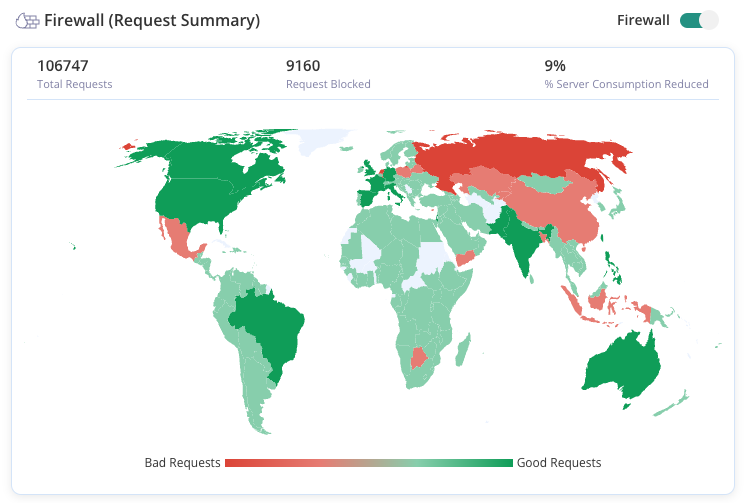
- Implement regular scanning: Choose monitoring software that performs daily vulnerability scans and immediately alerts you to potential compromises. Early detection allows you to address security issues within hours rather than discovering them weeks later through traffic drops or customer complaints.
- Conduct Regular Account Reviews: User profiles with elevated permissions can become forgotten backdoors. For example, previous employees, contractors, or collaborators retain access after their involvement ends. Monthly audits help you identify and remove unnecessary accounts.
Final advice on Google blacklist checks
Running a Google blacklist check should be part of your response to any suspicious website activity. However, treating blacklist checks as emergency diagnostics means you’re already fighting an uphill battle against reputation damage. The smarter approach is proactive protection through a quality security plugin like MalCare. It will monitor your site continuously, blocking malicious traffic, scanning for security issues, and alerting you to threats before they escalate into blacklisting scenarios.
FAQs
Google’s Safe Browsing Transparency Report (transparencyreport.google.com/safe-browsing/search) is the most reliable tool since it’s Google’s official blacklist database. For comprehensive checking, combine it with Google Search Console’s Security Issues tab if you own the site, plus third-party scanners like MalCare or Sucuri that check multiple blacklist databases simultaneously. This three-tool approach catches issues that single tools might miss.
Enter your website URL into Google’s Safe Browsing checker at transparencyreport.google.com/safe-browsing/search—if it shows “No unsafe content found,” you’re clean. Also check Google Search Console under Security & Manual Actions for any security warnings, and search for your site in Google to see if results show “This site may be hacked” warnings. Browser warnings when visiting your own site are another clear indicator of blacklisting.
First, completely clean all malware from your site using a security plugin like MalCare, professional cleaning service, or manual removal. Once your site is genuinely secure, request a review through Google Search Console by going to Security & Manual Actions → Security Issues and clicking “Request a Review.” Explain specifically what you fixed and what prevention measures you’ve implemented. Google typically responds within 48-72 hours if the cleanup was thorough.
Use Google’s Safe Browsing tool for Google’s official status, check Google Search Console’s Security Issues section if you’re the site owner, and run your URL through third-party scanners like MalCare or Sucuri that check multiple blacklist databases including Norton, McAfee, and other security vendors. Testing different URL formats (with and without www) ensures comprehensive coverage since they can have different blacklist statuses.
Look for warning signs like sudden traffic drops (70%+ overnight), browser security warnings when visitors try to access your site, “This site may be hacked” labels in Google search results, or security alerts in Google Search Console. Then confirm by running the three-tool check: Google Safe Browsing, Google Search Console, and a third-party scanner. Multiple tools ensure you catch blacklisting across different security databases, not just Google’s.