

Figuring out your WordPress DNS settings is an essential part of completing a WordPress migration. It’s the final step that connects your domain name to your site’s new location. It makes sure visitors can find you without any issues.
But dealing with technical terms like nameservers and A records can feel confusing. All you want to do is get your site back online, not researching the alphabet soup of DNS record types. This guide breaks everything down into simple, actionable steps. We’ll explain what you need to do without the confusing jargon.
The process of changing your domain name is incomplete without a basic understanding of WordPress DNS. They are the core records that connect your domain to your host, directing traffic for your website and managing email delivery.
What is DNS and Why Does it Matter for WordPress?
The migration checklist is coming to an end. It’s now time to understand WordPress DNS. You’ve bought a domain and signed up for hosting, but your site isn’t showing up. This happens because your domain name (the address) doesn’t know where your website’s files (the house) are located. DNS, or the Domain Name System, is the bridge that connects them.
Think of it as the internet’s phonebook. It translates a human-friendly domain like yourwebsite.com into a computer-friendly IP address like 192.168.1.1. If these settings are wrong, browsers can’t find your server. For your visitors, that means your site simply doesn’t exist. Getting it right is non-negotiable.
Where Do I Manage My WordPress DNS?
The biggest headache with WordPress DNS settings comes from not knowing where to change them. The answer depends on understanding two different services you’ve likely paid for.
- Your Domain Registrar: This is the company where you bought your domain name. Think GoDaddy, Namecheap, or Google Domains. They are the official keepers of your address.
- Your Web Host: When you choose a web host, your WordPress website’s files are physically stored with them. Think Hostinger, WP Engine, or Bluehost. This is where the house is built.
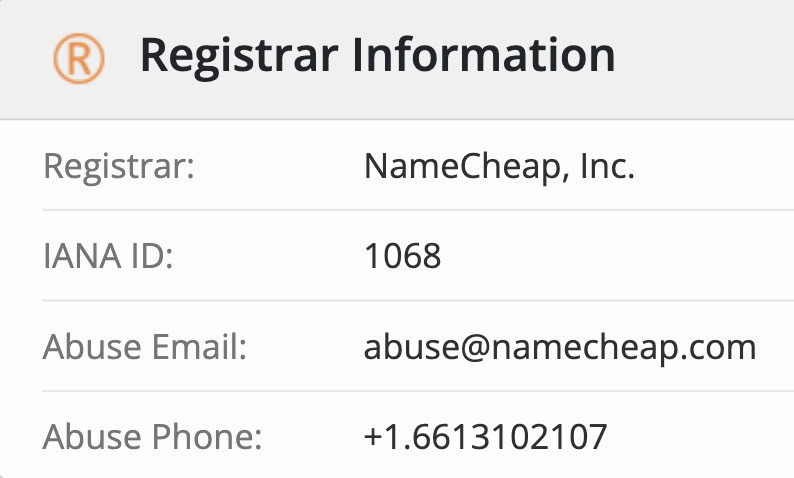
Your DNS records are managed wherever your nameservers are pointing. By default, your domain registrar manages them. But when you connect your domain to a host, you often tell the registrar to let the host take over. If you’re unsure, you can use the who-is lookup to find out who your registrar is.
How to Point Your Domain to WordPress?
Once you know who’s in charge, you can point the domain to WordPress. There are two standard ways to do this. One is simple and recommended for nearly everyone, while the other offers more control for specific setups.
Method 1: Changing Your Nameservers (Recommended for Beginners)
This is the easiest and most common way to get your site online. You are essentially telling your domain registrar, “Hey, let my web host handle all the directions from now on.” All your DNS records will then be managed from your hosting control panel.
- Find Your Host’s Nameservers: Log in to your web hosting account. Your host will provide you with at least two nameservers, which look something like ns1.yourhost.com and ns2.yourhost.com. They are usually in your dashboard or a welcome email.
- Log in to Your Domain Registrar: Go to the website where you bought your domain name and log in.
- Update the Nameservers: Find the domain management or DNS section. There will be an option to edit or change nameservers. Replace the existing ones with the new WordPress nameservers you copied from your host.
- Save and Wait: Save your changes. Any future DNS changes, like setting up email, will now be done at your host.
Method 2: Changing Your A Record (Advanced)
This method is for when you want to keep your DNS management at your domain registrar. This is common if you have complex services like a separate email provider already configured there. Instead of handing over all control, you are just telling the registrar the specific IP address of your web server.
- Find Your Host’s IP Address: Log in to your hosting account and find your website’s IP address. This is your WordPress A record value. It’s a series of numbers like 192.168.1.1.
- Open Your Registrar’s DNS Editor: At your domain registrar, navigate to the DNS Zone Editor or Advanced DNS settings.
- Edit the A Record: Look for an existing “A” record for your root domain (often represented by an “@” symbol). Edit it and paste in the IP address from your host.
- Update the CNAME Record: Ensure the “CNAME” record for “www” points to your root domain (the “@” symbol or yourwebsite.com). This makes sure www.yourwebsite.com also works.
- Save and Wait: Save the changes. Your email and other records at the registrar will remain untouched.
⚠️ Expert Advice ⚠️
DNS hijacking and other WordPress hacks are rampant. So, once you’re all set up, we recommend you install a security plugin like MalCare. The firewall can help protect your site from them.
Understanding the Most Common DNS Records for WordPress
After you change your DNS, you may need to edit specific records, especially for email. Understanding what they do demystifies the whole process and helps you troubleshoot issues with your WordPress DNS.
- A Record: The Address record. This is the most important one. It points your domain name to your server’s IP address.
- CNAME Record: The Canonical Name record. This forwards a subdomain to another domain. The most common use is making www.yourwebsite.com point to yourwebsite.com.
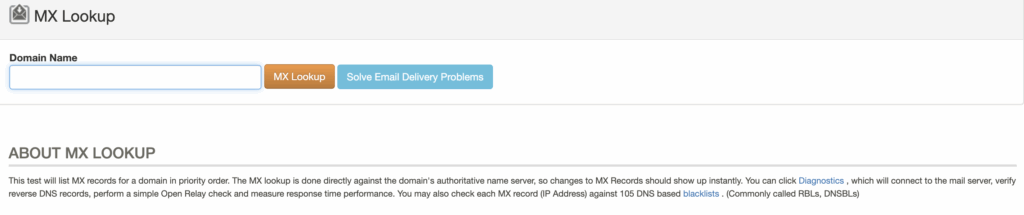
- MX Record: If your WordPress email stops sending after a site migration, incorrect WordPress MX records are almost always the culprit. The Mail Exchanger record. This is critical for email. It tells the internet where to deliver emails sent to your domain (e.g., you@yourwebsite.com). Use a tool like MX Toolbox to review it.
- TXT Record: The Text record. This is a general-purpose record used to store text information. It’s commonly used to verify domain ownership with services like Google Search Console or for email security protocols like SPF and DKIM.
Troubleshooting Common WordPress DNS Problems
It’s incredibly frustrating when you change WordPress DNS and your site still doesn’t appear. Don’t panic. The internet needs time to catch up, and the issue is usually one of three things.
- My site isn’t loading after I changed the DNS: Wait for propagation. It can take anywhere from a few minutes to 48 hours for DNS changes to be updated across the globe. This waiting period is called WordPress DNS propagation. You can use a tool like DNS Checker to see your progress worldwide. Don’t keep making changes; just give it time.
- I see my old website or a hosting placeholder page: Clear your cache. Your computer and browser often store old DNS information to speed things up. Clear your browser’s cache first. If that doesn’t work, you may need to flush your operating system’s DNS cache.
- My email stopped working: WordPress issues like emails not working can be fixed by checking your MX records. If you used Method 1 and changed your nameservers, you moved your entire DNS management to your new host. This includes your email records. You must copy the MX records from your email provider and add them to the DNS editor in your new hosting account.
Final Thoughts
While “DNS” can sound intimidating, it’s simply the crucial link between your domain name and your WordPress website. For most users, the process is as simple as copying your host’s nameservers and pasting them into your domain registrar’s settings. Once you understand that your registrar manages the name and your host manages the site, you can confidently direct traffic to the right place.
As a side note, we recommend that you install a security plugin like MalCare for security. Security issues like DNS hijacking can be very dangerous. You need a robust firewall like MalCare to protect your site.
FAQs
FAQs
DNS, or Domain Name System, acts as the internet’s address book for your WordPress site. It translates your user-friendly domain name (e.g., yourwebsite.com) into a computer-readable IP address, allowing browsers to locate and load your website’s files from your web host.
DNS servers like 9.9.9.9 (Quad9) or 8.8.8.8 (Google) are public DNS resolvers. These are settings for your personal computer or home network, not for your website’s configuration. They can offer faster and more secure internet browsing for you, but they are not part of setting up or managing your own website’s DNS records.
You can find and manage your WordPress DNS settings in one of two places:
At your domain registrar (like GoDaddy or Namecheap), if your domain still uses their default nameservers.
At your web host (like Hostinger or WP Engine), if you have pointed your domain’s nameservers to your hosting provider.
You do not apply 8.8.8.8 to your website’s DNS records. 8.8.8.8 is a public DNS resolver that you would configure in your computer’s or router’s network settings to change how your own devices look up websites on the internet. It has no effect on how other people access your WordPress site.


