
One click should usually be enough to: save the post, submit the form, update the setting, and finish checkout. Instead, WordPress refuses the request and shows: WordPress Request Nonce Is Expired.
That wording is awful if you don’t already know what a WordPress nonce is. It sounds like WordPress found a security problem. In most cases, it hasn’t.
WordPress is just saying, “I can’t trust this request anymore,” usually because the page, login session, cache, or plugin request got stale while you were working.
Copy anything unsaved, refresh the page, sign back in if WordPress asks, and try the action again. If the error keeps coming back, look at the browser or site cache, login sessions, REST or AJAX requests, and the plugin or custom code behind the broken action.
Protect your site
Don’t refresh the page yet if you have anything you haven’t saved.
That’s the part most quick-fix guides skip, and it’s exactly where people get burned. Refreshing often renews the nonce, but it can also throw away a half-written post, a long form response, or a settings screen you just spent 20 minutes filling out. Before you troubleshoot, do this:
- Copy the content you were trying to save: Put post text, form answers, product descriptions, or settings notes somewhere outside WordPress.
- Preserve block editor changes before reloading: Select the edited blocks and copy them, or copy the whole post if you’re not sure what changed.
- Capture settings that are hard to recreate: Take a screenshot of plugin settings, checkout settings, form rules, or anything with toggles and dropdowns.
- Use autosave recovery only after the reload: If WordPress offers a recovery version after you refresh, review it before accepting so you don’t overwrite newer work.
Once the work is safe, refresh the screen. If WordPress sends you to the login page, sign in again from the same browser and repeat the action. If the page had simply been sitting open too long, that may be the entire fix.
What WordPress is rejecting
A WordPress nonce is a temporary security value attached to an action. WordPress uses it on forms, admin screens, editor saves, and plugin actions to check whether the request still fits the current user, session, action, and time window. The name is a little misleading.
In WordPress, a nonce isn’t strictly “used once.” The same value can pass more than one check during its valid window. By default, WordPress checks nonces against two 12-hour ticks, so the expiry can land soon after the 12-hour mark or closer to a full day.
The useful version is simpler: the page can still look current while the hidden security value behind it is too old or no longer matches your session.
That’s why this error often appears after:
- Leaving an editor or form open for hours: The visible page is still there, but the hidden nonce has aged out.
- Logging out, switching users, or changing passwords: The old page may still be open, but your session has changed.
- Loading a cached page with yesterday’s security value: A cache layer can serve old form markup to a new visitor.
- Using a plugin screen with broken request handling: The plugin may generate, store, or verify the nonce incorrectly.
- Saving through REST or AJAX while something blocks the request: The editor, a form, or a checkout flow may fail with a less obvious message.
The error is annoying, but the check itself is good. WordPress is refusing to act on a request it can’t verify.
How the problem may appear
You may not see the exact phrase every time. Depending on the plugin, browser request, or WordPress screen, the same family of problems can show up as:
- The request nonce has expired
- Nonce check failed
- Invalid security nonce
- Security check failed
- Cookie nonce is invalid
- rest_cookie_invalid_nonce
- Updating failed
- 403 Forbidden
The wording matters, but the pattern matters more. WordPress, a plugin, or a security layer doesn’t trust the request that arrived.
I wouldn’t treat that as a hacked-site warning by default. I also wouldn’t disable nonce checks to make the message disappear. That’s taking out the guardrail because it got in your way once.
Fixing it safely
Use this order when you’re not sure what caused the error. These fixes don’t change site code or plugin settings.
- Refresh the stale screen after saving your work elsewhere: Reload the page so WordPress can generate a fresh nonce for the current session.
- Sign back into WordPress in a clean session: Log out, close old WordPress tabs, log in again, then try the same action from a fresh dashboard screen.
- Retry in a private browser window: This quickly tells you whether the problem is tied to your normal browser cookies, extensions, or cached files.
- Clear only this site’s browser data: Remove cookies and cache for the affected domain instead of wiping your whole browser history.
- Try a second browser or device: If the error only happens in one browser, local browser state is the strongest suspect.
- Ask another logged-in user to test the same action: If everyone sees it, stop blaming your laptop and move to cache, plugin, or server behavior.
If this fixes the error and it doesn’t return, you probably had an old page or expired login session. There’s no need to dig into code for a one-off failure. If it returns, the next job is to find where the stale value is coming from.
Find the screen that is failing
Don’t start by changing broad settings. Start by naming the exact action.
“WordPress gives a nonce error” is too vague to troubleshoot. “The contact form fails for visitors after Cloudflare cache has been warm for a few hours” is useful. So is “the block editor shows Updating failed after I leave a post open all afternoon.”
When it happens in the block editor
The block editor saves through the WordPress REST API. When its nonce or session state is wrong, WordPress may show Updating failed, 403 Forbidden, Cookie nonce is invalid, or rest_cookie_invalid_nonce instead of the phrase you searched for.
Start with the practical recovery:
- Copy the post before touching the page: Include the title, excerpt, custom fields, and any block content you edited.
- Refresh the editor and sign in again if prompted: This gives the REST request a fresh nonce and session.
- Watch whether autosave recovers the right version: If WordPress offers a recovery prompt, compare it with what you copied.
- Check the browser Network panel if it fails again: Look for failed requests containing
wp-jsonand note the status code and message.
If the editor only fails after long idle periods, you may just be hitting the nonce window. If it fails immediately on a fresh login, look at security plugins, REST API blocking, and custom code before you blame idle time.
When it happens on a public form, cart, or checkout
Move cache much higher on the list.
Public pages often contain hidden security values too. Contact forms and checkout flows are the obvious examples, but account areas and membership screens can depend on fresh nonce values as well. Full-page cache is great for ordinary marketing pages. It’s a bad fit when it freezes user-specific action markup and keeps serving it after the nonce has expired.
A common pattern looks like this: you purge cache, the form works, then the same error returns later. That doesn’t mean the purge failed. It usually means the page is being cached again with a nonce inside it.
Fix the cache rule that keeps serving the old page.
- Exclude action-heavy pages from full-page cache: Login, account, checkout, cart, lead forms, membership pages, and custom dashboards are the usual candidates.
- Purge the cache stack from WordPress outward: Clear the cache plugin, host cache, CDN cache, and any optimization layer that rewrites scripts or HTML.
- Test as the affected user type: A logged-out visitor, customer, admin, and member may receive different markup.
- Ask about dynamic nonce refresh if your cache stack supports it: Some setups can keep the page cached while refreshing the nonce separately, but it has to be configured correctly.
Don’t lower cache settings across the whole site as your first move. Fix the page or action that’s failing.
When it happens on one plugin screen
Begin with the plugin that owns the action.
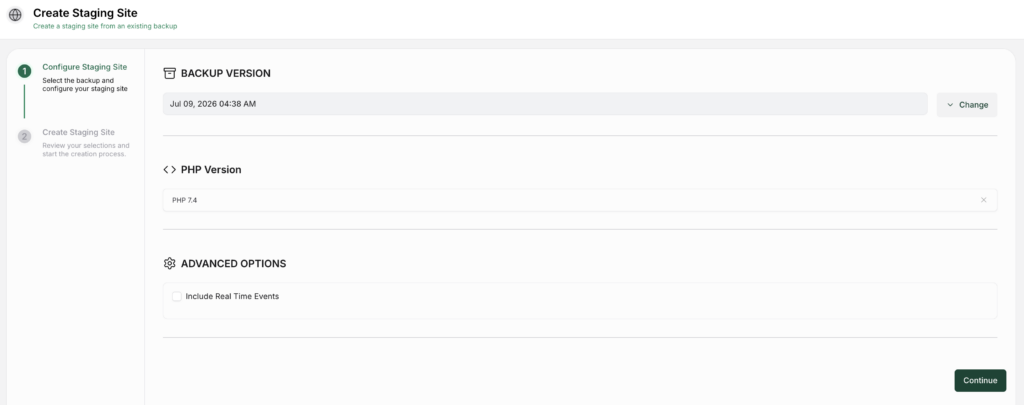
A form error points first to the form plugin. A checkout error points first to the store flow. A page builder error points to the builder and its add-ons. After that, check the tools wrapped around the request. Script optimization, session handling, firewall rules, and cache are the usual places to look.
Use staging if the site earns money, collects leads, has members, or has multiple people working in it. Deactivating plugins on a live site can turn one error into three.
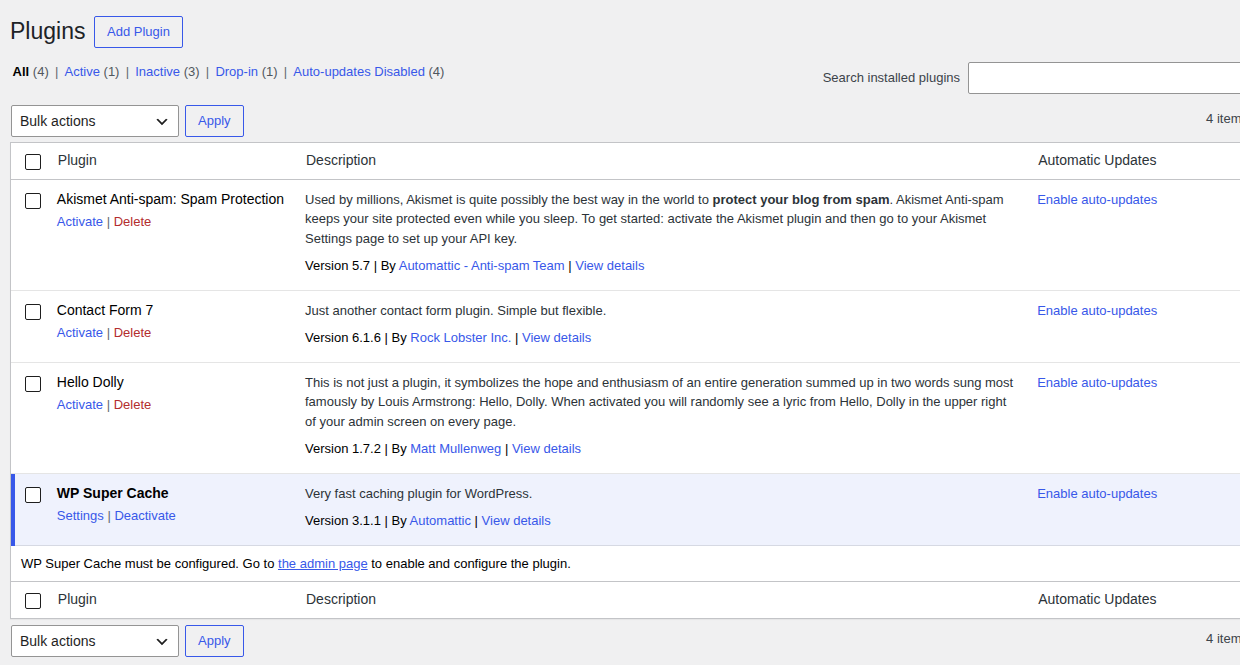
- Test the owning plugin with cache temporarily bypassed: If the error disappears, the plugin may be fine and the cached page may be stale.
- Disable nearby optimization or security features on staging: Script delay, JS combining, REST blocking, aggressive firewall rules, and login hardening can all affect nonce-protected requests.
- Reproduce the error after recent updates: If the timing lines up with a plugin, theme, or CDN change, test that change first.
- Switch themes only on staging: A default theme test can tell you whether the active theme is interfering with the request.
If disabling a plugin makes the error disappear, don’t stop at “bad plugin.” Check its settings, changelog, support notes, and how it behaves with your cache setup.
Clear the right cache
Cache is the repeat offender because it can preserve old HTML long after the security value inside that HTML has gone bad. Clear it in layers:
- Clear browser cache and cookies for this site: This handles old local files and mismatched login cookies.
- Purge your WordPress cache plugin: Do this from the plugin’s own controls, not just the browser refresh button.
- Purge host-level cache: Many managed WordPress hosts add cache outside the plugin list.
- Purge CDN or reverse-proxy cache: Cloudflare and similar services can be involved even when WordPress has no cache plugin active.
- Retest with optimization features paused: Script delay, minification, service workers, and HTML rewriting can keep old request behavior around.
If clearing cache fixes the issue once, write that down. If the error returns after the cache rebuilds, write that down too. That pattern is one of the clearest signs that a nonce-bearing page needs an exclusion or a dynamic-refresh setup.
Check the login session
Nonces are tied to session state. If your session changes while an old page stays open, the next request from that page can fail even though the screen still looks normal. Common triggers include:
- Logging out in another tab: The old editor or settings page won’t always know immediately.
- Changing a password or resetting a user account: The old session may no longer match.
- Switching users or using SSO: The page may have been loaded under a different session than the one submitting the action.
- Blocking cookies: Privacy tools and browser settings can break the WordPress session cookie link WordPress uses to recognize you.
- Leaving a page idle for a long time: Long writing sessions, settings work, and abandoned checkout tabs are classic cases.
The clean test is boring, but it works:
- Save anything that isn’t already saved: Copy text, export settings if possible, or take screenshots.
- Log out and close old tabs: Don’t leave three stale dashboard screens open in the background.
- Log in again and go directly to the same task: Avoid restoring the old tab if you can.
- Repeat the action once from the fresh screen: If it works, the old session was the issue.
For a single admin or editor, this is usually enough. For recurring errors across many users, look at login/session plugins, SSO settings, cookie rules, and cache.
Look at REST and AJAX clues
You don’t need to be a developer to collect the clue that saves a lot of guessing. Open your browser’s developer tools and switch to Network. Repeat the failed action. You’re looking for a request that fails at the same moment the error appears.
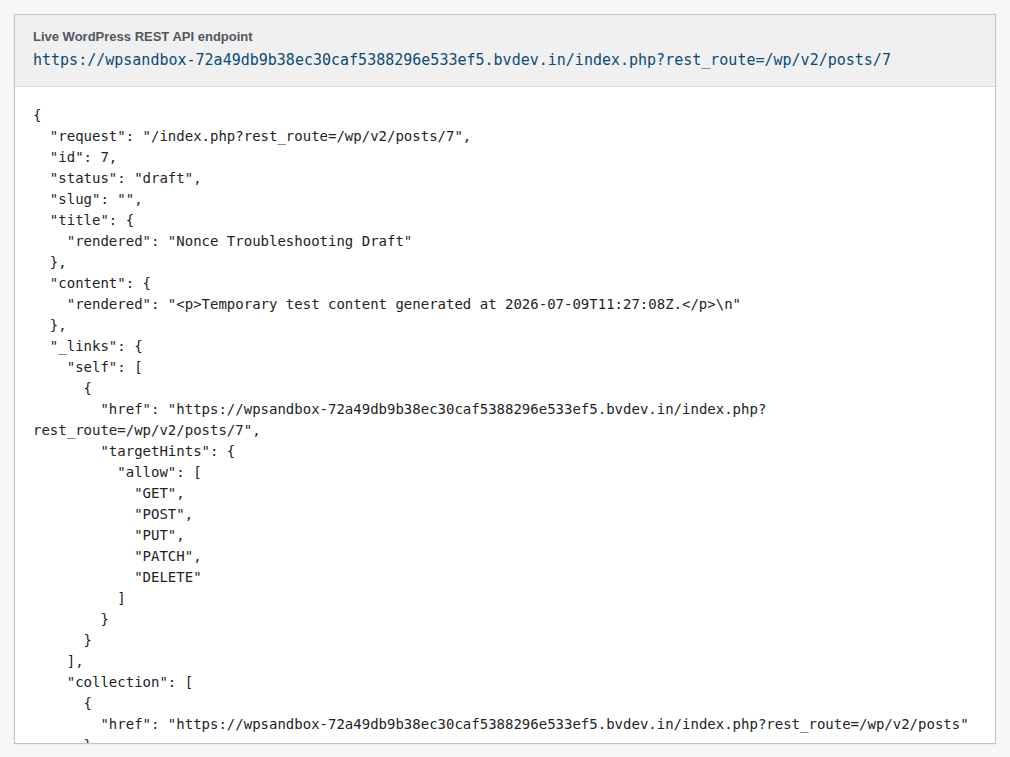
Useful things to capture:
- The request URL that failed: Look for wp-json, admin-ajax.php, admin-post.php, or a plugin endpoint.
- The status code WordPress returned: 401 and 403 are especially useful here.
- The exact error message in the response: rest_cookie_invalid_nonce means more than a generic “failed.”
- The screen and action you were using: Saving a post, submitting a form, applying a coupon, changing plugin settings.
- Whether it happens after waiting or immediately: Timing separates stale-state problems from configuration problems.
Send that screenshot to your developer, host, or plugin support. “Saving a post returns 403 rest_cookie_invalid_nonce after the editor sits open for two hours” is a real diagnostic sentence. “Nonce error” is a fog.
Treat custom code carefully
If a developer recently added custom code, a custom form, a REST endpoint, or an admin screen, ask them to review the nonce flow. Good WordPress code has two separate checks:
- Verify the request nonce for the right action: The nonce should be created with wp_create_nonce and checked with wp_verify_nonce against the same action name and context.
- Check the user’s permission separately: A valid nonce doesn’t grant permission by itself. Capability checks still matter.
Long-lived screens need extra care. A frontend form, dashboard, or admin tool that sits open for hours may need a safe way to refresh the nonce before submission. If that page is cached, the code also has to assume the original HTML may outlive the security value it contains.
The bad fix is skipping verification. The right fix is making sure WordPress receives a current value for the right action from the right user.
Don’t start by extending nonce life
Developers can adjust nonce duration with WordPress’s nonce_life filter, but this shouldn’t be the first fix.
It can help in a narrow case: long admin tasks where people reasonably keep a screen open and the site otherwise handles cache, sessions, and requests correctly. Used broadly, it can hide the actual problem. A cached form can still go stale. If a plugin checks the wrong action, extra hours won’t rescue it. The same goes for a broken session flow.
If you do consider it, keep it with a developer and test it on staging. Don’t paste a snippet into a live site because one form annoyed you.
Check server time only when the signs fit
Server time can affect nonce timing, but it’s not where I’d start on normal managed WordPress hosting.
Check it later if several nonce-protected actions fail at once, the site was recently migrated, scheduled posts or cron jobs look wrong, or the site runs on a self-managed VPS. The timezone in WordPress settings controls dashboard dates; nonce validation depends on the server’s clock.
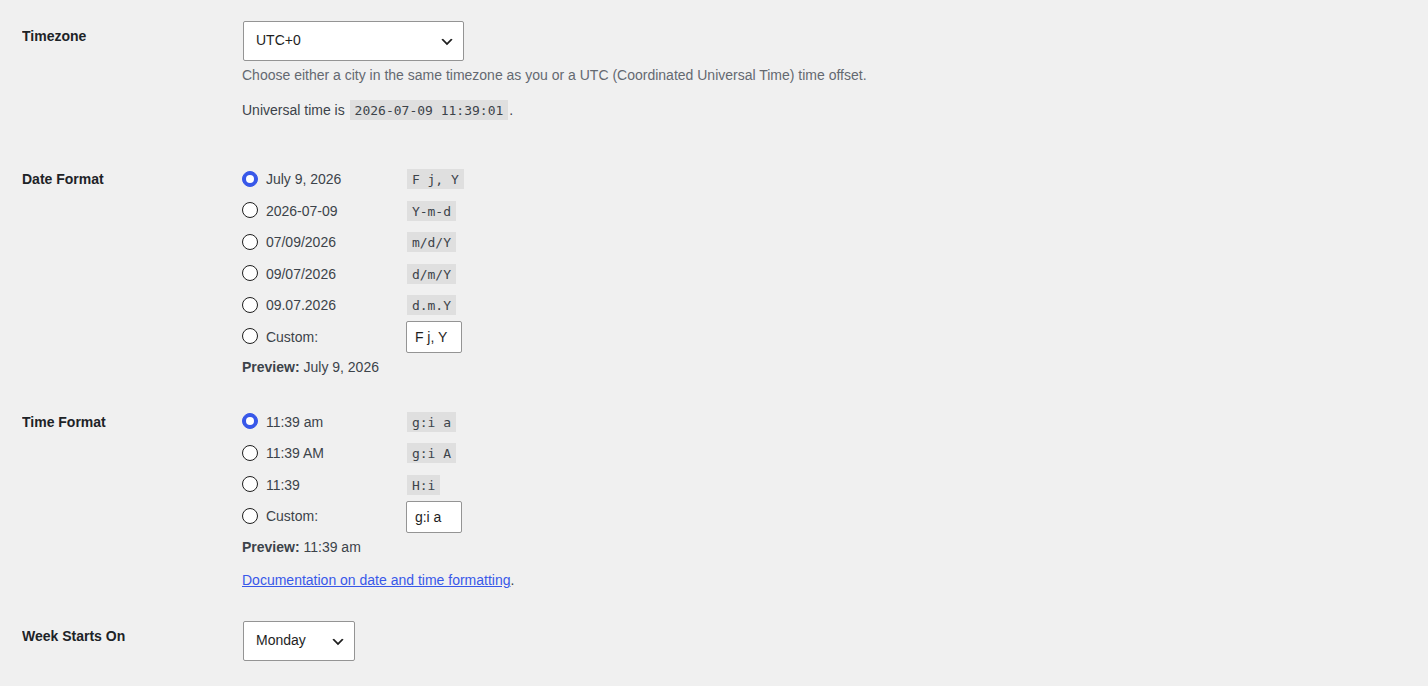
If this looks likely, ask your host to verify that the server time is synchronized. You shouldn’t have to solve that from the WordPress dashboard.
Use logs when the error keeps coming back
If the error survives the basic fixes, logs can show where the refusal is happening.
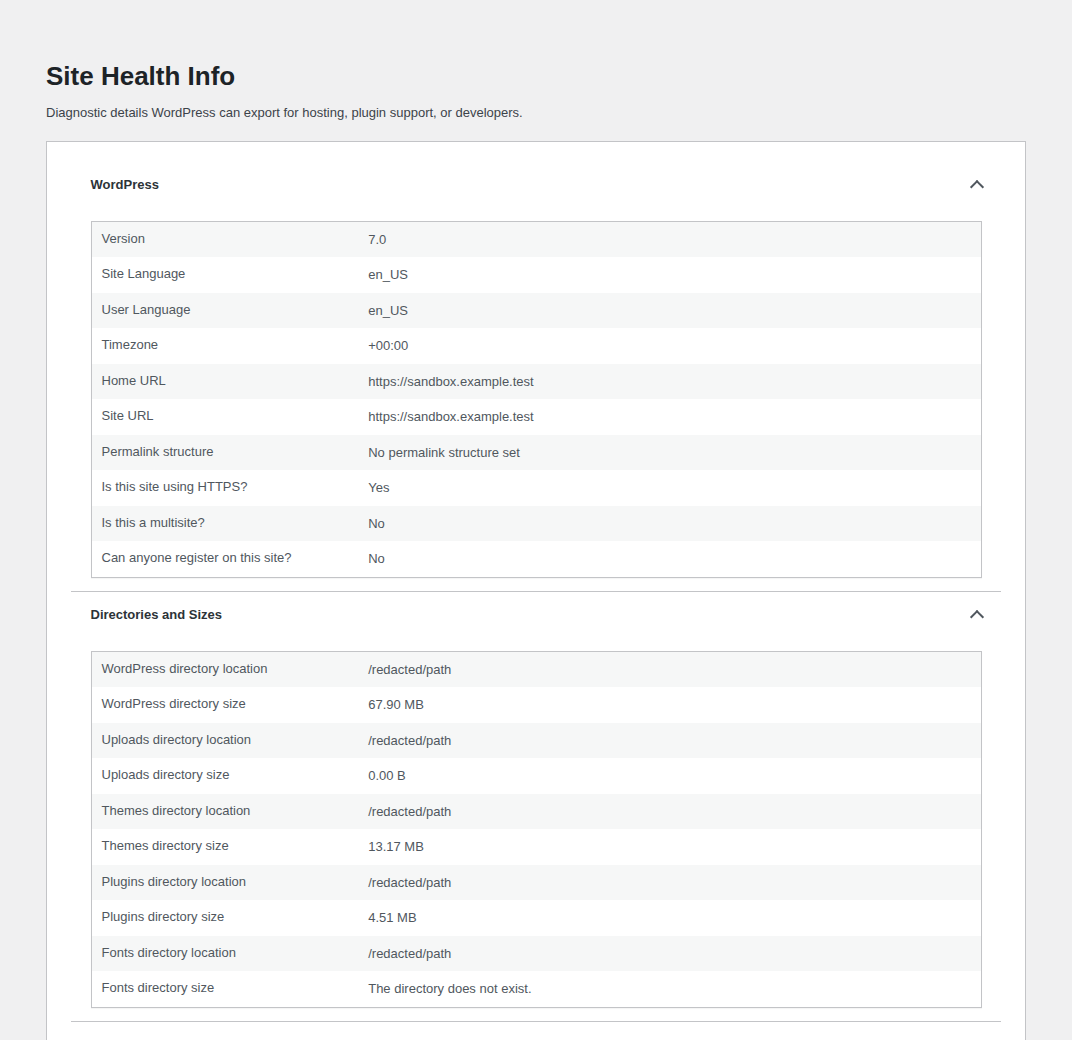
Start with the browser Network panel because it captures the failure as it happens. Then check the logs that match the failing layer:
- Hosting error logs for server-side failures
- WordPress debug logs on staging, with public display turned off
- Security plugin logs for blocked REST, AJAX, login, or form requests
- CDN or firewall events for cached or challenged requests
- Plugin logs for the exact feature that failed
Keep the question narrow. Did WordPress reject the security value? Did a plugin throw the message itself? Or did a cache, CDN, or firewall layer interrupt the request before WordPress handled it?
Prevent the repeat version
Once the action works again, fix the layer that made it stale. Otherwise you’re just resetting the timer. For most WordPress sites, prevention comes down to a few habits:
- Keep nonce-heavy pages out of full-page cache: Login, account, cart, checkout, forms, membership areas, and custom dashboards often need fresh request values.
- Make browser and CDN rules respect logged-in or action pages: Don’t serve the same cached form to everyone if the form depends on user/session context.
- Keep WordPress core, themes, and plugins current on a schedule: Updates often fix compatibility issues around REST, sessions, and plugin request handling.
- Test risky updates on staging first: Especially cache, security, checkout, form, membership, and page builder updates.
- Avoid blocking WordPress cookies, REST API, Heartbeat, or admin AJAX casually: Those pieces may be part of the save, autosave, login, or form flow.
- Ask developers to test with cache enabled: A form that works uncached can still fail once the real cache stack is turned on.
- Maintain backups before big changes: Restoring from backup is too heavy for a single expired nonce, but it matters if a bad update breaks multiple workflows at once. BlogVault’s WordPress backup guide is a practical next step if backups are the weak link.
MalCare doesn’t renew expired nonces, and it’s better not to think of it that way. It sits in the broader security layer: scanning for malware, filtering bad traffic, watching plugin vulnerabilities, and protecting logins. That background matters because ordinary stale-state problems are easier to separate from issues that deserve a deeper security look.
FAQs
What is the fastest fix for WordPress Request Nonce Is Expired?
Copy anything unsaved, refresh the screen, sign back in if WordPress asks, and retry the action. If the message returns, clear this site’s browser cookies/cache and then purge WordPress, host, or CDN cache.
Is my site hacked?
Usually, no. The normal cause is stale or mismatched request state. Start worrying about compromise only when the nonce error comes with other evidence, such as strange admin accounts, redirects, spam pages, malware warnings, or signs that call for WordPress hacked website recovery.
Why does it come back after clearing cache?
Something may be caching a page that contains an old nonce. If purging cache fixes the action briefly and the error returns later, exclude that page/action from full-page cache or use a cache setup that refreshes the nonce separately.
Why does the editor say Updating failed?
The block editor saves through the WordPress REST API. If the REST nonce expires, your login session changes, or a security/cache layer blocks the request, WordPress may show Updating failed instead of a clearer nonce message.
Should I disable nonce checks?
No. Nonce checks are part of WordPress CSRF protection for sensitive actions. Refresh the stale page or session first. If the error keeps happening, work through cache rules, the responsible plugin, blocked REST/AJAX requests, and any custom code tied to that action.
Conclusion
The WordPress request nonce is expired error is WordPress refusing a request that no longer looks current. That’s frustrating when you’re trying to save work, but it’s also the protection doing its job.
Start by saving your work and refreshing the stale page. If that doesn’t hold, trace where the stale value could be coming from. Begin with the browser and login session. Then move through cache, REST/AJAX requests, plugins, custom code, Error logs, and finally server time. Keep the nonce check in place. Fix the layer feeding WordPress the old request.