By the time wp_verify_nonce shows up, your WordPress code is usually about to do something that matters.
A form may save a setting. A link may delete an item. An AJAX request may update data without reloading the page. Or maybe you copied a snippet, hit a nonce error, and now you’re trying to fix it without making the site less safe.
That’s a good place to slow down. wp_verify_nonce earns its place in WordPress security, but people often ask it to do too much. It checks whether a request belongs to the WordPress action you expected. It doesn’t answer the access question for you.
wp_verify_nonce** checks a submitted WordPress nonce against the expected action, user session, and time window. Use it to reduce CSRF risk, then still check permissions with current_user_can or a REST permission check.
My working rule is simple: a nonce checks intent, while a permission check controls access. You’ll usually need both.
What wp_verify_nonce does
wp_verify_nonce is a WordPress function that checks the security token submitted with a request. WordPress creates that token for a named action, then checks it during submission. If the value fits the action, the user session, and the current time window, WordPress accepts it as valid. That’s the whole job.

That helps protect actions like these:
- Saving an admin form: confirms the save request came from the form flow you created.
- Using an action URL: helps protect links that delete, update, approve, or publish something.
- Handling AJAX requests: checks requests sent by JavaScript, which is code running in the browser.
- Running custom handlers: lets you choose your own error message or response when the nonce fails.
The function returns:
| Result | Meaning |
|---|---|
| 1 | The nonce is valid in the current WordPress time block. |
| 2 | The nonce is valid in the previous WordPress time block. |
| false | The nonce is missing, expired, invalid, or tied to another action. |
Most handlers treat 1 and 2 as valid. If the result is false, stop the action. You may see the valid results described as “0 to 12 hours” and “12 to 24 hours.” That’s close enough for most debugging, but WordPress uses time blocks called ticks, so the real lifetime can vary within that range. Don’t use the return value as a strict timer for something sensitive.
🕒 Note: If an action needs a hard deadline, store your own expiry time and check it separately. The nonce only tells you whether WordPress still accepts the request token.
What problem it helps prevent
The main risk is CSRF, short for cross-site request forgery. Put plainly, another site tries to make a logged-in user’s browser send a request the user did not choose.
Picture a WordPress admin who is already logged in. If your plugin has a weak settings handler, another site could try to trigger that handler through the admin’s browser. The browser may send the admin’s login cookies with the request, so your site may see a request from a real logged-in user.
A nonce makes that attack harder because the attacker also needs the right token for the exact action. That’s why the action name matters.
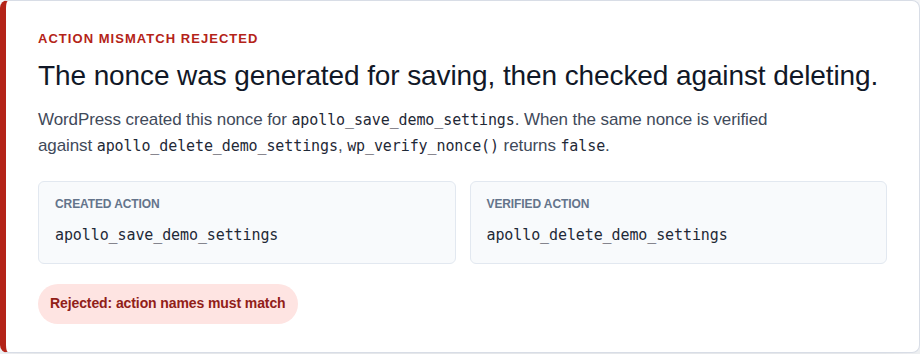
Use action names that describe the real action:
- save_plugin_settings for one settings screen.
- delete_custom_item_45 for deleting item 45.
- approve_review_82 for approving review 82.
Avoid vague names like my_nonce. They are easy to reuse by mistake and hard to debug later.
What it does not protect
A passing nonce doesn’t mean the user has access.
This is the most common mistake I see in custom WordPress code, and it can become one of those quiet WordPress security flaws that only show up when a handler is abused. The nonce passes, so the handler saves an option or deletes a record. But the code never asks the important question: should this user be allowed to do that? If the answer is no, a valid nonce should not matter. The request still needs to be rejected.
For admin actions, use current_user_can, which asks WordPress whether the current user has a required permission, such as managing site options. For REST API routes, use a permission_callback, which is the route’s access check.

Keep the checks in this order:
- Reject users without access before doing work: check the user’s permission first.
- Verify the submitted nonce against the exact action: reuse the action name from the nonce creation step.
- Clean and validate submitted values before saving: make sure the data is in the shape you expect.
- Stop on failure instead of continuing: a failed nonce should not lead to a partial save.
🔐 Note: A nonce does not clean form data. If a field accepts an email, URL, number, or setting value, still validate it before you save it.
How to use wp_verify_nonce safely
Start where the action starts. Create the nonce when you render the form, link, or page data. Verify it only after the browser submits the request.
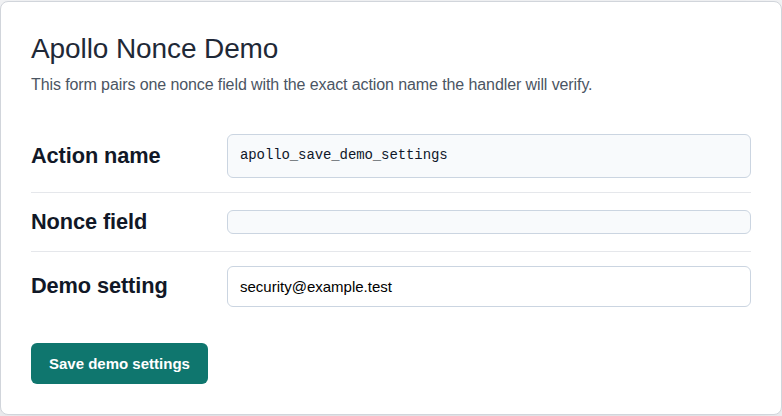
Use the helper that fits the request:
| If you’re protecting | Use |
|---|---|
| Admin form | wp_nonce_field |
| Action URL | wp_nonce_url |
| JavaScript, AJAX, or custom data | wp_create_nonce |
| Standard admin form check | check_admin_referer |
| Standard AJAX check | check_ajax_referer |
| Custom failure handling | wp_verify_nonce |
For a settings form, I’d keep the flow this plain:
- Create the nonce with the form: add it with wp_nonce_field and use a specific action name, such as save_plugin_settings.
- Read the field you created: if the nonce field is named my_settings_nonce, read that field from the form submission.
- Prepare the value before checking it: confirm the field exists, remove added slashes with wp_unslash, and clean it with sanitize_text_field.
- Verify it against the same action name: pass the submitted nonce and save_plugin_settings to wp_verify_nonce.
- Save only after both checks pass: the permission check and nonce check should both pass before anything changes.
Here’s a compact version of that pattern:
if ( ! current_user_can( 'manage_options' ) ) {
  return;
}

$nonce = isset( $_POST['my_settings_nonce'] )
  ? sanitize_text_field( wp_unslash( $_POST['my_settings_nonce'] ) )
  : '';

if ( ! wp_verify_nonce( $nonce, 'save_plugin_settings' ) ) {
  return;
}

// Save the validated setting here.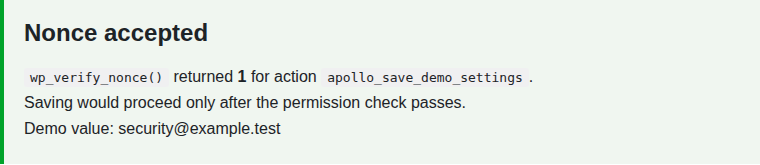
⚠️ Note: Use staging or make a backup before editing theme files, plugin files, or custom snippets. A broken check can block real saves, while a missing check can expose the action.

When another helper is better
You don’t always need to call wp_verify_nonce yourself.
For normal admin forms, check_admin_referer is often cleaner. It checks the nonce and uses WordPress’s standard failure behavior, so you don’t have to write the same failure response again. Use it when the default WordPress error screen is acceptable. For AJAX handlers, check_ajax_referer is usually the better first choice because it checks the nonce sent by JavaScript and can stop the request for you.
Call wp_verify_nonce directly when you need control:
- Return a custom error message instead of the standard WordPress screen.
- Send a JSON response from an AJAX-style handler.
- Log failed checks during debugging or security monitoring.
- Handle a custom request flow where WordPress’s default response would confuse the user.
The name check_admin_referer is old WordPress history. In normal use, the nonce check is the important part. The browser referrer can be missing or unreliable, so don’t treat it as your main security control.
AJAX and REST nonce checks
AJAX uses the same idea, but JavaScript carries the nonce. Create the nonce when the page loads, send it with the AJAX request, and check it in the handler. If it fails, don’t remove the nonce to “fix” the error. Check the simple things first:
- Match the action names on both sides: nonce creation and nonce verification must point to the same action.
- Check the field name: JavaScript must send the same field PHP reads.
- Inspect the browser request: confirm the nonce is actually being sent.
- Clear stale cached pages: old markup can contain an expired nonce.
- Check the user session: logging out, switching accounts, or changing passwords can invalidate the nonce.
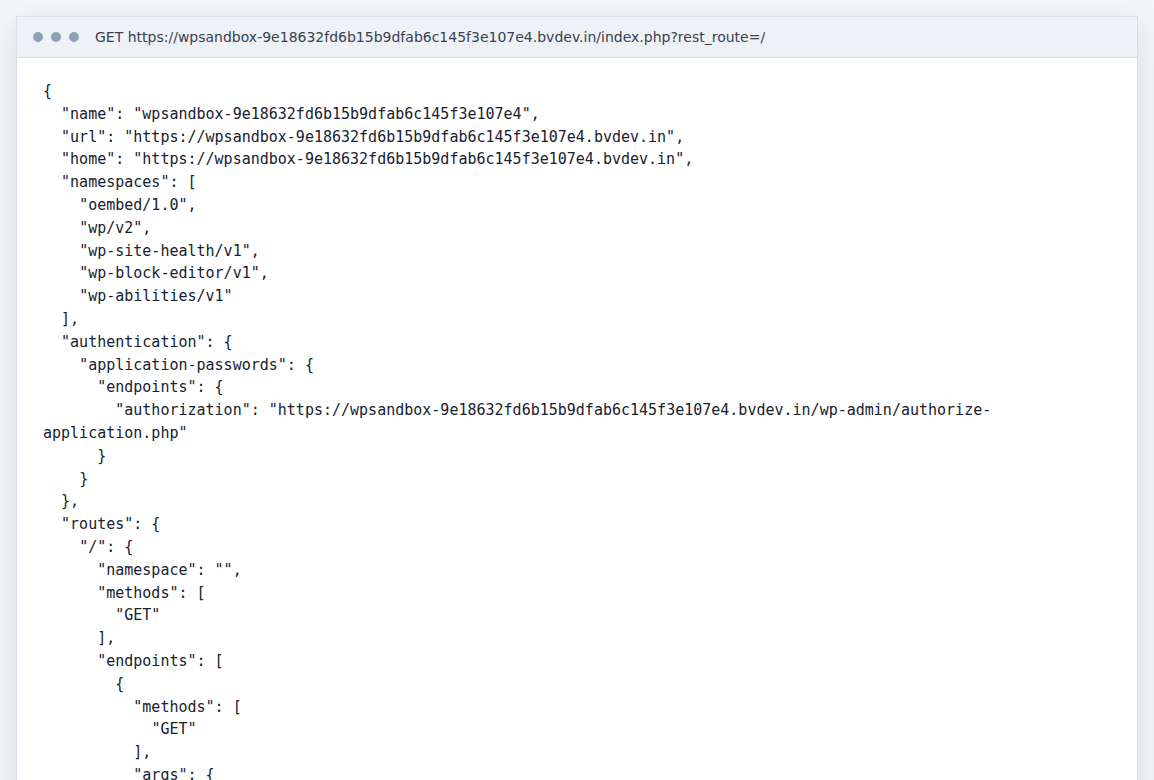
REST API requests are slightly different. When WordPress uses logged-in cookie authentication for REST, the nonce is commonly tied to wp_rest and sent in the X-WP-Nonce header. That helps WordPress trust the request context, but the route still needs its own permission check.
🛠️ Note: Repeated nonce failures usually come from a mismatch, stale cache, missing field, or changed session. Removing the check may make the error disappear, but it also weakens the action.
WordPress nonces are reusable
The word nonce usually means “number used once.” WordPress nonces do not work that way.
A WordPress nonce may pass multiple checks before it expires. That means wp_verify_nonce won’t stop duplicate submissions by itself. If running the same action twice would cause damage, store that state on the server. Mark the job as processed, save a unique request key, or check whether the item has already been changed before running the action again. This matters for imports, bulk deletes, email sends, payments, and any action where a double click can cause real trouble.
Public forms need more than a nonce
WordPress nonces are strongest when the visitor is logged in because WordPress can tie the nonce to that user’s session.
Public forms need a wider plan. Anonymous visitors don’t get the same user-specific protection by default. A nonce can still help, but pair it with validation, spam controls, rate limits, and a WordPress firewall where abusive requests need to be filtered before they reach the form.
If you’re protecting a contact form, signup form, or public submission form, treat the nonce as one check in your WordPress security maintenance checklist. It isn’t the whole defense.
Where MalCare fits

Nonce checks protect one narrow part of WordPress security: whether a request matches the action it claims to perform. They won’t protect you from vulnerable plugins, malware, abused admin accounts, or risky file changes after a site is already exposed.
This is where broader site protection helps. MalCare can scan for plugin and theme vulnerabilities, detect malware, and add protection against threats outside the reach of a nonce check.
I would use MalCare as a security layer around the site so one missed check is not the only thing standing between your WordPress install and a bad request.
Conclusion
wp_verify_nonce checks whether a WordPress request matches the action, session, and time window you expected. Use it for forms, action URLs, AJAX handlers, and custom request flows where you need to confirm that the request came through the path you created.
The safer habit is pairing it with the checks around it. Use specific action names, treat 1 and 2 as valid, stop on false, check permissions separately, and validate submitted data before saving. That’s the difference between adding a nonce because a tutorial said so and using one in a way that actually protects the action.
If you’re testing nonce changes on a live business site, use a WordPress staging workflow first.
FAQs
wp_verify_nonce is a WordPress function that checks whether a submitted nonce matches the expected action and is still valid. It helps confirm that a request came from the WordPress flow you intended.
No. It checks the nonce only. Use current_user_can for admin actions and a REST permission check for custom API routes.
It returns 1 for a nonce valid in the current WordPress time block, 2 for a nonce valid in the previous time block, and false when the check fails.
It often fails because the action name does not match, the field name is wrong, the nonce expired, a cached page served an old nonce, the user session changed, or JavaScript did not send the nonce.
Yes. WordPress nonces can work more than once during their valid window. If an action must only happen once, store that state on the server and check it before running the action again.