

Right after the Save button fails, nonce_failure can sound like a serious WordPress problem. The message is shorter than it should be, and it tells you almost nothing about the request WordPress nonce just refused.
nonce_failure usually means WordPress rejected a security token that was old, missing, cached, or tied to the wrong session. Save your work first. Refresh the page and renew your login. Clear stale caches before you touch plugins, themes, or code.
Most of the time, this isn’t a WordPress site hack. It also isn’t a reason to paste a random snippet into functions.php. WordPress is saying, in its very WordPress way, “I can’t verify this request anymore.” The fix is to give it a fresh request to check.
Save the work before touching anything
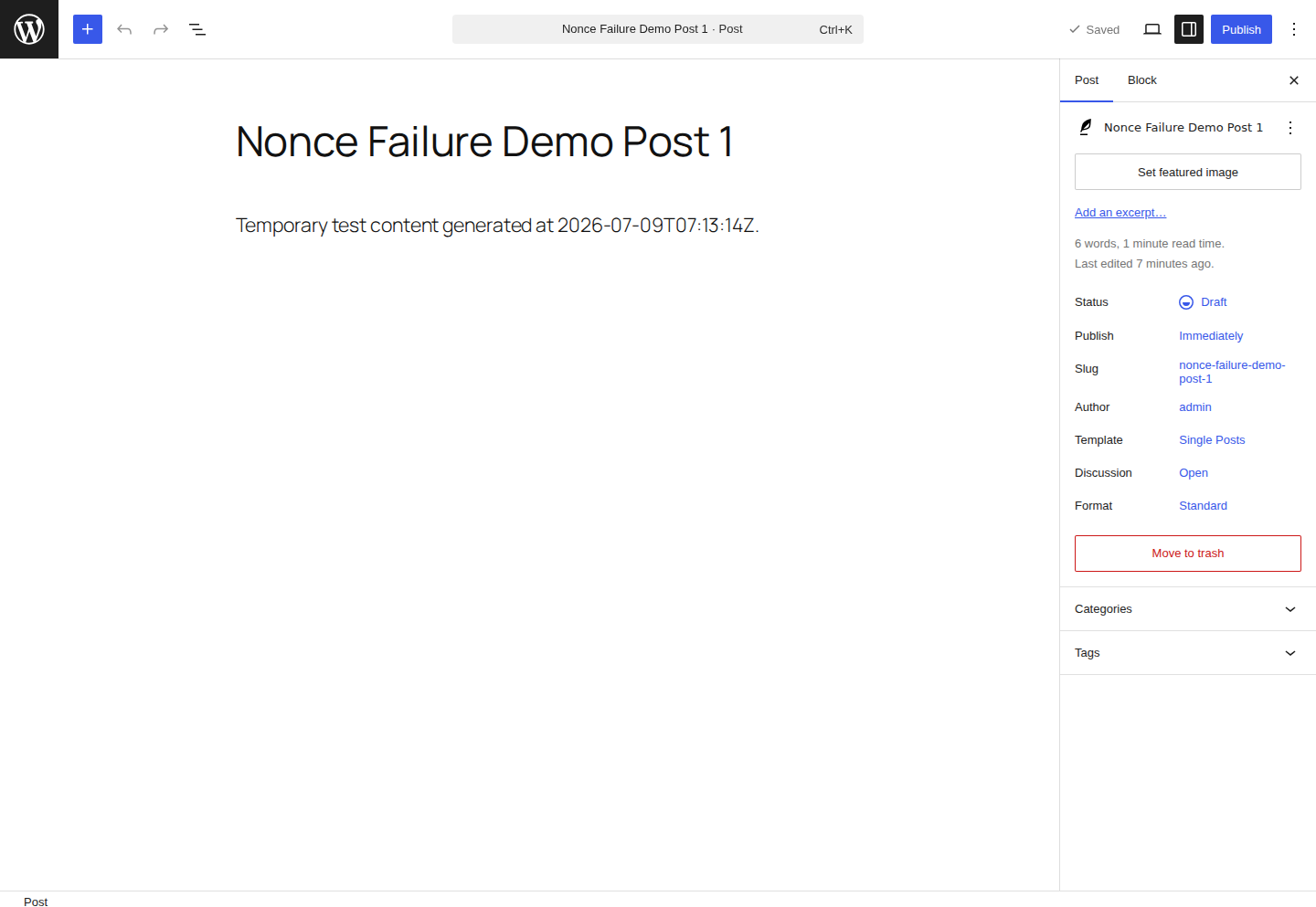
If this happened while you were editing a post, filling out a form, or changing a setting, stop pressing the button. I know that’s the first instinct. Maybe it was a one-off. Maybe the second click will go through. Sometimes it does, but it’s also how people lose the last twenty minutes of work. Do this first:
- Copy the post text, form response, setting values, or order details somewhere outside WordPress.
- If you’re in the block editor, check autosavesand revisions, but don’t treat them as your only backup.
- Open the same WordPress screen in a fresh tab.
- Log in again if WordPress asks.
- Test with one small, harmless change before pasting all your saved work back in.
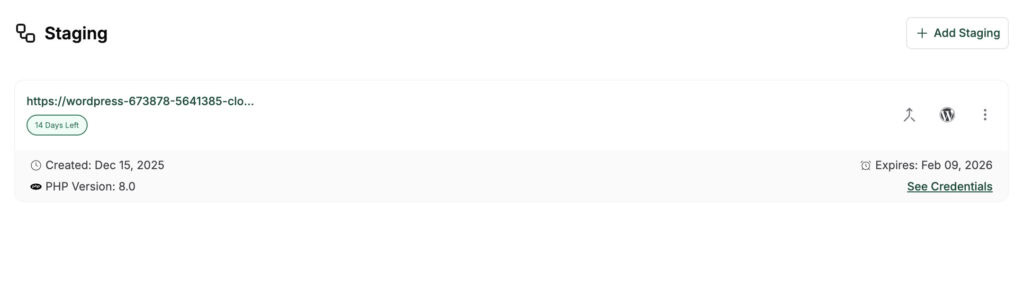
Be more careful if the WordPress error appeared in the theme or plugin file editor. Don’t keep retrying PHP or CSS changes from the dashboard. Move that edit to a staging site, FTP, or your host’s file manager, because a failed save is annoying; a bad PHP save can take the site down.
What nonce_failure means
WordPress uses a nonce as a temporary security token for a specific action. When you submit a form, save in the editor, click a protected admin link, or send certain REST API requests, WordPress checks whether the token matches the action, user or visitor session, and time window it expected.
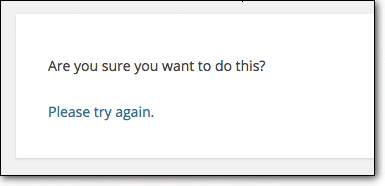
You might see nonce_failure, nonce_failed,nonce verification failed, Invalid form submission (nonce failure), or the older WordPress warning that asks whether you’re sure you want to continue. The wording changes by plugin, theme, and screen. The point is the same: WordPress didn’t accept the token attached to the request.
The name makes this sound more dramatic than it is. A WordPress nonce is not a password. It doesn’t prove that a user has permission to edit a post, delete a product, change a setting, or submit a form. Good plugin and theme code still has to check permissions separately.
By default, a WordPress nonce can last from a little over 12 hours to about 24 hours, depending on when it was created inside WordPress’ timing window. So an admin tab left open overnight, a restored browser session, or a cached public form can easily be carrying yesterday’s token into today’s request.
The fastest safe fix
Start here unless you already know you’re debugging custom code.
- Save anything you don’t want to lose.
- Refresh the page that showed the error.
- If WordPress asks you to log in again, do it.
- Open the action in a new tab instead of using the old one.
- Try the same action with a tiny change.
- If it works, paste your saved content back and save normally.
If that fixes it, I wouldn’t turn it into a bigger investigation. You probably had an old page, an expired login, or stale browser state. The useful question is whether it keeps happening.
Clear caches in the right places
Caching is where a lot of repeat nonce_failure problems live. A cache keeps a prebuilt copy of a page so WordPress doesn’t have to assemble it on every visit. That’s fine for a blog post. It’s risky for pages that contain form tokens, checkout states, account actions, or admin-like requests. Clear the caches closest to the request first:
- Clear this site’s browser cache and cookies.
- Purge your WordPress caching or performance plugin.
- Clear generated CSS and JavaScript files if your performance plugin stores them separately.
- Purge your hosting cache.
- Purge the CDN cache if you use one.
- Flush object cache if Redis, Memcached, or a host-level object cache is enabled.
After each clear, test from a fresh private browser window. Don’t test from the same stale tab that just failed; that keeps dragging the old context back into the experiment.
If clearing cache fixes a public form, take that seriously. The long-term repair is usually to exclude the affected form page from the full-page cache. Do the same for checkout, cart, login, registration, and account pages when they use forms or account-specific actions. Also, learning about WordPress caching issues is a useful next step when cache layers are hard to separate. That may cost a little speed on those pages, but it’s better than serving stale tokens to real visitors.
Check the browser session
Sometimes the whole problem is local to your browser. This is especially likely in wp-admin, the block editor, and settings pages that sat open while you went off to do something else. Try an incognito or private window. Then try another browser if you have one installed. Log out of WordPress everywhere, log back in, close old admin tabs, and ask another admin to test the same action.
If another browser works immediately, you probably don’t have a site-wide plugin failure. You have stale cookies, cached files, or an old session in the first browser. That’s still worth fixing, but it’s a much calmer problem.

Test plugins before themes
If fresh sessions and cache clearing don’t fix it, move to plugins. Use staging if you have it. If you have to test on production, take a backup first and do it during a quieter window. Start with the plugins most likely to sit between the visitor and WordPress:
- caching and performance plugins
- firewall and security plugins
- form builders
- membership and login plugins
- WooCommerce extensions
- page builders
- snippet and custom-code plugins
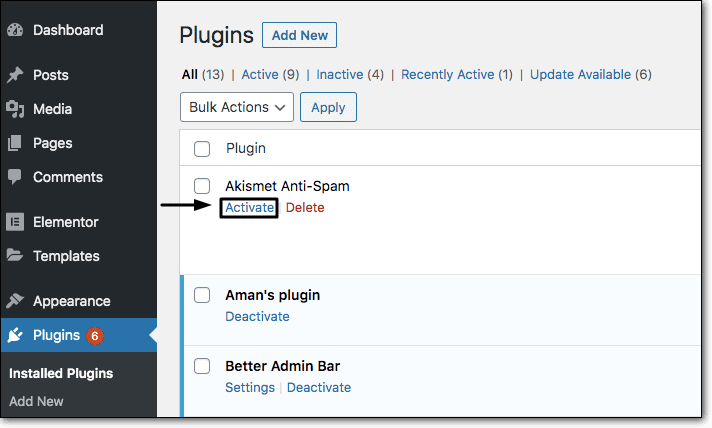
Don’t disable everything at once unless you’re already on staging and can afford the mess. Start with the plugin closest to the failure. For a form error, that usually means the form plugin or cache plugin. For a dashboard request that gets blocked, start with security or firewall settings. Disable one likely plugin, clear caches, reload in a fresh window, and repeat the exact failed action. If the error stops, reactivate the plugin and inspect the setting area tied to the failed action. If it stays, turn the plugin back on and move to the next likely one.
AJAX and REST API failures deserve special attention here. The block editor, many forms, and a lot of modern plugin screens send requests in the background. The page can look normal while a plugin blocks wp-json, strips the X-WP-Nonce header, caches an AJAX response, or serves one guest form token to everyone.
Themes come after plugins because they’re less often the cause. If plugin testing doesn’t explain it, switch to a bundled WordPress theme on staging and run the same action again. If the error disappears, ask the theme developer to inspect the form, editor integration, or request handler involved.
One caveat: don’t switch a busy WooCommerce or membership site to a default theme in the middle of the day just to satisfy a checklist. You’ll learn something, but your customers will see it too.
Update the site, with a rollback ready
Older plugin or theme code can drift away from current WordPress behavior. Updates also fix plenty of cache, form, editor, and REST bugs. The sane update path is:
- Back up the files and database.
- Update WordPress core on staging first if you have staging.
- Update the plugin tied to the failure.
- Update plugins that handle cache, security, forms, memberships, or commerce.
- Update the active theme.
- Check PHP compatibility before changing PHP.
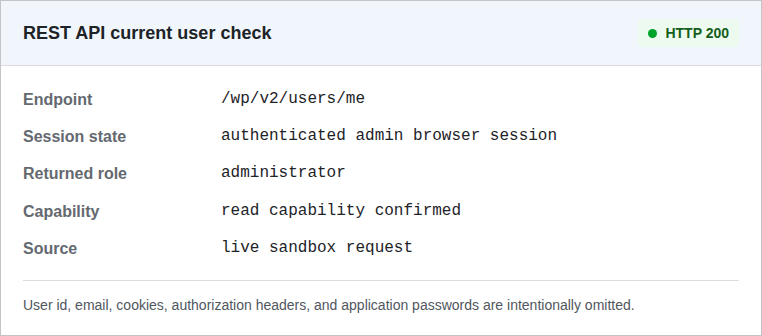
In a fresh WordPress 6.9.4 install, an authenticated administrator REST request returned a normal 200 response. That doesn’t prove your production site will behave the same way, but it gives us a useful baseline: current WordPress handles nonce-protected admin and API requests when the session and token line up.
If it happens in the block editor
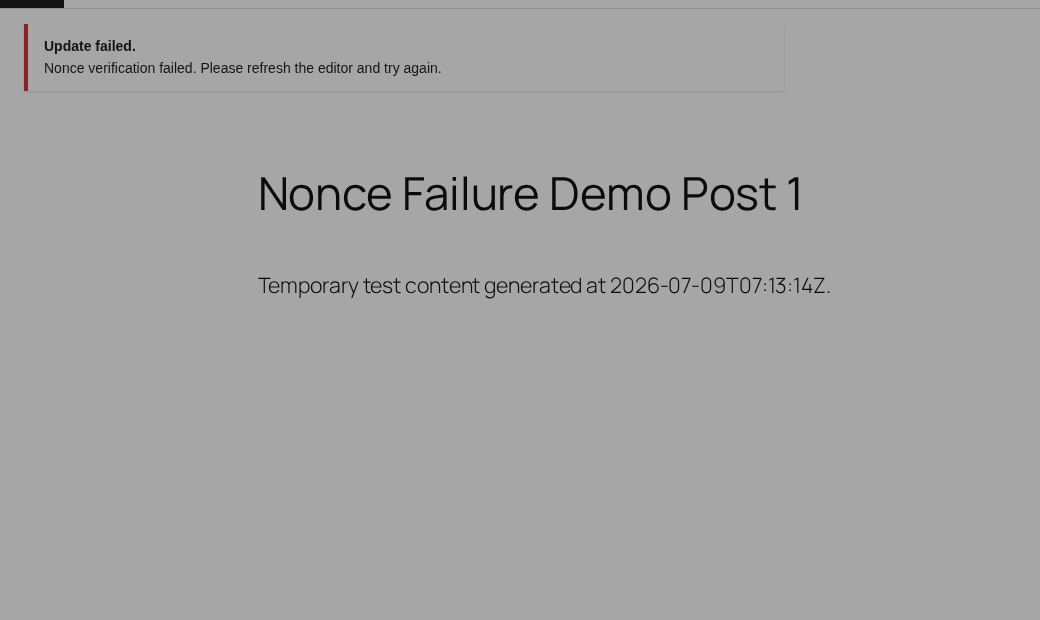
The block editor can make nonce problems feel worse because the save happens through background REST API requests. You may still be staring at the editor as if you’re logged in, while the request behind the Save button is no longer carrying a valid token.
Copy the post content outside WordPress first. Open the post in a new tab, log in again if prompted, and save one tiny change. If that works, paste your saved work back in.
If it fails again, ask your developer or host to check the browser network panel for blocked wp-json requests, a missing X-WP-Nonce header, or security rules stripping request headers. Preserve the writing first; debug the request second.
If it happens on a form
Front-end forms have their own pattern. A visitor loads a form, leaves it open, comes back later, and submits an expired token. Or a cache serves the same old form markup to many visitors.
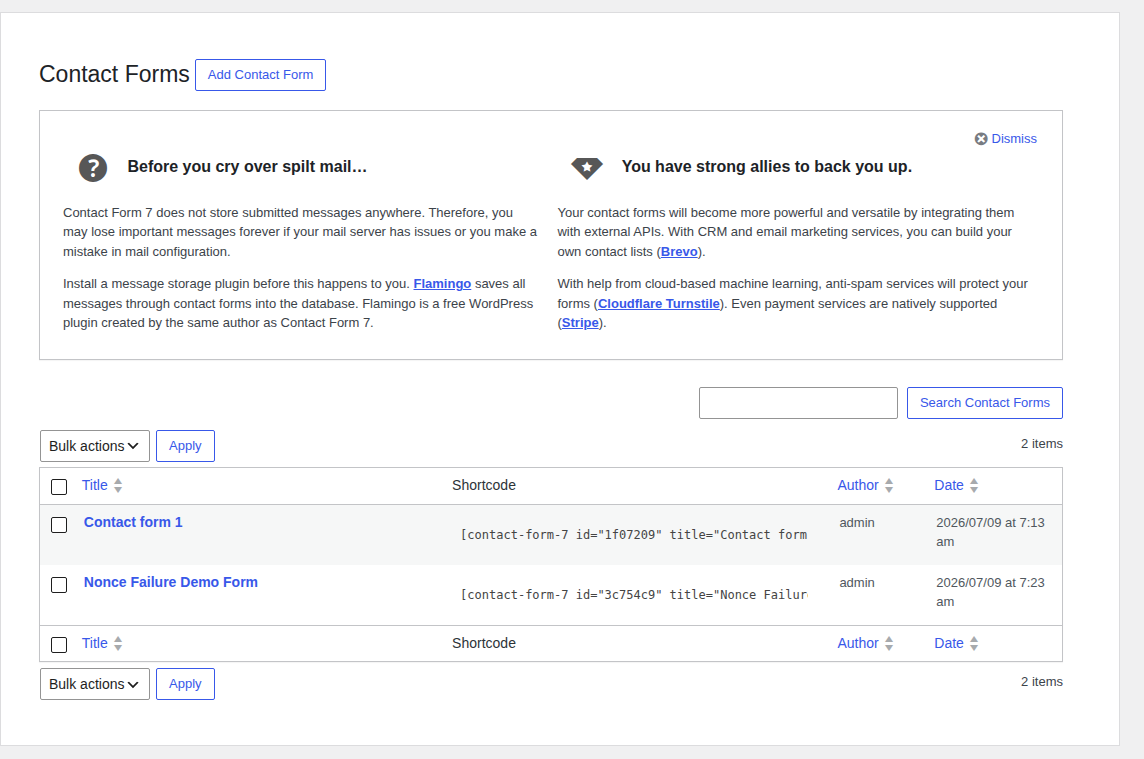
For form errors, I would usually do this:
- Exclude the form page from full-page cache.
- Exclude checkout, cart, login, account, and registration pages if the form touches any of those flows.
- Purge CDN and host cache after changing exclusions.
- Submit a test entry while logged out, using a browser with no old cookies.
- Test as a logged-in user if the form changes for members or customers.
- Compare AJAX submission with normal page submission if your form plugin offers both.
If logged-out visitors get nonce_failed but admins don’t, don’t blame the visitors. Anonymous users don’t have the same stable WordPress user session as admins. The form plugin may need better guest-session handling, a nonce refresh, or a cache exclusion.
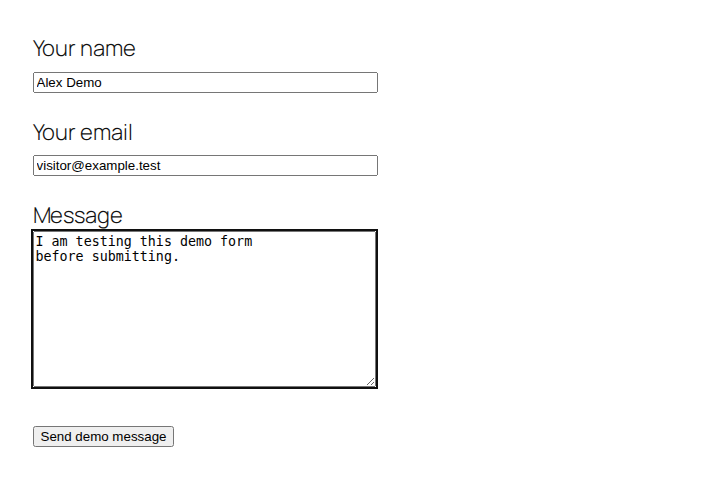
For a custom form, the developer should confirm that the nonce field is present, the action name matches, and the permission check still runs before anything is saved.
What developers should check
If this is custom plugin, theme, or form code, the fix is usually exact rather than large. WordPress already has nonce helpers. Use them.
Check that the code creating the nonce and the code verifying it use the same action name. Forms should include wp_nonce_field(). Protected URLs should use wp_nonce_url(). AJAX and REST requests should send the expected nonce value, often through _wpnonce or the X-WP-Nonce header. Verification should happen with check_admin_referer(), check_ajax_referer(), or wp_verify_nonce().
Then check the part people skip: capability. A valid nonce still doesn’t mean the user is allowed to perform the action. Pair the nonce check with the right current_user_can() check before changing data. For logged-out flows, look carefully at caching and guest sessions. Serving one cached token to every anonymous visitor is a classic way to create a form that looks fine and fails at submission.
The fix should make WordPress verify the right request again. It shouldn’t teach WordPress to trust a request that fails verification.
Fixes I would leave for later
Some common troubleshooting suggestions can help, but they’re not where I’d start.
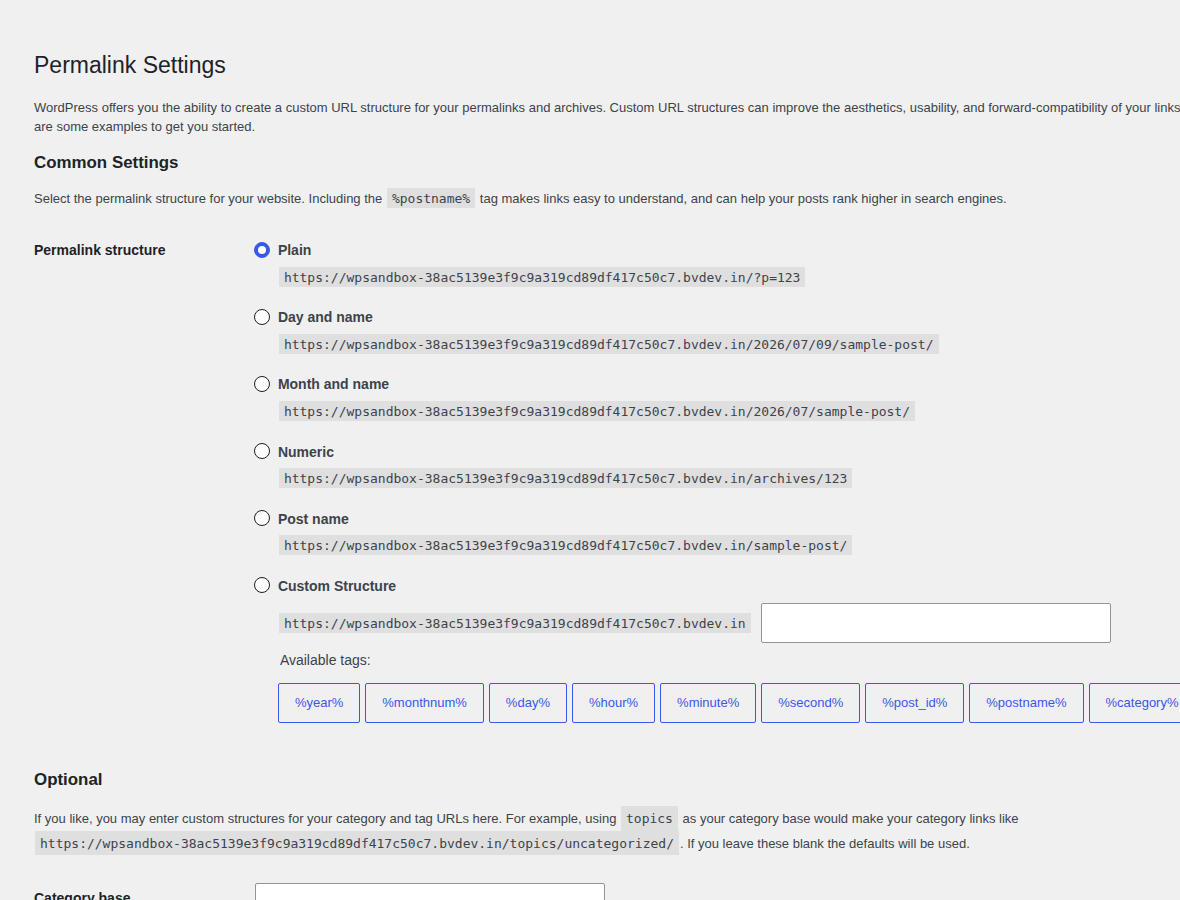
- Refresh permalinks only when routing looks wrong. Open the Permalinks screen under Settings and save the current structure as-is.
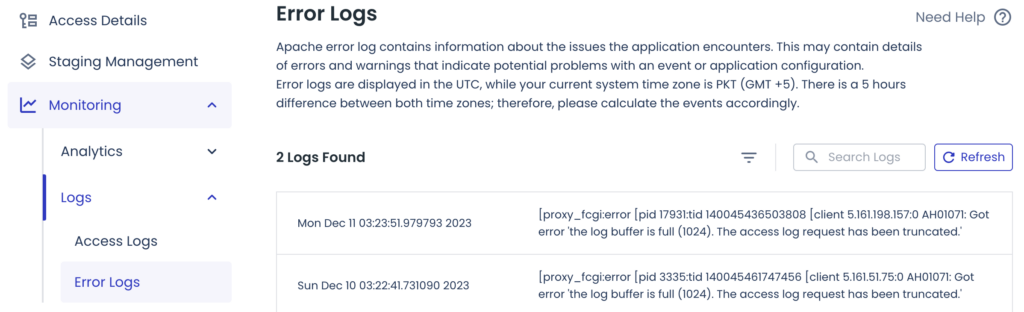
- Raise the PHP memory limit only if the logs point to memory exhaustion. Low memory usually causes fatal errors, blank screens, or incomplete admin pages; by itself, it isn’t the usual explanation for a clean nonce warning.
- Check the WordPress timezone quickly if token timing seems strange, but don’t expect it to be the everyday cause.
- Reinstall WordPress core only when file integrity looks suspicious.
- Avoid nonce-regeneration snippets unless a developer owns the reason and the rollback plan. And don’t disable nonce checks as ordinary troubleshooting. That can weaken CSRF protection, especially on public forms, and it may hide the real problem instead of fixing it.
Use logs when guessing stops helping
If the usual fixes don’t explain it, turn on error logging, reproduce the error once, and inspect the log. If editing WordPress files feels risky, let your host or developer handle this part. Add these lines near the end of wp-config.php, before the line where WordPress tells you to stop editing:
define('WP_DEBUG', true);
define('WP_DEBUG_LOG', true);
define('WP_DEBUG_DISPLAY', false);
Reproduce the error once. WordPress usually writes the log under wp-content/debug.log. Look for a repeated plugin path, theme file, REST route, or PHP warning near the failure. The log may not say “this plugin caused the nonce failure.” It often gives you the file or request path worth investigating.
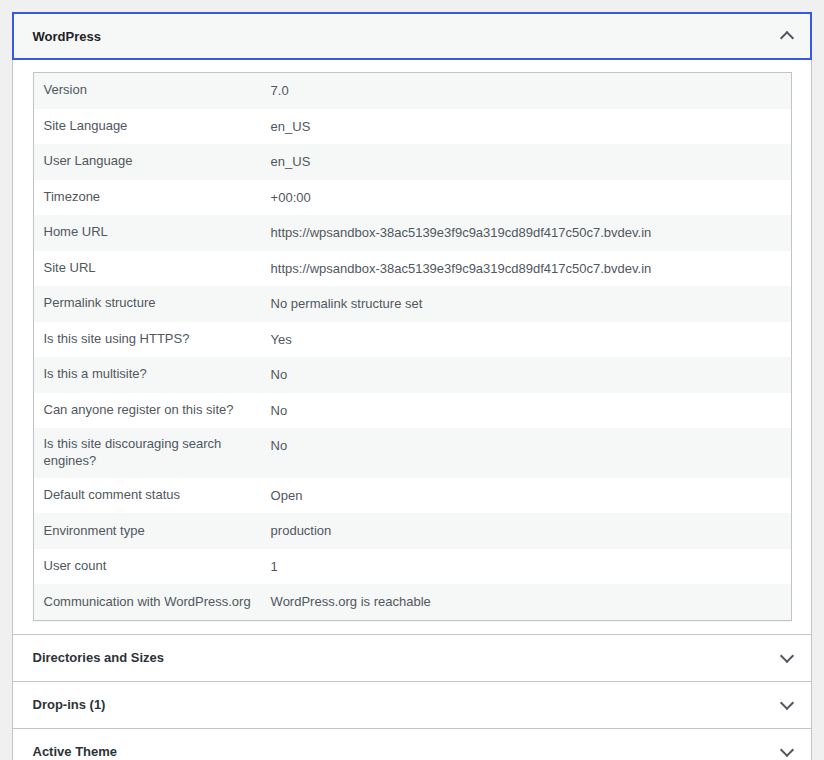
Turn debug logging off when you’re done. A noisy debug log left running is just another problem waiting for the next person.
Is nonce_failure a hack warning?
Usually, no. One nonce_failure after an old tab, expired login, cached page, or plugin conflict is WordPress refusing a request it couldn’t verify. That’s the security check doing its job. Take it more seriously if the error comes with stranger symptoms:
- admin accounts you don’t recognize
- redirects you didn’t set up
- injected scripts
- changed theme files
- new files in plugin folders
- malware warnings from your host
- unexpected admin lockouts
How to prevent repeat nonce failures
You can’t prevent every nonce failure. People leave tabs open. Browsers restore yesterday’s admin screen. Tokens expire because they’re supposed to expire. You can make repeats much less common:
- Keep WordPress itself current, along with the extensions running on it.
- Try plugin, theme, PHP, and cache changes on staging first.
- Exclude sensitive form, account, checkout, login, and registration pages from full-page cache.
- Clear all active cache layers after changing form or login behavior.
- Avoid dashboard file edits when request errors are already happening.
- Show users a clear reload message when a form token expires.
- Pair every nonce check in custom code with a real permission check.
- Treat broad nonce-lifetime changes as a developer decision, not a convenience setting.
The maintenance work isn’t glamorous. Fresh pages for sensitive actions, sensible cache rules, current software, and plugins that use WordPress request checks properly will prevent more nonce_failure errors than any clever snippet.
FAQs
Save your work, reload the screen, and renew the login. If that doesn’t work, clear site-specific browser data. Then purge the cache inside WordPress, at the host, in object storage, and at the CDN.
Yes. A caching plugin can serve a page with an old nonce inside it. Exclude form pages from full-page cache, and do the same for checkout, account, login, and registration pages when they contain user-specific actions.
By default, a WordPress nonce can last from a little over 12 hours to about 24 hours. The exact timing depends on when WordPress created it inside its nonce timing window.
No. Nonces help WordPress reject forged, stale, or mismatched requests. If a developer changes nonce behavior, the change should be narrow, documented, and paired with proper permission checks.
Logged-out visitors don’t have the same user session as admins. Public forms may need better cache exclusions, guest-session handling, or a fresh nonce before submission.
Conclusion
The practical fix for nonce_failure is to refresh the context WordPress is checking. Save your work, reload the page, renew the login, and clear stale caches. If the error stays, move outward carefully: plugins first, then theme behavior, logs, and custom code.
Don’t bypass WordPress security to make the warning disappear. Most nonce failures become simple once you stop guessing and test in the right order.