Mid-edit, the WordPress Block Editor can stop saving and throw this at you: Updating Failed. The Response Is Not A Valid JSON Response.
It sounds like you’ve written something wrong in the post. Most of the time, you haven’t. The editor asked WordPress to save your work, and the server sent back something the editor couldn’t read.
If this started right after site maintenance, treat it like a broken WordPress update too: save the content first, then diagnose the smallest reversible fix.
Save your draft outside WordPress, take a backup, and start with low-risk checks like permalinks, URL settings, and Site Health. If the editor still fails, review the /wp-json/ request: 403 often points to WordPress security rules or firewall blocks, 404 to broken routing, 500 to server errors, and 301/302 to redirects catching the request.
Save the post before fixing the site
Don’t start troubleshooting while the editor tab is the only place your writing exists. Get the writing out of WordPress:
- Open the three-dot menu in the editor.
- Click Copy all blocks.
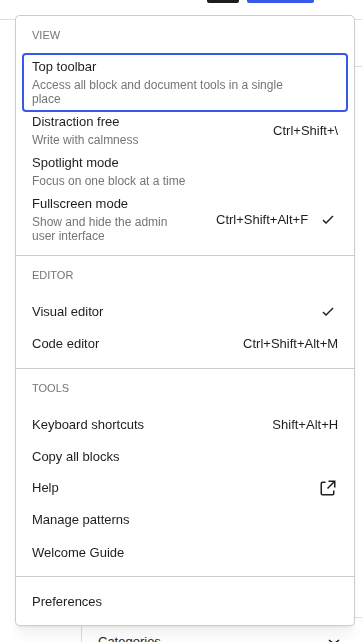
- Paste the content into a document outside WordPress.
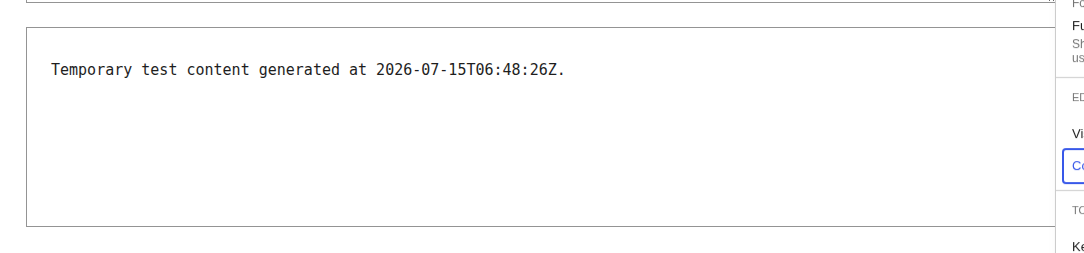
- If that fails, switch to Code Editor and copy the post from there.
If the post has to go out today, Classic Editor can be a temporary bridge. It may let you publish because it doesn’t use the exact same save path as the Block Editor. That’s useful in a pinch, but come back to the REST problem after the immediate deadline.

Make a backup before changing settings, testing plugins, switching themes, or touching server files.
What the JSON error means
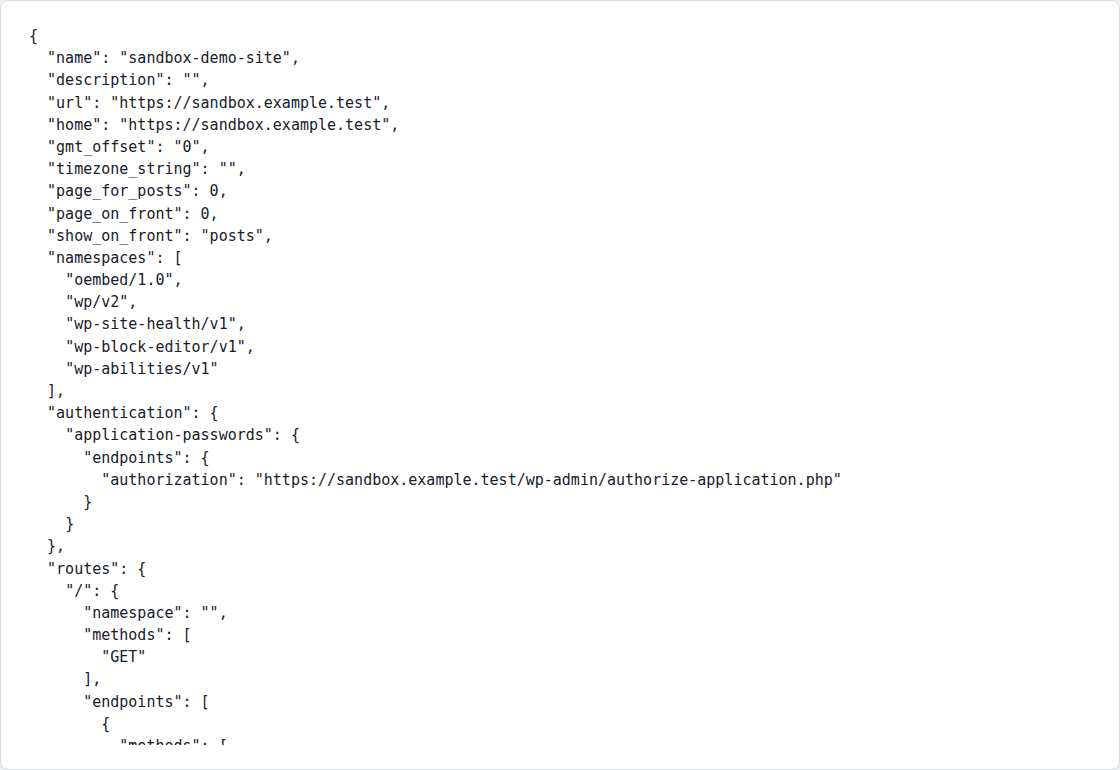
The Block Editor saves posts by calling WordPress’s REST API. On a normal save, WordPress sends back JSON, which is structured data the editor can read.
This error appears when the editor gets something else instead:
- a login page
- a redirect
- a firewall block
- a 404 page
- a PHP warning
- a server error page
- a half-broken response with stray HTML in it
That’s why I don’t start by looking for “bad JSON” inside the post. I want to know what the save request actually got back from the server.
In our baseline WordPress check, the REST index returned 200, the current user endpoint returned 200, and the posts route accepted write requests. That’s the boring version of events. The editor sends the request, WordPress answers in JSON, and the post saves. When this error appears, one part of that path has been interrupted: routing, login state, security filtering, PHP execution, or the final response body.
Try the low-risk fixes first
These checks are worth doing before you deactivate plugins or change themes. They don’t usually alter what visitors see.
Re-save permalinks
Open the Permalinksscreen from Settings and press Save Changes once. Leave the permalink format exactly as it is.
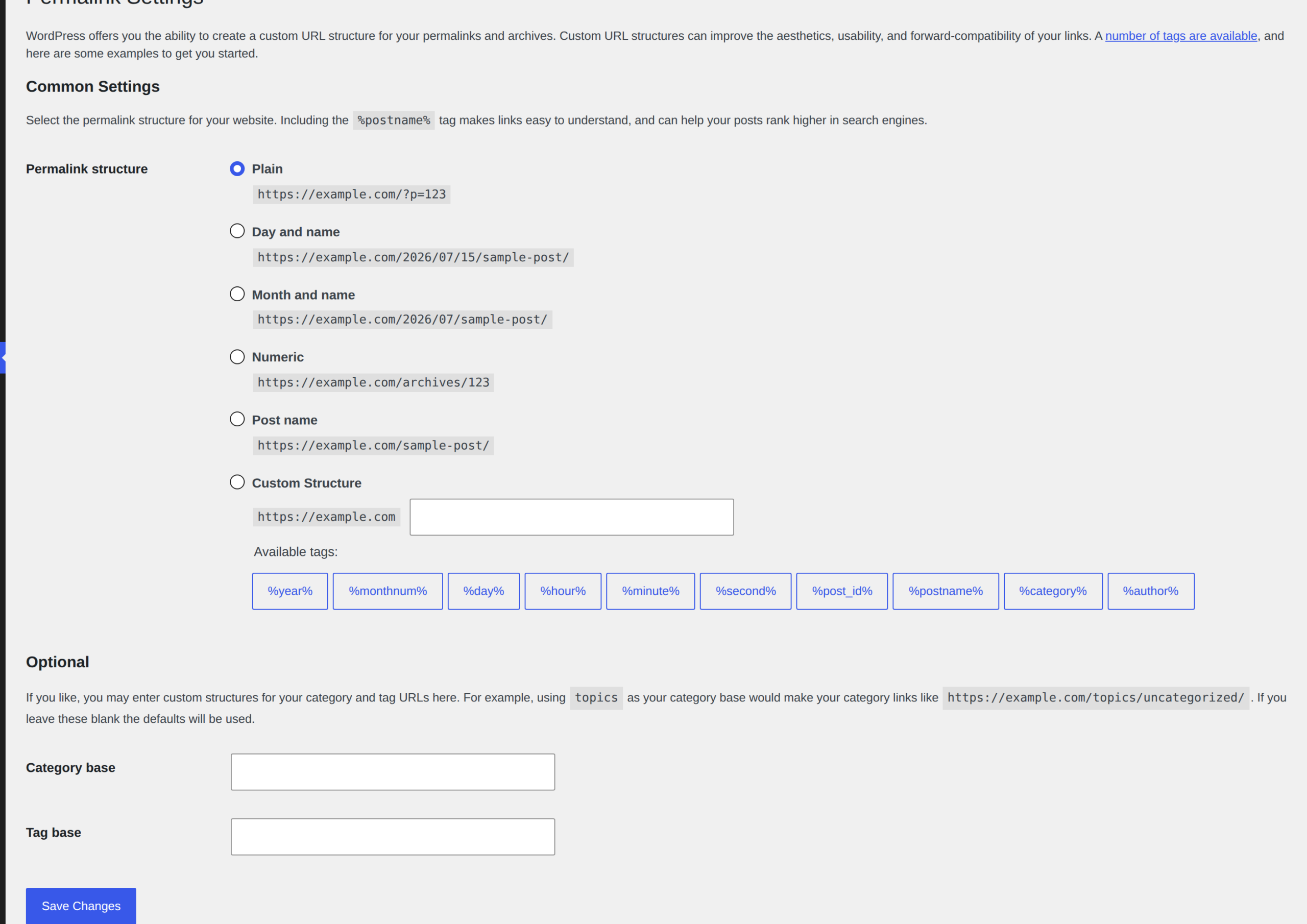
This refreshes the rules WordPress uses to route clean URLs. On Apache hosting, those rules often live in .htaccess. If they are stale or damaged, a REST request can hit a 404 page instead of WordPress.
Then try updating the post again. On Nginx hosting, this may not be enough. Nginx doesn’t use .htaccess, so rewrite problems usually need someone with server access to inspect the config.
Check the site URLs
Open Settings > General and look at the two address fields near the top: the installation URL and the public site URL.

Check the details, not just the domain:
- https vs http
- www vs no www
- subfolder paths
- old staging or migration domains
A mismatch can send the editor through a redirect or break the logged-in save request. The front end can still look fine while the editor gets HTML instead of JSON.
Be careful with URL changes. Saving the wrong address can make wp-admin unreachable until someone corrects the value in the database or in wp-config.php. If the fields are greyed out, those values are probably defined elsewhere.
Check Site Health
Open Tools > Site Health and look for REST API warnings.

Site Health won’t catch every cause, but it’s a good early clue. If WordPress says the REST API is unavailable, blocked, or returning an unexpected result, follow that lead before you start taking the site apart.
Find the failed REST request
If the quick checks don’t fix it, use the browser Network panel. Ignore most of what it shows. You need the failed request and the status code.
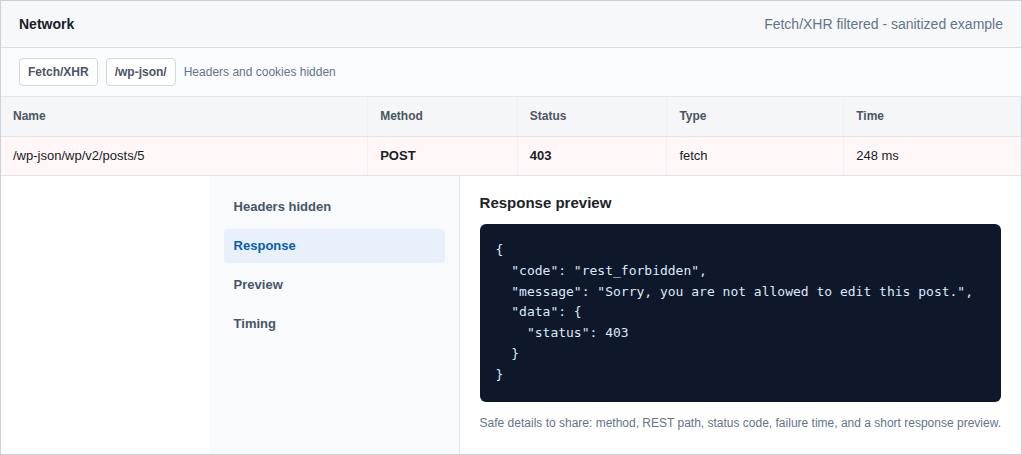
In Chrome or Edge:
- Right-click the editor page and choose Inspect.
- Open Network.
- Filter by Fetch/XHR.
- Click Update or Publish again.
- Look for a request containing /wp-json/ or rest_route=.
- Click it and check the Status and Response.
Use this as your map:
| What you see | What to check next |
|---|---|
| 301 or 302 | URL settings, SSL rules, redirect plugins, CDN redirects |
| 401 or a login page | Session, cookies, permissions, login rules |
| 403 | Firewall, ModSecurity, Cloudflare, host security, security plugin |
| 404 | Permalinks, rewrite rules, REST routing, Apache/Nginx config |
| 500 | PHP error, plugin/theme crash, custom code, server logs |
| HTML or warnings before JSON | Shortcodes, custom blocks, theme functions, PHP warnings |
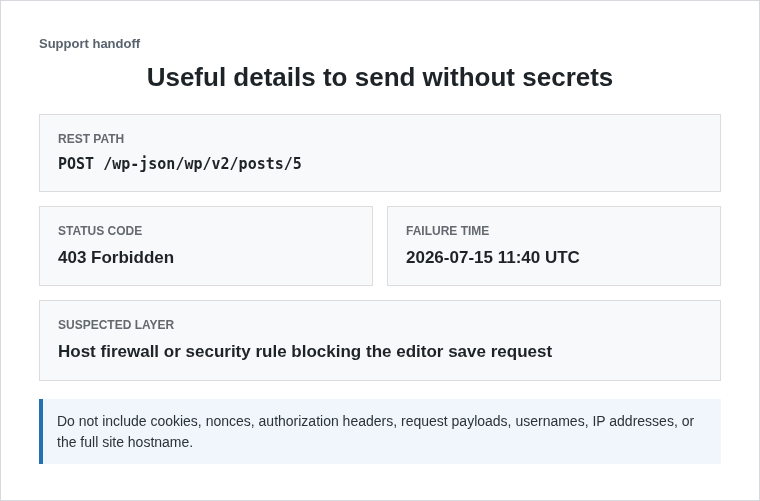
Don’t paste full request headers into a public forum. They can include cookies and security tokens. Share the REST path, status code, failure time, and a safe snippet of the response body.
Fix the cause you found
Now that you’ve found the failed request, focus on the system blocking, redirecting, or breaking it.
If it is a 404
The REST route probably isn’t reaching WordPress. Try this:
- Re-save Settings > Permalinks.
- Visit https://yoursite.com/wp-json/ in a browser.
- Check whether you see structured text or a normal 404/homepage.
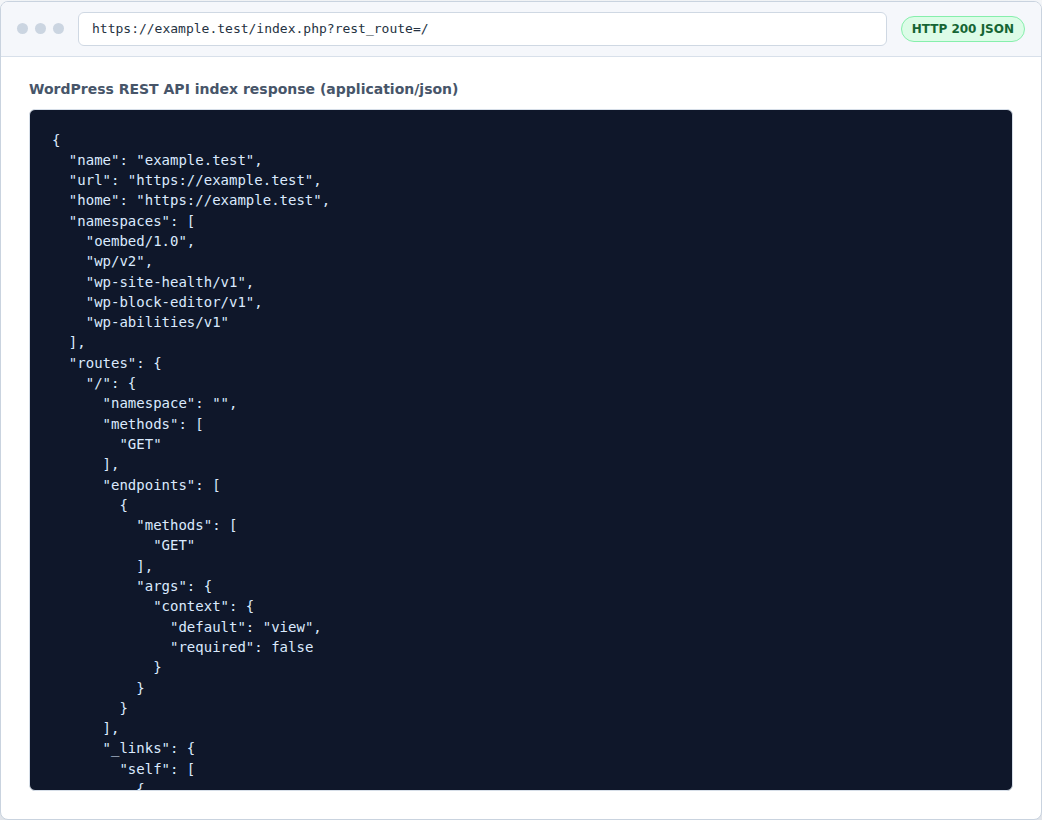
If /wp-json/ does not reach WordPress, give your host that exact test result and ask them to inspect rewrite handling. On Apache, that usually means .htaccess. On Nginx, it means server-level routing.

Make a copy of your site before touching .htaccess. It may contain redirects, cache instructions, security rules, or host-managed additions that will be painful to reconstruct.
If it is a redirect
A 301 or 302 means something is sending the REST request somewhere else.
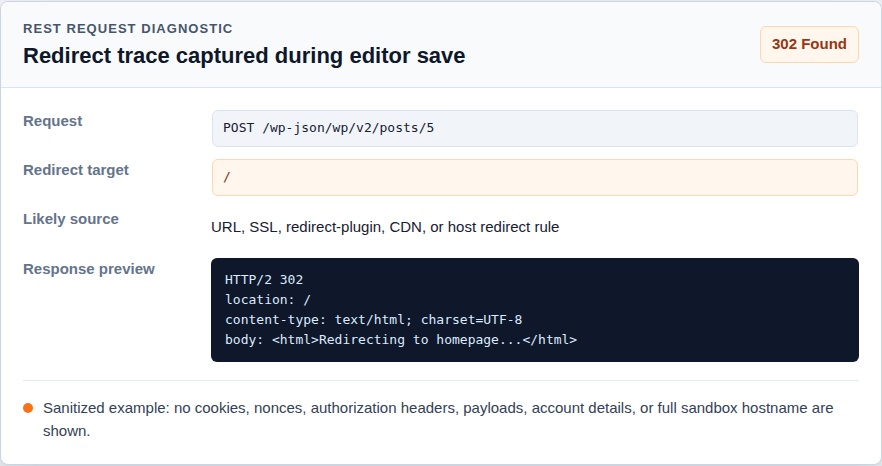
Start with the most common redirect sources:
- WordPress and Site Address values
- SSL or force-HTTPS settings
- redirect plugins
- CDN or host redirects
- rules that send unknown paths to the homepage
The sneaky version is a rule that sends /wp-json/ to the homepage. Visitors won’t notice. The editor will, because it asked for JSON and got a web page.
If it is a 403
A 403 is a refusal, not a missing page.
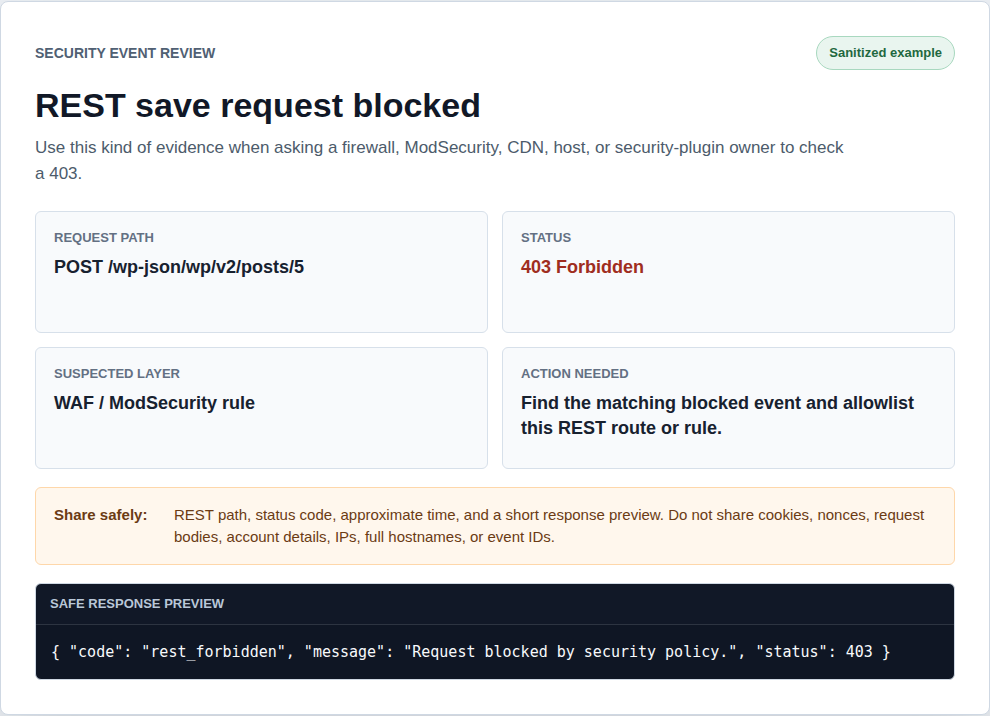
Check the layers that can refuse editor traffic:
- your host firewall
- ModSecurity
- Cloudflare or another CDN/WAF
- WordPress security plugins
- login protection rules
Sometimes the content of the post is the trigger. A code path, shell command, bracketed snippet, or pasted HTML can look risky to a firewall rule even when you’re doing normal editing.
Temporarily disabling a firewall can confirm the cause, but don’t leave protection off. Find the exact blocked event and create a targeted allowlist for that REST request or rule. MalCare can help with website security visibility, but it isn’t a magic fix for a bad redirect or broken server response.
If it is a 500
A 500 means the server hit an error while trying to process the save.
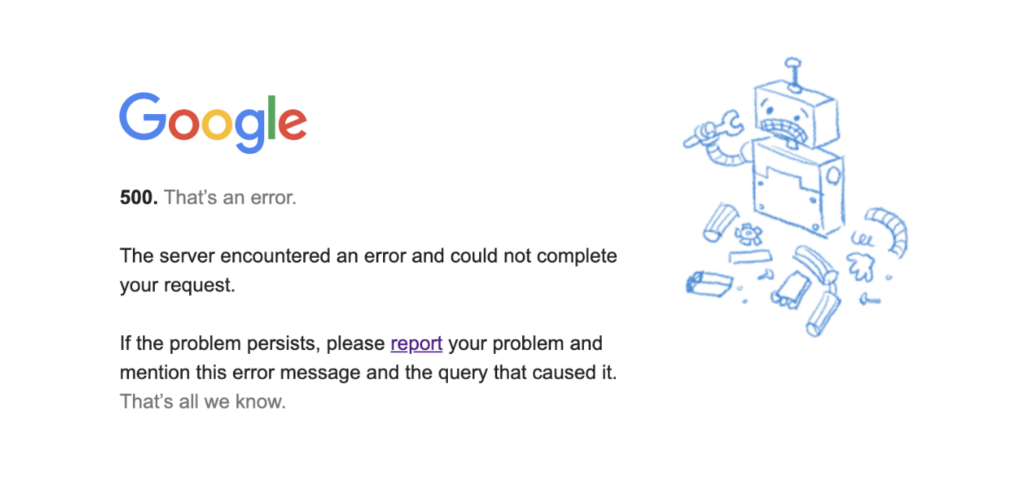
Turn on logging, reproduce the failed update, and read the newest entry in wp-content/debug.log. The log may point to a plugin file, a theme file, or the exact shortcode/custom block that ran during the request. It may also show a PHP memory problem or another server limit.
Keep debug display off on a live site. Visible warnings can expose file paths, and they can also break the JSON response by printing text before WordPress sends the real data.

If there is HTML or a PHP warning
The response may be almost right and still fail. One warning before the JSON body is enough. Check the code that runs during save or preview:
- shortcode output
- block render templates
- theme functions
- small custom plugins
- pasted scripts or unusual HTML in that one post
If only one post fails, duplicate it and remove the newest suspicious block or shortcode. If the copy saves, you have a much smaller problem than a site-wide REST failure.

Test plugins and themes without breaking the site
Plugin and theme conflicts are real. I just wouldn’t make them the first move on a live site unless the evidence points there.
Run this somewhere visitors can’t trip over it, ideally a clone of the site. If production is the only option, take a backup first and choose a quiet window. A plugin test can disable checkout or forms. It can also change caching, custom blocks, and security rules while visitors are using the site, which is a lot of blast radius for a test you could have run elsewhere.
Begin with the plugins that sit closest to editor saves:
- firewall tools and login-protection plugins
- cache or optimization plugins that rewrite responses
- redirect and SSL helpers
- Block Editor add-ons
- custom field or block-builder plugins
- whatever changed shortly before the error started
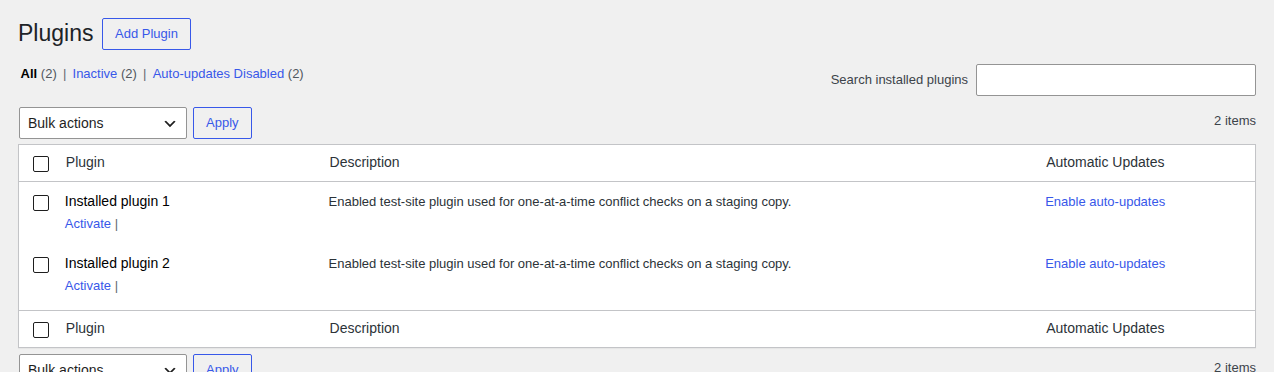
Deactivate one likely plugin, test the save, and reactivate it if nothing changes. If you already deactivated everything and the error disappeared, restore plugins in small batches until the error returns.
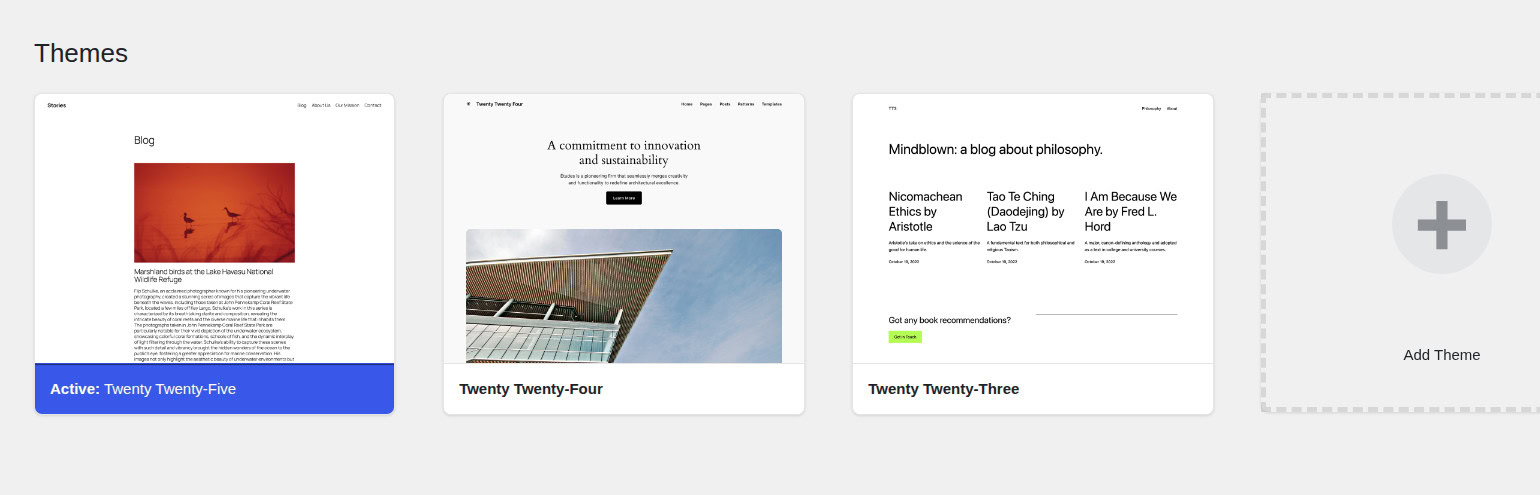
Themes need the same caution. A theme can break the response through editor scripts, shortcodes, custom blocks, or render code. Try one of the bundled WordPress themes on a clone before the public design gets involved.
Also check the less obvious layers:
- must-use plugins
- drop-ins
- host security tools
- custom snippets
- CDN rules
If the normal plugin list looks clean and the error still behaves like a conflict, move outward from WordPress admin. Your host or developer can inspect those hidden layers.
If the error happens during image upload
The same message can appear when you add an Image block or upload media inside the editor.
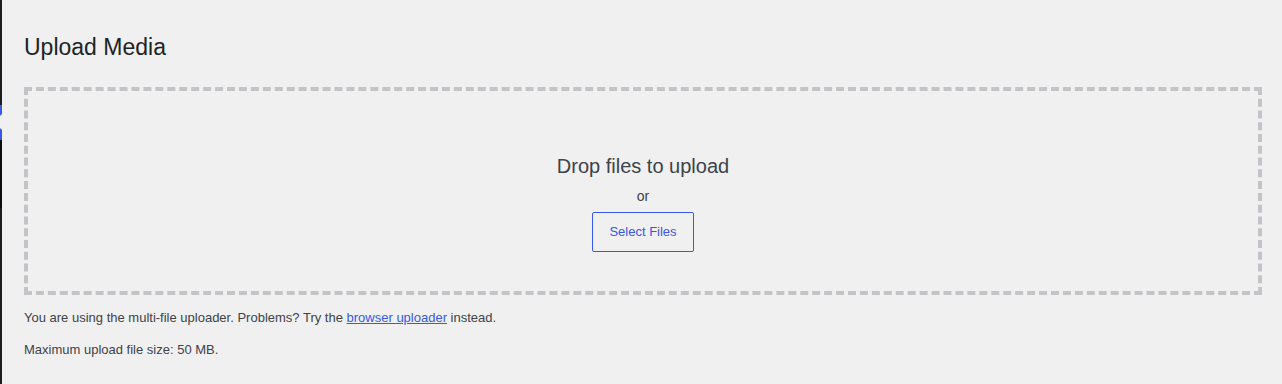
Try Media > Add New first. If that works, the media library may be fine and the editor upload request may be the problem.
For one failing file, rename it:
- use lowercase letters and numbers
- replace spaces with hyphens
- remove brackets and special symbols
- keep the filename short
If every upload fails, check upload size limits and file permissions first. After that, look at PHP errors and security logs.
I wouldn’t rebuild the whole site because one image filename upset the upload request. Prove that the failure is global before you treat it like a global problem.
Give your host the useful details
Host support can do much more with the failed request than with the editor message alone.
Send something like this:
I’m getting Updating failed. The response is not a valid JSON response in the WordPress Block Editor. The failing request is [REST URL path] and it returns [status code] at [time and timezone]. Can you check server logs and any firewall, ModSecurity, WAF, redirect, or routing events for that request?
Match the ask to the status code:
- 403: firewall, WAF, ModSecurity, security plugin, CDN events
- 404: Apache/Nginx rewrite rules and REST routing
- 500: PHP errors and server logs at the failure time
- 301/302: redirect rules catching /wp-json/ or rest_route=
With the path, status code, and time, support can search the logs instead of trying to reproduce the whole editing session.
Prevent the next editor save failure
After the editor saves again, clean up the conditions that made the error likely.
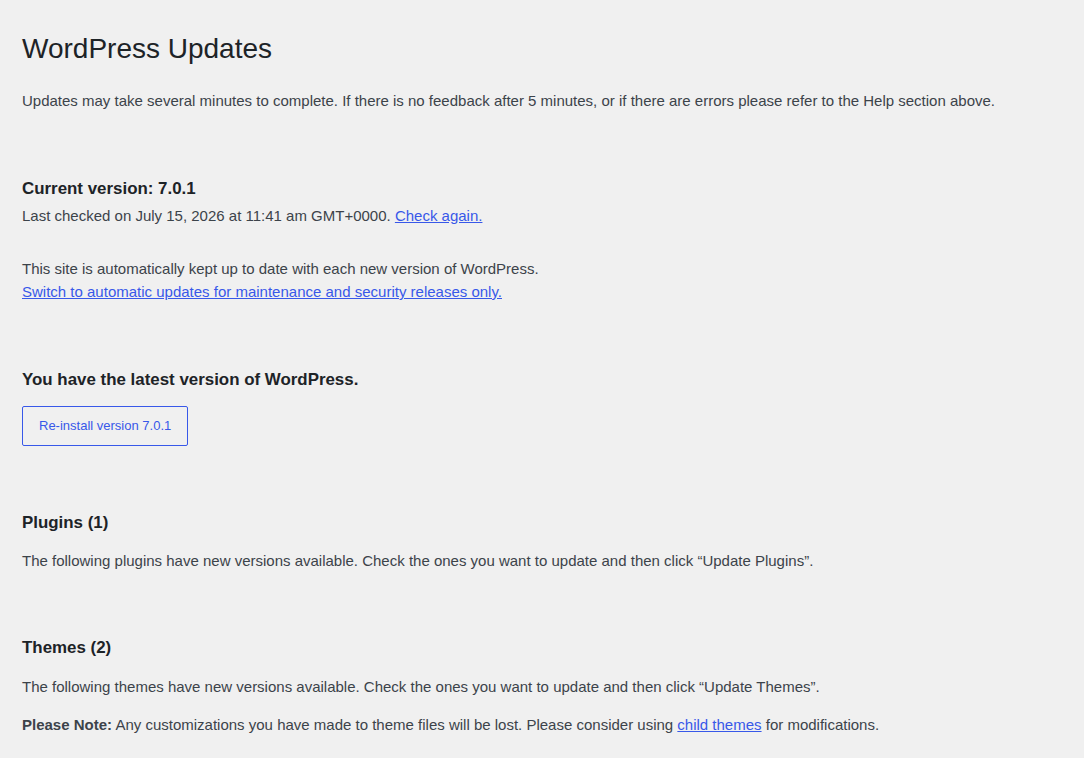
- Keep updates routine: Patch core, the active theme, and active plugins on a schedule. Remove add-ons that are just hanging around, especially when they create a known WordPress plugin vulnerability.
- Check URLs after site moves: After SSL work, migrations, domain changes, or clone-to-live pushes, verify both address fields.
- Run Site Health after server changes: Use it after CDN, redirect, security, or hosting changes.
- Move risky checks away from visitors: Security tools, cache plugins, redirect rules, custom fields, and block plugins can all change what the editor receives.
- Back up before live changes: Do this before editing server files, changing URL settings, switching themes, or testing plugin conflicts.
- Tune security rules: If a firewall caused a false positive, allow the specific request or rule. Don’t leave the firewall broadly disabled; fold the change into your regular WordPress security maintenance checklist.
FAQs
What does “Updating failed. The response is not a valid JSON response” mean?
It means the WordPress editor expected JSON from the server and got something else. That response might be a redirect, login page, firewall block, error page, PHP warning, or broken REST API route.
Did I put invalid JSON in my post?
Usually, no. Your post content can trigger the problem in rare cases, especially with code snippets or pasted HTML, but the error is about the server response WordPress received while saving.
Can permalinks cause this error?
Yes. Broken permalink or rewrite rules can stop /wp-json/ requests from reaching WordPress. Re-saving Settings > Permalinks is a good early fix, especially on Apache hosting.
Can Cloudflare or ModSecurity cause it?
Yes. Cloudflare, ModSecurity, host firewalls, and security plugins can block REST requests and return 403 responses or challenge pages. Check the security event log and allow only the specific blocked request when possible.
Is Classic Editor a real fix?
No. It can help you publish while the Block Editor is failing, but it may only bypass the broken save path.
Use it to rescue the work. Then go back and fix the underlying REST failure, because other WordPress features may rely on the same path.
Conclusion
The Updating Failed. The Response Is Not A Valid JSON Response error gets easier once you stop reading it as a writing problem. The editor asked WordPress for structured data and got the wrong reply.
Start by protecting the post and making the site restorable. Then check permalinks, URL settings, and Site Health. If those don’t solve it, use the Network panel to read the failed REST request. The status code usually points to the right owner of the problem: routing, security, redirects, or server errors.