You’ve put your heart into crafting your WordPress site, making sure every piece fits perfectly. But suddenly, things start acting up—your links don’t work right, your site and pages refuse to load, and everything feels sluggish.
It’s maddening, especially knowing how these hiccups can scare off visitors, which creates an urgent need to fix the problems before they get worse.
The troublemaker here could be a messed-up .htaccess file. While that might sound super techy, fixing it is simpler than it seems. We’ve tried out the solutions in this article ourselves to make sure they’re easy and effective for getting your site back on track.
TL:DR: Security issues and access problems can be signs that your .htaccess file is corrupted. Fix it by restoring or recreating the file, and be sure to regularly scan your site for malware and remove malware threats immediately.
What is a .htaccess file in WordPress?
The .htaccess file acts like a rulebook that ensures your site operates smoothly. It keeps your site’s links tidy and updates them automatically whenever you change a page’s URL, guiding visitors to the right place.
This file also boosts security by blocking unwanted access and helps search engines understand your site better, making it easier for more people to find you online. This file is located in the main directory of your WordPress installation.
You’ll often find the .htaccess file in a folder named public_html or www within your WordPress setup. It’s automatically created when you set up permalinks. While you can adjust it for specific settings, proceed with caution—errors can lead to site issues.

Signs your .htaccess file might be corrupted:
Frequent 404 errors
If your site’s pages are constantly showing 404 error messages, it could mean something’s wrong with your .htaccess file.

500 internal server errors
Encountering 500 internal server errors is another indicator that there might be an issue with this file.
Slow loading site
A messed-up .htaccess file can cause your site to slow down or act erratically, frustrating both you and your visitors.
Broken links
When links are brokenand lead to the wrong places or empty pages, it might point to a problem with the .htaccess file.
Endless redirection
If visitors are stuck in a loop of redirections without seeing content, there could be a loop issue within your .htaccess file.
Issues after plugin updates
If troubles start right after a plugin update, your .htaccess file might have been altered in a way that’s causing trouble.
Features not working
Certain parts of your site not functioning as they should be due to an error in the file.
Changes made without a backup
If you’ve made changes to the .htaccess file without saving a backup, errors might have crept in.
Access problems
If users can’t access your site smoothly, there may be configuration issues tied to the file.
Identifying these signs will help you determine if your .htaccess file is to blame, helping you to use the right fixes to resolve the issues and get your site back on track.
Troubleshooting a corrupted .htaccess file
1. Restore a previous version
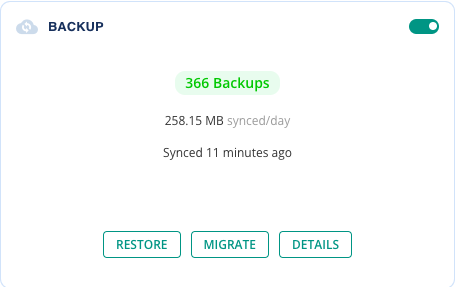
Use your hosting provider’s tools or a backup plugin to check if there’s a recent backup of your website, including the .htaccess file. Use the same to revert your site to its previous state.
This step is important because viruses or malware can corrupt and duplicate the .htaccess file across various folders, causing numerous issues.
2. Use the default .htaccess code
Before making any changes, ensure you save a copy of your entire WordPress site to have a backup of the custom settings. Here’s how to create a fresh .htaccess file
1. Access your root folder:
Use an FTP plugin, FTP client, cPanel, or your hosting file manager to access your WordPress directory, often named public_html or www
2. Create a new .htaccess file:
In the root directory, create a new file named .htaccess. Open the file and paste the following default WordPress code
# BEGIN WordPress

<IfModule mod_rewrite.c>

RewriteEngine On

RewriteBase /

RewriteRule ^index.php$ - [L]

RewriteCond %{REQUEST_FILENAME} !-f

RewriteCond %{REQUEST_FILENAME} !-d

RewriteRule . /index.php [L]

</IfModule>

# END WordPress
3. Save the file:
Save this new .htaccess file, replacing the old one
Check your website to make sure it’s functioning properly. Look for any lingering errors or performance issues.
Reapply custom rules
If your old .htaccess file had specific settings, go through them carefully. Add these custom rules back to the new file one by one. After each addition, test your site to confirm everything is still working smoothly.
Seek further assistance if needed
If problems continue, it might be time to seek help. Contact your hosting provider for additional support or consult a WordPress expert. They can help investigate any deeper issues that might not be related to the .htaccess file.
How to prevent .htaccess file corruption
Regular backups

Make sure to routinely back up your entire website, including the .htaccess file. This way, if something goes wrong, you can revert your site to a previous, functional state.
Avoid direct changes to the file
Try to avoid directly editing the .htaccess file unless it’s absolutely necessary. Use WordPress plugins or the dashboard for tasks like changing links or setting up redirects instead.
Test before implementing

Before you add new plugins or themes to your live site, test them on a staging version first. This helps you spot any potential issues before they affect your main site.
Keep everything updated

Always update your plugins and themes to their latest versions. Updates usually include crucial security patches and improvements.
Enhance security

Use a well-known security plugin to shield your site from hackers. Set file permissions correctly to prevent unauthorized changes, and regularly scan for malware to catch threats early.
Limit access
Limit the number of users who have full access to your site. This reduces the chances of accidental changes or security breaches. Ensure your hosting provider uses strong security measures to protect your site at the server end.
Parting thoughts
Dealing with .htaccess file issues is fairly common for WordPress users. Knowing how to quickly resolve these problems can get your site back up and running smoothly. Regular site audits, backups and strong security measures are key to avoiding disruptions.
FAQs
How do I fix the .htaccess file in WordPress?
You can fix the .htaccess file by restoring a backup or creating a new .htaccess file with default settings. Make sure to test your website after the restoration to ensure everything is working properly.
How do I edit a .htaccess file safely?
Edit a .htaccess file by cautiously making the necessary changes and saving them. Always create a backup beforehand to ensure you don’t lose any important settings.
What is the solution for WordPress core file corruption?
You can address a WordPress core file corruption by restoring a backup or reinstalling the core WordPress files. It’s important to identify the cause of the corruption to prevent it from happening again.
Can a corrupt file be fixed?
Yes, you can often fix a corrupt file by replacing it with a clean version from a backup. If a backup isn’t available, you might need to manually repair or recreate the file.
How do I remove a virus from my WordPress site?
Remove a virus by using a security plugin to scan and clean your site or by restoring a clean backup. Make sure to regularly update plugins and themes to minimize the risk of infections.