Not every WordPress setting lives in the dashboard. Some live in the broader WordPress file structure. This is where core files like wp-config.php handle the site’s database connection, security keys, debugging, and other advanced settings.
If you are looking up how to edit wp-config.php safely, you are probably trying to make a change without causing errors or downtime. That is a fair concern. This is an important file.
The good news is that you can do this safely. With the right steps, it is completely manageable. We will show you where to find the file, how to edit it correctly, and what to watch out for so you can make changes with confidence.
To edit wp-config.php, backup your site, open the file through SFTP, FTP, cPanel, SSH, or a file manager plugin, make your changes, save carefully, and test right away. If you are editing it for security, be careful. wp-config.php can help with hardening, but you still need a solid security plugin for full protection.
Take a full backup
Before editing wp-config.php, take a full backup of your site. That includes both the files and the database.

This file controls core WordPress settings, so even a small mistake can make the site inaccessible. A backup gives you a safe way to restore everything if that happens.
📝 Note: BlogVault is a solid option for this because it creates full WordPress backups and lets you restore the site with one click if needed.
Locate the wp-config.php file
The wp-config.php file is usually in the root folder of your WordPress installation.
On many hosts, that folder is called public_html or www. On others, it may be htdocs, a domain folder, or another web root directory. It is usually in the same place as folders like wp-admin, wp-content, and wp-includes.
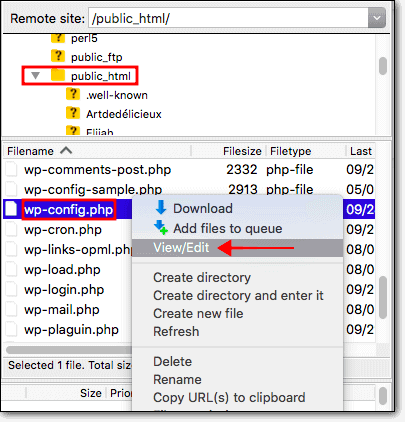
There is one detail worth keeping in mind. On some hosts, wp-config.php may be placed one level above the public web root for added protection. So if you do not see it right away, check the parent directory too.
You can access the file via SFTP/FTP, cPanel, SSH, or a plugin.
Edit the wp-config.php file
You can edit wp-config.php through SFTP/FTP, cPanel, SSH, or a file manager plugin. In most cases, manual methods are the safer choice.
1. FTP
Use FTP to connect to your server and open the file from your computer is one of the most common ways to edit wp-config.php.
- Start by connecting to your server: Open your FTP client, such as FileZilla or Cyberduck, and log in with the credentials from your web host. If your host offers SFTP, use that instead of standard FTP because the connection is encrypted.

📝 Note: Once you are in, you will see the core WordPress files that run your site. Make sure you have a recent backup ready before editing anything, just in case something goes wrong.
- Move to the WordPress root directory and find the file. After you connect, open the folder where WordPress is installed. Look for wp-config.php in that directory.
- Open the file in a plain text editor and make your changes carefully: In FileZilla, you can often right-click the file and choose View/Edit. In Cyberduck, you may need to download the file first and then open it in a text editor or code editor such as Notepad, TextEdit in plain text mode, or VS Code.
Do not use a rich text editor here. Hidden formatting can break the file.
2. cPanel
Using cPanel File Manager to edit the file in your browser is often the easiest option for beginners.
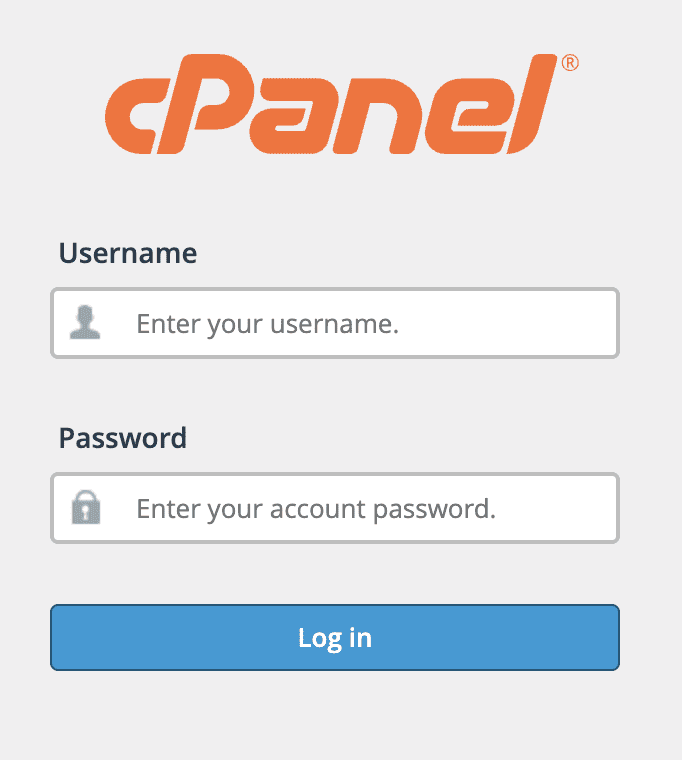
- Sign in to your hosting control panel: Log in to your hosting account and access cPanel. Not every host uses cPanel. Some use a custom panel or a tool like Plesk. The screens may look different, but the process is usually similar.
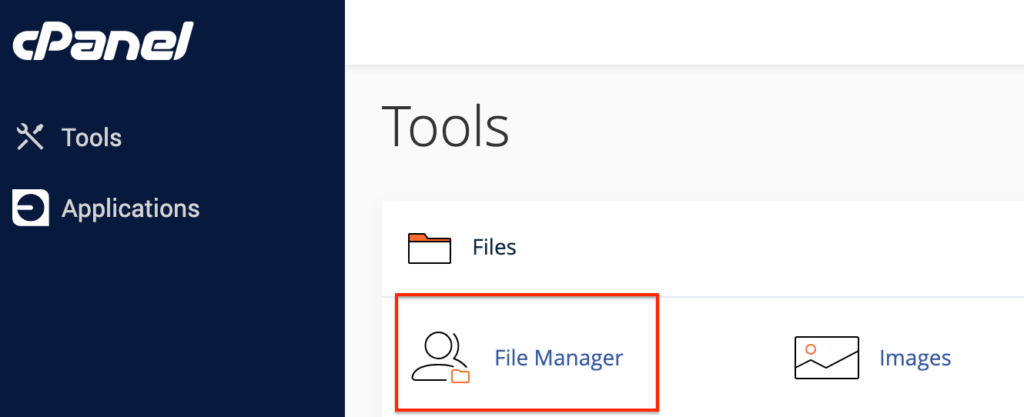
- Open your site’s root folder and locate wp-config.php: Inside File Manager, go to the folder where WordPress is installed. If the folder names look unfamiliar, it helps to understand the WordPress file structure first.
- Open the built-in editor and update only what you need: Right-click the wp-config.php file and click Edit. A dialog box may appear first. Continue into the editor, make your changes, and save them.
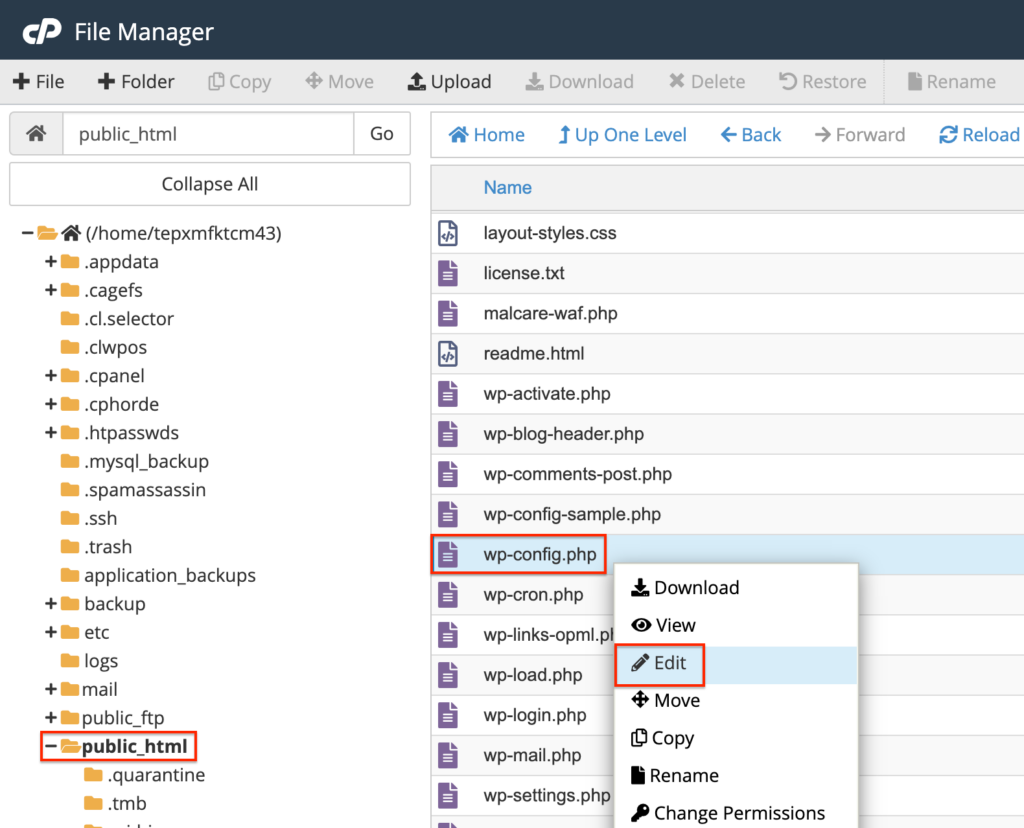
This is convenient, but it is still a core file. Before saving, make sure you understand file permissions and check your work carefully.
3. SSH
Using SSH to access the server and edit the file from the command line is a good choice if you are comfortable working in a terminal.
- Connect to the server with your SSH credentials: Open your terminal or SSH client and run:
ssh username@server-ip-addressYour SSH credentials may be the same as your FTP credentials, but they are not always the same. If you are unsure, check with your host before you try to log in. - Move into the WordPress directory and confirm the file is there: After connecting, change into the correct folder by using:
cd /root/directory/Replace/root/directory/with your actual path. Then runls - Look for wp-config.php in the list. Open the file in a terminal editor and save it the right way: If you want to use vi, run:
vi wp-config.php - Press i to start editing. When you are done, press Esc, type
:wq, and press Enter to save and exit. - If you prefer nano, run:
nano wp-config.php - Then press Ctrl + 0 to save, press Enter, and press Ctrl + X to exit.
- Use one editor method at a time. Mixing vi and nano shortcuts is a common mistake.
4. Plugin
Using a file manager or an FTP plugin from inside the WordPress dashboard is possible on some sites, but it is not the method we recommend.
A plugin can usually edit wp-config.php only when the server environment gives the web process enough access to read and write that file.
That may work, but it is not a setup we like for such a sensitive file. Overly permissive file access can increase the risk of unauthorized changes or exposure, especially if another part of the server or application stack is compromised.
Still, for completeness, here is how it usually works with the File Manager plugin.
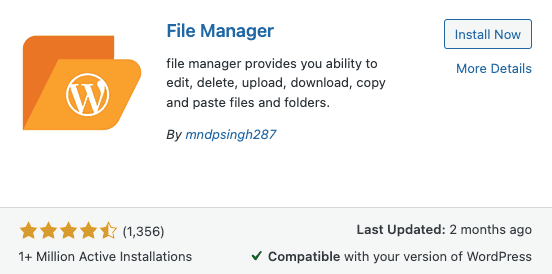
- Install the plugin and open your site files from the WP-Admin: In the dashboard, go to Plugins, click Add New, search for File Manager, then install and activate it.
-
Navigate to the root folder and open wp-config.php: In the sidebar, click WP File Manager. Open the WordPress root directory and find wp-config.php.
-
Use the code editor to make small, precise changes: Right-click the file and choose Code Editor. A pop-up editor will open. Make the changes, then save them.
If you use this route, keep the edit small and temporary. It is not the place for trial and error.
Save changes and test
Save the updated file and test your site right away. That is the safest way to catch problems before they spread.
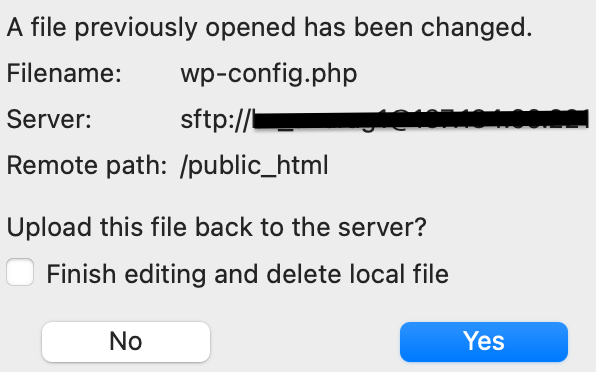
Upload the updated file back to the same location if you edited it locally: In many SFTP or FTP tools, saving the local file will trigger an upload prompt. Confirm it. If the client does not do that automatically, upload the edited file manually and replace the old one.
Save the file inside the panel or terminal and close the editor cleanly: In cPanel, click Save Changes. In vi, press Esc, type :wq, and press Enter. In nano, use Ctrl + 0, then Enter, then Ctrl + X. In a plugin editor, click the plugin’s save button.
Check the site right away and do not assume everything is fine because the save worked: Open the homepage, a few inner pages, the WordPress login page, and the dashboard. If the change affects functionality,test the exact feature you edited for. That may include forms, checkout, cron behavior, or a plugin setting.

If you changed a setting and do not see the effect, clear any WordPress cache, plugin cache, server cache, CDN cache, or browser cache before you assume the edit failed.
wp-config.php file structure
Before making changes to a critical file, it helps to know what the main sections do. You do not need to memorize the whole file. You do need to know what not to change casually.
Opening PHP tag: This tag marks the start of PHP code: <?php
If anything appears before it, including stray spaces or output, it can cause errors. That is one reason to use a clean plain text editor.
Database credentials: These values tell WordPress how to connect to the database. WordPress uses them to pull and store site data. If one of these values is wrong, WordPress may stop connecting to the database.
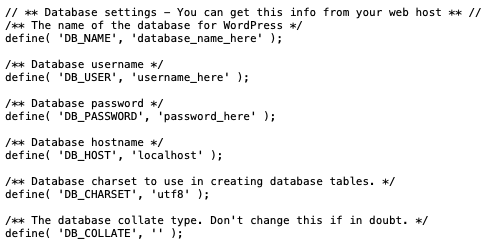
The main settings are:
DB_NAME for the database name

DB_USER for the database username

DB_PASSWORD for the database password

DB_HOST for the database host

DB_CHARSET for the database character set
Changing these settings is not something most site owners do often. It usually comes up when moving to a new host, migrating the site, creating a local install, restoring a broken site, changing credentials after a security issue, or adjusting hosting-related database settings.
Be extra careful here. A tiny typo in one of these values can bring the site down.
Salts and security keys: The security keys and saltsin wp-config.php help secure cookies and login sessions. They make stored authentication data harder to predict or tamper with.
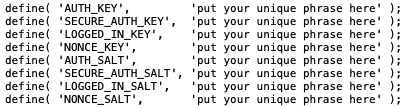
Here is what they do:
AUTH_KEYandSECURE_AUTH_KEYhelp sign and secure login information stored in cookiesLOGGED_IN_KEYhelps secure the cookie used to keep users logged inNONCE_KEYhelps protect forms and URLs that use noncesAUTH_SALT, SECURE_AUTH_SALT, LOGGED_IN_SALT, and NONCE_SALTadd extra randomness and make attacks much harder
If you replace these keys and salts, current sessions are usually invalidated. That means users will need to log in again. That can be useful after a hack or suspicious login activity.
Database table prefix: The database table prefix is added to the beginning of each WordPress table. By default, it is usually wp_.

A lot of people are told to change their database prefix to improve security. A custom prefix can reduce reliance on default assumptions, but it is not a meaningful security fix on its own and is rarely worth changing on an existing site unless you have a specific reason.
WordPress debugging mode: The WP_DEBUG constant controls WordPress debugging behavior. On its own, it enables debug mode, and related constants can control whether errors are displayed on screen or written to a log file.

You will often see:
define('WP_DEBUG', false);If you change false to true, debugging turns on.
define('WP_DEBUG', true);This can be very useful when you are tracking down a problem. But on a live site, you usually do not want verbose errors displayed to visitors. Turn it off when you are done.
Absolute path to the WordPress directory: This section tells WordPress where its core files are located. It usually does not need to be changed. Most site owners should leave it alone.

WordPress settings: Near the end of the file, WordPress loads wp-settings.php. That file initializes core functions, themes, plugins, and many of the settings the site depends on. This is not usually an area to edit unless you know exactly why you are doing it.

Closing PHP tag: A closing PHP tag may appear at the end of the file: ?>
It is optional and often left out. That is normal in WordPress-related PHP files. Leaving it out can help avoid output issues caused by trailing spaces.
Pros and cons
Editing wp-config.php can be useful, but it is not something to do casually. There are times when it makes sense. There are also times when leaving the file alone is the smarter choice.
| Pros | Cons |
|---|---|
| Access settings not available in wp-admin | A small mistake can break the site |
| Enable debugging when the dashboard is not usable | Wrong values can cause database errors |
| Change database connection settings directly | PHP syntax errors can take the site down |
| Update security keys and salts | The file can feel technical if you are not used to PHP |
| Disable dashboard file editing | It is easy to change more than you intended |
| Adjust memory or other advanced constants | Some edits are unnecessary and only add risk |
| Help with troubleshooting and recovery | You need to test carefully after every change |
If the change is necessary and you understand it, go ahead carefully. If you are unsure, pause and check first.
Troubleshooting common issues
Most wp-config.php problems come from syntax errors, wrong database values, or changes made in the wrong place.
If your site stops working after a wp-config.php edit, the cause is usually smaller than it looks. In most cases, it comes down to a typo, a wrong value, or code added in the wrong spot.
Website down: If the site goes down right after you edit the file, review the exact change you made. Look for missing semicolons, wrong quotes, misspelled constants, or extra spaces. If needed, restore the original file from your backup or upload the untouched copy you saved earlier.
Website performance issues: Some settings in wp-config.php can affect performance. Check any recent changes related to debugging, memory, cron behavior, or database settings. Also remember that a live site with debugging turned on can feel slower.
Database connection errors: If you see an error about the database connection, double-check DB_NAME, DB_USER, DB_PASSWORD, DB_HOST, and the table prefix. Even a small mistake can stop WordPress from connecting.
Broken functionality: If a feature stops working after you edit wp-config.php, go back through the changes. Look closely at any constants related to paths, URLs, content directories, plugins, or debugging behavior.
Syntax errors: This is a PHP file, so syntax matters. Check parentheses, semicolons, quotes, and the exact define() structure. One typo is enough.
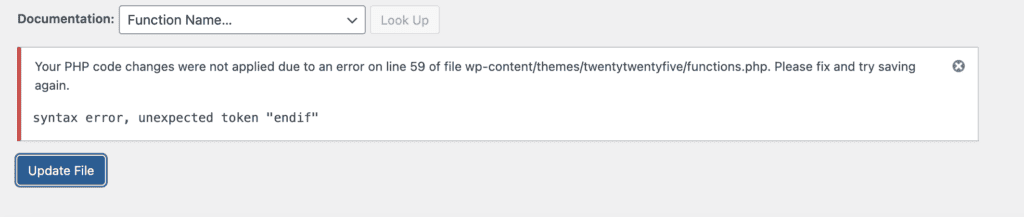
Security vulnerabilities: Make sure sensitive values such as salts and database credentials are still defined correctly and have not been exposed anywhere else in the process.
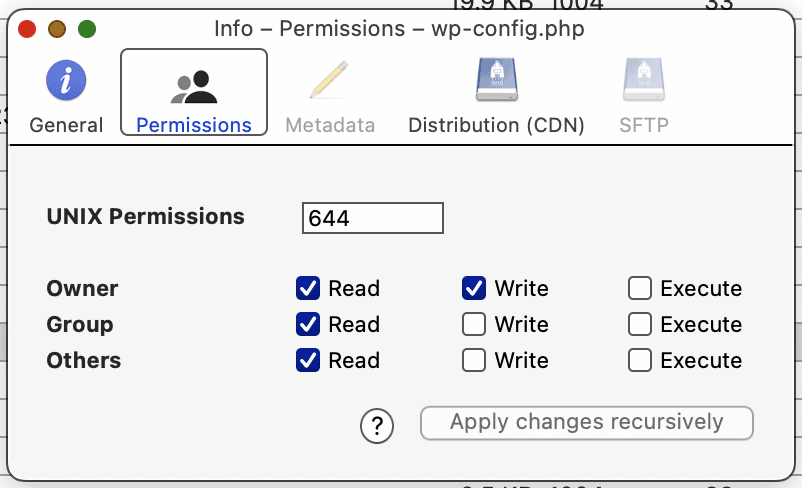
Can’t save changes: If you cannot save the file, check file ownership and file permissions. Secure settings for wp-config.php are commonly 400, 440, or sometimes 444, depending on the hosting setup. Do not change permissions blindly. If the server process can no longer read the file, the site can break for a different reason.
Unable to preview changes: Most changes to wp-config.php take effect on the next request. If they do not seem to show up, clear your WordPress cache, plugin cache, server cache, CDN cache, and browser cache. A restart is usually not needed.
Troubles with plugins and themes: If plugins or themes act strangely after a change, check whether you modified constants like WP_CONTENT_URL or WP_PLUGIN_URL. Those settings can affect how files are loaded.
Loss of site data: If the database name, username, password, host, or prefix is changed incorrectly, WordPress may look like it has lost the site’s content. In reality, it may just be looking at the wrong place or failing to connect. This is another reason to back up the database before editing.
Best practices
- Editing the file can be risky if it is done carelessly. It gets much safer when you follow a clean process.
- Take a complete backup with BlogVault before you begin. This is smart for any major site change, but it matters even more when you are editing a core file or changing database-related settings.
- Do not make unnecessary changes. If a tweak is not needed, skip it. Every edit creates some risk.
- Use a plain text editor or code editor. Rich text editors can add hidden formatting that breaks PHP files.
- Make one change at a time. This makes troubleshooting much easier if something goes wrong.
- Follow PHP syntax carefully. Strings need quotes. Lines need semicolons. Constants need the correct define(‘
CONSTANT_NAME‘, ‘value‘); format.
📝 Note: If you are making several meaningful edits, add comments so you remember why they were added. That will help later, especially if you revisit the file months from now.
- Double-check every edit before you save. This is often the step that catches the problem.
- Test the site after every change. Check both the front end and the back end so you know that the site still works as expected.
How to create a custom wp-config.php file?
Sometimes you may need to create a wp-config.php file from scratch. This can happen during a manual WordPress install, when rebuilding a broken site, when restoring a site without a usable backup, or when troubleshooting a damaged config file.
Create a new PHP file with the correct name: Open a plain text editor and create a new file named wp-config.php.
Copy the default structure from the sample file: Download the WordPress installation package and find the file named wp-config-sample.php. Copy its contents into your new file. This gives you the standard structure and placeholder values WordPress expects. It looks like this:
Replace the placeholder database settings with your real values: Add your database details using the standard format:
define('DB_NAME', 'database_name_here');

define('DB_USER', 'username_here');

define('DB_PASSWORD', 'password_here');

define('DB_HOST', 'localhost');
Replace the placeholder values with your real database name, username, and password. In many cases, localhost is correct for DB_HOST, but not always. Some hosts use a different database server address.
Generate fresh authentication keys and salts and paste them into the file: Use the official WordPress secret key generator to create new values, then replace the placeholders in your custom file.
Set debugging or memory values only if you actually need them: If you are troubleshooting, you may add:
define('WP_DEBUG', true);If you need to raise the memory limit available to WordPress, you may add: define('WP_MEMORY_LIMIT', '64M');
This may help, but the final limit can still depend on the server and PHP configuration. Debugging should not stay enabled on a live site longer than needed.
Save the file and upload it to the WordPress root directory: Once the file is ready, upload it through SFTP or FTP to the same folder where WordPress is installed. If an old wp-config.php file exists and you mean to replace it, confirm that before overwriting it.
On some setups, WordPress can create this file during installation if the environment allows it. If not, creating it manually is a normal fallback.
Parting thoughts
A lot of WordPress advice recommends changing wp-config.php, especially for security. Some of that advice is useful, but this file is not a complete security solution on its own.
It can help with debugging, hardening, and advanced settings that are not available in the dashboard. For fuller protection, we recommend a dedicated security tool like MalCare for firewall and malware scanning features.
If you take a backup first, make one change at a time, and test carefully, you can edit wp-config.php safely.
FAQs
Frequently asked questions
The wp-config.php file stores core WordPress settings such as database details, security keys and salts, the table prefix, and debugging options. It can also include other advanced constants that control how the site behaves.
No, you cannot access wp-config.php directly from the WordPress dashboard by default. You usually open it through SFTP or FTP, cPanel, SSH, or a file manager plugin if your setup allows it.
You can protect wp-config.php by using secure file permissions, limiting file access, and keeping authentication keys and salts strong. Good hosting security and regular maintenance also help reduce the risk of unauthorized access.
If your site stops working after a wp-config.php edit, revert the change right away. If that does not fix it, restore the original file or use a recent backup.
If the database details in wp-config.php are incorrect, WordPress will fail to connect to the database. In many cases, visitors will see the message “Error establishing a database connection.“