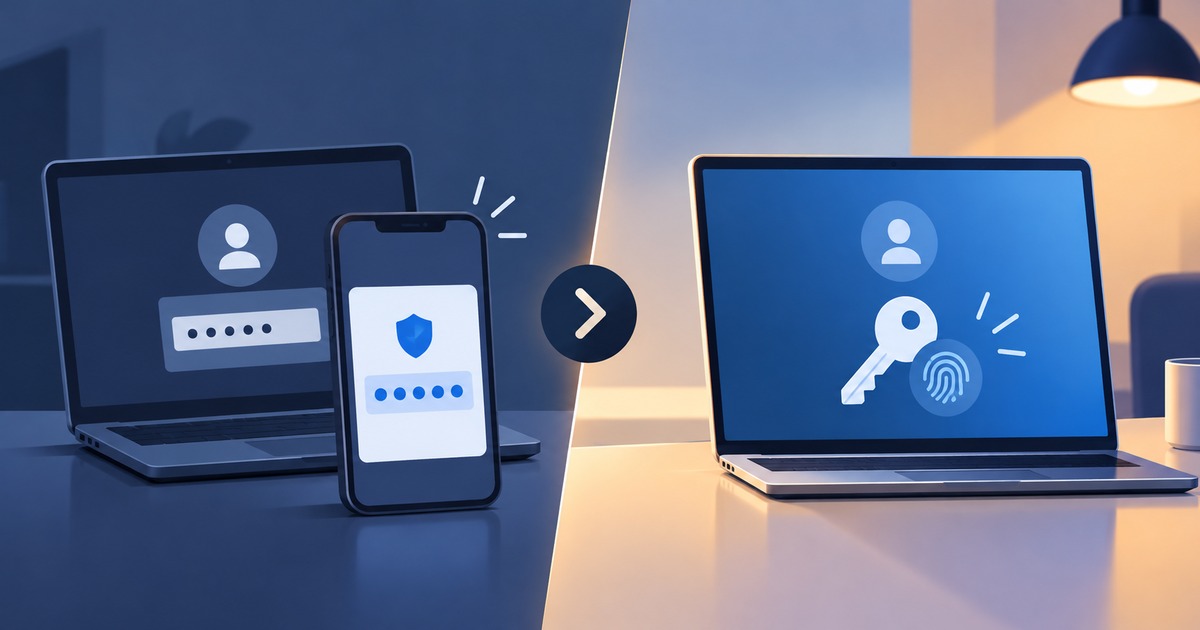
You sign in to your email tonight, and a prompt asks, “Create a passkey?” even though the code from your authenticator app has worked fine for years. You are not sure whether to tap yes, and you do not want to lock yourself out of an account that matters.
Take a breath, because both options protect you far better than a password alone.
This passkeys vs 2FA guide explains the difference in plain language, shows you the one catch worth knowing before you tap yes, and walks you through switching at your own pace.
TL;DR: Both passkeys and 2FA protect you far better than a password alone, so keep 2FA on wherever it is offered and add a passkey to the accounts that matter most. Remove weaker login options once your passkey works, and set up a backup first so a lost phone never locks you out. For your website, start by enabling WordPress two-factor authentication for administrator accounts.
You are in better shape than you think
If you already use 2FA, you have blocked the most common attacks, because a stolen or guessed password is useless without your code.
- Worried about being non-technical? A passkey login takes a tap and a fingerprint.
- Worried about locking yourself out? A backup turns a lost phone into an inconvenience.
- Worried about picking the wrong one? You can often keep both on.
Passkeys and 2FA side by side
2FA, short for two-factor authentication, adds a second proof, such as a code, to your password login.
A passkey replaces the password with a secret key stored on your device, unlocked with your fingerprint, face, or PIN.
| What you care about | 2FA (codes or approvals) | Passkey | Edge |
|---|---|---|---|
| Stops guessed or stolen passwords | Yes, the attacker also needs your code | Yes, no password exists to steal | Tie |
| Stops a fake login page | A code can be passed along live | Yes, the key works only on the real site | Passkey |
| Works on most sites and feels familiar | Nearly everywhere, and very familiar | Growing but patchy, and newer to most people | 2FA |
| Sign-in speed | A few extra seconds | Often faster | Passkey |
| Recovery after a lost phone | Backup codes and reset flows are well known | Needs a second passkey or hardware key | Depends on setup |
📝 Note: The Edge column shows the typical case, so check what your own account offers.
Neither one wins every row, so many accounts use both.
Microsoft reports that passkey users succeed at signing in about three times as often as password users, with sign-ins about eight times faster than password-plus-MFA flows. Those figures come from its own consumer accounts, so treat them as a direction, since results vary by site.
How each one works
The doorman analogy
- A password is a secret phrase you whisper to the doorman, and anyone who overhears it can walk in.
- 2FA adds a code sent to your phone, which stops anyone who knows only your phrase. A skilled impostor standing between you and the doorman can still read the code and use it before it expires.
- A passkey is a key that fits only this building’s lock and never leaves your pocket. A fake building has the wrong lock, so your key does nothing there.
What a passkey feels like to use
You tap “Log in,” confirm with your fingerprint, face, or PIN, and you are in.
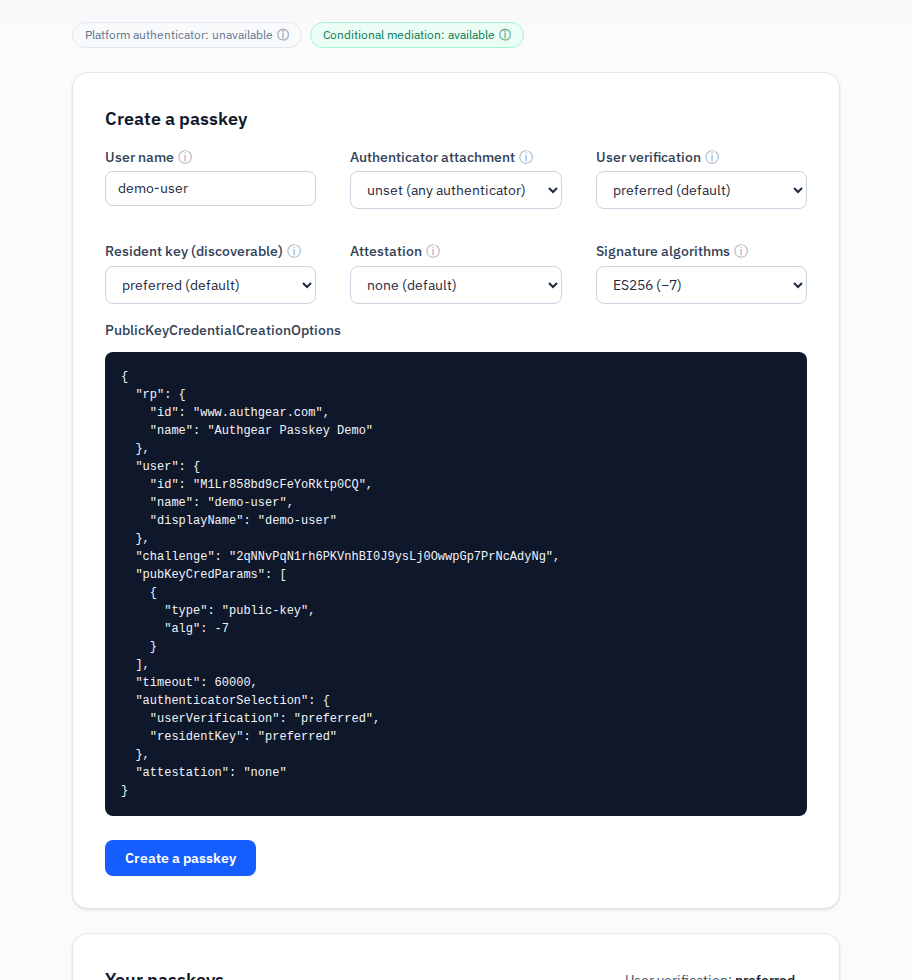
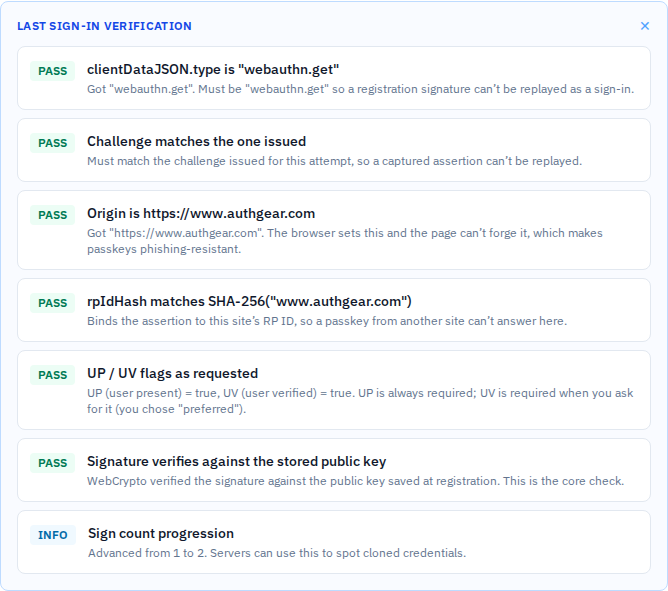
Behind the scenes, the site sends a one-time puzzle, your device signs it with a private key that never leaves the device, and the site checks the answer against the public key it saved when you signed up.
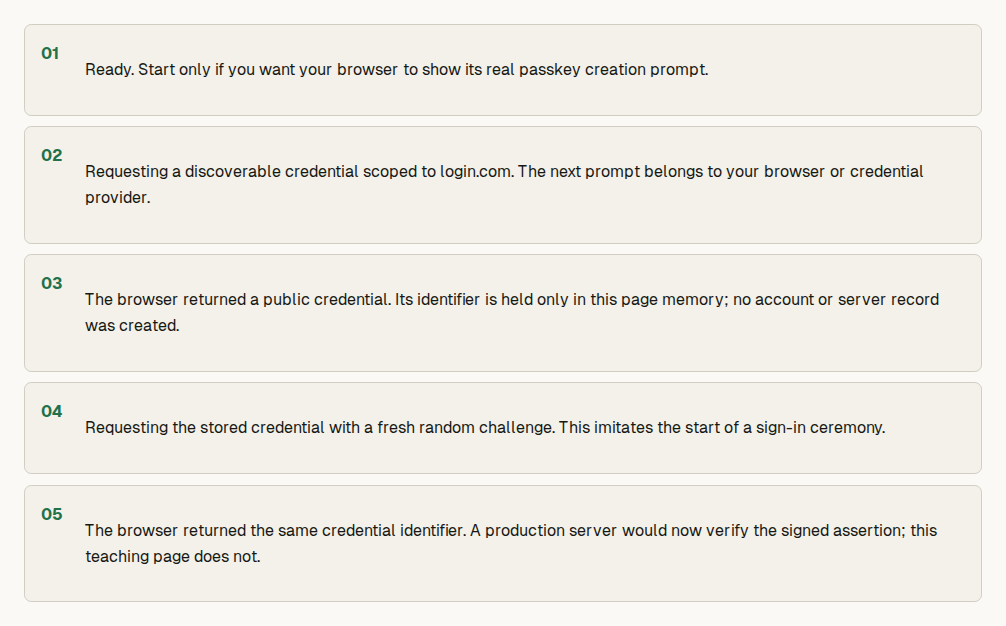
Think of it as a wax seal. Only your device can press the seal, and the site keeps a sample that can check a seal but cannot make one, so a stolen public key cannot log anyone in.
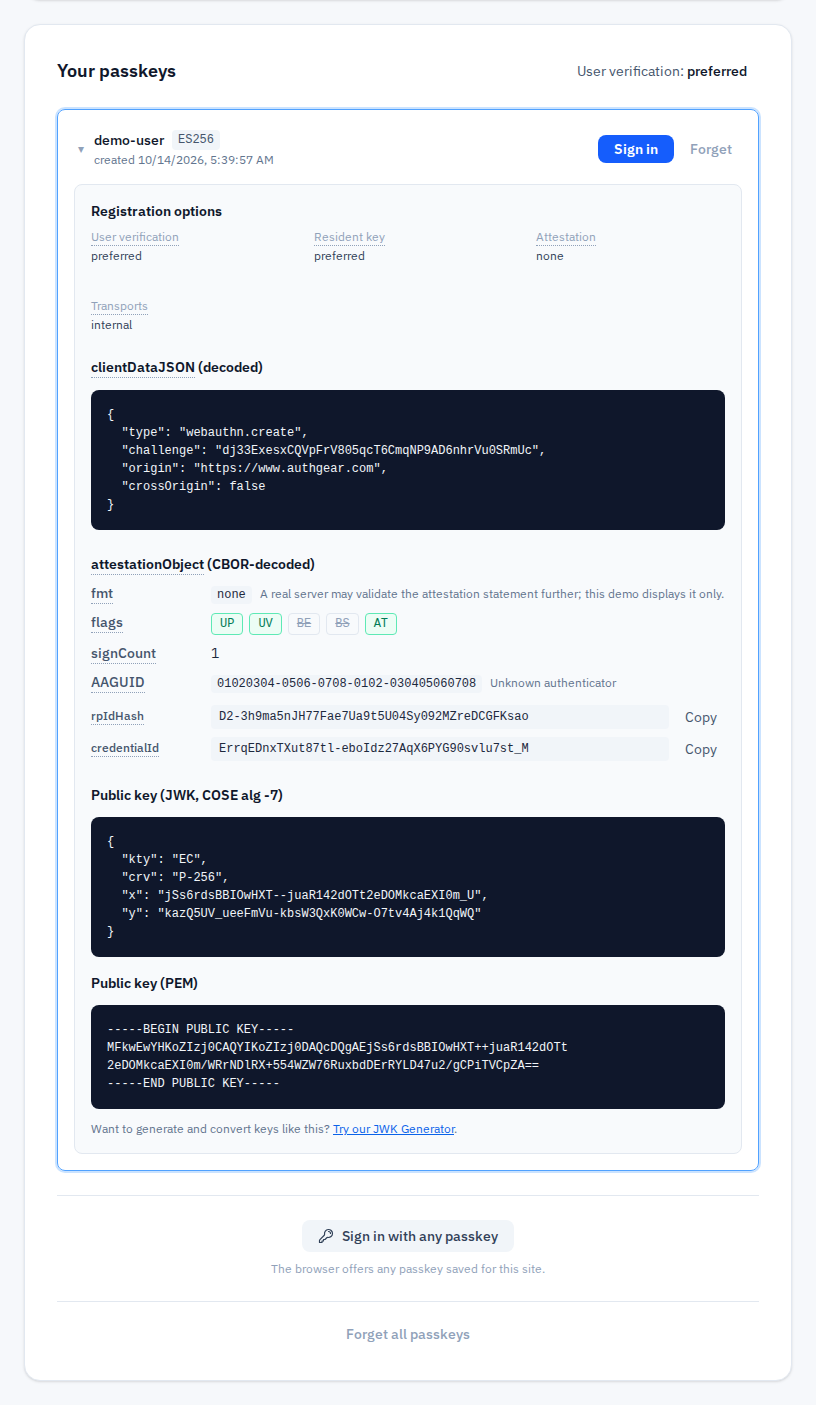
📝 Note: A synced passkey copies itself across your devices through your Apple, Google, Microsoft, or password manager account, so it is easy to recover but only as safe as that account. A device-bound passkey lives on one gadget, so it needs a backup. Check which kind the prompt creates.
That is the whole mechanism, so the practical question is what each method actually stops.
Which attacks they stop
Both stop guessed passwords and leaked passwords, meaning the big lists of stolen logins from data breaches that attackers try on other sites.
Stolen passwords can give attackers access to WordPress through a legitimate account, which is why protecting the password alone is not enough.
A passkey stops one more attack: the live fake login page. Picture the same night going differently. An email says someone tried to sign in to your hosting account, and you click the link.
The page looks exactly like your login, so you type your password and your six-digit code. The fake page hands both to the real site within seconds.
Careful people fall for this too.
A passkey stops it at the first step. Your device saves the passkey for one exact web address, and your browser reports the true address that is asking. On a lookalike address your device finds no matching passkey, so the fake page gets nothing to pass along.
Which methods a fake page can beat
Passkeys and hardware security keys (small devices you plug in or tap) resist a fake page.
Authenticator codes, push approvals, SMS codes, and email codes do not, since you read or approve them yourself. Their trade-offs differ:
- Authenticator app codes make an excellent default where passkeys are unavailable.
- Push approvals are fast, but attackers can spam prompts until someone taps yes, so turn on number matching (you type a number from the login screen into the app) and deny any prompt you did not start. CISA rates number matching a good interim fix, though weaker than phishing-resistant MFA.
- SMS codes are open to SIM swap, where a thief takes over your phone number, and CISA says SMS and voice codes should be a last resort. They still beat having no second step.
- Email codes are only as safe as the mailbox, so treat them as a fallback.
A passkey is strong, and how strong depends on what sits beside it.
The weak spot beside a passkey
I treat every account as only as strong as its easiest way in.
A passkey is a steel front door, and any weaker backup login left switched on works like an unlocked window. Proofpoint researchers demonstrated the downgrade attack. A fake page makes the passkey step fail on purpose and offers “Try another way.”
You pick a code or an SMS to get in, and the attacker captures that weaker proof along with your session.
What neither one stops
Both methods guard the moment you sign in, so these risks remain:
- A stolen session. The site gives your browser a digital wristband that proves you are signed in. An attacker who steals that session cookie can skip the login entirely.
- Consent phishing. You click “Allow” on a shady app, and because you handed over permission yourself, like giving a stranger a spare key, this attack bypasses authentication entirely.
- Malware on your device, which can act as you once you are signed in.
- Weak recovery, where an attacker resets your account through a poorly protected email or phone number.
📝 Note: After a suspected break-in, revoke active sessions and connected apps first, then change your credentials, because a new login method alone may leave the attacker inside.
Then there is the fear that stops most people from switching: a lost phone.
What if you lose your phone?
With a backup in place, a lost phone rarely locks you out. Next month, the phone you used tonight goes missing. Find your setup below:
- Another passkey is registered: Sign in from that device, then remove the lost device’s passkey and active sessions.
- You have recovery codes: Use one, store the rest safely, and replace the lost passkey.
- You have a backup hardware key: Use it to sign in, then review what the lost device could still reach.
- Your passkey was synced: Secure the password manager or platform account holding it first, then confirm the passkey appears on your new device.
- No backup route exists: Use the service’s official recovery process, since a lost device does not automatically mean a lost account.
📝 Note: Keep recovery codes offline or in a password manager, never inside the account they protect.
With the risks and the safety nets clear, you can choose.
Which login to use
Use the strongest method each account supports, and confirm you can recover before you commit.
- Turn on a passkey when the account offers passkeys and your recovery is ready.
- Keep your current 2FA and set up a backup first when a passkey is offered but you cannot yet say how you would get back in.
- Turn on an authenticator app or hardware key, and use a unique password, when the service has no passkeys.
- Use the SMS or email code you are offered, lock your phone number with your carrier, and give your mailbox its own strong login, when nothing better exists.
- Pair a passkey with a hardware key as backup on your email, domain, hosting, password manager, and admin accounts.
For your administrator accounts, make this part of your broader WordPress login security setup rather than treating the authentication method as the only safeguard.
Stricter workplace rules
Some employers and regulators follow NIST’s assurance levels, which are US government ratings for how sure a site can be that it is really you.
The middle tier asks for more than a password, and passkeys that sync through your cloud account meet it.
The top tier needs hardware-bound credentials, meaning a key that lives on one physical device, because a key that can be copied to the cloud leaves room for doubt about who holds it. Device-bound passkeys, such as those on a security key, map to that tier.
If your organization names a tier, check the NIST SP 800-63B-4 guidance before you choose.
📝 Note: If your employer manages your account, ask IT before you add a passkey, since company policy may require specific methods.
Back to that prompt on your screen.
Before you switch
That prompt is still waiting. Work through these before you tap yes, because your current login keeps working until you remove it.
- Open the security settings and confirm the service really offers passkeys, because a phone or browser that supports them does not prove the service does.
- Set up recovery and register a second authenticator first, such as a second passkey on another device, saved recovery codes, or a backup hardware key.
- Remove the backup login options you no longer need once your passkeys work, including SMS codes, authenticator codes, and password reset by email.
- Sign in once through your backup route and review your active sessions, then revoke any session or device you do not recognize.
📝 Note: Build your backup now, while you still have a signed-in session.
Your WordPress site is the next account to think about.
2FA plugins for WordPress
For most WordPress sites, turning on 2FA for every administrator is the most practical step you can take today, and you do not need to be a developer to do it.
Passkey support still depends on plugins, so the plugin you pick decides which methods you can offer.
| 2FA plugin | What it adds | Good to know |
|---|---|---|
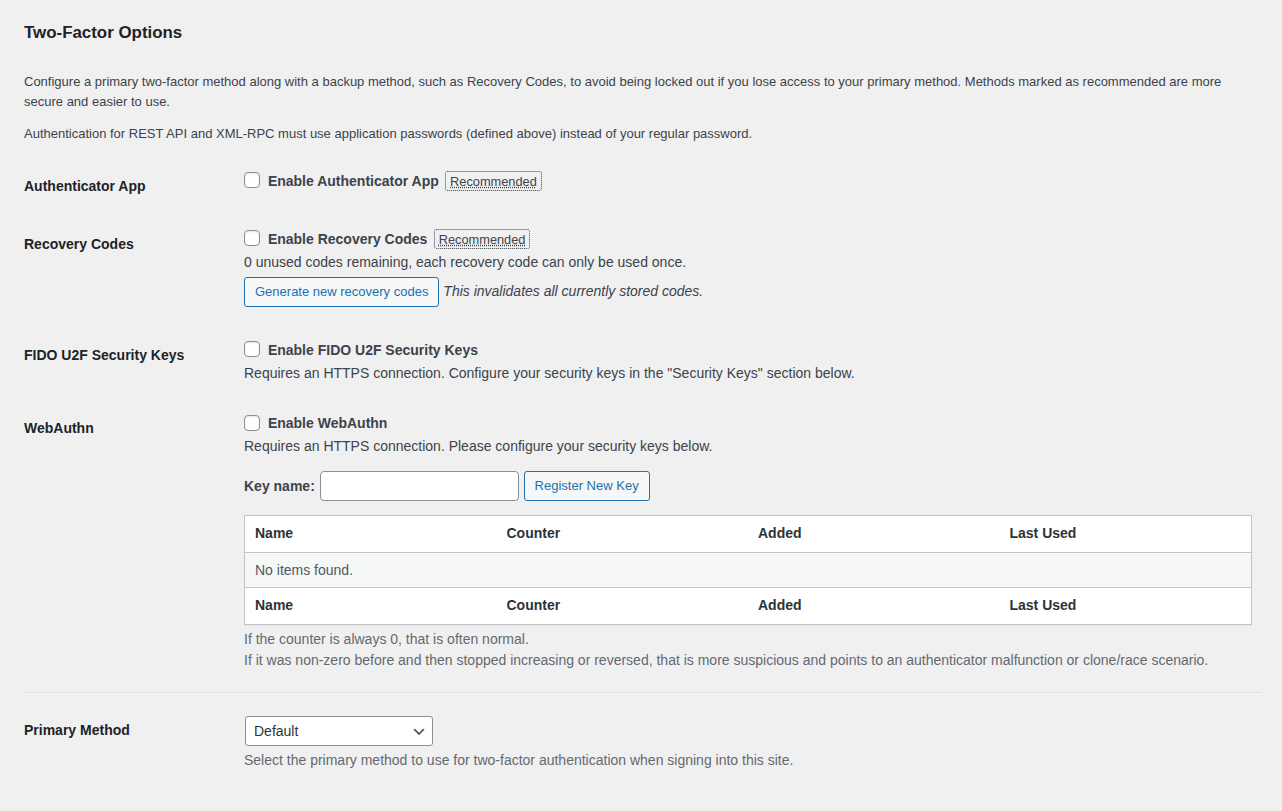
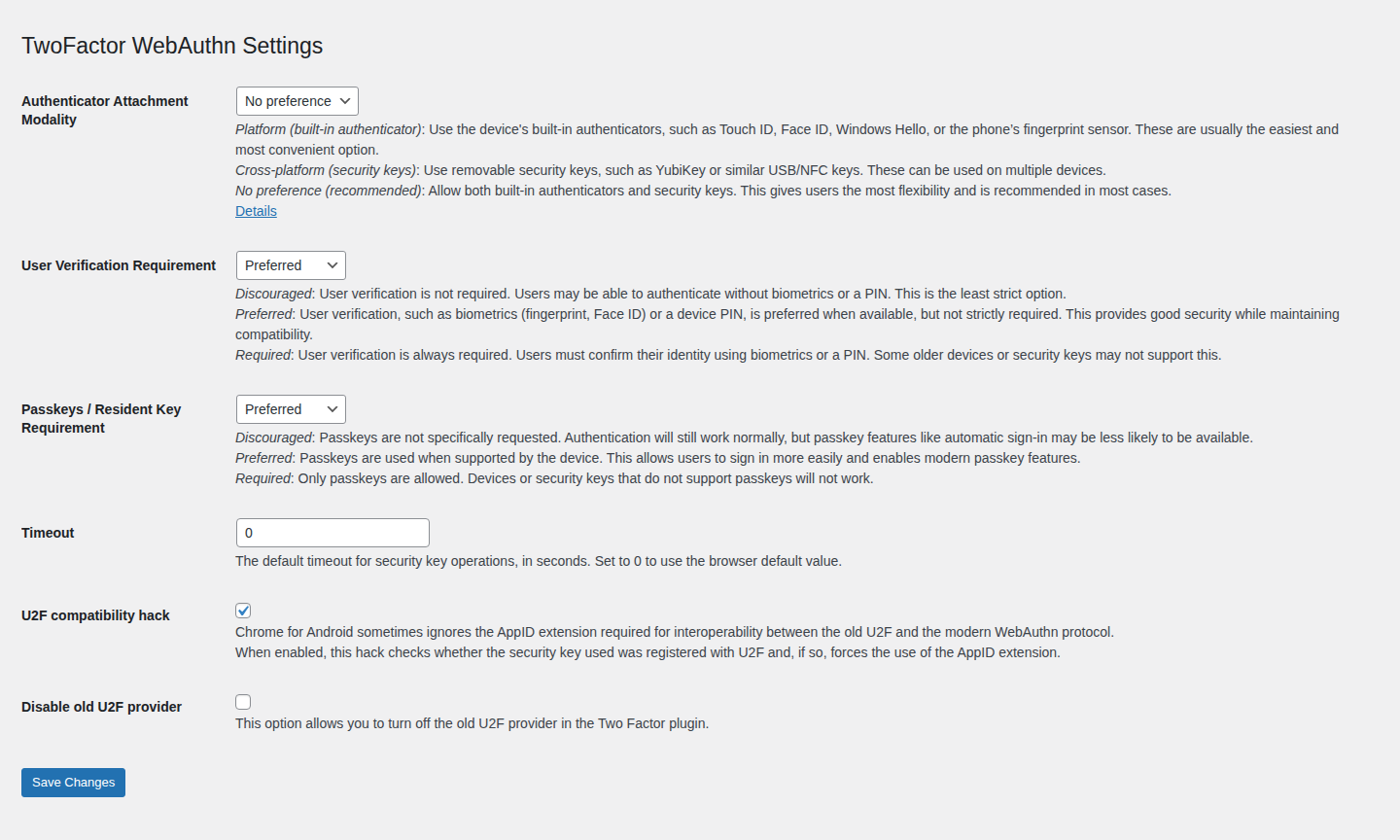
| Two Factor plugin with WebAuthn Provider | Adds WebAuthn (the passkey standard) and passkey support, including Windows Hello, Touch ID, and YubiKeys | Users type a username and password first, and the browser then prompts for the passkey |
| MalCare’s built-in 2FA | Covers the case where an attacker holds a correct stolen password | You manage it from the MalCare dashboard, outside your site. Check its current feature list for passkey support |
MalCare’s login protection also covers the login form and XML-RPC, an older WordPress feature that lets apps log in remotely and that bots also guess passwords against.
Pick the Two Factor plugin with the WebAuthn Provider if you want passkeys today, and pick MalCare’s 2FA if you already use MalCare and want 2FA managed from one dashboard.
Other options exist too, so compare WordPress 2FA plugins on supported methods, recovery options, and administrator rollout. If you need role-based enforcement, backup codes, or custom login support, our WP 2FA review examines those rollout and recovery considerations.
If you already use Wordfence but its login challenge fails, troubleshoot Wordfence two-factor authentication not working before switching plugins.
📝 Note: Test any new login plugin on a staging copy first and read its changelog. The WebAuthn Provider dropped official PHP 7.4 support, so confirm your PHP version, and skip any unnamed plugin.
Setup tips for any 2FA plugin
- Set up HTTPS on WordPress, because WebAuthn requires a secure context.
- Redirect one version of your address to the other before anyone registers, because a passkey registered on example.com will not work on www.example.com.
- Register two authenticators for every administrator, for example a laptop and a hardware key.
- Document a recovery route before enforcing 2FA, so you know how to regain access if you get locked out of WordPress when your authenticator or login plugin is unavailable
- Find the setting in your own profile, where a hosting guide places it under Users, then Your Profile, then Two-Factor Options.
- Keep a unique password from a password manager, since in this setup the password path stays open.
Follow WordPress password security practices, since this plugin setup still uses a password before the second-factor prompt.
What your login does not cover
Login protection locks the front door of your site, while a vulnerable plugin, malware, or a stolen session can walk in through a side entrance.
Neither a 2FA plugin nor a passkey removes malware from WordPress, so keep updates, backups, and scanning in place as separate layers. Follow a WordPress security checklist to review those protections beyond authentication.
FAQs
Are passkeys safer than 2FA?
Yes against fake login pages, because a passkey works only on the real site while a code can be passed along live. Against guessed or leaked passwords, both protect you well.
Is a passkey the same as 2FA?
Not quite. A passkey replaces the password step, while 2FA adds a code or approval to a password login. A passkey that needs a fingerprint or PIN already combines two kinds of proof, and NIST’s current guidance treats a syncable passkey as a single authenticator with multi-factor assurance.
Do I still need 2FA if I use passkeys?
Yes, on any account without passkey support. Keep a second passkey or a hardware key as your backup in place of codes a fake page can collect.
Are passkeys safe if someone steals my phone?
In most cases yes, because a passkey needs your fingerprint, face, or PIN before it works. Lock or erase the phone as soon as you can.
Do I need a hardware security key?
Not for most accounts, since a passkey on your phone or laptop already resists fake pages. A hardware key pays off on accounts you cannot afford to lose.
Conclusion
Tap yes on tonight’s email prompt once your backup route is ready, and keep 2FA on everywhere else.
Then work down to your password manager, hosting, and WordPress admin accounts, and test your backup route before you retire any old login. For WordPress, document your account recovery options alongside your authenticator’s recovery instructions.