You are about to change the login flow for the most important accounts on your WordPress site. That is not a small decision.
A good WordPress 2FA plugin should reduce risk without creating a new operational problem. A bad rollout can lock out the owner, confuse editors, break a custom login page, or send a customer into a payment flow that no longer behaves the way it did yesterday.
That is the real question behind this WP 2FA review. Not “does it have two-factor authentication?” It does. The better question is whether WP 2FA by MelaPress gives you enough control to add 2FA safely.
Short answer: WP 2FA is a strong dedicated WordPress 2FA plugin, especially for administrator, editor, agency, and team login protection. It has a useful free tier, sensible policy controls, backup codes, grace periods, frontend setup options, multisite support, and modern authentication features such as passkeys.
The caution is just as important. WP 2FA is not a full WordPress security plugin, and customer-facing 2FA should be tested carefully before you enforce it. Admin-only rollout is low drama. WooCommerce, membership, LMS, and custom login flows are where you slow down.
Quick Verdict
WP 2FA is worth considering if you want a dedicated login-security layer for WordPress. It is mature, actively maintained, and widely used, with 100,000+ active installs, a 4.7 out of 5 rating, and version 4.0.0 introducing a redesigned interface, refreshed setup wizard, clearer navigation, and easier-to-scan settings.
| Best for | Not best for |
|---|---|
| WordPress admins who want 2FA without building a custom login flow | Site owners who want malware scanning, firewalling, cleanup, and vulnerability monitoring in the same tool |
| Agencies standardizing admin login security across client sites | Stores that cannot test checkout, payment, and account flows before customer enforcement |
| Teams that need role-based policies, grace periods, and backup recovery | Sites with unreliable email delivery that plan to depend on email codes |
| Multisite networks and technical teams that need policy control | Anyone expecting SMS, YubiKey, trusted devices, or WooCommerce-specific customer features in the free tier |
The practical decision is simple:
- Use WP 2FA for the login layer.
- Start with administrators and high-privilege users.
- Add customers or members only after staging tests.
- Pair it with broader WordPress security if the site matters.
2FA is a seatbelt, not a mechanic. It helps when a password is stolen. It does not inspect the rest of the car.
What WP 2FA Does
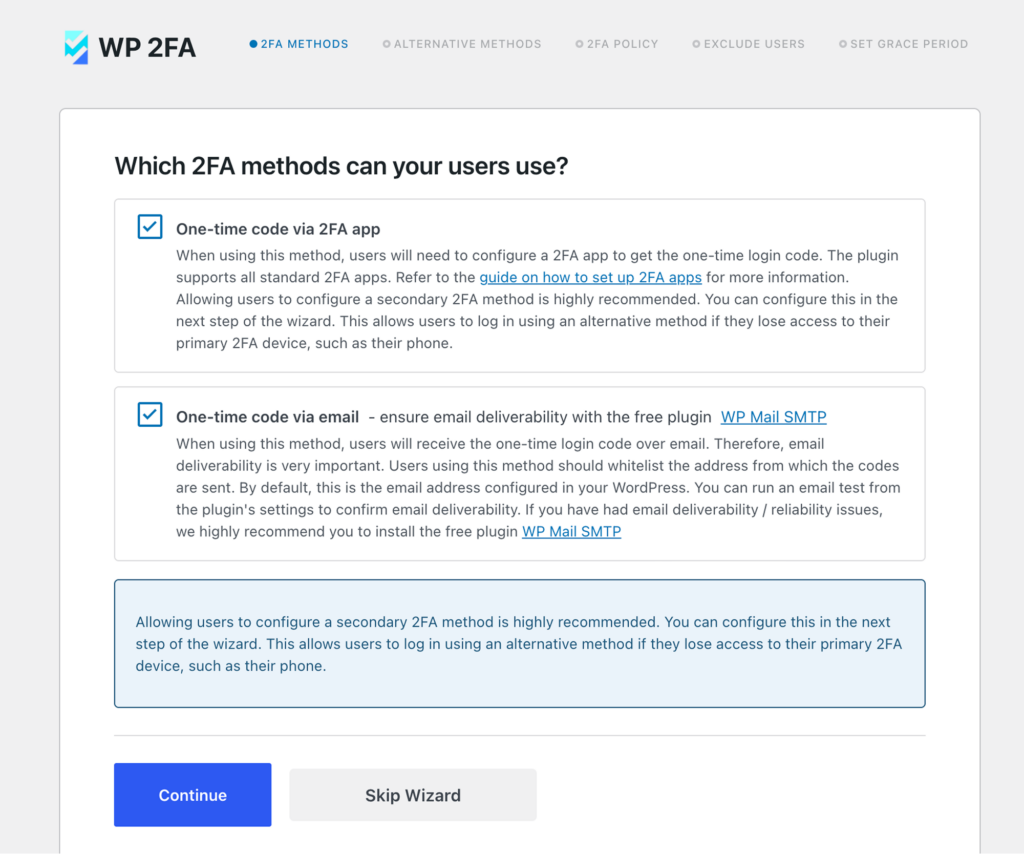
WP 2FA adds a second verification step after the WordPress username and password — essentially bringing WordPress two-factor authentication to your site without custom code. That second step can be an authenticator-app code, an email one-time code, a backup code, or a passkey.
The visible part is the login challenge. The hidden part is where the plugin matters more: who has to use 2FA, how quickly they must set it up, what happens if they lose access, and whether the login flow still works outside the standard WordPress admin screen.
WP 2FA gives you controls for:
- TOTP authenticator-app codes
- email one-time codes
- backup codes
- passkeys
- role and user-based policies
- grace periods
- frontend setup pages through shortcodes
- REST API support
- multisite policies
- email templates
That is a serious free core for a dedicated 2FA plugin. It is not just a checkbox that says “ask for a code.”
The important boundary is that WP 2FA protects login. For a broader WordPress login security setup that includes firewalling, brute-force protection, and session control, you will need additional tools. WP 2FA does not scan files, identify vulnerable plugins, clean malware, block exploit traffic across the site, or restore hacked content.
How We Evaluated WP 2FA
For this review, we inspected the WP 2FA 4.0.0 plugin package, checked its WordPress.org metadata, reviewed the public feature boundaries, and looked at the code paths that matter in a real rollout: setup, policies, methods, login handling, backup codes, recovery behavior, frontend setup, multisite support, passkeys, and premium feature gates.
The review focused on practical deployment questions:
- Can a non-technical admin set it up without immediately creating lockout risk?
- Are the free authentication methods useful enough for real sites?
- Can policies be applied by role, user, or network context?
- Does the plugin give users a grace period instead of forcing a hard cutover?
- Are backup codes handled safely?
- What features are free, and what moves into paid tiers?
- Where can WooCommerce, membership, custom login, or REST flows become sensitive?
- Does the plugin look maintained enough to trust for a login-critical function?
The code inspection found the details we want to see in this kind of plugin. Backup codes are generated as single-use codes and stored hashed. The plugin includes classes for TOTP, email codes, passkeys, backup codes, setup wizards, policy validation, frontend shortcodes, REST handling, and multisite-aware behavior. It also includes grace-period logic, which is one of those boring features that prevents a lot of support pain.
That last point matters. In 2FA, the flashy feature is the authentication method. The operational feature is the rollout policy. The rollout policy is usually what saves you.
Setup Experience
The setup flow is built around two separate jobs: the admin chooses the site policy, and each user sets up their own second factor.
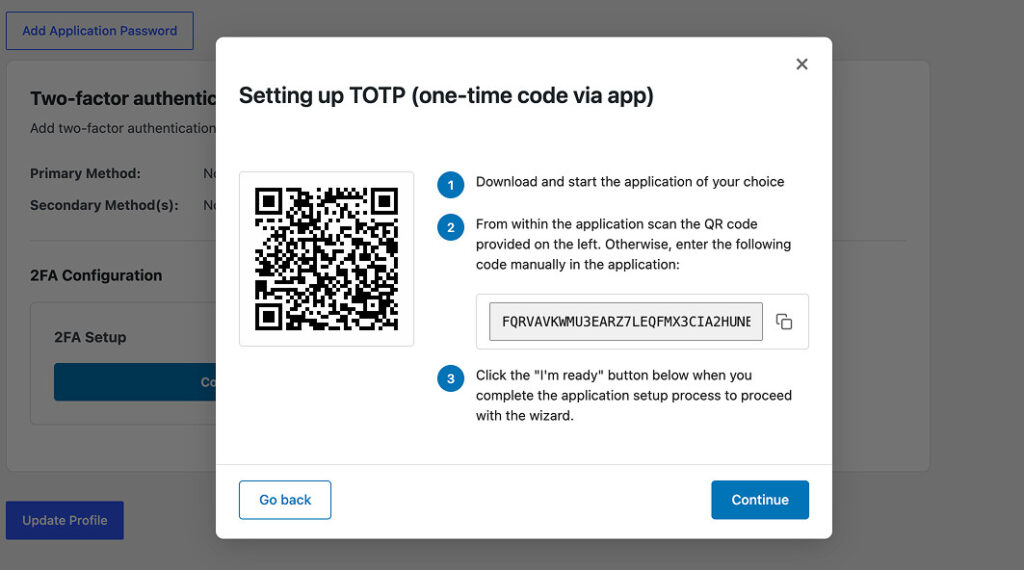
That split is the right model. A site owner should be able to decide that administrators and editors must use 2FA, while subscribers can remain optional. A user should then be able to scan a QR code, use email codes, set up passkeys, or generate backup codes without needing the site owner to configure every account manually.
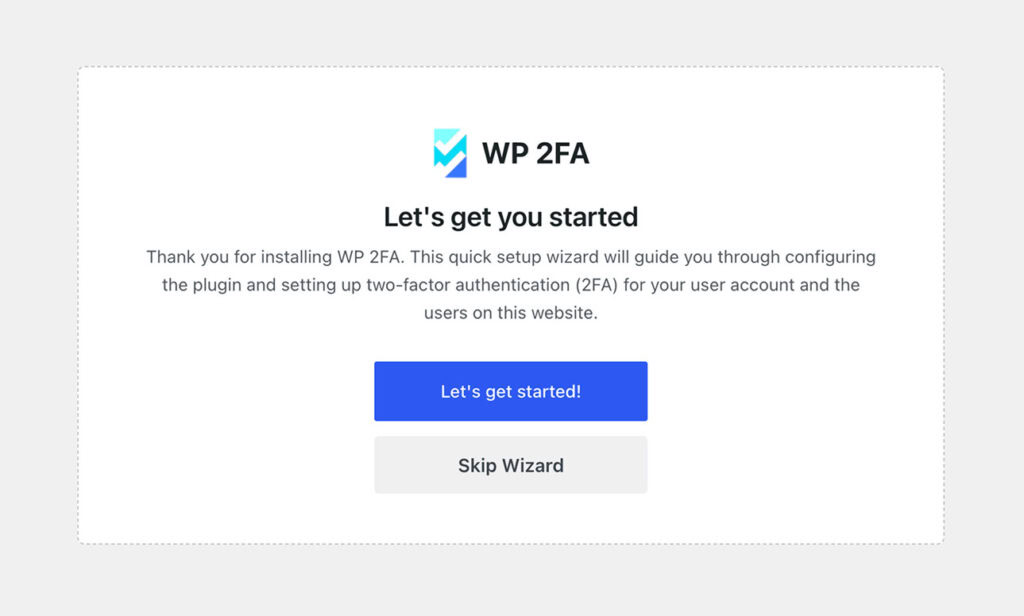
The first-time wizard guides the global setup. The policy controls let you enforce 2FA for all users, certain roles, or specific users. You can also exclude users or roles and set a grace period. The reviewed code shows a default grace period of three days, which gives people time to configure 2FA before enforcement becomes strict.
Here is the rollout sequence I would use:
- Install WP 2FA.
- Enable 2FA for your own administrator account first.
- Set up an authenticator app or passkey.
- Generate backup codes and store them somewhere secure.
- Log out and complete a full login test.
- Enable 2FA for other administrators.
- Expand to editors, shop managers, or other high-risk roles.
- Test customer, member, or student flows on staging before enforcing 2FA outside staff accounts.
Do not enforce 2FA site-wide before you have tested your own account and recovery path. That mistake feels efficient for about three minutes, and then it becomes a login problem with a timer on it.
Free vs Paid Features
The free version is not flimsy. For many admin and team use cases, it covers the important work.
| Feature | Free | Paid tiers |
|---|---|---|
| Authenticator-app codes | Yes | Yes |
| Email one-time codes | Yes | Yes |
| Backup codes | Yes | Yes |
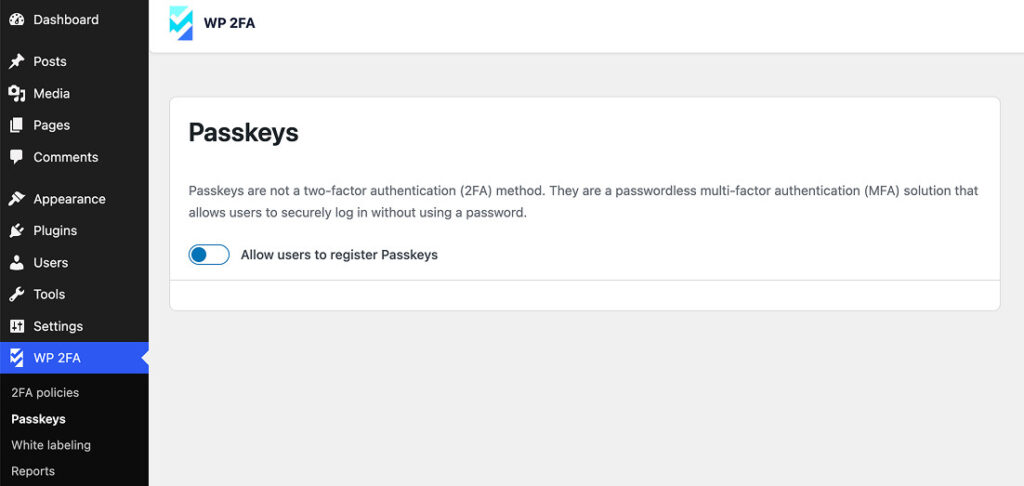
| Passkeys | Present in the reviewed package; verify in your live UI | Yes |
| Role and user policies | Yes | Yes |
| Grace periods | Yes | Yes |
| Frontend setup shortcodes | Yes | Yes |
| REST API support | Yes | Yes |
| Multisite support | Yes | Yes |
| Editable email templates | No | Yes |
| Trusted devices | No | Yes |
| SMS codes | No | Yes |
| YubiKey / hardware-key options | No | Yes |
| Email login links | No | Yes |
| Zero-setup email 2FA | No | Yes |
| WooCommerce integration | No | Yes |
| Password-reset 2FA | No | Yes |
| Temporary next-login bypass | No | Yes |
| Reports and usage statistics | No | Yes |
| Deeper white labeling | No, 2FA code page customization is available in free | Yes |
| Priority or one-to-one support | No | Yes |
The pattern is clear. Free gets you the security foundation: methods, policies, grace periods, recovery codes, frontend setup, and multisite support. Paid gets you convenience, smoother customer experience, reporting, branded workflows, and enterprise authentication options.
If you only need to protect administrators, editors, and shop managers, start with free. If you need trusted devices, SMS, YubiKey, WooCommerce customer flows, reporting, or white labeling for client work, the paid plan becomes easier to justify.
Avoid hardcoding the paid price into your decision until you check the current pricing page. Feature boundaries matter more than a stale number in a review.
Security and Recovery
The part people fear about 2FA is not entering a six-digit code. It is losing the device that generates the code.
WP 2FA has the right recovery building blocks, but you still need to use them properly. Backup codes are not a decorative setup step. They are your recovery plan.
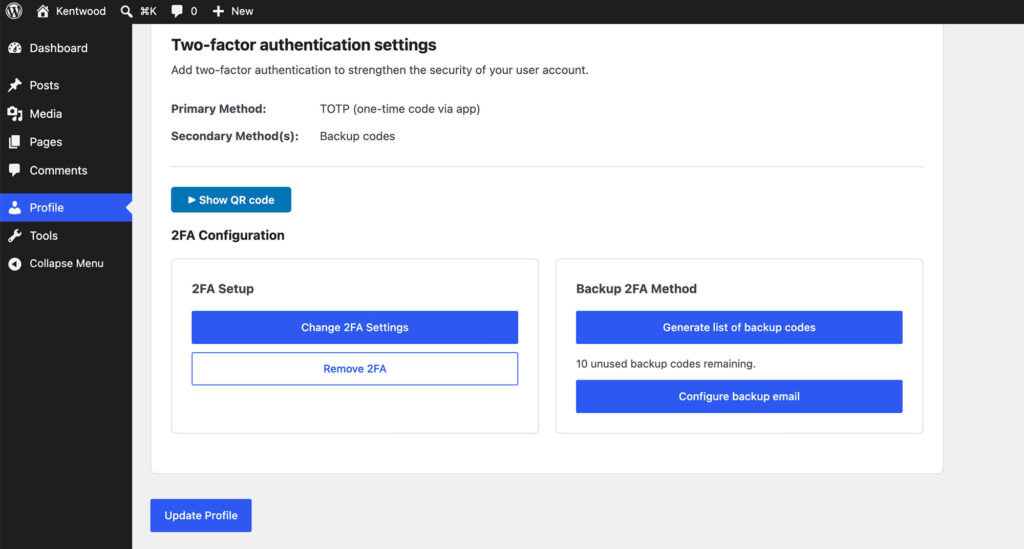
The plugin generates backup codes as single-use values and stores them hashed, which is the correct direction. If someone gains database access, they should not find a neat list of usable backup codes waiting for them. Users need to save the codes at setup time because the whole point is that the site should not keep plain-text copies around.
If a user loses access, another administrator can reset that user’s 2FA settings from the dashboard. An administrator can also allow a selected user to log in once without 2FA, which can help with troubleshooting or account recovery.
That is not a WP 2FA-specific flaw. That is the reality of adding a login gate to WordPress — and a common source of WordPress login issues when recovery planning is skipped.
Before enforcing 2FA, check these five things:
- Your own admin login works with 2FA enabled.
- Backup codes are saved outside WordPress.
- At least one recovery path exists if your phone is lost.
- Email delivery works if you allow email codes.
- Users have enough grace period to set up 2FA without panic.
Email codes deserve a special mention. They are convenient, especially for less technical users, but they depend on email delivery and mailbox security. If the site cannot reliably send mail, email codes will create support tickets. If the user’s email account is compromised, email 2FA is weaker than an authenticator app or passkey.
Convenience is not the same as resilience.
WooCommerce, Membership, and Custom Login Caveats
WP 2FA is easiest to recommend for the standard WordPress admin login. That is the cleanest path and the strongest use case.
Customer-facing enforcement is more sensitive because it touches account pages, checkout, payment redirects, password resets, membership access, and custom endpoints. A login challenge that is harmless for an editor can become a revenue problem if it interrupts a deposit-payment link or a checkout return flow.
One recent public compatibility report described custom WooCommerce deposit payment links breaking when 2FA was enabled for customers. That does not mean WP 2FA is unsafe for WooCommerce. It means WooCommerce 2FA belongs on staging before production. For a deeper look at protecting store data beyond the login layer, see our WooCommerce security guide.
If you run WooCommerce, membership, LMS, or a community site, test these flows before customer enforcement:
- customer login
- password reset
- guest checkout
- logged-in checkout
- payment gateway redirect and return
- deposit or partial-payment links
- account dashboard access
- membership-protected content
- custom frontend login forms
- REST or headless authentication flows
Use WP 2FA for staff first. Customers can come later, after the boring tests pass.
Pros and Cons
| Pros | Cons |
|---|---|
| Strong free tier for admin and team 2FA | Careless rollout can lock users out |
| Role and user-based policy controls | Email codes depend on deliverability and mailbox security |
| Grace periods make enforcement less abrupt | SMS, YubiKey, trusted devices, reporting, and WooCommerce integration are paid |
| Backup codes are single-use and hashed | Customer-facing 2FA requires staging tests |
| Frontend setup shortcodes help membership and community sites | Not a full WordPress security plugin |
| Multisite and REST support give technical teams room to work | Paid pricing should be checked before purchase |
| Passkeys show modern authentication direction | Live UI behavior should be verified on your exact stack |
The upside is control. The downside is that control still has to be rolled out carefully.
That is not a reason to avoid WP 2FA. It is a reason to treat login changes like production changes.
Who Should Use WP 2FA?
WP 2FA is a good fit when you want a dedicated 2FA plugin and you are willing to roll it out deliberately.
| Site type | Recommendation |
|---|---|
| Blog or brochure site | Use the free tier for administrator accounts. Keep it simple. |
| Agency-managed site | Strong fit. Standardize admin policies and consider paid for reporting, white labeling, and support. |
| WooCommerce store | Use for admin, editor, and shop manager accounts first. Test customer enforcement on staging. |
| Membership or LMS site | Useful, especially with frontend setup shortcodes. Test login, reset, and protected-content access before enforcement. |
| Multisite network | Good fit for network-level policy thinking. Validate settings on a test site before network-wide enforcement. |
| Developer or headless build | REST and shortcode support help, but custom auth flows need careful compatibility checks. |
The decision rule: protect the people who can change the site before you protect the people who only use it.
Admins, editors, shop managers, agency users, and support users should come first. Customers and members are a second phase, not the first experiment.
Who Should Skip or Delay WP 2FA?
Skip WP 2FA if you are looking for one plugin that handles all WordPress security work. That is not what it is built to do — you would be better served by a dedicated WordPress security plugin instead.
Delay it if your site has fragile custom login behavior and no WordPress staging environment. That does not make 2FA a bad idea. It means your first job is to create a safe place to test login changes.
Be careful if:
- your site email delivery is unreliable
- you are the only admin and do not have hosting access
- checkout is heavily customized
- customers use one-time payment links or deposit links
- login happens through a custom frontend form
- your team cannot support users during rollout
None of these are dealbreakers. They are rollout risks.
What WP 2FA Does Not Protect
This is where many 2FA reviews stop too early.
WP 2FA helps prevent unauthorized login after a password is guessed, reused, leaked, or phished. That is valuable. But it does not tell you whether a plugin on the site has a known vulnerability — for that, you need a WordPress vulnerability scanner that monitors your installed plugins and themes against known security advisories. It does not scan your files for malware. It does not clean an infected site. It does not replace a firewall. It does not restore a broken site from backup.
A vulnerable WordPress plugin can still be exploited even if every administrator uses 2FA. A malicious file can still sit on the server. A compromised extension can still create trouble from inside the site.
The right model is layered defense:
- strong passwords
- 2FA for important accounts
- vulnerability monitoring
- firewall protection
- malware scanning
- cleanup and recovery workflows
- backups
WP 2FA fits the login part of that stack. MalCare fits the broader site-protection part: vulnerability scanning, firewalling, malware scanning, and cleanup. That is the correct comparison. WP 2FA and MalCare are not doing the same job; they protect different parts of the same site.
Use WP 2FA to make stolen passwords less dangerous. Use MalCare when you also need to know whether the site itself is vulnerable, infected, or under attack.
Final Verdict
WP 2FA by MelaPress is worth using if you want a dedicated WordPress two-factor authentication plugin with real policy controls and a strong free tier.
It is strongest for administrators, editors, agencies, teams, multisite networks, and any site where a compromised login would create real damage. The free version is capable enough for many staff-protection use cases and includes passkeys alongside authenticator-app codes, email codes, and backup codes.
Paid features matter more when you need trusted devices, SMS, hardware-key options, WooCommerce customer integration, reporting, deeper branding, or priority support.
The safest rollout is boring, which is exactly what you want for login security. Start with admins. Generate backup codes. Test the full login cycle. Expand by role. Put customer-facing enforcement through staging before production.
WP 2FA handles who gets through the door. It does not tell you what is already happening inside the house. Pair it with broader WordPress security if the site is important to your business. For a side-by-side look at alternatives, see our guide to WordPress 2FA plugins.
FAQs
Is WP 2FA free?
Yes. The free version includes authenticator-app codes, email codes, backup codes, policy controls, grace periods, frontend setup options, REST support, multisite support, and package-level evidence of passkey support. Verify passkey behavior in your live UI before relying on it for a broad rollout. Paid tiers add features such as trusted devices, SMS, YubiKey/security-key options, WooCommerce integration, reporting, temporary bypass, and deeper white labeling.
Is WP 2FA worth it?
Yes, if you need a dedicated 2FA plugin for WordPress login protection. It is especially useful for administrators, editors, agencies, and teams. It is less suitable if you expect one plugin to handle every security layer.
Does WP 2FA support passkeys?
Yes. The reviewed package includes passkey modules, and passkeys were added in the 3.1.x release line. Verify passkey behavior in your own live UI before relying on it as the only method for a broad rollout.
Can WP 2FA lock me out?
Yes, any 2FA plugin can lock you out if you lose your second factor and do not have recovery access. WP 2FA provides backup codes and admin reset paths, but you must set them up before enforcing 2FA.
Does WP 2FA work with WooCommerce?
It is a good fit for WooCommerce staff accounts such as administrators and shop managers. Customer-facing WooCommerce enforcement should be tested on staging first, especially if you use custom checkout, deposit links, payment redirects, or frontend login plugins.
Should I require 2FA for all WordPress users?
Start with high-privilege users: administrators, editors, shop managers, agency users, and support accounts. Add customers, members, or students only after testing the exact login and account flows they use.
Is WP 2FA a full WordPress security plugin?
No. WP 2FA is a login-security plugin. It does not replace malware scanning, vulnerability monitoring, firewalling, cleanup, or backups.