You installed Wordfence for WordPress 2fa to secure your login, but now that system has failed.
If your Wordfence two factor authentication not working issue is causing problems, you’re either locked out or left completely vulnerable.
This is a security failure that disrupts your workflow and exposes your site to immediate risk. In this guide, we will help you resolve it step-by-step.
Wordfence 2FA problems are typically caused by caching or time-sync conflicts. First, use a backup code or FTP to get back into your site, then fix that underlying issue so your 2fa plugin can work correctly.
Diagnose the Wordfence two factor authentication not working issue
First, let’s diagnose the exact Wordfence issue. This quick checklist will help you find the right fix.
- Does the 2FA prompt fail to appear? You enter your password and nothing happens. This often points to a caching or plugin conflict blocking the prompt from loading.
- Are valid authentication codes being rejected? If you are sure the code is correct but it fails, this is almost always a time-sync issue between your phone and your server.
- Are you stuck in a login redirect loop? This frustrating loop usually means there’s a problem with how your server is handling sessions or cookies.
- Is the “Lost Phone” recovery option broken? If the recovery email never arrives, it suggests a potential issue with your site’s ability to send emails.
💡Tip: Always check your spam folder first.
- Can you log in without any 2FA prompt? This is the dangerous “ghost failure.” It means 2FA is enabled in your settings but offers zero protection, creating a serious false sense of security.
- Does the issue still happen in an incognito browser window? Testing this helps you know if the problem is site-wide or just related to your specific browser’s cache.
- Are all users affected, or just one? If it is everyone, the problem is central (like caching). If it is just one user, it could be their specific app configuration.
- Have you ruled out simple typos? It sounds basic, but carefully retype your username, password, and the X-digit code. It happens.
Implement the fix for the root cause
Now that you have a better idea of the symptom, let’s walk through the solutions, starting with the quickest and most common fixes.
Use your backup codes
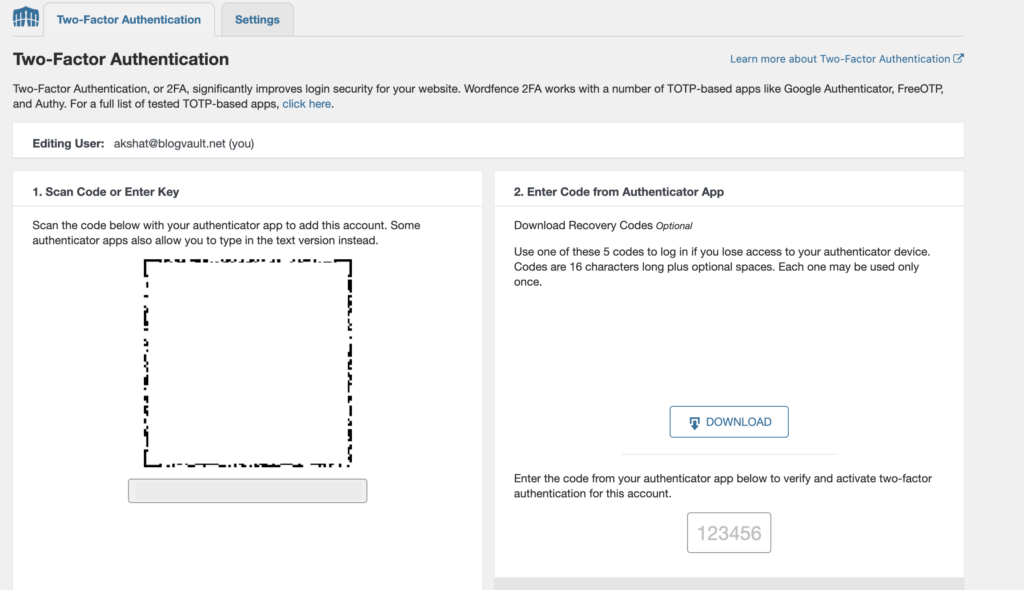
Regain access with a backup code: If the normal 6-digit codes from your authenticator app (TOTPs) are not working, this is the perfect time to use a backup code.
When you first set up 2FA, Wordfence provided a set of single-use codes; use one of these in the verification field instead. This is the fastest way to get back into your dashboard so you can proceed with fixing the underlying issue.
A pro tip is to always store these codes in a password manager or a secure offline location. Password managers are safe and encrypted, making them an ideal choice for this.
Resolve caching conflicts (the most common cause)
Caching can serve a “stale” copy of your login page that does not include the 2FA field. Clearing your WordPress cache forces your site to serve a fresh version.
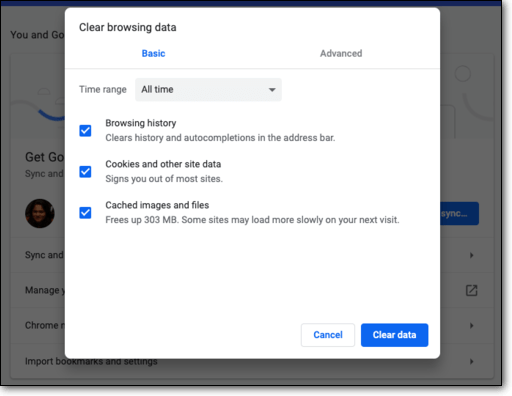
- Start by clearing your browser’s cache: Fully clear your web browser’s cache and cookies.
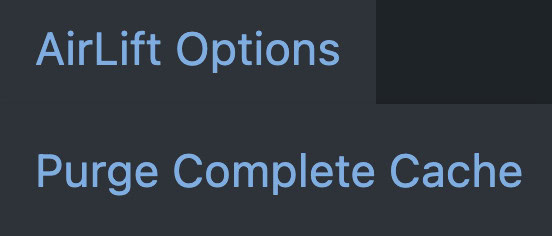
- Next, purge all site-level caches: Go into your WordPress caching plugin, your hosting dashboard, and any CDN you use (like Cloudflare) and use the Purge All Caches option. This ensures you are clearing everything.
- Set up permanent cache exclusions: To prevent this from happening again, configure your caching plugin to exclude the /wp-login.php page from being cached. At the same time, find the setting to exclude cookies and add wfls_ to that list.
Eliminate plugin and theme conflicts
If caching was not the issue, another plugin or your theme is likely interfering with the login process.
⚠️ Warning: This process involves deactivating plugins, which can temporarily affect your site’s functionality, so it is wise to create a backup first.

- Perform a conflict test: Temporarily deactivate all other plugins, especially other security, firewall, or login-related plugins. Then, switch to a default theme like Twenty Twenty-Four or Five.
- Identify the source of the conflict: If the login issue disappears, you know it was a conflict. Reactivate your theme and plugins one by one, testing the login page after each activation, to find the exact culprit.
Correct server and configuration issues
This is where most common login errors, like the ‘invalid code‘ message, come from. Your authenticator app and your server’s clock must be in perfect sync.
- Synchronize all time settings: Your app needs to be in sync with the universal time. If you use the Google Authenticator app, for example, you can do this by going to Settings > Time correction for codes > Sync now. You should also ensure both your phone and computer are set to update their time automatically.
- Re-establish the app connection: A simple refresh can often fix this. Remove the Wordfence entry from your authenticator app, then reload the 2FA page in WordPress and scan the QR code again.
- Rule out a buggy authenticator app: To be thorough, try setting up 2FA with a different app like Microsoft Authenticator or Authy.
- Verify your server’s PHP session handling: Ask your host to confirm that PHP sessions are supported and are not being blocked by any custom .htaccess or Nginx rules.
Last-resort emergency access (the FTP method)
If you are completely locked out and nothing else has worked, this is your emergency hatch. You will need access to your site’s files via FTP, or your host’s File Manager.
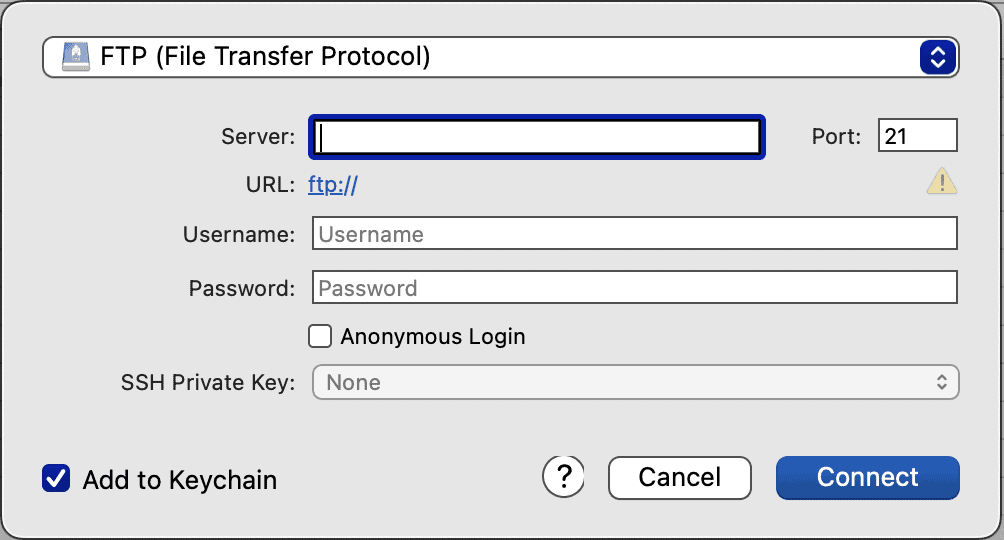
- Access your site’s files and navigate to the plugins folder: Head to your wp-content/plugins/ directory.

- Find and rename the Wordfence folder: Change the folder name from wordfence to wordfence.deactivate. This action deactivates the plugin and its 2FA requirement.

- Log in to your dashboard: You should now be able to log in with just your username and password.
- Reactivate Wordfence correctly: Once inside, immediately rename the folder back to wordfence. Then, go to your plugins page to reactivate it and reconfigure 2FA from scratch. Do not leave your site unprotected.
Secure and stabilize your login
Getting back in is only half the battle. Now, you need to make sure this does not happen again by strengthening your login security.
- After fixing the issue, perform a complete test login from a different browser or incognito window to confirm everything works as expected.
- Securely store your new 2FA recovery codes. This is your most important backup.
- Set a calendar reminder to test your 2FA functionality quarterly. It takes less than a minute and can prevent major headaches.
Parting thoughts
This problem is almost always a resolvable technical conflict. With caching and time synchronization as the most frequent causes, methodical troubleshooting is the solution.
Never leave 2FA broken or disabled, as this creates a critical security gap. Regular testing is part of responsible site maintenance.
While Wordfence is a robust free security plugin, it has issues with user lockouts and slowing down your site. If 2FA not working is the last straw, you may want to shop around for Wordfence alternatives.
FAQs
Frequently asked questions
Authentication fails most often due to time synchronization errors between your phone and the server, or conflicts with caching plugins. These issues prevent the server from validating the time-sensitive code your authenticator app generates.
The solution for broken authentication is to identify the root cause, which is typically caching, time-sync issues, or plugin conflicts. Once identified, you can fix it by clearing caches, syncing clocks, or deactivating the conflicting plugin.
If your two-factor authentication is not working, use a backup code to log in or disable the plugin via FTP to regain access. Once you are in, you must troubleshoot the cause, which is usually related to caching or time settings.
You are not getting a notification because Wordfence 2FA typically uses time-based codes from an authenticator app, not push notifications. If the code prompt isn’t appearing, it is likely being blocked by a caching plugin or another conflict.
If 2FA doesn’t work, you are either locked out of your website or your site is left vulnerable if it stops asking for a code. This creates a critical security gap and halts your ability to manage the site.
To log in without 2-step verification, you must use a pre-saved backup code or temporarily disable the Wordfence plugin via FTP. This allows you to bypass the 2FA prompt and access your dashboard to resolve the issue.