You hit publish, refresh the blog page, but it’s still the same old content. When you have a WordPress blog page not showing posts, it’s easy to think your work has vanished.
Don’t worry. In most cases, WordPress still has it. The problem is usually that the public list is pulling from the wrong place, showing a cached copy, or hiding the post because of a setting you wouldn’t naturally think to check.
Start with the simple fixes: ensure the post is published and your reading settings are correct. The most common cause is caching, so purge your server, CDN, and browser cache next. If your posts are still missing, use a tool like MalCare to scan for malware, as a hack can often be the hidden cause.
The trap is assuming “the blog page” means one WordPress feature. It doesn’t. Your site may be using the built-in Posts page. It may be using a Latest Posts block. It may be using a Query Loop or builder template. Category archives and custom theme code can look like blog pages too. To a visitor, all of them may simply look like “the blog.” Under the hood, they’re different machines.
Start with the boring question: what exactly is missing, and who can’t see it?
Start With The Visitor View
Load the blog page somewhere WordPress doesn’t know you: an incognito window, a separate browser profile, or a phone using cellular data.
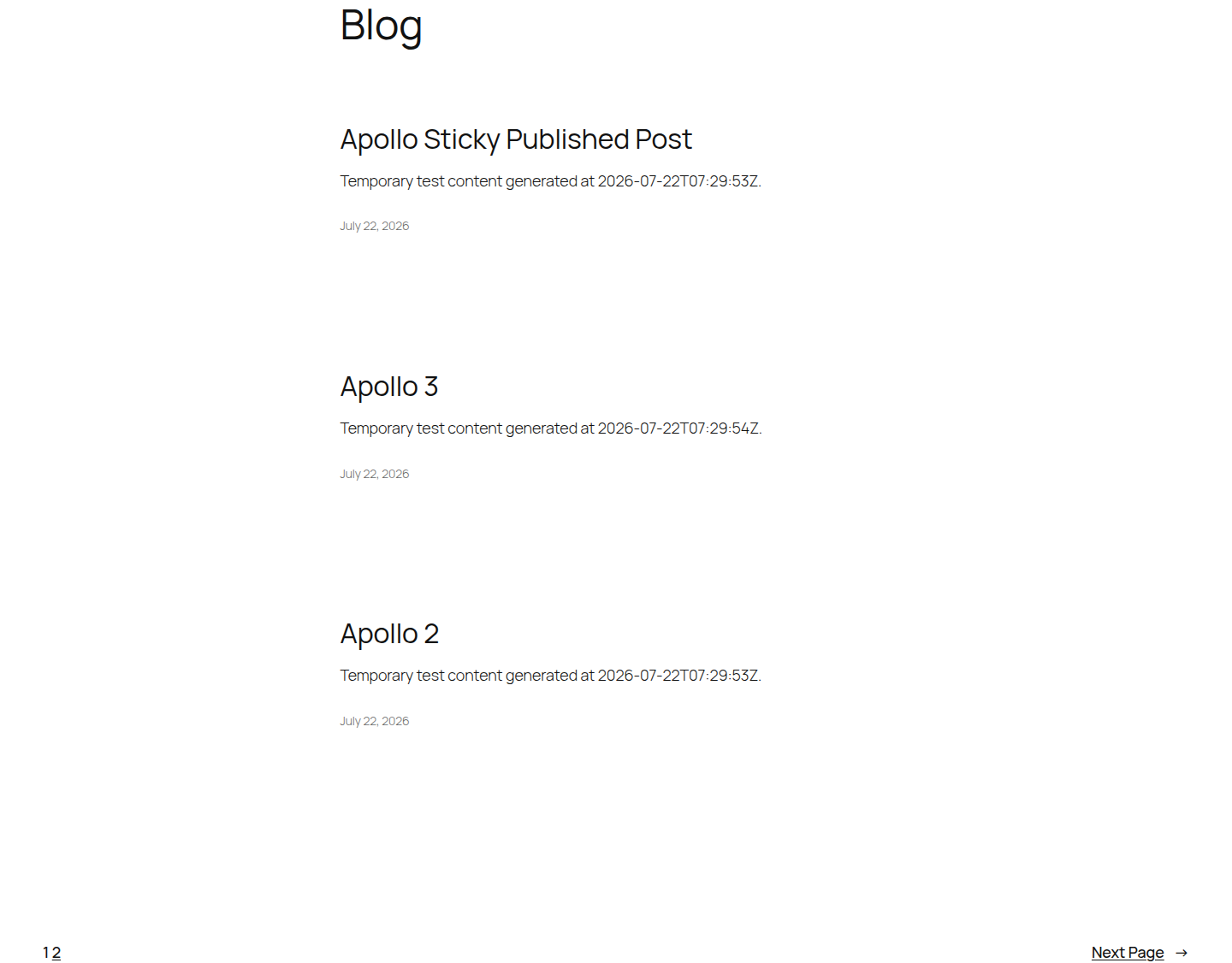
WordPress admins can see things normal visitors can’t. A post that looks fine to you may still be private, scheduled, or password-protected. It may also be hidden by membership rules or stale cache. Before changing settings, name the pattern:
- One new post is missing: Start with that post’s status, visibility, date, category, and cache.
- The whole blog page is blank: Check Reading settings, the active template, then plugin/theme errors.
- Old posts show, but new posts don’t: Check cache, sticky posts, post dates, pagination, and custom query filters.
- Titles or images show, but no text appears: Check excerpts, builder content, and archive-template settings.
- Posts show for admins but not visitors: Check visibility, roles, membership rules, and public cache.
- Posts show on desktop but not mobile: Check mobile cache, responsive templates, and optimization settings.
🧭 Note: Don’t start by disabling every plugin. That may become useful later, but it’s reckless as the first move on production. Learn what kind of failure you’re looking at before you touch anything that may affect checkout, forms, logins, or the layout builder.
Check The Post
Open the missing post in the WordPress dashboard and look at the publishing panel. This takes one minute and rules out a surprising number of cases.
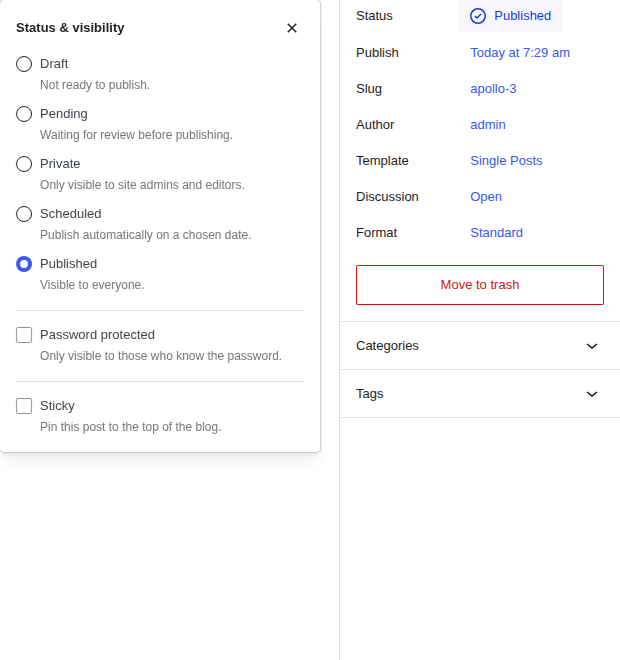
Check these settings:
- Status: It should be Published, not Draft, Pending Review, or Scheduled.
- Visibility: It should be Public. Private and password-protected posts won’t behave like normal public posts.
- Publish date: It should not be set in the future, and it should not be caught in a missed schedule problem.
- Category or tag: It should not be in a category your blog layout excludes.
On a fresh WordPress install, we set up a static Home page and a separate Blog page. Published posts appeared on the public Blog page. Private and scheduled posts stayed out of the logged-out public view. They were still visible inside WordPress admin. This is usually where the panic starts to ease. The post exists. WordPress is just obeying the public visibility rules.
🔎 Note: If only one post is missing, stay with that post for a little longer. Check its date, visibility, category, and whether it is stuck behind a sticky post or pagination. Site-wide fixes can wait.
Make Sure WordPress Knows Which Page Is The Blog
Go to Settings > Reading.
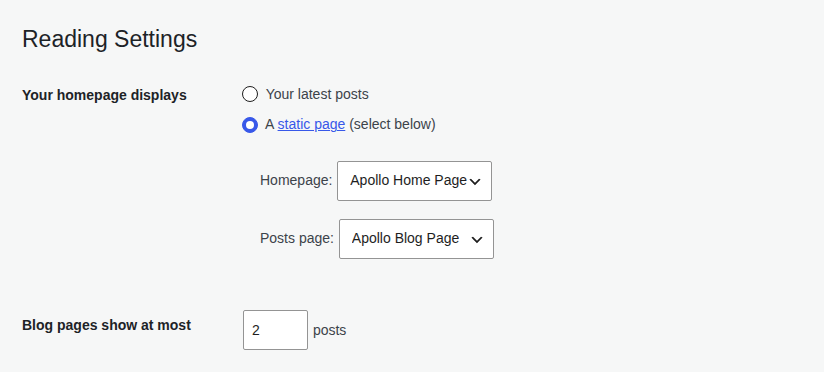
There are two normal WordPress setups:
- Your homepage displays your latest posts: The homepage is the blog list.
- Your homepage displays a static page: One page is the homepage, and another page is assigned as the Posts page.
If you want a separate Blog page, choose the static homepage option. Set your Home page as the homepage. Set your Blog page as the Posts page. Save.
The Home page and Posts page should be different pages. If WordPress is pointed at the wrong page, or no Posts page is assigned, your menu may still say “Blog” while WordPress has no reason to put posts there.
There is one more awkward WordPress behavior worth knowing. When a page is assigned as the Posts page, WordPress doesn’t treat it like a normal page anymore. The theme controls the post list. The text you type into that page editor may not appear on the front end. If your related problem is WordPress page content not showing, and that page is assigned as the Posts page, it may not be broken. It may be doing exactly what WordPress was told to do.
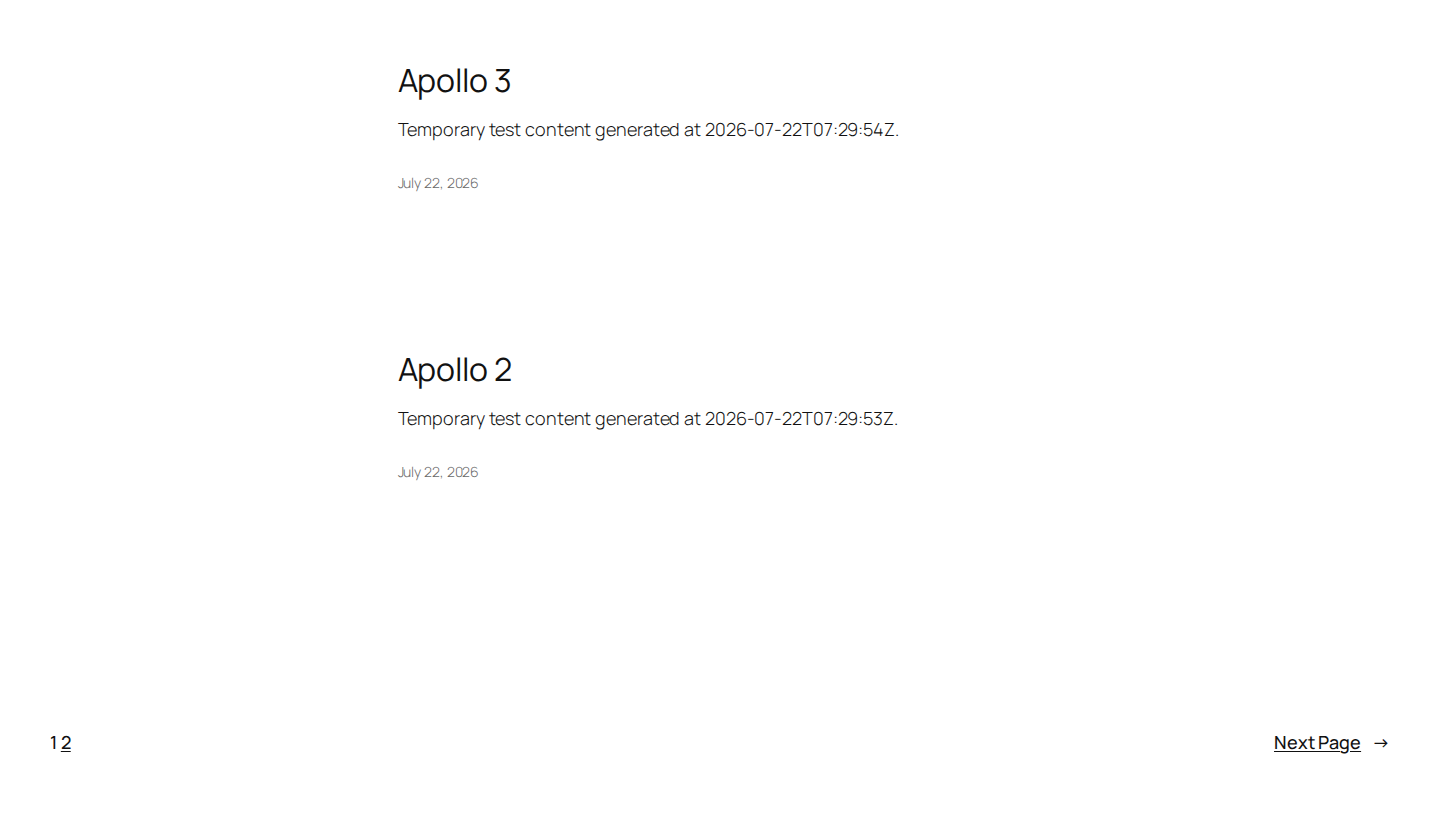
📄 Note: In Settings > Reading, also check Blog pages show at most. If it is set to a low number, newer or older posts may simply be on page 2, page 3, or later. On our test site, setting this to 2 made the Blog page look short even though the extra published posts were still available through pagination.
Clear Cache, But Clear The Right Cache
If the post settings and Reading settings are right, cache is the next reasonable suspect.
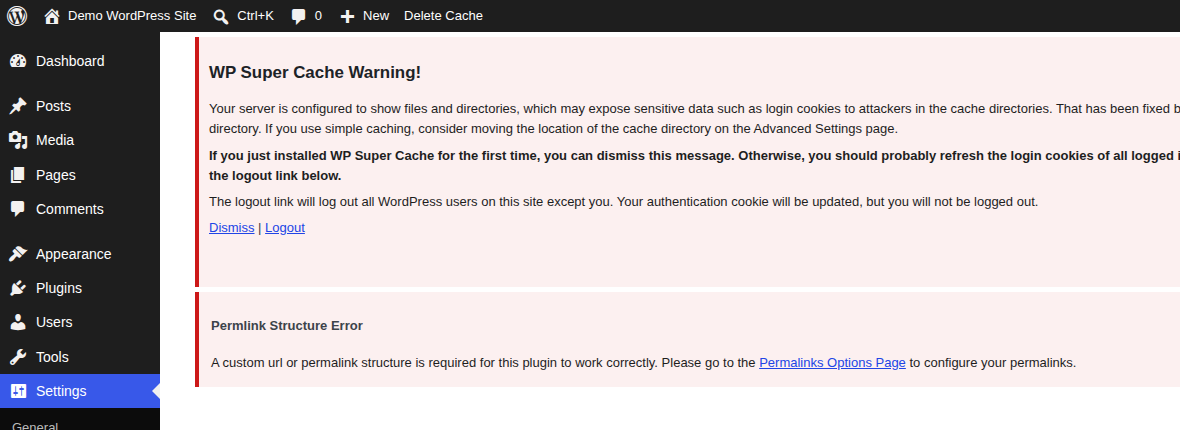
Cache stores a finished page so your site can load faster. That’s useful until the saved copy is older than the post you just published. Then your dashboard tells the truth, but visitors still get yesterday’s page. If cache or assets are behaving strangely, a broader clear WordPress cache pass can help rule out stale files. Purge cache from the closest layer outward:
- Cache plugin inside WordPress
- Hosting cache
- CDN or proxy cache, such as Cloudflare
- Page-builder generated files or CSS cache
- Browser cache
- Mobile cache, if your cache plugin separates desktop and mobile pages
Reload the blog page from a logged-out browser after each meaningful purge.
🧪 Note: Make one change, then test. If you purge cache and resave permalinks in the same minute, the useful clue disappears. Give the simple checks a fair chance before moving into theme switches or plugin tests.
Refresh Permalinks If URLs Are Broken
WordPress’s Permalinks are URL rules. They tell WordPress how to load posts and pages. They also cover categories, tags, and archives. When those rules get stale, posts may exist in admin but open to a 404 page or the wrong URL. Use this fix when:
- A post appears in the dashboard but its public URL fails.
- Category or archive links return 404 errors.
- A page slug and category slug may be conflicting.
- The blog page loads, but individual post links don’t.
Go into Settings > Permalinks and press Save Changes once without altering the URL format.
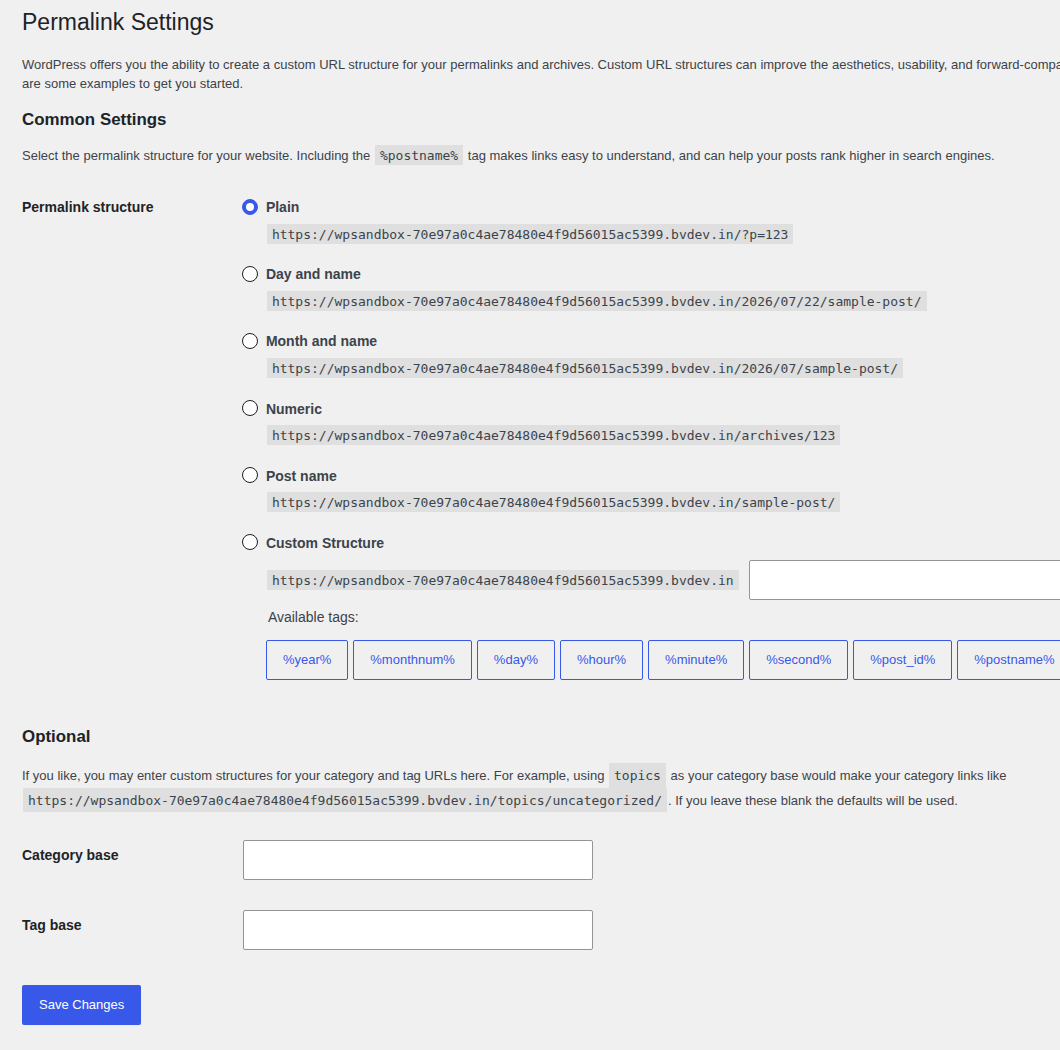
This is a low-effort check, but don’t oversell it to yourself. Resaving permalinks won’t fix private visibility or a wrong Posts page assignment. It also won’t bypass CDN cache or change a page-builder template filter.
🔗 Note: If you suspect a slug conflict, check whether the same slug is being reused. Common ones are blog, news, and articles. A page, category, and custom post type archive all fighting over a friendly URL can send WordPress to the wrong place.
Work Out What Builds The Blog List
If the simple fixes don’t work, stop treating the blog page as a single WordPress feature. Find the display layer.
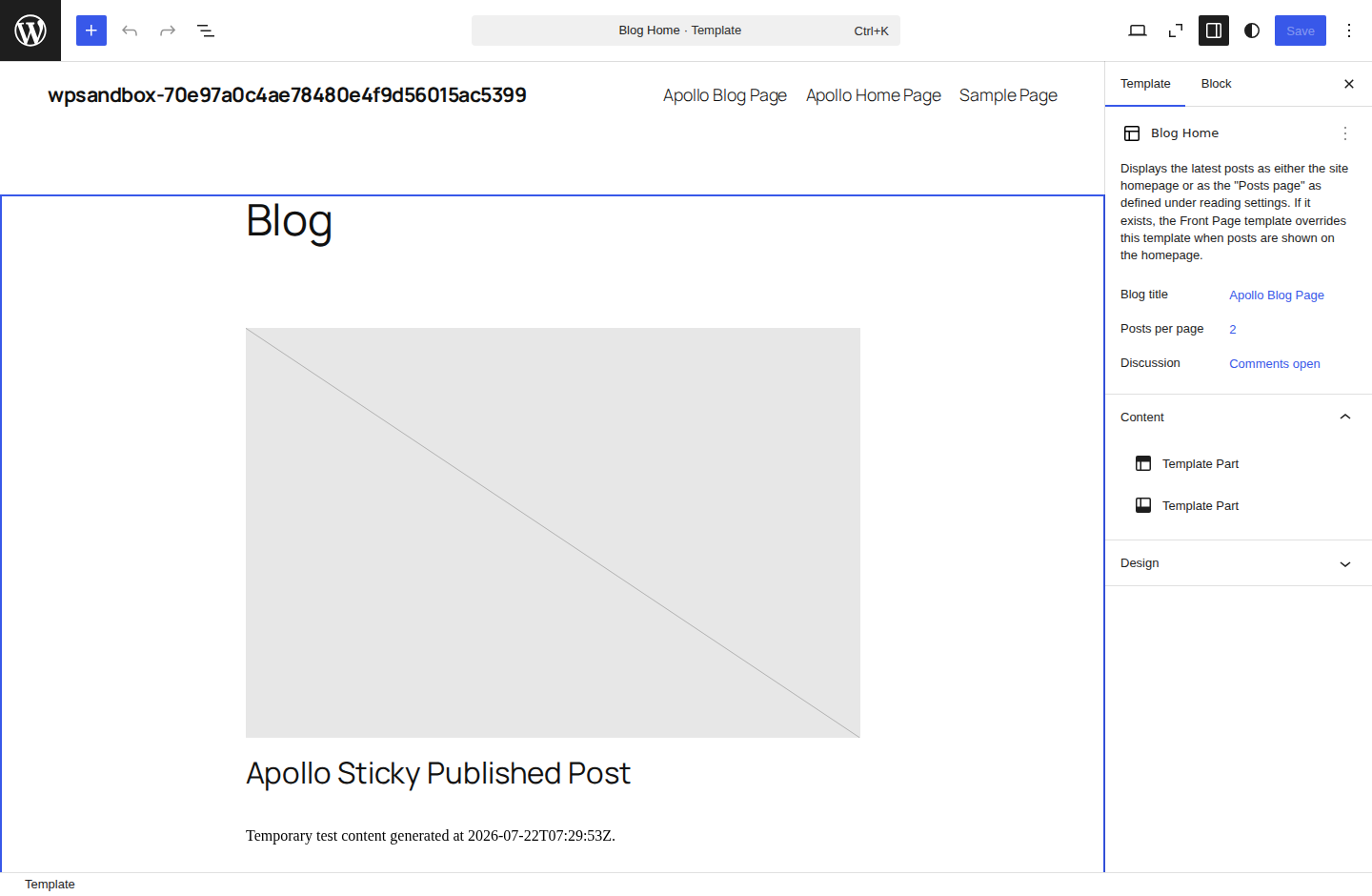
For most sites, the split looks like this:
- Assigned Posts page: Controlled by Settings > Reading and your theme’s archive/index template.
- Normal page with a Latest Posts block: Controlled by that block’s settings.
- Block theme layout: Often controlled by a Query Loop block in the Site Editor.
- Elementor, Divi, or another builder: Usually controlled by a blog widget or archive template.
- Category archive: Shows posts only from that category.
- Custom theme code: May include or exclude posts based on category, date, post type, or a custom query.
🧩 Note: If titles and featured images show but the post text doesn’t, the posts are probably not missing. The template may be set to hide excerpts, or the builder content may not be available where the archive expects a normal excerpt.
This is the hour-waster. You edit the normal Blog page, refresh the front end, and nothing moves. The page you’re editing isn’t the part of WordPress drawing the post list. On a builder site, check the builder’s template area. With a block theme, check the Site Editor. For a normal WordPress Posts page, check Reading settings and the active theme template first.
🛠️ Note: I have seen a new post disappear because an old theme rule excluded one category from the homepage query. The editor had published correctly. The page was doing exactly what the code told it to do, just years after everyone forgot that code existed.
Check Builders, Blocks, And Filters
When the layout comes from blocks or a builder, open the exact block, widget, or template responsible for printing posts.
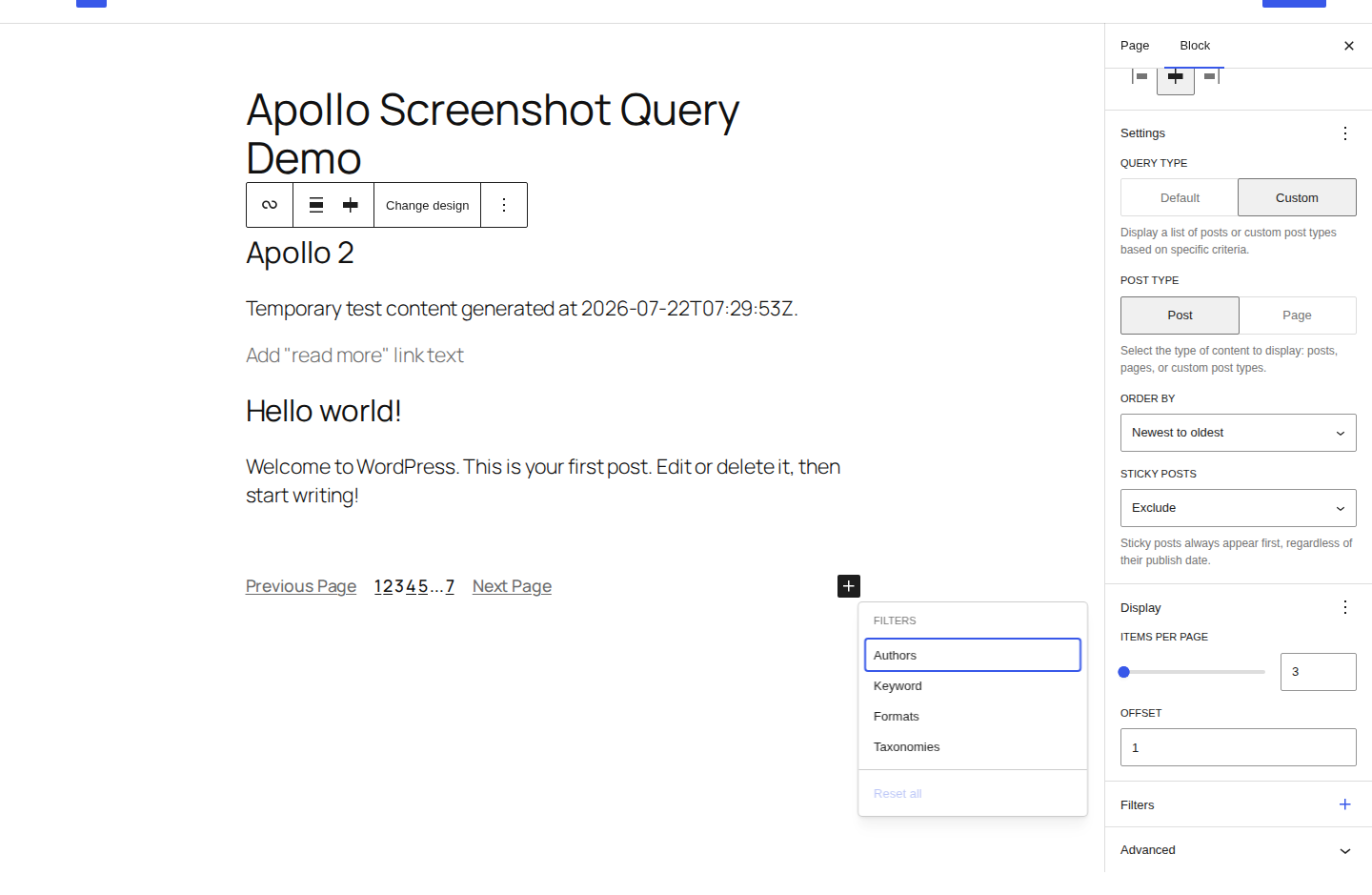
Look for settings like:
- Categories included or excluded
- Tags included or excluded
- Number of posts shown
- Offset, which skips the first few posts
- Post type, especially if the site uses custom content types
- Date order or manual order
- Excerpt display
- Mobile visibility settings
Bold this one mentally: A page can be published and still be excluded from the list that is supposed to show it. That happens when the list has filters.
Inherited site? Treat every filter as a suspect until you know why it exists. Many are left over from old campaigns, old categories, old homepage designs, or a developer trying to solve a different problem years ago.
🎛️ Note: Pay special attention to offset settings. An offset of 1 or 2 is sometimes used to stop a featured post from repeating lower on the page. If the featured area was later removed, that old offset can quietly skip your newest posts.
Test The Plugins
Plugin conflicts are real. The likely suspects are plugins that control what visitors see. Start with these groups:
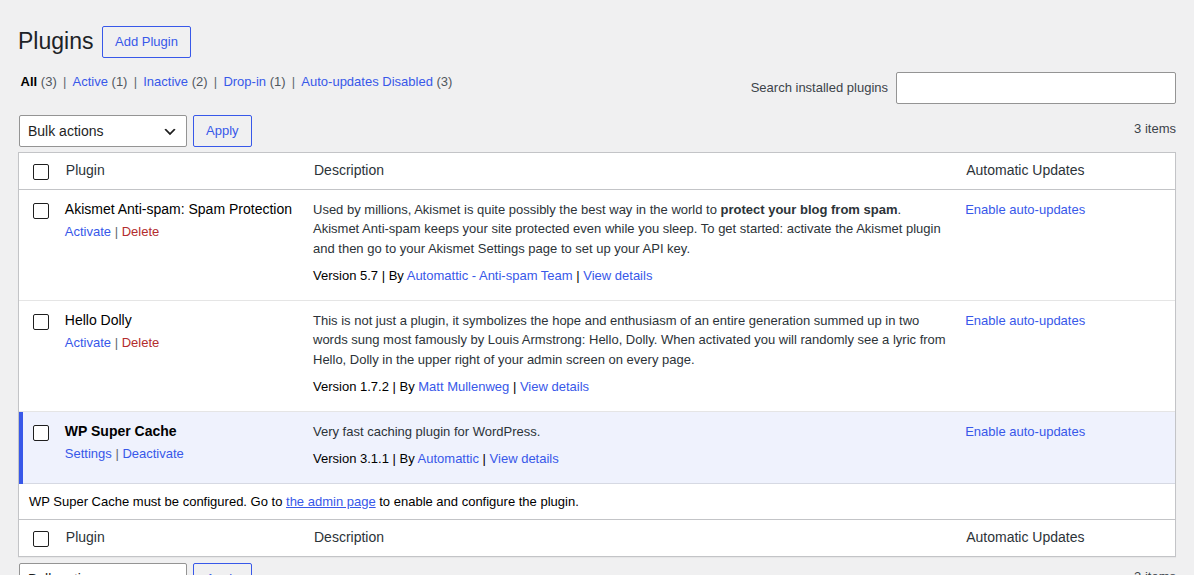
- Cache and speed
- Layout and post grids
- Access control
- Redirects
- Custom content types
- Optimization
Turning off plugins blindly on a live site is where this gets expensive. You can break forms or checkout while trying to fix one missing post. Memberships, analytics, and the builder itself can get caught in the same test.
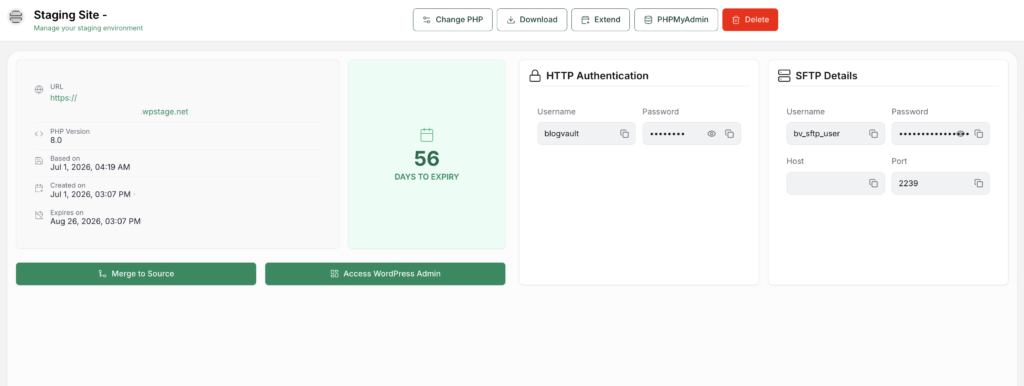
Use staging site for any site that makes money, collects leads, has logins, or depends on WooCommerce. Start with plugins that are allowed to alter the public page:
- Caching and speed plugins
- Builder plugins
- Post grid or blog layout plugins
- Membership or content restriction plugins
- Redirect plugins
- SEO plugins that affect archives
- Plugins for custom content types and custom fields
Make a single change, then check the result. Disable the suspect plugin on staging, purge cache, and reload the public Blog page from a logged-out session. If the trouble began right after an update, start with that plugin.
🧯 Note: When a plugin turns out to be involved, check its settings before deleting it. A filter, cache file, display condition, or recent update may be the real cause.
Test The Theme
Themes control more of the blog page than people expect. The active theme may decide how archives look and whether excerpts appear. It can also affect Query Loop templates or change the main post query through custom code.
On staging, try one of WordPress’s bundled default themes and check the Blog page again.
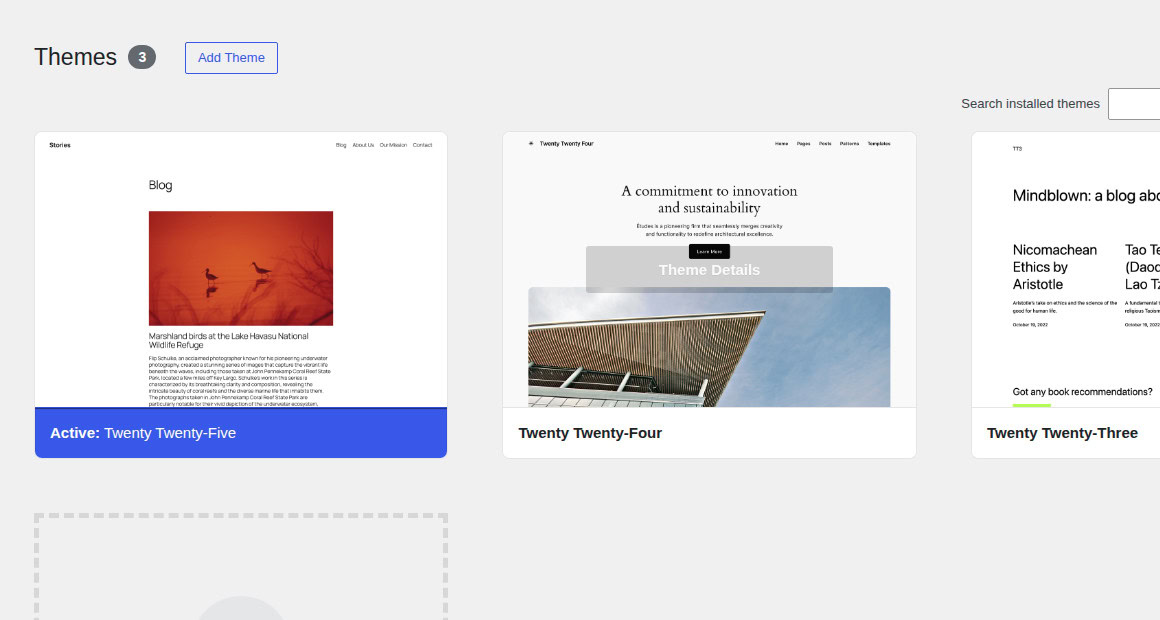
If posts appear with the default theme, look in places like these:
- Active theme settings
- Child theme code
- Archive or index template
- Custom functions
- Builder compatibility
- CSS or JavaScript loaded by the theme
Avoid live theme switching unless you’re comfortable cleaning up the fallout. A theme change can move menus and templates. It can also disturb headers, footers, and builder styling.
🚧 Note: Don’t modify WordPress core to solve this. If file-level work is needed, inspect the theme, child theme, plugin code, .htaccess, or server rules with a backup in place. Once the fix leaves the dashboard, it’s a good moment to involve technical help.
Check Access And Visibility Rules
If posts show for admins but not visitors, think about access before you think about broken code.
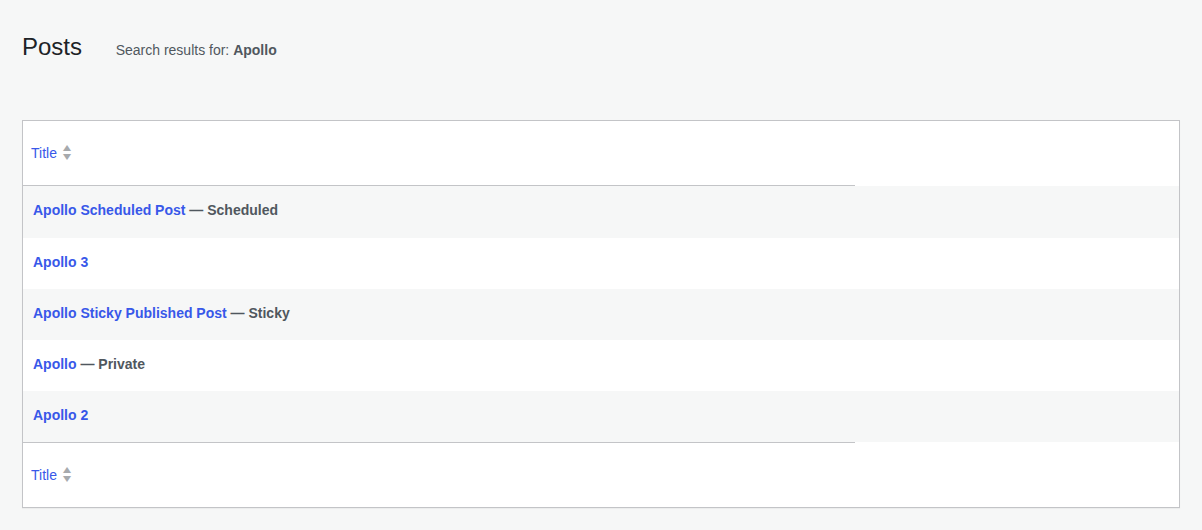
Common causes:
- The post is Private.
- The post is Password Protected.
- A membership plugin restricts the post or category.
- A role-based plugin hides content from logged-out users.
- The post belongs to a protected category.
- A cache layer is serving different versions to different users.
User roles matter here. An Administrator can see far more than a visitor, subscriber, or logged-out user. That is why the private-window test at the beginning matters so much.

👥 Note: If only one author or role is affected, follow that clue. Same thing if the pattern is limited to one category or one device type. That usually points to a rule, not a site-wide WordPress failure.
Look For CSS, JavaScript, And Mobile Issues
Sometimes WordPress sends the posts correctly, but the front end hides or breaks them. This branch is worth checking when:
- The blog works on desktop but not mobile.
- Post cards flash briefly and disappear.
- Titles show but excerpts don’t.
- The layout is broken after a speed plugin change.
- The issue started after enabling minification, lazy loading, or script delay.
On staging, disable optimization features individually:
- CSS minification
- JavaScript minification
- Deferred or delayed scripts
- Lazy loading
- Generated builder CSS
Clear cache after each change.
📱 Note: Mobile-only issues often have a separate cache layer. If your cache plugin stores mobile pages separately, purge that cache too. Also check whether the builder has separate mobile visibility controls; I’ve seen entire post widgets hidden on mobile by accident.
Update Carefully
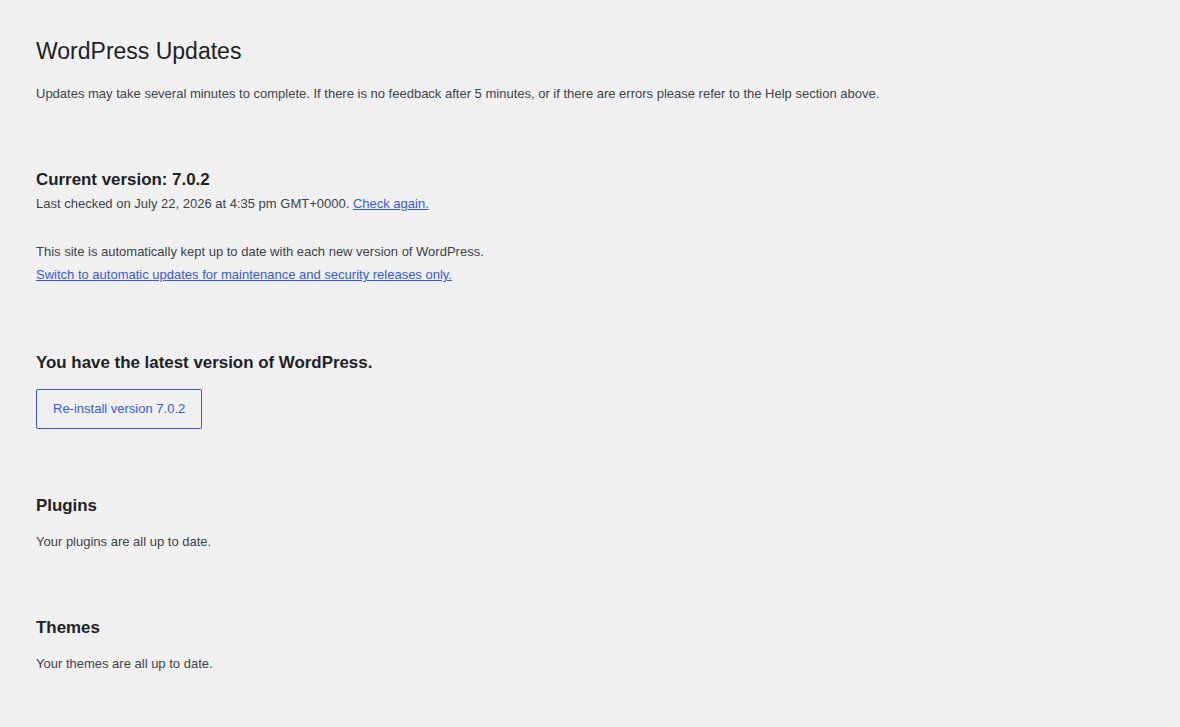
Outdated WordPress core can create display issues. So can old themes, stale plugins, and builder add-ons. Half-finished updates are another common mess, especially if an old plugin has a known WordPress plugin vulnerability. Before major updates:
- Take a backup.
- Use staging for the larger changes when you can.
- Update WordPress core, your theme, and plugins deliberately, with pauses between groups.
- Recheck the public Blog page after each major step.
- Keep notes on what changed.
It sounds fussy right up until the Blog page breaks after an update. At that point, the change log is what keeps the fix from becoming guesswork.
🧾 Note: Keep the update notes boring and literal: plugin name, old version, new version, time, and what you checked afterward. Future-you doesn’t need a full incident report. Future-you needs the breadcrumb.
Scan If Anything Looks Tampered With
A suspicious infection is rarely the reason a WordPress blog page stops showing posts. Most cases are settings, cache, templates, or plugin conflicts. But stop and widen the diagnosis if missing posts arrive with symptoms like these:
- Redirects you didn’t create
- Search results or sitemaps showing spam pages
- Unfamiliar administrator accounts
- Files you don’t recognize
- Template changes no one made
- Injected scripts
- Search results showing hacked titles or descriptions
At that point, don’t keep editing templates as if this is a normal layout problem. Take a backup, then run a WordPress security scan in MalCare before making risky file edits. The question has changed from “which setting is wrong?” to “did someone alter the site?”
MalCare is relevant there. It is not the fix for choosing the wrong Posts page in Reading settings.
The Order I Would Follow
If you want the short version, work through this list in order:
- Open the blog page as a visitor.
- Confirm the missing post is Published, Public, and not scheduled.
- Check the post’s category, tag, sticky status, and publish date.
- Open Settings > Reading and confirm the correct Posts page.
- Check Blog pages show at most and visit later pagination pages.
- Clear WordPress cache first, then host and CDN cache.
- Clear builder, browser, and mobile cache if those apply.
- Resave Settings > Permalinks if URLs or archives are broken.
- Identify whether the page is built by WordPress, a block, a builder, an archive, or custom code.
- Test plugin conflicts on staging.
- Test the theme on staging.
- Check access rules, CSS, JavaScript, mobile cache, and server-level issues.
- Scan for malware only after you see signs of tampering.
🧭 Note: The order matters. It keeps the common, low-risk fixes in front of the changes that can break something else.
Reduce The Chances Next Time
You can’t prevent every missing-post issue, especially on older WordPress sites with custom templates. What you can do is leave a clean trail: what changed, when it changed, and how you’d undo it. Do these:
- Keep backups before changes: Create a rollback point before updates, plugin tests, permalink changes, theme edits, and server changes. If you need a tool for that habit, start with a reliable backup plugin or BlogVault’s guide to backing up a WordPress site.
- Use staging for display changes: Test builders, themes, and major plugin updates away from visitors.
- Review plugins regularly: Remove old post-grid, shortcode, cache, and layout plugins after they stop serving a clear purpose.
- Limit settings access: Not everyone who publishes content needs access to Reading settings, theme templates, or plugin configuration.
- Watch the public page: Check the logged-out Blog page after publishing important posts.
- Monitor errors and uptime: Blank pages and server errors are easier to fix when you catch them early, especially if you know where to check WordPress error logs.
- Avoid core edits: Use child themes, custom plugins, or developer help for code-level changes.
🗂️ Note: Prevention is mostly about leaving evidence for yourself. Once you know what changed, when it changed, and how to roll it back, a scary blog issue becomes a normal troubleshooting task.
FAQs
Why is my new WordPress post not showing on the blog page?
The post is usually Draft, Scheduled, Private, Password Protected, stuck behind stale cache, or excluded by a category/filter setting. Check the post’s status, visibility, publish date, and category first. Then purge cache and check the page from a logged-out browser.
How do I make posts show on a separate Blog page?
Create a Blog page, then go to Settings > Reading. Choose a static homepage, assign your Home page as the homepage, assign the Blog page as the Posts page, and save.
Why can I see the post in admin but visitors can’t?
Admins can see private, scheduled, protected, and restricted content that visitors can’t. A stale public cache can also show visitors an older page even after the post is published.
Why is my WordPress page content not showing?
If that page is assigned as the Posts page, WordPress may ignore the normal page body and show posts through the theme template. For a regular page, check the page template and builder settings first. Then check cache and the theme.
Why are only old posts showing?
The usual causes are cache, sticky posts, pagination, or scheduled publishing. Category filters and custom query code can do it too. Clear cache first, then check the post date and the display layer that builds the list.
Conclusion
When a WordPress blog page stops showing posts, the fastest fix is usually not the most dramatic one. Check what visitors see. Check the post. Check Reading settings. Clear cache. Refresh URLs only if URLs are the symptom.
After that, the real job is identifying what builds the list. Once you know the layer, the problem gets smaller and the path forward is much clearer; if the next fix touches plugins, themes, or templates, take it through staging and a fresh backup first.