

Encountering a WordPress error where vital visual components disappear is stressful. Your site becomes riddled with 404 error messages. Many website owners face these disruptions, and they are entirely resolvable.
We will guide you through a series of reliable strategies designed to recover your missing elements. Even without extensive technical expertise, you can reclaim your online presence.
Utilize a staging site to diagnose and implement changes on your WordPress website. This approach ensures that your live site remains unaffected while you make adjustments.
What is the WordPress “Failed to Load Resource” Error?
The “WordPress failed to load resource” error indicates that certain elements are not loading correctly on your site. Here’s a breakdown of what this error might involve:
This error typically impacts images, scripts, or styles, causing your website to not display content properly. You will see pages with unstyled or misaligned content. Incorrect or broken links to resources like images or CSS files are also a common symptom.
Some potential causes for this error are:
- Incorrect permissions
- Server problems
- Incompatible plugins
- Outdated cache
How to fix the “Failed to load resource” error?
Addressing the “WordPress failed to load resource” error might seem daunting, especially given how it can disrupt the appearance and functionality of your site’s front end. We understand how frustrating these unexpected changes can be. However, rest assured that this issue is entirely fixable. In the following section, we will provide you with a detailed, step-by-step guide to effectively resolve these errors.
1. Reupload the image
A straightforward way to resolve a missing image issue in WordPress is to simply reupload the image. At times, an image may have been moved or accidentally deleted, causing it not to load properly.
To start, examine your media library. You can access this by going to the Media section of your WordPress admin panel. Search the library for the image in question. If you locate it, verify its URL to ensure it’s correctly linked within your post or page.
If the image is not present, proceed to reupload it. Click on Add New in the media library to upload the image again. Ensure that the file is properly named and placed in the correct location. For images missing directly from a post or page, reupload them from within the WordPress editor by selecting Add Media and choosing or uploading the image from your computer.
By reuploading, you refresh the image link, making it accessible to your site once more. This simple step can swiftly address many loading problems, so take a moment to verify and upload your images again. It’s an easy way to restore the visual integrity of your site.
2. Enabling debugging
Enabling debugging allows you to generate WordPress logs. This helps you look deeper into the inner workings of your WordPress site. Here’s how to do it:
- Use an FTP client or your hosting provider’s file manager.
- Navigate to the root directory of your WordPress installation.
- Find the file named wp-config.php.
- Open it with a text editor.
- Look for the following line
define('WP_DEBUG', false);.- Change false to true so it reads as:
define('WP_DEBUG', true);.After enabling debugging in WordPress, check the debug.log file located in the /wp-content/ directory to review error messages and understand the root of your site’s issues.
Once you’ve identified and resolved these problems, it’s crucial to disable debugging. Keeping it active on a live site can expose sensitive information, slow down performance, and potentially display error messages to visitors. This could compromise security and user experience.
3. Verify resource URLs
A URL acts like an address for resources on your site, such as images, scripts, or style sheets. If a URL is accurate, your site can find and display the resource. If incorrect, it results in errors or missing content. To verify URLs, use your browser’s Inspect tool to check the path for missing elements. Paste this URL into the address bar; if it doesn’t load, there’s an issue. Ensure URLs point to the correct location, like your WordPress media library or server, and match the HTTP or HTTPS protocol your site uses. This attention to detail ensures your site can load all necessary resources effectively.
4. Understanding file permissions
File permissions are essential rules that determine who can access or modify files on your website. These permissions are a critical security feature, as they safeguard your files from unauthorized alterations.

Proper configuration of permissions ensures that essential site components, like images or scripts, can be accessed and executed as intended. Incorrectly configured settings can inadvertently restrict access, leading to broken functionality or missing elements on your site.
Here is how to do this with Cyberduck:
-
Click on Open Connection.
-
Select your connection type (usually SFTP or FTP).
-
Enter your server’s IP address or domain name.
-
Input your username and password.
-
Click Connect to access your server files.
-
Right-click on a folder (e.g., wp-content).
-
Select Info or Get Info from the dropdown.
Pay special attention to wp-content, wp-admin, and wp-includes. These contain the core files and resources for your site. For folders like wp-content, set permissions to 755. Within wp-content, inspect files like themes and plugins.
-
Confirm and apply any changes you’ve made to ensure they’re saved on your server.
5. Clear Cache
WordPress cache functions as temporary storage for your website’s data. When a visitor accesses your site, their browser saves a “snapshot” of the page, including images, scripts, and styles, to enable faster loading for future visits. This process is like the site’s memory, allowing quick access without reloading everything each time.

While caching enhances loading speed and improves user experience, it can occasionally cause issues like the “failed to load resource” error. This happens because the cache may retain an outdated version of your site. If you update elements like images or scripts, the browser might still reference the old cached version, resulting in attempts to load non-existent or altered resources.
To fix these conflicts, it’s crucial to clear or refresh your cache. Doing so forces the browser to retrieve the most current version of your site, ensuring all resources are accurately loaded.
6. Resolve plugin conflicts
Plugin conflicts arise when multiple WordPress plugins interact negatively with each other. While each plugin introduces unique features, their code can sometimes clash, leading to issues like resource loading errors. These conflicts may occur if one plugin modifies a script that another relies on differently. Additionally, outdated plugins or those with overlapping functions can cause compatibility problems, leading to unexpected site behavior.
- Start by going to your WordPress dashboard and navigating to Plugins.
- Select all plugins and choose Deactivate from the bulk actions dropdown menu, then click Apply. This will turn off all plugins, allowing you to see if the problem resolves without them.
- Start by activating each plugin individually.
- After activating each plugin, check your site to see if the error reappears.
- When the issue returns, the last plugin activated is likely the one causing the conflict.
Once identified, you can decide to look for an alternative plugin, update it, or contact the plugin developer for support.
7. Identify theme conflicts
Theme conflicts occur when your WordPress theme update disrupts core site functionality or clashes with plugins, causing issues like resource loading failures. While themes define the visual design and layout of your site, they also incorporate scripts and styles that might conflict with WordPress or plugin code. For example, a custom theme might style elements in ways that block critical scripts or override plugin settings, resulting in errors. Such conflicts can stem from outdated or custom themes with coding flaws. Additionally, a theme’s design or built-in features might not be compatible with certain plugins, leading to disruptions like the “failed to load resource” error.
Here’s how to troubleshoot a theme conflict:
-
First, from your WordPress dashboard, navigate to Appearance and then Themes.
-
Switch to a default theme: Temporarily activate a default WordPress theme like Twenty Twenty-Three.

-
After switching themes, check your site to see if the error persists.
-
If the issue disappears with the default theme, then the theme you were using likely has a conflict.
Consider updating the theme if updates are available, or reach out to the theme’s support for help. If the problem resolves with a default theme, you might need to redesign your site using a more compatible theme or making adjustments to the current theme’s code.
8. Update everything
Updating your WordPress themes, plugins, and core is essential for maintaining a secure and smoothly functioning website. Updates often include security patches that address vulnerabilities, helping to protect your site against cyber threats. They also enhance compatibility with new software and introduce performance improvements and new features.
While keeping everything updated is crucial, blindly updating without preparation can introduce risks. Compatibility issues may arise if updates conflict with your current site setup, potentially causing functionality loss or site crashes. Additionally, updates can sometimes introduce new bugs or errors, particularly if they’re major releases. To mitigate these risks, take the following precautions:
- Read release notes for changes.
- Ensure plugins work with the latest WordPress.
- Use tools like UpdateLens to review updates
- Update during low-traffic times.
- Compare site visuals pre- and post-update.
- Verify server meets update needs.
- Disable caching before updates.
- Watch for issues after updating.
9. Review the .htaccess file
The .htaccess file is a configuration file used by web servers running Apache. It allows for decentralized management of web server settings, directing how your server handles requests for URLs and manages redirects, rewrites, and access controls. In WordPress, it’s often utilized for managing permalink structures and can include rules for caching and security settings.
Errors can occur if the .htaccess file contains incorrect configurations or conflicting rules. For example, improper redirects or rewrites can lead to “failed to load resource” errors, as they might block access to necessary files or disrupt the path needed for resources to load correctly. Moreover, incorrect permission settings within the .htaccess file could also inadvertently restrict access, leading to issues with displaying site content.
-
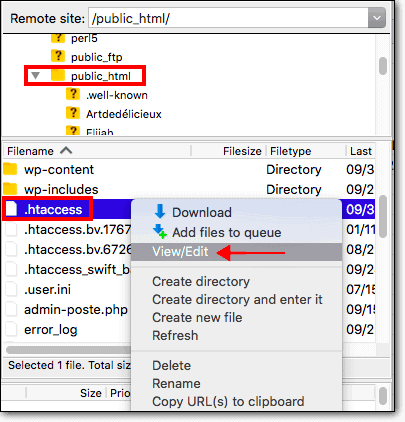
First, access your site’s files using an FTP client or your hosting control panel.
-
Locate the .htaccess file in your WordPress root directory.
 Pro tip
Before making any changes, take a backup of this file, as you’ll want to revert to it if things go wrong.
-
Open the .htaccess file in a text editor and carefully review the rules it contains. Look for any lines that might restrict resource access or seem out of place. If you’re unsure, compare it to a default WordPress .htaccess file to spot differences that may be causing issues.
If necessary, you can reset the .htaccess file to its default state. This often resolves issues caused by incorrect configurations. To do this, rename the existing .htaccess file to disable it, and then create a new one with default settings. Always remember to save and test your site after making changes to ensure everything functions correctly.
How to prevent the “Failed to load resource” error?
Preventing the “WordPress failed to load resource” error can save you from the frustration and time-consuming task of troubleshooting. Instead of spending hours sifting through code and settings, implement proactive strategies to avoid such issues. These measures will help protect your site from downtime.
Keep Backups
Regular backups are crucial as they provide a safety net to restore your site if any issues arise. Whether caused by a plugin malfunction, a theme conflict, or a coding error, having an up-to-date backup ensures you can quickly revert to a previous stable version of your site, minimizing downtime and data loss.
Test Before Live Changes
Testing changes in a staging environment allows you to detect potential issues before they affect your live site. This approach helps identify errors early, preventing them from impacting your users and allowing you to make adjustments in a controlled setting without risking your site’s functionality.
Use a Page Content Monitor
A page content monitor is a useful tool to ensure your site’s elements are functioning correctly. By alerting you to issues such as missing forms or images, it allows you to address them before users encounter broken content, maintaining a seamless user experience.
Keep Everything Updated
Regular updates to the WordPress core, themes, and plugins are essential to maintaining site compatibility and security. Updates often include patches for vulnerabilities and improvements, so keeping everything current helps prevent compatibility issues and enhances overall security. Use tools like UpdateLens that can help you update more safely.
Use Correct URLs
Ensuring all URLs on your site are absolute and accurate prevents broken links that can disrupt resource loading and the overall user experience. Proper URL management maintains the integrity of internal and external link structures, reducing the likelihood of the “failed to load resource” error.
Set Proper File Permissions
Reviewing file permissions regularly ensures that the necessary access is granted for functionality without exposing your site to security risks. Correct permissions prevent unauthorized modifications while allowing essential site components to load and operate as intended.
Choose Reliable Hosting
Opting for a reputable hosting provider ensures better uptime and responsive support, reducing the likelihood of server-related issues that can cause resource loading errors. A reliable host provides a stable environment for your site, enhancing overall performance.
Utilize Caching
Caching plugins can optimize your site by storing frequently accessed data, which helps deliver pages and resources more efficiently. By reducing server load and improving load times, caching enhances user experience and minimizes potential resource load errors.
Deploy a CDN
A Content Delivery Network distributes your site’s resources across global servers, improving load speeds for users worldwide. By minimizing the distance between users and your site’s resources, a CDN enhances performance and reduces latency.
Monitor Server Health
Using monitoring tools to track server performance ensures that you catch potential issues early. By overseeing resource usage and server conditions, you can address emerging problems before they affect your site’s operation and user experience.
Limit Plugins
Installing only necessary plugins helps avoid conflicts and maintain a streamlined site. Organizing and regularly reviewing installed plugins ensures that your WordPress environment remains efficient and reduces the chances of compatibility issues arising.
Final Thoughts
Navigating errors on your WordPress site can be a significant hindrance, disrupting both your workflow and the experience of your visitors. Such interruptions not only derail your momentum but also risk alienating users who encounter broken pages or malfunctioning features. However, implementing strategic preventative measures can greatly minimize the likelihood and effects of these disruptions.
Use a tool like MalCare that can offer staging sites and regular backups. They can help you reduce the impact of these WordPress errors.
FAQs
The “failed to load resource” error in WordPress signifies that your site is unable to properly load certain files necessary for its complete functionality, such as images, scripts, or stylesheets. When these elements can’t load, parts of your website may appear broken or incomplete, leading to a poor user experience and potentially affecting your site’s usability and aesthetics.
To pinpoint the resources causing this error, utilize your browser’s developer tools. Right-click on your website and select “Inspect” to open these tools. Then, navigate to the Console tab. Here, you’ll find detailed error messages indicating which specific resources are failing to load, helping you understand and address the underlying problem.
Yes, caching plugins can contribute to “failed to load resource” errors by serving outdated page versions that don’t reflect current changes. Cached data might attempt to load non-existent resources, leading to errors. Resolving this may involve clearing your cache or reconfiguring the caching plugin settings to ensure they properly handle your site’s dynamic content.
File permissions govern who can access or modify files on your server. If permissions are too restrictive, your server might be unable to retrieve necessary files, resulting in loading errors. Ensuring correct file permissions is vital, as it allows your server to deliver the required files without compromising security, thereby reducing the chance of encountering such errors.
Plugins extend your site’s functionality, but they can sometimes conflict with one another or with your theme. These conflicts may prevent resources from loading. To isolate the problematic plugin, deactivate your plugins one at a time, checking your site after each deactivation to see if the error persists. This method helps identify and address the source of conflicts.
Themes can include scripts or styles that may interfere with WordPress core functions or plugin operations, leading to resource loading issues. Temporarily switching to a default WordPress theme, such as Twenty Twenty-One, can help determine if your current theme is the cause of the conflict, allowing you to investigate its code for the root of the problem.
Yes, broken or outdated URLs can frequently result in missing resources. Incorrect links to images, scripts, or stylesheets prevent them from loading on your site. To address this, verify that all URLs are accurate and correctly configured to point to the appropriate files and locations on your server.
If you find yourself unable to fix the error through standard troubleshooting steps, consider seeking help from your hosting provider or engaging with a WordPress support forum. These resources can offer specialized guidance tailored to your particular site setup, helping you identify and rectify complex issues.
Regular updates are crucial for maintaining site security, functionality, and compatibility. Aim to check for updates at least once a month. Promptly applying core, theme, and plugin updates helps prevent errors and ensures your site continues to operate smoothly with the latest features and security patches.
Your hosting provider plays a significant role in preventing such errors by ensuring reliable server performance, consistent uptime, and responsive support. A reputable host can quickly address server-related issues and provide guidance when problems arise, making them an essential factor in maintaining your site’s stability and performance.


