
You publish a post, click its link to check your work, and land on a 404 page. In many cases, the fix is to reset your WordPress permalinks: open Settings → Permalinks and click Save Changes without changing the selected structure.
This refreshes WordPress’s rewrite rules while keeping your public URLs in place, but the post is still in your WordPress dashboard. So it is natural to wonder whether the content disappeared or the whole site is broken. A 404 does not automatically mean that your content is gone. It can come from stale rewrite rules, but it can also point to a changed WordPress slug, a cache, a migration, a redirect, or server routing.
If you searched for how to reset WordPress permalinks, start with the smallest safe action: when the current URL structure is correct, open Settings → Permalinks and click Save Changes without changing the selection. This guide explains what that reset can fix, what it cannot fix, and which clue to follow when the error remains.
TL;DR: If your URL structure is correct, open Settings → Permalinks and click Save Changes without changing the selection. If URLs still return 404s, stop repeating the reset and check the content, cache, recent changes, site URLs, redirects, or server routing.
Reset permalinks from the dashboard
If you can open your WordPress dashboard and the current URL format looks right, begin with one simple refresh. Saving the Permalinks screen tells WordPress to rebuild the routing instructions it uses to connect friendly URLs with posts, pages, and other content. You are refreshing the instructions behind the addresses, not choosing a new address format.
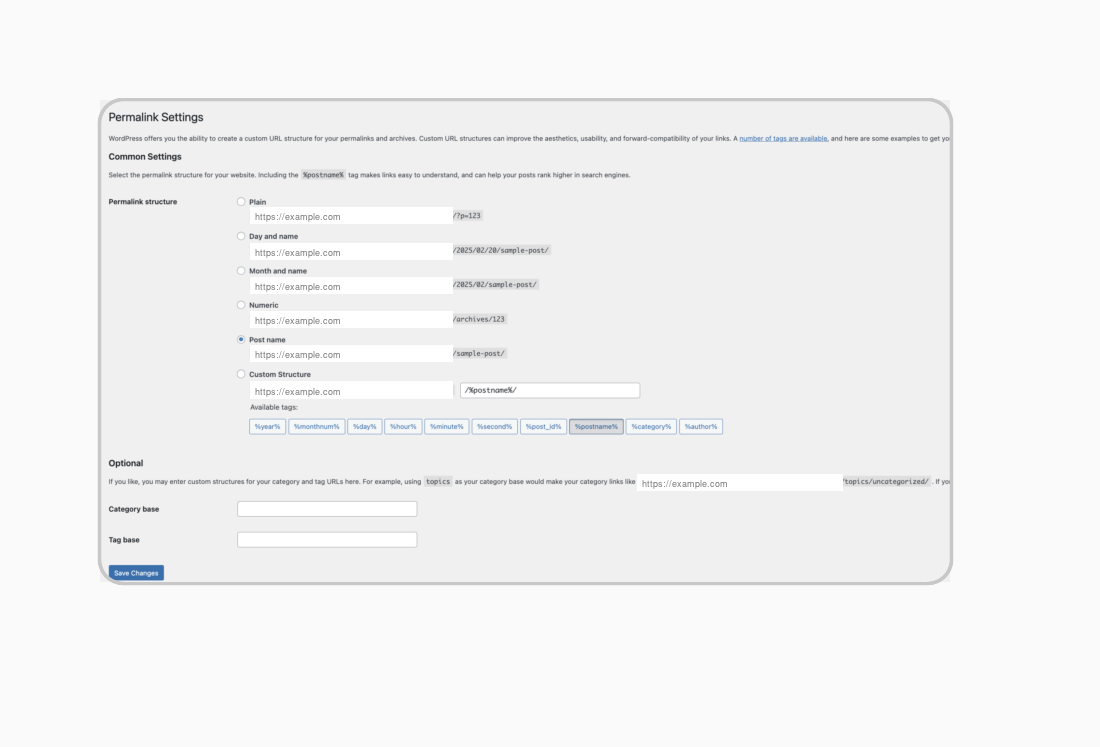
Follow these steps:
- Sign in to WordPress and open Settings → Permalinks.
- Check which structure is selected. If you use a custom structure, copy the full pattern or take a screenshot before changing anything.
- Leave the current structure selected and click Save Changes.
- Wait for WordPress to confirm that the permalink structure was updated.
- Test the URL that failed. Then check at least one published post, one page, a category archive, and an important menu link.
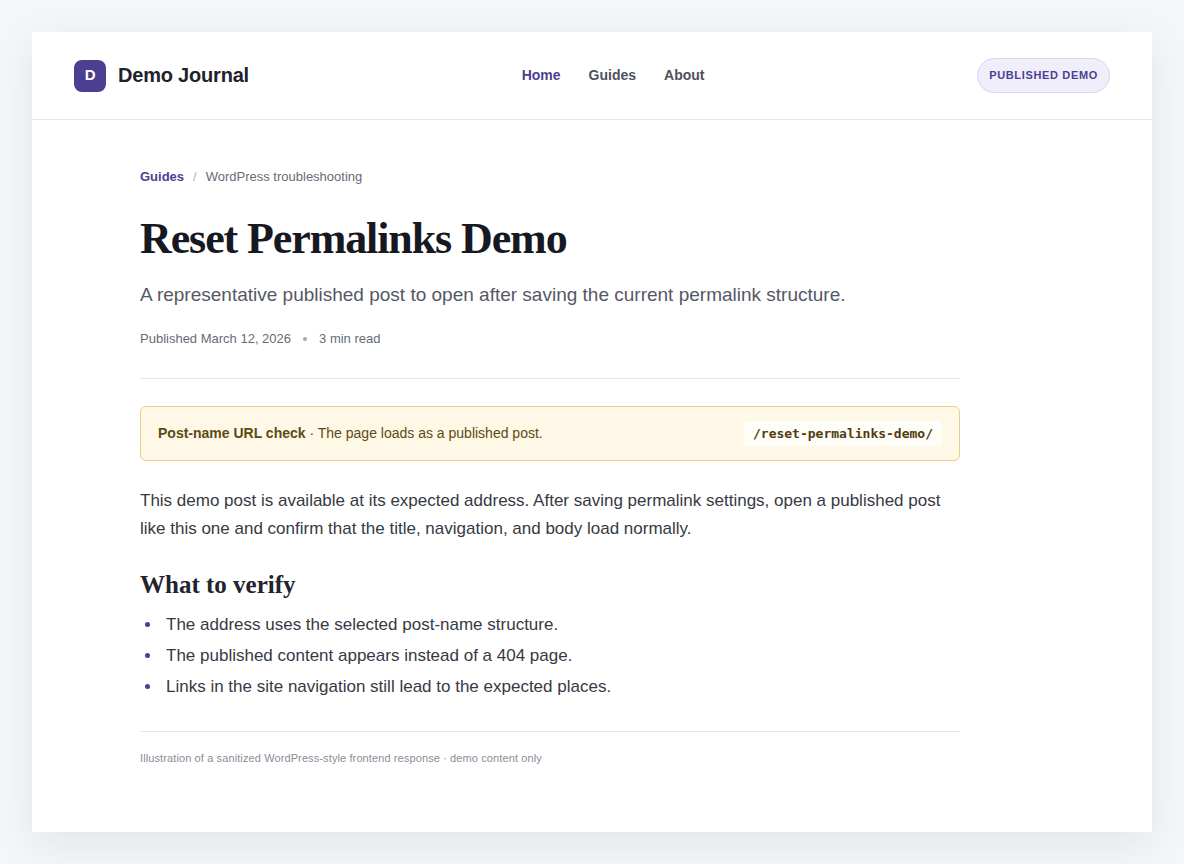
The confirmation tells you that WordPress accepted the setting, not that every request is working. A browser, page-cache plugin, hosting cache, or CDN may still show an older response, so test in a private window or clear the relevant cache.
🧭 Note: A successful save is a reason to test, not repeat. It will not restore missing content or fix a wrong domain or server problem. If the broken URL works, stop there.
What a permalink reset actually does
A permalink is the public address of a WordPress post, page, category, or other content. The permalink structure is the pattern used to create those addresses, such as a date-based path or a path containing the post name. WordPress also keeps rewrite rules, which tell it what content should respond to each address. Saving the Permalinks screen refreshes those rules for the selected structure.
That is the important distinction: resetting permalinks refreshes the routing rules; it does not redesign your public URLs. Changing the selected structure is a different operation. It can give many posts and pages new addresses, which turns a small repair into a URL migration.
🔎 Note: The structure is the address pattern; rewrite rules are directions to content. Refreshing directions does not renumber addresses.
Do not change the structure just because one URL is broken. A reset cannot restore deleted content, guess a new address after a slug change, point a domain to the correct WordPress installation, or repair a server that is not forwarding requests to WordPress.
Find out why the 404 continues
If the save did not help, do not keep clicking it and hope the result changes. The number of broken URLs and the event that came before the problem usually tell you more than the reset itself.
Is it just one post, or is the page broken
Open the content in WordPress and check that it is still published. Then check its slug, which is the readable part of the address after the domain. If someone renamed, moved, or deleted the content, the problem is with the content or its destination, not with the rewrite rules.
If the content moved, create a direct 301 redirect from the old address to the most relevant current address. A 301 tells browsers and search engines that the move is permanent. If the content was removed, restore it or send visitors to a genuinely useful replacement. A permalink reset cannot recreate missing content.
Many posts and pages are broken
Look at what changed just before the errors started. Common triggers include a WordPress, plugin, or theme update, a migration, a restored backup, a new custom post type, or a server rewrite change.
If a filter in a plugin or theme is the likely trigger, isolate the recent change on staging when possible. Disable or roll back one item at a time, then test the same post, page, and archive. This identifies the cause without creating several new variables. On a live site, make a current backup first.
🧩 Note: Test one change at a time. Otherwise, you may lose the 404 without finding its cause.
If the problem began after a migration or restore, open Settings → General. Compare the WordPress Address (URL) and Site Address (URL) with the intended domain, HTTPS setting, and folder path.
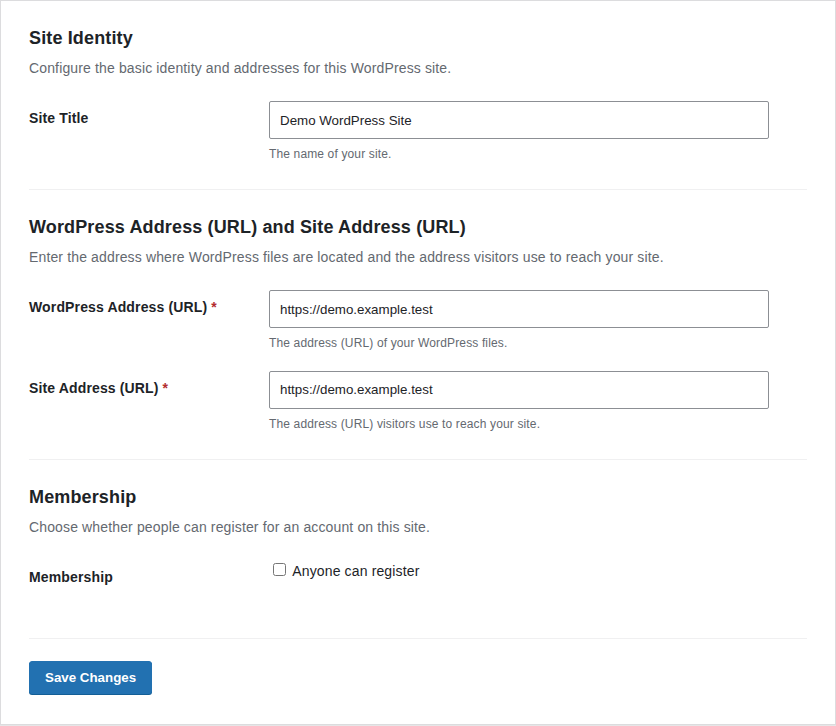
Check that the expected files and media exist and that the server can read them. A wrong site address, incomplete restore, or permissions problem will not be corrected by resetting permalinks.
Confirm that it is really a 404
Sometimes a page that looks broken is not returning a true “not found” response. Check the address bar and the page you received:
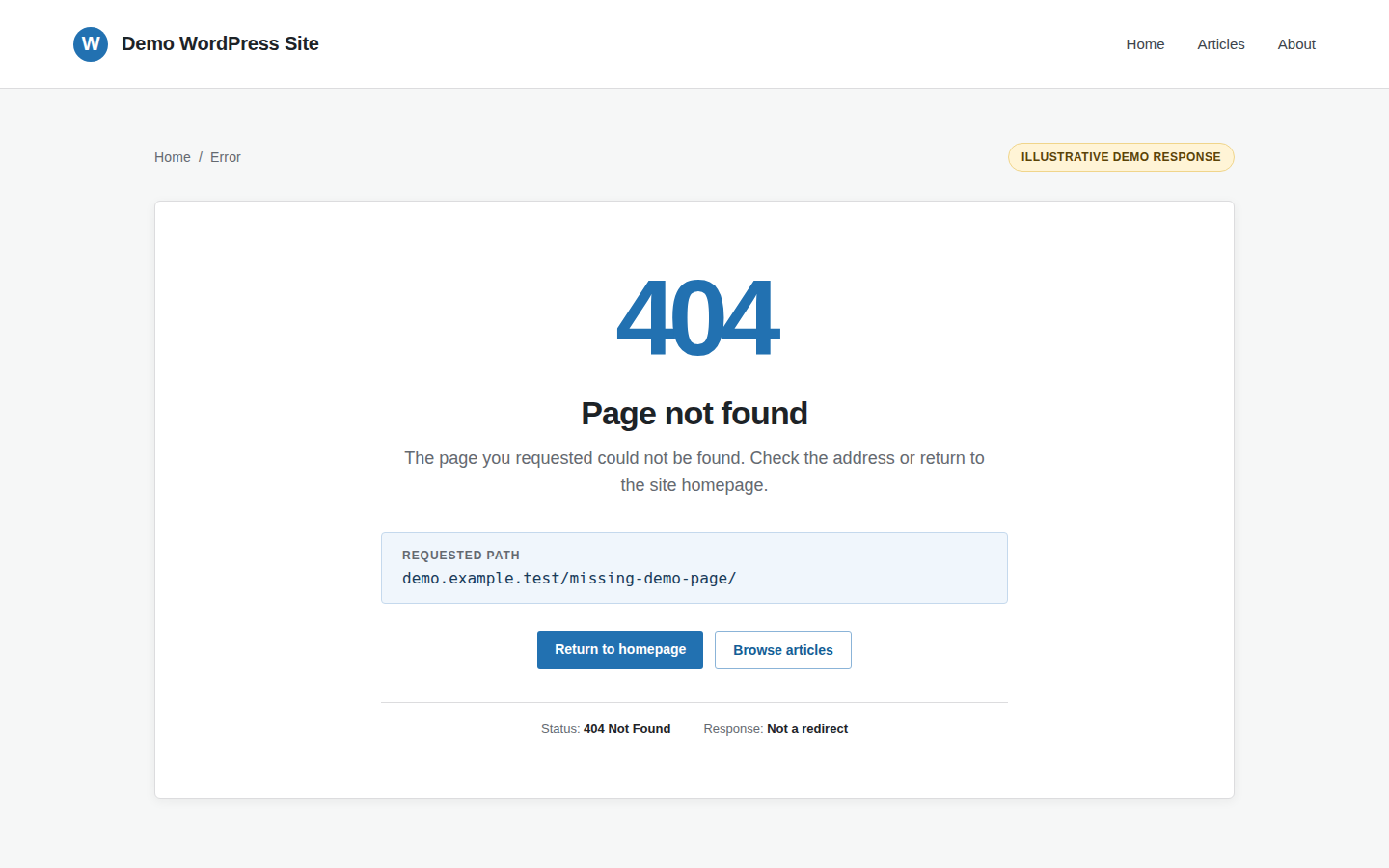
- A redirect may be sending you to an old slug, a changed structure, or an existing redirect rule.
- The homepage may be a fallback from a theme or plugin rather than the content you requested.
- A login screen may indicate access control rather than missing content.
- A server error needs server investigation or a check of PHP settings in WordPress, not more permalink saves.
Test the address in a private window and, if possible, from another network. Clear browser, page, hosting, or CDN caches before deciding that the reset failed. Clearing a cache can reveal a successful reset, but it cannot repair bad routing.
Try the two-save fallback carefully
If the current structure is correct, the dashboard accepted the save, and representative URLs still fail, try one controlled fallback: select a different built-in structure, save it once, restore the original, and save it again.
This is a fallback, not a required ritual. It cannot fix a plugin conflict, missing content, wrong site address, cache problem, or server fault.
⚠️ Note: Use this only after the one-save refresh fails and while you can monitor the site. It briefly changes the address pattern.
Before you begin:
- Make a current backup. Use staging if the site is busy or the change would be difficult to reverse.
- Record the exact current structure, including the complete pattern for a custom structure.
- Select a different built-in option and click Save Changes once. If Plain is selected, choose another option temporarily.
- Select the original option again and click Save Changes a second time.
- Test the same post, page, archive, media URL, and menu link. Confirm that the original structure is selected again.
Avoid this procedure during a busy period unless you can monitor the site and restore the original setting quickly. While the temporary option is active, WordPress may generate different addresses.
Check server routing when WordPress cannot write its rules
Sometimes WordPress cannot update the server rules needed for friendly URLs. The Permalinks screen may display instructions for an administrator to apply manually. These are server instructions, not another WordPress setting, and the correct action depends on the web server.
On Apache-style hosting, those rules commonly live in a hidden instruction file named .htaccess. Back it up before editing because it may also contain redirects or security rules. Do not replace .htaccess blindly. Ask your host or a WordPress administrator to preserve its existing rules.
Nginx does not use .htaccess. Its server configuration must route requests to WordPress, usually through the main WordPress entry point. If you do not manage Nginx, give your host the failing URL, the response you see, and when the problem started. An uninformed change can create a larger outage.
🛠️ Note: If WordPress cannot write its rules, escalate to your host or site administrator instead of repeating dashboard saves.
Reset permalinks without wp-admin
If the dashboard is unavailable, an administrator with verified access to the correct WordPress installation can use WP-CLI, the WordPress command-line tool for managing WordPress from a server terminal. From that installation, the administrator can run wp rewrite flush to refresh the rewrite rules, then test the same representative URLs.
The correct installation matters. A server can contain more than one WordPress site, and flushing the wrong one will not help. If you do not use WP-CLI, ask your host or site administrator to run it.
Developers can also call WordPress’s rewrite-flush function once after a controlled plugin activation or deactivation, or after a migration. It should not run on every page request. That adds work to normal visits without fixing the underlying conflict.
Treat database edits as advanced recovery
The selected permalink format is stored in a setting called permalink_structure in the site’s options table, which is a database table that holds WordPress settings. The table prefix is not always wp_, so an administrator must identify the correct database and table first.
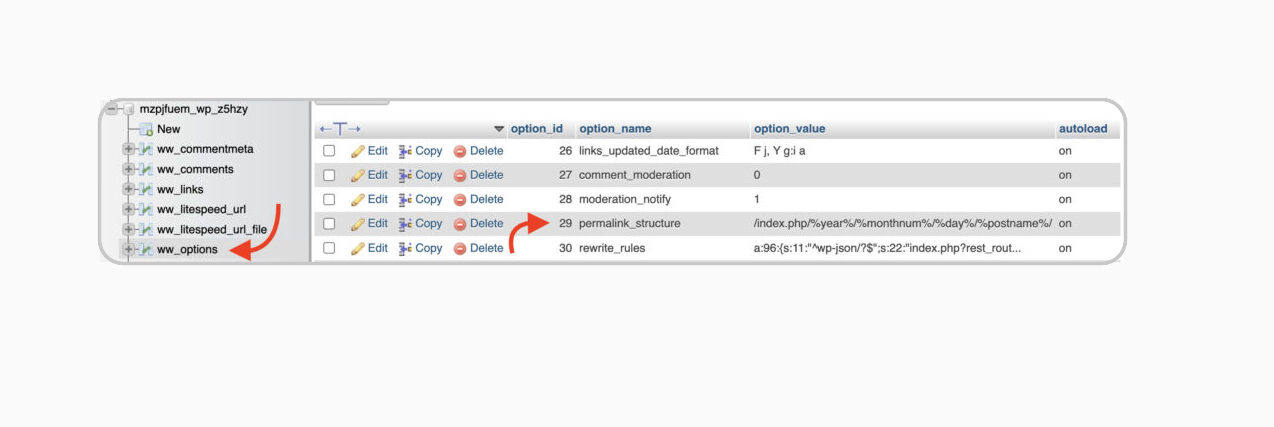
Editing or deleting that option is not the database version of clicking Save Changes. It can make the site fall back to a different URL format without refreshing the server’s rewrite rules, and a wrong database target can affect another site.
For an ordinary 404, prefer the dashboard save or a correctly targeted WP-CLI flush. If database recovery is unavoidable, take a full backup, record the original value, confirm the site and table, and involve an experienced WordPress administrator. Do not edit the database simply because the dashboard is inconvenient to reach.
Protect URLs during bigger changes
Refreshing the current permalink settings may restore access to addresses that should already work, but it does not improve rankings by itself. The SEO risk comes from changing or losing URLs and failing to direct visitors and search engines to the right replacement. Before intentionally changing a structure on a live site:
- Export or record important existing URLs.
- Map each old URL to its correct new destination.
- Use direct 301 redirects and avoid redirect chains.
- Test the redirects and important pages.
- Monitor 404 reports, Search Console, and analytics after the change.
Before editing the database, plugins, themes, .htaccess, or server settings, protect the site with a current backup or staging copy. BlogVault can help with that preparation, but it does not flush permalinks or replace host-level troubleshooting. An unexplained 404 is not, by itself, evidence of malware.
🛡️ Note: A backup gives you a way back, not permission to make an unsafe change. Record the original setting first.
Conclusion
When a WordPress URL returns a 404, start with the smallest change that matches the problem. If the current structure is correct, refresh it once from Settings → Permalinks, then test representative URLs.
If the error remains, let the evidence choose the next step. A renamed page needs a redirect, a migration may need site-URL checks, a plugin change needs controlled isolation, and a server-routing problem belongs with someone who manages Apache or Nginx.