You scheduled a post, expected it to go live, and found it still sitting under missed schedule. That is the annoying part of a WordPress missed schedule error: the site may look fine until the publish time has already passed.
A WordPress missed schedule error usually means WordPress did not run the scheduled publish task on time. Publish or reschedule the stuck post first, then check timezone, WP-Cron, cache or CDN rules, plugin conflicts, and hosting limits. For a lasting fix, use a missed-post publisher plugin as a safety net or replace default WP-Cron with a real server cron if your host supports it.
Start with the post that failed. If it was tied to an email, launch, sale, press note, or social campaign, get it live first. Then fix the scheduling system so the next post does not fail quietly.
🔔 Note: This does not mean your site’s security is in danger. A missed schedule is usually a cron, cache, hosting, or plugin problem. WordPress security still matters, though, because troubleshooting often means touching files, disabling plugins, and changing firewall or cache rules. That is when you want backups and a clean-site check, not guesswork.
First, get the post live
Treat the missed post as a publishing problem first and a technical problem second.
| If this is happening | Do this first | Why it helps |
|---|---|---|
| The post should already be public | Publish the missed post manually | It fixes the visible failure fastest |
| The exact time still matters | Reschedule the post a few minutes ahead | It shows whether scheduling still works |
| You plan to edit files or disable plugins | Take a fresh backup first | It gives you a rollback path |
| Missed schedules keep happening | Check WP-Cron and hosting next | Repeat misses usually have a system cause |
Publish the missed post manually: Go to Posts > All Posts, open the missed post, and publish it if it should already be live.
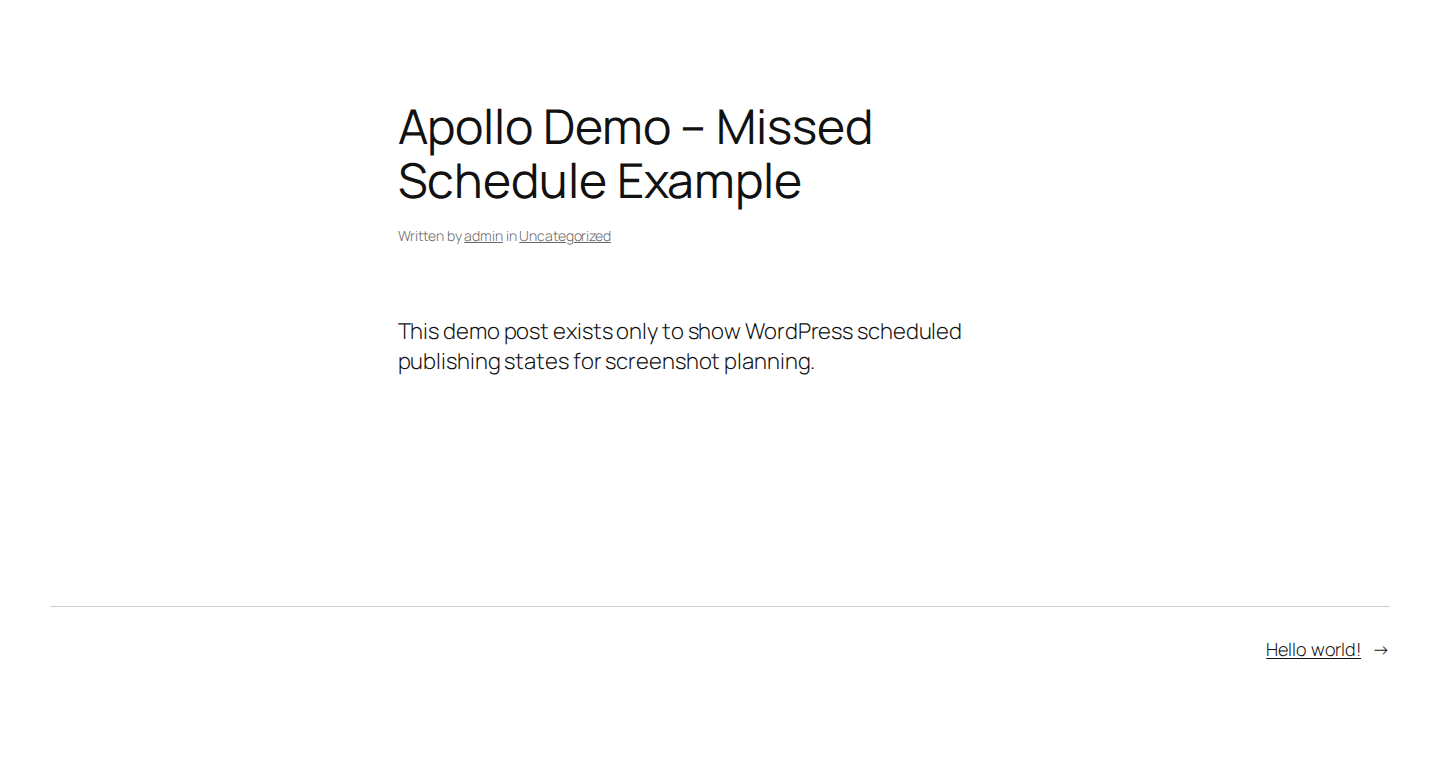
Reschedule the post as a quick test: If you still want WordPress to publish it, set the time a few minutes in the future and wait. If it misses again, the problem is not that one post.
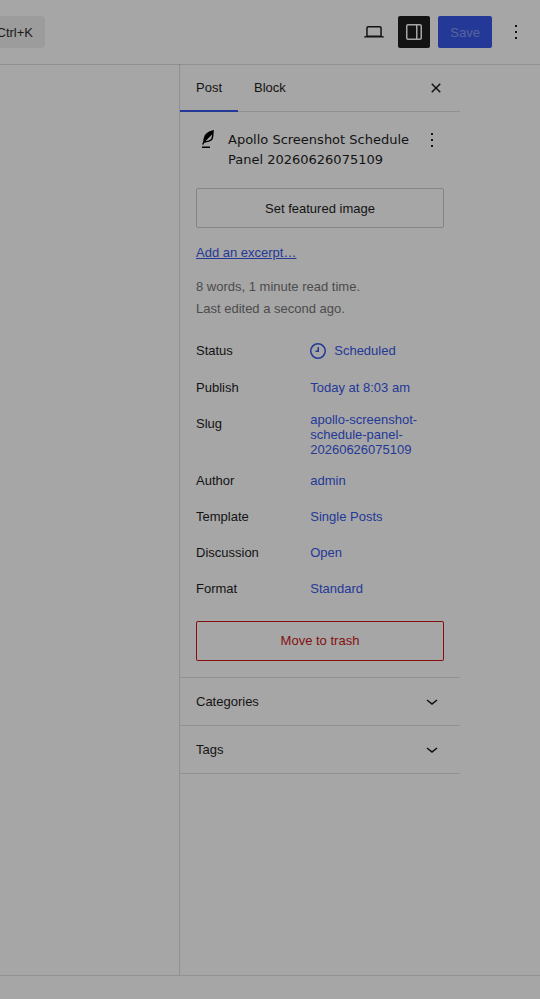
Backup before bigger changes: A backup matters before you edit wp-config.php, disable plugins, switch themes, delete a maintenance file, or change cache settings. If you need to backup your WordPress site, BlogVault’s backups are useful here because they give you a safer rollback path before you touch the parts of the site that can affect publishing.
⚠️ Note: Manual publishing solves the current post. It does not prove scheduled publishing is fixed.
What the error means
Missed Schedule means WordPress had a post set to publish at a certain date and time, but the scheduled task did not run or did not finish.
You will usually see it in Posts > All Posts. A scheduled post that should be public is still listed as missed.
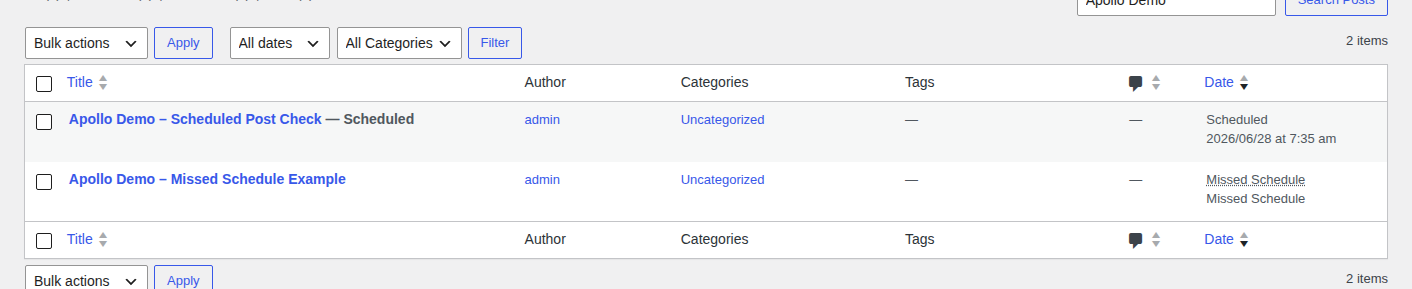
You may also see a Site Health warning that says WordPress has scheduled tasks that are overdue. That warning is broader than posts. Scheduled tasks can include update checks, plugin jobs, backups, cleanup tasks, and emails.
Do not confuse this with a timezone mistake. If your site is set to the wrong timezone, a post may publish at the wrong hour. If the time has passed and the post is still not public, you are dealing with a missed schedule.
Why scheduled posts fail
The visible problem is simple: the post did not publish. The hidden problem is the system WordPress uses to run scheduled work.
By default, WordPress uses WP-Cron. In plain English, WP-Cron is WordPress checking whether scheduled tasks are due when the site gets a visit or request.
That setup works on many sites, but it has weak spots:
- Low-traffic sites may not get a visit near the scheduled time.
- Cache or CDN rules may serve visitors without WordPress getting a request.
- A firewall, security plugin, or host may block WordPress from calling itself.
- WP-Cron may be disabled without a replacement.
- A plugin, theme, failed update, or busy server may stop the task from finishing.
Low traffic is common, but it is not the only cause. A busy site can still miss schedules if cache, hosting, security rules, or plugin code blocks scheduled tasks. The rule is simple: scheduled posts are only as reliable as the system that triggers WordPress scheduled tasks.
Quick checks to run first
These checks catch simple causes before you change server behavior.
Confirm the timezone and post time: Go to Settings > General > Timezone. Use a named city timezone where possible, such as America/New_York, instead of a plain UTC offset. Named timezones handle daylight saving changes better.
Open the missed post and check its scheduled date and time. If the timezone was wrong, correct it and schedule a test post a few minutes ahead.

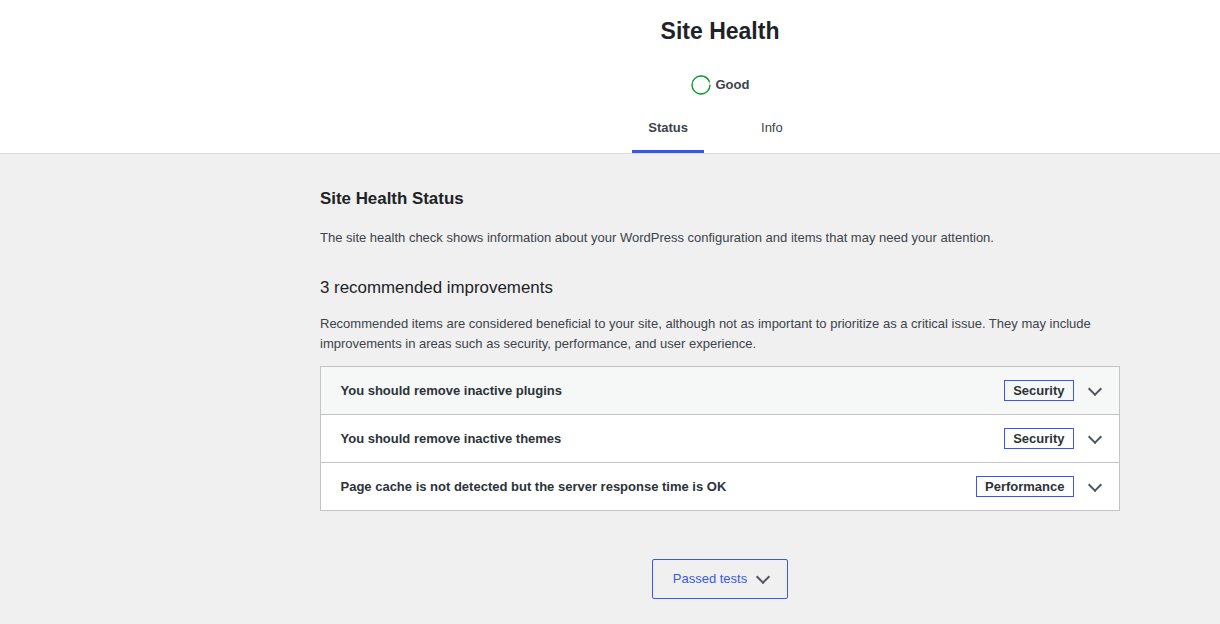
Check Site Health warnings: Go to Tools > Site Health. Look for warnings about overdue scheduled events, loopback requests, REST API errors, memory, or server issues.
A loopback request is WordPress trying to make a request back to itself. If that is blocked, WP-Cron can become unreliable.
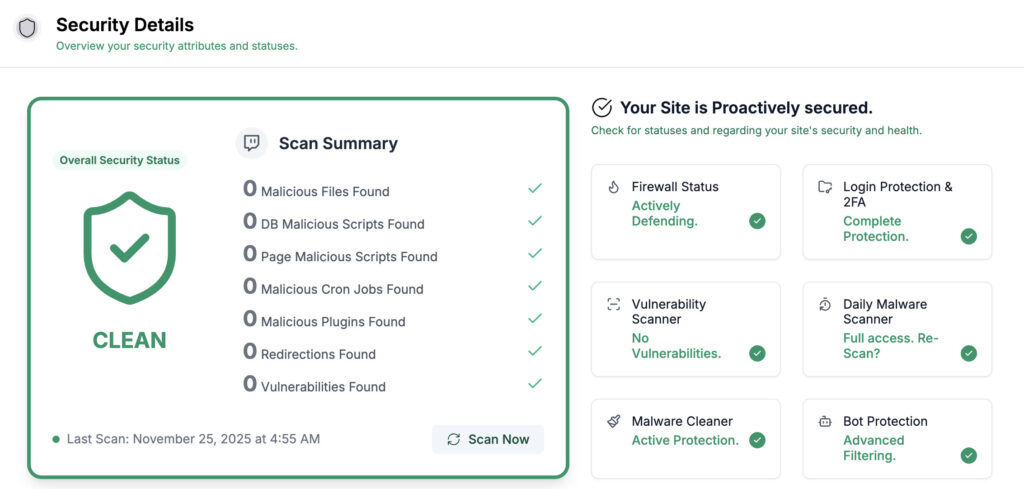
Check recent security or firewall changes: If you added a firewall rule, changed bot protection, tightened basic authentication, or installed a security plugin right before schedules started failing, do not ignore the timing. A security layer that blocks bad traffic is useful. A security layer that also blocks wp-cron.php or loopback requests can break scheduled publishing.
The fix is not to turn protection off and leave it off. Temporarily test the rule, allow the cron request if needed, and scan the site before making broader changes.
Clear cache and test again: If you need a step-by-step process to clear your WordPress cache, start there. Then clear plugin cache, server cache, and CDN cache if your site uses them, and schedule a small test post a few minutes ahead.
Caching makes sites faster, but aggressive cache rules can stop normal visits from reaching WordPress. If the test works after clearing or bypassing cache, ask your host or CDN provider whether wp-cron.php is cached or blocked.
Check for stuck maintenance mode: If the miss happened around an update, check whether the site is stuck in maintenance mode. WordPress creates a temporary .maintenance file during updates. If the update fails, that file can remain. Only remove .maintenance after you confirm no update is still running.
🧭 Note: Browser cookies are rarely the real cause of missed schedules. Server cache, CDN rules, and blocked WordPress requests matter more.
Check WP-Cron
Once the simple checks are done, find out whether WordPress can run scheduled tasks.
Look for disabled WP-Cron: Open wp-config.php and search for this line:
define('DISABLE_WP_CRON', true);If it exists, default WP-Cron is disabled. That is fine only when a real server cron or another service is calling wp-cron.php.
Do not disable WP-Cron unless the replacement is already set up. If WP-Cron is disabled and nothing else calls it, scheduled posts will not run reliably.
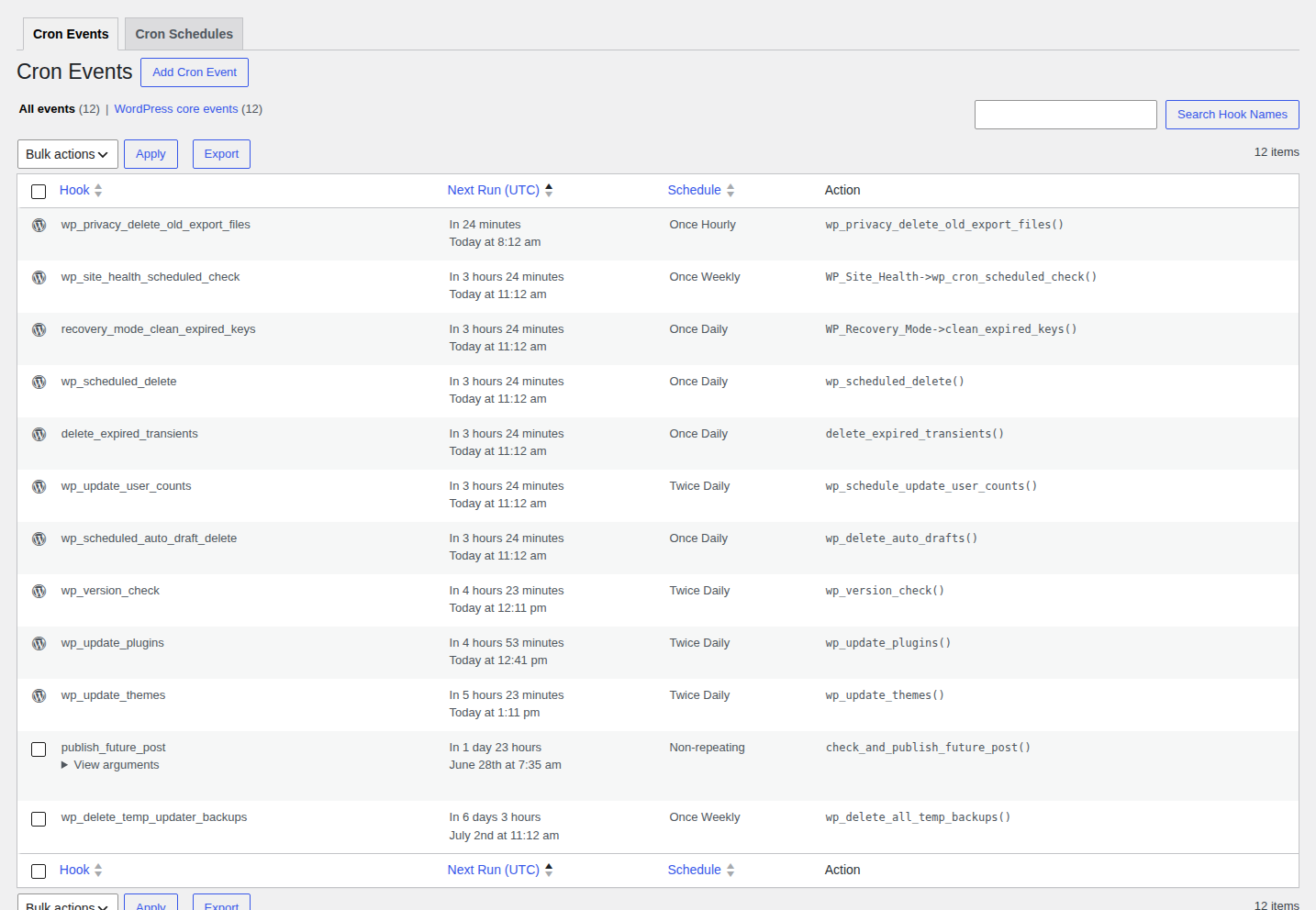
Use a cron inspection plugin: If you are comfortable installing a diagnostic plugin, WP Crontrol can show scheduled events, overdue jobs, and event hooks. For missed posts, look for future-post publishing events and overdue tasks.
If many events are overdue, the issue is wider than one article. Focus on WP-Cron triggering, cache rules, loopback requests, and host limits.
Call wp-cron.php as a test: Open this in a browser, replacing the domain with your own:
https://example.com/wp-cron.phpIf the missed post publishes right after that, the post schedule was probably valid. The problem is that WP-Cron was not being triggered at the right time.
This is a test, not a workflow. You should not have to visit that URL every time you schedule a post.
Use WP-CLI only if you are comfortable with it: On hosts that support WP-CLI, advanced users can inspect and run due cron events from the command line. If you are not already using WP-CLI in production, use plugin diagnostics or host support instead.
Fix the cause
Choose the fix that matches what you found. Do not apply every fix at once, or you will not know what worked.
| What you found | Best fix | Watch out for |
|---|---|---|
| One missed post | Publish or reschedule it | This does not prevent the next miss |
| No server access | Use a missed-post publisher plugin | It catches failures after the fact |
| Recurring misses or low traffic | Set up real server cron | Your host must support it |
| WP-Cron is disabled | Add server cron or re-enable WP-Cron | Do not leave both missing |
| Cache or CDN is blocking cron | Allow wp-cron.php and clear cache | Rules vary by host and CDN |
| Security or firewall rule changed | Allow loopback and wp-cron.php after testing | Do not leave protection disabled |
| Recent plugin or theme change | Test for a conflict safely | Avoid breaking the public site |
| Host limits or blocked requests | Ask the host to check logs and limits | You need host-side evidence |
The pattern is clear: a plugin is a safety net, real cron is the stronger long-term fix, and host support matters when WordPress cannot call itself.
Use a missed-post publisher plugin
A missed-post publisher plugin checks for posts that should already be live and publishes them when it finds them.
Use this if you want a beginner-friendly safety net and do not have server access. It is a practical option for small sites, solo bloggers, and teams that cannot change hosting settings.
The catch is timing. These plugins publish after WordPress has already missed the original moment. That may be fine for a blog post. It may not be fine for a launch, flash sale, news item, or editorial calendar.
Before installing one, check that the plugin is still maintained, compatible with your WordPress version, and limited to the job you need.
Set up real server cron
Real server cron is the fix I would choose for a site where publishing time matters and misses keep happening.
Default WP-Cron depends on site requests. A server cron runs on the server’s schedule, often every 5 to 15 minutes. That gives WordPress regular chances to run due tasks even when traffic is low or cached.
Backup the site and note the current setting: Before editing wp-config.php, take a backup and check whether DISABLE_WP_CRON already exists.
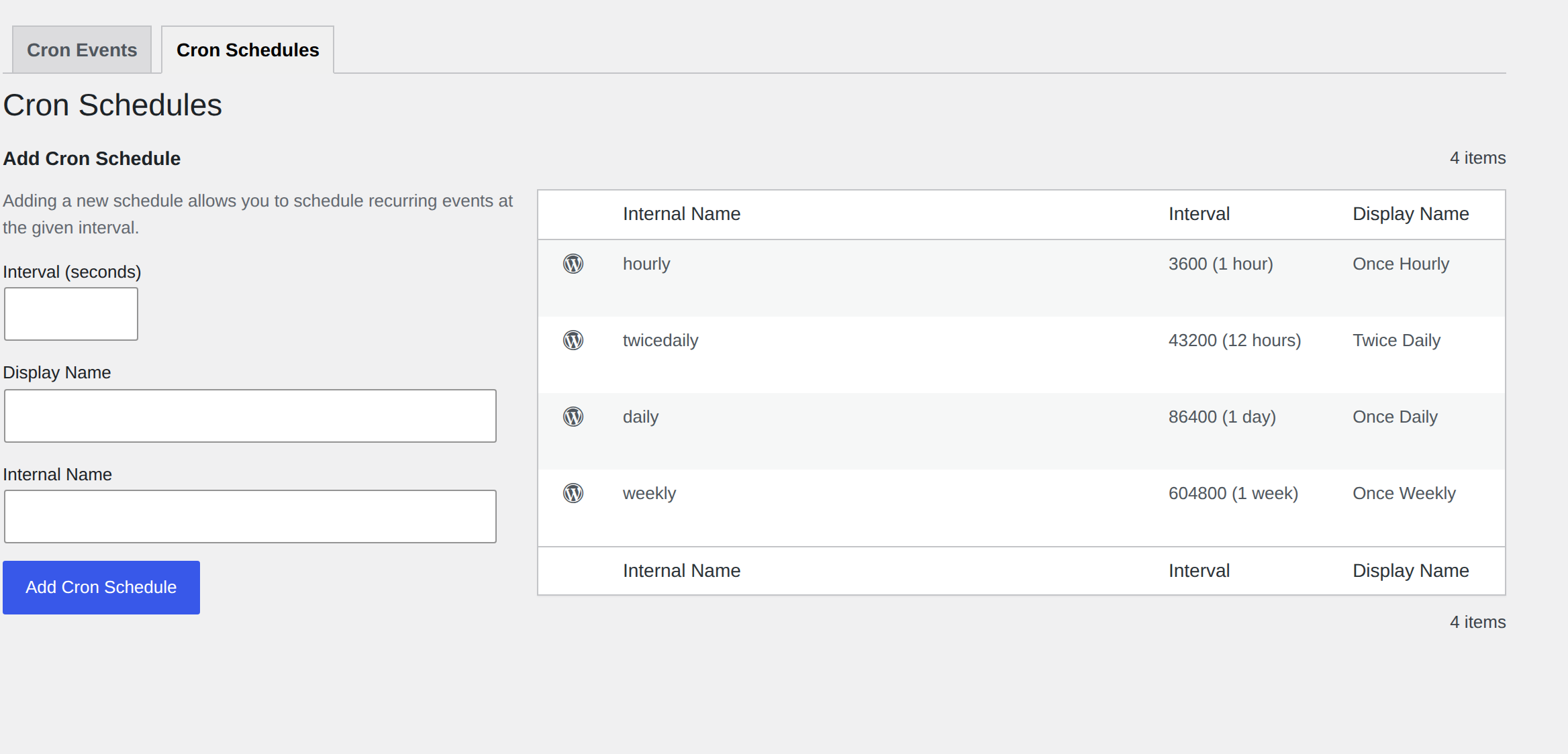
Disable default WP-Cron only when ready: Add this line above the “stop editing” line in wp-config.php:
define('DISABLE_WP_CRON', true);Configure the server to call wp-cron.php: Use your host’s cron tool, cPanel, or managed hosting panel to call wp-cron.php every 5 to 15 minutes. Some hosts use a URL request. Some use a PHP command. Ask support for the exact command if you are unsure.
Test without manual help: Schedule a test post 10 to 15 minutes ahead. Do not visit wp-cron.php manually. Confirm that the post publishes and check Site Health again.
🔧 Note: Do not run cron every minute unless your host recommends it. More frequent cron can add load without making normal editorial publishing meaningfully better.
Fix cache or CDN blocking
If scheduled posts work after clearing or bypassing cache, check the cache layer.
Ask whether wp-cron.php is cached or blocked: This can happen at the plugin, server, CDN, firewall, or bot-protection level.
Allow cron and loopback requests: WordPress needs to reach its own scheduled-task URL. If a firewall blocks that, publishing can fail.
Retest with a scheduled post: After changing cache rules, schedule a small test post. Do not rely on the old missed post alone.
Add the security check
Most missed schedules are not security incidents. They are boring infrastructure failures, which is exactly why they are easy to miss.
Still, security belongs in the troubleshooting path for two reasons. First, security tools can accidentally block the loopback requests WordPress needs for cron. Second, if you are about to edit wp-config.php, disable plugins, switch themes, or change firewall rules, you should know the site is recoverable and clean before you start.
Run this check when missed schedules start after a security change, when Site Health reports blocked loopback requests, when admin behavior looks odd, or when you see other warning signs such as unexpected users, unknown plugins, redirects, or changed files.
Use a simple rule:
- If the only symptom is one missed post, fix the schedule first and keep security checks light.
- If the miss started after a firewall or security plugin change, test whether that layer is blocking wp-cron.php.
- If there are other suspicious symptoms, take a backup, scan for malware, review recent admin users and plugins, and involve your host before making large changes.
Do not confuse a clean scan with proof that nothing is wrong. A scan is one signal. But it is a useful signal before you start changing the parts of the site that control publishing, updates, and scheduled jobs.
Test plugin and theme conflicts safely
If missed schedules started after a plugin update failed or a theme update, test for a plugin conflict.
Use Health Check troubleshooting mode: This lets an admin test with plugins disabled and a default theme without changing what visitors see.
Switch only inside the troubleshooting session: Use a default theme, disable plugins, then schedule a test post a few minutes ahead.
Re-enable one plugin at a time: If the problem returns after one plugin is enabled, you have a likely conflict. Check that plugin’s settings, logs, support forum, and changelog.
This takes time, but it is safer than disabling everything on a live site and hoping nobody notices.
Check host limits and server errors
If WP-Cron is enabled, cache is not blocking it, and plugins do not seem to be the cause, involve your host. Ask support to check:
- blocked loopback requests
- server cron support
- PHP memory limits
- fatal errors near the missed publish time
- CPU throttling or server load
- firewall rules affecting wp-cron.php
- server cache rules
Do not guess at memory or server load. WordPress logs are better than hunches.
Prevent future misses
Prevention is a small habit: test scheduled publishing after changes that affect background tasks. Run a scheduled-post test after you:
- change cache or CDN settings
- move hosts
- add a security or firewall plugin
- change firewall, bot-protection, or login-hardening rules
- disable or replace WP-Cron
- update a publishing, workflow, security, cache, or performance plugin
- switch themes on a customized site
Keep an eye on Tools > Site Health. If WordPress warns about overdue scheduled events, treat it as an early signal. Posts may be the visible failure, but backups, cleanup jobs, plugin tasks, and emails can be delayed too.
For a small site, a missed-post publisher plugin can be enough. For a site with a serious content calendar, use real cron or ask your host how their managed cron works. For any site where publishing ties into sales, leads, or client trust, keep backups, malware scanning, vulnerability monitoring, and update hygiene in the same operating rhythm.
WP Remote’s WordPress maintenance checklist is a practical companion for turning those checks into a routine. Reliability and security are separate problems, but they fail in the same place: the quiet background jobs nobody looks at until something is late.
When to contact your host
Contact your host when the basic checks do not fix repeat misses. Send a specific message:
Scheduled WordPress posts are missing their publish time.
I checked the WordPress timezone, cleared cache, tested for plugin conflicts,
and confirmed the issue still happens.

Can you check whether loopback requests or wp-cron.php are blocked,
whether server cron is available, and whether there were PHP errors,
memory limits, CPU throttling, or cache rules around the missed publish time?
That message gives support a real checklist. “My scheduled posts are broken” is true, but it often gets a generic answer.
FAQs
How do I fix WordPress missed schedule?
Publish the missed post manually if it should already be live. Then check timezone, cache, WP-Cron, plugin conflicts, and host limits. If it keeps happening, use a missed-post publisher plugin as a safety net or set up real server cron.
Why is my WordPress scheduled post not publishing?
The most common reason is that WP-Cron did not run the publish task on time. Low traffic, cache rules, blocked loopback requests, disabled WP-Cron, plugin conflicts, maintenance mode, or server limits can cause that.
Is WP-Cron the same as a real cron job?
No. WP-Cron runs when WordPress gets a request. A real cron job runs on the server’s schedule. That difference matters on low-traffic sites and heavily cached sites.
Should I use a missed schedule post publisher plugin?
Use one if you need an easy safety net and do not have server access. It can publish posts after WordPress misses them. Do not treat it as the best fix for a business-critical schedule. For repeat misses, real server cron is usually stronger.
Is a missed schedule a sign my WordPress site was hacked?
Usually, no. A WordPress missed schedule error is usually a reliability problem with WP-Cron, cache, hosting, plugins, or server rules.
Treat it as a security concern only if there are other signs, such as unknown admin users, unexpected plugins, redirects, changed files, malware warnings, or security/firewall changes that started blocking cron. In that case, back up the site, scan it, and ask your host to check logs before making broad changes.
Conclusion
A WordPress missed schedule error is usually a scheduling reliability problem, not a disaster. Get the stuck post live first, then work through the likely causes in order: timezone, Site Health, cache, security or firewall rules, WP-Cron, plugin conflicts, and hosting limits.
For one-off misses, manual publishing and a quick test may be enough. For repeat misses, stop babysitting the Posts screen. Add a safety net if you need one, set up real cron if timing matters, and keep a rollback path ready before you change files, plugins, security settings, cache, or server rules.