

Facing an error is something no site admin wants to deal with, especially when you’re going about your regular site maintenance.
One moment you’re updating a plugin, installing a new theme, making what seems like a harmless code change. The next moment, your site greets you with a parse error: syntax error unexpected, instead of your homepage.
While the error message points to what went wrong, knowing the right steps to fix it makes all the difference. This guide will walk you through simple methods to resolve this error quickly and get your site back to normal.
Parse error: syntax error unexpected means there’s a coding mistake breaking your WordPress site, often after simple changes or updates. Always back up your site before editing code or making updates to prevent downtime and make recovery easy.
What does the parse error: syntax unexpected error mean?
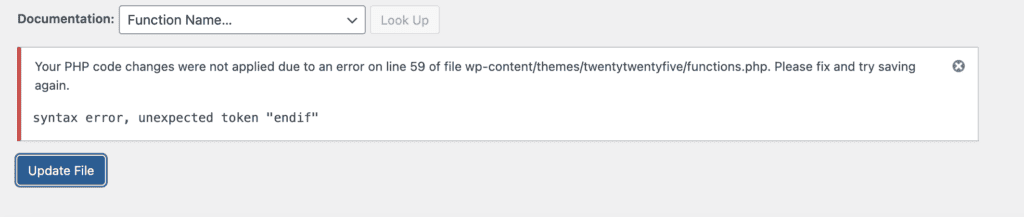
When you see a parse error: syntax error unexpected on your WordPress site, it means there’s a coding mistake somewhere. WordPress is telling you it can’t understand part of your website’s code.
Here’s what each part of the error message tells you. A parse error means WordPress is struggling to read your code. A syntax error indicates the code structure is incorrect, similar to a grammar mistake in writing. The word unexpected shows that WordPress found something in a place where it shouldn’t be.
This error can completely break your website until you fix it. Your visitors will see either a blank page or the error message instead of your normal site. The error message typically shows you which line of code contains the problem, making it easier to locate and fix the issue.
What can trigger this error?
Most of these errors happen during routine maintenance tasks. Here are some reasons for the cause of this error:
- Typing mistakes while editing files: Missing commas, extra brackets, or deleted semicolons
- Copy-pasting code from websites: Hidden characters or errors in the copied code
- Installing broken plugins or themes: New additions with incomplete or outdated code
- Placing code in the wrong location: Adding code where it doesn’t belong in your files
- Plugin and theme conflicts: Multiple plugins interfering with each other
- Accidentally deleting important code: Removing parts of code that your site needs to function
How to solve the parse error: syntax error unexpected
Before you start troubleshooting, backup your entire site. That way, you can quickly restore everything if anything goes wrong.
Read what the error tells you
The error message contains valuable information you need to fix the problem. Look for the file name and line number displayed on the error page. Write down these details exactly as they appear. PS: You don’t need coding knowledge to use this information.

The message also shows what WordPress found “unexpected” in your code, giving you or your helper a clear direction for the solution. If you’re still unsure of the source, enabling the WordPress debug mode can help.
Identify recent changes
Review what actions you took before the error appeared on your site. Consider whether you updated plugins, modified theme files, or added new code snippets. The error message should still help you narrow down the cause by showing which specific file contains the problem.
A) Use a backup to restore your site
Recovering the site from a backup offers the safest solution when you’re unsure about editing code. This method returns your website to its working state before the error occurred.
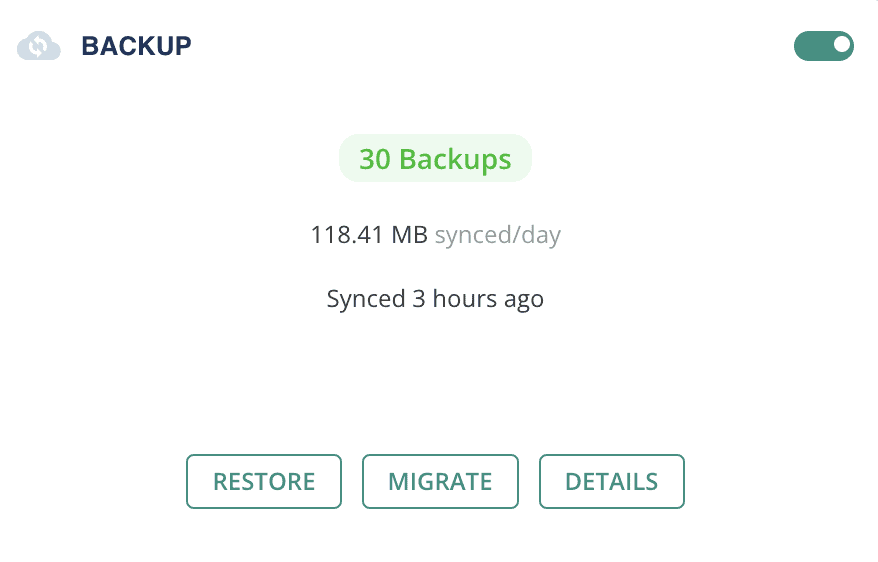
Backup services with an external dashboard are especially valuable if this error locks you out of your WordPress admin area. For example, BlogVault lets you restore your site easily without needing access to wp-admin, so you can get back online even if you’re locked out.
B) Edit the problematic code directly
You can fix the specific line yourself if you’re comfortable with basic code editing. Navigate to the file mentioned in the error message (Theme File Editor or Plugin File Editor) and locate the exact line number shown.
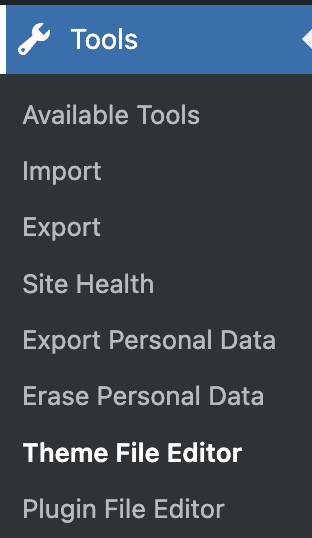
Search for missing commas, extra brackets, misplaced quotes, or forgotten semicolons in that area and fix them. If you’ve been locked out of your site, you can always access your site files via FTP.
C) Replace files with fresh versions
Here’s another option if you’re not comfortable with code or don’t have a backup available. Keep in mind that overwriting the theme or plugin folder with a new version will remove any custom code modifications, but it will not alter your website content or settings.:
1. Identify the problematic file: Find out which file is causing the error by checking the error message.
2. Download a fresh copy: Go to the official plugin or theme source and download a clean copy.
3. Access your website files: Use your hosting file manager or FTP to access your website’s files.

4. Replace the problem file: Navigate to the plugin or theme folder and replace it with the fresh version. Once done, visit your site to check if the error is fixed.
If the error appeared after an update or installation, only replace the file if a new version is available. If not, restore from an available backup or undo recent changes.
Tips to avoid this error in the future
Make backups your safety net: Set up automatic backups through your hosting provider before touching any code. Manual backups work too. Just make sure you have a recent copy before making changes.
Skip copying code from questionable websites: It may contain problematic characters. When errors appear after your changes, go straight to your backup instead of attempting multiple fixes that might worsen the situation.
Work smart with your development setup: Never test changes directly on your live site. Create a staging environment where you can break things without affecting visitors.
Pick tools from reliable sources: Download plugins and themes only from reputable developers and official directories.
Stay current with updates: Install WordPress, plugin, and theme updates when they become available. Roll out updates individually so you can pinpoint which one causes issues. Fresh updates often fix bugs that lead to syntax errors.
Parting thoughts
Don’t let a parse error throw you off—these mistakes happen to everyone. With a backup, some patience, and the right steps, you’ll have your site back up in no time. And remember: a little caution goes a long way toward keeping your site error-free.
FAQs
How do you fix an unexpected end of file syntax error?
To fix an unexpected end of file syntax error, check your code for a missing bracket, quote, or parenthesis, add what’s missing, then save and reload your site.
What is the reason for parse error unexpected?
The reason for the parse error: unexpected is that PHP finds something in your code that doesn’t belong, often due to a typo or missing character.
What is the unexpected end of file error?
An unexpected end of file error often means your code ended earlier than expected, usually because a bracket, quote, or parenthesis wasn’t closed.
What causes a syntax error?
Syntax errors are caused by mistakes in your code’s structure, like typos, missing symbols, or incorrect order of commands.


