Facing WordPress errors can leave you in a bind, especially when the cause is hidden and your site is down.
With no clear indications of the issue, you’re left guessing, and your visitors are turned away.
This guide walks you through a simple way to get WordPress to display these errors directly on your screen, so you can instantly see what’s wrong and get your site running again.
Display WordPress errors on screen to instantly diagnose issues using wp-config.php or a debug plugin. Always disable error display immediately after fixing issues and run a security scan using a security plugin to ensure no sensitive information was exploited while errors were visible.
When should WordPress errors be displayed?
Here are the specific situations where displaying errors becomes essential when WordPress logs aren’t enough to diagnose your problems:
Critical errors happen before WordPress can log them
- Some errors are so severe that they prevent WordPress from starting at all
- Because WordPress can’t start, nothing gets written to the debug.log files
- Screen display becomes your only option to see what’s broken
You’re actively developing or testing changes
- Errors show up instantly on your page as you work
- You want to catch problems immediately instead of checking separate log files
🚨 Critical warning: Enabling and leaving the error display active can compromise your website as it exposes sensitive information that attackers can exploit. Always disable it immediately after troubleshooting.
What are the dangers of displaying errors in WordPress?
Before you activate the error display, you should grasp these significant security risks:
File and system exposure. Errors indicate the exact location of your website’s files on the server. Attackers utilize these paths to target particular files and directories.
Software fingerprinting. Errors reveal your plugins, themes, and WordPress versions. Attackers will cross-reference this information with known security issues to identify weak points in your website’s software.
Exploitation roadmap. These messages do more than just highlight what’s wrong; they frequently include stack traces and code snippets that give attackers detailed instructions on how to exploit vulnerabilities.
Database information leaks. Error messages frequently provide information about your database configuration, such as table names and connection details. This provides hackers access to your data.
Business impact. Visitors who encounter technical error notifications lose trust in your website. It appears amateurish and implies inadequate maintenance.
How to display WordPress errors on your site
Here are two ways to get errors displayed on your screen. Pick the method that best suits your needs and comfort level.
Method 1: Edit wp-config.php
Use this when you can’t access your WordPress dashboard. Here’s how to go about it:
Backup your site. Always backup your entire WordPress site using a backup plugin before editing core files. One wrong character can break everything.
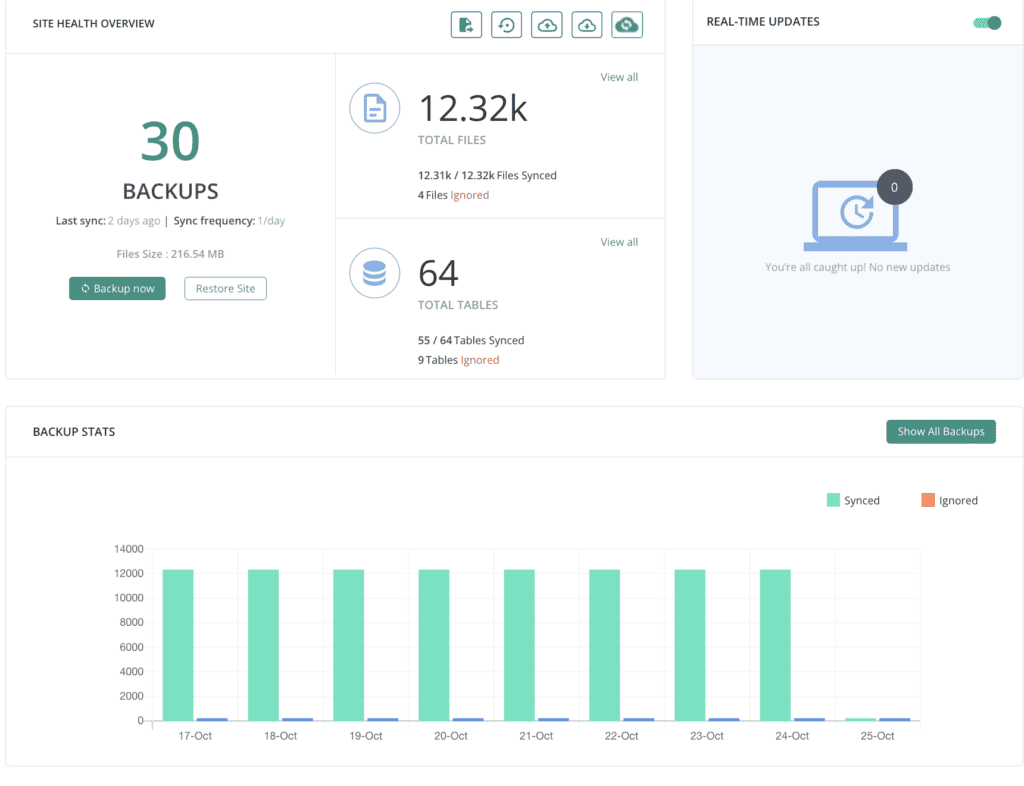
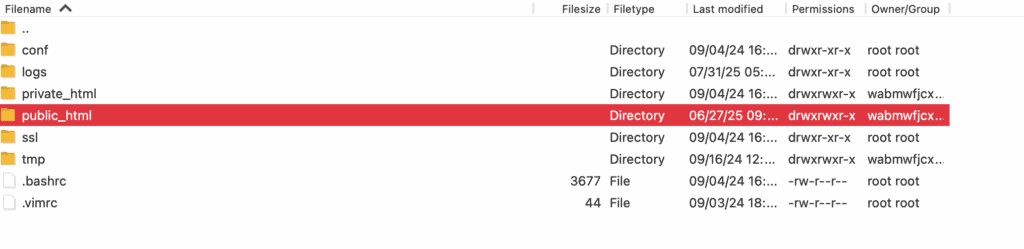
Access your website files. You can either use your hosting control panel’s file manager or connect via FTP if you have the credentials. Next, navigate to your site’s root folder, often called public_html or www.
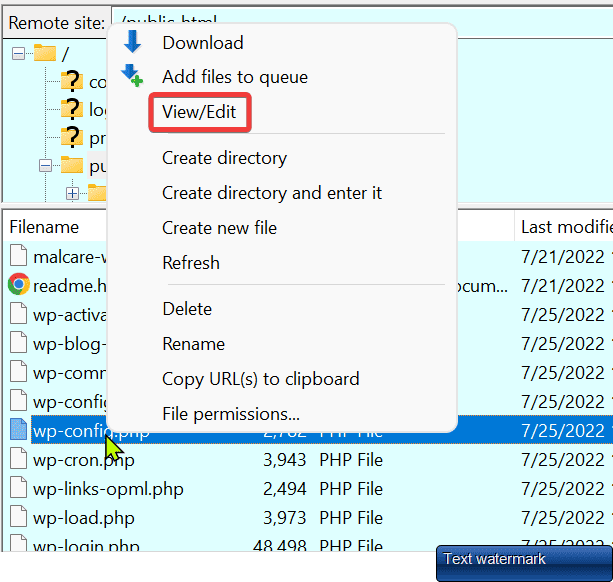
Find wp-config.php. The wp-config file sits in your WordPress root directory alongside wp-content and wp-admin folders.
Add the debug code. Insert these lines above the “That’s all, stop editing!” comment:
define( 'WP_DEBUG', true );

define( 'WP_DEBUG_DISPLAY', true );
You can also save errors to a file. Just add this line to create a debug log in your wp-content folder:
define( 'WP_DEBUG_LOG', true );Save and upload. Save the file and upload it back to your server, replacing the original.
Method 2: Use a plugin
This only works if you can still access your WordPress admin area:
Make sure you take a backup of your site before you proceed.
Install the WP Debugging plugin. Search for WP Debugging in your WordPress plugin directory. Install and activate it.
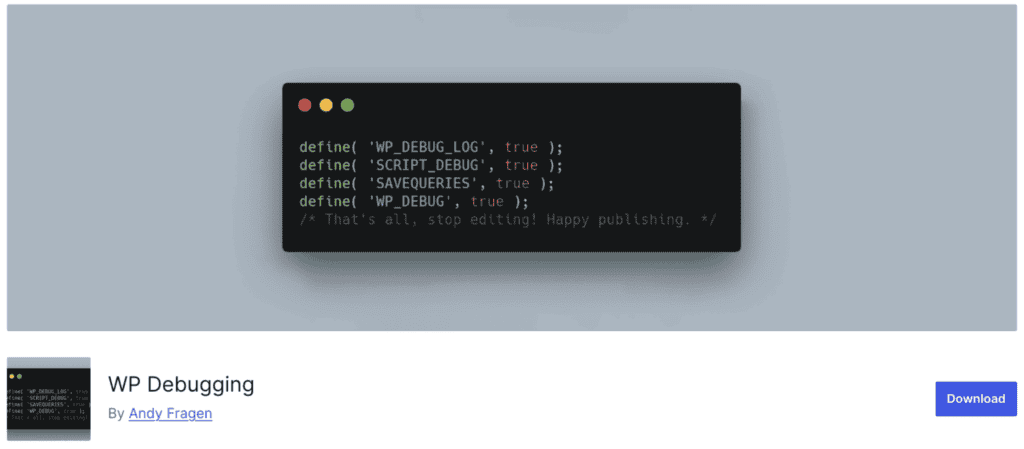
Configure display settings. The plugin automatically shows errors on your screen by default. You can change the constants in the plugin settings if needed.
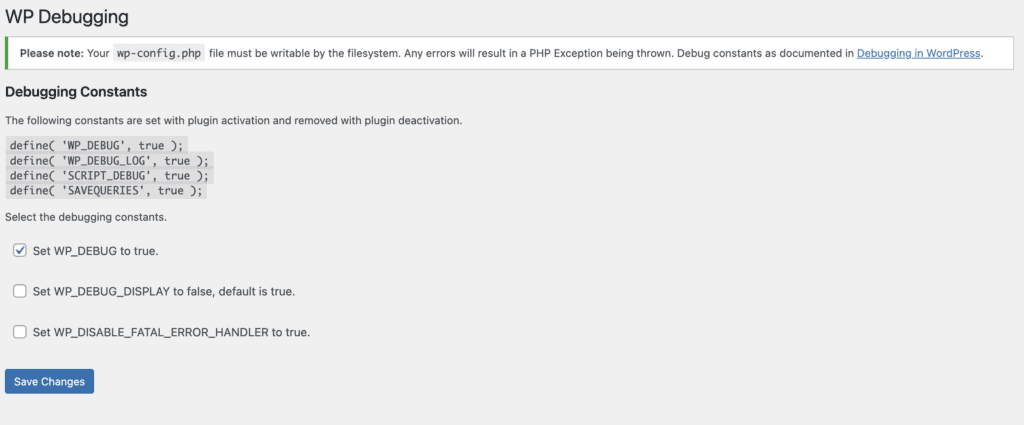
This method is safer for beginners since plugins handle the technical details automatically.
Difference between WordPress error display and logs
It’s easy to get confused between the two. WordPress debugging can handle errors in two ways:
Displaying errors shows them directly on your web pages. This is perfect for emergency fixes when you’re staring at a blank screen or doing development work on private test sites. You get instant feedback exactly where the problem happens. But it’s a major security risk on live sites because it exposes sensitive information to visitors and looks unprofessional.
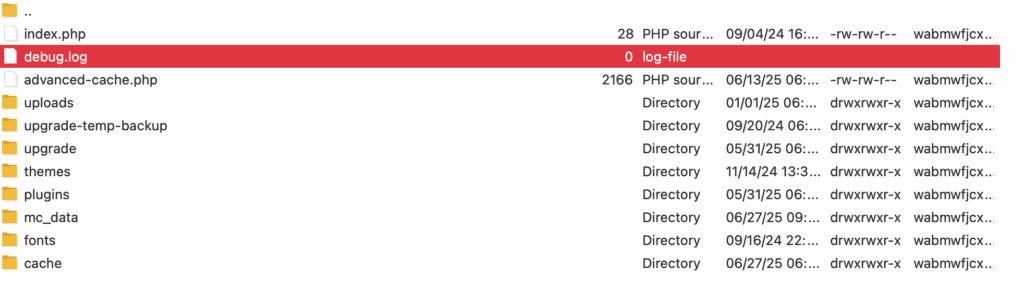
Logging errors saves them to a hidden file on your server. Visitors never see technical details, making this the safe choice for live websites. It’s perfect for ongoing monitoring since it records issues over time for later review. You maintain your site’s professional appearance while still capturing every error for troubleshooting.
Securing your site after the fix
Your error is gone, but leaving debug settings active puts your site at risk. Follow these steps to lock everything down.
Turn off error display
Go back to wp-config.php and change WP_DEBUG_DISPLAY to false, or deactivate your debug plugin entirely. This prevents hackers from seeing sensitive information if new errors occur down the line.
Run a security scan
Use a security plugin to scan your site for malware or vulnerabilities. While your errors were displayed, a hacker may have had the chance to access your site and find sensitive information. They could have used this information to gain access and plant malware or compromise files. A thorough scan ensures your site is completely clean before you move forward.

Flush all caches
Clear all cache. Empty your caching plugin completely and clear any CDN or server caches you control. Without this crucial step, visitors might still see old error pages even though you’ve fixed the underlying problem. Cached content can stick around for hours or even days, making your site appear broken when it’s working perfectly.

Run a full site check
Test your main pages, forms, and key features to make sure your fix didn’t break anything else. One error often masks another, and the changes you made might have unexpected side effects.
Parting thoughts
When your WordPress site breaks with no clues, having WordPress display errors will help you find what’s wrong. It’s incredibly useful when you’re stuck with an unexplainable error.
Ensure you turn it back off once you’ve fixed things. If you leave it on too long, hackers can use it to exploit the sensitive information it reveals.
FAQs
You turn off error display by changing WP_DEBUG_DISPLAY to false in your wp-config.php file or deactivating your debug plugin. This immediately stops errors from showing on your website while keeping your site secure.
You can see WordPress errors directly on your website screen when WP_DEBUG_DISPLAY is enabled, or in the debug.log file in your wp-content folder. Your hosting provider’s error logs through cPanel or your hosting dashboard also show WordPress errors.
You troubleshoot WordPress by enabling error display to see what’s wrong, then systematically deactivating plugins and switching to a default theme. Check your error logs regularly and always backup before making changes.
Your WordPress website isn’t displaying correctly because of plugin conflicts, theme problems, PHP errors, or corrupted files. Enable error display to see the specific error messages that reveal what’s broken.
You disable error logging by setting WP_DEBUG_LOG to false in wp-config.php or removing the line entirely. You can also manually delete the existing debug.log file from your wp-content folder.