
You typed WordPress database error commands out of sync into Google and landed in a pile of forum threads.
They all go the same way: someone clears the cache, raises the memory limit, repairs a table, and switches themes. Then the thread gets marked “resolved” with no fix in sight.
Let’s not go round that loop. We’ve seen this error on a lot of WordPress sites, and the pattern is surprisingly consistent. The plugin named in your log usually didn’t cause it, and your data is almost never damaged. Once you know how to read the log, the real cause gets much easier to corner.
TL;DR: This error means some code left database results unread, so the next query, often WooCommerce’s, got refused. Check that your orders and imports finished, read the pattern across your log entries, and test on staging before you clear, repair or reinstall anything.
What is this error actually telling you?
WordPress talks to your database over a connection, and it works a bit like a phone line: one conversation at a time. Before PHP can ask the database something new, it has to collect every answer from the last question.
If some code asks a question and never collects the full answer, the line stays busy. The next query gets refused with error 2014: “Commands out of sync; you can’t run this command now.”
MySQL’s own manual puts it bluntly: client functions are being called in the wrong order. In plain terms, something in your site’s code skipped a step.
Here’s the twist that trips everyone up. The code that skipped the step doesn’t get blamed. The code that came next does.
That’s why the same error shows up next to WooCommerce on one site and an SEO, cache or security plugin on another. The name in the log tells you who was next in line, not who left the mess.
How do you read the log entry?
Before you change anything, get comfortable with the log line itself. It looks intimidating, but it only has three parts. Here’s a typical one, trimmed down:
WordPress database error Commands out of sync; you can't run this command now
for query SELECT option_value FROM wp_options WHERE option_name = 'wc_pending_batch_processes'
made by shutdown_action_hook, do_action('shutdown'), ... remove_or_retry_failed_processors, get_option- The error message is what the database said. It reads the same on every site.
- The part after “for query” is the command that got refused. That’s the innocent shopper, so don’t fixate on it.
- The part after “made by” is the trail of functions that led to that query. It reads left to right, from where the request started to where it failed.
That last part holds the best clue. shutdown_action_hook means the query ran while WordPress was wrapping up a page load. wpcron or ActionScheduler means it ran during a background job. Either way, something earlier in that same request left results unread, and that earlier code is what you’re hunting.
Is it hurting your site right now?
Your homepage can look perfectly fine while orders or imports quietly fail behind it. So before you trace anything, find out what the error interrupted.
- Match recent orders against your payment gateway if you run a store. A payment with no matching order, or customers who can’t check out, means call your host or developer today.
- Check what made it into WordPress if an import stopped partway, and whether the importer can resume without creating duplicates.
- Open WooCommerce → Status → Scheduled Actions and filter for failed actions. Match the job names and times to your log entries, and read what a job does before you retry it.
- Ask your host for the PHP error log if you’re seeing 503 errors or can’t reach wp-admin, and mention any recent update or migration.
- Look at the size of your error_log file if the error repeats all day. A log that grows by megabytes an hour can eventually fill your disk.
If everything finished and the error showed up once or twice, breathe. You’ve got time to trace it properly.
📝 Note: Don’t delete a huge error_log before you copy a few entries out of it. Those entries are your only evidence. Save a sample first, then ask your host to rotate or clear the file.
Why don’t the usual fixes stick?
If you’ve already tried the forum advice, you didn’t do it wrong. Most of those fixes are aimed at a different problem. Here’s when each one actually earns its place:
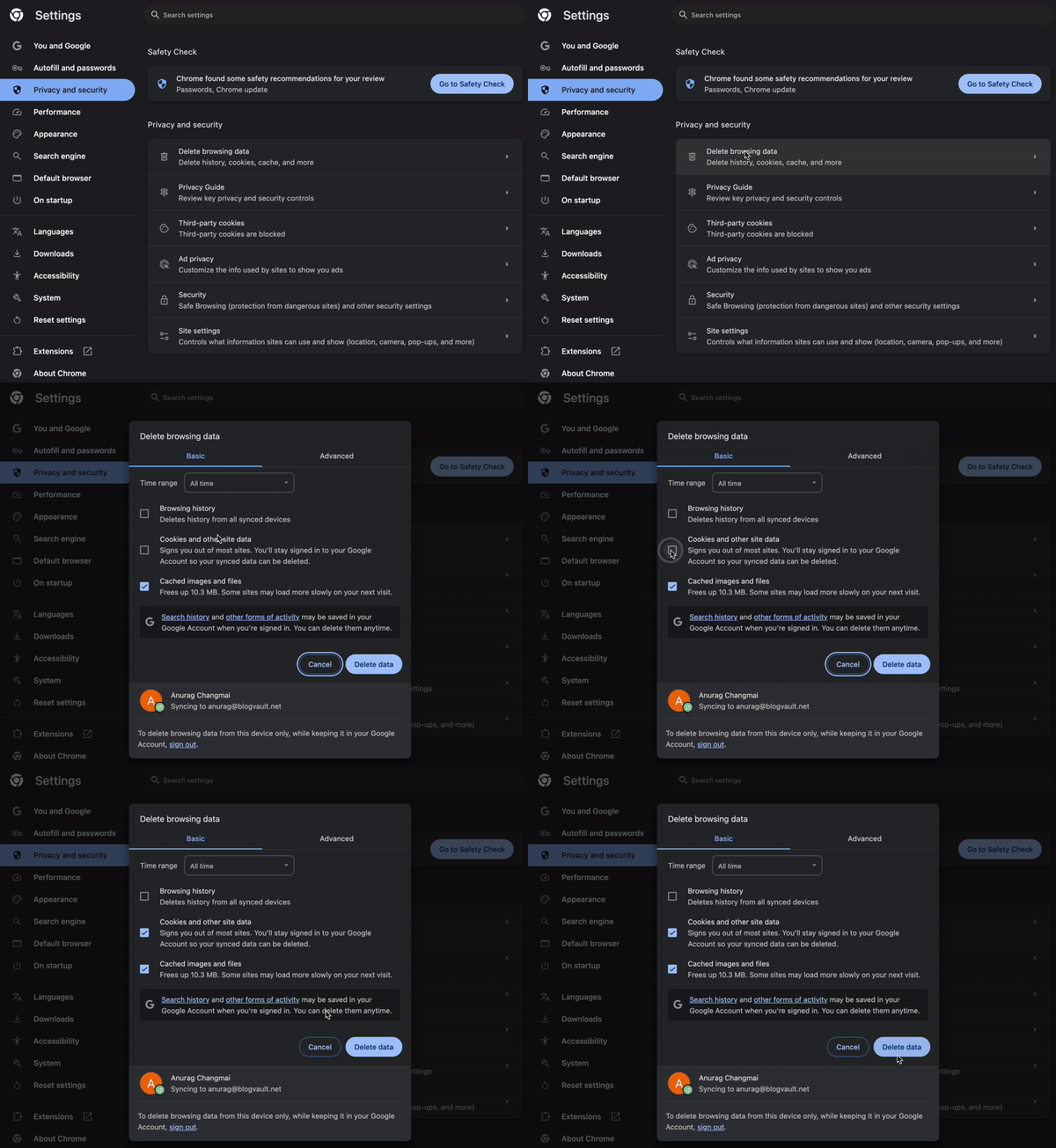
- Clearing the cache can make the error disappear for an hour, because a fresh cache changes which code runs on each page load. Then traffic picks up, the same code runs again, and the error comes back.
- Raising the PHP memory limit is worth trying mainly when the log also shows “Allowed memory size exhausted” around the same time. Without that, it’s a long shot.
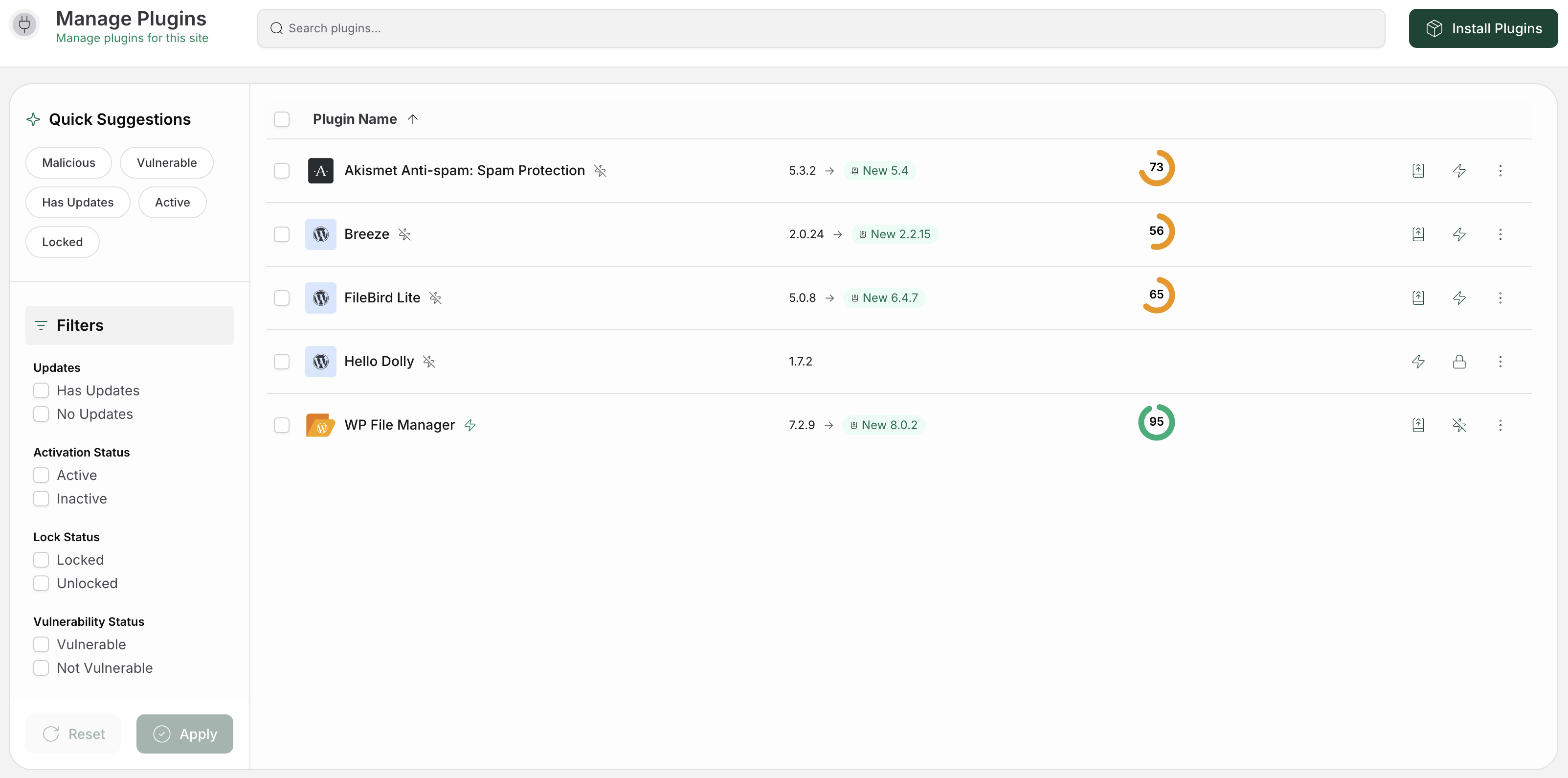
- Repairing database tables fixes damaged tables, and this error isn’t about damage. MySQL’s REPAIR TABLE doesn’t even support InnoDB, which most WordPress tables use today. Run it on an InnoDB table and you just get another error.
- Restarting MySQL or PHP clears the open connections. The error returns the moment the same code runs again.
- Upgrading your hosting plan buys you headroom, but a faster server still runs the same code in the wrong order.
- Moving WP-Cron to a server cron job changes when background jobs run, which can shift the error around. It won’t remove it.
None of these touch the code that skipped a step. That’s exactly why the threads go in circles. To fix this for good, you have to find that code.
How to find the real culprit
This is the part most threads skip. It takes a bit of patience, but it’s what actually ends the loop.
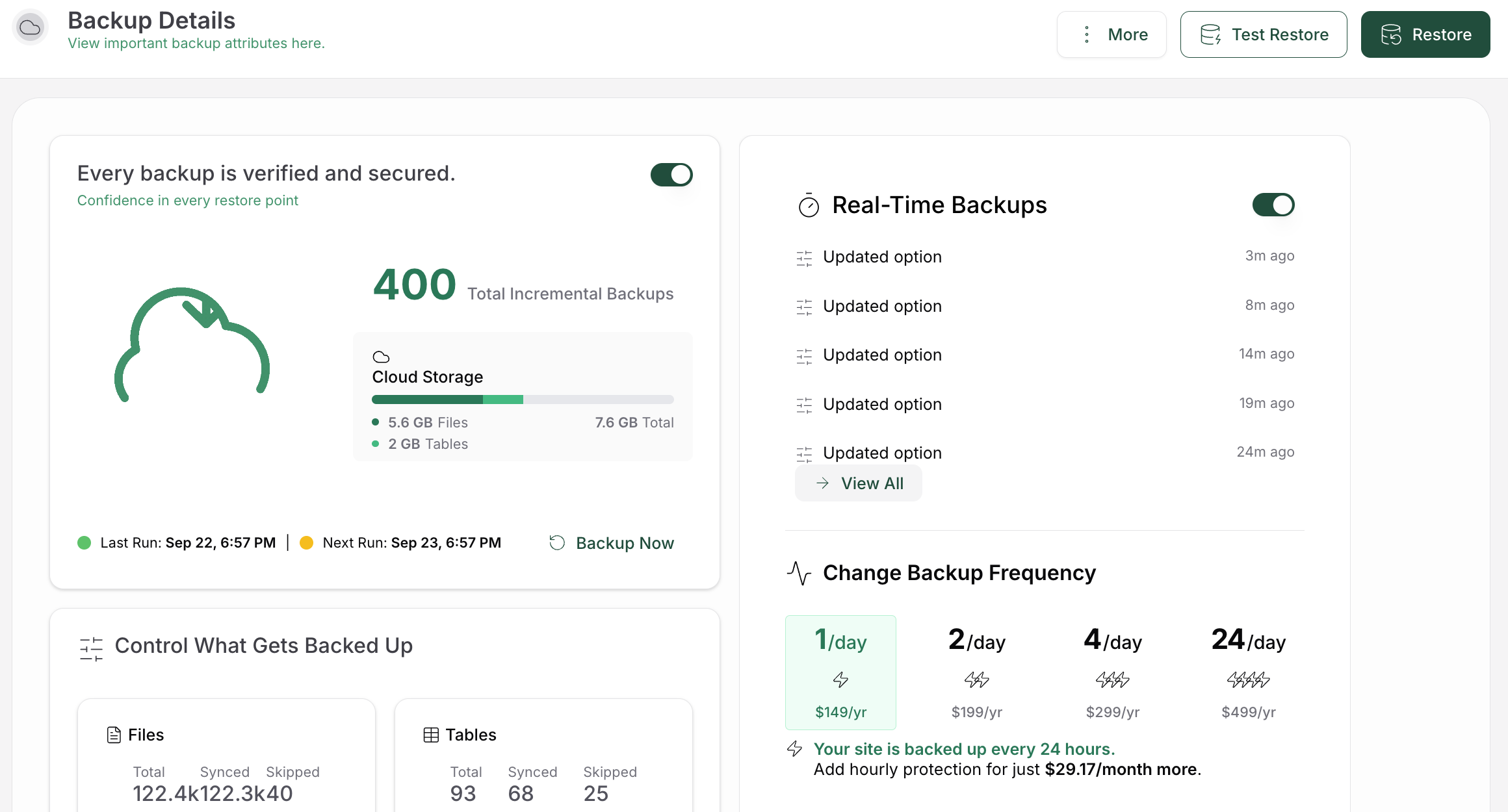
Backup the site and set up a staging copy
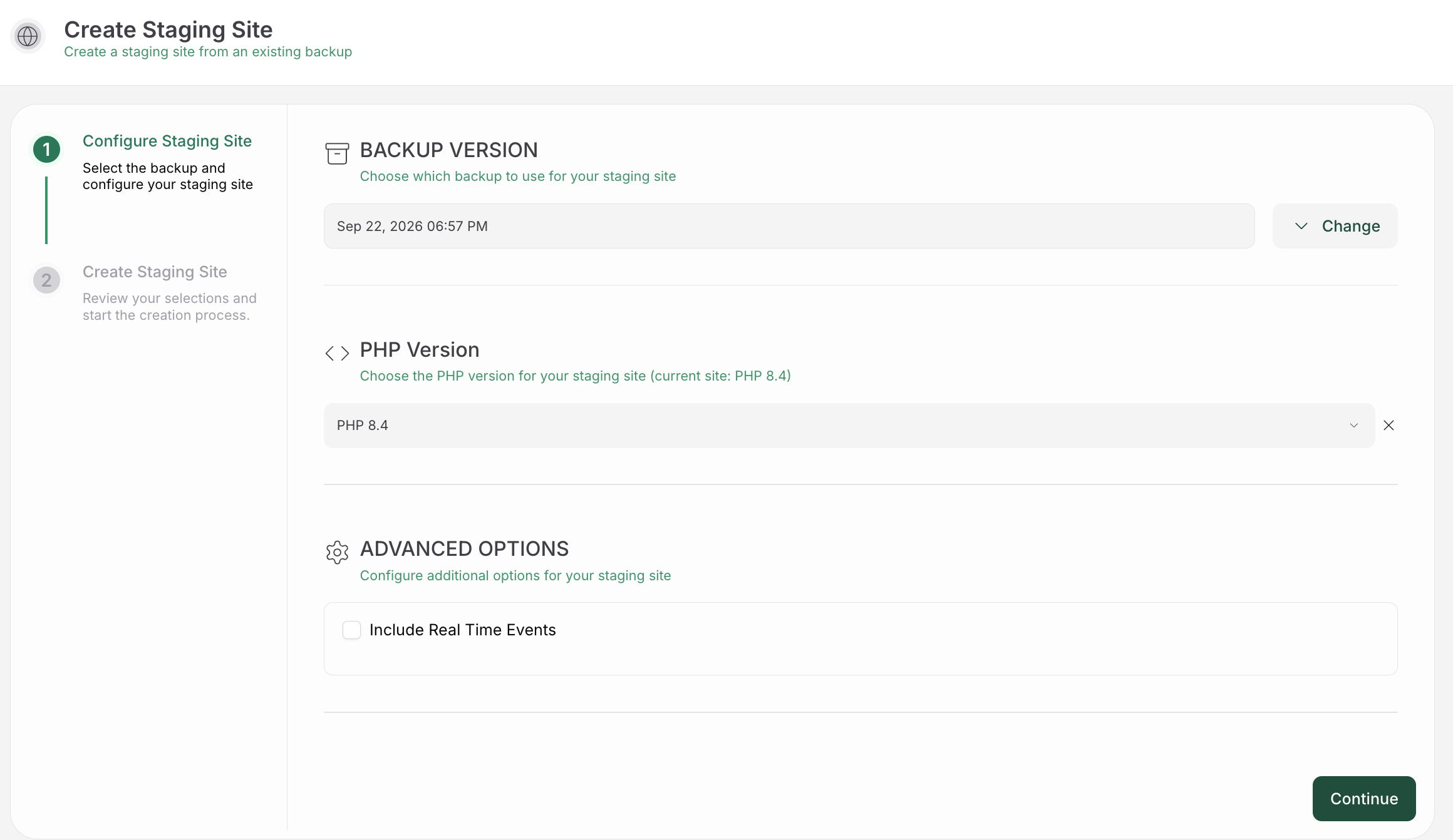
Take a full backup of your files and database, then restore it to a staging site, a private copy where you can test freely. You get a safe place to break things, and you find out that your backup actually restores.
If it’s a store, switch the copy to test payments and block outgoing emails, so no real customer gets a test receipt.
Read the pattern across your log entries
Stop staring at one entry. Copy ten or twenty and look at them side by side:
- Compare the timestamps. Errors at the same minute every hour point to a scheduled job. Errors that rise and fall with your traffic point to something that runs on page loads.
- Compare the “made by” trails. If every entry passes through the same plugin’s function before the failed query, you have a prime suspect.
- Note what ran just before each burst. An import, a post save, an order or a cleanup task right before the errors is your strongest lead.
- Line up the first entry with recent changes. Check when the errors started against plugin updates, a PHP upgrade or a host migration. MalCare’s activity log, included in every plan, makes this quick. It records plugin installs, updates and activations, along with who made each change and when.
One forum poster saw the same WooCommerce query fail during its batch cleanup at shutdown, even with every other plugin switched off. That doesn’t automatically clear WooCommerce. It tells you to look at whatever else runs in that moment, including the theme, must-use plugins and the host’s setup.
Run a smarter conflict test on staging
The classic advice is “disable all your plugins.” That’s a blunt tool. If you switch off the plugin that triggers the task, the error disappears because the task never runs, and you’ve learned nothing.
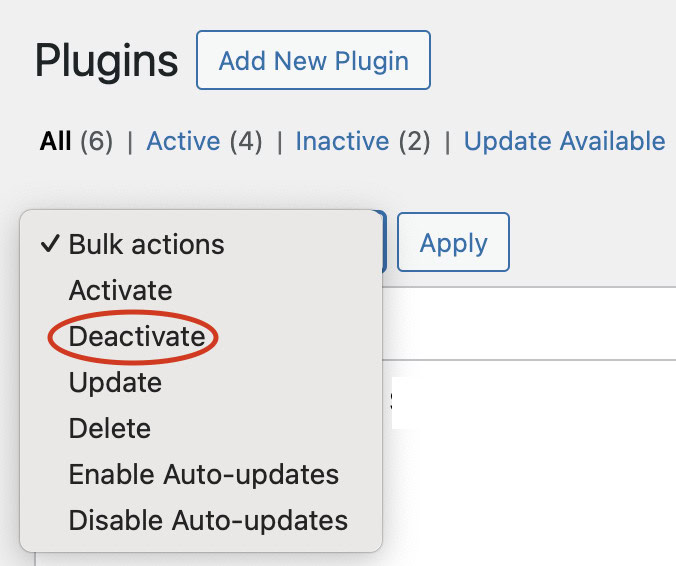
- Keep the failing task runnable, whether that’s the importer, WooCommerce or the plugin named in the log.
- Turn off the other plugins in small groups, run the same task, and watch the log.
- Narrow it down to one plugin once a group makes the error stop, then turn that plugin back on and confirm the error returns.
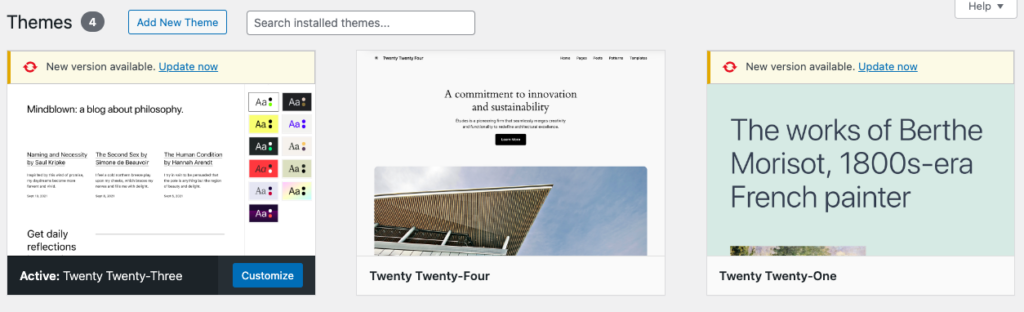
- Try a default theme with the same plugins active if your theme is still a suspect.
When the error comes back on cue, you’ve found it. That’s also the exact case a developer needs to reproduce and fix.
Check the hidden code that runs before everything else
Some code never shows up in your regular Plugins list, so a conflict test walks straight past it:
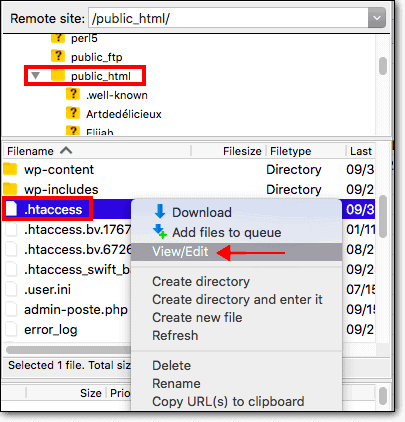
- Look in wp-content/mu-plugins. Must-use plugins load before normal plugins and sit in a separate Must-Use list in wp-admin. Hosts often add their own here.
- Look for wp-content/db.php. This drop-in replaces how WordPress talks to the database. Query Monitor, for example, adds one when you activate it.
- Ask your host whether anything at the server level touches database connections.
If you find a file like this and you’re not sure what it does, don’t delete it. Ask your host or whoever added it.

Confirm the fix on the live site
Once a change works on staging, apply it to the live site and run the original task again. Then watch the log for a full cycle: the next night for a nightly job, or a few real orders for checkout. The fix holds when the task finishes and the error stays out of the log.
📝 Note: Ask the vendor before you roll back a plugin that changed its database tables. Restoring an older database can wipe out orders, form entries and comments that arrived after that backup.
When should you hand it off?
Some cases are worth passing on early, and sending them to the right person saves days of back-and-forth.
Go to your host if the error started right after a server change or migration, or if unrelated tasks fail alongside timeouts. Go to the plugin developer if one action triggers the error every time on staging. A clear report gets fixed. “Your plugin is broken” gets a canned reply.
Here’s a message you can copy and fill in:
Hi, we’re seeing “Commands out of sync; you can’t run this command now” in our PHP error log. It started on [date] and happens when [action, or the time of day]. We can reproduce it on staging with [plugin/theme] active, and it stops when [what you disabled]. Versions: WordPress [x], PHP [x], MySQL/MariaDB [x], [plugin] [x]. Full log entries attached.
Strip out customer emails, passwords and API keys before you attach any log. Logs pick up more than you’d expect.
What should developers look for in the code?
If you’re the one fixing it, trace every call on that connection before the failed query. Three patterns cause most cases, and PHP’s manual flags each one:
- Batches sent with mysqli_multi_query() where only the first result gets read. Every result set has to be fetched.
- Stored procedures run with CALL, which can return extra result sets. Leaving any of them unfetched causes an error.
- Unbuffered reads with MYSQLI_USE_RESULT, where a new query runs before the open result is fully read and freed.
Watch for early returns and exceptions too, where code bails out before cleaning up and another callback then uses $wpdb on the same connection.
The fix is usually small. Use $wpdb for ordinary queries. Where you need raw MySQLi, free every result and loop through the rest with more_results() and next_result() before reusing the connection. Then test the unhappy path: make a later statement fail on purpose and confirm the next query still runs.
FAQs
Can I just ignore the error if my site looks fine?
Not until you’ve checked what it interrupted. If orders and imports finished and it appeared once, keep an eye on it. If it repeats, trace it, because pages can load fine while background jobs quietly fail.
Why does WooCommerce keep showing up in the log?
Because WooCommerce runs lots of small queries, especially in background jobs and at the end of page loads. That makes it the shopper most likely to be next in line. It shows up often, but that doesn’t make it the cause.
Is this the same as “Error establishing a database connection”?
No. “Commands out of sync” happens on a connection WordPress already has open. “Error establishing a database connection” means WordPress couldn’t connect to the database at all.
Should I repair or optimize my database?
Not for this error on its own. Repairs fix damaged tables, and this error isn’t caused by damage. Only consider one if the log also reports a crashed table, and ask your host which storage engine that table uses first.
Does this mean my site was hacked?
Not on its own. The message only says a database command was refused. If you see other warning signs, like unknown admin users, strange redirects or files you didn’t add, run a full malware scan. MalCare runs the heavy analysis on its own servers, so the scan doesn’t compete with your visitors for your server’s processing power.
Conclusion
Those forum threads go in circles for one reason: they keep treating the query that got refused instead of the code that left the mess. Once you read the log that way, the name in the error stops being a suspect and becomes a clue.
So check what the error interrupted, read the pattern across your entries, and test one change at a time on staging. Your database almost certainly doesn’t need repairing. One piece of code just needs to finish its conversation before the next one starts.