

Most people don’t go looking for a WordPress nonce because they’re curious. They run into one because a form won’t save, a plugin is throwing a 403 error, the REST API says rest_cookie_invalid_nonce, or WordPress suddenly asks, “Are you sure you want to do this?”
At that point, a textbook definition isn’t much comfort. You want the practical read: what broke, whether the site is in danger, and why WordPress is blocking the request.
A WordPress nonce is a temporary security token that helps WordPress reject forged requests, especially CSRF attempts. It doesn’t prove the user has permission, so nonce checks still need capability checks, validation, sanitization, and safe output handling around them.
A nonce helps WordPress check whether a request came through the expected path. It doesn’t decide whether the person making the request is allowed to do the action. That one distinction prevents a lot of bad WordPress security code.
What a WordPress nonce is
A WordPress nonce is a short, hash-like token WordPress creates for a specific action. It travels with the request, then WordPress checks it when the request comes back. You’ll see nonces in ordinary WordPress places:
- hidden form fields named _wpnonce
- admin URLs with _wpnonce= added to them
- AJAX requests sent from browser JavaScript
- REST API requests with an X-WP-Nonce header
The name is the awkward part. In WordPress security, “nonce” often means a number used once. WordPress doesn’t use the word that strictly. WordPress nonces are not always numbers, and they can be reused while they’re still valid. So if the phrase “number used once” made this feel more confusing, you’re not the problem. In WordPress, it’s better to think temporary request token.

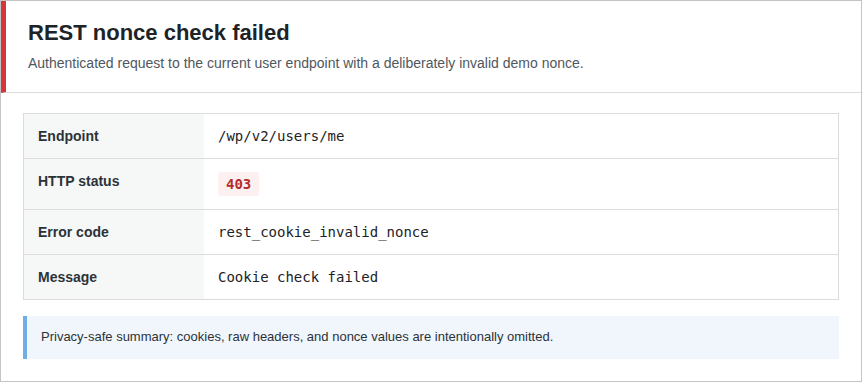
In a clean WordPress 7.0 install on PHP 8.3, admin action URLs included _wpnonce values. A logged-in REST request with a valid nonce returned HTTP 200 for /wp/v2/users/me. The same request with a bad nonce returned HTTP 403 with rest_cookie_invalid_nonce and Cookie check failed.
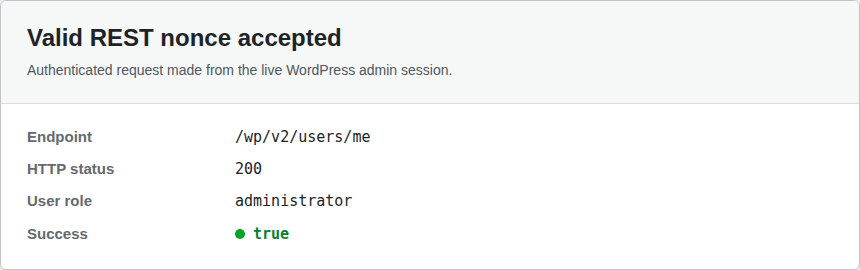
That’s the feature doing what it’s supposed to do. The right token lets the request keep going. The wrong token stops it early.
Why WordPress uses nonces
WordPress uses nonces mainly to reduce the risk of Cross-Site Request Forgery, usually called CSRF.
Here’s the plain version. When you’re logged in to WordPress, your browser sends your WordPress cookies with requests to your site. That’s how the dashboard knows it’s you. But a malicious page can try to make your browser send a request to your WordPress site while you’re still logged in.
If your login cookie were the only thing WordPress needed, the attacker would get a free ride from the browser. A nonce adds something the attacker shouldn’t have: a token from the real WordPress page or script. That’s why nonces show up around actions like:
- deleting, trashing, or changing content
- saving plugin or theme settings
- submitting admin forms
- sending authenticated AJAX requests
- calling REST routes from a logged-in WordPress screen
A nonce error doesn’t automatically mean someone tried to hack your site. A stale admin tab can do it. So can be a changed login session, cached markup, a mismatched action name, or JavaScript sending the nonce under the wrong field. Annoying, yes. But I’d rather WordPress be fussy here than quietly accept a request it can’t verify.
The nonce flow
The function names can make this feel more technical than it is. The actual pattern is boring, and boring is good here.
- Create a nonce for the action. Use an action name that describes the thing being done.
- Send it with the request. Put it in the form, URL, AJAX payload, or REST header your handler expects.
- Verify it before changing anything. Missing, expired, or wrong tokens should stop the request.
- Check permission separately. A valid nonce doesn’t mean the account can perform the action.
- Handle the data safely. Validate, sanitize, and escape as you normally would.
Forms usually start with wp_nonce_field(). Protected admin links use wp_nonce_url(). When JavaScript, AJAX, or REST flows need the raw token, reach for wp_create_nonce().
On the receiving side, check_admin_referer() works for many admin forms and action URLs. check_ajax_referer() is for AJAX handlers. wp_verify_nonce() gives you manual control when you want to decide exactly what happens after a pass or fail.
One detail is worth knowing: wp_verify_nonce() can return 1, 2, or false. A 1 means the nonce is valid for the current time tick. A 2 means it is valid for the previous time tick. false means it failed. In most WordPress flows, 1 and 2 are acceptable; false is the one you reject.
Which nonce function to use
Don’t start by memorizing every nonce function. Start with where the token travels.
| What you’re protecting | Use this | Why |
|---|---|---|
| Admin links that perform an action | wp_nonce_url() | Adds the nonce to the URL the user clicks |
| Forms submitted to WordPress | wp_nonce_field() | Prints the hidden nonce field for the form |
| JavaScript, AJAX, or REST requests | wp_create_nonce() | Gives you the raw token to pass yourself |
| Admin form or URL handlers | check_admin_referer() | Verifies the nonce with admin-style failure handling |
| AJAX handlers | check_ajax_referer() | Checks the nonce in an AJAX request |
| Custom verification logic | wp_verify_nonce() | Lets your code handle valid, older-valid, and failed results |
Don’t treat the action string as a throwaway label. save_settings is better than submit. trash_post_123 is better than delete. A specific action name ties the token to what the user meant to do, which makes the check harder to misuse later.
How long a WordPress nonce lasts
By default, WordPress nonces are tied to a one-day nonce life, but the real window is usually about 12 to 24 hours.
That range surprises people. It happens because WordPress checks two time periods: the current tick and the previous tick. So a nonce created near the start of a tick can last close to 24 hours. A nonce created near the end of a tick may last closer to 12. Here are the common situations this explains:
- You left an admin page open for hours. The screen may look unchanged, but the token inside it can be too old.
- You logged out and back in. The screen in your old tab may have a nonce tied to the previous session.
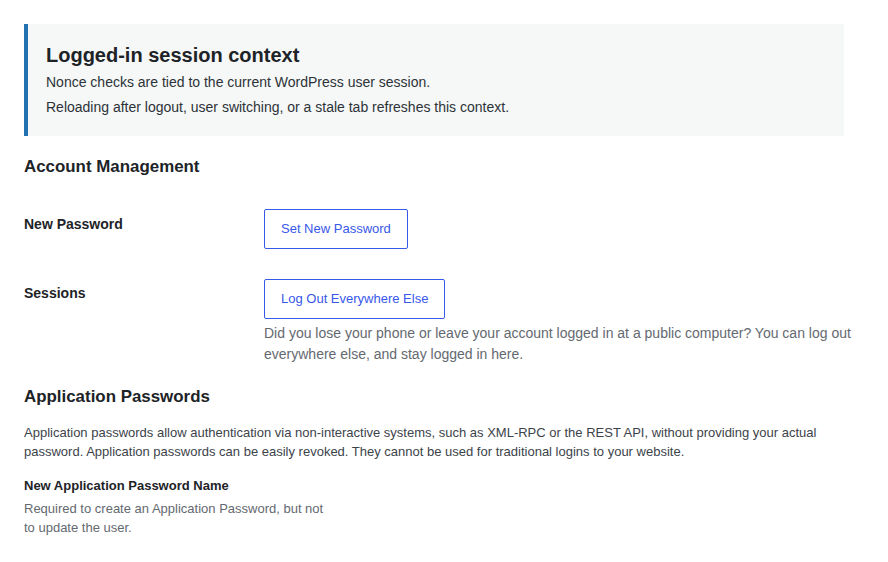
- You switched users or changed cookies. Nonces include user/session context, so old ones can stop matching.
- A cache served old markup. This is especially common when nonce-bearing HTML appears on a public page; Airlift’s guide to WordPress caching issues is a useful next stop if cache behavior is the suspected cause.
- A restored browser tab submitted an old form. The browser remembers the page; WordPress doesn’t have to trust the old token.
You can change the lifetime with the nonce_life filter, but I wouldn’t make that the first fix. Shorter lifetimes can reduce exposure, but they also cause more failures on long forms and slow admin sessions. Longer lifetimes reduce friction, but tokens stay valid for more time.
If nonce errors appear on public-facing forms, check caching before changing the lifetime. A cache that serves old or user-specific nonce markup can make correct code look broken.

AJAX and REST nonces
AJAX and REST use the same basic idea. The token just travels differently. For AJAX, the normal flow is:
- Create the nonce in PHP. The browser should receive a token WordPress generated.
- Pass it to your script. Your JavaScript needs the value, but it shouldn’t invent it.
- Send it under the expected request key. A valid nonce sent under the wrong name still fails.
- Verify it in the server-side handler. Reject bad or missing tokens before processing the action.
- Check permission and data after that. AJAX input still needs the same caution as any form.
Most AJAX nonce bugs are ordinary mismatches. Maybe the action name differs between creation and verification. Maybe the handler reads one field while JavaScript sends another. The request might be going to a different domain or environment than the one that created the token. Or the page may have been cached with an old nonce.
REST requests from the logged-in WordPress admin commonly use the X-WP-Nonce header. In the test site, WordPress exposed the REST nonce through wpApiSettings. A valid nonce worked for /wp/v2/users/me; a bad one failed with rest_cookie_invalid_nonce.
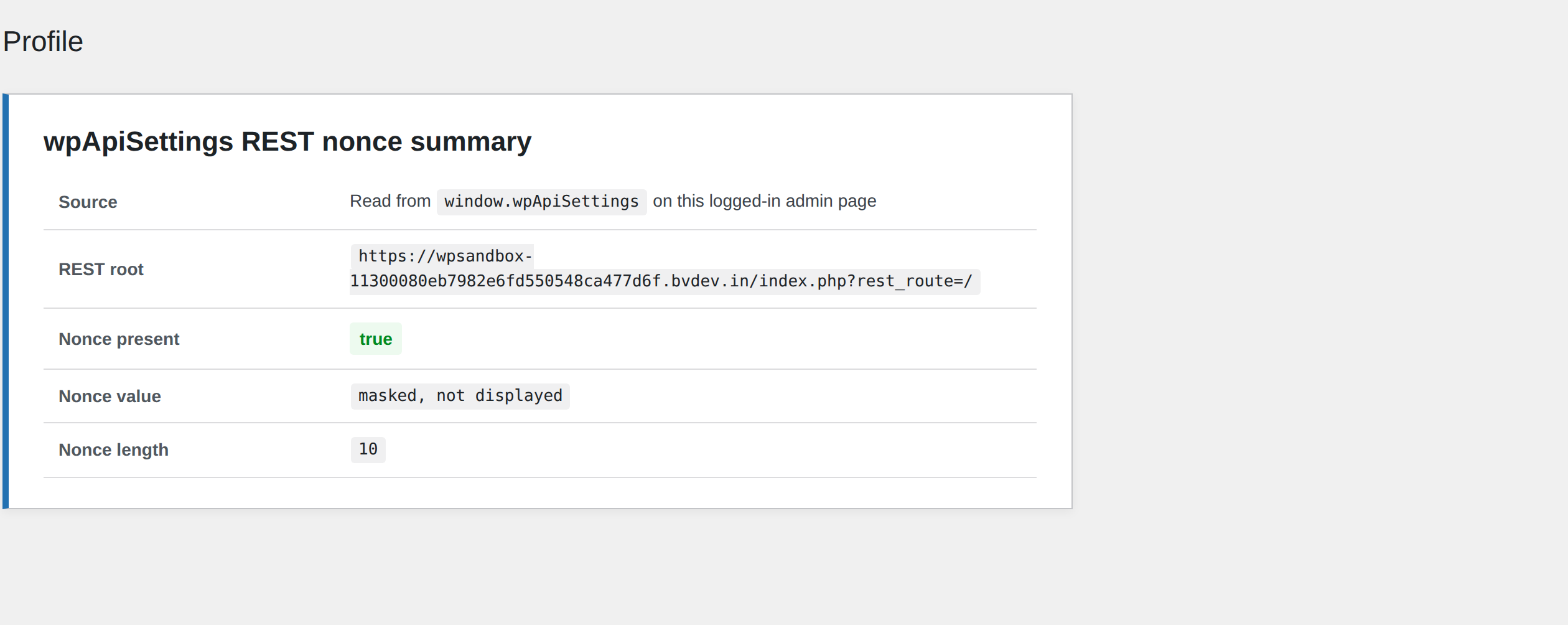
If you see that REST error, check the basics first: the X-WP-Nonce header, the logged-in user, the target site, and whether the page that generated the token came from cache.
What a nonce does not cover
This is the section I wish every WordPress nonce tutorial made impossible to miss. A nonce is useful, but it is narrow. It answers one question: did this request include the token WordPress expected for this action? It does not answer these questions:
| A nonce does not prove… | What to use instead |
|---|---|
| This user is allowed to do the action | Use current_user_can() for the exact capability |
| The submitted data is safe | Validate the shape, sanitize before storage, and escape output |
| The action itself is low-risk | Review what the handler changes or exposes |
| The request can’t be replayed | WordPress nonces can be reused during their valid window |
| A logged-out visitor is uniquely identified | Use guest-specific session handling for important public actions |
| The whole site is secure | Use broader controls for malware, vulnerable plugins, bad traffic, and suspicious changes |
The dangerous mistake is writing code that treats a passed nonce as permission. A user can have a valid nonce because they loaded the right screen, but that doesn’t automatically mean they should be able to change a setting, delete content, export data, or act on another user’s account.

So the order matters:
- Verify the nonce to check the request path.
- Check the capability to confirm the account can perform the action.
- Validate and sanitize the input before using or saving it.
- Escape output when showing saved values later.
Logged-out users need extra care. By default, WordPress treats logged-out visitors as user ID 0 for nonce generation. For a low-risk public interaction, that may be fine. For anything important, use a guest-specific session approach with the nonce_user_logged_out filter so every visitor isn’t effectively sharing the same nonce context.
This is also where broader WordPress security comes back into the picture. Nonces help your code reject forged requests. They don’t scan plugins, clean malware, stop a compromised admin account, or tell you when a vulnerable plugin has been installed. MalCare fits that wider layer with malware scanning and cleanup, firewall protection, vulnerability detection, bot protection, and activity visibility around the code-level protections you build.
How to troubleshoot nonce errors
Nonce errors often sound more alarming than they are. You might see a 403 response, rest_cookie_invalid_nonce, Cookie check failed, or WordPress’s old “Are you sure you want to do this?” message.
Try the fixes first:
- Reload the screen and try again. If the tab has been open for hours, the token may be stale.
- Log in again with the right account. Session changes can invalidate old nonces.
- Bypass or clear the relevant cache. This matters most on public pages or user-specific admin markup.
- Update the plugin or theme involved. Nonce bugs often come from handlers and scripts getting out of sync.
- Try a clean browser session. This separates site issues from stale cookies, restored tabs, or extensions.
If you’re debugging your own code, go one layer deeper:
- Compare the action names. The create and verify steps need to describe the same action.
- Confirm the nonce is leaving the browser. Check the submitted form data, AJAX payload, or REST headers.
- Make sure the request returns to the same WordPress site. Domain, protocol, and environment mismatches can break the context.
- Check capability after the nonce passes. Fix the security model while you’re already in the handler.
- Avoid logging raw nonce values. Log whether the field existed and which branch failed, not the token itself.
The shortcut is to remove the nonce check because it’s blocking the feature. Don’t. A nonce failure is WordPress telling you the request path isn’t lining up. Fix the path.
WordPress nonce vs CSP nonce
You may also see “nonce” in Content Security Policy, usually shortened to CSP. Same word, different job. A WordPress nonce helps WordPress verify requests such as forms, admin links, AJAX calls, and REST calls.
A CSP nonce helps the browser decide which inline scripts or styles are allowed to run on a page.
If you’re dealing with plugin settings, dashboard actions, form submissions, or REST requests, you’re probably dealing with a WordPress nonce. If you’re writing browser security headers for inline scripts, that’s the CSP version.
Safe nonce checklist
Use this when you’re adding or reviewing nonce protection:
- Name the action around the real task. Keep it specific enough that another action wouldn’t reasonably share it.
- Create the nonce near the screen or script that needs it. This reduces stale-token problems.
- Send the nonce through the channel your handler expects. Forms, URLs, AJAX payloads, and REST headers fail in different ways.
- Verify before changing data or exposing private information. Bad, missing, or expired tokens should stop the action.
- Check the user’s capability for the exact action. Treat current_user_can() as a separate requirement.
- Validate and sanitize submitted values. The nonce doesn’t know whether the payload itself is safe.
- Escape stored values when showing them later. Output safety is a different layer.
- Avoid caching pages that contain user-specific nonce markup. If you must cache around them, refresh or exclude the nonce-bearing pieces carefully.
- Use guest-specific handling for important logged-out actions. Shared user ID 0 behavior is too weak for sensitive work.
- Fix nonce failures instead of deleting the check. Removing the check turns a visible bug into a quieter security problem.
FAQs
What does nonce mean in WordPress?
In WordPress, a nonce is a temporary security token used to verify that a request came through the expected WordPress flow. You’ll usually see one on forms, action links, admin screens, AJAX requests, or REST requests.
Are WordPress nonces used only once?
No. WordPress nonces can be reused during their valid lifetime. The name comes from security terminology, but WordPress uses nonces as time-limited request tokens rather than true one-use numbers.
How do I get a nonce in WordPress?
For forms, use wp_nonce_field(). Action links need wp_nonce_url(). When JavaScript, AJAX, or REST needs the raw token, use wp_create_nonce().
How do I verify a nonce in WordPress?
Use check_admin_referer() for many admin form or URL handlers, check_ajax_referer() for AJAX handlers, and wp_verify_nonce() when you want to handle the verification result yourself.
Why does nonce verification fail?
Nonce verification can fail when the token expires, the login session changes, a cache serves old markup, the action string doesn’t match, or the request sends the nonce under the wrong field or header.
Conclusion
A WordPress nonce is a small thing with an important job. It helps WordPress reject forged or stale requests before they change something.
Just don’t give it work it was never meant to do. A nonce isn’t permission, and it isn’t data safety. Use it to verify the request path, then keep going with capability checks, validation, sanitization, and escaping.
If you’re troubleshooting a nonce error, start with the age of the page, the login session, cache behavior, and the field or header carrying the token. Most nonce problems live there. Fixing those keeps the security check in place instead of turning it off because it got in the way.