
An invalid nonce error means WordPress refused the security token that came with your action. You might see it when you save a post, submit a form, log in, connect a plugin license, or click a protected admin link.
That can feel alarming because the word sounds technical and security-heavy. Most of the time, though, you’re dealing with stale proof of intent: WordPress expected a fresh token for this user, page, and action, and it received an old one, a missing one, or one from the wrong session.
Reload the page, sign in again, remove this site’s browser data, and try once more. If the same form or page fails again, check caching before you start disabling plugins, switching themes, or replacing WordPress files.
What invalid nonce means
WordPress adds short-lived nonces to forms, admin links, buttons, and background requests. When you take the action, WordPress checks that token against the user, action, and page context it expected.
It helps prevent forged or stale requests, one small part of broader WordPress security. It doesn’t replace permissions. A plugin still needs to check whether the current user is allowed to do the thing they asked to do. You may see the same problem under different wording:
- Invalid nonce
- Nonce verification failed
- CSRF nonce is invalid
- The security nonce is invalid or expired
- Invalid nonce, please reload
The wording changes by plugin or theme. The practical meaning is the same: WordPress couldn’t trust the token it received.
One nuance worth knowing: WordPress nonces are not literally “used once.” They usually stay valid for a time window. People often say “one day,” but in real use the window can be closer to half a day because WordPress checks time in ticks. So if a page sits open too long, or a cache serves old page HTML, the token can age out before you submit.
Try the safe fixes first
Start here if you’re a site owner, admin, or visitor. These steps don’t change the site.
- Reload the page and try again. If you’re submitting a payment, donation, booking, or order form, check whether the first attempt went through before you submit a second time.
- Open the same page in a new tab. Old tabs are a boringly common cause of nonce errors, especially in wp-admin.
- Log out, then log back in. This gives WordPress a fresh session and fresh tokens for admin screens and protected actions.
- Clear stored data for this domain. Keep the rest of your browser history untouched. Remove this site’s cache and cookies, close the tab, and reopen the page.
- Open a private window for one clean test. If it works there, your usual browser session is the likely problem. If it fails there too, look at the site.
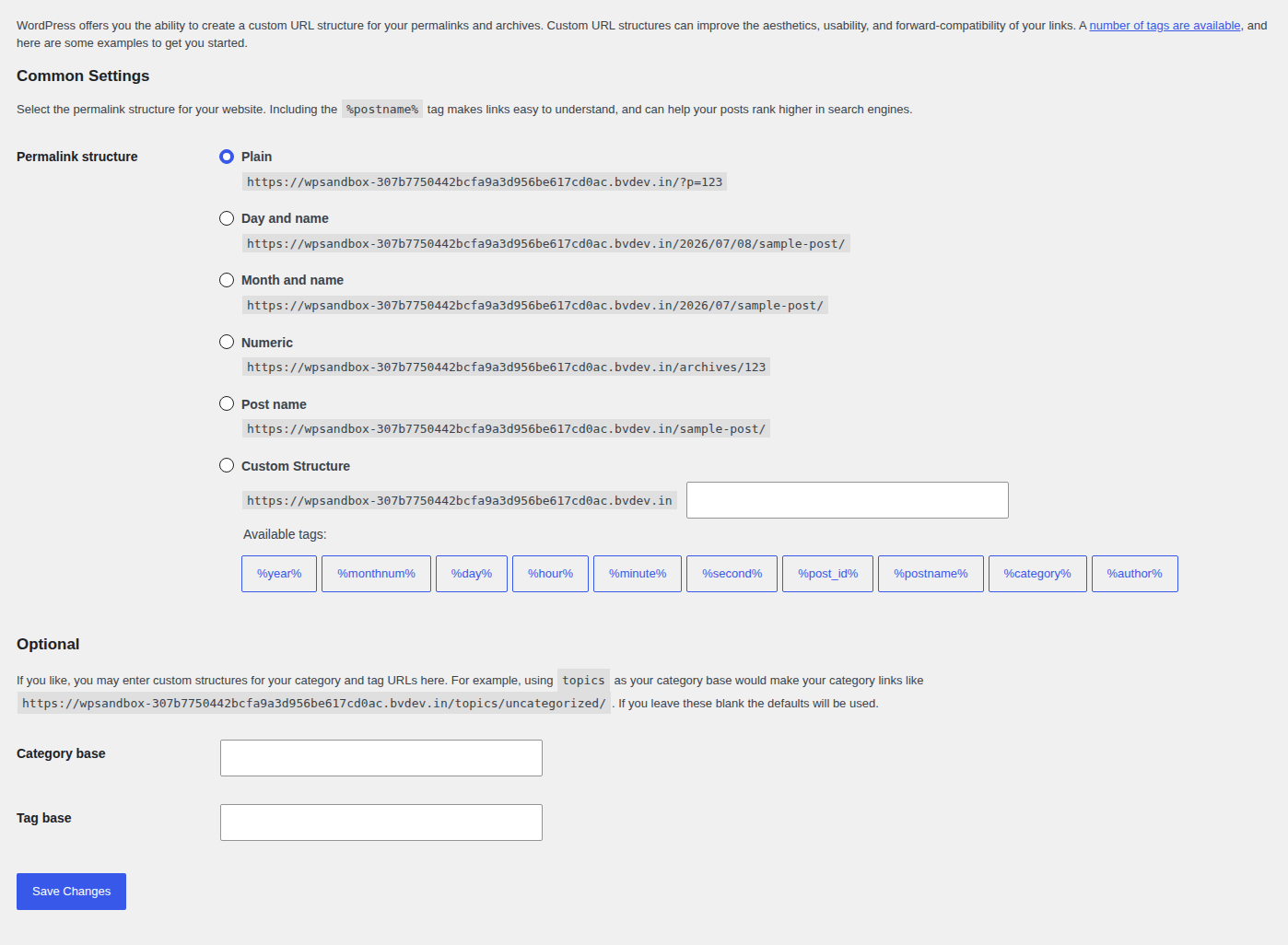
If you’re only a visitor, stop after those checks. Send the site owner the page URL, the button or form you clicked, your login state, and the exact message. That’s enough detail for them to trace the failing path.
Pin down the failing action
Before you change anything on the site, name the exact action that fails. “The site has a nonce error” is too broad to troubleshoot well. “Logged-out visitors get invalid nonce, please reload when they submit the newsletter form on the pricing page” is useful. Use this quick map:
| Where you see it | Start checking |
|---|---|
| Contact, quote, newsletter, or donation form | Page cache, form plugin settings, spam protection, AJAX loading |
| Cart, checkout, login, or account page | Logged-in cache, CDN rules, account widgets, session settings |
| Page builder popup or embedded form | Builder cache, popup settings, deferred scripts, form module settings |
| wp-admin save or settings page | Login session, browser cookies, security plugin, plugin conflict |
| License, OAuth, or email-confirmation link | Expired link, wrong user session, plugin connection flow |
Then test one path at a time. Change one thing, repeat the same action, and write down what happened. It feels slower for five minutes and saves you from guessing for an hour.
Check caching before deeper fixes
When a public-facing page shows the error, check caching early. This is the cause I would try to rule out before I start pulling plugins apart.
Here’s the pattern. A form or button loads with a nonce in the page HTML. A cache stores that HTML. Later, another visitor receives the cached page with an old token inside it. They submit the form, WordPress checks the token, and the request fails.
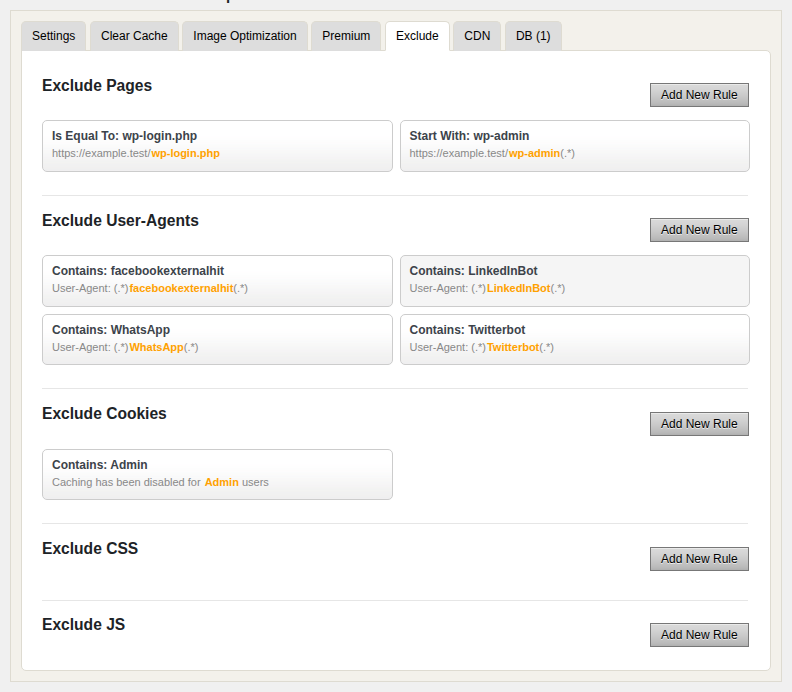
Work through the cache layers in this order:
- Purge your caching plugin. Clear the plugin cache, then open the affected page privately and run the same test.
- Purge page builder cache if you use one. Builders can keep their own generated CSS, JS, and form markup separate from your main caching plugin.
- Clear the server cache next, then the CDN. If either layer stores page copies, clear it after the plugin cache.
- Remove dynamic pages from full-page cache. Start with checkout, account, login, password reset, and any page with an important form.
- Turn off cache for logged-in users. Logged-in pages often contain tokens tied to a specific session, so shared cache can create strange failures.
- Shorten cache lifetime on affected form pages. Four hours is a reasonable first test. Some form-heavy pages need a shorter window.
- Check the form plugin’s cache-safe settings. Look for options around AJAX loading, internal forms, refreshed tokens, or cache compatibility. The labels vary, but you’re looking for a way to avoid serving stale form markup.
Don’t leave the entire site uncached forever just because disabling cache makes the error disappear. That proves cache is involved. The better fix is usually a page exclusion, a shorter lifetime, a private block, or a plugin setting that refreshes the form token.
Separate plugin problems from theme problems
Plugins and themes can both cause nonce failures, but you don’t want to blur them together. A plugin usually owns the form, checkout step, popup, or license screen. A theme usually owns header login panels, account dropdowns, and custom templates.
If the failing page brings in orders or leads, do this on staging. The same goes for membership and booking sites. If you have to test on the live site, make a fresh backup and pick a quiet time. Start with plugin checks:
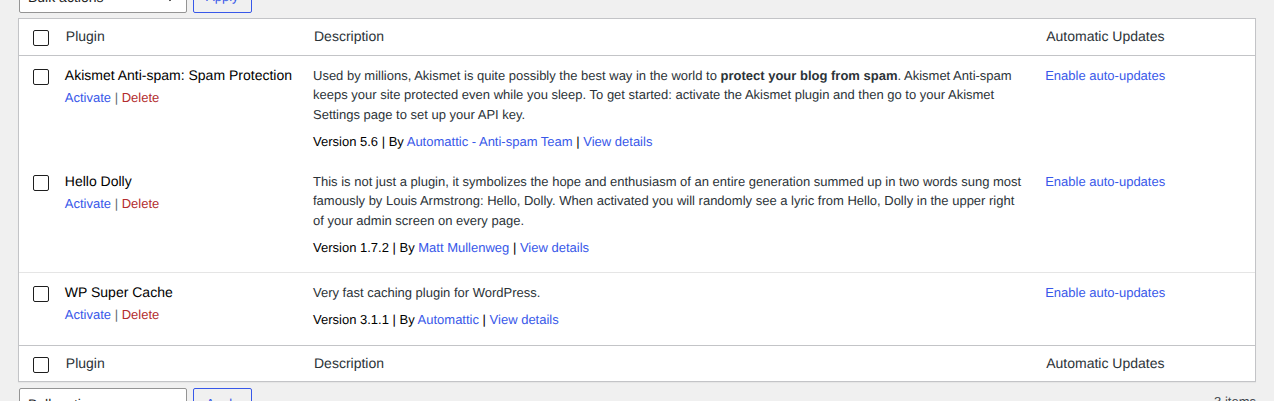
- Update the plugin connected to the failing action. If the form plugin, checkout plugin, security plugin, or page builder has a known nonce bug or WordPress plugin vulnerability, the fix may already be in an update.
- Disable optimization features before disabling the whole plugin. Turn off script delay, JS combining, minification, lazy-loaded form scripts, or AJAX optimization for the affected page.
- Test the plugin’s simplest mode. For a form plugin, try a basic embedded form without a popup or advanced display rule. For a license screen, use the manual reconnect flow if it has one.
- Deactivate the involved plugin on staging. If the nonce error disappears, you’ve narrowed the problem to that plugin or its interaction with cache.
- Reactivate related plugins in small groups. If the error returns, split the group and test again.
Then check the theme separately:
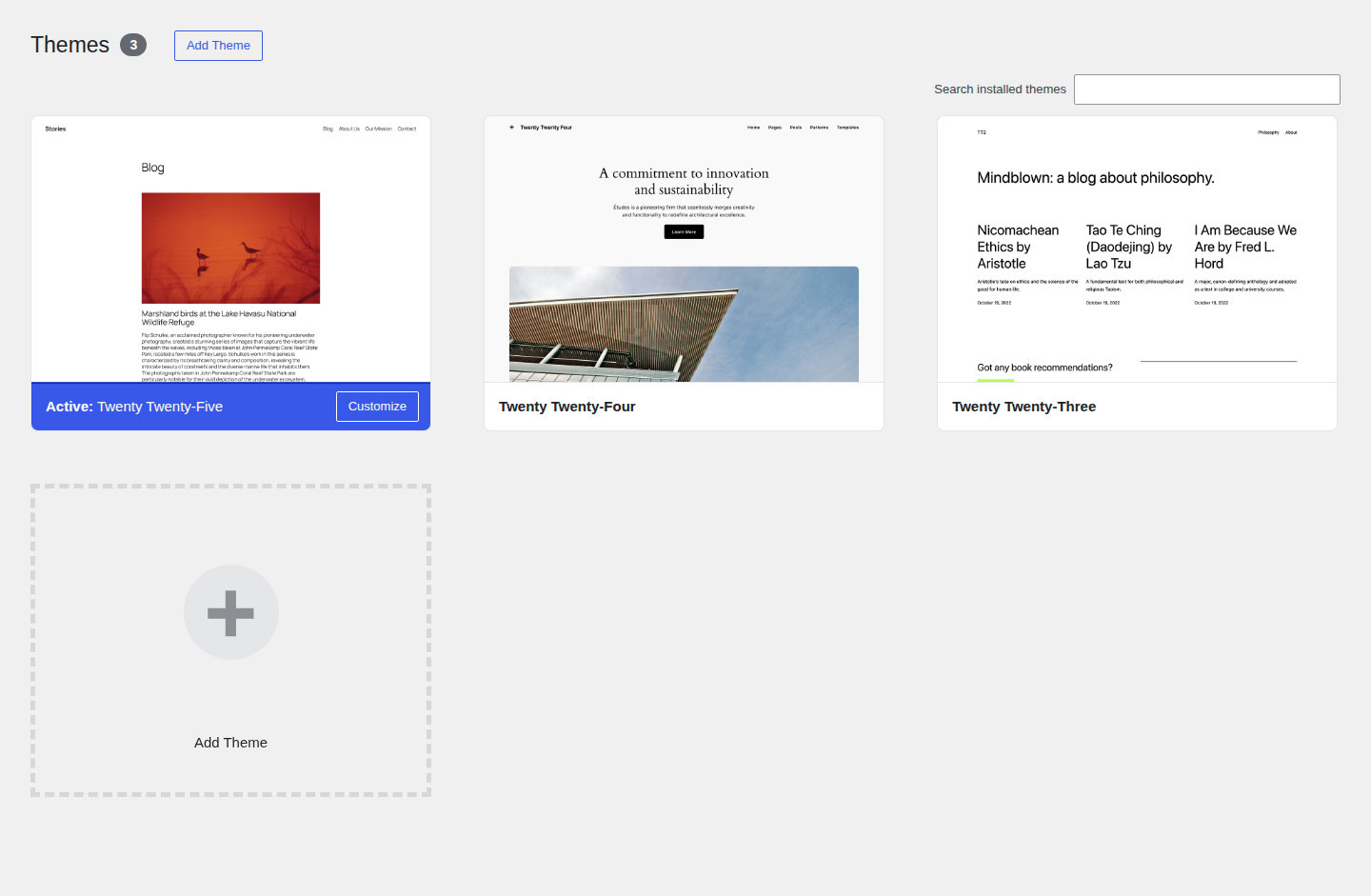
- Try one of WordPress’s default themes on staging. Use this only when the failing element is theme-owned, such as a header login dropdown, account menu, custom form area, or theme template.
- Test the same action with the default theme active. If the error disappears, the theme may be printing, caching, or verifying the token incorrectly.
- Switch back and disable only the theme feature involved, if the theme allows it. For example, turn off the header login panel before blaming the entire theme.
- Send the theme developer a precise report. Include the page URL, login state, cache setup, theme version, plugin versions involved, and the test that made the error stop.
That last detail matters. “Invalid nonce” is hard for a developer to reproduce. “It stops when the header account dropdown is disabled with logged-in cache off” gives them somewhere real to look.
Avoid the risky shortcuts
Two fixes get recommended too early: disabling nonce checks and replacing WordPress core files.
Don’t broadly disable nonce verification. WordPress uses that check because forged or stale requests are a real class of problem. If a plugin vendor gives you a narrow temporary bypass for one endpoint, document it and remove it after the proper fix ships.
Replacing WordPress core files should come near the end. It can help if core files were damaged or changed, but it won’t fix a cached form, a page builder popup with old markup, or a plugin checking the wrong action. If you do need to replace core files:

- Create a backup before touching files.
- Download WordPress again from the official download page.
- Keep wp-content and wp-config.php in place.
- Replace only the core WordPress files.
- Let your host or developer do the file swap if you’re not used to working over SFTP.
MalCare belongs at this point in the work, not at the top of the article. It won’t repair a stale nonce by itself, and I wouldn’t pretend it does. But a reliable backup and restore point lets you test plugin conflicts, theme switches, cache rules, and file repair without gambling the site.
If the nonce errors appear alongside stranger signs, like unknown admin users or redirects, website malware removal becomes part of the investigation; MalCare’s malware scanning, firewall, vulnerability alerts, and login protection give you a better security picture while you investigate.
Bring in the right person
- Ask your host when the error starts after a server-cache or CDN change. They can see cache and server logs you can’t.
- Ask the plugin developer when one plugin is the only place that fails. A form, checkout step, popup, license screen, or admin screen gives them a defined area to inspect.
- Ask the theme developer when the problem appears in a theme-built login panel or account dropdown. Header features and custom templates are theme territory too.
- Ask a security expert when the nonce errors arrive with compromise signals. The error alone doesn’t prove a hack. The error plus redirects, unfamiliar admins, file changes, or malware alerts deserves a proper security review.
Prevent repeat nonce errors
Once you’ve fixed the immediate error, spend a few minutes preventing the same path from breaking again. Lead forms and checkout flows deserve that extra attention. So do login and account pages.
- Keep private-action pages out of shared cache. Start with checkout, cart, account, login, password reset, and high-value forms.
- Purge every cache layer after changes. Clear the caching plugin, page builder cache, host cache, and CDN cache after plugin updates, form edits, theme changes, and cache-rule changes.
- Test forms like a real visitor. Open a private window, leave the page open for a while, then submit a test. For lead forms, confirm the message arrives.
- Keep plugin and theme updates current. Nonce bugs often get fixed quietly inside normal compatibility releases.
- Document cache exclusions. If another admin changes the cache setup later, they need to know why those pages were excluded.
- Keep backups current before risky work. This matters before conflict testing, theme switches, cache rule edits, and core file repair.
- Watch for security signals, not just the nonce message. Recurring nonce failures with suspicious admin activity or file changes should trigger a deeper scan.
If the error affects leads or payments, treat it like revenue risk. A form that fails “only sometimes” can still cost you the exact visitor you wanted.
Conclusion
An invalid nonce error is WordPress saying it can’t trust the action as it was sent. Start with the small fixes: reload, sign in again, clear local site data, and retry once. If the same page keeps failing, check caching next. That’s where a lot of recurring frontend nonce errors come from.
After that, separate plugin behavior from theme behavior, test carefully, and save core file replacement for the end. You’ll get to the cause faster, and you’re less likely to turn a stale-token problem into a broken-site problem.
FAQs
It means WordPress rejected the security token attached to an action. The token may have expired, gone missing from the request, come from cache, or been created for a different action.
Usually, no. It means WordPress blocked a request because the security check failed. If the error repeats often or appears with malware signs, investigate further.
Yes. Cache can store old form or account-page HTML with an expired nonce inside it. When someone submits that old page, WordPress rejects the request.
WordPress nonces are often described as valid for one day. In practice, the window can be shorter because WordPress checks the current and previous time tick.
No. Disabling nonce checks broadly weakens protection against forged or stale requests. Fix the stale cache, session mismatch, plugin issue, or theme issue instead.