You’ve probably run into the vague HTTP 500 Internal Server Error before, and now its equally confusing counterpart, the wp-admin/admin-ajax.php 500 (internal server error), has shown up.
It tends to show up at the worst possible times, right in the middle of something important. You’re left trying to figure out the issue while trying to understand lots of technical information.
But don’t worry—just like with the classic 500 error, we have solutions for this one too. Here’s how you can fix this error and get everything back to normal.
The wp-admin/admin-ajax.php 500 (Internal Server Error) is a server-side issue often linked to AJAX request problems due to plugin or theme conflicts. Always back up your entire site before troubleshooting core files to ensure you can restore it if needed.
Understanding the wp-admin/admin-ajax.php 500 (Internal Server Error)
This error occurs when there is a problem processing AJAX requests within WordPress’s background tasks. AJAX is essential for updating parts of a webpage without needing to reload the entire site, ensuring your website runs efficiently.
However, issues can arise when a plugin or theme sends incorrect data, triggering this error. It might occur due to a plugin update gone wrong, a theme conflict, or other changes in the site’s configuration.
This might lead to forms not functioning, parts of the page not loading, or interactive features becoming unresponsive. The error message itself is vague, indicating only a server-side issue that requires further investigation.
Troubleshooting the wp-admin/admin-ajax.php 500 Internal Server Error
Before jumping into the solutions, let’s try to figure out what’s causing the error. Here’s how you can start identifying the problem:
Check for recent changes
Think about any changes you’ve made to your plugins or themes lately. Did the error pop up around the same time? Even small tweaks can cause big problems if they interfere with how AJAX works. Tracing back to recent updates can help you spot potential troublemakers.
Review server logs
Checking your server logs can give you helpful information about what’s causing the error. These logs can show any unusual activity or errors that happened when the issue occurred.
Enable debugging
Debugging mode is another way to figure out what’s wrong. By switching it on, you can see a clearer picture of the issue. Add these lines to your wp-config.php file:
define('WP_DEBUG', true);

define('WP_DEBUG_LOG', true);

define('WP_DEBUG_DISPLAY', false);
This will create a debug.log file in your wp-content folder for detailed error messages.
Disable your plugins
Switch off all your plugins and see if the error vanishes. If it does, turn them back on one at a time to find the one causing trouble.
If you can’t access the WordPress admin area, use FTP to access your site’s files:
Step 1: Connect to your website using an FTP client like FileZilla or Cyberduck.

Step 2: Navigate to the wp-content directory. Rename the plugins folder to something like plugins_disabled. Check to see if the error is gone. If so, rename the folder back to plugins.
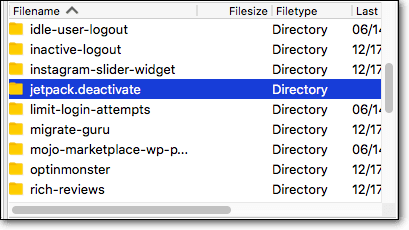
Step 3: Now, go into the plugins folder and rename each plugin folder one at a time.
Step 4: After renaming each one, check your website to see if the error returns. This process will help you find out which plugin is causing the problem.
Switch to the default theme
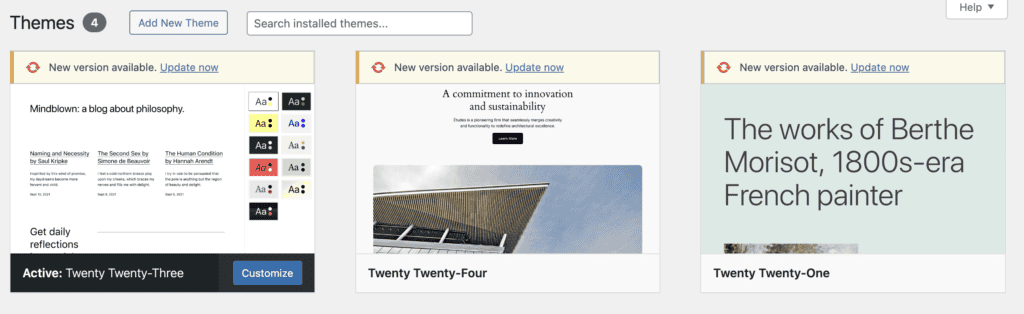
Try changing your theme to a default one like Twenty Twenty-Four. If the error disappears, your theme might be the issue. If you can’t access the admin area, here’s how you can do it via FTP:
Step 1: Connect to your server using an FTP client like FileZilla or Cyberduck.
Step 2: Navigate to the wp-content directory. Open the themes folder.
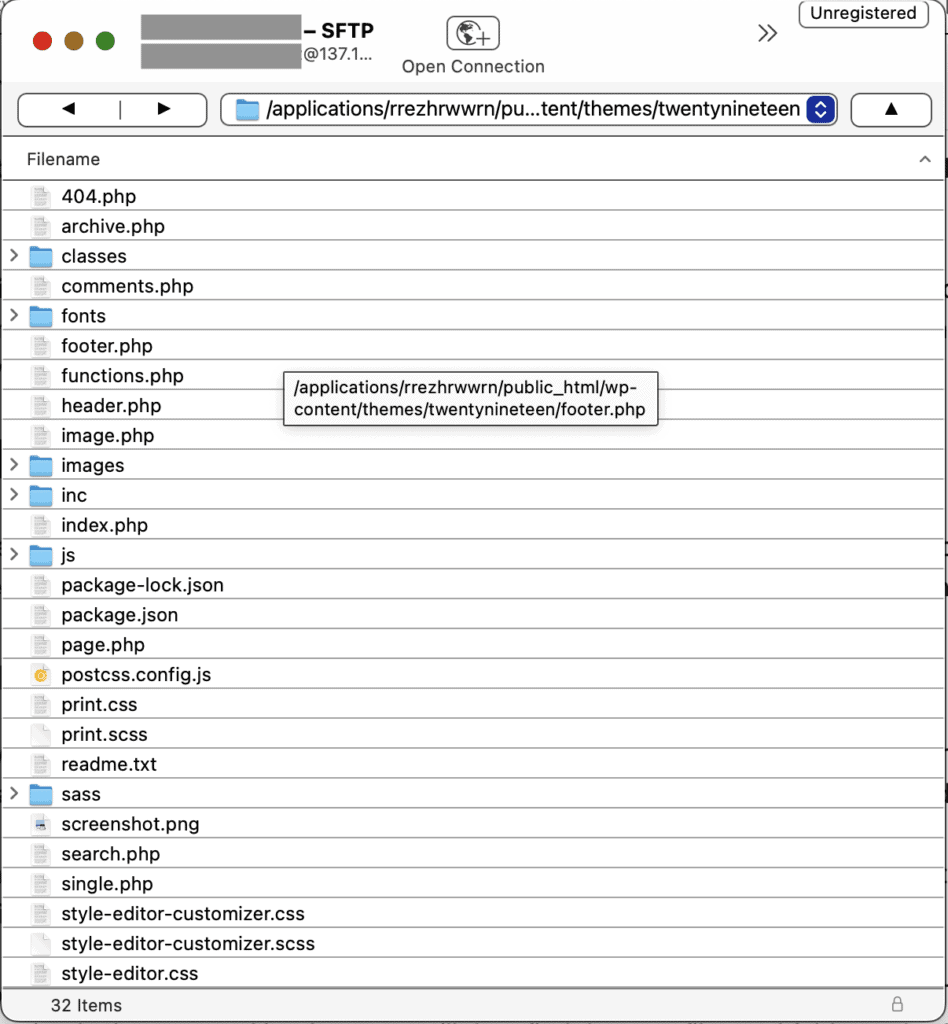
Step 3: Rename your active theme’s folder to something like theme-disabled. This forces WordPress to use a default theme.
Increase memory limit
Sometimes, your site needs more memory to handle requests. By default, WordPress sets a memory limit, which might be around 64M or 128M, depending on your host. If you find that this isn’t enough, you can increase it by adding the following line to your wp-config.php file:
define('WP_MEMORY_LIMIT', '256M');This increases the limit to 256M, which can help if your scripts require more memory than currently available.
Keep in mind, 256M isn’t a fixed limit—you can increase it further if needed. However, be cautious when doing so. Setting it too high could lead to other issues with your server or impact site performance by slowing your site down. Always check with your hosting provider to ensure you’re within safe limits.
Check file permissions
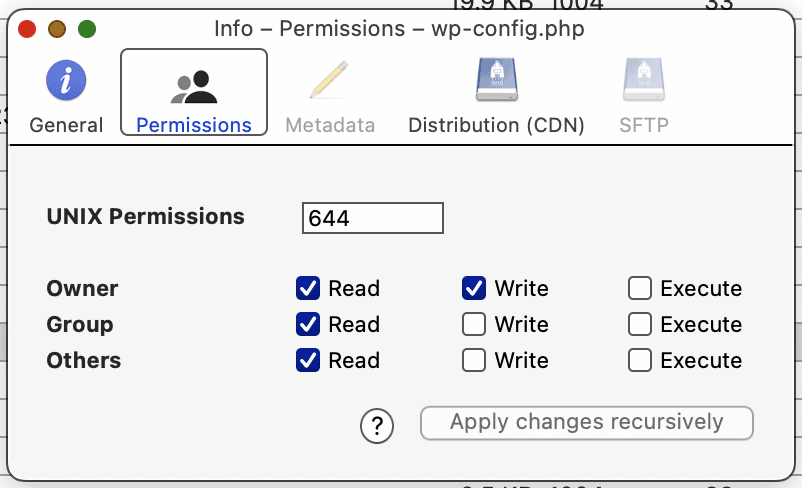
Make sure your file permissions are correct. If they’re not, admin-ajax.php might not run properly. Directories should be set to 755 and files to 644. If they aren’t, you will have torepair your permissions.
Consult your host
Contact your hosting provider’s support team for assistance. They might be able to identify issues that aren’t visible to you. Sometimes, the problem might be on their end, and they can adjust server settings to help resolve the issue.
How is the wp-admin/admin-ajax.php 500 error different from a normal HTTP 500 error?
Here’s a table to help you understand the differences between the WordPress-specific wp-admin/admin-ajax.php 500 error and the general HTTP 500 error:
| wp-admin/admin-ajax.php 500 (internal server error) | HTTP 500 internal server error |
|---|---|
| Specific to WordPress | General server error |
| Issues with AJAX requests, often due to plugins, themes, or code | Can occur anywhere on a website, not limited to WordPress |
| Affects dynamic features like forms and interactive elements | Affects the entire site or server, broader in scope |
| WordPress-specific components such as plugins and themes | Server settings or general issues outside of WordPress |
| Problems within WordPress affecting AJAX operations | Normal HTTP 500 Error: Broader server issues or configurations |
Best practices to prevent this issue from recurring
Here are some easy steps to help you prevent the wp-admin/admin-ajax.php 500 error from coming back:
Keep everything updated
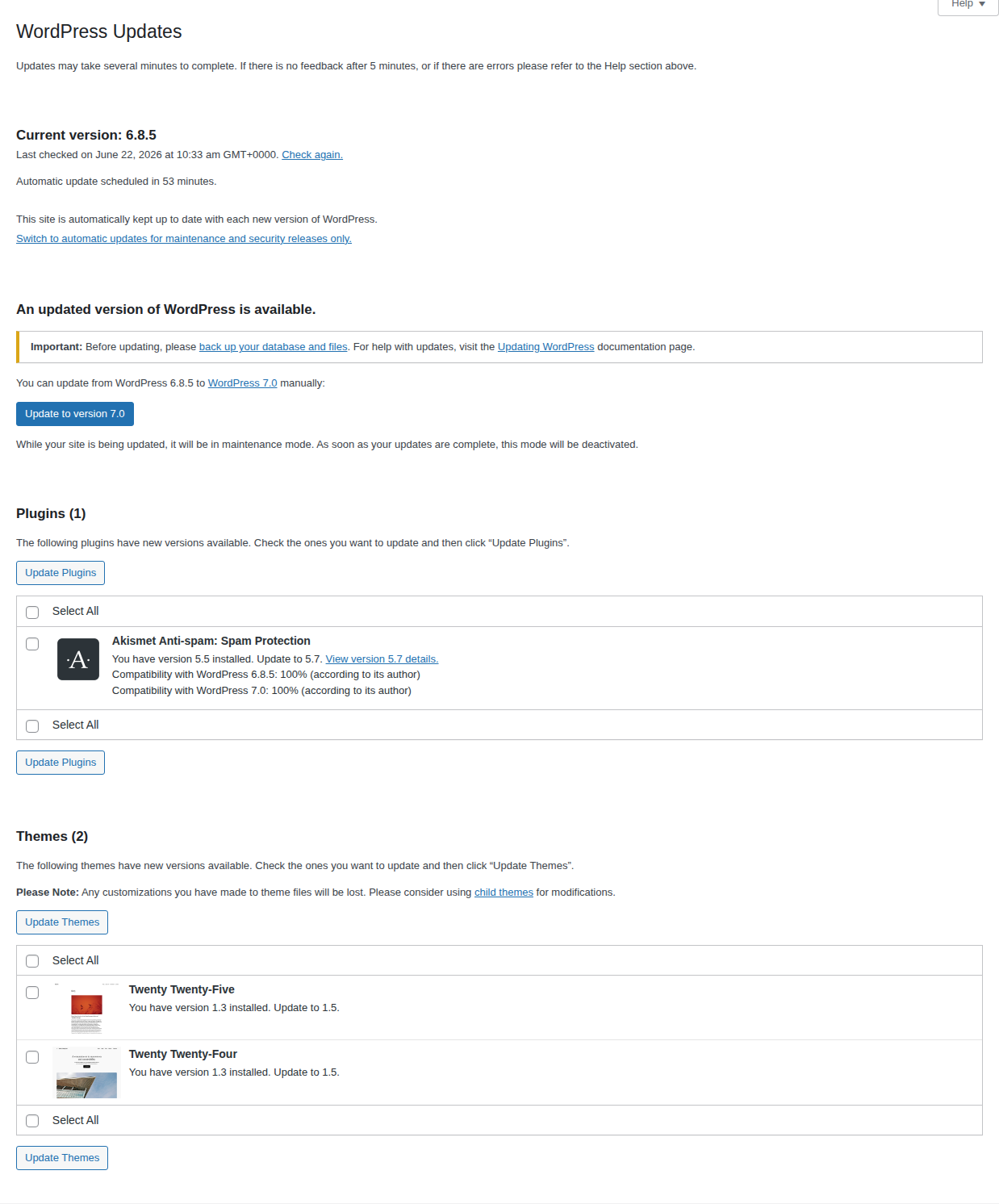
Make sure your WordPress, themes, and plugins are always updated. They fix bugs and keep things running smoothly.
Back up your site regularly
Just like saving your progress in a game, regularly backing up your site ensures you won’t lose everything if something goes wrong.

Use trusted sources
Only get themes and plugins from places that you trust, such as the official WordPress repository or reputable developers. This reduces the risk of introducing malicious code or poorly designed components that could lead to errors or security vulnerabilities on your site.
Monitor site performance
Keep an eye on how your site is running by regularly checking its speed and performance metrics. This helps you catch any slowdowns or issues early, so you can address them before they become bigger problems.
Limit active plugins
Don’t overload your site with too many plugins. Having too many active plugins can slow down your site and increase the risk of conflicts and errors. Regularly review and deactivate any plugins that you no longer need.
Test changes on a staging site
Before making big changes, create a staging site and try them out there. This ensures that any new updates or modifications won’t disrupt your live site and allows you to identify potential issues in a safe environment.

Enable error logging
Turn on error logging to catch issues as they happen. This provides a detailed record of errors and warnings, helping you diagnose and fix problems more effectively.
Optimize code for performance
Ensure your code is clean and efficient. Well-optimized code improves your site’s speed and reduces the likelihood of errors, enhancing the overall user experience.
Ensure sufficient server resources
Make sure your server has enough resources, such as CPU, RAM, and bandwidth, to handle your site’s traffic and functionality. This helps prevent slowdowns and errors during peak usage times.
Choose a reliable hosting provider
Select a hosting provider known for excellent performance and support. A reliable host ensures that your site remains stable and secure, and they can provide assistance when issues arise.
Parting thoughts
The 500 Internal Server Error, particularly the WordPress wp-admin/admin-ajax.php type, is a server-side issue tied to AJAX requests. While general HTTP 500 errors can occur anywhere, the AJAX one is unique to WordPress.
To tackle these, check your plugins, themes, and server resources, and enable debugging. Stay updated and use reliable themes and plugins to keep your site running smoothly.
FAQs
What is error 500 in AJAX WordPress?
Error 500 in AJAX WordPress is a server-side issue that occurs when AJAX requests cannot be processed correctly. This often results from conflicts with plugins or themes, insufficient server resources, or incorrect file permissions, and it affects dynamic site features like forms and interactive elements.
How to increase PHP memory limit in WordPress?
To increase the PHP memory limit in WordPress, edit your wp-config.php file by adding this line: define(‘WP_MEMORY_LIMIT’, ‘256M’);. This increases the memory available to your site, helping it handle larger tasks more efficiently.
How to check WP memory limit?
To check the WP memory limit using a snippet of code, you can add the following line to your theme’s functions.php file:
echo Memory Limit: WP_MEMORY_LIMIT;
This code will display the current memory limit on your site, allowing you to see how much memory is allocated. Remember to remove this code after checking the memory limit to avoid displaying unnecessary information to your site visitors.
Where is my wp-config file?
Your wp-config.php file is located in the root directory (public_html or www) of your WordPress installation. You can access it through your hosting control panel’s file manager or by using an FTP client.