
You click Install, Update, or Upload, and WordPress stops with a message that looks more like a server problem than one of the usual errors in WordPress: Installation failed: Could not create directory or Unable to create directory. Is its parent directory writable by the server?
The WordPress could not create directory error means WordPress tried to create a folder on your server and the server refused or could not complete the write. Your site is usually not ruined. WordPress is telling you one file operation failed.
Find the folder named in the error, then check permissions, ownership, and disk space before changing anything broadly. Do not set everything to 777. Backup the site first, and ask your host to confirm ownership or server restrictions if standard permissions do not fix it.
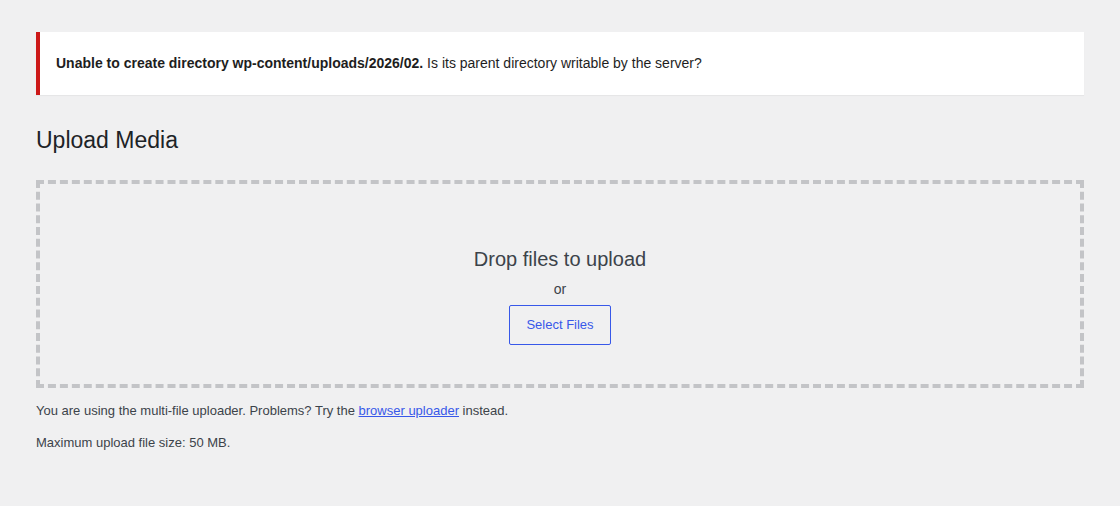
The path in the error is the breadcrumb. wp-content/uploads/2026/02 points to a media upload problem. wp-content/upgrade points to an update problem. wp-content/plugins/example-plugin points to a plugin install or update problem.
Start with that path. It keeps the fix narrow, and narrow fixes are how you avoid turning one failed upload into a file-permission mess.
What It Means
WordPress creates folders during normal work. It does this when you upload images, install plugins, update themes, unpack core updates, generate cache files, or let a plugin save its own files. The error appears when WordPress cannot create the folder it needs.
You may see:
- Installation failed: Could not create directory.
- Update failed: Could not create directory.
- Unable to create directory wp-content/uploads/2026/02. Is its parent directory writable by the server?
- Could not create directory wp-content/upgrade.
The folder may exist, or it may be missing. The real question is whether the user running WordPress can write there. If PHP names a file path instead of a folder, compare it with the related failed to open stream error before changing permissions broadly.
That user is usually the PHP or web server user. On some servers, PHP runs as your hosting account. On others, it may run as www-data, apache, nginx, or a host-specific PHP-FPM user.
This is where people get fooled: FTP access is not proof that WordPress has access. If you can upload a file with FTP, that only proves your FTP user can write there. WordPress may be running as a different server user.
Read The Path
The safest first step is not changing permissions. It is reading the error carefully.
| Error path | What likely failed | First check |
|---|---|---|
| wp-content/plugins or a plugin folder | Plugin install or update | The plugins folder and any partial plugin folder |
| wp-content/themes or a theme folder | Theme install or update | The themes folder and the theme folder |
| wp-content/upgrade | WordPress, plugin, or theme update | The upgrade folder, storage, and temporary update files |
| wp-content/uploads/YYYY/MM | Media upload | The uploads folder, year folder, upload path, and storage |
| A custom plugin or theme path | Custom code creating files | The named folder, plugin/theme code, and server logs |

The same error text can come from different places. The table matters because a plugin install failure and an upload-folder failure do not need the same first check.
Use this order:
- Copy the exact error: Keep the full message before you change anything.
- Back up your WordPress site: Do this before changing permissions, deleting folders, or editing configuration files.
- Check Site Health: If wp-admin opens, go to Tools > Site Health > Info > Filesystem Permissions.
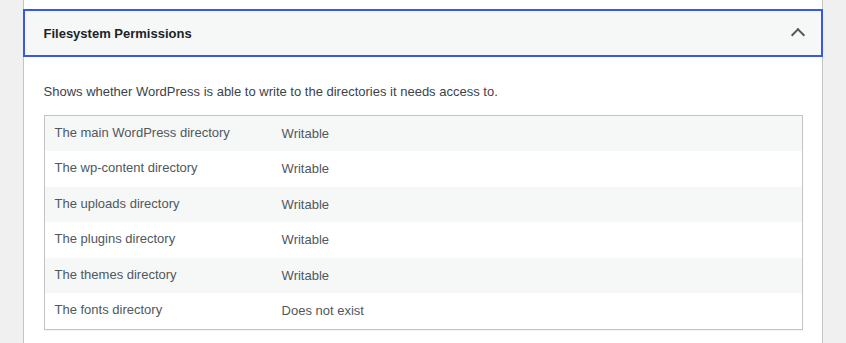
- Inspect the parent folder: WordPress often needs write access to the parent folder so it can create the missing child folder.
- Check ownership next: Correct permission numbers do not help if the wrong server user owns the folder.
- Check disk and inodes: Inodes are the server’s count of files and folders. A full inode quota can block new folders even when storage does not look full.
- Escalate when needed: Managed hosts, cPanel, Plesk, Bitnami, and cloud stacks often need provider-specific ownership or policy fixes.
Do not skip the backup. A permission repair is easier to undo when you know what changed, and managed workflows such as WP Remote backups are useful when you maintain several sites.
Fix Permissions
Permissions decide who can read, write, and enter folders. For most WordPress sites, the usual WordPress file permissions baseline is:
- Folders: 755
- Files: 644
Folders and files use different values because folders must be enterable. Files usually only need to be readable and writable by the right owner.
Start with the folder named in the error and its parent. If the error says WordPress cannot create wp-content/uploads/2026/02, check wp-content/uploads and wp-content/uploads/2026. If the error names a plugin folder, check wp-content/plugins first.
You can use your hosting file manager, cPanel, Plesk, SFTP, or SSH. Use the tool you understand well enough to undo the change. A careful File Manager fix is better than a copied command pointed at the wrong directory.
Work narrowly:
- Open the parent folder: For a plugin install, this is often wp-content/plugins. For uploads, it is often wp-content/uploads or the year folder inside it.
- Set folders to 755: Apply this to the failed folder and parent first.
- Keep files at 644: Do not make files executable because an update failed.
- Retest the failed action: Try the upload, install, or update again.
- Stop if it works: Do not keep changing permissions after the error is gone.
If you use SSH and know the correct WordPress path, these are common repair patterns:
find /path/to/wordpress -type d -exec chmod 755 {} ;
find /path/to/wordpress -type f -exec chmod 644 {} ;
Only run commands like these when you are sure /path/to/wordpress is the right site. On shared hosting or a server with multiple sites, the wrong path can create a much larger problem.
Some hosts use 775 for selected writable folders. That can be valid when the site owner and web server user share the right group. It is not a universal WordPress setting.
Do not leave WordPress folders at 777. It gives broad write access and can weaken the site, especially on shared hosting. If you are tightening access after the repair, use a separate guide to protect WordPress files instead of using permissions as a blunt security tool.
Check Ownership
Ownership is the hidden reason many permission fixes fail. A folder can be 755 and still block WordPress if the wrong server user owns it. That is because 755 usually lets everyone read and enter the folder, but only the owner can write to it.
Common PHP or web server users include:
- www-data
- apache
- nginx
- your cPanel or hosting account user
- a PHP-FPM user created by your host
PHP-FPM is one common way hosts run PHP for each site. You do not need to configure it to understand the issue. WordPress can only write as the user PHP is running under. If you have SSH and your host confirms the correct owner and group, they may give you a command like this:
sudo chown -R accountuser:accountgroup /path/to/wordpressTreat that as a pattern, not a command to copy. The right accountuser:accountgroup depends on the server. Guessing can break uploads, updates, or site access.
Ask your host before changing ownership if you use managed WordPress hosting, shared hosting, Plesk, cPanel, AWS Lightsail, Bitnami, or any server you did not set up yourself. If the folder names are unfamiliar, review the basic WordPress site structure before changing ownership on anything outside wp-content, and change related FTP passwords if credentials were shared during troubleshooting.
Check Storage
WordPress cannot create a folder if the hosting account is out of space. It can also fail when the account hits its inode limit. An inode is one file or folder record on the server. A site with thousands of cache files, old backups, logs, and staging copies can run out of inodes even when the storage chart looks acceptable.
Check your hosting dashboard for:
- disk usage
- inode usage
- old backup archives
- oversized log files
- large cache folders
- abandoned staging copies
- duplicate site folders
Be careful with cleanup. Deleting an old cache folder is usually recoverable, and a guide to WordPress cleanup can help with safer housekeeping. Deleting the active uploads folder is not.
If the error appeared during an upload, also check whether the server logs mention no space left on device or write failures. This can overlap with the WordPress failed to write file to disk error when uploads cannot be saved. In that case, permissions are not the fix. Free space, remove unnecessary files, or upgrade the hosting plan first.
Fix Uploads
The media version of this error usually names a folder like wp-content/uploads/2026/02.
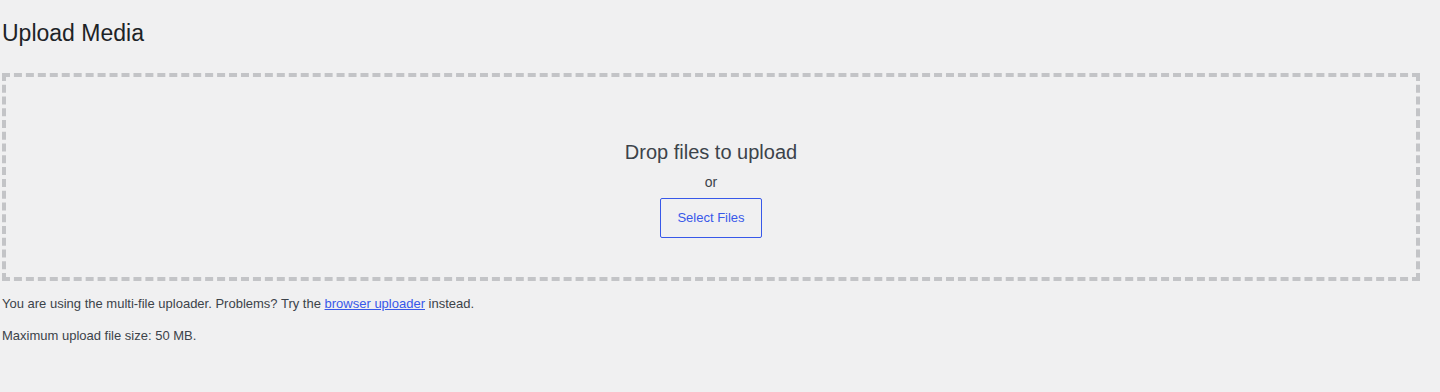
That means WordPress tried to create a year or month folder and could not write to the parent folder. If 2026 exists but WordPress cannot create 02, the year folder is the folder that matters.
Check these in order:
- wp-content/uploads: Confirm it exists and has safe writable permissions.
- The year folder: If the year folder exists, confirm WordPress can write inside it.
- Ownership: The uploads folder may have the right number but the wrong owner.
- Storage and inodes: Media uploads fail quickly when the account cannot create more files or folders.
- Upload path settings: Older or migrated sites may still point to an old server path in Settings > Media or the upload_path option in the database.

Upload size limits can cause media failures too, but this exact error points first to folder creation. If the uploader shows an HTTP error when uploading images to WordPress after the folder issue is fixed, troubleshoot that separately.
Fix Updates
WordPress uses wp-content/upgrade as a temporary unpacking folder during updates and installs.
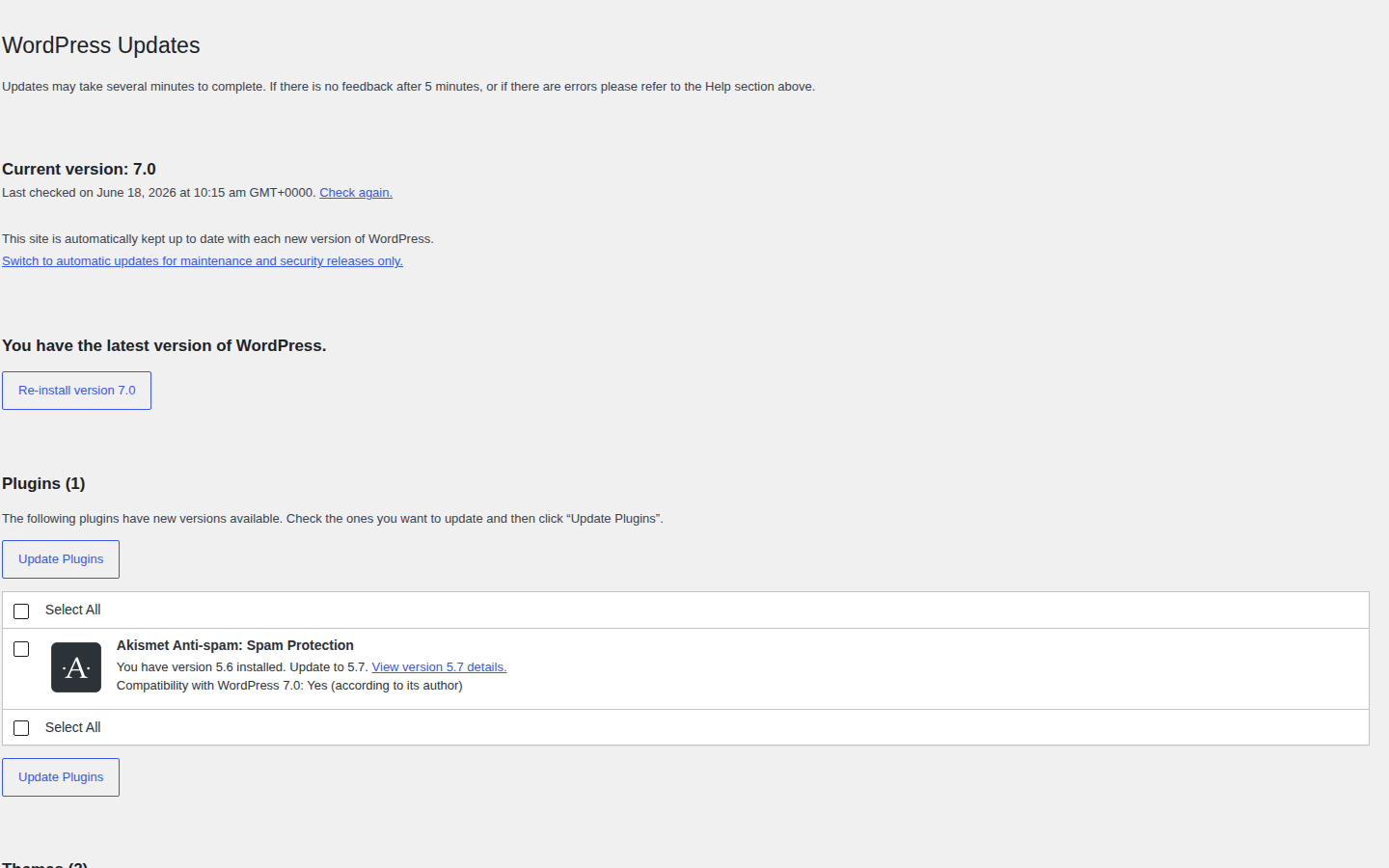
It downloads the update package, unpacks it there, and then moves files into place. If WordPress cannot create or write to wp-content/upgrade, the update can fail before it reaches the plugin, theme, or core files.
Check these:
- Confirm the folder exists: If it is missing, wp-content must be writable enough for WordPress to create it.
- Set safe permissions: Use 755 unless your host tells you a group-writable setup is required.
- Confirm ownership: The PHP user must be able to write inside the folder.
- Check available storage: Updates need room for both the downloaded file and the extracted files.
- Remove stale folders carefully: Do this only after backing up and confirming WordPress is not showing another update is currently in progress.
If 777 did not fix an upgrade error, stop widening permissions. The cause is probably ownership, storage, a security rule, or a managed-host restriction, even when the visible symptom is that a WordPress plugin update failed.
If the failed update also leaves the site stuck, fix the write issue first and then clear the WordPress maintenance mode stuck after update separately.
Advanced Server Checks
If the path, permissions, ownership, and storage all look right, the server may be blocking WordPress in a less visible way.
Check these only after the basic path-based fixes:
- FTP constants: If WordPress asks for FTP details, or wp-config.php contains FTP_USER, FTP_PASS, FTP_HOST, or FTP_BASE, confirm them with your host before editing.
- FTP credential safety: Do not paste credentials into public tickets, screenshots, or unsecured chats.
- Temporary folders: Advanced users may define WP_TEMP_DIR, but the folder must exist and be writable by WordPress.
- Server restrictions: mod_security, SELinux, open_basedir, disabled PHP functions, and managed-host policies can block writes.
- Security hardening: A security plugin or server hardening rule can block writes in some setups. Test the exact rule, keep your WordPress security baseline intact, and turn protection back on after maintenance.
These are not first-step fixes. They are the next place to look when normal folder repair does not match what the server is doing.
Clean Partial Installs
A failed install can leave a half-created plugin or theme folder behind. The next install may fail because WordPress sees a destination folder that already exists. This can look like the same directory error even after you fix the original write problem.
Backup first. Then inspect the folder through File Manager or SFTP.
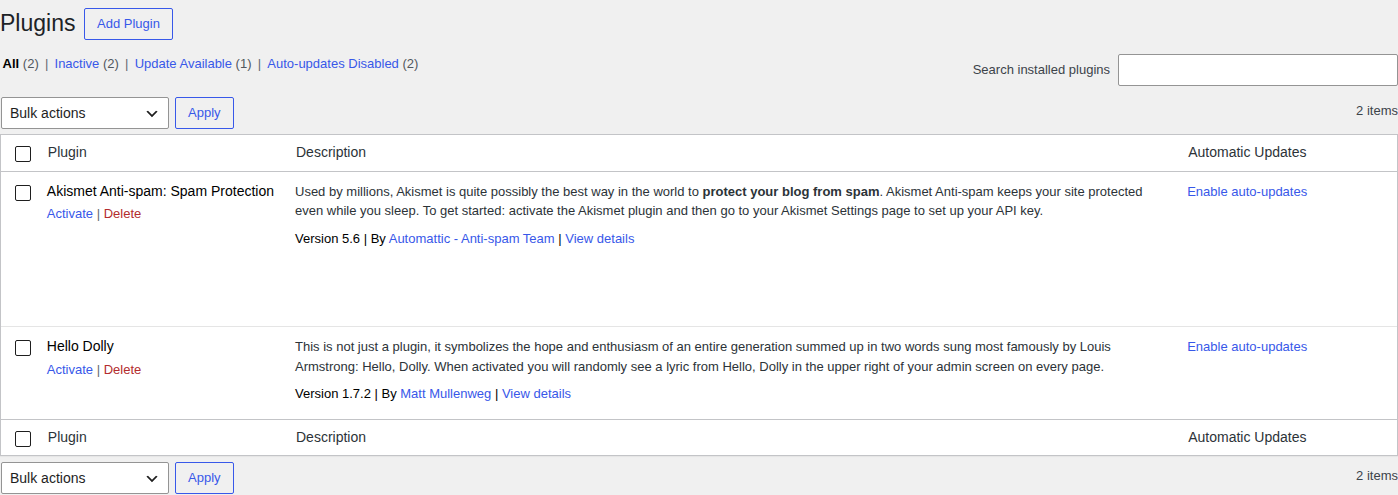
Delete only the folder you can clearly identify as the failed, incomplete install. Do not delete active plugins or themes unless you know exactly what the site uses.
Manual upload can help after the root cause is fixed. It is not a real fix if WordPress still cannot write to its own folders. Updates, uploads, cache files, and future maintenance can fail again; if you must test a risky reinstall, use a WordPress staging environment first.
Contact Your Host
Hosting support is not a last resort. It is the right fix when the server user, ownership, storage, logs, or security rules are outside your control.
Contact your host if:
- folders are already 755 and files are 644
- the exact parent folder looks writable but the error persists
- you do not know which user PHP runs as
- you are on managed hosting, cPanel, Plesk, Bitnami, or Lightsail
- you do not have SSH access
- storage or inode limits are unclear
- logs mention permission denied, no space left, temp folder errors, mod_security, SELinux, or open_basedir
Send a message like this:
Hi, WordPress is failing with this error:

[paste exact error]

The failed action was:
[plugin install / theme update / media upload / core update]

The path shown in the error is:
[paste folder path]

I checked the visible permissions and they appear to be:
[example: folders 755, files 644]

Can you please confirm:
1. Which user PHP runs as for this site?
2. Whether the WordPress files and folders have the correct owner and group?
3. Whether the account is out of disk space or inodes?
4. Whether the WordPress server logs show permission denied, no space left,
    temp directory errors, mod_security, SELinux, open_basedir, or managed-host
    write restrictions?
5. Whether you can safely reset WordPress permissions and ownership for this account?
That message gives support the facts they need. It also avoids the slow loop where they ask for the path, failed action, and permissions one at a time.
Prevent Repeat Errors
You cannot prevent every server write issue, but you can avoid the common repeat causes.
Use this maintenance routine:
- Backup before changes: Keep a clean restore point before updates, permission changes, folder cleanup, or configuration edits.
- Keep storage headroom: Updates need space for downloads and extracted files, not just the final installed plugin.
- Move old backups offsite: Backups are useful. Backups stored forever on the same hosting account can fill the account.
- Keep permissions conservative: Do not leave code directories broadly writable.
- Use maintained plugins: Old or abandoned plugins make update problems harder to judge, especially when a WordPress plugin vulnerability is involved.
- Test important updates: Do not test a business-critical update on production right before a sale, launch, or campaign; WP Remote Safe Updates is built around backups and visual checks before update changes go live.
- Review hardening changes: Security rules should protect the site without silently blocking normal maintenance; a WordPress security maintenance checklist helps keep those checks consistent.
MalCare fits here as a monitoring and maintenance layer, not as the direct fix for a permissions error. The practical value is knowing when vulnerable plugins, suspicious file changes, or risky maintenance issues need attention before they become emergencies, including signals that help you prevent WordPress redirect hacks.
FAQs
Copy the exact path in the error. Back up the site, then check the parent folder’s permissions, ownership, and storage. If those look correct and the error remains, ask your host to confirm the PHP user, owner/group, disk quota, inode usage, and server restrictions.
For most WordPress sites, folders should be 755 and files should be 644. Some hosts use 775 for selected writable folders, but only when the server group is configured for it.
No. Do not leave WordPress folders at 777. It gives broad write access and may not fix the real issue if ownership, storage, or server policy is the actual blocker.
WordPress may be trying to create a missing child folder. If the error names wp-content/uploads/2026/02, WordPress needs write access to the parent folder, such as wp-content/uploads/2026 or wp-content/uploads.
If permissions are already correct, check ownership, disk space, inode limits, upload path settings, temporary folders, website logs, and host-level restrictions such as mod_security, SELinux, or open_basedir.
Manual upload can work after the root cause is fixed, but it is not a full solution. If WordPress still cannot write to its own folders, future updates, uploads, cache files, and maintenance tasks can fail again, especially after an install WordPress theme via FTP workaround.
Conclusion
The safest fix for the WordPress could not create directory error is to follow the path in the message and repair only what that path points to. Start with the parent folder, then check permissions, ownership, storage, and host restrictions before trying broader changes; if the symptom is really a WordPress update failed case, solve the update state separately.
Most sites do not need risky permission settings to recover. They need a backup plugin, a narrow diagnosis, and the discipline to involve the host when the problem is really server ownership or policy.


