You’ve run into the failed to open stream error on your WordPress site. We know it’s a real headache with this error is blocking access to the backend of your site.
It’s a common issue that can feel overwhelming, especially when you just want everything to work right.
But don’t worry—fixing it isn’t as hard as it may seem. In this article, we’ll walk you through simple steps to get things back on track, so your site can function perfectly again.
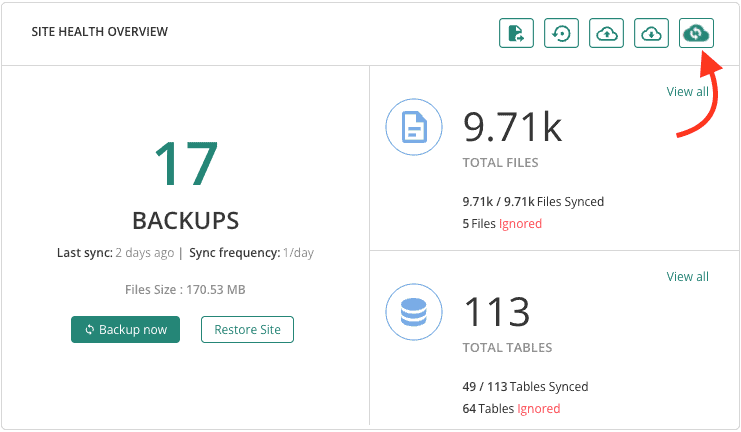
The “failed to open stream” error in WordPress blocks access to necessary files, disrupting your site’s functionality. To safeguard against data loss while fixing this issue, regularly use a backup plugin to keep your data secure.
What does “failed to open stream” mean?
Failed to open stream is a PHP error you might encounter on your WordPress site that signals a problem with accessing files.
This happens when WordPress is unable to locate or open a specific file it needs to function. As a result, your site might get stuck loading or not load at all, disrupting its normal operation.
What makes fixing this issue easy is that the error message provides clues that can help identify what is causing it. By looking into these hints, you can take steps to fix the issue and restore your site to full functionality.
What causes this error?
Missing file or incorrect path: The file that WordPress requires might not be in its expected location, similar to having directions to a nonexistent place.
File present but lacks permissions: The file exists, but WordPress cannot access it due to inadequate permissions, like having a key but being unable to use it.
Damaged WordPress core files: After moving your site to a new host or following an update, core files might get corrupted, resulting in this error.
Authentication issues with third-party services: If your site uses external plugins or services and encounters a login problem, this can trigger the error, much like entering an incorrect password.
How to troubleshoot the “failed to open stream” issue
To pinpoint the root cause of this issue, you will need the help of some logs. Here are two options you can use:
Make sure you take a backup of your site before you start your troubleshooting process.
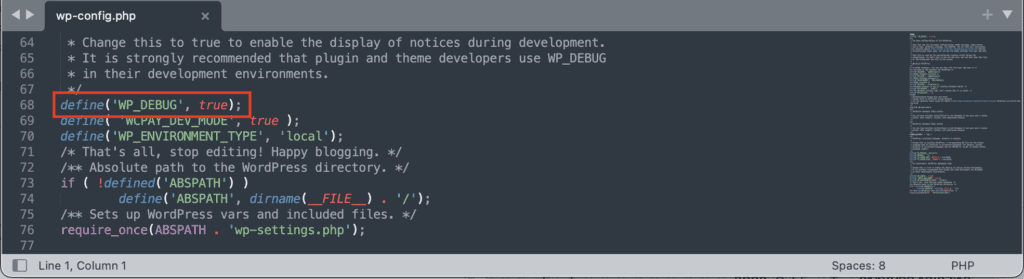
Turn on WordPress debugging: Activate debugging in WordPress to receive detailed error reports that will help pinpoint the problem.
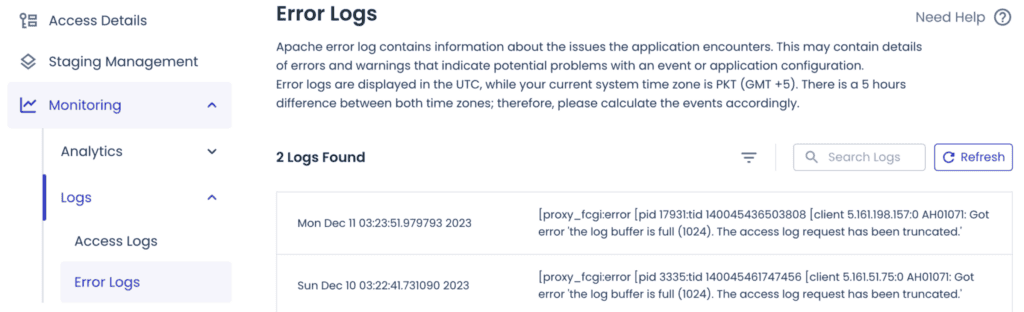
Examine server error logs: Check the server’s error logs for specific details that might be causing the issue.
File not found or path is incorrect
Analyze error messages: Pay attention to error messages to identify any problems with file paths.
Access FTP: Use FTP to check your site for any spelling mistakes or case sensitivity issues in filenames, as small errors can lead to big issues.

If correcting the path doesn’t resolve the problem, it could indicate that a core file is corrupted.
Your files are corrupted
Locate the corrupted file: Use error messages or logs to determine which file might be corrupted.
Replace the corrupted file: Swap out the corrupted file with a fresh version from a backup. If no backup is available, download a clean version of WordPress and replace the affected files.
Permissions are incorrect
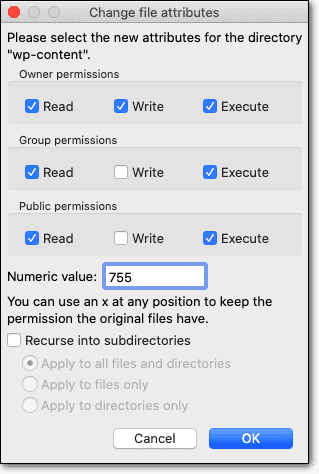
Fix permissions using FTP: Use FTP to access your site’s files and adjust the file permissions.
Ensure proper permissions: Verify that directories have permissions set to 755 and files to 644, ensuring the right level of access.
Address API-related issues
Verify third-party settings: Ensure that your credentials and authentication settings for any third-party services are accurate.
Reevaluate API configurations: Double-check API settings, especially after site migrations or updates, to prevent issues.
Additional fixes
Increase PHP memory limits: Boosting the PHP memory limit can help avoid issues like upload failures.
Verify SSL certificates: Ensure that your SSL certificates are properly installed and configured.
Review API settings: Check your API settings to make sure there are no misconfigurations causing problems.
How you can avoid this error
To avoid running into the “failed to open stream” error in the future, here are some best practices you can follow:
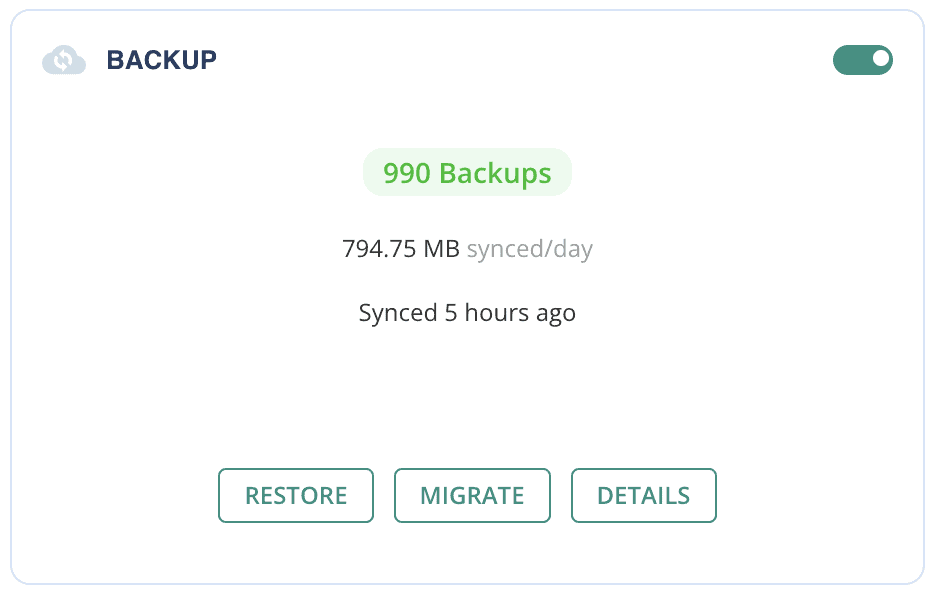
Regularly back up your site: Make sure to back up your site often. This way, if something goes wrong, you won’t lose important data.
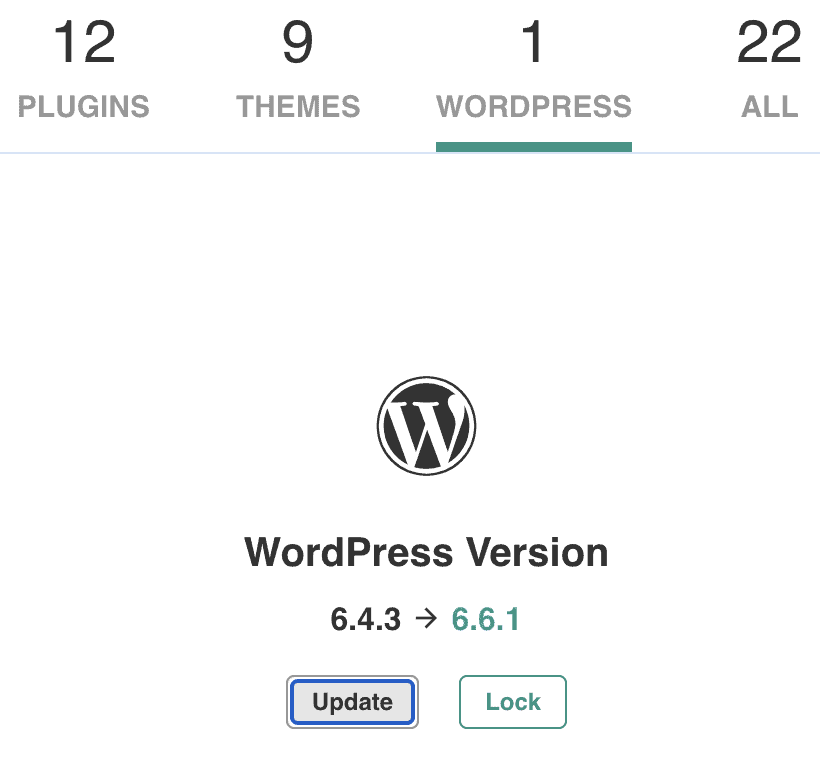
Keep everything updated: Always update WordPress along with your themes and plugins. Updates often fix bugs and keep your site secure.
Use reliable plugins and themes: Stick to plugins and themes that are secure and well-reviewed. This helps ensure your site remains safe and stable.
Set proper file permissions: Ensure your file permissions are set correctly, with directories set to 755 and files to 644. This protects your site while allowing necessary access.
Double-check file paths: Whenever you make changes, double-check the file paths to avoid errors caused by incorrect paths.
Limit plugins and themes: Only use essential and trusted plugins and themes to reduce the risk of conflicts and errors.
Monitor your site: Regularly check your site for any errors. Catching issues early can prevent bigger problems down the line.
Verify API credentials: Make sure your API credentials are accurate. This is crucial for services that rely on third-party integrations.
Set up authentication properly: Confirm that API authentication methods are correctly configured to ensure smooth operation.
Test API connections: After making any changes to your site, test API connections to ensure they work properly.
Final thoughts
Addressing the “failed to open stream” error quickly is crucial for keeping your site healthy. With thorough diagnosis and effective solutions, you can restore your site’s functionality swiftly.
Regular site maintenance and monitoring help prevent this issue from coming back. Make sure to update your backups consistently to protect your data. By taking proactive steps, you ensure a smooth and enjoyable experience for your website users.
FAQs
How do I fix stream error?
Fix a stream error by checking file paths and permissions. Use debugging tools and error logs for further assistance.
How to solve a PHP error?
Solve a PHP error by locating the issue in error logs and correcting any coding mistakes. Updating to the latest versions can also help.
How do I change my memory limit?
Change your memory limit by editing the wp-config.php file or through your hosting settings. Adjust the define(‘WP_MEMORY_LIMIT’, ‘256M’); line as needed.
What is WordPress PHP?
WordPress PHP is the coding language that WordPress uses for its operations and functionalities, including themes and plugins.
How to fix a plugin causing conflict?
Fix a conflicting plugin by deactivating it and checking for updates. Troubleshoot the issue and reactivate when resolved.