Your connection was interrupted, leading to a failed update. Now, you’re trying to restart the process, but you’re faced with the error: “Installation failed destination folder already exists.”
We understand how frustrating this can be, and it’s a common issue for many. While it might pause your progress, there’s no need to worry—you can fix it in just a few minutes.
Having tackled this error before, we found two easy ways. We will help you get back on track quickly.
The installation failed destination folder already exists error occurs when WordPress encounters an existing folder during a plugin or theme installation. Always backup your site before tampering with files, as this error can lead to site downtime if not handled carefully.
Understanding the “Installation failed destination folder already exists” error

As the error message clearly suggests, this occurs when WordPress tries to install a plugin or theme but finds that a folder with the same name is already present.
Here’s why it happens:
During installation, WordPress creates folders within core directories to store new files. If the installation is interrupted—due to a bad internet connection, site crash, or server issue—it leaves behind incomplete folders.
This can also happen when you delete a plugin or theme, sometimes the folders aren’t fully removed. This leads to errors when you try to reinstall because leftover folders remain.
Similarly, failed updates can also leave partial folders, causing conflicts with future installations. So, when you try to start the installation process again, WordPress detects these leftover folders and throws the error at you.
Understanding this can help you see why the error happens and guide you in fixing it. By clearing out these incomplete or leftover folders, you can get back to installing or updating your plugins or themes.
How to troubleshoot this error
There are two direct methods to help you fix it. But before diving into these solutions, always ensure your site is backed up. A reliable backup plugin can come a long way in keeping your data safe.
Use the “Replace current with uploaded” option
One quick fix is to select “replace current with uploaded” during the installation process. You will find this message at the bottom left, right after the plugin details.
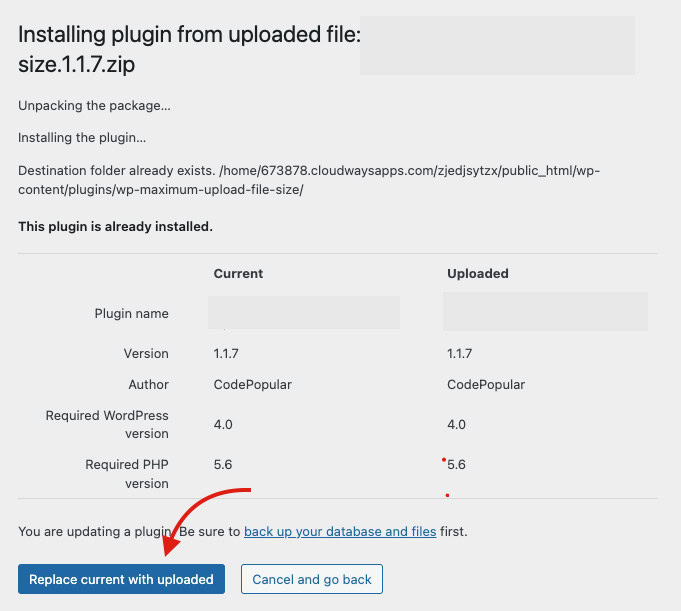
This option helps by replacing the existing files with the new ones, bypassing the folder issue entirely. It’s a simple solution that can save you a lot of time.
Delete the folder manually
You might choose this option to ensure all leftover files are completely removed, paving the way for a fresh installation. You can achieve this using either FTP or cPanel.
Using FTP
Connect to your server: Use an FTP client to connect to your server.

Locate plugins or themes: Navigate to wp-content within the root directory (often public_html or www) now, go into the plugins or themes folder.

Delete the problematic folder: Remove the folder causing the error for the plugin or theme.
Using cPanel
Log in to cPanel: Access your cPanel and open File Manager.
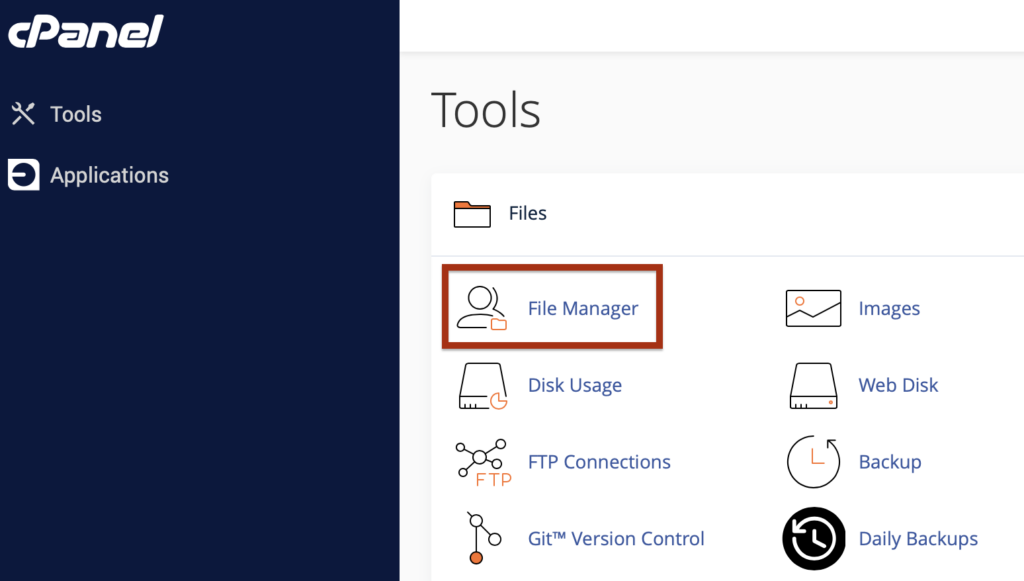
Find the directory: Navigate to the public_html directory and then to wp-content.
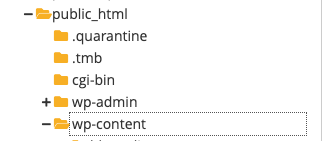
Open the relevant folder: Enter the plugins or themes folder.
Delete the problem folder: Delete the plugin or theme’s folder that’s causing the issue.
After clearing out the folders, head back to your WordPress dashboard and try the installation again. This approach should resolve the error and get your site back on track, allowing you to continue enhancing it without any hitches!
How to prevent this issue from recurring
To avoid facing the same error repeatedly, follow these easy steps:
Ensure a stable internet connection: Before you start installing anything, check that your internet connection is strong. This helps prevent interruptions during downloads.
Regularly clean up unused plugins and themes: Remove plugins and themes you no longer use. This helps prevent leftover folders from lingering and causing issues.
Opt for reliable hosting services: Choose a hosting service with a strong uptime record. A reliable host minimizes the risk of interruptions during installations.
Backup your site before updates: Always back up your site before making updates. This way, you can restore everything if something goes wrong, avoiding incomplete installations.
Parting thoughts
Fixing the “installation failed destination folder already exists” error doesn’t have to be a headache. With a clear understanding of the problem and a few simple steps, you can quickly get your WordPress site back on track.
Remember to keep your internet connection stable and periodically clean out unused plugins to prevent these issues from cropping up again.
FAQs
Plugin installation often fails due to an existing folder with the same name. Ensure there are no leftover files from previous installations before trying again.
Updates can fail due to interruptions like poor internet connectivity or server issues. Always backup your site before updating to prevent data loss.
Fix permission errors by adjusting the file and folder settings through your hosting control panel or FTP. Typically, folders should be set to 755 and files to 644.
Resolve this by adding a temporary folder path in the wp-config.php file. Contact your hosting provider for the correct path if you’re unsure.
Delete a plugin by navigating to the plugins section in your WordPress dashboard and clicking “Deactivate,” then “Delete.” For a thorough removal, you can also delete its folder via FTP or cPanel.