

Have you ever tried to visit a website and seen a big red warning? Maybe your browser said, “Dangerous site ahead!” Or Google told you, “This site may harm your computer.” It can feel scary or confusing, especially if it happens to your website.
You might ask, “Why did this happen?” It often means your website’s URL is blacklisted. Sometimes, bad code gets added to your site without you knowing. Other times, out-of-date plugins or weak passwords give hackers a way in.
If your site is on a URL blacklist, your search traffic will drop. You might also get emails from worried users or customers. This can happen to anyone, even if you run a small blog or business site.
Don’t worry—this is a common problem, and you can fix it. In this article, we will show you why URLs get blacklisted and how to handle. Together, we will help you keep your website safe and trustworthy.
URL blacklisting blocks visitors from your site and can hurt your traffic and reputation. Fixing it means finding and removing security issues, then asking for a review. Add a reliable WordPress security plugin to your site to keep it safe and off any URL blacklist.
What is URL blacklisting?
URL blacklisting is when certain web addresses are blocked, and people can’t visit them. Security systems, browsers, and search engines all keep lists of these “bad” URLs. These lists are made to protect people from online threats.
A URL can get blacklisted if it is linked to harmful actions. This might include phishing scams, spreading malware, or sending spam. For example, if someone hacks your site and adds dangerous code, it can end up on a blacklist.
When your URL is blacklisted, browsers like Chrome or Firefox will warn visitors not to enter your site. Sometimes, the browser will even block all access. You may see messages like, “This site may harm your computer.” It can be frightening and confusing for your users.

Search engines such as Google may blacklist sites and remove them from search results. This means fewer people will find your website. Your traffic could drop overnight, and your reputation could suffer.
How to check if your URL is blacklisted?
Checking if your website is on a URL blacklist is easy if you know what to look for. Here are simple steps you can take:
Use online blacklist checker tools: Websites like Sucuri SiteCheck or Google Safe Browsing let you check if your site URL appears on any blacklists.

Search your domain on search engines: Type your website’s address into Google or another search engine. If your site is on a URL blacklist, you may see warnings saying the site is unsafe.
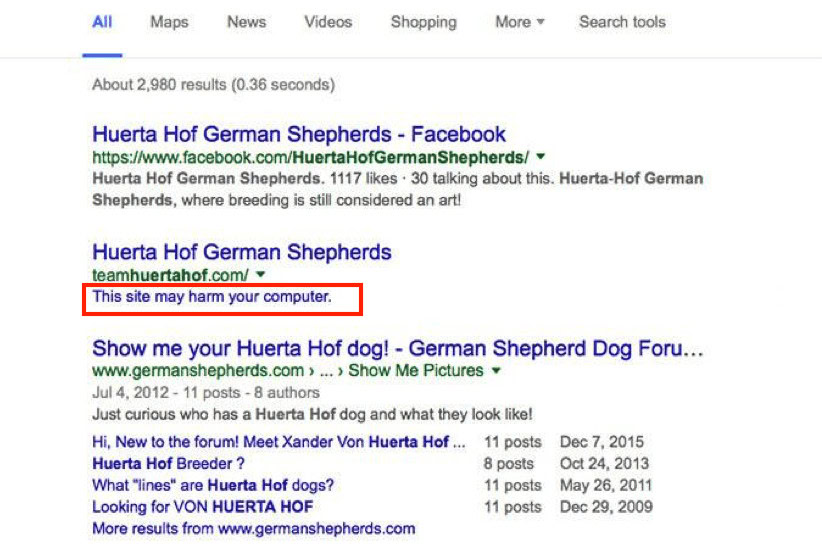
Watch for browser warnings: Visit your site using browsers like Chrome or Firefox. Browsers show clear warning pages when they block sites for security reasons.

Check Google Search Console: Google Search Console shows security alerts and manual actions. If your site has a problem, you’ll see a warning in your account.

Look in your security plugins or hosting dashboard: Security plugins or your web host will often warn you if your site is on a URL blacklist. Check your dashboard for alerts or warnings.
Check your email for alerts: Search engines or security companies will sometimes email you if your site is blacklisted or hacked. Don’t ignore these emails.

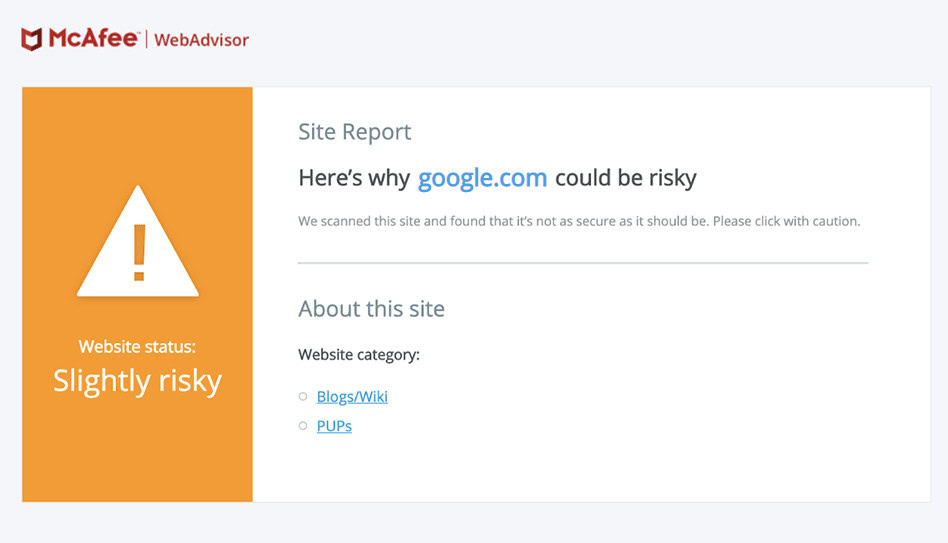
Check big security blacklists directly: Visit sites like Spamhaus, Norton Safe Web, or McAfee SiteAdvisor. They list websites known for spam or malware. Look up your URL to see if it’s listed.
How to fix if your site is on a URL blacklist?
If your site gets added to a URL blacklist, it can feel scary and stressful. You can fix this problem with the right steps. Here’s how to recover your site and keep it safe in the future:
Identify the reason for blacklisting
First, you need to know why your site is blacklisted. Use tools like Google Safe Browsing or Sucuri SiteCheck to scan your website. These tools tell you what went wrong, like malware infections, phishing, or spam content. Sometimes, you’ll also get a warning message from your browser or a notification from Google Search Console. Make sure you read these reports carefully so you understand the exact cause.
Remove any malware, viruses, or malicious code
Malware can hide in your site’s files, themes, plugins, or even database. Use a reliable WordPress security plugin to scan and clean your site. Delete or repair any infected files. Remove unauthorized users or admin accounts that may have been created by hackers. Double-check your site folders for strange files or unfamiliar code. Especially check places like wp-content/uploads and wp-includes. If you need further help, ask a professional or your web hosting support for it.

Update your WordPress site
Hackers often target old software because it has known security gaps. Go to your WordPress dashboard and update everything. This includes WordPress itself, all plugins, and all themes. Replace plugins or themes that do not get updates anymore with something safe and supported. This helps close the security holes that caused your site to be blacklisted in the first place.

Change all passwords
After a website hack, always assume your passwords are no longer safe. Change passwords for your WordPress admin, all user accounts, FTP (file transfer), and the database. Use strong and unique passwords—a mix of letters, numbers, and symbols. Don’t forget your hosting account and any email accounts linked to your website. Hackers sometimes get access to those as well. You should also inform your users to do the same.

Fix vulnerabilities
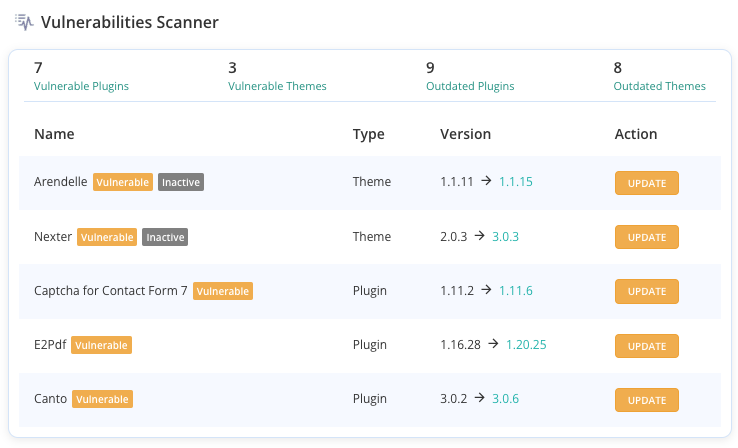
Look for weak spots that may have allowed hackers in. This could be insecure plugins, bad file permissions, or weak user accounts. Remove plugins and themes you don’t use or that seem unsafe. MalCare’s vulnerability scanner can be a great help in this. Also, review user roles and permissions—ensure only trusted people have admin access. Fixing vulnerabilities now protects your site from being added to a URL blacklist again.
Submit a review request
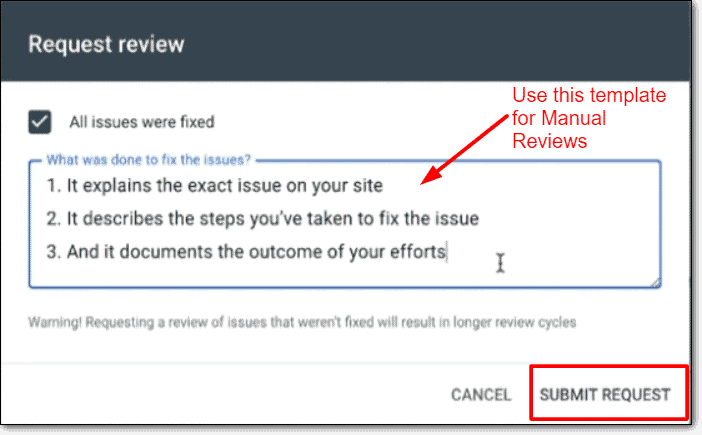
Once your site is clean and secure, it’s time to ask for a review. Each URL blacklist has its own process. For example, Google uses Search Console, and antivirus companies like Norton or McAfee have their own forms. Explain what happened, what you fixed, and request removal from the blacklist. Be honest and detailed to speed up the review.
Monitor your site regularly
Don’t wait for another URL blacklist problem to show up. Set up regular malware scans and schedule automatic checks with your security plugin. Pay attention to traffic patterns—sudden drops can signal a problem. Turn on notifications in your plugins or web host dashboard so you’re alerted right away if anything looks wrong.
Let your audience know once your site is fixed and safe again. Post an update on your website, send out an email, or share on your social media. Tell them what happened, how you solved it, and thank them for their patience. This builds trust and encourages people to visit your site again.
Why do URLs get blacklisted?
There are many reasons why a website gets added to a URL blacklist. Most often, it is because the site is doing something that puts people or their data in danger. Here are the most common reasons:
- Malware, viruses, or trojans: If your site has harmful software, it can infect visitors. Malware can sneak in through outdated plugins or hacked accounts.
- Phishing scams or stealing user data: Some sites try to copy other sites to trick visitors. These sites steal passwords, credit cards, or other private information.
- Spam emails or spam content: If your website is used to send lots of spam emails or hosts spammy pages, blacklists will flag it. Spam can annoy people and fill up their inboxes with junk.
- Hacking or defacement: When hackers get control of your site, they often change what visitors see. They might add unwanted ads, strange messages, or harmful links to deface your site.
- Distributing pirated or illegal content: Sharing illegal downloads or pirated software is never allowed. Blacklists quickly catch sites breaking copyright laws.
- Adult or inappropriate content: Hosting content that breaks internet guidelines, like adult material, can get your site blacklisted. This is especially true if it’s hidden or pops up without warning.
- Breaking search engine or hosting policies: Repeatedly breaking the rules of search engines or your web hosting company will get your site blocked.
- Outdated plugins or software: Old or vulnerable WordPress plugins and themes make it easy for hackers to slip through. Always keeping your site updated is key for safety.
- Bad domain history: If someone did suspicious things with your URL before you owned it, your site may start off blacklisted. Check a domain’s history before buying.
- Linking to other blacklisted or suspicious sites: If your website sends visitors to risky or blacklisted URLs, your site’s reputation drops. This can cause your own URL to get blacklisted too.
How to prevent your URLs from getting blacklisted?
It’s much better to stop problems before they start. Luckily, there are simple ways to protect your WordPress site from ending up on a URL blacklist. Here are easy steps you can follow:
- Keep WordPress, plugins, and themes updated: Updates fix security holes and bugs. Always use the latest versions to keep hackers out.
- Use strong, unique passwords: Don’t reuse passwords. Make sure every account, like admin, FTP, and the database, has its own strong password.
- Install security plugins and firewalls: A plugin like MalCare can help block attacks. It also comes with a firewall that adds another layer of protection.
- Scan your website regularly: Look for malware and problems before they grow. Security plugins like MalCare make this easy.
- Remove unused plugins or themes: Unused and old plugins are risky. Delete what you don’t need. Never use pirated themes or plugins—they often have hidden malware.
- Backup your website and database: Take regular backups to help you recover quickly if something goes wrong. Backup plugins make this simple.
- Use SSL (HTTPS): SSL encrypts your data. It makes your site safer for visitors and builds trust.
- Restrict user permissions: Only give people the access they need. Fewer admins mean fewer chances for mistakes.
- Watch for suspicious activity: Keep an eye on sudden traffic changes or strange user actions. This can warn you about trouble early. Use an activity log to make this easy.
- Educate users and staff: Teach everyone about phishing and dangerous links. The more people know, the safer your site stays.
- Use a reputable web hosting provider: Good hosts have better security. Cheap or unknown hosts may cut corners and put your site at risk.
- Secure your site forms: Protect login, comment, and contact forms against spam or code attacks. Form plugins often have good security settings.
Final thoughts
Your site landing on a URL blacklist can feel stressful, but you can fix it with the right steps. Keep your site updated, use strong passwords, and watch for any signs of trouble. Prevention is always easier than fixing a problem after it happens. If you act quickly and follow good security habits, you can get your site off a blacklist and keep your visitors safe.
Using a trusted WordPress security plugin makes everything much simpler. We recommend using MalCare to ensure complete security for your site. MalCare protects your site with a strong malware scanner, one-click malware removal, and a smart firewall. It also gives you real-time backups and scans for known vulnerabilities. Plus, MalCare keeps your site safe without slowing it down. This way, you can focus on growing your site, knowing your data and your users are protected.
FAQs
What is a URL blacklist?
A URL blacklist is a list of website addresses that are blocked because they are considered unsafe. When a site is on this list, browsers or security tools may stop people from visiting it. This helps protect users from harmful content, like viruses or scams. If your site is blacklisted, visitors may see warning messages and not be able to reach your site easily.
What is URL blocking?
URL blocking is when access to certain website addresses is stopped or restricted. This is done to protect users from harmful or unwanted sites, like those with malware or inappropriate content. If a URL is blocked, you may see a warning or error and can’t open the site. It helps keep users safe while browsing the internet.
How do I know if my URL is blacklisted?
You can check if your URL is blacklisted by using online tools like Sucuri SiteCheck, Google Safe Browsing, or VirusTotal. You can also search your site on Google or visit it in a browser to see if any warning messages appear. Checking Google Search Console and looking for alerts from your security plugin or hosting dashboard can also help you find out if your site is on a blacklist.
Why was my site blacklisted?
Your site was likely blacklisted because it was found to have security problems, such as malware, viruses, or phishing scams. Sometimes, sites are blocked for sending spam, using outdated plugins, or being hacked. Other times, sharing pirated or adult content, or linking to suspicious sites, can cause blacklisting. It is done to protect visitors and keep the internet safer.
How do I remove a URL from a blacklist?
To remove a URL from a blacklist, first find out why your site was blacklisted by using security scans or blacklist reports. Remove any malware or harmful code, update all plugins and themes, and change your website passwords. Once your site is clean and secure, contact the blacklist provider, like Google or antivirus companies, and request a review. They will check your site and remove it from the blacklist if everything is fixed.


