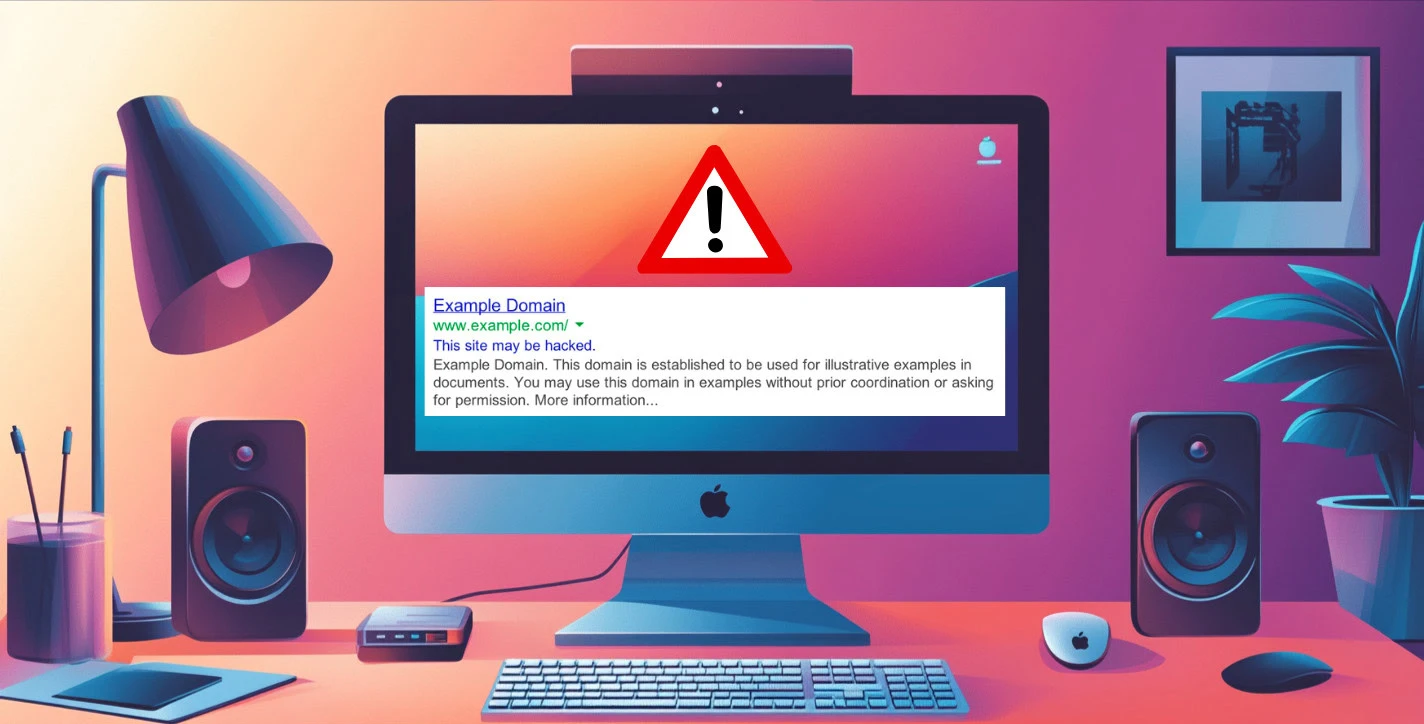
Imagine arriving at your business to find police tape blocking your entry. A large warning sign telling customers to stay away. The Google Safe Browsing Blacklist is the digital equivalent of this scenario. There’s a sense of immediate crisis for any website owner. Removing the Safe Browsing Blacklist is of the highest priority.
The truth is that this is likely a sign of a security breach. The first thing you should do is scan your site for malware.
The consequences of this Google blacklist extend beyond just scaring away visitors. Your hard-earned search rankings will start to drop too. Many website owners feel overwhelmed. There’s very little information on why they’ve been flagged or how to properly address the underlying security issues.
This article will walk you through understanding the Google Safe Browsing system. We’ll help you identify what caused your site to be blacklisted. You’ll have your site back to normal.
First identify and remove all security issues (like malware, phishing content, or deceptive software). Use a good security plugin like MalCare to do this easily. Once resolved, submit your site for review through Search Console’s “Request Review” option.
What is the Google Safe Browsing blacklist?
Google Safe Browsing is a security service that protects billions of internet users from harmful websites. When Google detects that a website has been hacked, or poses security risks, it adds that site to its Safe Browsing Blacklist. This protective measure helps shield users from various online threats, but for website owners, being blacklisted can be devastating.
The blacklisting system operates automatically through Google’s scanning algorithms that constantly evaluate websites for potential threats. Sometimes legitimate websites get blacklisted due to third-party elements like compromised plugins, infected advertisements, or vulnerabilities in outdated software that hackers have exploited.
Google typically adds websites to its Safe Browsing blacklist for several specific reasons:
- Malware distribution : If your website has been compromised and is distributing malware, either intentionally or unknowingly through hacked resources.
- Phishing content : Social engineering attack that acts as legitimate entities to trick users into revealing sensitive information like passwords or credit card details.
- Unwanted software : Websites that distribute deceptive software or applications that change browser settings without adequate disclosure.
How to remove a Google Safe Browsing blacklist warning
When your site gets flagged by Google’s Safe Browsing, time is critical. Quick action can minimize damage to your reputation and traffic. This section provides a streamlined process to identify the specific issues, implement necessary fixes, and submit for Google’s review—helping you get your site back in good standing as rapidly as possible.
Step 1: Identify the malware
There are a lot of security plugins and tools that you can use to find the malware but here is what we would recommend:
Use a security plugin
The first step is to examine every corner of your WordPress installation where malware might be hiding. Tools like Sucuri Site Check often only scans the publicly accessible portions of your WordPress site. This significantly limits its effectiveness.
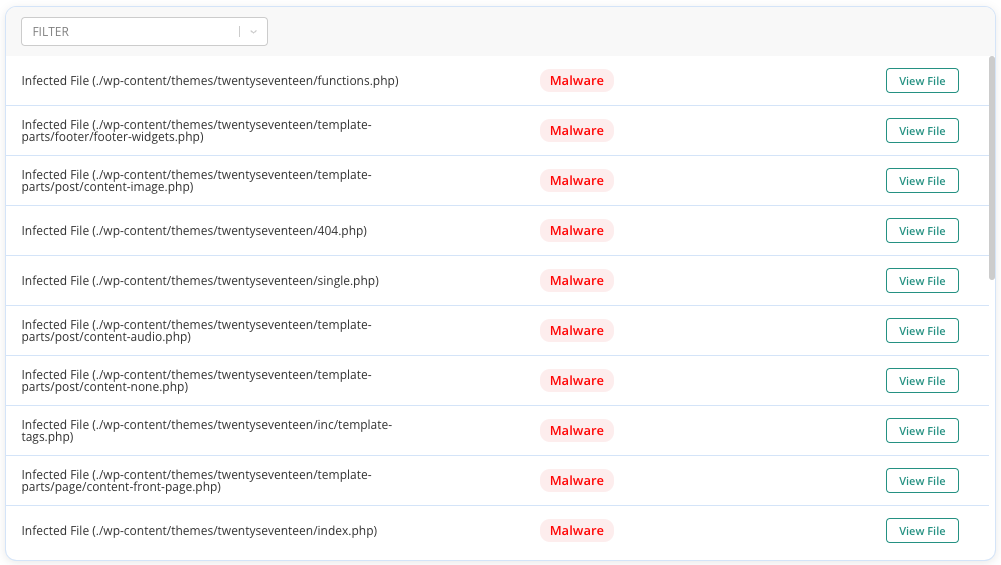
We’ve tested the top malware scanners and have found that MalCare is the best. The scanner compares your files against known signatures while also using behavioral analysis to detect new, unknown threats that signature-based scanners would miss.
Use Google Search Console
While MalCare provides comprehensive detection, checking Google Search Console gives you additional insight:
-
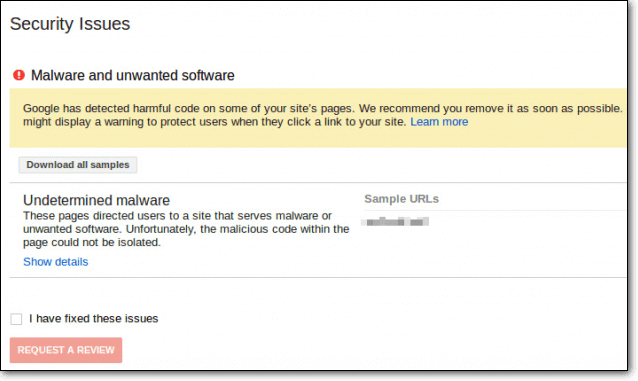
Access the Security Issues section in Search Console
-
Note the specific URLs and threat types Google has flagged
-
Cross-reference this information with your MalCare scan results
Step 2: Remove the malware or security risk
Once you’ve identified the security issues that triggered Google’s Safe Browsing blacklist, swift and thorough removal is essential.
The most efficient way to clean your WordPress site is using MalCare’s automated malware removal feature. After completing the scan that identified malicious code, you can remove the malware directly from your MalCare dashboard:
- Install the MalCare plugin.
- Scan the site for malware.
- If it identifies any, upgrade your site to a paid subscription.
You will then be able to clean the malware in one-click.

MalCare’s automated removal technology works by surgically removing malicious code while preserving your legitimate content. This precision approach eliminates the risk of breaking your site during cleanup, which can happen when manually editing files.
The cleaning process typically completes within minutes, even for heavily infected sites. MalCare handles complex infections including deeply nested malware, obfuscated code, and sophisticated backdoors that would be challenging to remove manually.
Alternative Removal Methods
- Manual removal: While possible if you have technical skills, manual malware removal carries significant risks. The process is time-consuming, requires identifying and safely editing infected files, and even one overlooked malicious script can lead to reinfection.
- Professional services: Hiring security experts is another option, but typically comes with higher costs and extended timelines.
Step 3: Fix your security
After successfully removing malware from your WordPress site, implementing these critical security measures will help improve your security. This is an important step to take before you ask Google to review your site again.
-
Ensure all components of your WordPress installation are running the latest versions
-
Install an SSL certificate on your WordPress site

-
Remove any abandoned plugins or themes
-
Reset access credentials across your entire website
-
Enable two-factor authentication for all user accounts
-
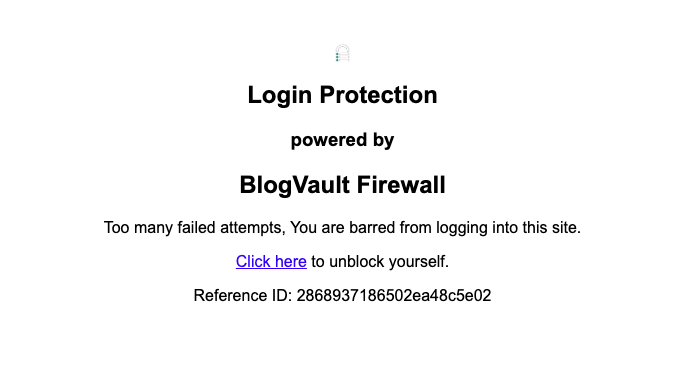
Limit login attempts to prevent brute force attacks
-
Review and remove unnecessary user accounts
-
Disable file editing from the WordPress admin
-
Set proper file permissions (directories: 755, files: 644)
Step 4: Fix the SEO
After cleaning your site of malware, addressing SEO issues is crucial before requesting Google’s review. Examine your site and fix the following:
- Compare how your pages appear in a normal browser versus when viewed through a Google cache
- Remove any scripts that detect search engine bots and serve different content
- Remove any scraped content stolen from other websites
- Eliminate duplicate content across your pages
- Fix keyword stuffing where unnatural repetition of keywords occurs
- Identify and remove any paid links without proper nofollow attributes
- Check for automatically generated backlinks from spam sites
- Look for suspicious outbound links that may have been added by malware
- Remove doorway pages designed solely for search engines
- Update and resubmit your sitemaps to help Google reindex your clean site:
- Verify that all problematic behaviors have been eliminated
- Examine the Security Issues section for any outstanding penalties
- Document your fixes in preparation for the Google review
Step 5: Request a review from Google
After thoroughly cleaning your website and implementing security measures, it’s time to request that Google review your site and remove it from the Safe Browsing blacklist. This critical step requires careful attention to ensure the fastest possible reinstatement.
-
Log into your Google Search Console account
-
Navigate to the Security Issues section
-
Review the list of security issues that were previously identified
-
Confirm that you’ve addressed each specific issue listed
-
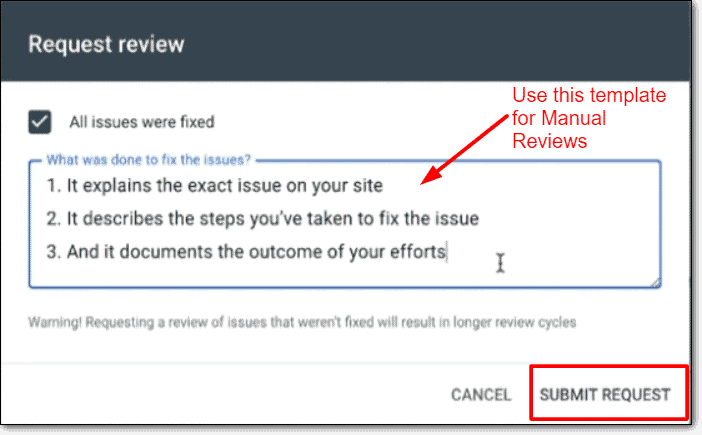
Click the Request Review button in the Security Issues section
-
Complete the provided form with detailed information about your remediation efforts
-
Include specific actions taken to clean up any SEO issues and the security measures you implemented
Google will reexamine your site for any remaining security issues. Their automated systems will test for malicious behavior. If your site passes inspection, the warnings will be removed
If Google rejects your blacklist removal request
If issues are still detected, you’ll receive notification with details. Firstly, don’t panic. Carefully read Google’s feedback about remaining issues. Scan your site again and address any newly identified or remaining problem. Submit another review request after fixing these issues
Google may limit how frequently you can submit review requests, so ensure your site is completely clean before each submission.
Preventing future blacklisting by Google Safe Browsing
After successfully removing your site from Google’s Safe Browsing blacklist, preventing a recurrence should be your top priority. Being blacklisted once increases scrutiny of your site, making it essential to maintain robust security practices moving forward. Here’s how to ensure your WordPress site stays secure and avoids future issues:
- Strengthen your site’s security: Install comprehensive security plugins like MalCare that offer malware scanning, firewall protection, and login security. Configure a web application firewall (WAF) to filter malicious traffic before it reaches your site/ Implement IP blocking for suspicious activity patterns. Enable rate limiting to prevent brute force attacks.
- Regularly update everything: Outdated software is the most common entry point for malware. Keep WordPress core updated to the latest version. Update all plugins and themes promptly when new versions are released. Remove any abandoned plugins or themes that are no longer maintained. Set up automatic updates when possible for minor releases
- Secure administrative areas: Use strong, unique passwords for all administrator accounts. Implement two-factor authentication for all users. Limit login attempts and track failed login attempts. Change the default WordPress login URL to reduce automated attacks. Limit the number of administrator-level accounts
- Monitor regularly: Set up automated daily security scans of your entire site. Enable file change detection to alert you of unauthorized modifications. Monitor your site’s blacklist status across multiple services. Review your site’s security logs regularly for suspicious patterns.
- Set up security alerts: Configure email notifications for security events and potential threats. Set up alerts for unusual login activity or access patterns. Enable notifications for critical file changes. Create Google Search Console alerts for security issues
- Educate and train your team: Human error remains a significant security vulnerability: Train all team members on security best practices and threat recognition. Establish clear security protocols for content updates and site management. Implement the principle of least privilege—grant only the access levels necessary. Create documentation for security procedures and incident response.
Consequences of the Google Safe Browsing blacklist
Being placed on Google’s Safe Browsing blacklist triggers a cascade of serious consequences that can devastate your online presence. Understanding these impacts helps emphasize why immediate action is crucial.
Immediate loss of traffic and revenue
When your website appears on the blacklist, visitors are met with alarming red warning screens across all major browsers. These warnings are designed to be frightening—showing messages like “Deceptive site ahead” or “The site ahead contains malware.”
Most users will immediately leave rather than proceed past these warnings, causing your traffic to plummet almost instantly. For e-commerce sites or businesses that depend on online leads, this translates directly to drop in traffic and lost revenue with each passing day.
Severe reputation damage
The reputational damage extends beyond just lost visits. When customers and clients encounter security warnings on your site, they associate your brand with security threats and untrustworthy business practices. This erosion of trust can persist long after the technical issues are resolved, as people remember negative security experiences more vividly than positive ones. Business partners, affiliates, and collaborators may also distance themselves from your organization to protect their own reputations.
Search engine ranking penalties
Google doesn’t just warn visitors—it also penalizes blacklisted sites in search rankings. Your carefully optimized SEO efforts become largely ineffective while blacklisted, as Google dramatically reduces your visibility in search results. Even after removal from the blacklist, it often takes considerable time to regain your previous search positions, extending the period of reduced traffic and visibility.
Social media and email marketing disruption
Most social media platforms and email services also integrate with Google Safe Browsing. This means links to your site shared on Facebook, Twitter, or sent via email may be blocked or flagged with warnings. Email campaigns can be rendered completely ineffective, and social sharing—a crucial traffic driver for many businesses—becomes impossible while blacklisted.
Long-term recovery challenges
Even after successful removal from the blacklist, the road to complete recovery is often long. Search rankings take time to rebuild, user trust needs to be re-established, and the negative impact on your conversion rates may persist for weeks or months. Many businesses report that it can take 3-6 months to fully recover from Google Safe Blacklisting, with some reporting lingering effects for even longer.
Financial impact beyond lost sales
The financial consequences extend beyond just lost sales. Many businesses need to hire security specialists or developers to address the underlying issues, adding unexpected costs. The time and resources diverted to addressing the blacklisting problem represent significant opportunity costs, pulling focus from core business activities during the crisis period.
Final thoughts
Google’s Safe Browsing blacklist serves an important purpose in protecting internet users, but when your site ends up on it, the consequences can be severe and immediate. Visitors are greeted with alarming red warning screens, traffic plummets, and your hard-earned reputation can suffer significant damage with each passing day. For businesses that depend on their online presence, even a short period on the blacklist can result in substantial revenue loss and eroded customer trust that may take months to rebuild.
The technical challenges of addressing a blacklist situation only compound these problems. Identifying malware, cleaning infected files, implementing security measures, and navigating Google’s review process requires specialized knowledge that many website owners simply don’t possess.
This is where solutions like MalCare provide exceptional value. By automating the most complex aspects of malware detection and removal, MalCare transforms what could be days of stressful troubleshooting into a streamlined process that can be completed in hours. The peace of mind that comes from knowing your site is continuously monitored for new threats is invaluable, particularly after experiencing the disruption of a blacklisting event.
FAQs
To get removed from Google’s blacklist:
Identify security issues using Google Search Console and a reliable security plugin like MalCare
Clean all malware from your site (either automatically with MalCare or manually)
Fix any SEO issues including cloaking, keyword stuffing, or malicious redirects
Implement security measures to prevent reinfection
Request a review through Google Search Console with detailed information about your fixes
Wait for Google to review your site (typically 1-3 days)
Monitor your site status for successful removal
You cannot remove Google Safe Browsing itself as it’s Google’s security system that protects users. If your site has been flagged by Safe Browsing, you need to:
Clean your site of any malware or security issues
Fix policy violations that triggered the warning
Submit your site for review through Google Search Console
Once approved, Google will remove the warning users see when visiting your site
To fix a website blocked by Google Safe Browsing:
Check Google Search Console for specific security issues
Scan your site thoroughly with a security tool like MalCare
Remove all detected malware and unauthorized code
Secure your site by updating all software and implementing security measures
Test your site to ensure all malicious content is gone
Request a review from Google through Search Console
Continue monitoring your site for security issues
If Chrome is showing warnings when visiting your site:
The warning comes from Google Safe Browsing, not Chrome specifically
You cannot bypass or remove this warning for visitors
The only solution is to clean your site of security issues
Follow the complete malware removal process outlined above
Request a review through Google Search Console
Once Google verifies your site is clean, the Chrome warnings will automatically disappear for all visitors
Remember that these warnings protect users, so the focus should be on fixing the underlying security issues rather than trying to remove the warnings themselves.