Google Search Console security issues can turn a normal-looking WordPress site into a hidden visitor-safety problem.
A user may encounter hacked content, a malicious download, or a deceptive redirect on a page you rarely visit.
This guide shows you how to investigate the warning, secure your site, remove the compromise, verify every fix, and request a Google review when your site is ready.
TL;DR: Keep the report details and treat its URLs as samples, not the full scope of the incident. Secure Search Console, follow a WordPress security checklist, clean and patch the whole WordPress installation, test the result, and request a review only after every reported issue is fixed.
What do Google Search Console security issues mean?
Google Search Console security issues mean Google found evidence that your site may be hacked or may expose visitors or their devices to harmful or deceptive behavior. This is a visitor-safety signal, not just a ranking or indexing problem.
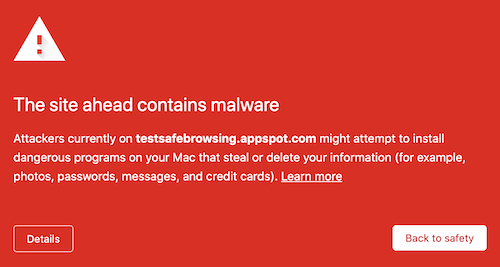
Google groups these findings into three broad families:
- Hacked content: Unapproved spam URLs, text, links, redirects, or code added to the site.
- Malware and unwanted software: Harmful or deceptive software served by the site or offered as a malicious download.
- Social engineering: Content that tricks visitors into sharing information, calling a fake support number, downloading software, or trusting a deceptive page or embedded resource.
The warning is different from a crawl error, an indexing problem, or a Manual Action. A Manual Action usually concerns search-policy violations; Security Issues concerns hacking or harmful visitor behavior. Fixing a 404, changing an SSL certificate, or addressing a Manual Action does not clean hacked content.
What should you do first?
First, preserve the evidence and confirm that you are looking at the correct Search Console property. Before deleting anything, record:
- the exact issue name and description;
- the first detected date and current status; and
- every sample URL or resource Google lists.
Then check who can access the property and whether important settings changed. Do not start by deleting the listed page, submitting a removal request, or requesting a review. Those actions can hide a symptom without removing the code, access, or persistence that caused it.
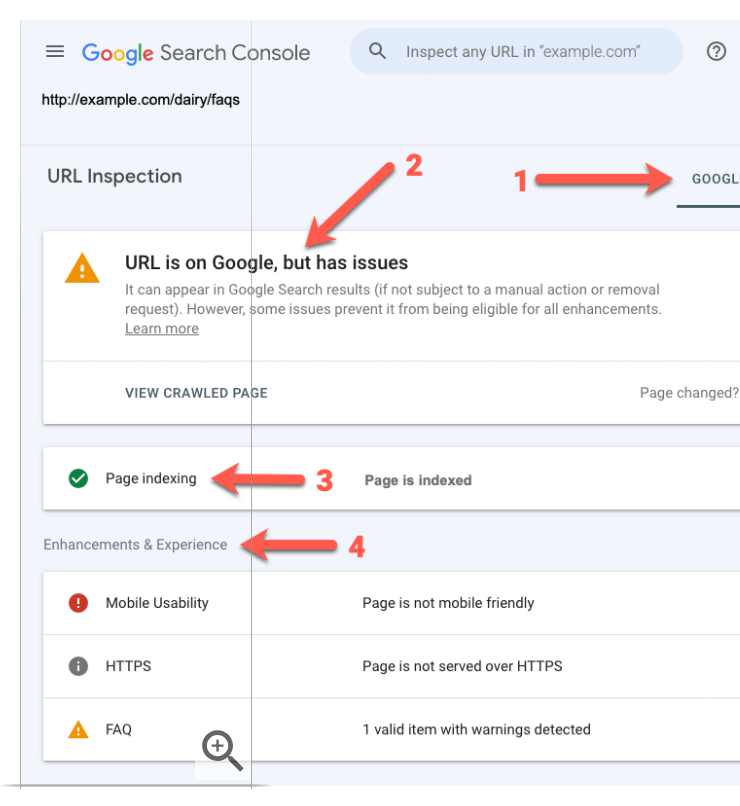
📝 Note: Do not open an unfamiliar flagged URL casually in your normal browser. For suspected malware, phishing, or harmful downloads, use URL Inspection or ask a qualified operator to use controlled diagnostics.
Why are the URLs in the report not the whole problem?
The URLs in the report are samples of where Google observed a problem, not a complete map of every affected page or resource. Google may provide incomplete samples, and some issues may have no example URLs at all.
Think of a sample URL as the place where smoke was noticed, not a map of every room that needs checking. Search the rest of the site for the same content, redirects, files, accounts, and settings. Removing one indexed URL or fixing 404 pages in Google’s index does not remove malicious code, an unauthorized administrator, a stolen password, or a scheduled task that can recreate the problem.
Can the site look normal when the warning is real?
Yes. A normal homepage does not prove the site is clean, and a drop in website traffic can be another symptom worth investigating. Google may have found a deep URL, a download, a redirect, an embedded resource, or content shown only to certain visitors.
Cloaking can produce different results for an administrator, Google, and an ordinary visitor. A failed attempt to reproduce the warning in your usual browser is therefore not proof that the report is false. Use the Security Issues report as the status source and check affected paths only through safe diagnostic methods.
If you cannot inspect HTTP responses, redirects, downloads, or server behavior safely, stop at evidence collection and involve your host or a security professional. A safe escalation is better than repeatedly opening a suspicious page or changing files without a recovery plan.
How do you check whether Search Console access was changed?
Review Search Console access before or alongside site cleanup. An attacker who still controls the property, a verification token, or a connected account may be able to hide symptoms or undo the repair. Check these areas:
- Owners and users: Check for unfamiliar people or accounts with access. Remove unauthorized access while preserving a recovery path for the legitimate owner.
- Verification methods: Look for unfamiliar HTML files, meta tags, DNS records, or other verification tokens. Remove unauthorized methods after confirming that a legitimate owner does not need them.
- Property settings: Review removal requests, change-of-address settings, sitemaps, and robots directives for unexpected changes.
- Connected credentials: After the incident is contained, rotate WordPress administrator, hosting, control-panel, SFTP or FTP, database, and related Google account passwords or tokens.
A qualified operator may also rotate WordPress security salts. Coordinate that step with the recovery plan because it can sign out legitimate users and affect integrations.
How do you investigate a WordPress site safely?
Investigate the whole WordPress installation, not only the URL named in Search Console. Before invasive changes, keep a backup or forensic copy when it is safe to do so, but do not assume a backup made after the compromise is a clean restore point. Review these areas:
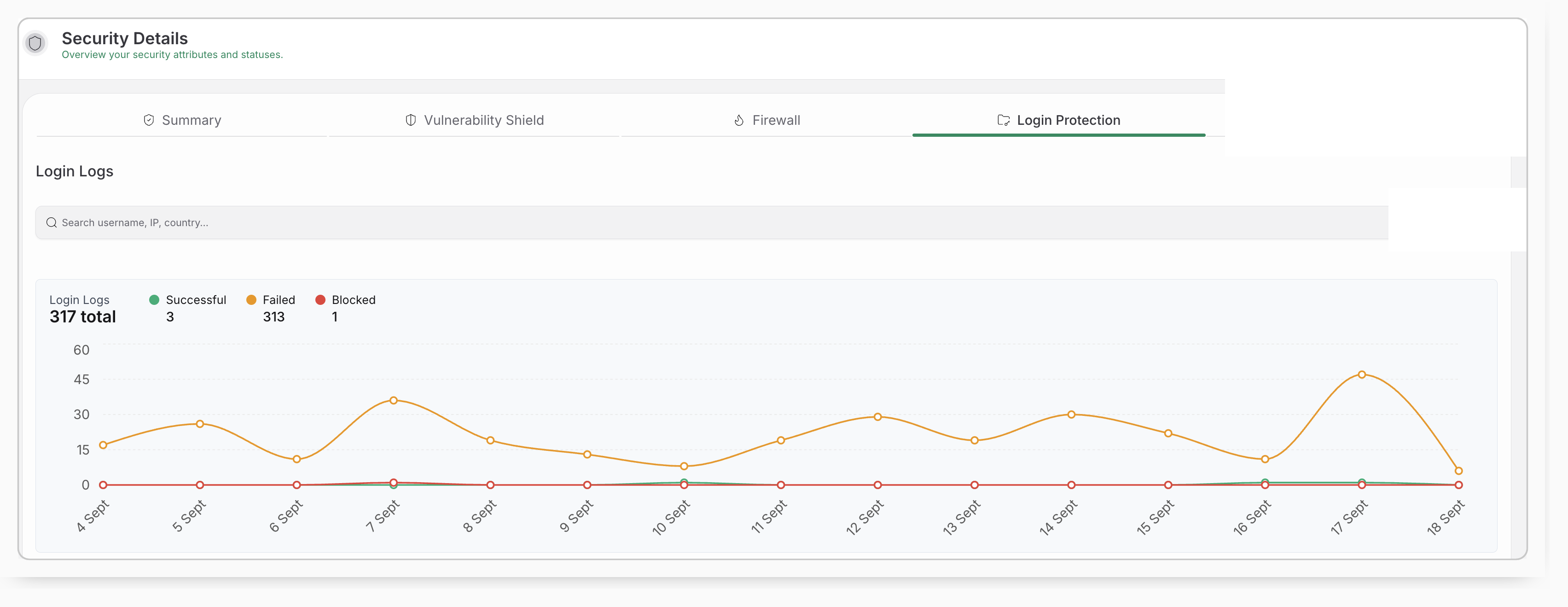
- Accounts: Look for unknown administrators, unexpected role changes, and changes to legitimate users.
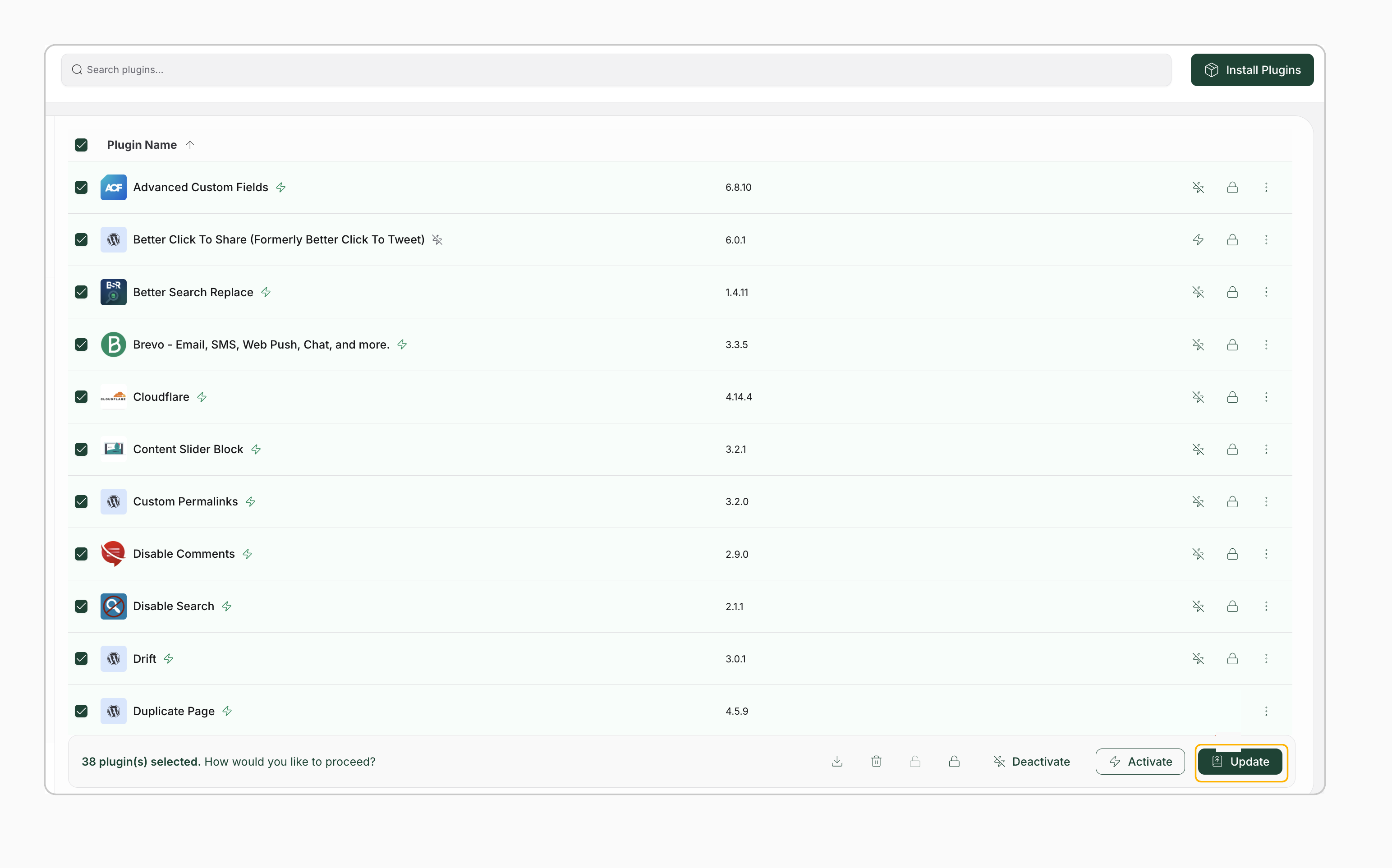
- Software: Update WordPress, plugins, themes, and server software. Remove abandoned or unnecessary components after confirming that they are not required.
- Files: Check core files, plugins, themes, must-use plugins, drop-ins, and uploads. Malicious code can be hidden in a familiar file or behind an innocent-looking extension.
- Stored content: Search posts, pages, options, metadata, widgets, and custom tables for injected links, scripts, spam text, or redirects.
- Persistence: Inspect scheduled tasks, WordPress cron jobs, redirects, server configuration, and
.htaccesswhere applicable. These are investigation areas, not proof that every location is infected. The entry point may be an outdated component, a vulnerable plugin or theme, a stolen password, an insecure server setting, or a compromised third-party service. Removing the visible payload without closing the entry point is how reinfection happens.
📝 Note: Do not delete PHP files, database rows, administrator accounts, or plugin directories just because their names look unfamiliar. A blind deletion can break the site while leaving the actual persistence behind.
For a non-technical owner, the practical boundary is simple: check accounts and recent changes if you know how, but get help before editing PHP, database records, server configuration, or scheduled tasks. If you cannot explain a file or setting, do not remove it on a guess.
How should you choose a cleanup method?
Choose manual cleanup only when you or a qualified operator can inspect files, databases, accounts, scheduled tasks, and server configuration safely. Otherwise, involve your host, a security professional, or a supported WordPress security service.
MalCare can be one supported option when deeper WordPress diagnosis or cleanup is beyond your comfort level. MalCare’s scanner can inspect site files, database tables, and scheduled tasks using signature matching, file-integrity checks, and behavioral analysis. Its malware-removal service covers WordPress core, plugins, themes, the database, and .htaccess.
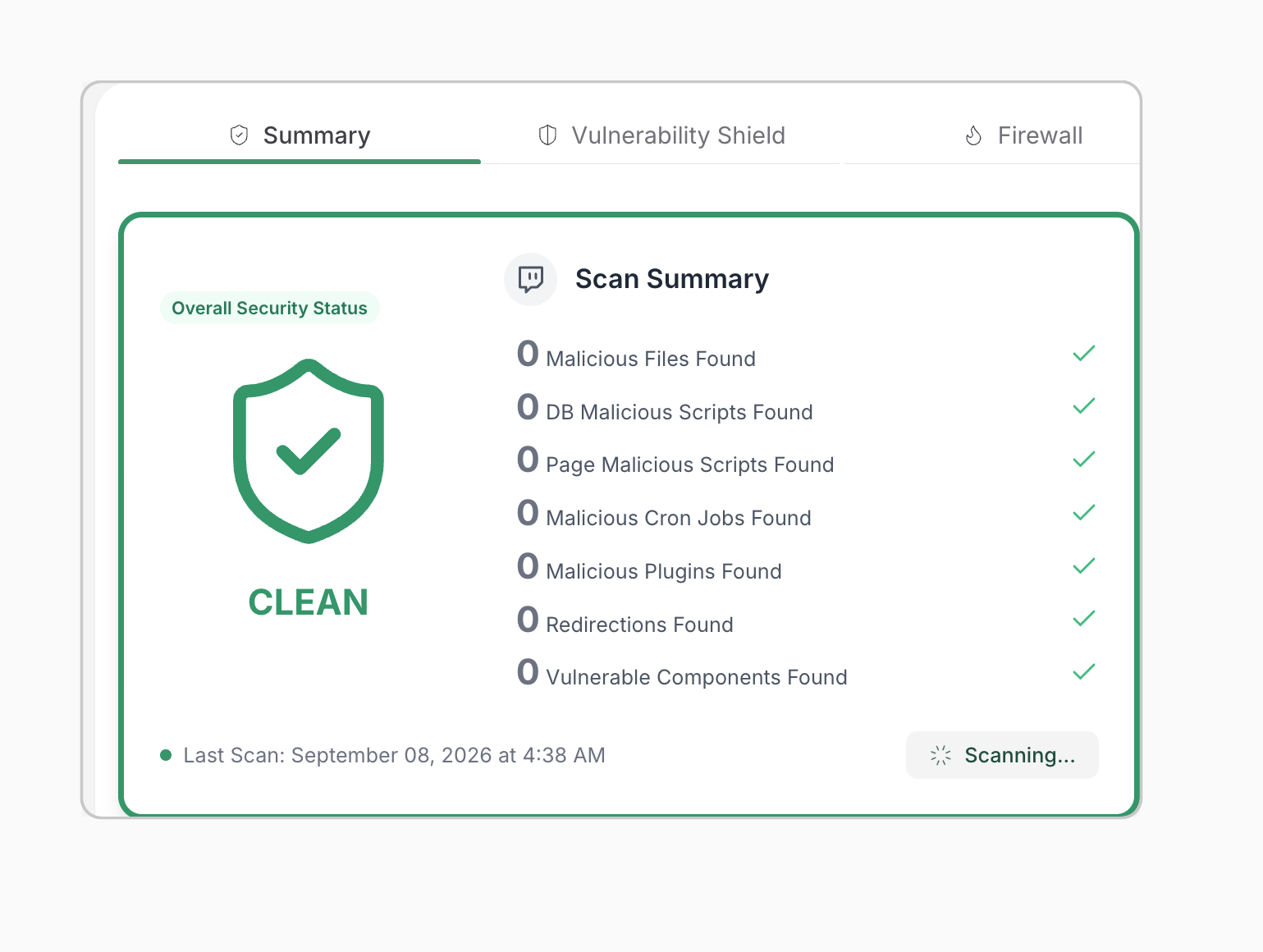
That can reduce the technical burden, but it is not a substitute for checking Search Console access, rotating exposed credentials, patching the entry point, and independently verifying the site. No scanner or cleanup service proves that every compromise is gone in every hosting environment.
What if the report mentions a download, redirect, or unfamiliar domain?
First determine whether the download or destination is intentional and appropriate; then determine whether an attacker added it or changed where it leads. A download warning does not automatically mean that every legitimate file on the site is malware, but an ordinary-looking file or familiar domain is not automatically safe. Use this checklist:
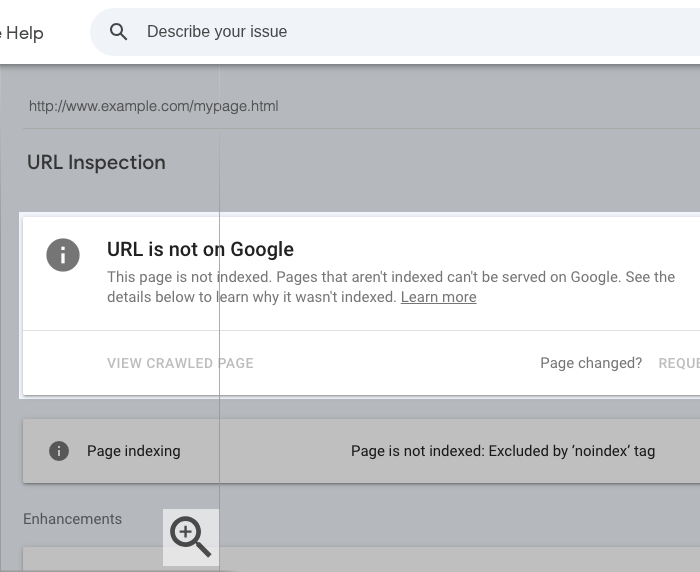
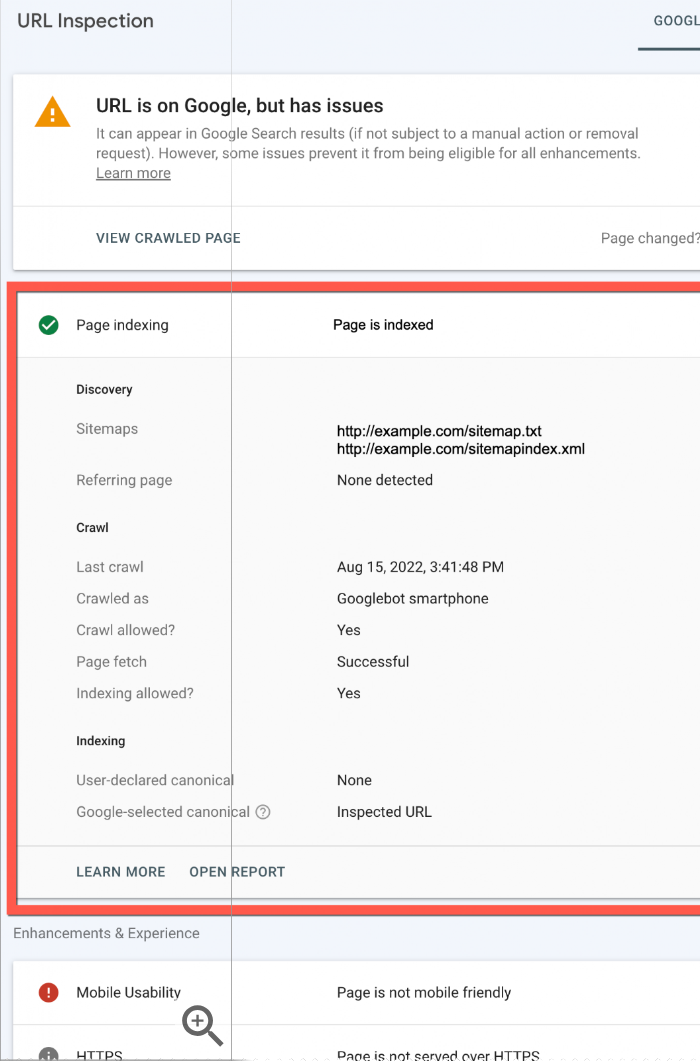
For a suspicious path, URL Inspection can expose crawl and indexing details without requiring you to open the path casually.
- Remove harmful files, links, redirects, or embedded resources after preserving enough evidence to understand how they appeared.
- Search related pages, uploads, database content, templates, and redirects for copies of the same indicator.
- Check ads, scripts, images, iframes, and other third-party resources because a normal-looking page can load deceptive content from elsewhere.
- Test the visitor path safely on relevant device types and states when a qualified operator can do so.
Treat an unfamiliar domain named in the report—such as xtracking.me, if it appears in your own report—as an indicator to investigate, not as an invitation to visit or promote it. The domain name alone does not tell you whether the problem is a deceptive redirect, an injected link, a compromised resource, or a legitimate download that needs a separate policy review.
When should you request a review?
Request a review only after all listed issues are fixed throughout the site and the fixes have been tested. Request Review is a verification step, not a way to ask Google to find the remaining infection for you.
Before submitting, confirm that you have:
- Rechecked the reported examples, templates, downloads, redirects, and embedded resources.
- Removed the malicious content and persistence from the relevant files and database areas.
- Removed unauthorized users and verification artifacts from Search Console and WordPress.
- Patched the vulnerable software, configuration, or access path that allowed the change.
- Tested the site from appropriate visitor contexts and checked that the symptoms do not return.
Explain the repair plainly. A useful review request covers four points:
- What Google reported: Name the issue and affected behavior.
- What you repaired: Describe the content, files, accounts, settings, or resources removed or restored.
- How you closed the cause: Explain the patched vulnerability, revoked access, or corrected configuration.
- How you verified the result: Summarize the checks that showed the issue was gone.
For example: “Google reported hacked content on these paths. We removed the injected content and persistence, updated the vulnerable component, rotated affected credentials, and checked the reported paths and templates.” Keep the description accurate and do not include passwords, raw malware, private customer information, or unnecessary sensitive logs.
Google says reviews commonly take several days or weeks. Do not submit another request while one is pending. If Google declines the request, use the remaining issue details to continue investigating, make further fixes, test again, and submit a new request only after the site is ready.
How do you prevent another security warning?
Prevent a repeat warning by closing both the weakness and the persistence that allowed the incident to continue. After cleanup:
- keep WordPress, plugins, themes, and server software maintained;
- remove components you no longer need and limit administrator access;
- use unique strong passwords and two-factor authentication where available;
- keep backups separate from the live site and test that they restore;
- monitor for new administrators, unexpected file changes, vulnerable components, redirects, and spam URLs.
Firewalls, scanners, and activity alerts can support this work. They do not replace patching, access control, tested backups, or a complete post-incident check.
Conclusion
Google Search Console security issues are an incident signal, not a to-do item to clear by hiding one URL. Preserve the evidence, secure the property and accounts, inspect WordPress beyond the visible page, remove the compromise, close its entry point, and verify the result from appropriate contexts.
Your next step is to open the Security Issues report and record its exact details before changing the site. A clean-looking homepage is not the finish line; a verified site with its entry point closed is. Request a review only when you can explain what you repaired, why it happened, and how you verified the fix.