

You’ve just discovered that your Google search results redirect to spam sites. Clients are complaining about ending up on adult content sites or sketchy ecommerce ones. The panic and confusion are setting in now. The bad news is that your website is likely hacked and resulting in Google indexing issues.
The first thing to do is to scan your full website for malware. We’re talking about your site files and database tables.
The good news? We’ve been there, we’ve recovered our website and we’ve got your back. With the right tools your website will be running as normal very quickly. We’ll walk you through all the steps in this article.
Google search results redirect to spam sites because malware has infected your website. It is manipulating the code that handles search engine traffic and redirecting legitimate visitors to malicious sites. Install a security plugin like MalCare to scan your entire website for malicious code and automatically clean the redirect scripts.
Why Do Google Search Results Redirect to Spam Sites?
When Google search results redirect to spam sites, the culprit is almost always a WordPress hack. It has infiltrated your website’s code or your visitors’ devices. This isn’t a Google problem – it’s a sophisticated attack that exploits multiple vulnerabilities to hijack legitimate search traffic and monetize it through spam sites.

Here’s how it works:
- Hackers exploit vulnerabilities in outdated WordPress plugins and themes to gain access to your website
- They inject malicious redirect code into your website’s header files, database, and core directories
- The malware detects when visitors arrive from Google search results and activates redirect scripts
- Visitors get instantly redirected to spam sites before they realize they’ve left your website
- Attackers create fake Google-like URLs to make the redirects appear legitimate and trustworthy
Step 1: Scan for Malware that is Redirecting Search Results to Spam Sites
Before you can fix the redirect problem, you need to identify exactly how this redirect hack is hijacking your search traffic. This diagnostic step is crucial because Google search results redirect to spam sites through various types of malware.
There are two primary methods for scanning your website as seen below:
Option 1: Using an Automated Malware Scanner
Malware scanner plugins like MalCare are specifically designed to detect redirect hacks that cause search result to redirect to spam sites. Unlike basic antivirus software that focuses on traditional computer viruses, MalCare specializes in website-specific threats. It analyses the behaviour of the code and matches it to malicious behaviour, flagging it.
To scan your website with MalCare, start by installing the plugin directly from your WordPress dashboard or by creating an account on the website. Once installed, the plugin will automatically initiate a deep scan. The scanning process typically takes 5-10 minutes for average websites.
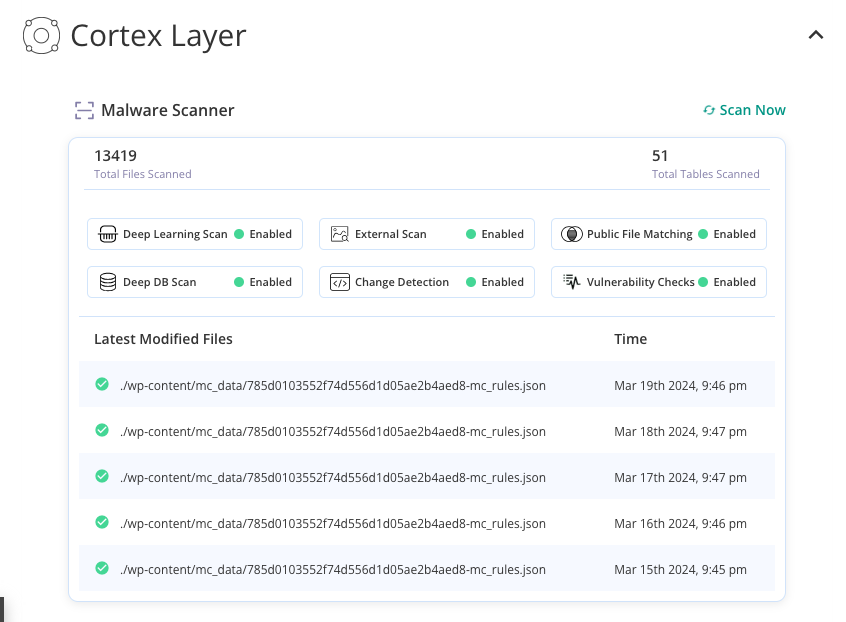
Why choose MalCare when Google search results redirect to spam sites?
- Scans entire website in under 10 minutes
- Specifically detects Google traffic hijacking malware
- Examines hidden malware in WordPress databases
- Advanced algorithms distinguish malware from legitimate code
- Automatically cleans infected files without manual intervention
- Blocks new malware infections before they redirect traffic
- Tests cleanup on copy before applying to live website
- 24/7 support for critical redirect malware situations
Option 2: Manual Scanning
Manual scanning involves systematically examining your website’s code, files, and database to identify the malicious modifications causing Google search results to be redirected to spam sites. This detective work requires technical expertise, an understanding of malware and viruses and have lots of time to conduct a thorough investigation.
What to scan for manually:
Access your website files and database tables through your hosting control panel or FTP client. Then systematically examine each area listed below. Look for any code that includes conditional statements checking for referrer URLs or unauthorised user agents.
- Recently modified files – Check files changed around when redirects started (especially PHP files)
- htaccess file – Look for unexpected redirect rules or mod_rewrite conditions
- Header and footer files – Common injection points for redirect malware
- JavaScript code – Search for redirect functions, unfamiliar URLs, or obfuscated code
- Database entries – Check wp_options table for suspicious URLs or JavaScript snippets
- Theme customization fields – Look for malicious code stored in widget areas
- Posts and pages – Scan for injected links or hidden redirect content
- External script requests – Use browser developer tools for unexpected HTTP requests
- Console errors – Check for JavaScript errors indicating malware conflicts
Expert advice: We do not recommend this method because of how prone to failure it is. It is also very time consuming. So, in a situation where you’re trying to fix the hack as soon as possible, this method is more damaging.
Step 2: Remove Malware to Stop Google Search Results Redirect to Spam Sites
Once you’ve identified what is causing Google search results to be redirected to spam sites, the next step is to remove the malware. You have three main options for malware removal and we’ll talk about all of them in this section:
Option 1: Automatic malware cleaning (RECOMMENDED)
MalCare’s malware removal system is designed to eliminate complex redirect malware. It correctly identifies the malicious code and can remove it without damaging your site. The best part? It just takes a few minutes.
All you have to do is go to the dashboard and click Clean Malware in the security section. Within minutes you’ll get a report once it’s done. Run another scan to confirm that your site is now spotless. Check your listings now.

Option 2: Hire an Expert
The second option is to hire a professional who will remotely access your website and clean the malware. Reach out to your security plugin or a maintenance company to do so. The expert will usually request administrative access to your website, hosting account, and your server. Then, you’ll get added into a queue and have to wait for them to clear your site.
While hiring an expert is easy, this method can be time consuming and expensive.
Option 3: Manual Removal
When your google search results redirect to spam sites, the malware is very complicated to remove manually. Much like malware scanning, this is a method that requires a lot of technical knowledge. You need to know which line of code is causing the problem and how to remove it carefully without deleting legitimate code.
Start by backing up your website completely before making any changes. Then work systematically through each infected component identified during your scan. Remove the malicious sections of the code if you can identify it. You can also download a fresh version of the file from WordPress that you use instead.
Clean your database by removing suspicious entries from configuration tables, widget areas, and post content. Restore your .htaccess file from a clean backup or rebuild it from scratch. Replace any compromised theme or plugin files with fresh downloads from official sources.
There’s a huge chance that you’ll miss malicious code or accidentally delete functional bits of code. It’s also very time consuming to go through every file and table and carefully dissect it.
Prevent Google Search Redirects to Spam Sites
After figuring our why Google search results redirect to spam sites, the next step is to prevent it from ever happening again. The short answer is that this hack could have easily been prevented by using a good security plugin. But, let’s dive into the specifics:
- Install a security plugin like MalCare to provide real-time protection against malware infections. These plugins monitor file changes, scan for suspicious code, and can automatically block malicious hackers.
- Implement strong password security by requiring complex passwords for all user accounts and enabling two-factor authentication. where possible.
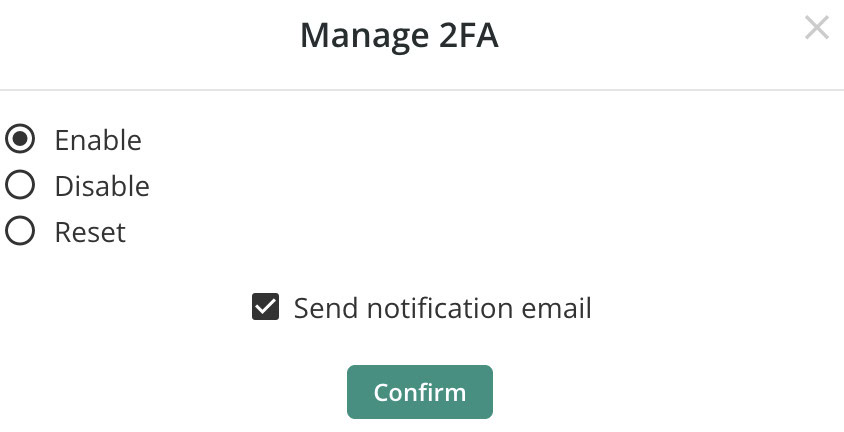
- Reset and review user accounts to ensure no unauthorized users have access to your website. Remove any unused or suspicious user accounts, and verify that all existing users still require their current permission levels. Attackers often create hidden administrator accounts during malware infections, which they use to reinfect your site even after the initial cleanup. Pay special attention to recently created accounts or accounts with unusual usernames.
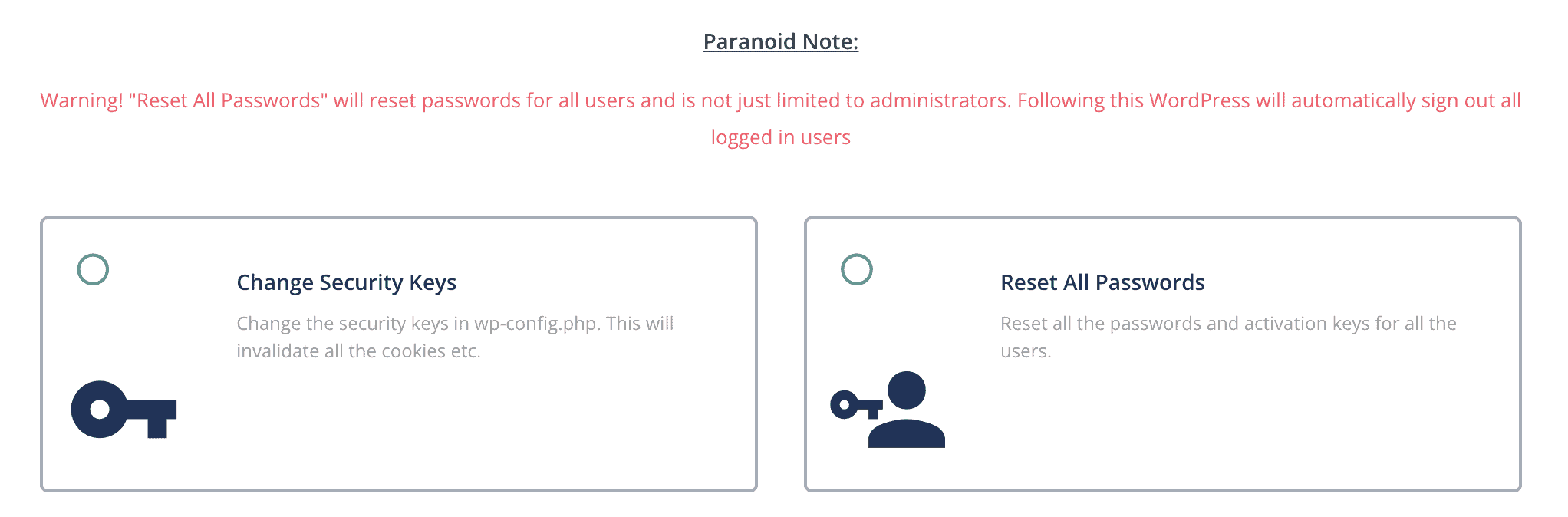
- Change salts and security keys in your WordPress configuration to invalidate any existing authentication cookies that may have been compromised. Generate new security keys using WordPress’s official salt generator and update your wp-config.php file immediately. This step forces all users to log in again with fresh authentication tokens, preventing attackers from using stolen session data to regain access.
- Make sure to use trusted plugins and themes only from official repositories like WordPress.org or reputable premium developers. Nulled themes, cracked plugins, and software from unofficial sources are common vectors for redirect malware. If you must use premium themes or plugins, purchase them directly from the developers rather than downloading “free” versions from third-party sites that may contain malicious code.
- Make sure you have SSL in place with a valid SSL certificate properly configured across your entire website. SSL encryption protects data transmission between your website and visitors, making it harder for attackers to intercept login credentials or inject malicious code. Ensure your SSL certificate is current and that your website properly redirects all HTTP traffic to HTTPS.
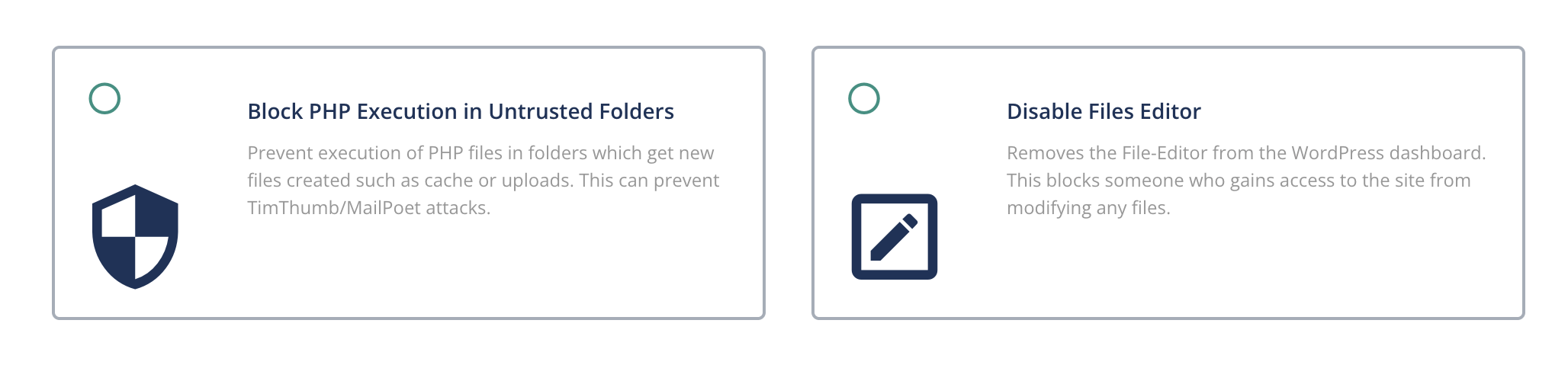
- Harden WordPress by implementing additional security measures beyond basic plugin protection. Disable file editing within the WordPress admin area, limit login attempts, hide your wp-config.php file, and restrict access to sensitive directories. Consider changing your WordPress login URL from the default /wp-admin/ to a custom location that’s harder for automated attacks to find.
- You should also keep everything updated including WordPress core, themes, plugins, and your hosting server’s PHP version. Outdated software contains known vulnerabilities that redirect malware specifically targets. Enable automatic updates where possible, and establish a regular schedule for checking and applying security updates manually for critical components. Use tools like UpdateLens to reduce the risk of failed updates.
- Take regular backups of your website files and database, storing them in a secure location separate from your hosting account. In the event of a successful malware attack, clean backups allow you to quickly restore your website without losing significant data or revenue. Test your backup restoration process regularly to ensure it works when needed, and maintain multiple backup versions in case malware goes undetected for extended periods.
Final thoughts
Google search results that redirect to spam sites is a threat to your website’s credibility, search rankings, and revenue potential. When visitors expect to land on your professional website but instead find themselves on casino sites or adult content.
My big takeaway was that a security plugin like MalCare could have prevented it all. The malware scanner would have caught it. The firewall would have caught it. The login security would have prevented it. A two minute install could have saved me so much time, effort and loss in traffic. But, now we know. Now we can install the plugin and sleep easy.
FAQs
Frequently asked questions
Chrome redirects to spam sites typically because your browser has been infected with malware, malicious extensions, or adware that hijacks your search clicks. Common culprits include fake PDF converters, coupon extensions, or “helpful” toolbars that actually contain redirect code. The malware intercepts when you click on legitimate Google search results and redirects you to spam sites instead. To fix this, disable all Chrome extensions, run a malware scan with MalCare or Malwarebytes, and reset Chrome to its default settings while keeping your bookmarks and passwords.
Google itself isn’t causing the redirects – the problem is malware on your device or website that’s hijacking Google search results redirect to spam sites. To stop this, first scan your computer for malware using tools like MalCare or Malwarebytes, then check your browser for malicious extensions and remove them. If you’re a website owner experiencing this issue, scan your website for malware as the redirect code is likely injected into your site’s files or database. Also consider switching to a secure DNS service like Cloudflare (1.1.1.1) to block malicious redirects at the network level.
Google Search redirects happen when malware intercepts the moment you click on a search result and injects malicious code that sends you to spam sites instead of your intended destination. This can occur due to browser hijackers, malicious extensions, DNS hijacking, or infected website code. The malware is designed to monetize your clicks by redirecting you to affiliate sites, scam pages, or malicious downloads. The redirects often happen so quickly that you don’t realize you’ve been hijacked until you’re already on the spam site.
If Google Search Console shows redirect errors or warnings, first scan your website for malware using a security plugin like MalCare to identify and remove malicious redirect code. Check your .htaccess file for unauthorized redirect rules, examine your website’s header and footer files for injected JavaScript, and review your database for suspicious entries. After cleaning the malware, submit your cleaned pages for re-indexing through Google Search Console’s URL Inspection tool and request a security review if your site was flagged. Monitor your Search Console regularly for new redirect issues that might indicate reinfection.
Your site is redirecting to spam sites because malware has been injected into your website’s code, database, or configuration files. This malware specifically targets visitors coming from search engines, redirecting them to spam sites while showing normal content to you and search engines – making it difficult to detect. The malware typically enters through vulnerabilities in outdated plugins, weak passwords, or infected themes. To fix this, immediately scan your website with a security tool like MalCare, remove all malicious code, update all passwords, and implement security hardening measures to prevent reinfection.


