You open Media → Library to add an image, but instead of seeing your files, you find a spinning loader, blank grid, or grey thumbnails. When the WordPress Media Library is not loading, even a simple content update can suddenly become frustrating.
This guide will help you find and fix the problem without guessing. You’ll begin with simple checks, such as switching between Grid and List view, before testing plugins, browser scripts, server limits, or file links.
By the end, you’ll understand why your media is not loading and know which fix is safest for your website.
TL;DR: Start by opening the library in a private window, try another browser, and compare Grid view with List view; if List view works while the grid spins, inspect the background request and recent plugin, theme, or firewall changes. If the library opens but images are missing, check the uploads path, file access, thumbnails, migration settings, CDN, and server logs; use this guide to WordPress errors when the request returns an error, and back up before changing files, permissions, the database, or bulk media.
Find the symptom before changing settings
Start with the symptom. A spinning grid, empty library, broken thumbnail, upload error, failed search, and 404 image can have different causes.
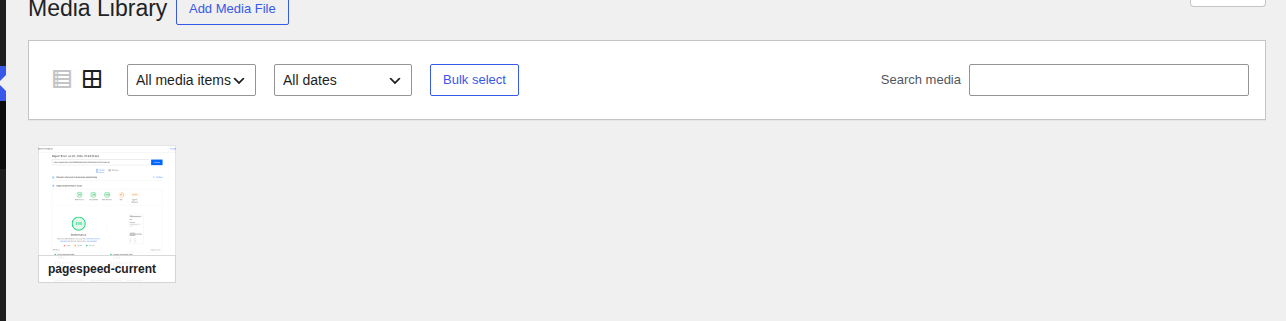
- Grid spins or stays blank: The request that fills the grid may be failing, returning an error page, or returning data that the browser cannot use.
- List view is empty too: Check whether WordPress can query the attachment records, whether you have the right access, and whether the problem affects all media or only recent uploads.
- Attachment names appear but thumbnails are broken: Check the original files, generated image sizes, upload path, permissions, and image delivery. The broader guide to WordPress images not loading can help when the same files are also broken outside wp-admin.
- Uploads fail or disappear: Check your file upload settings, disk space, quotas, server logs, and any security rule that blocks the upload request.
- Search returns no results: Check whether the rest of the library works, whether only new items are missing, and whether the search request shows an error.
- Images work in the editor but not on the site: Compare the image URL, rewrite rules, CDN response, and hotlink or access controls.
Compare Grid and List view first
Switch to Media → Library → List view before making a change. List view is a regular admin page, while Grid view requests media in the background. If List view works, focus on the grid request, browser JavaScript, a plugin or theme, or a security rule. If the admin page is also missing styling, compare the symptom with WordPress CSS not loading.
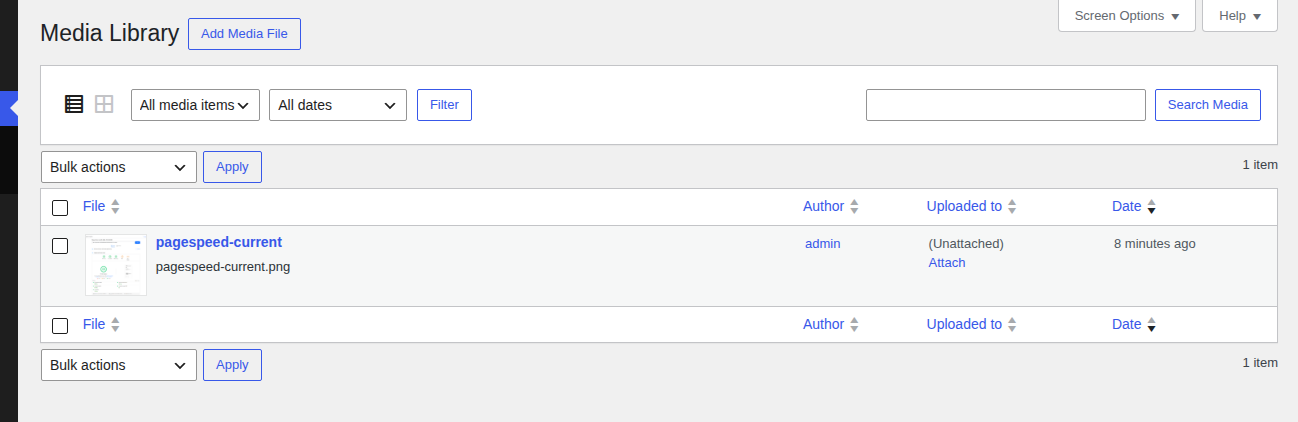
If both views fail, check whether the rest of wp-admin loads normally and whether every attachment is affected. Then check the media query, user access, database health, or site configuration.
Open the same page in a private window or second browser. Disable extensions that block scripts or alter pages. If the library works there, clear that browser’s site data and review the extension. If it still fails, clear the relevant browser or site cache once. This is a reversible check, not a fix for missing files, wrong paths, or server errors. Browser testing can identify a local problem, but it cannot recreate a deleted file or repair a server error.
📝 Note: Record what works before you change anything: Grid view, List view, upload, search, existing thumbnails, and direct image URLs. That short record makes each later test more useful.
Inspect the request when the grid spins
If List view works and Grid view spins, inspect the failed background request. Open your browser’s developer tools, reload the library, and use the Network panel to find a request to /wp-admin/admin-ajax.php or one containing query-attachments. The response status, response body, and time of the failure are usually enough to guide your next step.
- A 403 response often indicates an access or security policy. Check a firewall, security plugin, host rule, or login/session problem.
- A 500 Error, 502, or 503 response often indicates a PHP or server problem. Check for a fatal error, timeout, memory exhaustion, or overloaded service.
- A successful response can still be unusable. A plugin warning, HTML error page, empty response, or malformed data can stop the grid from rendering.
- A clean response with grey tiles points elsewhere. Check thumbnail requests, image URLs, and CDN delivery.
These statuses are clues, not guarantees. Save the status, sanitized response text, and timestamp. A log entry naming a plugin, theme, function, PHP limit, or security module gives you stronger evidence than a page that merely feels slow.
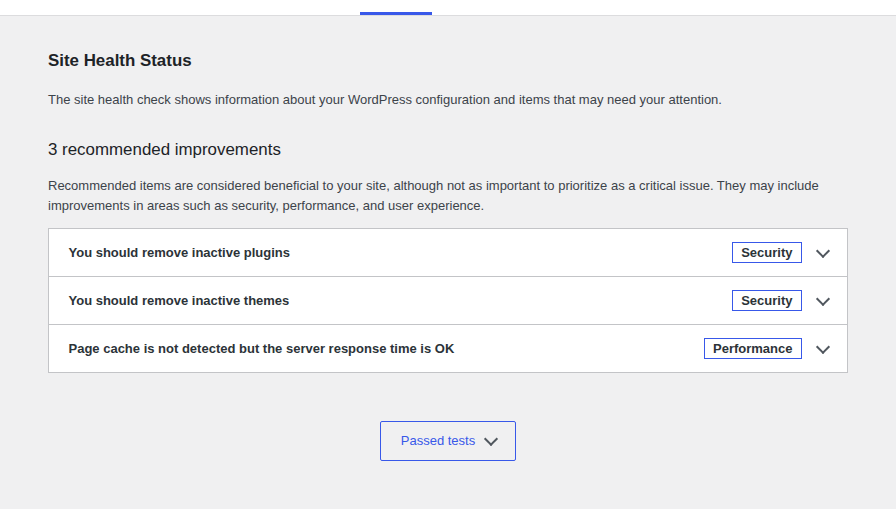
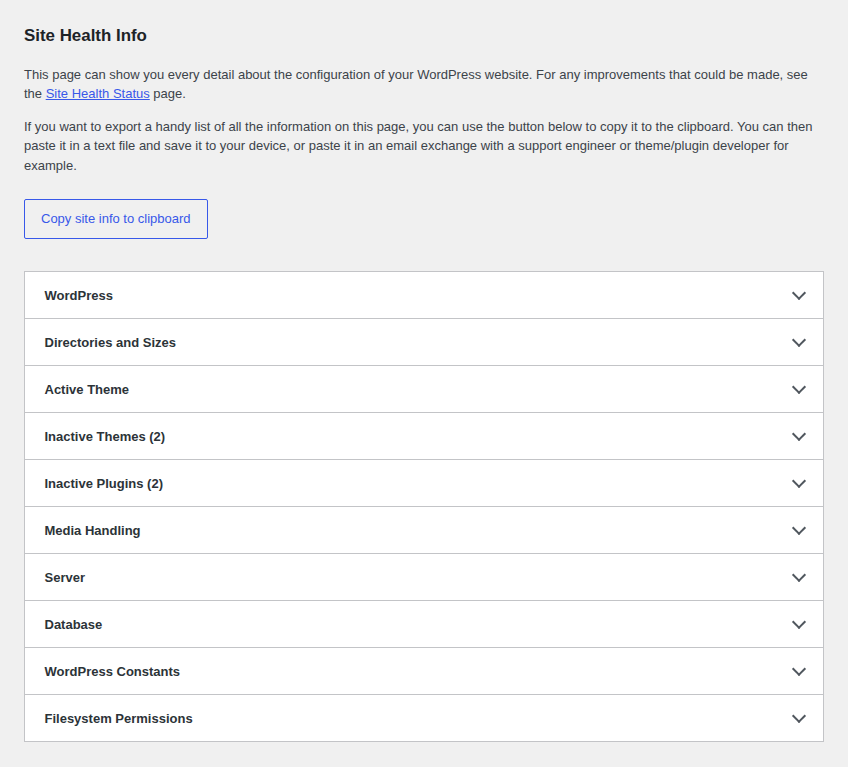
Check Tools → Site Health after recording the failure. Review critical issues and Info for media handling, server details, active plugins, and filesystem permissions. Check PHP and web-server logs for the same timestamp. Never share cookies, authentication headers, private URLs, or unredacted logs publicly.
Isolate plugins and themes safely
Use staging or session-only troubleshooting to test for a conflict. A plugin or theme is a strong suspect when the Media Library stopped working after an update, installation, or configuration change. Avoid disabling everything on a live site if visitors or scheduled tasks depend on those components.
Record your active plugins and the time of the test. In a staging copy or troubleshooting session, test the same Media Library action with plugins disabled. If the problem disappears, reactivate plugins in small groups and repeat the test until the conflict returns. The last plugin or group is a lead, not proof; confirm the result and check the component’s current documentation or error log.
Switch temporarily to a standard WordPress theme if plugins are not responsible. Some themes add admin scripts or filters that affect media selection and uploads. A theme switch is diagnostic, so use an isolated session where possible and restore the original theme after the test.
📝 Note: Troubleshooting mode is useful because it can change plugin and theme behavior for your administrator session without changing what visitors see. It does not prove that a plugin is safe or unsafe; it only narrows the cause of this failure.
If the problem began after an update, include that change in the report. Restore the normal configuration after identifying the conflict, then update, replace, reconfigure, or remove the responsible component.
Check files, paths, and thumbnails for broken images
When attachment records load but images do not, verify the file behind one affected record. Compare its file URL with your current site’s domain and uploads location. An attachment can remain in the database after its original file has been deleted, moved, or made inaccessible. If the library itself is not showing images, use this Media Library not showing images checklist alongside the file test.
Treat a 404 as a missing or misrouted file, not a cache problem. Check the uploads configuration, migration rewrite rules, domain mapping, and any storage or offload service that changes where images are served. If the original image loads but smaller versions do not, the originals may be safe and only generated sizes may be missing. For a page-specific case, compare the featured image not showing checks with your post’s image URL and display settings.
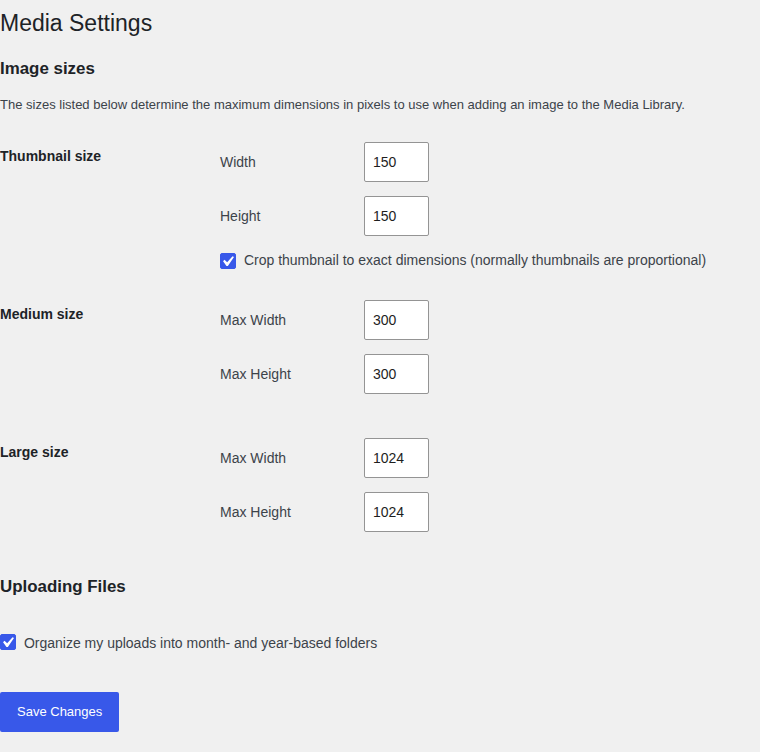
Ask the host to verify ownership and permissions before changing them. Many installations use directory permissions around 755 and file permissions around 644, but the correct values depend on the server’s user, group, and installation method. Do not change the whole site to 777. Broad write access weakens security and can hide the real ownership problem.
Regenerate thumbnails only after confirming that original files exist and derived sizes are the only failure. Thumbnail regeneration will not fix a spinning grid, missing original, wrong uploads path, blocked URL, or CDN error. Back up first and use a process the server can finish without timing out.
📝 Note: A thumbnail is a generated copy of an original image. Rebuilding that copy cannot restore an original that was deleted or moved.
Check storage, PHP limits, and logs
Ask the host to check measured resources instead of increasing limits by guesswork. A large library is not automatically corrupt or beyond a fixed WordPress limit. The useful questions are whether the server has free disk space, the account has reached a quota, the request times out, or PHP runs out of memory while processing attachments. Look for:
- PHP fatal errors or memory exhaustion.
- Timeouts while loading attachments or creating image sizes.
- Disk-space, inode, or account-quota errors.
- A web-server error at the same time as the failed request, including an HTTP error during a WordPress media upload.
- A security module or WAF rule blocking the admin request or image URL.
Change server settings only with a backup and rollback plan. Editing wp-config.php, .htaccess, PHP settings, database values, or file ownership can take the site down. If you cannot identify the setting, its current value, and the reason for changing it, give the evidence to the host instead.
Test caches, CDNs, and security layers narrowly
Test one delivery or security layer at a time and restore protection immediately. Page caches, object caches, CDNs, ModSecurity, web application firewalls, antivirus extensions, and hotlink protection can affect admin requests or image delivery.
Purge the relevant cache only after a confirmed configuration change. Cache clearing cannot restore a deleted image, fix a PHP fatal error, or change a database path. If a CDN returns a 403 or serves an old domain, compare the CDN URL, origin response, rewrite rules, and cache status.
Prefer a narrow exception for the failing request over a global security disable. If a controlled test shows that a rule blocks the Media Library, give the provider the request path, response status, timestamp, and sanitized response. Ask for the smallest temporary exception and confirm that the rule is active again afterward.
Repair migration and multisite-specific problems
After a migration, compare one affected image URL with your current domain and uploads location. A migration can change the domain, document root, upload path, database URLs, or rewrite rules while leaving attachment records behind. A 404 caused by an old path needs a path or URL repair, not thumbnail regeneration first.
Backup before any database search and replace. Use a tool that understands serialized WordPress data, or ask the migration provider to verify the site URL, home URL, attachment metadata, upload path, and rewrite configuration. Do not run a broad replacement because one image URL looks wrong.
On multisite, identify the affected site and your user role before changing shared settings. Network permissions, domain mapping, site-specific paths, and shared upload behavior can change the diagnosis. Record whether other sites or administrators see the same failure, then ask the network host to check the relevant logs and paths.
Treat security as a conditional branch
Investigate malware when the Media Library problem appears with other signs of compromise. Those signs include unauthorized users, unexplained redirects, altered files, unfamiliar administrator activity, or recurring breakage after ordinary fixes. Review these alongside broader WordPress security issues. Without those indicators, request failures, plugin conflicts, paths, resources, and delivery rules are more direct explanations.
Take a backup or forensic copy according to your incident process before changing suspicious files. A reputable malware scanner can help identify malicious changes. MalCare is relevant in this branch because its security workflows provide malware scanning and security-focused monitoring or cleanup. It is not a substitute for fixing a plugin conflict, correcting an uploads path, or asking the host to resolve a server error.
📝 Note: A broken Media Library alone does not prove that a site is hacked. Use the surrounding evidence to decide whether this is a security incident or a technical failure.
Know when to contact your host or developer
Escalate when the evidence points outside the WordPress editor. Contact the host, plugin or theme developer, migration provider, CDN, or security provider when:
- Logs show a PHP fatal, server error, quota problem, timeout, or WAF block.
- The repair requires changing file ownership, database values, server configuration, or CDN rules.
- The site is on multisite and shared paths or permissions are involved.
- A plugin or theme conflict returns after a controlled, repeatable test.
- Images or thumbnails are missing from storage rather than just hidden in the admin view.
Send a concise diagnostic report. Include your exact symptom, whether Grid view and List view work, the failed request’s timestamp and status, a sanitized error line, the last relevant site change, and whether originals and direct image URLs load.
Conclusion
The fastest fix for a WordPress Media Library that is not loading comes from matching the symptom to evidence. Compare Grid and List view, test the browser, inspect the failed request or image URL, and isolate plugins, themes, paths, resources, and delivery layers in that order.
Protect the site while you troubleshoot: back up before file or database changes, avoid 777 permissions and global security disables, and escalate server, multisite, migration, or compromise indicators with a concise report.