
Is your WordPress featured image not showing and ruining your posts’ look?
Don’t worry, you’re not alone in this struggle! Many WordPress users face the same issue.
Featured images are super important. They make your posts eye-catching and inviting. Without them, your posts can seem dull and incomplete. Maybe your theme isn’t supporting images, or there’s a pesky error when you upload pictures. It could even be a hidden setting in your dashboard that’s playing tricks on you.
But don’t fret! Fixing this problem is easier than you might think. As folks who know WordPress inside out, we’re here to help you fix this error step by step.
We’ll go through these common problems and more. By following our easy tips, you’ll have your featured images back in no time. Let’s get started and bring some visual fun back to your WordPress site!
If you are facing the WordPress featured image not showing error, check that your theme and settings support these images. Look out for common issues like plugin conflicts or upload errors. Make sure that featured images are visible in the WordPress dashboard settings. Before trying any fixes, always backup your site to keep your content safe.
1. Verify that the featured image exists
Sometimes, images don’t show because they just don’t exist or their links are broken. Go to your media library and check if the image is present there.
Also check if the URL of the featured image is correct. If the image is missing or its link is broken, you might need to re-upload the image. This can make it appear correctly and fix the WordPress featured image not showing error.

2. Check theme support for feature images
To fix the WordPress featured image not showing error, ensure your theme supports them in the first place. Go to your theme’s functions.php file and look for the following line:
add_theme_support('post-thumbnails');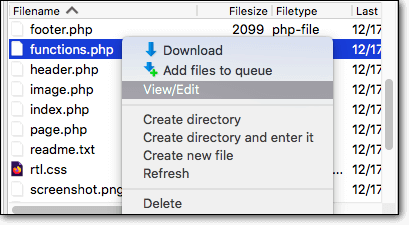
If this line is missing, you can add it. This small code addition tells WordPress that your theme can handle featured images, making them available when you create posts or pages.
3. Check file permissions
File permissions control who can view or edit a file on your server. If these are set wrong, your images might not display and lead to the WordPress featured image not showing error.
Typically, directories should have permissions set to 755, and files should be 644. You can adjust these permissions through your hosting control panel or an FTP client.

Also ensure that no plugin or custom code blocks featured images from appearing. Check content visibility settings to confirm that images are set to show.
4. Clear all your WordPress caches
Cached data can cause outdated versions of your site to display, hiding updates like new images. Be sure to clear your browser cache and any caching plugins you use. This step ensures your site loads the latest files and avoids the WordPress featured image not showing error.

5. Check for plugin and theme conflicts
Plugin conflicts can interfere with how your site works. Temporarily deactivate them to see if they are causing the WordPress featured image not showing error. If the image reappears, turn plugins back on one by one to find the culprit.

Also check if switching to a default WordPress theme helps fix this error. Using a theme like Twenty Twenty-Two can help rule out theme-related issues. If changing the theme fixes the problem, check with your theme developer for solutions or updates.
6. Regenerate thumbnails
When image sizes are not set right, your featured image might not look correct. Use a plugin like Regenerate Thumbnails to fix this. The plugin adjusts all images to the right sizes, making sure they display well across your site.

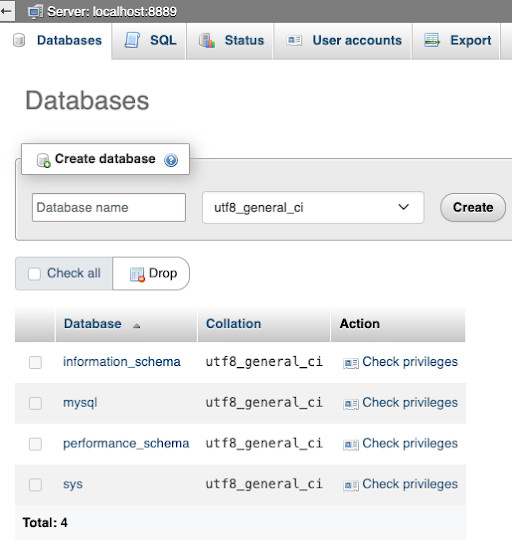
7. Check for database corruption
A corrupt database might cause display issues like the WordPress featured image not showing error. Repair your database either by using tools provided by your web host or from within your WordPress dashboard to fix database problems.
8. Keep your site updated
Outdated software can cause issues like the WordPress featured image not showing error. Keep your site software updated, including WordPress core, your themes, and all plugins, for higher security and better compatibility.

Also remember to use staging sites to try out any updates before applying them to your live site. This helps prevent any issues that could potentially arise from the updates.
9. Fix the HTTP error when uploading feature images
Sometimes, you face an HTTP error when uploading images. To fix this, increase the PHP memory limit by editing wp-config.php and add the following line:
define('WP_MEMORY_LIMIT', '256M');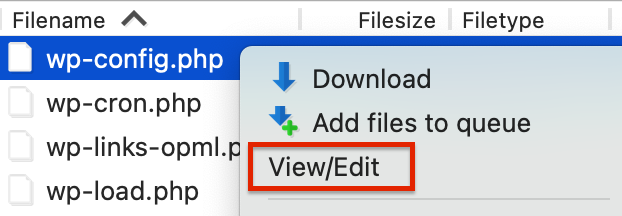
If needed, change the image editor to gd by adding the following line:
define('IMAGE_EDITOR', 'gd');Also, check the image size and browser you are using. Ensuring proper image dimensions and switching to another browser could sometimes fix the WordPress featured image not showing error.
10. Disable lazy loading
Lazy loading defers image loads until the user scrolls near them. If it’s causing issues like the WordPress featured image not showing error, remove the loading="lazy" attribute from your theme’s functions.php file.
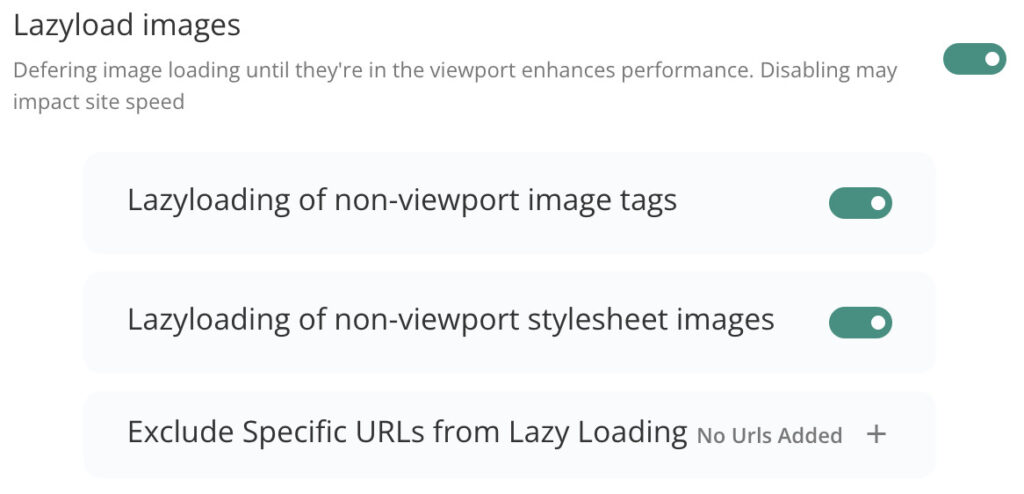
Or, if you use a plugin to control lazy loading, tweak settings that let you exclude featured images from this process.
11. Configure WordPress dashboard settings to show featured images
Sometimes, WordPress post settings may have featured images disabled. This can lead to the WordPress featured image not showing error.
To fix this, go to Screen Options in the post editor and check that Featured Image is selected.

You might also want to use a plugin like the Membership & User Role Editor to ensure all roles can manage featured images.
12. Inspect console for errors
JavaScript errors may stop images from showing and lead to the WordPress featured image not showing error.
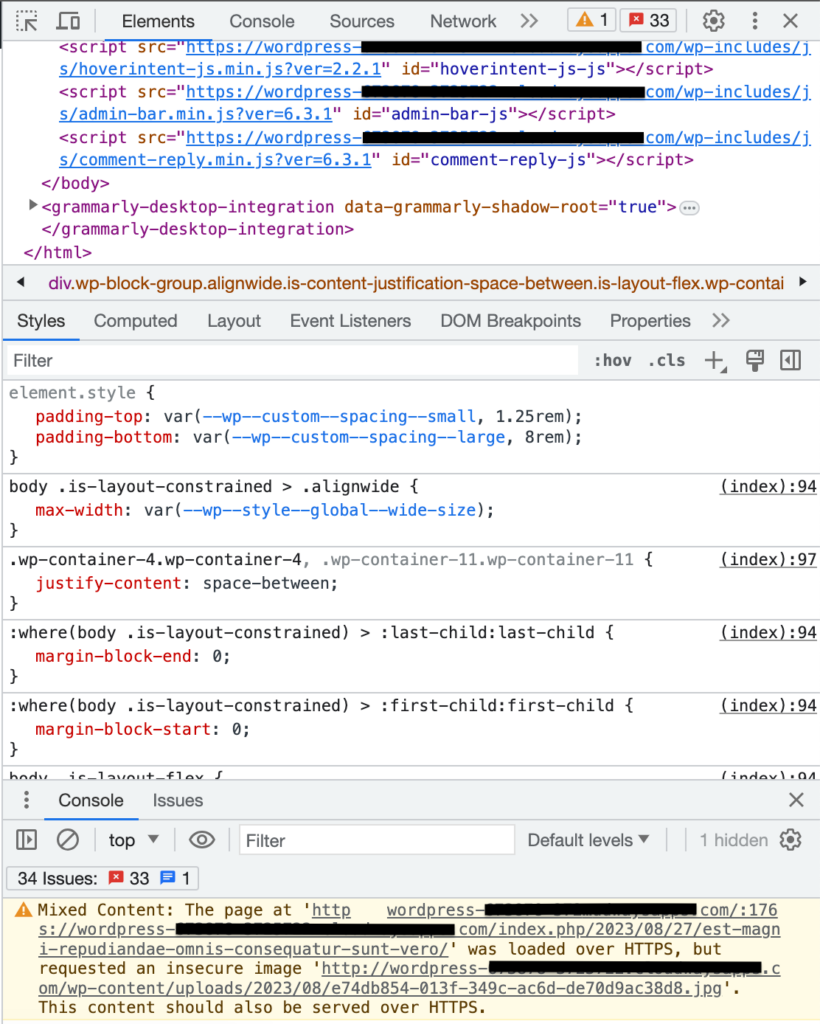
Use the browser’s developer tools to check for these errors. Console errors often provide clues about what’s wrong and how to fix it.
Note that this is a very technical step, so proceed with this only if you know what you are doing.
13. Fix issues with the featured image not showing on blog post gallery pages
If you are a WordPress developer, ensure your template files, like index.php or archive.php, do not have any code that prevents displaying images. Use WordPress functions like the_post_thumbnail() for correct image loading. Also, double-check theme settings to show images in galleries.
How to prevent the WordPress featured image not showing error in the future?
The WordPress featured image not showing error can be avoided by following these tips:
- Choose a reliable theme: Pick a theme from trusted developers. Ensure it supports featured images, well-documented, and updated frequently. We recommend sticking to themes from the WordPress repository or premium ones from marketplaces like Envato and ThemeForest.
- Regular updates: Always update WordPress, your themes, and plugins. This keeps your site safe from bugs and compatible with new features.
- Consistent backups: Regularly backup your site, including all files and databases. Tools like MalCare make this easy by taking automatic backups. This ensures you’re always ready to restore your site if something goes wrong.
- Use quality plugins: Choose plugins from reputable sources. Look for good ratings and reliable support. Poor quality plugins often lead to conflicts and errors, like WordPress featured image not showing.
- Monitor image uploads: Upload images in recommended sizes and formats to avoid errors like the WordPress featured image not showing one. Use image compression plugins to keep your site fast.
- Use a testing environment: Test changes like updates and settings in a staging environment first. That way, you can catch issues without affecting your live site.
- Keep an eye on error logs: Regular checks on server and WordPress logs can help you spot problems early.
- Use a Content Delivery Network (CDN): Use a CDN to speed up image loading and reduce server load. CDNs distribute your content globally, improving access time and reliability. This can prevent the WordPress featured image not showing error.
Final thoughts
Facing issues with WordPress featured images can be annoying, but there are easy ways to fix them. Check if your theme supports images and keep WordPress updated. Make sure to tweak settings that might hide your images. Regular updates and good plugins help prevent problems. Also, adjusting settings for lazy loading and gallery pages can improve image display.
Before trying any fixes, always back up your site. A backup keeps your content safe if something goes wrong. Use tools like MalCare to automate the backup process. Having a recent backup means you can relax, knowing your site is secure. Taking time to back up is worth it to protect your WordPress site.
FAQs
Your featured image might not show up in WordPress due to several reasons. Check if the image is properly set as a featured image in the post editor. There could be theme issues; some themes display featured images differently or may not support them. Plugin conflicts might also be blocking the image, especially if you recently installed or updated one. Make sure WordPress, your theme, and plugins are up-to-date. Clear your cache and check your site’s permissions to ensure images can be accessed. If the problem continues, try switching to a default theme to see if that resolves the issue.
To activate the featured image in WordPress, go to your WordPress dashboard, and open the post or page where you want to add the featured image. In the post editor, look for the Featured Image box, usually on the right side. If you don’t see it, click on Screen Options at the top of the page and check the Featured Image box to make it visible. Click Set Featured Image, choose an image from your media library, or upload a new one. Finally, click Set Featured Image to confirm your choice. Remember to save or update your post to keep the changes.
Your WordPress theme might not show images for several reasons. There could be a problem with the theme settings or a recent update that disrupted image display. Plugin conflicts might also cause issues, especially if a plugin affects how images load. Check your theme’s image size settings to ensure they match your requirements. Make sure images are properly uploaded and not missing from the media library. It’s also helpful to clear your cache and check for any file permission issues on your server. If problems persist, try switching to a default theme to see if the images appear, which can indicate a problem with your current theme.