Are your WordPress emails going to spam? This is likely because your emails have been flagged for spam. The Spamhaus check IP website will be able to tell you if your website is sending spam emails.
Side note: If you’re worried about malware, scan your site now.
Gmail and Outlook rely on Spamhaus data. This means that your server’s IP address can be blocked from sending emails to millions of inboxes.
The good news? Most Spamhaus listings are fixable within hours. This guide shows you how to check your IP status, understanding why you were listed, and getting delisted fast.
Go to Spamhaus IP Reputation Checker. Enter your IP, click “Lookup.” If listed, clean malware and secure your server. Then request removal through their portal.
Every hour your IP is listed on Spamhaus means important emails are not being received by your customers. Missed order confirmations, abandoned password resets, and frustrated customers. The timer has started. You have to fix your website quickly.
How to Run a Spamhaus IP Lookup
If your WordPress site is sending spam emails, Spamhaus blacklists are your first warning. To check IP on Spamhaus, head to Spamhaus IP Lookup. Enter your server’s public IP address in the search box and cick Lookup.
📝 Expert advice: Not sure what your IP address is? Your hosting provider’s control panel usually displays it, or Google “what’s my IP” if you’re checking from your office connection.
✅ Not Listed: Your IP is clean. Spamhaus isn’t blocking you, so your email delivery problems stem from something else—maybe SPF records, domain reputation, or content filters.
❌ Listed: You’ll see red text with acronyms like SBL, XBL, or PBL. Each one tells a different story about why you’re in email jail.
Understanding the Spamhaus check IP results?
Now you know that Spamhaus is blocking an IP address, you need to figure out why. Unfortunately, the results can be confusing if you don’t know what those three-letter codes mean. Understanding which blocklist flagged you gives you a starting point to fix the issue.
Here is an explanation of the results:
- SBL (Spamhaus Block List): Your IP was caught red-handed sending spam. This usually means your server got compromised, or someone’s been abusing your contact forms.
- XBL (Exploits Block List): Your IP is part of a botnet or running malicious software. Hackers love hijacking WordPress sites for this exact purpose.
- PBL (Policy Block List): You’re trying to send emails from a residential or dynamic IP address. This is expected behavior for home internet connections. But if you’re running a business website from your office broadband, this explains everything.
Most listings happen because spam got sent from your server or network, whether you knew it or not. This usually means that your site is hacked. Maybe hackers have exploited your forms to send more spam. Unfortunately, the Spamhaus blacklist checker doesn’t tell you if there is malware on your site. In the next section, we’ll talk about how to find the malware and clear it quickly.
Fixing the Spamhaus blacklist
Hacked websites spread damage fast. Malware could be sending spam through your server and stealing customer data. You have to find the malware and clean your site as soon as possible. Only then can you request a Spamhaus removal.
Step 1: Scan Servers for Malware
The first thing you need is a plugin that scans for malware to find out why your IP is on Spamhaus. Use a plugin like MalCare that can scan thousands of files in minutes. They’re able to spot obfuscated code and backdoors hiding in places you’d never think to check.
MalCare scans deeply without slowing your site. Additionally, unlike a lot of other security plugins, MalCare is able to find malware in your database too. There is nowhere for the malware to hide. Once you install the plugin and let it scan your site, you will get a full report in minutes.
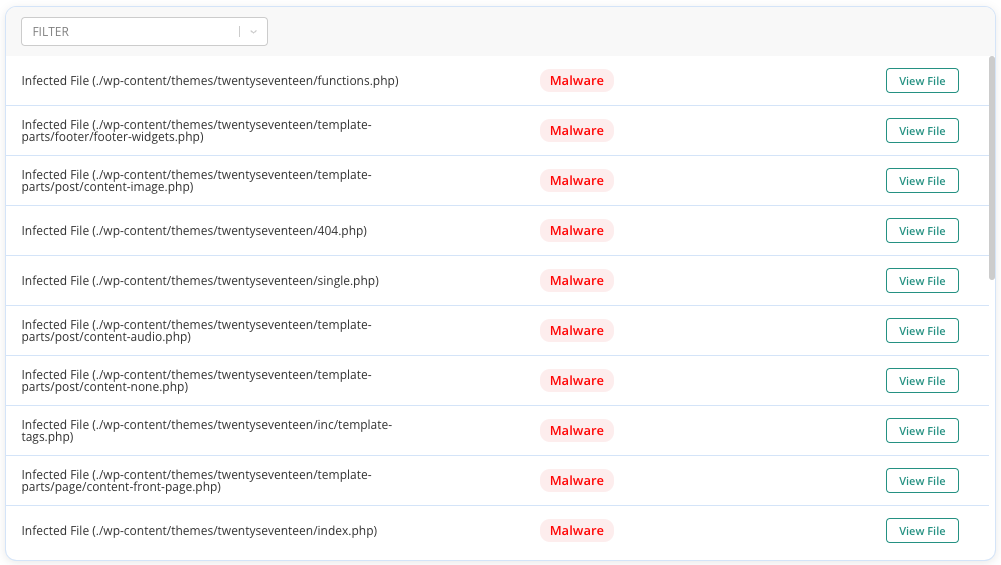
Other methods like online scanners and manual scanning can be tempting because they’re free. But neither are reliable. Online scanners only find surface level issues. Manual scanning requires the expertise to find malicious code. Both run the risk of missing hidden malware.
Step 2: Remove the Malware
The next step is to use a malware removal plugin like MalCare. They can automatically clean infections while preserving your legitimate files and database entries. They know which code belongs in WordPress core files and which doesn’t, so they can strip out malicious injections without corrupting your site.
When we used MalCare to clean a hacked website, it only took minutes. All we had to do was click a button on their dashboard. It was easy, quick and reliable.
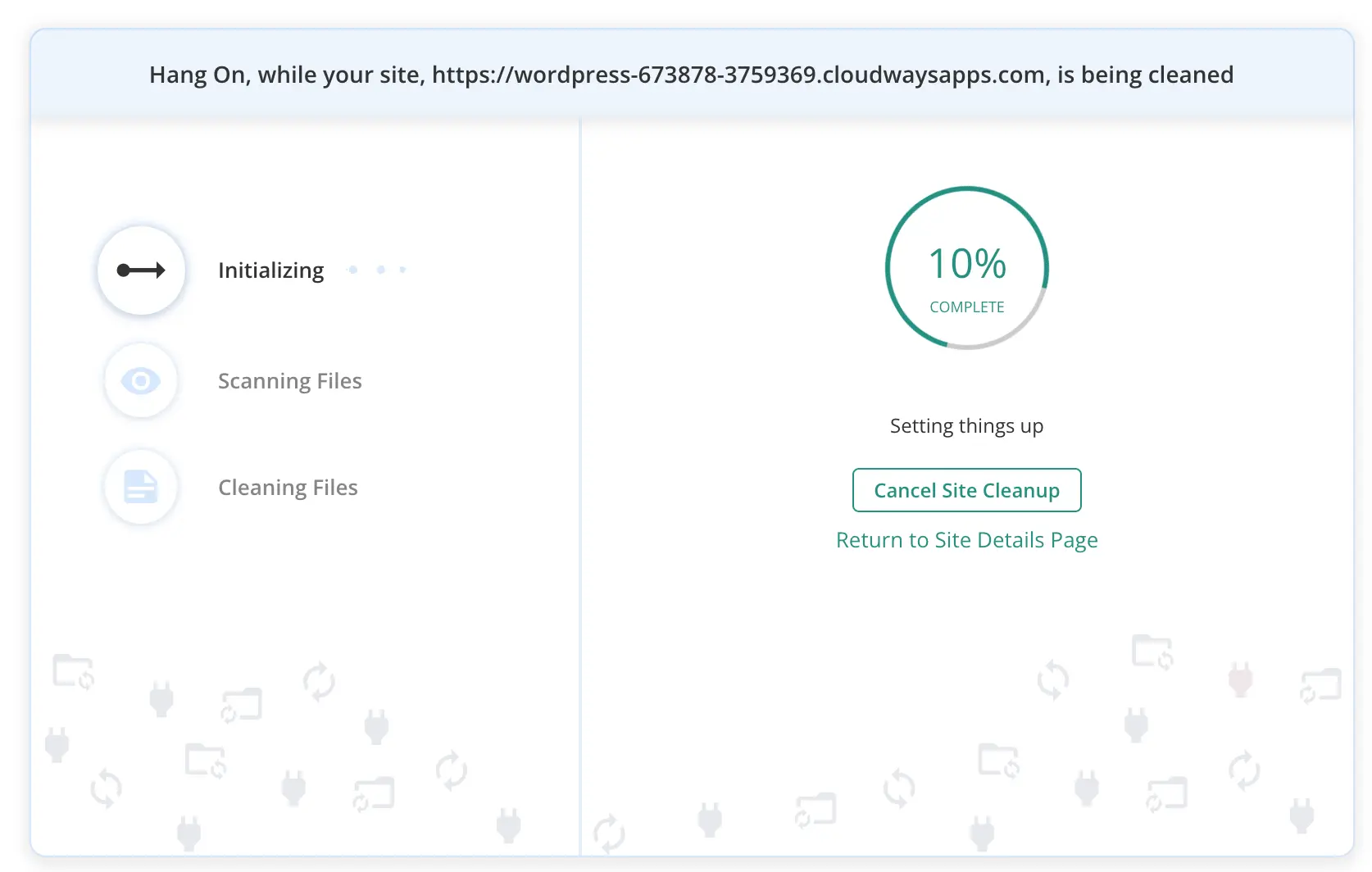
Malware removal services and manual cleanup are also options. But both have serious drawbacks. Professional services cost $200-500 and take 24-48 hours. Manual removal services are also time consuming and tedious.
Step 3: Requesting Removal
Go back to the website and check IP on Spamhaus. Click the “Show Details” link in your Spamhaus results. Each blocklist has its own specific removal process, and the “Show Details” page gives you the exact link you need.
Click that removal link and you’ll land on a form asking for your IP address and evidence that you’ve fixed the problem. Submit as much evidence as possible to prove that you’ve cleaned the house. Most removal requests get processed within 2-4 hours. Some take up to 24 hours, especially if they need to verify your cleanup work.

📝 Expert Advice: Don’t submit multiple requests if you don’t hear back immediately. That just slows down the process.
Troubleshooting Common Spamhaus Issues
Removing your site from Spamhaus is usually straightforward. But, maybe you see one of the following issues:
Error 1: “My IP is listed but I don’t send spam!”
Use your ISP’s SMTP server like WP Mail SMTP instead. You could also switch to a service like Gmail SMTP, Outlook, or a dedicated email service. This routes your emails through servers that are designed and authorized for email delivery.
Error 2: “My delisting request failed. What now?”
Spamhaus blacklist rejected your removal request because they can still see evidence of the original problem. Go back and scan deeper. Run another comprehensive malware scanwith a different tool. Sometimes one scanner catches infections that others miss. Fix everything you find, wait 24 hours, then submit a new removal request with details about the additional cleanup. If you’re still stuck after multiple attempts, contact Spamhaus support through their help portal.
Preventing Future Spamhaus Listings
Getting delisted is only half the battle. The real victory is staying off those blocklists permanently. Most site owners who end up back on Spamhaus within months make the same mistake: they fix the immediate problem but ignore the underlying security gaps that let hackers in.
- Set up SPF, DKIM, and DMARC email authentication. These protocols tell email providers that you’re the legitimate sender of emails from your domain. Without them, spammers can easily forge emails that appear to come from your domain, potentially getting your IP flagged. Most hosting providers can enable these for you, or plugins like WP Mail SMTP handle the technical setup automatically.
- Keep WordPress, themes, and plugins updated religiously. Most malware infections happen through known vulnerabilities that have patches available. Use a vulnerability scanner regularly and watch for these outdated plugins.
- Run weekly IP checks using free tools like MXToolbox. Set a calendar reminder to check your IP status every week. MXToolbox scans multiple blacklists at once, not just Spamhaus.
- Enable server security alerts: Most security plugins offer notifications for suspicious login attempts, unusual file changes, or email volume spikes.
Final Thoughts
Spamhaus listings aren’t death sentences for your email delivery. Most sites get delisted within hours once they actually fix the underlying problem. The key word here is “actually.” Half-hearted cleanup attempts that leave malware fragments or security holes will just land you back on the blocklist next week.
Consider installing a plugin like MalCare that can protect you. MalCare handles the heavy lifting with automated malware scans, real-time blocklist monitoring, and instant cleanup. This reduces the chance of blacklists like Spamhaus ever flagging your IP address.
FAQs
Frequently asked questions
Go to check.spamhaus.org and enter your IP address in the search box. Click “Lookup” and you’ll immediately see if you’re listed on any Spamhaus blocklists. For broader coverage, use MXToolbox.com to check your IP against 100+ different blacklists at once, not just Spamhaus.
First, fix whatever got you listed in the first place. Clean malware, secure your email server, or stop sending emails from residential IP addresses. Then go to your Spamhaus results page, click “Show Details,” and follow the removal link for your specific blocklist. Submit evidence that you’ve fixed the problem. Most removals happen within 2-24 hours.
Three main reasons: spam was sent from your server (usually due to malware), your server is misconfigured as an open email relay, or you’re trying to send emails from a residential/dynamic IP address. Check your Spamhaus listing details to see which blocklist flagged you. SBL means direct spam, XBL means malware/botnet activity, PBL means improper IP type for email sending.
If you mean checking what IP address you’re using, Google “what’s my IP” or check your hosting control panel. If you mean checking if an IP is on blacklists, use check.spamhaus.org for Spamhaus specifically, or MXToolbox.com for comprehensive blacklist checking across multiple databases.